

VOTING POWER100.00%
DOWNVOTE POWER100.00%
RESOURCE CREDITS100.00%
REPUTATION PROGRESS0.00%
Net Worth
0.034USD
STEEM
0.001STEEM
SBD
0.000SBD
Effective Power
5.001SP
├── Own SP
0.630SP
└── Incoming DelegationsDeleg
+4.371SP
Detailed Balance
| STEEM | ||
| balance | 0.001STEEM | STEEM |
| market_balance | 0.000STEEM | STEEM |
| savings_balance | 0.000STEEM | STEEM |
| reward_steem_balance | 0.000STEEM | STEEM |
| STEEM POWER | ||
| Own SP | 0.630SP | SP |
| Delegated Out | 0.000SP | SP |
| Delegation In | 4.371SP | SP |
| Effective Power | 5.001SP | SP |
| Reward SP (pending) | 0.000SP | SP |
| SBD | ||
| sbd_balance | 0.000SBD | SBD |
| sbd_conversions | 0.000SBD | SBD |
| sbd_market_balance | 0.000SBD | SBD |
| savings_sbd_balance | 0.000SBD | SBD |
| reward_sbd_balance | 0.000SBD | SBD |
{
  "balance": "0.001 STEEM",
  "savings_balance": "0.000 STEEM",
  "reward_steem_balance": "0.000 STEEM",
  "vesting_shares": "1026.272527 VESTS",
  "delegated_vesting_shares": "0.000000 VESTS",
  "received_vesting_shares": "7117.387279 VESTS",
  "sbd_balance": "0.000 SBD",
  "savings_sbd_balance": "0.000 SBD",
  "reward_sbd_balance": "0.000 SBD",
  "conversions": []
}
Account Info
| name | wsf |
| id | 468290 |
| rank | 1,427,294 |
| reputation | 149725370 |
| created | 2017-11-29T06:59:36 |
| recovery_account | steem |
| proxy | None |
| post_count | 6 |
| comment_count | 0 |
| lifetime_vote_count | 0 |
| witnesses_voted_for | 0 |
| last_post | 2017-12-17T05:57:48 |
| last_root_post | 2017-12-17T05:55:18 |
| last_vote_time | 2017-12-22T23:03:39 |
| proxied_vsf_votes | 0, 0, 0, 0 |
| can_vote | 1 |
| voting_power | 0 |
| delayed_votes | 0 |
| balance | 0.001 STEEM |
| savings_balance | 0.000 STEEM |
| sbd_balance | 0.000 SBD |
| savings_sbd_balance | 0.000 SBD |
| vesting_shares | 1026.272527 VESTS |
| delegated_vesting_shares | 0.000000 VESTS |
| received_vesting_shares | 7117.387279 VESTS |
| reward_vesting_balance | 0.000000 VESTS |
| vesting_balance | 0.000 STEEM |
| vesting_withdraw_rate | 0.000000 VESTS |
| next_vesting_withdrawal | 1969-12-31T23:59:59 |
| withdrawn | 0 |
| to_withdraw | 0 |
| withdraw_routes | 0 |
| savings_withdraw_requests | 0 |
| last_account_recovery | 1970-01-01T00:00:00 |
| reset_account | null |
| last_owner_update | 1970-01-01T00:00:00 |
| last_account_update | 2017-11-29T07:26:00 |
| mined | No |
| sbd_seconds | 0 |
| sbd_last_interest_payment | 1970-01-01T00:00:00 |
| savings_sbd_last_interest_payment | 1970-01-01T00:00:00 |
{
  "id": 468290,
  "name": "wsf",
  "owner": {
    "weight_threshold": 1,
    "account_auths": [],
    "key_auths": [
      [
        "STM5dabxA5pkARdt2iEHt3cb8DkeEZY1Ek6zwcRH8DgFywTo464Z2",
        1
      ]
    ]
  },
  "active": {
    "weight_threshold": 1,
    "account_auths": [],
    "key_auths": [
      [
        "STM6TFANxFKuK3kiCK3finXUijEfzSoD6Gf4KMvqZFjSM7SJhXUzM",
        1
      ]
    ]
  },
  "posting": {
    "weight_threshold": 1,
    "account_auths": [],
    "key_auths": [
      [
        "STM64HhtDY8AMtePxrFLzRb9u6SSTVTvnoXocManAJW66RPW1zsDJ",
        1
      ]
    ]
  },
  "memo_key": "STM7sUFswVCcR6CPSmd6gwdcLM2Jm9Jwd46zpNZGSpzWLh7e8XS9p",
  "json_metadata": "{\"profile\":{\"profile_image\":\"http://upload.jianshu.io/users/upload_avatars/1457239/ad2c7f02-f038-4755-b094-8c7484428196.png?imageMogr2/auto-orient/strip|imageView2/1/w/240/h/240\",\"cover_image\":\"http://upload.jianshu.io/users/upload_avatars/1457239/ad2c7f02-f038-4755-b094-8c7484428196.png?imageMogr2/auto-orient/strip|imageView2/1/w/240/h/240\",\"name\":\"WSF\",\"about\":\"coding & writing\",\"location\":\"china\",\"website\":\"http://www.jianshu.com/u/d35a64082cb3\"}}",
  "posting_json_metadata": "{\"profile\":{\"profile_image\":\"http://upload.jianshu.io/users/upload_avatars/1457239/ad2c7f02-f038-4755-b094-8c7484428196.png?imageMogr2/auto-orient/strip|imageView2/1/w/240/h/240\",\"cover_image\":\"http://upload.jianshu.io/users/upload_avatars/1457239/ad2c7f02-f038-4755-b094-8c7484428196.png?imageMogr2/auto-orient/strip|imageView2/1/w/240/h/240\",\"name\":\"WSF\",\"about\":\"coding & writing\",\"location\":\"china\",\"website\":\"http://www.jianshu.com/u/d35a64082cb3\"}}",
  "proxy": "",
  "last_owner_update": "1970-01-01T00:00:00",
  "last_account_update": "2017-11-29T07:26:00",
  "created": "2017-11-29T06:59:36",
  "mined": false,
  "recovery_account": "steem",
  "last_account_recovery": "1970-01-01T00:00:00",
  "reset_account": "null",
  "comment_count": 0,
  "lifetime_vote_count": 0,
  "post_count": 6,
  "can_vote": true,
  "voting_manabar": {
    "current_mana": "8143659806",
    "last_update_time": 1779092322
  },
  "downvote_manabar": {
    "current_mana": 2035914951,
    "last_update_time": 1779092322
  },
  "voting_power": 0,
  "balance": "0.001 STEEM",
  "savings_balance": "0.000 STEEM",
  "sbd_balance": "0.000 SBD",
  "sbd_seconds": "0",
  "sbd_seconds_last_update": "1970-01-01T00:00:00",
  "sbd_last_interest_payment": "1970-01-01T00:00:00",
  "savings_sbd_balance": "0.000 SBD",
  "savings_sbd_seconds": "0",
  "savings_sbd_seconds_last_update": "1970-01-01T00:00:00",
  "savings_sbd_last_interest_payment": "1970-01-01T00:00:00",
  "savings_withdraw_requests": 0,
  "reward_sbd_balance": "0.000 SBD",
  "reward_steem_balance": "0.000 STEEM",
  "reward_vesting_balance": "0.000000 VESTS",
  "reward_vesting_steem": "0.000 STEEM",
  "vesting_shares": "1026.272527 VESTS",
  "delegated_vesting_shares": "0.000000 VESTS",
  "received_vesting_shares": "7117.387279 VESTS",
  "vesting_withdraw_rate": "0.000000 VESTS",
  "next_vesting_withdrawal": "1969-12-31T23:59:59",
  "withdrawn": 0,
  "to_withdraw": 0,
  "withdraw_routes": 0,
  "curation_rewards": 0,
  "posting_rewards": 0,
  "proxied_vsf_votes": [
    0,
    0,
    0,
    0
  ],
  "witnesses_voted_for": 0,
  "last_post": "2017-12-17T05:57:48",
  "last_root_post": "2017-12-17T05:55:18",
  "last_vote_time": "2017-12-22T23:03:39",
  "post_bandwidth": 0,
  "pending_claimed_accounts": 0,
  "vesting_balance": "0.000 STEEM",
  "reputation": 149725370,
  "transfer_history": [],
  "market_history": [],
  "post_history": [],
  "vote_history": [],
  "other_history": [],
  "witness_votes": [],
  "tags_usage": [],
  "guest_bloggers": [],
  "rank": 1427294
}
Withdraw Routes
| Incoming | Outgoing |
|---|---|
Empty | Empty |
{
  "incoming": [],
  "outgoing": []
}From Date
To Date
2026/05/18 08:18:42
2026/05/18 08:18:42
| delegator | steem |
| delegatee | wsf |
| vesting shares | 7117.387279 VESTS |
| Transaction Info | Block #106153079/Trx ce2d5e063d91db8c01321e172acfbbf9a6d567b7 |
View Raw JSON Data
{
  "trx_id": "ce2d5e063d91db8c01321e172acfbbf9a6d567b7",
  "block": 106153079,
  "trx_in_block": 0,
  "op_in_trx": 0,
  "virtual_op": 0,
  "timestamp": "2026-05-18T08:18:42",
  "op": [
    "delegate_vesting_shares",
    {
      "delegator": "steem",
      "delegatee": "wsf",
      "vesting_shares": "7117.387279 VESTS"
    }
  ]
}2026/05/13 12:33:42
2026/05/13 12:33:42
| delegator | steem |
| delegatee | wsf |
| vesting shares | 4405.176874 VESTS |
| Transaction Info | Block #106014887/Trx e56f372f122e9dcaa0804a56bfbbe38745b58d37 |
View Raw JSON Data
{
  "trx_id": "e56f372f122e9dcaa0804a56bfbbe38745b58d37",
  "block": 106014887,
  "trx_in_block": 1,
  "op_in_trx": 0,
  "virtual_op": 0,
  "timestamp": "2026-05-13T12:33:42",
  "op": [
    "delegate_vesting_shares",
    {
      "delegator": "steem",
      "delegatee": "wsf",
      "vesting_shares": "4405.176874 VESTS"
    }
  ]
}2026/04/26 07:27:36
2026/04/26 07:27:36
| delegator | steem |
| delegatee | wsf |
| vesting shares | 7129.903035 VESTS |
| Transaction Info | Block #105520507/Trx 02219b4c5c2e730c359f6c4af99d1a2291bb3a1a |
View Raw JSON Data
{
  "trx_id": "02219b4c5c2e730c359f6c4af99d1a2291bb3a1a",
  "block": 105520507,
  "trx_in_block": 0,
  "op_in_trx": 0,
  "virtual_op": 0,
  "timestamp": "2026-04-26T07:27:36",
  "op": [
    "delegate_vesting_shares",
    {
      "delegator": "steem",
      "delegatee": "wsf",
      "vesting_shares": "7129.903035 VESTS"
    }
  ]
}2026/01/24 05:27:33
2026/01/24 05:27:33
| delegator | steem |
| delegatee | wsf |
| vesting shares | 4446.723693 VESTS |
| Transaction Info | Block #102877745/Trx f7779ea106f31d4844bd43950aa5d89a0407608e |
View Raw JSON Data
{
  "trx_id": "f7779ea106f31d4844bd43950aa5d89a0407608e",
  "block": 102877745,
  "trx_in_block": 4,
  "op_in_trx": 0,
  "virtual_op": 0,
  "timestamp": "2026-01-24T05:27:33",
  "op": [
    "delegate_vesting_shares",
    {
      "delegator": "steem",
      "delegatee": "wsf",
      "vesting_shares": "4446.723693 VESTS"
    }
  ]
}2024/12/18 00:36:51
2024/12/18 00:36:51
| delegator | steem |
| delegatee | wsf |
| vesting shares | 4610.942890 VESTS |
| Transaction Info | Block #91323950/Trx fa10348974d7da6d689cd78816841998095a0633 |
View Raw JSON Data
{
  "trx_id": "fa10348974d7da6d689cd78816841998095a0633",
  "block": 91323950,
  "trx_in_block": 2,
  "op_in_trx": 0,
  "virtual_op": 0,
  "timestamp": "2024-12-18T00:36:51",
  "op": [
    "delegate_vesting_shares",
    {
      "delegator": "steem",
      "delegatee": "wsf",
      "vesting_shares": "4610.942890 VESTS"
    }
  ]
}2023/11/14 16:15:18
2023/11/14 16:15:18
| delegator | steem |
| delegatee | wsf |
| vesting shares | 4780.076422 VESTS |
| Transaction Info | Block #79878034/Trx eb9e67ecac3b3ea1a0501252ce22342a5a38f61f |
View Raw JSON Data
{
  "trx_id": "eb9e67ecac3b3ea1a0501252ce22342a5a38f61f",
  "block": 79878034,
  "trx_in_block": 9,
  "op_in_trx": 0,
  "virtual_op": 0,
  "timestamp": "2023-11-14T16:15:18",
  "op": [
    "delegate_vesting_shares",
    {
      "delegator": "steem",
      "delegatee": "wsf",
      "vesting_shares": "4780.076422 VESTS"
    }
  ]
}2023/09/22 12:46:54
2023/09/22 12:46:54
| delegator | steem |
| delegatee | wsf |
| vesting shares | 7716.985208 VESTS |
| Transaction Info | Block #78365725/Trx be98380ba27ccda815b6c2e713966740618abe5f |
View Raw JSON Data
{
  "trx_id": "be98380ba27ccda815b6c2e713966740618abe5f",
  "block": 78365725,
  "trx_in_block": 0,
  "op_in_trx": 0,
  "virtual_op": 0,
  "timestamp": "2023-09-22T12:46:54",
  "op": [
    "delegate_vesting_shares",
    {
      "delegator": "steem",
      "delegatee": "wsf",
      "vesting_shares": "7716.985208 VESTS"
    }
  ]
}2022/11/03 19:56:39
2022/11/03 19:56:39
| delegator | steem |
| delegatee | wsf |
| vesting shares | 7939.036646 VESTS |
| Transaction Info | Block #69123106/Trx 4b67c018ae64e6ed1cfb7119dc75b775c6a7af93 |
View Raw JSON Data
{
  "trx_id": "4b67c018ae64e6ed1cfb7119dc75b775c6a7af93",
  "block": 69123106,
  "trx_in_block": 3,
  "op_in_trx": 0,
  "virtual_op": 0,
  "timestamp": "2022-11-03T19:56:39",
  "op": [
    "delegate_vesting_shares",
    {
      "delegator": "steem",
      "delegatee": "wsf",
      "vesting_shares": "7939.036646 VESTS"
    }
  ]
}2022/01/18 00:56:54
2022/01/18 00:56:54
| delegator | steem |
| delegatee | wsf |
| vesting shares | 8159.144247 VESTS |
| Transaction Info | Block #60826121/Trx 07084bb53680de670581bd7ee1121ff35a00ebf6 |
View Raw JSON Data
{
  "trx_id": "07084bb53680de670581bd7ee1121ff35a00ebf6",
  "block": 60826121,
  "trx_in_block": 11,
  "op_in_trx": 0,
  "virtual_op": 0,
  "timestamp": "2022-01-18T00:56:54",
  "op": [
    "delegate_vesting_shares",
    {
      "delegator": "steem",
      "delegatee": "wsf",
      "vesting_shares": "8159.144247 VESTS"
    }
  ]
}2021/06/14 08:02:45
2021/06/14 08:02:45
| delegator | steem |
| delegatee | wsf |
| vesting shares | 8343.338535 VESTS |
| Transaction Info | Block #54616337/Trx 70c2bf2977d18283bdf7ff67ed8b6d88a33c91d5 |
View Raw JSON Data
{
  "trx_id": "70c2bf2977d18283bdf7ff67ed8b6d88a33c91d5",
  "block": 54616337,
  "trx_in_block": 3,
  "op_in_trx": 0,
  "virtual_op": 0,
  "timestamp": "2021-06-14T08:02:45",
  "op": [
    "delegate_vesting_shares",
    {
      "delegator": "steem",
      "delegatee": "wsf",
      "vesting_shares": "8343.338535 VESTS"
    }
  ]
}2020/12/11 18:13:00
2020/12/11 18:13:00
| delegator | steem |
| delegatee | wsf |
| vesting shares | 8530.760509 VESTS |
| Transaction Info | Block #49363534/Trx 107e48bcc1be7ff5fe74d4a9589079f5fcdfdf83 |
View Raw JSON Data
{
  "trx_id": "107e48bcc1be7ff5fe74d4a9589079f5fcdfdf83",
  "block": 49363534,
  "trx_in_block": 2,
  "op_in_trx": 0,
  "virtual_op": 0,
  "timestamp": "2020-12-11T18:13:00",
  "op": [
    "delegate_vesting_shares",
    {
      "delegator": "steem",
      "delegatee": "wsf",
      "vesting_shares": "8530.760509 VESTS"
    }
  ]
}2020/12/06 11:48:03
2020/12/06 11:48:03
| delegator | steem |
| delegatee | wsf |
| vesting shares | 1912.543513 VESTS |
| Transaction Info | Block #49215047/Trx 5f51a46becef5fb1f13de69e1dc07aba819029a8 |
View Raw JSON Data
{
  "trx_id": "5f51a46becef5fb1f13de69e1dc07aba819029a8",
  "block": 49215047,
  "trx_in_block": 4,
  "op_in_trx": 0,
  "virtual_op": 0,
  "timestamp": "2020-12-06T11:48:03",
  "op": [
    "delegate_vesting_shares",
    {
      "delegator": "steem",
      "delegatee": "wsf",
      "vesting_shares": "1912.543513 VESTS"
    }
  ]
}2020/12/05 21:50:45
2020/12/05 21:50:45
| delegator | steem |
| delegatee | wsf |
| vesting shares | 8536.968363 VESTS |
| Transaction Info | Block #49198617/Trx 67fbc87af2881a6afba1bd9c2be686bb8b9a72c0 |
View Raw JSON Data
{
  "trx_id": "67fbc87af2881a6afba1bd9c2be686bb8b9a72c0",
  "block": 49198617,
  "trx_in_block": 3,
  "op_in_trx": 0,
  "virtual_op": 0,
  "timestamp": "2020-12-05T21:50:45",
  "op": [
    "delegate_vesting_shares",
    {
      "delegator": "steem",
      "delegatee": "wsf",
      "vesting_shares": "8536.968363 VESTS"
    }
  ]
}2020/11/03 06:21:03
2020/11/03 06:21:03
| delegator | steem |
| delegatee | wsf |
| vesting shares | 1920.017158 VESTS |
| Transaction Info | Block #48275124/Trx f2e33b1c27acd2debb4be8f6c44188435f8a7867 |
View Raw JSON Data
{
  "trx_id": "f2e33b1c27acd2debb4be8f6c44188435f8a7867",
  "block": 48275124,
  "trx_in_block": 0,
  "op_in_trx": 0,
  "virtual_op": 0,
  "timestamp": "2020-11-03T06:21:03",
  "op": [
    "delegate_vesting_shares",
    {
      "delegator": "steem",
      "delegatee": "wsf",
      "vesting_shares": "1920.017158 VESTS"
    }
  ]
}2020/05/09 12:53:00
2020/05/09 12:53:00
| delegator | steem |
| delegatee | wsf |
| vesting shares | 8739.773722 VESTS |
| Transaction Info | Block #43225406/Trx 674df3b60fd328377c2b629869e3964e5cd15fc8 |
View Raw JSON Data
{
  "trx_id": "674df3b60fd328377c2b629869e3964e5cd15fc8",
  "block": 43225406,
  "trx_in_block": 3,
  "op_in_trx": 0,
  "virtual_op": 0,
  "timestamp": "2020-05-09T12:53:00",
  "op": [
    "delegate_vesting_shares",
    {
      "delegator": "steem",
      "delegatee": "wsf",
      "vesting_shares": "8739.773722 VESTS"
    }
  ]
}2020/05/08 17:33:33
2020/05/08 17:33:33
| delegator | steem |
| delegatee | wsf |
| vesting shares | 1953.311140 VESTS |
| Transaction Info | Block #43202759/Trx 8fb1682ac6815f6f1715749b5bd2f3f91ef73577 |
View Raw JSON Data
{
  "trx_id": "8fb1682ac6815f6f1715749b5bd2f3f91ef73577",
  "block": 43202759,
  "trx_in_block": 13,
  "op_in_trx": 0,
  "virtual_op": 0,
  "timestamp": "2020-05-08T17:33:33",
  "op": [
    "delegate_vesting_shares",
    {
      "delegator": "steem",
      "delegatee": "wsf",
      "vesting_shares": "1953.311140 VESTS"
    }
  ]
}2020/04/16 04:25:00
2020/04/16 04:25:00
| delegator | steem |
| delegatee | wsf |
| vesting shares | 8752.661170 VESTS |
| Transaction Info | Block #42570457/Trx 6f60e6109817cf0f0db45b5f73a302da049327b5 |
View Raw JSON Data
{
  "trx_id": "6f60e6109817cf0f0db45b5f73a302da049327b5",
  "block": 42570457,
  "trx_in_block": 6,
  "op_in_trx": 0,
  "virtual_op": 0,
  "timestamp": "2020-04-16T04:25:00",
  "op": [
    "delegate_vesting_shares",
    {
      "delegator": "steem",
      "delegatee": "wsf",
      "vesting_shares": "8752.661170 VESTS"
    }
  ]
}2019/11/29 07:24:15
2019/11/29 07:24:15
| parent author | wsf |
| parent permlink | cesium-clock |
| author | steemitboard |
| permlink | steemitboard-notify-wsf-20191129t072414000z |
| title | |
| body | Congratulations @wsf! You received a personal award! <table><tr><td>https://steemitimages.com/70x70/http://steemitboard.com/@wsf/birthday2.png</td><td>Happy Birthday! - You are on the Steem blockchain for 2 years!</td></tr></table> <sub>_You can view [your badges on your Steem Board](https://steemitboard.com/@wsf) and compare to others on the [Steem Ranking](https://steemitboard.com/ranking/index.php?name=wsf)_</sub> ###### [Vote for @Steemitboard as a witness](https://v2.steemconnect.com/sign/account-witness-vote?witness=steemitboard&approve=1) to get one more award and increased upvotes! |
| json metadata | {"image":["https://steemitboard.com/img/notify.png"]} |
| Transaction Info | Block #38592530/Trx 387211e11a9ca941eb490e178a5af80346675804 |
View Raw JSON Data
{
  "trx_id": "387211e11a9ca941eb490e178a5af80346675804",
  "block": 38592530,
  "trx_in_block": 6,
  "op_in_trx": 0,
  "virtual_op": 0,
  "timestamp": "2019-11-29T07:24:15",
  "op": [
    "comment",
    {
      "parent_author": "wsf",
      "parent_permlink": "cesium-clock",
      "author": "steemitboard",
      "permlink": "steemitboard-notify-wsf-20191129t072414000z",
      "title": "",
      "body": "Congratulations @wsf! You received a personal award!\n\n<table><tr><td>https://steemitimages.com/70x70/http://steemitboard.com/@wsf/birthday2.png</td><td>Happy Birthday! - You are on the Steem blockchain for 2 years!</td></tr></table>\n\n<sub>_You can view [your badges on your Steem Board](https://steemitboard.com/@wsf) and compare to others on the [Steem Ranking](https://steemitboard.com/ranking/index.php?name=wsf)_</sub>\n\n\n###### [Vote for @Steemitboard as a witness](https://v2.steemconnect.com/sign/account-witness-vote?witness=steemitboard&approve=1) to get one more award and increased upvotes!",
      "json_metadata": "{\"image\":[\"https://steemitboard.com/img/notify.png\"]}"
    }
  ]
}2019/05/12 21:32:45
2019/05/12 21:32:45
| delegator | steem |
| delegatee | wsf |
| vesting shares | 8948.277983 VESTS |
| Transaction Info | Block #32853454/Trx 989ee0660c9e4304ff484246229ed646359c237a |
View Raw JSON Data
{
  "trx_id": "989ee0660c9e4304ff484246229ed646359c237a",
  "block": 32853454,
  "trx_in_block": 24,
  "op_in_trx": 0,
  "virtual_op": 0,
  "timestamp": "2019-05-12T21:32:45",
  "op": [
    "delegate_vesting_shares",
    {
      "delegator": "steem",
      "delegatee": "wsf",
      "vesting_shares": "8948.277983 VESTS"
    }
  ]
}2018/11/29 08:43:45
2018/11/29 08:43:45
| parent author | wsf |
| parent permlink | cesium-clock |
| author | steemitboard |
| permlink | steemitboard-notify-wsf-20181129t084345000z |
| title | |
| body | Congratulations @wsf! You received a personal award! <table><tr><td>https://steemitimages.com/70x70/http://steemitboard.com/@wsf/birthday1.png</td><td>1 Year on Steemit</td></tr></table> <sub>_[Click here to view your Board of Honor](https://steemitboard.com/@wsf)_</sub> > Support [SteemitBoard's project](https://steemit.com/@steemitboard)! **[Vote for its witness](https://v2.steemconnect.com/sign/account-witness-vote?witness=steemitboard&approve=1)** and **get one more award**! |
| json metadata | {"image":["https://steemitboard.com/img/notify.png"]} |
| Transaction Info | Block #28119790/Trx d41c2633ba59474a7810b948320a33d30ab2271f |
View Raw JSON Data
{
  "trx_id": "d41c2633ba59474a7810b948320a33d30ab2271f",
  "block": 28119790,
  "trx_in_block": 5,
  "op_in_trx": 0,
  "virtual_op": 0,
  "timestamp": "2018-11-29T08:43:45",
  "op": [
    "comment",
    {
      "parent_author": "wsf",
      "parent_permlink": "cesium-clock",
      "author": "steemitboard",
      "permlink": "steemitboard-notify-wsf-20181129t084345000z",
      "title": "",
      "body": "Congratulations @wsf! You received a personal award!\n\n<table><tr><td>https://steemitimages.com/70x70/http://steemitboard.com/@wsf/birthday1.png</td><td>1 Year on Steemit</td></tr></table>\n\n<sub>_[Click here to view your Board of Honor](https://steemitboard.com/@wsf)_</sub>\n\n\n> Support [SteemitBoard's project](https://steemit.com/@steemitboard)! **[Vote for its witness](https://v2.steemconnect.com/sign/account-witness-vote?witness=steemitboard&approve=1)** and **get one more award**!",
      "json_metadata": "{\"image\":[\"https://steemitboard.com/img/notify.png\"]}"
    }
  ]
}2018/05/17 03:47:00
2018/05/17 03:47:00
| delegator | steem |
| delegatee | wsf |
| vesting shares | 9147.793075 VESTS |
| Transaction Info | Block #22498838/Trx 41c8cad64db4a191c66ef45d63e3cad3881d8ed2 |
View Raw JSON Data
{
  "trx_id": "41c8cad64db4a191c66ef45d63e3cad3881d8ed2",
  "block": 22498838,
  "trx_in_block": 21,
  "op_in_trx": 0,
  "virtual_op": 0,
  "timestamp": "2018-05-17T03:47:00",
  "op": [
    "delegate_vesting_shares",
    {
      "delegator": "steem",
      "delegatee": "wsf",
      "vesting_shares": "9147.793075 VESTS"
    }
  ]
}2018/04/21 20:55:27
2018/04/21 20:55:27
| delegator | steem |
| delegatee | wsf |
| vesting shares | 29535.895421 VESTS |
| Transaction Info | Block #21771396/Trx f9c607b0ecdc2c31bec75b1267d9e657fb07d603 |
View Raw JSON Data
{
  "trx_id": "f9c607b0ecdc2c31bec75b1267d9e657fb07d603",
  "block": 21771396,
  "trx_in_block": 67,
  "op_in_trx": 0,
  "virtual_op": 0,
  "timestamp": "2018-04-21T20:55:27",
  "op": [
    "delegate_vesting_shares",
    {
      "delegator": "steem",
      "delegatee": "wsf",
      "vesting_shares": "29535.895421 VESTS"
    }
  ]
}wsfupvoted (100.00%) @cloudman6 / deployment-yaml-kubernetes-122017/12/22 23:03:39
wsfupvoted (100.00%) @cloudman6 / deployment-yaml-kubernetes-12
2017/12/22 23:03:39
| voter | wsf |
| author | cloudman6 |
| permlink | deployment-yaml-kubernetes-12 |
| weight | 10000 (100.00%) |
| Transaction Info | Block #18321381/Trx aa233fd328e69e7296020a07c3250eccbc2cba0a |
View Raw JSON Data
{
  "trx_id": "aa233fd328e69e7296020a07c3250eccbc2cba0a",
  "block": 18321381,
  "trx_in_block": 29,
  "op_in_trx": 0,
  "virtual_op": 0,
  "timestamp": "2017-12-22T23:03:39",
  "op": [
    "vote",
    {
      "voter": "wsf",
      "author": "cloudman6",
      "permlink": "deployment-yaml-kubernetes-12",
      "weight": 10000
    }
  ]
}wsfupvoted (100.00%) @cloudman6 / k8s-kubernetes-112017/12/20 22:15:06
wsfupvoted (100.00%) @cloudman6 / k8s-kubernetes-11
2017/12/20 22:15:06
| voter | wsf |
| author | cloudman6 |
| permlink | k8s-kubernetes-11 |
| weight | 10000 (100.00%) |
| Transaction Info | Block #18262830/Trx f7a2bb37b4c529d5a05d8c1d27446c5c0e76772c |
View Raw JSON Data
{
  "trx_id": "f7a2bb37b4c529d5a05d8c1d27446c5c0e76772c",
  "block": 18262830,
  "trx_in_block": 20,
  "op_in_trx": 0,
  "virtual_op": 0,
  "timestamp": "2017-12-20T22:15:06",
  "op": [
    "vote",
    {
      "voter": "wsf",
      "author": "cloudman6",
      "permlink": "k8s-kubernetes-11",
      "weight": 10000
    }
  ]
}wsfupvoted (100.00%) @cloudman6 / k8s-kubernetes-102017/12/18 23:15:18
wsfupvoted (100.00%) @cloudman6 / k8s-kubernetes-10
2017/12/18 23:15:18
| voter | wsf |
| author | cloudman6 |
| permlink | k8s-kubernetes-10 |
| weight | 10000 (100.00%) |
| Transaction Info | Block #18206447/Trx ab6717e0b80ac3ed3b9af16289b83a601bb48e09 |
View Raw JSON Data
{
  "trx_id": "ab6717e0b80ac3ed3b9af16289b83a601bb48e09",
  "block": 18206447,
  "trx_in_block": 34,
  "op_in_trx": 0,
  "virtual_op": 0,
  "timestamp": "2017-12-18T23:15:18",
  "op": [
    "vote",
    {
      "voter": "wsf",
      "author": "cloudman6",
      "permlink": "k8s-kubernetes-10",
      "weight": 10000
    }
  ]
}doctorzjioupvoted (100.00%) @wsf / digitalocean-shadowsocks2017/12/17 08:00:51
doctorzjioupvoted (100.00%) @wsf / digitalocean-shadowsocks
2017/12/17 08:00:51
| voter | doctorzjio |
| author | wsf |
| permlink | digitalocean-shadowsocks |
| weight | 10000 (100.00%) |
| Transaction Info | Block #18159361/Trx 0f0c91919acada985e4fb292001774b50fd8d9e1 |
View Raw JSON Data
{
  "trx_id": "0f0c91919acada985e4fb292001774b50fd8d9e1",
  "block": 18159361,
  "trx_in_block": 14,
  "op_in_trx": 0,
  "virtual_op": 0,
  "timestamp": "2017-12-17T08:00:51",
  "op": [
    "vote",
    {
      "voter": "doctorzjio",
      "author": "wsf",
      "permlink": "digitalocean-shadowsocks",
      "weight": 10000
    }
  ]
}suriujenieupvoted (100.00%) @wsf / digitalocean-shadowsocks2017/12/17 08:00:45
suriujenieupvoted (100.00%) @wsf / digitalocean-shadowsocks
2017/12/17 08:00:45
| voter | suriujenie |
| author | wsf |
| permlink | digitalocean-shadowsocks |
| weight | 10000 (100.00%) |
| Transaction Info | Block #18159359/Trx fa9087191d6c101be25081685b15b7fa419b2267 |
View Raw JSON Data
{
  "trx_id": "fa9087191d6c101be25081685b15b7fa419b2267",
  "block": 18159359,
  "trx_in_block": 21,
  "op_in_trx": 0,
  "virtual_op": 0,
  "timestamp": "2017-12-17T08:00:45",
  "op": [
    "vote",
    {
      "voter": "suriujenie",
      "author": "wsf",
      "permlink": "digitalocean-shadowsocks",
      "weight": 10000
    }
  ]
}kladieva1vlupvoted (100.00%) @wsf / digitalocean-shadowsocks2017/12/17 08:00:45
kladieva1vlupvoted (100.00%) @wsf / digitalocean-shadowsocks
2017/12/17 08:00:45
| voter | kladieva1vl |
| author | wsf |
| permlink | digitalocean-shadowsocks |
| weight | 10000 (100.00%) |
| Transaction Info | Block #18159359/Trx cd5f3147e0ee7a2109a833081fd48ce2ff912f08 |
View Raw JSON Data
{
  "trx_id": "cd5f3147e0ee7a2109a833081fd48ce2ff912f08",
  "block": 18159359,
  "trx_in_block": 13,
  "op_in_trx": 0,
  "virtual_op": 0,
  "timestamp": "2017-12-17T08:00:45",
  "op": [
    "vote",
    {
      "voter": "kladieva1vl",
      "author": "wsf",
      "permlink": "digitalocean-shadowsocks",
      "weight": 10000
    }
  ]
}proglinaupvoted (100.00%) @wsf / digitalocean-shadowsocks2017/12/17 08:00:42
proglinaupvoted (100.00%) @wsf / digitalocean-shadowsocks
2017/12/17 08:00:42
| voter | proglina |
| author | wsf |
| permlink | digitalocean-shadowsocks |
| weight | 10000 (100.00%) |
| Transaction Info | Block #18159358/Trx 43a1904cebca181e6c81e372ca092aa99e3ea736 |
View Raw JSON Data
{
  "trx_id": "43a1904cebca181e6c81e372ca092aa99e3ea736",
  "block": 18159358,
  "trx_in_block": 24,
  "op_in_trx": 0,
  "virtual_op": 0,
  "timestamp": "2017-12-17T08:00:42",
  "op": [
    "vote",
    {
      "voter": "proglina",
      "author": "wsf",
      "permlink": "digitalocean-shadowsocks",
      "weight": 10000
    }
  ]
}wsfupvoted (100.00%) @wsf / cesium-clock2017/12/17 05:57:54
wsfupvoted (100.00%) @wsf / cesium-clock
2017/12/17 05:57:54
| voter | wsf |
| author | wsf |
| permlink | cesium-clock |
| weight | 10000 (100.00%) |
| Transaction Info | Block #18156902/Trx 8933caad5dc0bb2d6650209405539a52ff1cdefc |
View Raw JSON Data
{
  "trx_id": "8933caad5dc0bb2d6650209405539a52ff1cdefc",
  "block": 18156902,
  "trx_in_block": 0,
  "op_in_trx": 0,
  "virtual_op": 0,
  "timestamp": "2017-12-17T05:57:54",
  "op": [
    "vote",
    {
      "voter": "wsf",
      "author": "wsf",
      "permlink": "cesium-clock",
      "weight": 10000
    }
  ]
}2017/12/17 05:57:48
2017/12/17 05:57:48
| parent author | cheetah |
| parent permlink | cheetah-re-wsfcesium-clock |
| author | wsf |
| permlink | re-cheetah-cheetah-re-wsfcesium-clock-20171217t055745452z |
| title | |
| body | I must say you - the robot - are so clever,the content which you found also is mine that post on other platform. |
| json metadata | {"tags":["cesium"],"app":"steemit/0.1"} |
| Transaction Info | Block #18156900/Trx e199116a4a54fbf29cd8428225b7eaa95ae6e8ec |
View Raw JSON Data
{
  "trx_id": "e199116a4a54fbf29cd8428225b7eaa95ae6e8ec",
  "block": 18156900,
  "trx_in_block": 8,
  "op_in_trx": 0,
  "virtual_op": 0,
  "timestamp": "2017-12-17T05:57:48",
  "op": [
    "comment",
    {
      "parent_author": "cheetah",
      "parent_permlink": "cheetah-re-wsfcesium-clock",
      "author": "wsf",
      "permlink": "re-cheetah-cheetah-re-wsfcesium-clock-20171217t055745452z",
      "title": "",
      "body": "I must say you - the robot - are so clever,the content which you found also is mine that post on other platform.",
      "json_metadata": "{\"tags\":[\"cesium\"],\"app\":\"steemit/0.1\"}"
    }
  ]
}cheetahreplied to @wsf / cheetah-re-wsfcesium-clock2017/12/17 05:55:36
cheetahreplied to @wsf / cheetah-re-wsfcesium-clock
2017/12/17 05:55:36
| parent author | wsf |
| parent permlink | cesium-clock |
| author | cheetah |
| permlink | cheetah-re-wsfcesium-clock |
| title | |
| body | Hi! I am a robot. I just upvoted you! I found similar content that readers might be interested in: http://www.cnblogs.com/shoufengwei/p/8046529.html |
| json metadata | |
| Transaction Info | Block #18156856/Trx 5761556b6217d1385f59d3fabad7302d534082a3 |
View Raw JSON Data
{
  "trx_id": "5761556b6217d1385f59d3fabad7302d534082a3",
  "block": 18156856,
  "trx_in_block": 30,
  "op_in_trx": 0,
  "virtual_op": 0,
  "timestamp": "2017-12-17T05:55:36",
  "op": [
    "comment",
    {
      "parent_author": "wsf",
      "parent_permlink": "cesium-clock",
      "author": "cheetah",
      "permlink": "cheetah-re-wsfcesium-clock",
      "title": "",
      "body": "Hi! I am a robot. I just upvoted you! I found similar content that readers might be interested in:\nhttp://www.cnblogs.com/shoufengwei/p/8046529.html",
      "json_metadata": ""
    }
  ]
}cheetahupvoted (0.08%) @wsf / cesium-clock2017/12/17 05:55:33
cheetahupvoted (0.08%) @wsf / cesium-clock
2017/12/17 05:55:33
| voter | cheetah |
| author | wsf |
| permlink | cesium-clock |
| weight | 8 (0.08%) |
| Transaction Info | Block #18156855/Trx 7ce914edce2dd51390e47147361cc7751c795abe |
View Raw JSON Data
{
  "trx_id": "7ce914edce2dd51390e47147361cc7751c795abe",
  "block": 18156855,
  "trx_in_block": 10,
  "op_in_trx": 0,
  "virtual_op": 0,
  "timestamp": "2017-12-17T05:55:33",
  "op": [
    "vote",
    {
      "voter": "cheetah",
      "author": "wsf",
      "permlink": "cesium-clock",
      "weight": 8
    }
  ]
}wsfpublished a new post: cesium-clock2017/12/17 05:55:18
wsfpublished a new post: cesium-clock
2017/12/17 05:55:18
| parent author | |
| parent permlink | cesium |
| author | wsf |
| permlink | cesium-clock |
| title | Cesium中Clock控件及时间序列瓦片动态加载 |
| body | # 前言 前面已经写了两篇博客介绍Cesium,一篇整体上简单介绍了Cesium如何上手,还有一篇介绍了如何将Cesium与分布式地理信息处理框架Geotrellis相结合。Cesium的强大之处也在于其可以将时间运用到3维地球上,可以根据此时间进行动画、轨迹记录、地球的光照等等所有与时间相关的可视化效果。本文介绍Cesium中的Clock控件以及如何动态加载时间序列瓦片。 # 一、 Clock控件 ## 1.1 控件显示和隐藏 这里说的Clock控件包含两部分,Animation控件和Timeline控件,这二者基本是同时出现或隐藏的。如下图所示:  在Cesium中Viewer默认开启这两个控件,如果你想要不显示这两个控件,可以在Viewer初始化中设置其为false,代码如下: ```js var viewer = new Cesium.Viewer('cesiumContainer', { animation:false, timeline:false }); ``` 但这种方式只能在初始化时设置,无法动态的切换显示状态,灵活度上稍显不足。如下方式可以动态控制显示和隐藏,会动态调整布局。 ```js viewer.animation.container.style.visibility = 'visible'; viewer.animation.container.style.visibility = 'hidden'; viewer.timeline.container.style.visibility = 'visible'; viewer.timeline.container.style.visibility = 'hidden'; ``` ## 1.2 设置Clock范围 Clock中默认开始时间(startTime)为当前时间,终止时间(stopTime)为24小时后,并能获取当前时间(currentTime)。当然我们也可以通过如下代码手动设置时间轴上的时间范围: ```js var start = Cesium.JulianDate.fromIso8601('2015-07-30'); var end = Cesium.JulianDate.fromIso8601('2017-06-17'); viewer.timeline.zoomTo(start, end); var clock = viewer.clock; clock.startTime = start; clock.endTime = end; clock.currentTime = start; clock.clockRange = Cesium.ClockRange.LOOP_STOP; clock.multiplier = 86400; ``` 其中start和end分别代表起始和结束时间。multiplier表示时间轴进行速度,就是说此值表示真实世界时间进度与Cesium中的关系,值越大时间轴就走的越快,86400表示真实世界走过1s在Cesium中刻度走过1天,怎么有点南柯一梦的感觉。clockRange属性表示时间轴达到终点之后的行为,用户可以根据自己的需要来设置,默认为: UNBOUNDED - CLAMPED:达到终止时间后停止 - LOOP_STOP:达到终止时间后重新循环 - UNBOUNDED:达到终止时间后继续读秒 # 二、 动态加载时间序列瓦片 ## 2.1 时间序列瓦片 所谓时间序列瓦片是指存在多套瓦片,每套瓦片不是单独的,与时间有关。比如我们每天拍摄一遍地球影像,然后把每天的影像都做成一套瓦片,那么一年下来就会有365套瓦片,采用传统方案我们只能写365个页面每个页面加载一天的瓦片。这样非常麻烦,并且没有一个动态变化的效果也无法进行对比。我前面介绍过如何使用Geotrellis生成时间序列瓦片(见[geotrellis使用(二十三)动态加载时间序列数据](http://www.cnblogs.com/shoufengwei/p/5895954.html)),当然也不一定非要使用此种方式,简单的方式也可以是直接生成多套瓦片,每套瓦片的请求方式与其时间对应即可。 ## 2.2 Cesium动态加载时间序列瓦片 在前面已经介绍了如何使用Cesium加载我们自己的瓦片,大致如下: ```js var imageryLayers = viewer.imageryLayers; imageryLayers.addImageryProvider(provider); ``` 其中provider为我们自己创建的图层对象,时间序列瓦片与普通瓦片的区别正在此处。其创建时需要多指定与时间有关的参数。如下: ```js var provider = new Cesium.WebMapTileServiceImageryProvider({ url : 'https://gibs.earthdata.nasa.gov/wmts/epsg4326/{best}/{Layer}/{Style}/{Time}/{TileMatrixSet}/{TileMatrix}/{TileRow}/{TileCol}.png', layer : 'AMSR2_Snow_Water_Equivalent', style : 'default', tileMatrixSetID : '2km', maximumLevel : 5, format : 'image/png', clock: viewer.clock, times: times, credit : new Cesium.Credit({text: 'NASA Global Imagery Browse Services for EOSDIS'}), dimensions: { Layer : 'AMSR2_Snow_Water_Equivalent', best: 'best' } }); ``` style参数会替换掉url中的{Style}字符串;tileMatrixSetID会替换掉{TileMatrixSet}字符串;{TileMatrix}/{TileRow}/{TileCol}表示z、x、y,无需手动设置;clock表示所使用的时钟,直接设置为系统时钟;cedit表示版权信息;dimensions里面的参数只要出现在url中全部会被其value替换掉。 重点就是其中的times,需要传入一个TimeIntervalCollection对象。其创建方式如下: ```js var times = Cesium.TimeIntervalCollection.fromIso8601({ iso8601: '2015-07-30/2017-06-16/P20D', leadingInterval: true, trailingInterval: true, isStopIncluded: false, dataCallback: dataCallback }); ``` iso8601参数为时间范围及间隔,用'/'分割,第一个表示开始时间,第二个表示结束时间,P20D表示间隔20天,还可以是P1M、P1Y、P1Y3M5DT6H7M30S等,代表不同的时间间隔。 dataCallback表示在每个时间段内如何取值,比如时间间隔为20天,那么我们可以取第一天为请求瓦片的时间,也可以是最后一天,乃至范围内甚至是范围外的任意一天,这个就由dataCallback函数进行设置。示例如下: ```js function dataCallback(interval, index) { console.log(index); var time; if (index === 0) { time = Cesium.JulianDate.toIso8601(interval.stop); } else { time = Cesium.JulianDate.toIso8601(interval.start); } return { Time: time }; } ``` interval表示传入的时间区间,index表示是第几个区间,这两个参数也就分割了times中的完整时间段,所以我们可以给time赋值为任意想要设置的值。最后返回的是key、value形式,此处Time为key,而其必须与创建图层时候的{Time}字符串一致,否则请求的时候无法替换时间信息。 # 三、 总结 本文简单介绍了Clock控件以及如何动态加载时间序列瓦片。合理运用Cesium中的Clock控件能够做出很多漂亮的可视化效果,甚至如同Flash一样只需要指定几个时间点对象的位置,Cesium就会自动插值成动画,这些我们在后面介绍。 |
| json metadata | {"tags":["cesium","gis","tile"],"image":["http://images2017.cnblogs.com/blog/704456/201712/704456-20171216143834749-56894939.png"],"links":["http://www.cnblogs.com/shoufengwei/p/5895954.html"],"app":"steemit/0.1","format":"markdown"} |
| Transaction Info | Block #18156850/Trx 98da6a37b990554c0c152d6b22f65aaf6aff48d0 |
View Raw JSON Data
{
"trx_id": "98da6a37b990554c0c152d6b22f65aaf6aff48d0",
"block": 18156850,
"trx_in_block": 18,
"op_in_trx": 0,
"virtual_op": 0,
"timestamp": "2017-12-17T05:55:18",
"op": [
"comment",
{
"parent_author": "",
"parent_permlink": "cesium",
"author": "wsf",
"permlink": "cesium-clock",
"title": "Cesium中Clock控件及时间序列瓦片动态加载",
"body": "# 前言\n\n前面已经写了两篇博客介绍Cesium,一篇整体上简单介绍了Cesium如何上手,还有一篇介绍了如何将Cesium与分布式地理信息处理框架Geotrellis相结合。Cesium的强大之处也在于其可以将时间运用到3维地球上,可以根据此时间进行动画、轨迹记录、地球的光照等等所有与时间相关的可视化效果。本文介绍Cesium中的Clock控件以及如何动态加载时间序列瓦片。\n\n# 一、 Clock控件\n\n## 1.1 控件显示和隐藏\n\n这里说的Clock控件包含两部分,Animation控件和Timeline控件,这二者基本是同时出现或隐藏的。如下图所示:\n\n\n\n在Cesium中Viewer默认开启这两个控件,如果你想要不显示这两个控件,可以在Viewer初始化中设置其为false,代码如下:\n```js\nvar viewer = new Cesium.Viewer('cesiumContainer', {\n animation:false, \n timeline:false\n});\n```\n但这种方式只能在初始化时设置,无法动态的切换显示状态,灵活度上稍显不足。如下方式可以动态控制显示和隐藏,会动态调整布局。\n```js\nviewer.animation.container.style.visibility = 'visible';\nviewer.animation.container.style.visibility = 'hidden';\nviewer.timeline.container.style.visibility = 'visible';\nviewer.timeline.container.style.visibility = 'hidden';\n```\n## 1.2 设置Clock范围\n\nClock中默认开始时间(startTime)为当前时间,终止时间(stopTime)为24小时后,并能获取当前时间(currentTime)。当然我们也可以通过如下代码手动设置时间轴上的时间范围:\n\n```js\nvar start = Cesium.JulianDate.fromIso8601('2015-07-30');\nvar end = Cesium.JulianDate.fromIso8601('2017-06-17');\n\nviewer.timeline.zoomTo(start, end);\n\nvar clock = viewer.clock;\nclock.startTime = start;\nclock.endTime = end;\nclock.currentTime = start;\nclock.clockRange = Cesium.ClockRange.LOOP_STOP;\nclock.multiplier = 86400;\n```\n\n其中start和end分别代表起始和结束时间。multiplier表示时间轴进行速度,就是说此值表示真实世界时间进度与Cesium中的关系,值越大时间轴就走的越快,86400表示真实世界走过1s在Cesium中刻度走过1天,怎么有点南柯一梦的感觉。clockRange属性表示时间轴达到终点之后的行为,用户可以根据自己的需要来设置,默认为: UNBOUNDED\n\n- CLAMPED:达到终止时间后停止\n- LOOP_STOP:达到终止时间后重新循环\n- UNBOUNDED:达到终止时间后继续读秒\n\n# 二、 动态加载时间序列瓦片\n\n## 2.1 时间序列瓦片\n\n所谓时间序列瓦片是指存在多套瓦片,每套瓦片不是单独的,与时间有关。比如我们每天拍摄一遍地球影像,然后把每天的影像都做成一套瓦片,那么一年下来就会有365套瓦片,采用传统方案我们只能写365个页面每个页面加载一天的瓦片。这样非常麻烦,并且没有一个动态变化的效果也无法进行对比。我前面介绍过如何使用Geotrellis生成时间序列瓦片(见[geotrellis使用(二十三)动态加载时间序列数据](http://www.cnblogs.com/shoufengwei/p/5895954.html)),当然也不一定非要使用此种方式,简单的方式也可以是直接生成多套瓦片,每套瓦片的请求方式与其时间对应即可。\n\n## 2.2 Cesium动态加载时间序列瓦片\n\n在前面已经介绍了如何使用Cesium加载我们自己的瓦片,大致如下:\n\n```js\nvar imageryLayers = viewer.imageryLayers;\nimageryLayers.addImageryProvider(provider);\n```\n\n其中provider为我们自己创建的图层对象,时间序列瓦片与普通瓦片的区别正在此处。其创建时需要多指定与时间有关的参数。如下:\n\n```js\nvar provider = new Cesium.WebMapTileServiceImageryProvider({\n url : 'https://gibs.earthdata.nasa.gov/wmts/epsg4326/{best}/{Layer}/{Style}/{Time}/{TileMatrixSet}/{TileMatrix}/{TileRow}/{TileCol}.png',\n layer : 'AMSR2_Snow_Water_Equivalent',\n style : 'default',\n tileMatrixSetID : '2km',\n maximumLevel : 5,\n format : 'image/png',\n clock: viewer.clock,\n times: times,\n credit : new Cesium.Credit({text: 'NASA Global Imagery Browse Services for EOSDIS'}),\n dimensions: { \n Layer : 'AMSR2_Snow_Water_Equivalent',\n best: 'best'\n }\n});\n```\n\nstyle参数会替换掉url中的{Style}字符串;tileMatrixSetID会替换掉{TileMatrixSet}字符串;{TileMatrix}/{TileRow}/{TileCol}表示z、x、y,无需手动设置;clock表示所使用的时钟,直接设置为系统时钟;cedit表示版权信息;dimensions里面的参数只要出现在url中全部会被其value替换掉。\n\n重点就是其中的times,需要传入一个TimeIntervalCollection对象。其创建方式如下:\n\n```js\nvar times = Cesium.TimeIntervalCollection.fromIso8601({\n iso8601: '2015-07-30/2017-06-16/P20D', \n leadingInterval: true,\n trailingInterval: true,\n isStopIncluded: false, \n dataCallback: dataCallback\n});\n```\n\niso8601参数为时间范围及间隔,用'/'分割,第一个表示开始时间,第二个表示结束时间,P20D表示间隔20天,还可以是P1M、P1Y、P1Y3M5DT6H7M30S等,代表不同的时间间隔。\n\ndataCallback表示在每个时间段内如何取值,比如时间间隔为20天,那么我们可以取第一天为请求瓦片的时间,也可以是最后一天,乃至范围内甚至是范围外的任意一天,这个就由dataCallback函数进行设置。示例如下:\n\n```js\nfunction dataCallback(interval, index) {\n console.log(index);\n var time;\n if (index === 0) {\n time = Cesium.JulianDate.toIso8601(interval.stop);\n } else {\n time = Cesium.JulianDate.toIso8601(interval.start);\n }\n\n return {\n Time: time\n };\n}\n```\n\ninterval表示传入的时间区间,index表示是第几个区间,这两个参数也就分割了times中的完整时间段,所以我们可以给time赋值为任意想要设置的值。最后返回的是key、value形式,此处Time为key,而其必须与创建图层时候的{Time}字符串一致,否则请求的时候无法替换时间信息。\n\n# 三、 总结\n\n本文简单介绍了Clock控件以及如何动态加载时间序列瓦片。合理运用Cesium中的Clock控件能够做出很多漂亮的可视化效果,甚至如同Flash一样只需要指定几个时间点对象的位置,Cesium就会自动插值成动画,这些我们在后面介绍。",
"json_metadata": "{\"tags\":[\"cesium\",\"gis\",\"tile\"],\"image\":[\"http://images2017.cnblogs.com/blog/704456/201712/704456-20171216143834749-56894939.png\"],\"links\":[\"http://www.cnblogs.com/shoufengwei/p/5895954.html\"],\"app\":\"steemit/0.1\",\"format\":\"markdown\"}"
}
]
}wsffollowed @cloudman62017/12/17 05:51:36
wsffollowed @cloudman6
2017/12/17 05:51:36
| required auths | [] |
| required posting auths | ["wsf"] |
| id | follow |
| json | ["follow",{"follower":"wsf","following":"cloudman6","what":["blog"]}] |
| Transaction Info | Block #18156776/Trx 1b432d8f26cfe23fc5986f7a341c710d391933d2 |
View Raw JSON Data
{
  "trx_id": "1b432d8f26cfe23fc5986f7a341c710d391933d2",
  "block": 18156776,
  "trx_in_block": 16,
  "op_in_trx": 0,
  "virtual_op": 0,
  "timestamp": "2017-12-17T05:51:36",
  "op": [
    "custom_json",
    {
      "required_auths": [],
      "required_posting_auths": [
        "wsf"
      ],
      "id": "follow",
      "json": "[\"follow\",{\"follower\":\"wsf\",\"following\":\"cloudman6\",\"what\":[\"blog\"]}]"
    }
  ]
}wsfupvoted (100.00%) @wsf / cesium-geotrellis-tms2017/12/17 05:40:18
wsfupvoted (100.00%) @wsf / cesium-geotrellis-tms
2017/12/17 05:40:18
| voter | wsf |
| author | wsf |
| permlink | cesium-geotrellis-tms |
| weight | 10000 (100.00%) |
| Transaction Info | Block #18156550/Trx ab07f0499fe705caef598330b7ff3a9547ca42a4 |
View Raw JSON Data
{
  "trx_id": "ab07f0499fe705caef598330b7ff3a9547ca42a4",
  "block": 18156550,
  "trx_in_block": 18,
  "op_in_trx": 0,
  "virtual_op": 0,
  "timestamp": "2017-12-17T05:40:18",
  "op": [
    "vote",
    {
      "voter": "wsf",
      "author": "wsf",
      "permlink": "cesium-geotrellis-tms",
      "weight": 10000
    }
  ]
}wsfupvoted (100.00%) @wsf / digitalocean-shadowsocks2017/12/17 05:22:09
wsfupvoted (100.00%) @wsf / digitalocean-shadowsocks
2017/12/17 05:22:09
| voter | wsf |
| author | wsf |
| permlink | digitalocean-shadowsocks |
| weight | 10000 (100.00%) |
| Transaction Info | Block #18156187/Trx 726d39f102cc2b9b693f8a062e04f15e61c7043e |
View Raw JSON Data
{
  "trx_id": "726d39f102cc2b9b693f8a062e04f15e61c7043e",
  "block": 18156187,
  "trx_in_block": 2,
  "op_in_trx": 0,
  "virtual_op": 0,
  "timestamp": "2017-12-17T05:22:09",
  "op": [
    "vote",
    {
      "voter": "wsf",
      "author": "wsf",
      "permlink": "digitalocean-shadowsocks",
      "weight": 10000
    }
  ]
}2017/12/17 05:21:42
2017/12/17 05:21:42
| from | hottopic |
| to | wsf |
| amount | 0.001 STEEM |
| memo | Hello wsf. I Followed you.If you follow me, I'll be happy.Thanks :) |
| Transaction Info | Block #18156178/Trx 12e34f6f4d0162a802c2ed530e9158483fc962c0 |
View Raw JSON Data
{
  "trx_id": "12e34f6f4d0162a802c2ed530e9158483fc962c0",
  "block": 18156178,
  "trx_in_block": 25,
  "op_in_trx": 0,
  "virtual_op": 0,
  "timestamp": "2017-12-17T05:21:42",
  "op": [
    "transfer",
    {
      "from": "hottopic",
      "to": "wsf",
      "amount": "0.001 STEEM",
      "memo": "Hello wsf. I Followed you.If you follow me, I'll be happy.Thanks :)"
    }
  ]
}wsfpublished a new post: digitalocean-shadowsocks2017/12/17 05:21:33
wsfpublished a new post: digitalocean-shadowsocks
2017/12/17 05:21:33
| parent author | |
| parent permlink | digitalocean |
| author | wsf |
| permlink | digitalocean-shadowsocks |
| title | 使用DigitalOcean配合Shadowsocks多平台下访问国外互联网 |
| body | # 前言 昨日本来想在服务器上安装一下Kubernetes,奈何折腾半天一直无法成功,原因不必细说,一句话网络的问题,大家都懂。Windows下这个问题还比较容易解决,只需要下个Latern,免费的也就基本够用了,然而在Ubuntu Server下貌似这个问题就不是那么容易解决了,并且如果为安全性考虑的话Latern恐怕也不是首选。但是任何问题总有解决的办法的,折腾半天终于使用DigitalOcean配合Shadowsocks实现了多平台下访问国外互联网,这里简单记录之。本文只探讨技术问题,各位读者自行把握,不要用来干坏事。 # 一、DigitalOcean DigitalOcean是一个国外虚拟服务器提供商,当然你也可以考虑阿里云国外服务器。DigitalOcean性价比还可以,并且注册会送10$,最便宜的服务器是5$,这样我们就可以免费用两个月,足够我们临时用一下了。DigitalOcean网址[https://cloud.digitalocean.com](https://cloud.digitalocean.com),注册成功后创建一个虚拟机,速度非常快,不到一分钟即可创建完毕,记住ip、用户名、密码即可使用xshell远程登录。 # 二、服务器安装shadowsocks 登录刚刚创建的服务器,执行: ```bash apt-get install python-pip pip install shadowsocks ``` 这样即可安装完毕shadowsocks,创建配置文件:/etc/shadowsocks.json ```json { "server":"<ip>", "server_port":8388, "local_address": "127.0.0.1", "local_port":1080, "password":"<pass>", "timeout":300, "method":"aes-256-cfb", "fast_open": false } ``` 根据自己的实际情况修改上面的配置,此处password任意设置,需要记住用于后续客户端连接。执行如下命令后台启动之: ```bash ssserver -c /etc/shadowsocks.json -d start ``` # 三、多平台连接 windows平台可以直接下载相应的客户端配置即可(见([http://shadowsocks.org/en/download/clients.html](http://shadowsocks.org/en/download/clients.html))),配置项输入服务器端的配置。 麻烦的是Ubuntu server下,折腾半天才成功。 首先用与服务器端同样的方式安装shadowsocks,不再赘述。 同样创建一个/etc/shawdowsocks.json配置文件,执行如下命令启动客户端: ```bash sslocal -c /etc/shawdowsocks.json -d start ``` 启动shawdowsocks服务后,发现并不能翻墙上网,这是因为shawdowsocks是socks 5代理,需要客户端配合才能翻墙。 为了让整个系统都走shawdowsocks通道,需要配置全局代理,可以通过polipo实现。其实polipo的功能就是再对127.0.0.1:1080端口进行一次代理,变成了127.0.0.1:8123。 首先是安装polipo: ```bash sudo apt-get install polipo ``` 接着修改polipo的配置文件/etc/polipo/config: ```bash logSyslog = true logFile = /var/log/polipo/polipo.log proxyAddress = "0.0.0.0" socksParentProxy = "127.0.0.1:1080" socksProxyType = socks5 chunkHighMark = 50331648 objectHighMark = 16384 serverMaxSlots = 64 serverSlots = 16 serverSlots1 = 32 ``` 重启polipo服务: ```bash sudo /etc/init.d/polipo restart ``` 为终端配置http代理: ```bash export http_proxy="http://127.0.0.1:8123/" ``` 执行到这一步理论上是没有问题了,但是我用wget一个网页始终没有结果,折腾的我已经开始怀疑人生了,各种检查各种搜索始终不得答案,在我正准备放弃的时候突然想到一个问题,我wget的网页是https的,而此处export的是http_proxy,会不会再export一个https_proxy就可以了呢,一试果然可以。 ``` export https_proxy="http://127.0.0.1:8123/" ``` 我猜测这是因为http_proxy只负责代理http流量,https_proxy负责代理https流量,这样就可以正常访问国外网络了。 # 四、开机自启 需要进行一些简单的配置,使得服务器端和客户端都能开机自启。 首先在服务器端将以下命令写入/etc/rc.local的最后一行之前: ```bash ssserver -c /etc/shadowsocks.json -d start ``` Widows平台同样无需多言,Ubuntu Server客户端下同样将以下命令写入/etc/rc.local的最后一行之前 ```bash sslocal -c /etc/shadowsocks.json -d start ``` 再将下面两句写入~/.bashrc ```bash export http_proxy="http://127.0.0.1:8123/" export https_proxy="http://127.0.0.1:8123/" ``` # 五、总结 本文简单介绍了如何使用DigitalOcean配合Shadowsocks实现多平台下访问国外互联网,并介绍了自己发现的关于https的一个坑。再次重申,本文仅仅作为技术交流,各位看官不要用来干坏事,本人不承担由此引发的任何责任。 |
| json metadata | {"tags":["digitalocean","shadowsocks"],"links":["https://cloud.digitalocean.com","http://shadowsocks.org/en/download/clients.html"],"app":"steemit/0.1","format":"markdown"} |
| Transaction Info | Block #18156175/Trx 4bb03dee5d400d54db00feea603281b1160a359e |
View Raw JSON Data
{
  "trx_id": "4bb03dee5d400d54db00feea603281b1160a359e",
  "block": 18156175,
  "trx_in_block": 14,
  "op_in_trx": 0,
  "virtual_op": 0,
  "timestamp": "2017-12-17T05:21:33",
  "op": [
    "comment",
    {
      "parent_author": "",
      "parent_permlink": "digitalocean",
      "author": "wsf",
      "permlink": "digitalocean-shadowsocks",
      "title": "使用DigitalOcean配合Shadowsocks多平台下访问国外互联网",
      "body": "# 前言\n\n昨日本来想在服务器上安装一下Kubernetes,奈何折腾半天一直无法成功,原因不必细说,一句话网络的问题,大家都懂。Windows下这个问题还比较容易解决,只需要下个Latern,免费的也就基本够用了,然而在Ubuntu Server下貌似这个问题就不是那么容易解决了,并且如果为安全性考虑的话Latern恐怕也不是首选。但是任何问题总有解决的办法的,折腾半天终于使用DigitalOcean配合Shadowsocks实现了多平台下访问国外互联网,这里简单记录之。本文只探讨技术问题,各位读者自行把握,不要用来干坏事。\n\n# 一、DigitalOcean\n\nDigitalOcean是一个国外虚拟服务器提供商,当然你也可以考虑阿里云国外服务器。DigitalOcean性价比还可以,并且注册会送10$,最便宜的服务器是5$,这样我们就可以免费用两个月,足够我们临时用一下了。DigitalOcean网址[https://cloud.digitalocean.com](https://cloud.digitalocean.com),注册成功后创建一个虚拟机,速度非常快,不到一分钟即可创建完毕,记住ip、用户名、密码即可使用xshell远程登录。\n\n# 二、服务器安装shadowsocks\n\n登录刚刚创建的服务器,执行:\n\n```bash\napt-get install python-pip\npip install shadowsocks\n```\n\n这样即可安装完毕shadowsocks,创建配置文件:/etc/shadowsocks.json\n\n```json\n{\n \"server\":\"<ip>\",\n \"server_port\":8388,\n \"local_address\": \"127.0.0.1\",\n \"local_port\":1080,\n \"password\":\"<pass>\",\n \"timeout\":300,\n \"method\":\"aes-256-cfb\",\n \"fast_open\": false\n}\n```\n根据自己的实际情况修改上面的配置,此处password任意设置,需要记住用于后续客户端连接。执行如下命令后台启动之:\n\n```bash\nssserver -c /etc/shadowsocks.json -d start\n```\n\n# 三、多平台连接\n\nwindows平台可以直接下载相应的客户端配置即可(见([http://shadowsocks.org/en/download/clients.html](http://shadowsocks.org/en/download/clients.html))),配置项输入服务器端的配置。\n\n麻烦的是Ubuntu server下,折腾半天才成功。\n\n首先用与服务器端同样的方式安装shadowsocks,不再赘述。\n\n同样创建一个/etc/shawdowsocks.json配置文件,执行如下命令启动客户端:\n\n```bash\nsslocal -c /etc/shawdowsocks.json -d start\n```\n\n启动shawdowsocks服务后,发现并不能翻墙上网,这是因为shawdowsocks是socks 5代理,需要客户端配合才能翻墙。\n\n为了让整个系统都走shawdowsocks通道,需要配置全局代理,可以通过polipo实现。其实polipo的功能就是再对127.0.0.1:1080端口进行一次代理,变成了127.0.0.1:8123。\n\n首先是安装polipo:\n```bash\nsudo apt-get install polipo\n```\n接着修改polipo的配置文件/etc/polipo/config:\n```bash\nlogSyslog = true\nlogFile = /var/log/polipo/polipo.log\nproxyAddress = \"0.0.0.0\"\nsocksParentProxy = \"127.0.0.1:1080\"\nsocksProxyType = socks5\nchunkHighMark = 50331648\nobjectHighMark = 16384\nserverMaxSlots = 64\nserverSlots = 16\nserverSlots1 = 32\n```\n重启polipo服务:\n```bash\nsudo /etc/init.d/polipo restart\n```\n为终端配置http代理:\n```bash\nexport http_proxy=\"http://127.0.0.1:8123/\"\n```\n执行到这一步理论上是没有问题了,但是我用wget一个网页始终没有结果,折腾的我已经开始怀疑人生了,各种检查各种搜索始终不得答案,在我正准备放弃的时候突然想到一个问题,我wget的网页是https的,而此处export的是http_proxy,会不会再export一个https_proxy就可以了呢,一试果然可以。\n```\nexport https_proxy=\"http://127.0.0.1:8123/\"\n```\n\n我猜测这是因为http_proxy只负责代理http流量,https_proxy负责代理https流量,这样就可以正常访问国外网络了。\n\n# 四、开机自启\n\n需要进行一些简单的配置,使得服务器端和客户端都能开机自启。\n\n首先在服务器端将以下命令写入/etc/rc.local的最后一行之前:\n```bash\nssserver -c /etc/shadowsocks.json -d start\n```\n\nWidows平台同样无需多言,Ubuntu Server客户端下同样将以下命令写入/etc/rc.local的最后一行之前\n```bash\nsslocal -c /etc/shadowsocks.json -d start\n```\n再将下面两句写入~/.bashrc\n```bash\nexport http_proxy=\"http://127.0.0.1:8123/\"\nexport https_proxy=\"http://127.0.0.1:8123/\"\n```\n\n# 五、总结\n\n本文简单介绍了如何使用DigitalOcean配合Shadowsocks实现多平台下访问国外互联网,并介绍了自己发现的关于https的一个坑。再次重申,本文仅仅作为技术交流,各位看官不要用来干坏事,本人不承担由此引发的任何责任。",
      "json_metadata": "{\"tags\":[\"digitalocean\",\"shadowsocks\"],\"links\":[\"https://cloud.digitalocean.com\",\"http://shadowsocks.org/en/download/clients.html\"],\"app\":\"steemit/0.1\",\"format\":\"markdown\"}"
    }
  ]
}2017/12/12 22:20:03
2017/12/12 22:20:03
| delegator | steem |
| delegatee | wsf |
| vesting shares | 29739.727473 VESTS |
| Transaction Info | Block #18032584/Trx 6994767a70b286dd611dab30ab65af8adf3d8614 |
View Raw JSON Data
{
  "trx_id": "6994767a70b286dd611dab30ab65af8adf3d8614",
  "block": 18032584,
  "trx_in_block": 27,
  "op_in_trx": 0,
  "virtual_op": 0,
  "timestamp": "2017-12-12T22:20:03",
  "op": [
    "delegate_vesting_shares",
    {
      "delegator": "steem",
      "delegatee": "wsf",
      "vesting_shares": "29739.727473 VESTS"
    }
  ]
}wsfupvoted (100.00%) @cloudman6 / k8s-kubernetes-32017/12/01 22:44:06
wsfupvoted (100.00%) @cloudman6 / k8s-kubernetes-3
2017/12/01 22:44:06
| voter | wsf |
| author | cloudman6 |
| permlink | k8s-kubernetes-3 |
| weight | 10000 (100.00%) |
| Transaction Info | Block #17716437/Trx 5cab71411044bf828062ee3a58da8aebcb222ceb |
View Raw JSON Data
{
  "trx_id": "5cab71411044bf828062ee3a58da8aebcb222ceb",
  "block": 17716437,
  "trx_in_block": 15,
  "op_in_trx": 0,
  "virtual_op": 0,
  "timestamp": "2017-12-01T22:44:06",
  "op": [
    "vote",
    {
      "voter": "wsf",
      "author": "cloudman6",
      "permlink": "k8s-kubernetes-3",
      "weight": 10000
    }
  ]
}wsfupvoted (100.00%) @steemitboard / steemitboard-notify-wsf-20171129t093432000z2017/11/29 23:34:51
wsfupvoted (100.00%) @steemitboard / steemitboard-notify-wsf-20171129t093432000z
2017/11/29 23:34:51
| voter | wsf |
| author | steemitboard |
| permlink | steemitboard-notify-wsf-20171129t093432000z |
| weight | 10000 (100.00%) |
| Transaction Info | Block #17659857/Trx 688af8c4dcbb9d9794b80540555a4c7a30ea118f |
View Raw JSON Data
{
  "trx_id": "688af8c4dcbb9d9794b80540555a4c7a30ea118f",
  "block": 17659857,
  "trx_in_block": 15,
  "op_in_trx": 0,
  "virtual_op": 0,
  "timestamp": "2017-11-29T23:34:51",
  "op": [
    "vote",
    {
      "voter": "wsf",
      "author": "steemitboard",
      "permlink": "steemitboard-notify-wsf-20171129t093432000z",
      "weight": 10000
    }
  ]
}2017/11/29 09:34:30
2017/11/29 09:34:30
| parent author | wsf |
| parent permlink | cesium-geotrellis-tms |
| author | steemitboard |
| permlink | steemitboard-notify-wsf-20171129t093432000z |
| title | |
| body | Congratulations @wsf! You have completed some achievement on Steemit and have been rewarded with new badge(s) : [](http://steemitboard.com/@wsf) You published your First Post [](http://steemitboard.com/@wsf) You made your First Vote [](http://steemitboard.com/@wsf) You got a First Vote [](http://steemitboard.com/@wsf) You made your First Comment Click on any badge to view your own Board of Honor on SteemitBoard. For more information about SteemitBoard, click [here](https://steemit.com/@steemitboard) If you no longer want to receive notifications, reply to this comment with the word `STOP` > By upvoting this notification, you can help all Steemit users. Learn how [here](https://steemit.com/steemitboard/@steemitboard/http-i-cubeupload-com-7ciqeo-png)! |
| json metadata | {"image":["https://steemitboard.com/img/notifications.png"]} |
| Transaction Info | Block #17643057/Trx 38f3678e6eb5b4b346686d554cee1b8852b6d5dc |
View Raw JSON Data
{
"trx_id": "38f3678e6eb5b4b346686d554cee1b8852b6d5dc",
"block": 17643057,
"trx_in_block": 26,
"op_in_trx": 0,
"virtual_op": 0,
"timestamp": "2017-11-29T09:34:30",
"op": [
"comment",
{
"parent_author": "wsf",
"parent_permlink": "cesium-geotrellis-tms",
"author": "steemitboard",
"permlink": "steemitboard-notify-wsf-20171129t093432000z",
"title": "",
"body": "Congratulations @wsf! You have completed some achievement on Steemit and have been rewarded with new badge(s) :\n\n[](http://steemitboard.com/@wsf) You published your First Post\n[](http://steemitboard.com/@wsf) You made your First Vote\n[](http://steemitboard.com/@wsf) You got a First Vote\n[](http://steemitboard.com/@wsf) You made your First Comment\n\nClick on any badge to view your own Board of Honor on SteemitBoard.\nFor more information about SteemitBoard, click [here](https://steemit.com/@steemitboard)\n\nIf you no longer want to receive notifications, reply to this comment with the word `STOP`\n\n> By upvoting this notification, you can help all Steemit users. Learn how [here](https://steemit.com/steemitboard/@steemitboard/http-i-cubeupload-com-7ciqeo-png)!",
"json_metadata": "{\"image\":[\"https://steemitboard.com/img/notifications.png\"]}"
}
]
}wsfpublished a new post: cesium-geotrellis-tms2017/11/29 09:24:51
wsfpublished a new post: cesium-geotrellis-tms
2017/11/29 09:24:51
| parent author | |
| parent permlink | geotrellis |
| author | wsf |
| permlink | cesium-geotrellis-tms |
| title | Cesium加载geotrellis TMS瓦片 |
| body | # 前言 做任何事情都不是想象中的那么简单。好久没有更新技术博客了,跟最近瞎忙有很大关系,虽说是瞎忙也抽空研究了些技术。 主要是前端渲染,像原生的WebGL和Cesium。WebGL写了几篇博客,自我感觉还可以。Cesium是一个封装好的WEB端3D Earth框架,有了WebGL的基础之后切换到Cesium按理说一切应该是顺理成章,简单的测试了几个功能之后发现确实非常好,简单的几行代码就可以实现Google Earth的功能,当然Google Earth重要的绝对不是他的渲染框架。 前期做了很多Geotrellis的工作,那么我就想着能不能把Geotrellis发布的TMS加载到Cesium中来,本来这是很简单的嘛,以前是在leaft-let中显示,现在就是换一个地方显示而已,并且Cesium已经调通。说干就干,结果怎么着,**前天晚上整到四点,昨天折腾了几个小时**居然一直**不出图**,所以我说任何看似简单的事情其实都不简单,下面就让我娓娓道来。 # 一、Cesium ## 1.1 简介 介绍之前还是来简单介绍一下Cesium,当然如果后面继续对此框架进行研究的话可能也会多写几篇关于此框架的博客。 官网地址:[https://cesiumjs.org/](https://cesiumjs.org/),Github地址:[https://github.com/AnalyticalGraphicsInc/cesium](https://github.com/AnalyticalGraphicsInc/cesium)。 其功能简单明了,当然也很强大,基础教程可以参考[http://blog.csdn.net/UmGsoil/article/category/7005304](http://blog.csdn.net/UmGsoil/article/category/7005304),当然官方文档更好。 ## 1.2 简单使用 无需考虑这么复杂,从简单里说Cesium就是一个前端地图渲染引擎,与leaft-let、OpenLayer相同,只是Cesium做成了3D的。所以从基础功能都是相似的。 首先在html页面加载Cesium,如下: ```html <!DOCTYPE html> <html lang="en"> <head> <meta charset="UTF-8"> <title>Hello 3D Earth</title> <script src="CesiumUnminified/Cesium.js"></script> <style> @import url(CesiumUnminified/Widgets/widgets.css); html, body, #cesiumContainer { width: 100%; height: 100%; margin: 0; padding: 0; overflow: hidden; } </style> </head> <body> <div id="cesiumContainer"></div> <script src="my_js.js"></script> </body> </html> ``` 其中CesiumUnminified存储了相关文件,从Github中下载即可。`my_js.js`是我们自己要写的js文件。my_js.js最简单的情况只需要一句话即可: ```js var viewer = new Cesium.Viewer("cesiumContainer"); ``` 这样浏览器就会渲染出一个3维地球并自动加载微软的影像地图。那么如何更改或者添加图层呢? ```js var viewer = new Cesium.Viewer("cesiumContainer", { animation: true, //是否显示动画控件(左下方那个) baseLayerPicker: false, //是否显示图层选择控件 geocoder: true, //是否显示地名查找控件 timeline: true, //是否显示时间线控件 sceneModePicker: true, //是否显示投影方式控件 navigationHelpButton: false, //是否显示帮助信息控件 infoBox: true, //是否显示点击要素之后显示的信息 imageryProvider : new Cesium.WebMapTileServiceImageryProvider({ url: "http://t0.tianditu.com/vec_w/wmts?service=wmts&request=GetTile&version=1.0.0&LAYER=vec&tileMatrixSet=w&TileMatrix={TileMatrix}&TileRow={TileRow}&TileCol={TileCol}&style=default&format=tiles", layer: "tdtVecBasicLayer", style: "default", format: "image/jpeg", tileMatrixSetID: "GoogleMapsCompatible", show: false }), geocoder: false // no default bing maps }); //全球影像中文注记服务 viewer.imageryLayers.addImageryProvider(new Cesium.WebMapTileServiceImageryProvider({ url: "http://t0.tianditu.com/cia_w/wmts?service=wmts&request=GetTile&version=1.0.0&LAYER=cia&tileMatrixSet=w&TileMatrix={TileMatrix}&TileRow={TileRow}&TileCol={TileCol}&style=default.jpg", layer: "tdtAnnoLayer", style: "default", format: "image/jpeg", tileMatrixSetID: "GoogleMapsCompatible", show: false })); ``` 这段代码就会自动在3维地球中加载天地图的线划图并添加注记。所以剩下的事情就很简单了,只需要再添加我自己的TMS即可。 ## 1.3 问题来了 在上述代码下方添加如下代码: ```js var layers = viewer.scene.imageryLayers; //所有图层(非基本图层) var layer = layers.addImageryProvider( new Cesium.UrlTemplateImageryProvider({ url : 'http://xxxx/modis/ndvi/{z}/{x}/{y}', format: "image/png" }) ); //50%透明度 layer.alpha = 0.5; //两倍亮度 layer.brightness = 2.0; ``` 很简单的代码,获取图层对象,然后添加一层,url为我们自己的瓦片请求格式,这是我用Geotrellis发布的modis数据ndvi服务。并设置该图层透明度和增加亮度防止盖住上面的注记层。本来应该是点击一下刷新就出来效果的事情,结果足足折腾到我崩溃。 无论怎么刷新就是出不来那层瓦片,其他两层数据正常显示,打开浏览器的调试模式,能够看到对ndvi瓦片的请求返回的都是200 OK,也能在调试中看到单个瓦片应有的效果。然后变换各种添加图层的格式(UrlTemplateImageryProvider、WebMapTileServiceImageryProvider、Cesium.createTileMapServiceImageryProvider这些不是本文重点,在后续文章详细介绍)均显示不出瓦片,而后又去掉其他两层瓦片只保留NDVI,最后又添加Geotrellis发布的其他TMS服务,但是无论怎么折腾,只要是我自己Geotrellis发布的TMS均无法显示,折腾到四点多,始终没有出来,在stackoverflow和github上提了问,等了半天也无人回复,只好闷闷不乐的去睡了。 # 二、解决方案 ## 2.1 转角遇到答案 今天中午小睡片刻,起床后收到一封邮件,赶紧打开看了一下,是Github的回复邮件,喜出望外,结果一看内容原来是告诉我不要在Issue中发布提问,告诉了我Google的提问列表([https://groups.google.com/forum/#!msg/cesium-dev/RfAlZZkPBaM/xGOK01trAwAJ;context-place=forum/cesium-dev](https://groups.google.com/forum/#!msg/cesium-dev/RfAlZZkPBaM/xGOK01trAwAJ;context-place=forum/cesium-dev)),整个人当时就不好了,既然这样只有上去瞅瞅,打开简单一搜索,居然有现成的,问题描述跟我的一模一样,解决方案是添加CORS。 其实我之前折腾到四点多的时候脑子里就有这个意识,一定是我发布的TMS缺少了某个东西(或者是某个东西与Cesium的要求不一致),导致Cesium无法正常显示我的瓦片,所以一看到这个我就亢奋了,程序员的直觉告诉我这肯定就是我要找的东西。 ## 2.2 解决 所以问题就来了,看样子我要在Geotrellis中折腾CORS了。Geotrellis采用Scala语言开发,所以我也是拿Scala写的,发布网络服务用的是Akka,Akka是开源的网络服务框架,于是就搜索了一下Akka CORS,很快就有了答案。 关于CORS的介绍,看这篇文章就够了:[http://www.ruanyifeng.com/blog/2016/04/cors.html](http://www.ruanyifeng.com/blog/2016/04/cors.html)。CORS简单来说就是跨域资源共享,当跨域进行Ajax请求的时候进行权限验证等操作。其实细细想来倒是这么回事,Cesium请求瓦片一定用的是XMLHttpRequest,而我的TMS又未使用CORS,于是怎么折腾都出不来结果,当然对这块不太熟悉是导致问题发生的直接原因。 找到问题解决就很容易了,Github中有现成的解决方案。首先添加一个CorsSupport特质,如下: ```scala import akka.http.scaladsl.model.HttpHeader import akka.http.scaladsl.model.HttpMethods._ import akka.http.scaladsl.model.HttpResponse import akka.http.scaladsl.model.headers._ import akka.http.scaladsl.model.headers.Origin import akka.http.scaladsl.server.Directive0 import akka.http.scaladsl.server.Directives._ import akka.http.scaladsl.server.MethodRejection import akka.http.scaladsl.server.RejectionHandler trait CorsSupport { protected def corsAllowOrigins: List[String] protected def corsAllowedHeaders: List[String] protected def corsAllowCredentials: Boolean protected def optionsCorsHeaders: List[HttpHeader] protected def corsRejectionHandler(allowOrigin: `Access-Control-Allow-Origin`) = RejectionHandler .newBuilder().handle { case MethodRejection(supported) => complete(HttpResponse().withHeaders( `Access-Control-Allow-Methods`(OPTIONS, supported) :: allowOrigin :: optionsCorsHeaders )) } .result() private def originToAllowOrigin(origin: Origin): Option[`Access-Control-Allow-Origin`] = if (corsAllowOrigins.contains("*") || corsAllowOrigins.contains(origin.value)) origin.origins.headOption.map(`Access-Control-Allow-Origin`.apply) else None def cors[T]: Directive0 = mapInnerRoute { route => context => ((context.request.method, context.request.header[Origin].flatMap(originToAllowOrigin)) match { case (OPTIONS, Some(allowOrigin)) => handleRejections(corsRejectionHandler(allowOrigin)) { respondWithHeaders(allowOrigin, `Access-Control-Allow-Credentials`(corsAllowCredentials)) { route } } case (_, Some(allowOrigin)) => respondWithHeaders(allowOrigin, `Access-Control-Allow-Credentials`(corsAllowCredentials)) { route } case (_, _) => route })(context) } } ``` 尔后在发布TMS服务的类中实现该特质:重写虚方法,并在原先发布TMS服务的地方将原结果传入cors方法: ```scala override val corsAllowOrigins: List[String] = List("*") override val corsAllowedHeaders: List[String] = List("Origin", "X-Requested-With", "Content-Type", "Accept", "Accept-Encoding", "Accept-Language", "Host", "Referer", "User-Agent") override val corsAllowCredentials: Boolean = true override val optionsCorsHeaders: List[HttpHeader] = List[HttpHeader]( `Access-Control-Allow-Headers`(corsAllowedHeaders.mkString(", ")), `Access-Control-Max-Age`(60 * 60 * 24 * 20), // cache pre-flight response for 20 days `Access-Control-Allow-Credentials`(corsAllowCredentials) ) def service = cors { pathPrefix("map") { ... } } ``` 注意此处的cors方法,其本身是一个无参数方法,此处传入的是Directive0的apply方法的参数,所以返回的仍然是Route类型。 上述两段代码实现的就是将TMS服务实现CORS服务。请求的域为*,即任何域都可;请求头为"Origin", "X-Requested-With", "Content-Type", "Accept", "Accept-Encoding", "Accept-Language", "Host", "Referer", "User-Agent";并支持发送cookie等认证。完成上述改造后重新编译运行geotrellis程序,刷新浏览器即可看到我们想要的结果,效果如下: 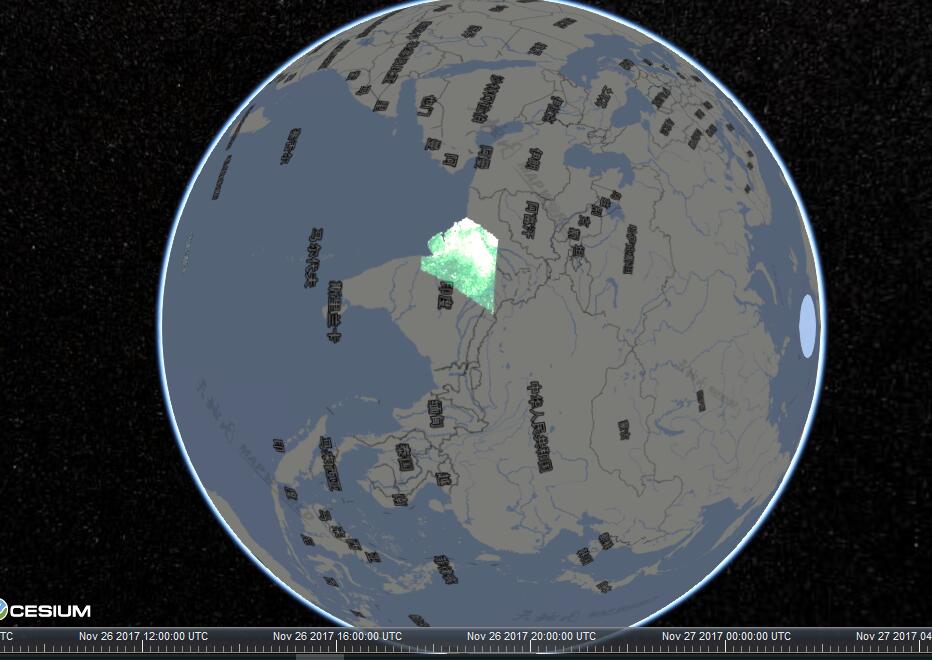 # 三、总结 本文简单记录了将Cesium和Geotrellis结合中碰到的一个小问题,只是刚开始,后续估计问题会更多,无他法,只能咬着牙往下走。结果很简单,折腾的时间却很长,但是不折腾肯定是不会有结果的,只能是想办法加快折腾的速度。当然有些东西一定会记得你的折腾,比如腰椎颈椎当然还有大脑,在折腾中你会对整体框架更加熟悉。 > Geotrellis系列文章链接地址[http://www.cnblogs.com/shoufengwei/p/5619419.html](http://www.cnblogs.com/shoufengwei/p/5619419.html) |
| json metadata | {"tags":["geotrellis","spark","cesium","gis"],"image":["https://images2018.cnblogs.com/blog/704456/201711/704456-20171127005619203-135111973.jpg"],"links":["https://cesiumjs.org/","https://github.com/AnalyticalGraphicsInc/cesium","http://blog.csdn.net/UmGsoil/article/category/7005304","https://groups.google.com/forum/#!msg/cesium-dev/RfAlZZkPBaM/xGOK01trAwAJ;context-place=forum/cesium-dev","http://www.ruanyifeng.com/blog/2016/04/cors.html","http://www.cnblogs.com/shoufengwei/p/5619419.html"],"app":"steemit/0.1","format":"markdown"} |
| Transaction Info | Block #17642864/Trx ac39b48dac4a675a39a9a9b2e6fe7137ca711fe4 |
View Raw JSON Data
{
"trx_id": "ac39b48dac4a675a39a9a9b2e6fe7137ca711fe4",
"block": 17642864,
"trx_in_block": 11,
"op_in_trx": 0,
"virtual_op": 0,
"timestamp": "2017-11-29T09:24:51",
"op": [
"comment",
{
"parent_author": "",
"parent_permlink": "geotrellis",
"author": "wsf",
"permlink": "cesium-geotrellis-tms",
"title": "Cesium加载geotrellis TMS瓦片",
"body": "# 前言\n\n做任何事情都不是想象中的那么简单。好久没有更新技术博客了,跟最近瞎忙有很大关系,虽说是瞎忙也抽空研究了些技术。\n\n主要是前端渲染,像原生的WebGL和Cesium。WebGL写了几篇博客,自我感觉还可以。Cesium是一个封装好的WEB端3D Earth框架,有了WebGL的基础之后切换到Cesium按理说一切应该是顺理成章,简单的测试了几个功能之后发现确实非常好,简单的几行代码就可以实现Google Earth的功能,当然Google Earth重要的绝对不是他的渲染框架。\n\n前期做了很多Geotrellis的工作,那么我就想着能不能把Geotrellis发布的TMS加载到Cesium中来,本来这是很简单的嘛,以前是在leaft-let中显示,现在就是换一个地方显示而已,并且Cesium已经调通。说干就干,结果怎么着,**前天晚上整到四点,昨天折腾了几个小时**居然一直**不出图**,所以我说任何看似简单的事情其实都不简单,下面就让我娓娓道来。\n\n# 一、Cesium\n\n## 1.1 简介\n\n介绍之前还是来简单介绍一下Cesium,当然如果后面继续对此框架进行研究的话可能也会多写几篇关于此框架的博客。\n\n官网地址:[https://cesiumjs.org/](https://cesiumjs.org/),Github地址:[https://github.com/AnalyticalGraphicsInc/cesium](https://github.com/AnalyticalGraphicsInc/cesium)。\n\n其功能简单明了,当然也很强大,基础教程可以参考[http://blog.csdn.net/UmGsoil/article/category/7005304](http://blog.csdn.net/UmGsoil/article/category/7005304),当然官方文档更好。\n\n## 1.2 简单使用\n\n无需考虑这么复杂,从简单里说Cesium就是一个前端地图渲染引擎,与leaft-let、OpenLayer相同,只是Cesium做成了3D的。所以从基础功能都是相似的。\n\n首先在html页面加载Cesium,如下:\n\n```html\n<!DOCTYPE html>\n<html lang=\"en\">\n<head>\n <meta charset=\"UTF-8\">\n <title>Hello 3D Earth</title>\n <script src=\"CesiumUnminified/Cesium.js\"></script>\n <style>\n @import url(CesiumUnminified/Widgets/widgets.css);\n html, body, #cesiumContainer {\n width: 100%; height: 100%; margin: 0; padding: 0; overflow: hidden;\n }\n </style>\n</head>\n<body>\n <div id=\"cesiumContainer\"></div>\n <script src=\"my_js.js\"></script>\n</body>\n</html>\n```\n\n其中CesiumUnminified存储了相关文件,从Github中下载即可。`my_js.js`是我们自己要写的js文件。my_js.js最简单的情况只需要一句话即可:\n\n```js\nvar viewer = new Cesium.Viewer(\"cesiumContainer\");\n```\n这样浏览器就会渲染出一个3维地球并自动加载微软的影像地图。那么如何更改或者添加图层呢?\n\n```js\nvar viewer = new Cesium.Viewer(\"cesiumContainer\", {\n animation: true, //是否显示动画控件(左下方那个)\n baseLayerPicker: false, //是否显示图层选择控件\n geocoder: true, //是否显示地名查找控件\n timeline: true, //是否显示时间线控件\n sceneModePicker: true, //是否显示投影方式控件\n navigationHelpButton: false, //是否显示帮助信息控件\n infoBox: true, //是否显示点击要素之后显示的信息\n imageryProvider : new Cesium.WebMapTileServiceImageryProvider({\n url: \"http://t0.tianditu.com/vec_w/wmts?service=wmts&request=GetTile&version=1.0.0&LAYER=vec&tileMatrixSet=w&TileMatrix={TileMatrix}&TileRow={TileRow}&TileCol={TileCol}&style=default&format=tiles\",\n layer: \"tdtVecBasicLayer\",\n style: \"default\",\n format: \"image/jpeg\",\n tileMatrixSetID: \"GoogleMapsCompatible\",\n show: false\n }),\n geocoder: false // no default bing maps\n});\n//全球影像中文注记服务\nviewer.imageryLayers.addImageryProvider(new Cesium.WebMapTileServiceImageryProvider({\n url: \"http://t0.tianditu.com/cia_w/wmts?service=wmts&request=GetTile&version=1.0.0&LAYER=cia&tileMatrixSet=w&TileMatrix={TileMatrix}&TileRow={TileRow}&TileCol={TileCol}&style=default.jpg\",\n layer: \"tdtAnnoLayer\",\n style: \"default\",\n format: \"image/jpeg\",\n tileMatrixSetID: \"GoogleMapsCompatible\",\n show: false\n}));\n```\n\n这段代码就会自动在3维地球中加载天地图的线划图并添加注记。所以剩下的事情就很简单了,只需要再添加我自己的TMS即可。\n\n## 1.3 问题来了\n\n在上述代码下方添加如下代码:\n\n```js\nvar layers = viewer.scene.imageryLayers; //所有图层(非基本图层)\n\nvar layer = layers.addImageryProvider(\n new Cesium.UrlTemplateImageryProvider({\n url : 'http://xxxx/modis/ndvi/{z}/{x}/{y}',\n format: \"image/png\"\n })\n);\n//50%透明度\nlayer.alpha = 0.5;\n//两倍亮度\nlayer.brightness = 2.0;\n```\n\n很简单的代码,获取图层对象,然后添加一层,url为我们自己的瓦片请求格式,这是我用Geotrellis发布的modis数据ndvi服务。并设置该图层透明度和增加亮度防止盖住上面的注记层。本来应该是点击一下刷新就出来效果的事情,结果足足折腾到我崩溃。\n\n无论怎么刷新就是出不来那层瓦片,其他两层数据正常显示,打开浏览器的调试模式,能够看到对ndvi瓦片的请求返回的都是200 OK,也能在调试中看到单个瓦片应有的效果。然后变换各种添加图层的格式(UrlTemplateImageryProvider、WebMapTileServiceImageryProvider、Cesium.createTileMapServiceImageryProvider这些不是本文重点,在后续文章详细介绍)均显示不出瓦片,而后又去掉其他两层瓦片只保留NDVI,最后又添加Geotrellis发布的其他TMS服务,但是无论怎么折腾,只要是我自己Geotrellis发布的TMS均无法显示,折腾到四点多,始终没有出来,在stackoverflow和github上提了问,等了半天也无人回复,只好闷闷不乐的去睡了。\n\n# 二、解决方案\n\n## 2.1 转角遇到答案\n\n今天中午小睡片刻,起床后收到一封邮件,赶紧打开看了一下,是Github的回复邮件,喜出望外,结果一看内容原来是告诉我不要在Issue中发布提问,告诉了我Google的提问列表([https://groups.google.com/forum/#!msg/cesium-dev/RfAlZZkPBaM/xGOK01trAwAJ;context-place=forum/cesium-dev](https://groups.google.com/forum/#!msg/cesium-dev/RfAlZZkPBaM/xGOK01trAwAJ;context-place=forum/cesium-dev)),整个人当时就不好了,既然这样只有上去瞅瞅,打开简单一搜索,居然有现成的,问题描述跟我的一模一样,解决方案是添加CORS。\n\n其实我之前折腾到四点多的时候脑子里就有这个意识,一定是我发布的TMS缺少了某个东西(或者是某个东西与Cesium的要求不一致),导致Cesium无法正常显示我的瓦片,所以一看到这个我就亢奋了,程序员的直觉告诉我这肯定就是我要找的东西。\n\n## 2.2 解决\n\n所以问题就来了,看样子我要在Geotrellis中折腾CORS了。Geotrellis采用Scala语言开发,所以我也是拿Scala写的,发布网络服务用的是Akka,Akka是开源的网络服务框架,于是就搜索了一下Akka CORS,很快就有了答案。\n\n关于CORS的介绍,看这篇文章就够了:[http://www.ruanyifeng.com/blog/2016/04/cors.html](http://www.ruanyifeng.com/blog/2016/04/cors.html)。CORS简单来说就是跨域资源共享,当跨域进行Ajax请求的时候进行权限验证等操作。其实细细想来倒是这么回事,Cesium请求瓦片一定用的是XMLHttpRequest,而我的TMS又未使用CORS,于是怎么折腾都出不来结果,当然对这块不太熟悉是导致问题发生的直接原因。\n\n找到问题解决就很容易了,Github中有现成的解决方案。首先添加一个CorsSupport特质,如下:\n\n```scala\nimport akka.http.scaladsl.model.HttpHeader\nimport akka.http.scaladsl.model.HttpMethods._\nimport akka.http.scaladsl.model.HttpResponse\nimport akka.http.scaladsl.model.headers._\nimport akka.http.scaladsl.model.headers.Origin\nimport akka.http.scaladsl.server.Directive0\nimport akka.http.scaladsl.server.Directives._\nimport akka.http.scaladsl.server.MethodRejection\nimport akka.http.scaladsl.server.RejectionHandler\n\ntrait CorsSupport {\n\n protected def corsAllowOrigins: List[String]\n\n protected def corsAllowedHeaders: List[String]\n\n protected def corsAllowCredentials: Boolean\n\n protected def optionsCorsHeaders: List[HttpHeader]\n\n protected def corsRejectionHandler(allowOrigin: `Access-Control-Allow-Origin`) =\n RejectionHandler\n .newBuilder().handle {\n case MethodRejection(supported) =>\n complete(HttpResponse().withHeaders(\n `Access-Control-Allow-Methods`(OPTIONS, supported) ::\n allowOrigin ::\n optionsCorsHeaders\n ))\n }\n .result()\n\n private def originToAllowOrigin(origin: Origin): Option[`Access-Control-Allow-Origin`] =\n if (corsAllowOrigins.contains(\"*\") || corsAllowOrigins.contains(origin.value))\n origin.origins.headOption.map(`Access-Control-Allow-Origin`.apply)\n else\n None\n\n def cors[T]: Directive0 = mapInnerRoute { route => context =>\n ((context.request.method, context.request.header[Origin].flatMap(originToAllowOrigin)) match {\n case (OPTIONS, Some(allowOrigin)) =>\n handleRejections(corsRejectionHandler(allowOrigin)) {\n respondWithHeaders(allowOrigin, `Access-Control-Allow-Credentials`(corsAllowCredentials)) {\n route\n }\n }\n case (_, Some(allowOrigin)) =>\n respondWithHeaders(allowOrigin, `Access-Control-Allow-Credentials`(corsAllowCredentials)) {\n route\n }\n case (_, _) =>\n route\n })(context)\n }\n}\n```\n\n尔后在发布TMS服务的类中实现该特质:重写虚方法,并在原先发布TMS服务的地方将原结果传入cors方法:\n\n```scala\noverride val corsAllowOrigins: List[String] = List(\"*\")\n\noverride val corsAllowedHeaders: List[String] = List(\"Origin\", \"X-Requested-With\", \"Content-Type\", \"Accept\", \"Accept-Encoding\", \"Accept-Language\", \"Host\", \"Referer\", \"User-Agent\")\n\noverride val corsAllowCredentials: Boolean = true\n\noverride val optionsCorsHeaders: List[HttpHeader] = List[HttpHeader](\n`Access-Control-Allow-Headers`(corsAllowedHeaders.mkString(\", \")),\n`Access-Control-Max-Age`(60 * 60 * 24 * 20), // cache pre-flight response for 20 days\n`Access-Control-Allow-Credentials`(corsAllowCredentials)\n)\n\ndef service = cors {\n pathPrefix(\"map\") {\n ...\n }\n}\n```\n\n注意此处的cors方法,其本身是一个无参数方法,此处传入的是Directive0的apply方法的参数,所以返回的仍然是Route类型。\n\n上述两段代码实现的就是将TMS服务实现CORS服务。请求的域为*,即任何域都可;请求头为\"Origin\", \"X-Requested-With\", \"Content-Type\", \"Accept\", \"Accept-Encoding\", \"Accept-Language\", \"Host\", \"Referer\", \"User-Agent\";并支持发送cookie等认证。完成上述改造后重新编译运行geotrellis程序,刷新浏览器即可看到我们想要的结果,效果如下:\n\n\n\n# 三、总结\n\n本文简单记录了将Cesium和Geotrellis结合中碰到的一个小问题,只是刚开始,后续估计问题会更多,无他法,只能咬着牙往下走。结果很简单,折腾的时间却很长,但是不折腾肯定是不会有结果的,只能是想办法加快折腾的速度。当然有些东西一定会记得你的折腾,比如腰椎颈椎当然还有大脑,在折腾中你会对整体框架更加熟悉。\n\n\n> Geotrellis系列文章链接地址[http://www.cnblogs.com/shoufengwei/p/5619419.html](http://www.cnblogs.com/shoufengwei/p/5619419.html)",
"json_metadata": "{\"tags\":[\"geotrellis\",\"spark\",\"cesium\",\"gis\"],\"image\":[\"https://images2018.cnblogs.com/blog/704456/201711/704456-20171127005619203-135111973.jpg\"],\"links\":[\"https://cesiumjs.org/\",\"https://github.com/AnalyticalGraphicsInc/cesium\",\"http://blog.csdn.net/UmGsoil/article/category/7005304\",\"https://groups.google.com/forum/#!msg/cesium-dev/RfAlZZkPBaM/xGOK01trAwAJ;context-place=forum/cesium-dev\",\"http://www.ruanyifeng.com/blog/2016/04/cors.html\",\"http://www.cnblogs.com/shoufengwei/p/5619419.html\"],\"app\":\"steemit/0.1\",\"format\":\"markdown\"}"
}
]
}2017/11/29 09:23:03
2017/11/29 09:23:03
| parent author | cheetah |
| parent permlink | cheetah-re-wsfcesium-geotrellis-tms |
| author | wsf |
| permlink | re-cheetah-cheetah-re-wsfcesium-geotrellis-tms-20171129t092305991z |
| title | |
| body | Yes,I had read this which helped me so much. |
| json metadata | {"tags":["geotrellis"],"app":"steemit/0.1"} |
| Transaction Info | Block #17642828/Trx 7a4a810ade064fd6e89e4db0aee2528cdea8a8f5 |
View Raw JSON Data
{
  "trx_id": "7a4a810ade064fd6e89e4db0aee2528cdea8a8f5",
  "block": 17642828,
  "trx_in_block": 14,
  "op_in_trx": 0,
  "virtual_op": 0,
  "timestamp": "2017-11-29T09:23:03",
  "op": [
    "comment",
    {
      "parent_author": "cheetah",
      "parent_permlink": "cheetah-re-wsfcesium-geotrellis-tms",
      "author": "wsf",
      "permlink": "re-cheetah-cheetah-re-wsfcesium-geotrellis-tms-20171129t092305991z",
      "title": "",
      "body": "Yes,I had read this which helped me so much.",
      "json_metadata": "{\"tags\":[\"geotrellis\"],\"app\":\"steemit/0.1\"}"
    }
  ]
}wsfupdated their account properties2017/11/29 07:26:00
wsfupdated their account properties
2017/11/29 07:26:00
| account | wsf |
| memo key | STM7sUFswVCcR6CPSmd6gwdcLM2Jm9Jwd46zpNZGSpzWLh7e8XS9p |
| json metadata | {"profile":{"profile_image":"http://upload.jianshu.io/users/upload_avatars/1457239/ad2c7f02-f038-4755-b094-8c7484428196.png?imageMogr2/auto-orient/strip|imageView2/1/w/240/h/240","cover_image":"http://upload.jianshu.io/users/upload_avatars/1457239/ad2c7f02-f038-4755-b094-8c7484428196.png?imageMogr2/auto-orient/strip|imageView2/1/w/240/h/240","name":"WSF","about":"coding & writing","location":"china","website":"http://www.jianshu.com/u/d35a64082cb3"}} |
| Transaction Info | Block #17640487/Trx 7c8878f7d0f321ff5d0c22fa91e3c1bfb95aba73 |
View Raw JSON Data
{
  "trx_id": "7c8878f7d0f321ff5d0c22fa91e3c1bfb95aba73",
  "block": 17640487,
  "trx_in_block": 10,
  "op_in_trx": 0,
  "virtual_op": 0,
  "timestamp": "2017-11-29T07:26:00",
  "op": [
    "account_update",
    {
      "account": "wsf",
      "memo_key": "STM7sUFswVCcR6CPSmd6gwdcLM2Jm9Jwd46zpNZGSpzWLh7e8XS9p",
      "json_metadata": "{\"profile\":{\"profile_image\":\"http://upload.jianshu.io/users/upload_avatars/1457239/ad2c7f02-f038-4755-b094-8c7484428196.png?imageMogr2/auto-orient/strip|imageView2/1/w/240/h/240\",\"cover_image\":\"http://upload.jianshu.io/users/upload_avatars/1457239/ad2c7f02-f038-4755-b094-8c7484428196.png?imageMogr2/auto-orient/strip|imageView2/1/w/240/h/240\",\"name\":\"WSF\",\"about\":\"coding & writing\",\"location\":\"china\",\"website\":\"http://www.jianshu.com/u/d35a64082cb3\"}}"
    }
  ]
}wsfupdated their account properties2017/11/29 07:25:18
wsfupdated their account properties
2017/11/29 07:25:18
| account | wsf |
| memo key | STM7sUFswVCcR6CPSmd6gwdcLM2Jm9Jwd46zpNZGSpzWLh7e8XS9p |
| json metadata | {"profile":{"name":"WSF","location":"china","website":"http://www.jianshu.com/u/d35a64082cb3"}} |
| Transaction Info | Block #17640473/Trx 4b63d75647659e0f0ee5329d9f8b89ec86e7f18a |
View Raw JSON Data
{
  "trx_id": "4b63d75647659e0f0ee5329d9f8b89ec86e7f18a",
  "block": 17640473,
  "trx_in_block": 18,
  "op_in_trx": 0,
  "virtual_op": 0,
  "timestamp": "2017-11-29T07:25:18",
  "op": [
    "account_update",
    {
      "account": "wsf",
      "memo_key": "STM7sUFswVCcR6CPSmd6gwdcLM2Jm9Jwd46zpNZGSpzWLh7e8XS9p",
      "json_metadata": "{\"profile\":{\"name\":\"WSF\",\"location\":\"china\",\"website\":\"http://www.jianshu.com/u/d35a64082cb3\"}}"
    }
  ]
}cheetahreplied to @wsf / cheetah-re-wsfcesium-geotrellis-tms2017/11/29 07:13:54
cheetahreplied to @wsf / cheetah-re-wsfcesium-geotrellis-tms
2017/11/29 07:13:54
| parent author | wsf |
| parent permlink | cesium-geotrellis-tms |
| author | cheetah |
| permlink | cheetah-re-wsfcesium-geotrellis-tms |
| title | |
| body | Hi! I am a robot. I just upvoted you! I found similar content that readers might be interested in: https://gist.github.com/pcting/2e65c36f868c5cee7d6a |
| json metadata | |
| Transaction Info | Block #17640245/Trx 20f798c7098260dbe8e7fd8a03fefec3b68df8b7 |
View Raw JSON Data
{
  "trx_id": "20f798c7098260dbe8e7fd8a03fefec3b68df8b7",
  "block": 17640245,
  "trx_in_block": 41,
  "op_in_trx": 0,
  "virtual_op": 0,
  "timestamp": "2017-11-29T07:13:54",
  "op": [
    "comment",
    {
      "parent_author": "wsf",
      "parent_permlink": "cesium-geotrellis-tms",
      "author": "cheetah",
      "permlink": "cheetah-re-wsfcesium-geotrellis-tms",
      "title": "",
      "body": "Hi! I am a robot. I just upvoted you! I found similar content that readers might be interested in:\nhttps://gist.github.com/pcting/2e65c36f868c5cee7d6a",
      "json_metadata": ""
    }
  ]
}cheetahupvoted (0.08%) @wsf / cesium-geotrellis-tms2017/11/29 07:13:51
cheetahupvoted (0.08%) @wsf / cesium-geotrellis-tms
2017/11/29 07:13:51
| voter | cheetah |
| author | wsf |
| permlink | cesium-geotrellis-tms |
| weight | 8 (0.08%) |
| Transaction Info | Block #17640244/Trx 9e26949f71cc168a36fca45231d93ee5150d008e |
View Raw JSON Data
{
  "trx_id": "9e26949f71cc168a36fca45231d93ee5150d008e",
  "block": 17640244,
  "trx_in_block": 19,
  "op_in_trx": 0,
  "virtual_op": 0,
  "timestamp": "2017-11-29T07:13:51",
  "op": [
    "vote",
    {
      "voter": "cheetah",
      "author": "wsf",
      "permlink": "cesium-geotrellis-tms",
      "weight": 8
    }
  ]
}saimon1971upvoted (95.67%) @wsf / cesium-geotrellis-tms2017/11/29 07:13:48
saimon1971upvoted (95.67%) @wsf / cesium-geotrellis-tms
2017/11/29 07:13:48
| voter | saimon1971 |
| author | wsf |
| permlink | cesium-geotrellis-tms |
| weight | 9567 (95.67%) |
| Transaction Info | Block #17640243/Trx f05e306f9c471f18ce4455bb40f3bba0558003f1 |
View Raw JSON Data
{
  "trx_id": "f05e306f9c471f18ce4455bb40f3bba0558003f1",
  "block": 17640243,
  "trx_in_block": 9,
  "op_in_trx": 0,
  "virtual_op": 0,
  "timestamp": "2017-11-29T07:13:48",
  "op": [
    "vote",
    {
      "voter": "saimon1971",
      "author": "wsf",
      "permlink": "cesium-geotrellis-tms",
      "weight": 9567
    }
  ]
}wsfpublished a new post: cesium-geotrellis-tms2017/11/29 07:13:36
wsfpublished a new post: cesium-geotrellis-tms
2017/11/29 07:13:36
| parent author | |
| parent permlink | geotrellis |
| author | wsf |
| permlink | cesium-geotrellis-tms |
| title | Cesium加载geotrellis TMS瓦片 |
| body | # 前言 做任何事情都不是想象中的那么简单。好久没有更新技术博客了,跟最近瞎忙有很大关系,虽说是瞎忙也抽空研究了些技术。 主要是前端渲染,像原生的WebGL和Cesium。WebGL写了几篇博客,自我感觉还可以。Cesium是一个封装好的WEB端3D Earth框架,有了WebGL的基础之后切换到Cesium按理说一切应该是顺理成章,简单的测试了几个功能之后发现确实非常好,简单的几行代码就可以实现Google Earth的功能,当然Google Earth重要的绝对不是他的渲染框架。 前期做了很多Geotrellis的工作,那么我就想着能不能把Geotrellis发布的TMS加载到Cesium中来,本来这是很简单的嘛,以前是在leaft-let中显示,现在就是换一个地方显示而已,并且Cesium已经调通。说干就干,结果怎么着,**前天晚上整到四点,昨天折腾了几个小时**居然一直**不出图**,所以我说任何看似简单的事情其实都不简单,下面就让我娓娓道来。 # 一、Cesium ## 1.1 简介 介绍之前还是来简单介绍一下Cesium,当然如果后面继续对此框架进行研究的话可能也会多写几篇关于此框架的博客。 官网地址:[https://cesiumjs.org/](https://cesiumjs.org/),Github地址:[https://github.com/AnalyticalGraphicsInc/cesium](https://github.com/AnalyticalGraphicsInc/cesium)。 其功能简单明了,当然也很强大,基础教程可以参考[http://blog.csdn.net/UmGsoil/article/category/7005304](http://blog.csdn.net/UmGsoil/article/category/7005304),当然官方文档更好。 ## 1.2 简单使用 无需考虑这么复杂,从简单里说Cesium就是一个前端地图渲染引擎,与leaft-let、OpenLayer相同,只是Cesium做成了3D的。所以从基础功能都是相似的。 首先在html页面加载Cesium,如下: ```html <!DOCTYPE html> <html lang="en"> <head> <meta charset="UTF-8"> <title>Hello 3D Earth</title> <script src="CesiumUnminified/Cesium.js"></script> <style> @import url(CesiumUnminified/Widgets/widgets.css); html, body, #cesiumContainer { width: 100%; height: 100%; margin: 0; padding: 0; overflow: hidden; } </style> </head> <body> <div id="cesiumContainer"></div> <script src="my_js.js"></script> </body> </html> ``` 其中CesiumUnminified存储了相关文件,从Github中下载即可。`my_js.js`是我们自己要写的js文件。my_js.js最简单的情况只需要一句话即可: ```js var viewer = new Cesium.Viewer("cesiumContainer"); ``` 这样浏览器就会渲染出一个3维地球并自动加载微软的影像地图。那么如何更改或者添加图层呢? ```js var viewer = new Cesium.Viewer("cesiumContainer", { animation: true, //是否显示动画控件(左下方那个) baseLayerPicker: false, //是否显示图层选择控件 geocoder: true, //是否显示地名查找控件 timeline: true, //是否显示时间线控件 sceneModePicker: true, //是否显示投影方式控件 navigationHelpButton: false, //是否显示帮助信息控件 infoBox: true, //是否显示点击要素之后显示的信息 imageryProvider : new Cesium.WebMapTileServiceImageryProvider({ url: "http://t0.tianditu.com/vec_w/wmts?service=wmts&request=GetTile&version=1.0.0&LAYER=vec&tileMatrixSet=w&TileMatrix={TileMatrix}&TileRow={TileRow}&TileCol={TileCol}&style=default&format=tiles", layer: "tdtVecBasicLayer", style: "default", format: "image/jpeg", tileMatrixSetID: "GoogleMapsCompatible", show: false }), geocoder: false // no default bing maps }); //全球影像中文注记服务 viewer.imageryLayers.addImageryProvider(new Cesium.WebMapTileServiceImageryProvider({ url: "http://t0.tianditu.com/cia_w/wmts?service=wmts&request=GetTile&version=1.0.0&LAYER=cia&tileMatrixSet=w&TileMatrix={TileMatrix}&TileRow={TileRow}&TileCol={TileCol}&style=default.jpg", layer: "tdtAnnoLayer", style: "default", format: "image/jpeg", tileMatrixSetID: "GoogleMapsCompatible", show: false })); ``` 这段代码就会自动在3维地球中加载天地图的线划图并添加注记。所以剩下的事情就很简单了,只需要再添加我自己的TMS即可。 ## 1.3 问题来了 在上述代码下方添加如下代码: ```js var layers = viewer.scene.imageryLayers; //所有图层(非基本图层) var layer = layers.addImageryProvider( new Cesium.UrlTemplateImageryProvider({ url : 'http://xxxx/modis/ndvi/{z}/{x}/{y}', format: "image/png" }) ); //50%透明度 layer.alpha = 0.5; //两倍亮度 layer.brightness = 2.0; ``` 很简单的代码,获取图层对象,然后添加一层,url为我们自己的瓦片请求格式,这是我用Geotrellis发布的modis数据ndvi服务。并设置该图层透明度和增加亮度防止盖住上面的注记层。本来应该是点击一下刷新就出来效果的事情,结果足足折腾到我崩溃。 无论怎么刷新就是出不来那层瓦片,其他两层数据正常显示,打开浏览器的调试模式,能够看到对ndvi瓦片的请求返回的都是200 OK,也能在调试中看到单个瓦片应有的效果。然后变换各种添加图层的格式(UrlTemplateImageryProvider、WebMapTileServiceImageryProvider、Cesium.createTileMapServiceImageryProvider这些不是本文重点,在后续文章详细介绍)均显示不出瓦片,而后又去掉其他两层瓦片只保留NDVI,最后又添加Geotrellis发布的其他TMS服务,但是无论怎么折腾,只要是我自己Geotrellis发布的TMS均无法显示,折腾到四点多,始终没有出来,在stackoverflow和github上提了问,等了半天也无人回复,只好闷闷不乐的去睡了。 # 二、解决方案 ## 2.1 转角遇到答案 今天中午小睡片刻,起床后收到一封邮件,赶紧打开看了一下,是Github的回复邮件,喜出望外,结果一看内容原来是告诉我不要在Issue中发布提问,告诉了我Google的提问列表([https://groups.google.com/forum/#!msg/cesium-dev/RfAlZZkPBaM/xGOK01trAwAJ;context-place=forum/cesium-dev](https://groups.google.com/forum/#!msg/cesium-dev/RfAlZZkPBaM/xGOK01trAwAJ;context-place=forum/cesium-dev)),整个人当时就不好了,既然这样只有上去瞅瞅,打开简单一搜索,居然有现成的,问题描述跟我的一模一样,解决方案是添加CORS。 其实我之前折腾到四点多的时候脑子里就有这个意识,一定是我发布的TMS缺少了某个东西(或者是某个东西与Cesium的要求不一致),导致Cesium无法正常显示我的瓦片,所以一看到这个我就亢奋了,程序员的直觉告诉我这肯定就是我要找的东西。 ## 2.2 解决 所以问题就来了,看样子我要在Geotrellis中折腾CORS了。Geotrellis采用Scala语言开发,所以我也是拿Scala写的,发布网络服务用的是Akka,Akka是开源的网络服务框架,于是就搜索了一下Akka CORS,很快就有了答案。 关于CORS的介绍,看这篇文章就够了:[http://www.ruanyifeng.com/blog/2016/04/cors.html](http://www.ruanyifeng.com/blog/2016/04/cors.html)。CORS简单来说就是跨域资源共享,当跨域进行Ajax请求的时候进行权限验证等操作。其实细细想来倒是这么回事,Cesium请求瓦片一定用的是XMLHttpRequest,而我的TMS又未使用CORS,于是怎么折腾都出不来结果,当然对这块不太熟悉是导致问题发生的直接原因。 找到问题解决就很容易了,Github中有现成的解决方案。首先添加一个CorsSupport特质,如下: ```scala import akka.http.scaladsl.model.HttpHeader import akka.http.scaladsl.model.HttpMethods._ import akka.http.scaladsl.model.HttpResponse import akka.http.scaladsl.model.headers._ import akka.http.scaladsl.model.headers.Origin import akka.http.scaladsl.server.Directive0 import akka.http.scaladsl.server.Directives._ import akka.http.scaladsl.server.MethodRejection import akka.http.scaladsl.server.RejectionHandler trait CorsSupport { protected def corsAllowOrigins: List[String] protected def corsAllowedHeaders: List[String] protected def corsAllowCredentials: Boolean protected def optionsCorsHeaders: List[HttpHeader] protected def corsRejectionHandler(allowOrigin: `Access-Control-Allow-Origin`) = RejectionHandler .newBuilder().handle { case MethodRejection(supported) => complete(HttpResponse().withHeaders( `Access-Control-Allow-Methods`(OPTIONS, supported) :: allowOrigin :: optionsCorsHeaders )) } .result() private def originToAllowOrigin(origin: Origin): Option[`Access-Control-Allow-Origin`] = if (corsAllowOrigins.contains("*") || corsAllowOrigins.contains(origin.value)) origin.origins.headOption.map(`Access-Control-Allow-Origin`.apply) else None def cors[T]: Directive0 = mapInnerRoute { route => context => ((context.request.method, context.request.header[Origin].flatMap(originToAllowOrigin)) match { case (OPTIONS, Some(allowOrigin)) => handleRejections(corsRejectionHandler(allowOrigin)) { respondWithHeaders(allowOrigin, `Access-Control-Allow-Credentials`(corsAllowCredentials)) { route } } case (_, Some(allowOrigin)) => respondWithHeaders(allowOrigin, `Access-Control-Allow-Credentials`(corsAllowCredentials)) { route } case (_, _) => route })(context) } } ``` 尔后在发布TMS服务的类中实现该特质:重写虚方法,并在原先发布TMS服务的地方将原结果传入cors方法: ```scala override val corsAllowOrigins: List[String] = List("*") override val corsAllowedHeaders: List[String] = List("Origin", "X-Requested-With", "Content-Type", "Accept", "Accept-Encoding", "Accept-Language", "Host", "Referer", "User-Agent") override val corsAllowCredentials: Boolean = true override val optionsCorsHeaders: List[HttpHeader] = List[HttpHeader]( `Access-Control-Allow-Headers`(corsAllowedHeaders.mkString(", ")), `Access-Control-Max-Age`(60 * 60 * 24 * 20), // cache pre-flight response for 20 days `Access-Control-Allow-Credentials`(corsAllowCredentials) ) def service = cors { pathPrefix("map") { ... } } ``` 注意此处的cors方法,其本身是一个无参数方法,此处传入的是Directive0的apply方法的参数,所以返回的仍然是Route类型。 上述两段代码实现的就是将TMS服务实现CORS服务。请求的域为*,即任何域都可;请求头为"Origin", "X-Requested-With", "Content-Type", "Accept", "Accept-Encoding", "Accept-Language", "Host", "Referer", "User-Agent";并支持发送cookie等认证。完成上述改造后重新编译运行geotrellis程序,刷新浏览器即可看到我们想要的结果,效果如下:  # 三、总结 本文简单记录了将Cesium和Geotrellis结合中碰到的一个小问题,只是刚开始,后续估计问题会更多,无他法,只能咬着牙往下走。结果很简单,折腾的时间却很长,但是不折腾肯定是不会有结果的,只能是想办法加快折腾的速度。当然有些东西一定会记得你的折腾,比如腰椎颈椎当然还有大脑,在折腾中你会对整体框架更加熟悉。 > Geotrellis系列文章链接地址[http://www.cnblogs.com/shoufengwei/p/5619419.html](http://www.cnblogs.com/shoufengwei/p/5619419.html) |
| json metadata | {"tags":["geotrellis","spark","cesium"],"image":["https://images2018.cnblogs.com/blog/704456/201711/704456-20171127005619203-135111973.jpg"],"links":["https://cesiumjs.org/","https://github.com/AnalyticalGraphicsInc/cesium","http://blog.csdn.net/UmGsoil/article/category/7005304","https://groups.google.com/forum/#!msg/cesium-dev/RfAlZZkPBaM/xGOK01trAwAJ;context-place=forum/cesium-dev","http://www.ruanyifeng.com/blog/2016/04/cors.html","http://www.cnblogs.com/shoufengwei/p/5619419.html"],"app":"steemit/0.1","format":"markdown"} |
| Transaction Info | Block #17640239/Trx c34c53cb77f2a2104545f19d3369f43c647cb1bc |
View Raw JSON Data
{
"trx_id": "c34c53cb77f2a2104545f19d3369f43c647cb1bc",
"block": 17640239,
"trx_in_block": 4,
"op_in_trx": 0,
"virtual_op": 0,
"timestamp": "2017-11-29T07:13:36",
"op": [
"comment",
{
"parent_author": "",
"parent_permlink": "geotrellis",
"author": "wsf",
"permlink": "cesium-geotrellis-tms",
"title": "Cesium加载geotrellis TMS瓦片",
"body": "# 前言\n\n做任何事情都不是想象中的那么简单。好久没有更新技术博客了,跟最近瞎忙有很大关系,虽说是瞎忙也抽空研究了些技术。\n\n主要是前端渲染,像原生的WebGL和Cesium。WebGL写了几篇博客,自我感觉还可以。Cesium是一个封装好的WEB端3D Earth框架,有了WebGL的基础之后切换到Cesium按理说一切应该是顺理成章,简单的测试了几个功能之后发现确实非常好,简单的几行代码就可以实现Google Earth的功能,当然Google Earth重要的绝对不是他的渲染框架。\n\n前期做了很多Geotrellis的工作,那么我就想着能不能把Geotrellis发布的TMS加载到Cesium中来,本来这是很简单的嘛,以前是在leaft-let中显示,现在就是换一个地方显示而已,并且Cesium已经调通。说干就干,结果怎么着,**前天晚上整到四点,昨天折腾了几个小时**居然一直**不出图**,所以我说任何看似简单的事情其实都不简单,下面就让我娓娓道来。\n\n# 一、Cesium\n\n## 1.1 简介\n\n介绍之前还是来简单介绍一下Cesium,当然如果后面继续对此框架进行研究的话可能也会多写几篇关于此框架的博客。\n\n官网地址:[https://cesiumjs.org/](https://cesiumjs.org/),Github地址:[https://github.com/AnalyticalGraphicsInc/cesium](https://github.com/AnalyticalGraphicsInc/cesium)。\n\n其功能简单明了,当然也很强大,基础教程可以参考[http://blog.csdn.net/UmGsoil/article/category/7005304](http://blog.csdn.net/UmGsoil/article/category/7005304),当然官方文档更好。\n\n## 1.2 简单使用\n\n无需考虑这么复杂,从简单里说Cesium就是一个前端地图渲染引擎,与leaft-let、OpenLayer相同,只是Cesium做成了3D的。所以从基础功能都是相似的。\n\n首先在html页面加载Cesium,如下:\n\n```html\n<!DOCTYPE html>\n<html lang=\"en\">\n<head>\n <meta charset=\"UTF-8\">\n <title>Hello 3D Earth</title>\n <script src=\"CesiumUnminified/Cesium.js\"></script>\n <style>\n @import url(CesiumUnminified/Widgets/widgets.css);\n html, body, #cesiumContainer {\n width: 100%; height: 100%; margin: 0; padding: 0; overflow: hidden;\n }\n </style>\n</head>\n<body>\n <div id=\"cesiumContainer\"></div>\n <script src=\"my_js.js\"></script>\n</body>\n</html>\n```\n\n其中CesiumUnminified存储了相关文件,从Github中下载即可。`my_js.js`是我们自己要写的js文件。my_js.js最简单的情况只需要一句话即可:\n\n```js\nvar viewer = new Cesium.Viewer(\"cesiumContainer\");\n```\n这样浏览器就会渲染出一个3维地球并自动加载微软的影像地图。那么如何更改或者添加图层呢?\n\n```js\nvar viewer = new Cesium.Viewer(\"cesiumContainer\", {\n animation: true, //是否显示动画控件(左下方那个)\n baseLayerPicker: false, //是否显示图层选择控件\n geocoder: true, //是否显示地名查找控件\n timeline: true, //是否显示时间线控件\n sceneModePicker: true, //是否显示投影方式控件\n navigationHelpButton: false, //是否显示帮助信息控件\n infoBox: true, //是否显示点击要素之后显示的信息\n imageryProvider : new Cesium.WebMapTileServiceImageryProvider({\n url: \"http://t0.tianditu.com/vec_w/wmts?service=wmts&request=GetTile&version=1.0.0&LAYER=vec&tileMatrixSet=w&TileMatrix={TileMatrix}&TileRow={TileRow}&TileCol={TileCol}&style=default&format=tiles\",\n layer: \"tdtVecBasicLayer\",\n style: \"default\",\n format: \"image/jpeg\",\n tileMatrixSetID: \"GoogleMapsCompatible\",\n show: false\n }),\n geocoder: false // no default bing maps\n});\n//全球影像中文注记服务\nviewer.imageryLayers.addImageryProvider(new Cesium.WebMapTileServiceImageryProvider({\n url: \"http://t0.tianditu.com/cia_w/wmts?service=wmts&request=GetTile&version=1.0.0&LAYER=cia&tileMatrixSet=w&TileMatrix={TileMatrix}&TileRow={TileRow}&TileCol={TileCol}&style=default.jpg\",\n layer: \"tdtAnnoLayer\",\n style: \"default\",\n format: \"image/jpeg\",\n tileMatrixSetID: \"GoogleMapsCompatible\",\n show: false\n}));\n```\n\n这段代码就会自动在3维地球中加载天地图的线划图并添加注记。所以剩下的事情就很简单了,只需要再添加我自己的TMS即可。\n\n## 1.3 问题来了\n\n在上述代码下方添加如下代码:\n\n```js\nvar layers = viewer.scene.imageryLayers; //所有图层(非基本图层)\n\nvar layer = layers.addImageryProvider(\n new Cesium.UrlTemplateImageryProvider({\n url : 'http://xxxx/modis/ndvi/{z}/{x}/{y}',\n format: \"image/png\"\n })\n);\n//50%透明度\nlayer.alpha = 0.5;\n//两倍亮度\nlayer.brightness = 2.0;\n```\n\n很简单的代码,获取图层对象,然后添加一层,url为我们自己的瓦片请求格式,这是我用Geotrellis发布的modis数据ndvi服务。并设置该图层透明度和增加亮度防止盖住上面的注记层。本来应该是点击一下刷新就出来效果的事情,结果足足折腾到我崩溃。\n\n无论怎么刷新就是出不来那层瓦片,其他两层数据正常显示,打开浏览器的调试模式,能够看到对ndvi瓦片的请求返回的都是200 OK,也能在调试中看到单个瓦片应有的效果。然后变换各种添加图层的格式(UrlTemplateImageryProvider、WebMapTileServiceImageryProvider、Cesium.createTileMapServiceImageryProvider这些不是本文重点,在后续文章详细介绍)均显示不出瓦片,而后又去掉其他两层瓦片只保留NDVI,最后又添加Geotrellis发布的其他TMS服务,但是无论怎么折腾,只要是我自己Geotrellis发布的TMS均无法显示,折腾到四点多,始终没有出来,在stackoverflow和github上提了问,等了半天也无人回复,只好闷闷不乐的去睡了。\n\n# 二、解决方案\n\n## 2.1 转角遇到答案\n\n今天中午小睡片刻,起床后收到一封邮件,赶紧打开看了一下,是Github的回复邮件,喜出望外,结果一看内容原来是告诉我不要在Issue中发布提问,告诉了我Google的提问列表([https://groups.google.com/forum/#!msg/cesium-dev/RfAlZZkPBaM/xGOK01trAwAJ;context-place=forum/cesium-dev](https://groups.google.com/forum/#!msg/cesium-dev/RfAlZZkPBaM/xGOK01trAwAJ;context-place=forum/cesium-dev)),整个人当时就不好了,既然这样只有上去瞅瞅,打开简单一搜索,居然有现成的,问题描述跟我的一模一样,解决方案是添加CORS。\n\n其实我之前折腾到四点多的时候脑子里就有这个意识,一定是我发布的TMS缺少了某个东西(或者是某个东西与Cesium的要求不一致),导致Cesium无法正常显示我的瓦片,所以一看到这个我就亢奋了,程序员的直觉告诉我这肯定就是我要找的东西。\n\n## 2.2 解决\n\n所以问题就来了,看样子我要在Geotrellis中折腾CORS了。Geotrellis采用Scala语言开发,所以我也是拿Scala写的,发布网络服务用的是Akka,Akka是开源的网络服务框架,于是就搜索了一下Akka CORS,很快就有了答案。\n\n关于CORS的介绍,看这篇文章就够了:[http://www.ruanyifeng.com/blog/2016/04/cors.html](http://www.ruanyifeng.com/blog/2016/04/cors.html)。CORS简单来说就是跨域资源共享,当跨域进行Ajax请求的时候进行权限验证等操作。其实细细想来倒是这么回事,Cesium请求瓦片一定用的是XMLHttpRequest,而我的TMS又未使用CORS,于是怎么折腾都出不来结果,当然对这块不太熟悉是导致问题发生的直接原因。\n\n找到问题解决就很容易了,Github中有现成的解决方案。首先添加一个CorsSupport特质,如下:\n\n```scala\nimport akka.http.scaladsl.model.HttpHeader\nimport akka.http.scaladsl.model.HttpMethods._\nimport akka.http.scaladsl.model.HttpResponse\nimport akka.http.scaladsl.model.headers._\nimport akka.http.scaladsl.model.headers.Origin\nimport akka.http.scaladsl.server.Directive0\nimport akka.http.scaladsl.server.Directives._\nimport akka.http.scaladsl.server.MethodRejection\nimport akka.http.scaladsl.server.RejectionHandler\n\ntrait CorsSupport {\n\n protected def corsAllowOrigins: List[String]\n\n protected def corsAllowedHeaders: List[String]\n\n protected def corsAllowCredentials: Boolean\n\n protected def optionsCorsHeaders: List[HttpHeader]\n\n protected def corsRejectionHandler(allowOrigin: `Access-Control-Allow-Origin`) =\n RejectionHandler\n .newBuilder().handle {\n case MethodRejection(supported) =>\n complete(HttpResponse().withHeaders(\n `Access-Control-Allow-Methods`(OPTIONS, supported) ::\n allowOrigin ::\n optionsCorsHeaders\n ))\n }\n .result()\n\n private def originToAllowOrigin(origin: Origin): Option[`Access-Control-Allow-Origin`] =\n if (corsAllowOrigins.contains(\"*\") || corsAllowOrigins.contains(origin.value))\n origin.origins.headOption.map(`Access-Control-Allow-Origin`.apply)\n else\n None\n\n def cors[T]: Directive0 = mapInnerRoute { route => context =>\n ((context.request.method, context.request.header[Origin].flatMap(originToAllowOrigin)) match {\n case (OPTIONS, Some(allowOrigin)) =>\n handleRejections(corsRejectionHandler(allowOrigin)) {\n respondWithHeaders(allowOrigin, `Access-Control-Allow-Credentials`(corsAllowCredentials)) {\n route\n }\n }\n case (_, Some(allowOrigin)) =>\n respondWithHeaders(allowOrigin, `Access-Control-Allow-Credentials`(corsAllowCredentials)) {\n route\n }\n case (_, _) =>\n route\n })(context)\n }\n}\n```\n\n尔后在发布TMS服务的类中实现该特质:重写虚方法,并在原先发布TMS服务的地方将原结果传入cors方法:\n\n```scala\noverride val corsAllowOrigins: List[String] = List(\"*\")\n\noverride val corsAllowedHeaders: List[String] = List(\"Origin\", \"X-Requested-With\", \"Content-Type\", \"Accept\", \"Accept-Encoding\", \"Accept-Language\", \"Host\", \"Referer\", \"User-Agent\")\n\noverride val corsAllowCredentials: Boolean = true\n\noverride val optionsCorsHeaders: List[HttpHeader] = List[HttpHeader](\n`Access-Control-Allow-Headers`(corsAllowedHeaders.mkString(\", \")),\n`Access-Control-Max-Age`(60 * 60 * 24 * 20), // cache pre-flight response for 20 days\n`Access-Control-Allow-Credentials`(corsAllowCredentials)\n)\n\ndef service = cors {\n pathPrefix(\"map\") {\n ...\n }\n}\n```\n\n注意此处的cors方法,其本身是一个无参数方法,此处传入的是Directive0的apply方法的参数,所以返回的仍然是Route类型。\n\n上述两段代码实现的就是将TMS服务实现CORS服务。请求的域为*,即任何域都可;请求头为\"Origin\", \"X-Requested-With\", \"Content-Type\", \"Accept\", \"Accept-Encoding\", \"Accept-Language\", \"Host\", \"Referer\", \"User-Agent\";并支持发送cookie等认证。完成上述改造后重新编译运行geotrellis程序,刷新浏览器即可看到我们想要的结果,效果如下:\n\n\n\n# 三、总结\n\n本文简单记录了将Cesium和Geotrellis结合中碰到的一个小问题,只是刚开始,后续估计问题会更多,无他法,只能咬着牙往下走。结果很简单,折腾的时间却很长,但是不折腾肯定是不会有结果的,只能是想办法加快折腾的速度。当然有些东西一定会记得你的折腾,比如腰椎颈椎当然还有大脑,在折腾中你会对整体框架更加熟悉。\n\n\n> Geotrellis系列文章链接地址[http://www.cnblogs.com/shoufengwei/p/5619419.html](http://www.cnblogs.com/shoufengwei/p/5619419.html)",
"json_metadata": "{\"tags\":[\"geotrellis\",\"spark\",\"cesium\"],\"image\":[\"https://images2018.cnblogs.com/blog/704456/201711/704456-20171127005619203-135111973.jpg\"],\"links\":[\"https://cesiumjs.org/\",\"https://github.com/AnalyticalGraphicsInc/cesium\",\"http://blog.csdn.net/UmGsoil/article/category/7005304\",\"https://groups.google.com/forum/#!msg/cesium-dev/RfAlZZkPBaM/xGOK01trAwAJ;context-place=forum/cesium-dev\",\"http://www.ruanyifeng.com/blog/2016/04/cors.html\",\"http://www.cnblogs.com/shoufengwei/p/5619419.html\"],\"app\":\"steemit/0.1\",\"format\":\"markdown\"}"
}
]
}2017/11/29 07:05:48
2017/11/29 07:05:48
| voter | wsf |
| author | wsf |
| permlink | 2v2ann |
| weight | 10000 (100.00%) |
| Transaction Info | Block #17640083/Trx 0f8e52dc1275ceb1f9a775f8ad8a20ccc540a9a8 |
View Raw JSON Data
{
  "trx_id": "0f8e52dc1275ceb1f9a775f8ad8a20ccc540a9a8",
  "block": 17640083,
  "trx_in_block": 19,
  "op_in_trx": 0,
  "virtual_op": 0,
  "timestamp": "2017-11-29T07:05:48",
  "op": [
    "vote",
    {
      "voter": "wsf",
      "author": "wsf",
      "permlink": "2v2ann",
      "weight": 10000
    }
  ]
}2017/11/29 07:05:33
2017/11/29 07:05:33
| parent author | |
| parent permlink | book |
| author | wsf |
| permlink | 2v2ann |
| title | 秘密 |
| body |  东野圭吾的非推理小说,整本书读起来很沉重,你就像主人公平介一样,不知道用怎样的心情来面对这本书。全书基本上全是语言对话,各种交错的话语。 这是一本关于爱情、人生、亲子教育当然还有人性的书,不能说写的多么精彩或者叫不如推理小说精彩,但是从中你确实也能学到很多东西。 平介的妻子带着女儿回父亲家,结果大巴车出现意外,妻子为了保护女儿死亡,女儿幸免于难,但是妻子的灵魂却错位到了女儿身上。于是随之而来东野讲述了一个关于如何与妻子更是女儿的女人相处以及女儿如何与外界相处的滑稽的却又让人看着有些潸然泪下的故事,当然其中也穿插了一个关于责任与背叛的故事,只是稍微有些生硬。相信我,从这两个故事里你绝对能学到很多东西。 全书最精彩的部分出现在23章,主要在161页。短短的几页就讲清楚了站在一个过来人的角度小孩该如何学习、如何处事、如何规划自己乃至生活的意义。这是东野自己关于人生的思考以及对自己童年的回忆和纠正。每个人都应该想想如果能够重新来过会怎样,也许回首往事都会觉得自己当时是多么的不堪,再让自己重活一次会怎样怎样,但东野想告诉我们的并不是如何回去,而是现在的你该干什么。其实在116页东野就告诉你了:不要过后悔的人生! 书中也告诉我们应该如何与孩子相处以及如何维护我们的爱情及当所有这些交织在一起的时候如何平衡。更有在面对背叛或者叫抉择的时候应当如何选择,东野同样给出了答案:为爱的人选择一条幸福的路。 最后东野扔出了一个彩蛋,妻子以牺牲自己、压抑自己的方式通过演戏欺骗平介假装消失,为平介带回了女儿,这与开头保护女儿而牺牲自己一样都是伟大的母爱和牺牲。 虽然不是很精彩,我仍然强烈推荐,无关乎东野一贯推理的刺激,而是真真正正的人生路上你必然碰到的东西。 |
| json metadata | {"tags":["book","novel"],"image":["http://upload-images.jianshu.io/upload_images/1457239-a9027800cc72d906.jpg?imageMogr2/auto-orient/strip%7CimageView2/2/w/1080/q/50"],"app":"steemit/0.1","format":"markdown"} |
| Transaction Info | Block #17640078/Trx ce774c213f5544baa1fd912d78c0aff8de4d6f16 |
View Raw JSON Data
{
"trx_id": "ce774c213f5544baa1fd912d78c0aff8de4d6f16",
"block": 17640078,
"trx_in_block": 20,
"op_in_trx": 0,
"virtual_op": 0,
"timestamp": "2017-11-29T07:05:33",
"op": [
"comment",
{
"parent_author": "",
"parent_permlink": "book",
"author": "wsf",
"permlink": "2v2ann",
"title": "秘密",
"body": "\n\n东野圭吾的非推理小说,整本书读起来很沉重,你就像主人公平介一样,不知道用怎样的心情来面对这本书。全书基本上全是语言对话,各种交错的话语。\n\n这是一本关于爱情、人生、亲子教育当然还有人性的书,不能说写的多么精彩或者叫不如推理小说精彩,但是从中你确实也能学到很多东西。\n\n平介的妻子带着女儿回父亲家,结果大巴车出现意外,妻子为了保护女儿死亡,女儿幸免于难,但是妻子的灵魂却错位到了女儿身上。于是随之而来东野讲述了一个关于如何与妻子更是女儿的女人相处以及女儿如何与外界相处的滑稽的却又让人看着有些潸然泪下的故事,当然其中也穿插了一个关于责任与背叛的故事,只是稍微有些生硬。相信我,从这两个故事里你绝对能学到很多东西。\n\n全书最精彩的部分出现在23章,主要在161页。短短的几页就讲清楚了站在一个过来人的角度小孩该如何学习、如何处事、如何规划自己乃至生活的意义。这是东野自己关于人生的思考以及对自己童年的回忆和纠正。每个人都应该想想如果能够重新来过会怎样,也许回首往事都会觉得自己当时是多么的不堪,再让自己重活一次会怎样怎样,但东野想告诉我们的并不是如何回去,而是现在的你该干什么。其实在116页东野就告诉你了:不要过后悔的人生!\n\n书中也告诉我们应该如何与孩子相处以及如何维护我们的爱情及当所有这些交织在一起的时候如何平衡。更有在面对背叛或者叫抉择的时候应当如何选择,东野同样给出了答案:为爱的人选择一条幸福的路。\n\n最后东野扔出了一个彩蛋,妻子以牺牲自己、压抑自己的方式通过演戏欺骗平介假装消失,为平介带回了女儿,这与开头保护女儿而牺牲自己一样都是伟大的母爱和牺牲。\n\n虽然不是很精彩,我仍然强烈推荐,无关乎东野一贯推理的刺激,而是真真正正的人生路上你必然碰到的东西。",
"json_metadata": "{\"tags\":[\"book\",\"novel\"],\"image\":[\"http://upload-images.jianshu.io/upload_images/1457239-a9027800cc72d906.jpg?imageMogr2/auto-orient/strip%7CimageView2/2/w/1080/q/50\"],\"app\":\"steemit/0.1\",\"format\":\"markdown\"}"
}
]
}2017/11/29 06:59:36
2017/11/29 06:59:36
| fee | 0.500 STEEM |
| delegation | 57000.000000 VESTS |
| creator | steem |
| new account name | wsf |
| owner | {"weight_threshold":1,"account_auths":[],"key_auths":[["STM5dabxA5pkARdt2iEHt3cb8DkeEZY1Ek6zwcRH8DgFywTo464Z2",1]]} |
| active | {"weight_threshold":1,"account_auths":[],"key_auths":[["STM6TFANxFKuK3kiCK3finXUijEfzSoD6Gf4KMvqZFjSM7SJhXUzM",1]]} |
| posting | {"weight_threshold":1,"account_auths":[],"key_auths":[["STM64HhtDY8AMtePxrFLzRb9u6SSTVTvnoXocManAJW66RPW1zsDJ",1]]} |
| memo key | STM7sUFswVCcR6CPSmd6gwdcLM2Jm9Jwd46zpNZGSpzWLh7e8XS9p |
| json metadata | |
| extensions | [] |
| Transaction Info | Block #17639959/Trx 6bb0bd02498019f9b584e5c54b040abafb3e7748 |
View Raw JSON Data
{
  "trx_id": "6bb0bd02498019f9b584e5c54b040abafb3e7748",
  "block": 17639959,
  "trx_in_block": 30,
  "op_in_trx": 0,
  "virtual_op": 0,
  "timestamp": "2017-11-29T06:59:36",
  "op": [
    "account_create_with_delegation",
    {
      "fee": "0.500 STEEM",
      "delegation": "57000.000000 VESTS",
      "creator": "steem",
      "new_account_name": "wsf",
      "owner": {
        "weight_threshold": 1,
        "account_auths": [],
        "key_auths": [
          [
            "STM5dabxA5pkARdt2iEHt3cb8DkeEZY1Ek6zwcRH8DgFywTo464Z2",
            1
          ]
        ]
      },
      "active": {
        "weight_threshold": 1,
        "account_auths": [],
        "key_auths": [
          [
            "STM6TFANxFKuK3kiCK3finXUijEfzSoD6Gf4KMvqZFjSM7SJhXUzM",
            1
          ]
        ]
      },
      "posting": {
        "weight_threshold": 1,
        "account_auths": [],
        "key_auths": [
          [
            "STM64HhtDY8AMtePxrFLzRb9u6SSTVTvnoXocManAJW66RPW1zsDJ",
            1
          ]
        ]
      },
      "memo_key": "STM7sUFswVCcR6CPSmd6gwdcLM2Jm9Jwd46zpNZGSpzWLh7e8XS9p",
      "json_metadata": "",
      "extensions": []
    }
  ]
}Manabar
Voting Power100.00%
Downvote Power100.00%
Resource Credits100.00%
Reputation Progress0.00%
{
  "voting_manabar": {
    "current_mana": "8143659806",
    "last_update_time": 1779092322
  },
  "downvote_manabar": {
    "current_mana": 2035914951,
    "last_update_time": 1779092322
  },
  "rc_account": {
    "account": "wsf",
    "rc_manabar": {
      "current_mana": "10164408779",
      "last_update_time": 1779092322
    },
    "max_rc_creation_adjustment": {
      "amount": "2020748973",
      "precision": 6,
      "nai": "@@000000037"
    },
    "max_rc": "10164408779"
  }
}
Account Metadata
| POSTING JSON METADATA | |
| profile | {"profile_image":"http://upload.jianshu.io/users/upload_avatars/1457239/ad2c7f02-f038-4755-b094-8c7484428196.png?imageMogr2/auto-orient/strip|imageView2/1/w/240/h/240","cover_image":"http://upload.jianshu.io/users/upload_avatars/1457239/ad2c7f02-f038-4755-b094-8c7484428196.png?imageMogr2/auto-orient/strip|imageView2/1/w/240/h/240","name":"WSF","about":"coding & writing","location":"china","website":"http://www.jianshu.com/u/d35a64082cb3"} |
| JSON METADATA | |
| profile | {"profile_image":"http://upload.jianshu.io/users/upload_avatars/1457239/ad2c7f02-f038-4755-b094-8c7484428196.png?imageMogr2/auto-orient/strip|imageView2/1/w/240/h/240","cover_image":"http://upload.jianshu.io/users/upload_avatars/1457239/ad2c7f02-f038-4755-b094-8c7484428196.png?imageMogr2/auto-orient/strip|imageView2/1/w/240/h/240","name":"WSF","about":"coding & writing","location":"china","website":"http://www.jianshu.com/u/d35a64082cb3"} |
{
  "posting_json_metadata": {
    "profile": {
      "profile_image": "http://upload.jianshu.io/users/upload_avatars/1457239/ad2c7f02-f038-4755-b094-8c7484428196.png?imageMogr2/auto-orient/strip|imageView2/1/w/240/h/240",
      "cover_image": "http://upload.jianshu.io/users/upload_avatars/1457239/ad2c7f02-f038-4755-b094-8c7484428196.png?imageMogr2/auto-orient/strip|imageView2/1/w/240/h/240",
      "name": "WSF",
      "about": "coding & writing",
      "location": "china",
      "website": "http://www.jianshu.com/u/d35a64082cb3"
    }
  },
  "json_metadata": {
    "profile": {
      "profile_image": "http://upload.jianshu.io/users/upload_avatars/1457239/ad2c7f02-f038-4755-b094-8c7484428196.png?imageMogr2/auto-orient/strip|imageView2/1/w/240/h/240",
      "cover_image": "http://upload.jianshu.io/users/upload_avatars/1457239/ad2c7f02-f038-4755-b094-8c7484428196.png?imageMogr2/auto-orient/strip|imageView2/1/w/240/h/240",
      "name": "WSF",
      "about": "coding & writing",
      "location": "china",
      "website": "http://www.jianshu.com/u/d35a64082cb3"
    }
  }
}
Auth Keys
Owner
Single Signature
Public Keys
STM5dabxA5pkARdt2iEHt3cb8DkeEZY1Ek6zwcRH8DgFywTo464Z21/1
Active
Single Signature
Public Keys
STM6TFANxFKuK3kiCK3finXUijEfzSoD6Gf4KMvqZFjSM7SJhXUzM1/1
Posting
Single Signature
Public Keys
STM64HhtDY8AMtePxrFLzRb9u6SSTVTvnoXocManAJW66RPW1zsDJ1/1
Memo
STM7sUFswVCcR6CPSmd6gwdcLM2Jm9Jwd46zpNZGSpzWLh7e8XS9p
{
  "owner": {
    "weight_threshold": 1,
    "account_auths": [],
    "key_auths": [
      [
        "STM5dabxA5pkARdt2iEHt3cb8DkeEZY1Ek6zwcRH8DgFywTo464Z2",
        1
      ]
    ]
  },
  "active": {
    "weight_threshold": 1,
    "account_auths": [],
    "key_auths": [
      [
        "STM6TFANxFKuK3kiCK3finXUijEfzSoD6Gf4KMvqZFjSM7SJhXUzM",
        1
      ]
    ]
  },
  "posting": {
    "weight_threshold": 1,
    "account_auths": [],
    "key_auths": [
      [
        "STM64HhtDY8AMtePxrFLzRb9u6SSTVTvnoXocManAJW66RPW1zsDJ",
        1
      ]
    ]
  },
  "memo": "STM7sUFswVCcR6CPSmd6gwdcLM2Jm9Jwd46zpNZGSpzWLh7e8XS9p"
}
Witness Votes
0 / 30
No active witness votes.
[]