

VOTING POWER100.00%
DOWNVOTE POWER100.00%
RESOURCE CREDITS100.00%
REPUTATION PROGRESS37.21%
Net Worth
2.835USD
STEEM
21.932STEEM
SBD
0.658SBD
Effective Power
0.038SP
├── Own SP
24.624SP
└── Outgoing DelegationsDeleg
-24.586SP
Detailed Balance
| STEEM | ||
| balance | 21.930STEEM | STEEM |
| market_balance | 0.000STEEM | STEEM |
| savings_balance | 0.002STEEM | STEEM |
| reward_steem_balance | 0.000STEEM | STEEM |
| STEEM POWER | ||
| Own SP | 24.624SP | SP |
| Delegated Out | 24.586SP | SP |
| Delegation In | 0.000SP | SP |
| Effective Power | 0.038SP | SP |
| Reward SP (pending) | 0.000SP | SP |
| SBD | ||
| sbd_balance | 0.658SBD | SBD |
| sbd_conversions | 0.000SBD | SBD |
| sbd_market_balance | 0.000SBD | SBD |
| savings_sbd_balance | 0.000SBD | SBD |
| reward_sbd_balance | 0.000SBD | SBD |
{
  "balance": "21.930 STEEM",
  "savings_balance": "0.002 STEEM",
  "reward_steem_balance": "0.000 STEEM",
  "vesting_shares": "40098.278234 VESTS",
  "delegated_vesting_shares": "40036.312512 VESTS",
  "received_vesting_shares": "0.000000 VESTS",
  "sbd_balance": "0.658 SBD",
  "savings_sbd_balance": "0.000 SBD",
  "reward_sbd_balance": "0.000 SBD",
  "conversions": []
}
Account Info
| name | ripaex |
| id | 1042577 |
| rank | 1,686,917 |
| reputation | 23695916283 |
| created | 2018-06-10T21:49:51 |
| recovery_account | steem |
| proxy | None |
| post_count | 35 |
| comment_count | 0 |
| lifetime_vote_count | 0 |
| witnesses_voted_for | 0 |
| last_post | 2019-04-04T20:11:00 |
| last_root_post | 2019-04-04T20:11:00 |
| last_vote_time | 2018-06-12T19:03:24 |
| proxied_vsf_votes | 0, 0, 0, 0 |
| can_vote | 1 |
| voting_power | 0 |
| delayed_votes | 0 |
| balance | 21.930 STEEM |
| savings_balance | 0.002 STEEM |
| sbd_balance | 0.658 SBD |
| savings_sbd_balance | 0.000 SBD |
| vesting_shares | 40098.278234 VESTS |
| delegated_vesting_shares | 40036.312512 VESTS |
| received_vesting_shares | 0.000000 VESTS |
| reward_vesting_balance | 0.000000 VESTS |
| vesting_balance | 0.000 STEEM |
| vesting_withdraw_rate | 0.000000 VESTS |
| next_vesting_withdrawal | 1969-12-31T23:59:59 |
| withdrawn | 39224646268 |
| to_withdraw | 39224646268 |
| withdraw_routes | 0 |
| savings_withdraw_requests | 0 |
| last_account_recovery | 1970-01-01T00:00:00 |
| reset_account | null |
| last_owner_update | 1970-01-01T00:00:00 |
| last_account_update | 2018-06-11T19:21:12 |
| mined | No |
| sbd_seconds | 0 |
| sbd_last_interest_payment | 2022-11-17T13:18:24 |
| savings_sbd_last_interest_payment | 1970-01-01T00:00:00 |
{
  "id": 1042577,
  "name": "ripaex",
  "owner": {
    "weight_threshold": 1,
    "account_auths": [],
    "key_auths": [
      [
        "STM8j6dXnkzMFf56cpkM9333GEqZ8TFoDjBVCxD9psivU9deJQSj7",
        1
      ]
    ]
  },
  "active": {
    "weight_threshold": 1,
    "account_auths": [],
    "key_auths": [
      [
        "STM5bQ5wfhT3ssiCuTBu57YXFUFLNAkzREUyYCs54i9U6fHvCxvcN",
        1
      ]
    ]
  },
  "posting": {
    "weight_threshold": 1,
    "account_auths": [],
    "key_auths": [
      [
        "STM5ArS9rnRRzG5pcXRn3ZgK47jXs1gR93JzTdYGjEDvxqCHGXSYp",
        1
      ]
    ]
  },
  "memo_key": "STM81fqFcBfXkeiyJgf3HpAbVqVcZFNRtBYKsBGkX3pc5dxmP2Tfa",
  "json_metadata": "{\"profile\":{\"profile_image\":\"https://cdn.steemitimages.com/DQmZvxmiAmZyL5CXLi9iYBJyzrJDchMnCqtwJXBygiFwq1k/RIPA_light_mini_transparent.png\",\"cover_image\":\"https://cdn.steemitimages.com/DQmRdH4PPwKxTcEEM9MYHXaHxzQTYD8Q7oC3vamUgR18yPj/MediumBanner3.png\",\"name\":\"RipaEx\",\"about\":\"BitNow\",\"location\":\"London\",\"website\":\"https://www.ripaex.io\"}}",
  "posting_json_metadata": "{\"profile\":{\"profile_image\":\"https://cdn.steemitimages.com/DQmZvxmiAmZyL5CXLi9iYBJyzrJDchMnCqtwJXBygiFwq1k/RIPA_light_mini_transparent.png\",\"cover_image\":\"https://cdn.steemitimages.com/DQmRdH4PPwKxTcEEM9MYHXaHxzQTYD8Q7oC3vamUgR18yPj/MediumBanner3.png\",\"name\":\"RipaEx\",\"about\":\"BitNow\",\"location\":\"London\",\"website\":\"https://www.ripaex.io\"}}",
  "proxy": "",
  "last_owner_update": "1970-01-01T00:00:00",
  "last_account_update": "2018-06-11T19:21:12",
  "created": "2018-06-10T21:49:51",
  "mined": false,
  "recovery_account": "steem",
  "last_account_recovery": "1970-01-01T00:00:00",
  "reset_account": "null",
  "comment_count": 0,
  "lifetime_vote_count": 0,
  "post_count": 35,
  "can_vote": true,
  "voting_manabar": {
    "current_mana": "39286611990",
    "last_update_time": 1668691104
  },
  "downvote_manabar": {
    "current_mana": "9821652997",
    "last_update_time": 1668691104
  },
  "voting_power": 0,
  "balance": "21.930 STEEM",
  "savings_balance": "0.002 STEEM",
  "sbd_balance": "0.658 SBD",
  "sbd_seconds": "0",
  "sbd_seconds_last_update": "2022-11-17T13:18:24",
  "sbd_last_interest_payment": "2022-11-17T13:18:24",
  "savings_sbd_balance": "0.000 SBD",
  "savings_sbd_seconds": "0",
  "savings_sbd_seconds_last_update": "1970-01-01T00:00:00",
  "savings_sbd_last_interest_payment": "1970-01-01T00:00:00",
  "savings_withdraw_requests": 0,
  "reward_sbd_balance": "0.000 SBD",
  "reward_steem_balance": "0.000 STEEM",
  "reward_vesting_balance": "0.000000 VESTS",
  "reward_vesting_steem": "0.000 STEEM",
  "vesting_shares": "40098.278234 VESTS",
  "delegated_vesting_shares": "40036.312512 VESTS",
  "received_vesting_shares": "0.000000 VESTS",
  "vesting_withdraw_rate": "0.000000 VESTS",
  "next_vesting_withdrawal": "1969-12-31T23:59:59",
  "withdrawn": "39224646268",
  "to_withdraw": "39224646268",
  "withdraw_routes": 0,
  "curation_rewards": 1,
  "posting_rewards": 1891,
  "proxied_vsf_votes": [
    0,
    0,
    0,
    0
  ],
  "witnesses_voted_for": 0,
  "last_post": "2019-04-04T20:11:00",
  "last_root_post": "2019-04-04T20:11:00",
  "last_vote_time": "2018-06-12T19:03:24",
  "post_bandwidth": 0,
  "pending_claimed_accounts": 0,
  "vesting_balance": "0.000 STEEM",
  "reputation": "23695916283",
  "transfer_history": [],
  "market_history": [],
  "post_history": [],
  "vote_history": [],
  "other_history": [],
  "witness_votes": [],
  "tags_usage": [],
  "guest_bloggers": [],
  "rank": 1686917
}
Withdraw Routes
| Incoming | Outgoing |
|---|---|
Empty | Empty |
{
  "incoming": [],
  "outgoing": []
}From Date
To Date
ripaexreceived 5.487 STEEM from power down installment (6.022 SP)2022/12/15 13:18:51
ripaexreceived 5.487 STEEM from power down installment (6.022 SP)
2022/12/15 13:18:51
| from account | ripaex |
| to account | ripaex |
| withdrawn | 9806.161567 VESTS |
| deposited | 5.487 STEEM |
| Transaction Info | Block #70318486/Virtual Operation #2 |
View Raw JSON Data
{
  "trx_id": "0000000000000000000000000000000000000000",
  "block": 70318486,
  "trx_in_block": 4294967295,
  "op_in_trx": 0,
  "virtual_op": 2,
  "timestamp": "2022-12-15T13:18:51",
  "op": [
    "fill_vesting_withdraw",
    {
      "from_account": "ripaex",
      "to_account": "ripaex",
      "withdrawn": "9806.161567 VESTS",
      "deposited": "5.487 STEEM"
    }
  ]
}ripaexreceived 5.484 STEEM from power down installment (6.022 SP)2022/12/08 13:18:51
ripaexreceived 5.484 STEEM from power down installment (6.022 SP)
2022/12/08 13:18:51
| from account | ripaex |
| to account | ripaex |
| withdrawn | 9806.161567 VESTS |
| deposited | 5.484 STEEM |
| Transaction Info | Block #70117808/Virtual Operation #2 |
View Raw JSON Data
{
  "trx_id": "0000000000000000000000000000000000000000",
  "block": 70117808,
  "trx_in_block": 4294967295,
  "op_in_trx": 0,
  "virtual_op": 2,
  "timestamp": "2022-12-08T13:18:51",
  "op": [
    "fill_vesting_withdraw",
    {
      "from_account": "ripaex",
      "to_account": "ripaex",
      "withdrawn": "9806.161567 VESTS",
      "deposited": "5.484 STEEM"
    }
  ]
}ripaexreceived 5.481 STEEM from power down installment (6.022 SP)2022/12/01 13:18:51
ripaexreceived 5.481 STEEM from power down installment (6.022 SP)
2022/12/01 13:18:51
| from account | ripaex |
| to account | ripaex |
| withdrawn | 9806.161567 VESTS |
| deposited | 5.481 STEEM |
| Transaction Info | Block #69917350/Virtual Operation #2 |
View Raw JSON Data
{
  "trx_id": "0000000000000000000000000000000000000000",
  "block": 69917350,
  "trx_in_block": 4294967295,
  "op_in_trx": 0,
  "virtual_op": 2,
  "timestamp": "2022-12-01T13:18:51",
  "op": [
    "fill_vesting_withdraw",
    {
      "from_account": "ripaex",
      "to_account": "ripaex",
      "withdrawn": "9806.161567 VESTS",
      "deposited": "5.481 STEEM"
    }
  ]
}ripaexreceived 5.478 STEEM from power down installment (6.022 SP)2022/11/24 13:18:51
ripaexreceived 5.478 STEEM from power down installment (6.022 SP)
2022/11/24 13:18:51
| from account | ripaex |
| to account | ripaex |
| withdrawn | 9806.161567 VESTS |
| deposited | 5.478 STEEM |
| Transaction Info | Block #69717149/Virtual Operation #2 |
View Raw JSON Data
{
  "trx_id": "0000000000000000000000000000000000000000",
  "block": 69717149,
  "trx_in_block": 4294967295,
  "op_in_trx": 0,
  "virtual_op": 2,
  "timestamp": "2022-11-24T13:18:51",
  "op": [
    "fill_vesting_withdraw",
    {
      "from_account": "ripaex",
      "to_account": "ripaex",
      "withdrawn": "9806.161567 VESTS",
      "deposited": "5.478 STEEM"
    }
  ]
}ripaexblockchain operation: transfer to savings2022/11/17 13:19:39
ripaexblockchain operation: transfer to savings
2022/11/17 13:19:39
| from | ripaex |
| to | ripaex |
| amount | 0.002 STEEM |
| memo | |
| Transaction Info | Block #69516559/Trx 0ea117411f80565e208d16630fab4f92718820c1 |
View Raw JSON Data
{
  "trx_id": "0ea117411f80565e208d16630fab4f92718820c1",
  "block": 69516559,
  "trx_in_block": 2,
  "op_in_trx": 0,
  "virtual_op": 0,
  "timestamp": "2022-11-17T13:19:39",
  "op": [
    "transfer_to_savings",
    {
      "from": "ripaex",
      "to": "ripaex",
      "amount": "0.002 STEEM",
      "memo": ""
    }
  ]
}ripaexstarted power down of 24.088 SP2022/11/17 13:18:51
ripaexstarted power down of 24.088 SP
2022/11/17 13:18:51
| account | ripaex |
| vesting shares | 39224.646268 VESTS |
| Transaction Info | Block #69516543/Trx b114afb5cd0bdb35a6144bdbd449019200cefaf4 |
View Raw JSON Data
{
  "trx_id": "b114afb5cd0bdb35a6144bdbd449019200cefaf4",
  "block": 69516543,
  "trx_in_block": 6,
  "op_in_trx": 0,
  "virtual_op": 0,
  "timestamp": "2022-11-17T13:18:51",
  "op": [
    "withdraw_vesting",
    {
      "account": "ripaex",
      "vesting_shares": "39224.646268 VESTS"
    }
  ]
}ripaexclaimed reward balance: 0.038 SP2022/11/17 13:18:24
ripaexclaimed reward balance: 0.038 SP
2022/11/17 13:18:24
| account | ripaex |
| reward steem | 0.000 STEEM |
| reward sbd | 0.000 SBD |
| reward vests | 61.965722 VESTS |
| Transaction Info | Block #69516534/Trx f1050bb740bd7cf358f48dae654f72d11ba1c996 |
View Raw JSON Data
{
  "trx_id": "f1050bb740bd7cf358f48dae654f72d11ba1c996",
  "block": 69516534,
  "trx_in_block": 6,
  "op_in_trx": 0,
  "virtual_op": 0,
  "timestamp": "2022-11-17T13:18:24",
  "op": [
    "claim_reward_balance",
    {
      "account": "ripaex",
      "reward_steem": "0.000 STEEM",
      "reward_sbd": "0.000 SBD",
      "reward_vests": "61.965722 VESTS"
    }
  ]
}2019/06/10 22:40:18
2019/06/10 22:40:18
| parent author | ripaex |
| parent permlink | how-to-set-up-an-xpx-v-2-0-forger-node-xpx-2-0-migration-2-2 |
| author | steemitboard |
| permlink | steemitboard-notify-ripaex-20190610t224018000z |
| title | |
| body | Congratulations @ripaex! You received a personal award! <table><tr><td>https://steemitimages.com/70x70/https://steemitboard.com/@ripaex/birthday1.png</td><td>Happy Birthday! - You are on the Steem blockchain for 1 year!</td></tr></table> <sub>_You can view [your badges on your Steem Board](https://steemitboard.com/@ripaex) and compare to others on the [Steem Ranking](https://steemitboard.com/ranking/index.php?name=ripaex)_</sub> ###### [Vote for @Steemitboard as a witness](https://v2.steemconnect.com/sign/account-witness-vote?witness=steemitboard&approve=1) to get one more award and increased upvotes! |
| json metadata | {"image":["https://steemitboard.com/img/notify.png"]} |
| Transaction Info | Block #33689228/Trx ac57dd0d492927d08f7967829c1e2dd60076c735 |
View Raw JSON Data
{
  "trx_id": "ac57dd0d492927d08f7967829c1e2dd60076c735",
  "block": 33689228,
  "trx_in_block": 4,
  "op_in_trx": 0,
  "virtual_op": 0,
  "timestamp": "2019-06-10T22:40:18",
  "op": [
    "comment",
    {
      "parent_author": "ripaex",
      "parent_permlink": "how-to-set-up-an-xpx-v-2-0-forger-node-xpx-2-0-migration-2-2",
      "author": "steemitboard",
      "permlink": "steemitboard-notify-ripaex-20190610t224018000z",
      "title": "",
      "body": "Congratulations @ripaex! You received a personal award!\n\n<table><tr><td>https://steemitimages.com/70x70/https://steemitboard.com/@ripaex/birthday1.png</td><td>Happy Birthday! - You are on the Steem blockchain for 1 year!</td></tr></table>\n\n<sub>_You can view [your badges on your Steem Board](https://steemitboard.com/@ripaex) and compare to others on the [Steem Ranking](https://steemitboard.com/ranking/index.php?name=ripaex)_</sub>\n\n\n###### [Vote for @Steemitboard as a witness](https://v2.steemconnect.com/sign/account-witness-vote?witness=steemitboard&approve=1) to get one more award and increased upvotes!",
      "json_metadata": "{\"image\":[\"https://steemitboard.com/img/notify.png\"]}"
    }
  ]
}ripaexreceived 0.038 SP author reward for @ripaex / how-to-register-an-xpx-v-2-0-delegate2019/04/08 19:05:09
ripaexreceived 0.038 SP author reward for @ripaex / how-to-register-an-xpx-v-2-0-delegate
2019/04/08 19:05:09
| author | ripaex |
| permlink | how-to-register-an-xpx-v-2-0-delegate |
| sbd payout | 0.000 SBD |
| steem payout | 0.000 STEEM |
| vesting payout | 61.965722 VESTS |
| Transaction Info | Block #31873064/Virtual Operation #4 |
View Raw JSON Data
{
  "trx_id": "0000000000000000000000000000000000000000",
  "block": 31873064,
  "trx_in_block": 4294967295,
  "op_in_trx": 0,
  "virtual_op": 4,
  "timestamp": "2019-04-08T19:05:09",
  "op": [
    "author_reward",
    {
      "author": "ripaex",
      "permlink": "how-to-register-an-xpx-v-2-0-delegate",
      "sbd_payout": "0.000 SBD",
      "steem_payout": "0.000 STEEM",
      "vesting_payout": "61.965722 VESTS"
    }
  ]
}2019/04/04 20:12:48
2019/04/04 20:12:48
| voter | steeming-hot |
| author | ripaex |
| permlink | how-to-set-up-an-xpx-v-2-0-forger-node-xpx-2-0-migration-2-2 |
| weight | 2 (0.02%) |
| Transaction Info | Block #31759661/Trx b7839216b8a082a7eccacb2614d8a0eba652d28d |
View Raw JSON Data
{
  "trx_id": "b7839216b8a082a7eccacb2614d8a0eba652d28d",
  "block": 31759661,
  "trx_in_block": 32,
  "op_in_trx": 0,
  "virtual_op": 0,
  "timestamp": "2019-04-04T20:12:48",
  "op": [
    "vote",
    {
      "voter": "steeming-hot",
      "author": "ripaex",
      "permlink": "how-to-set-up-an-xpx-v-2-0-forger-node-xpx-2-0-migration-2-2",
      "weight": 2
    }
  ]
}microbotupvoted (0.10%) @ripaex / how-to-set-up-an-xpx-v-2-0-forger-node-xpx-2-0-migration-2-22019/04/04 20:12:00
microbotupvoted (0.10%) @ripaex / how-to-set-up-an-xpx-v-2-0-forger-node-xpx-2-0-migration-2-2
2019/04/04 20:12:00
| voter | microbot |
| author | ripaex |
| permlink | how-to-set-up-an-xpx-v-2-0-forger-node-xpx-2-0-migration-2-2 |
| weight | 10 (0.10%) |
| Transaction Info | Block #31759645/Trx e303cd9dd6fe96b1672d53ce4d8905676009f731 |
View Raw JSON Data
{
  "trx_id": "e303cd9dd6fe96b1672d53ce4d8905676009f731",
  "block": 31759645,
  "trx_in_block": 1,
  "op_in_trx": 0,
  "virtual_op": 0,
  "timestamp": "2019-04-04T20:12:00",
  "op": [
    "vote",
    {
      "voter": "microbot",
      "author": "ripaex",
      "permlink": "how-to-set-up-an-xpx-v-2-0-forger-node-xpx-2-0-migration-2-2",
      "weight": 10
    }
  ]
}ripaexupdated options for how-to-set-up-an-xpx-v-2-0-forger-node-xpx-2-0-migration-2-22019/04/04 20:11:00
ripaexupdated options for how-to-set-up-an-xpx-v-2-0-forger-node-xpx-2-0-migration-2-2
2019/04/04 20:11:00
| author | ripaex |
| permlink | how-to-set-up-an-xpx-v-2-0-forger-node-xpx-2-0-migration-2-2 |
| max accepted payout | 1000000.000 SBD |
| percent steem dollars | 0 |
| allow votes | true |
| allow curation rewards | true |
| extensions | [] |
| Transaction Info | Block #31759625/Trx 4a7929b09fb1f638d4dc1377ec949dffbc3a04d6 |
View Raw JSON Data
{
  "trx_id": "4a7929b09fb1f638d4dc1377ec949dffbc3a04d6",
  "block": 31759625,
  "trx_in_block": 42,
  "op_in_trx": 0,
  "virtual_op": 0,
  "timestamp": "2019-04-04T20:11:00",
  "op": [
    "comment_options",
    {
      "author": "ripaex",
      "permlink": "how-to-set-up-an-xpx-v-2-0-forger-node-xpx-2-0-migration-2-2",
      "max_accepted_payout": "1000000.000 SBD",
      "percent_steem_dollars": 0,
      "allow_votes": true,
      "allow_curation_rewards": true,
      "extensions": []
    }
  ]
}ripaexpublished a new post: how-to-set-up-an-xpx-v-2-0-forger-node-xpx-2-0-migration-2-22019/04/04 20:11:00
ripaexpublished a new post: how-to-set-up-an-xpx-v-2-0-forger-node-xpx-2-0-migration-2-2
2019/04/04 20:11:00
| parent author | |
| parent permlink | xpx |
| author | ripaex |
| permlink | how-to-set-up-an-xpx-v-2-0-forger-node-xpx-2-0-migration-2-2 |
| title | How To Set Up an XPX V.2.0 FORGER node - XPX 2.0 Migration - 2/2 |
| body |  This article is following the [**How To Set Up an XPX V.2.0 RELAY node - XPX 2.0 Migration - 1/2**](https://steemit.com/xpx/@ripaex/how-to-set-up-an-xpx-v-2-0-relay-node-xpx-2-0-migration-1-2): after you have your RELAY node up-and-running you can proceed to configure and run the forger node. It is advisable to run the forger process in the same virtual machine of the relay node, however remote configurations are possible you need to undergo additional setup for it that is out of the scope of this document. # 1. Configure XPX Forger 1. Connect to the xpx node: `ssh [email protected]` 2. Launch the commander script and configure the forger: `cd core-commander` `bash commander.sh` 3. Select Forger menu 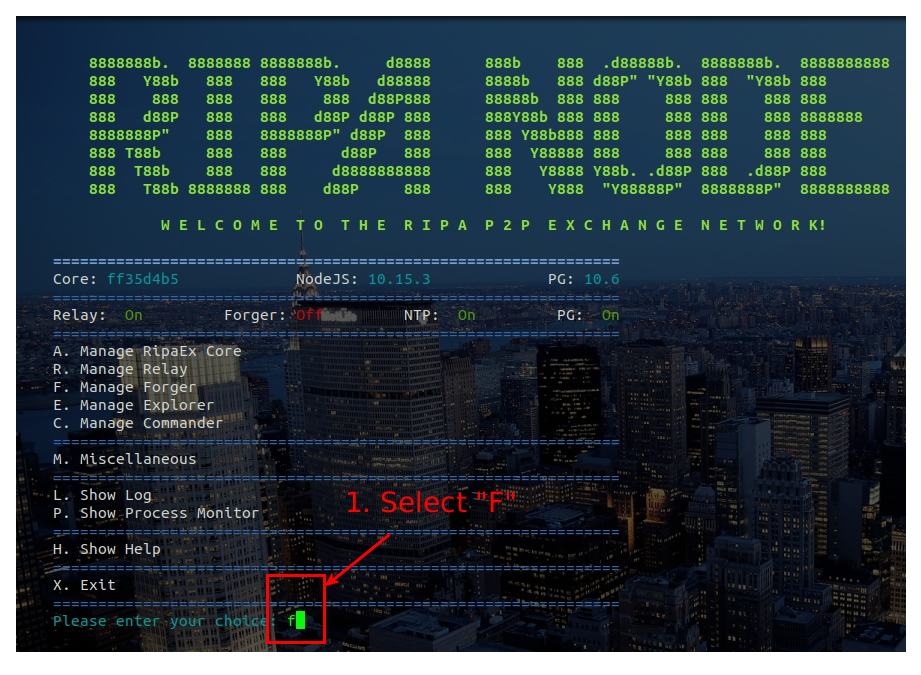 4. Configure Forger 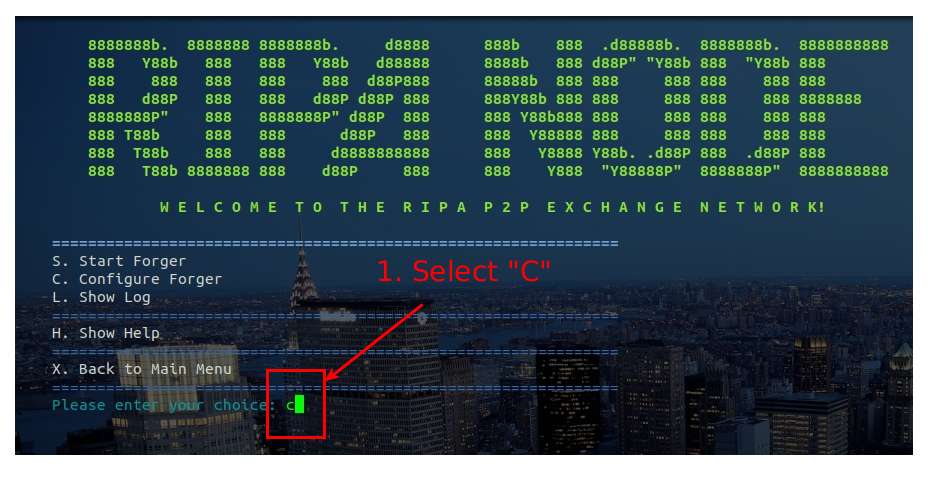 # 2. Start Forger 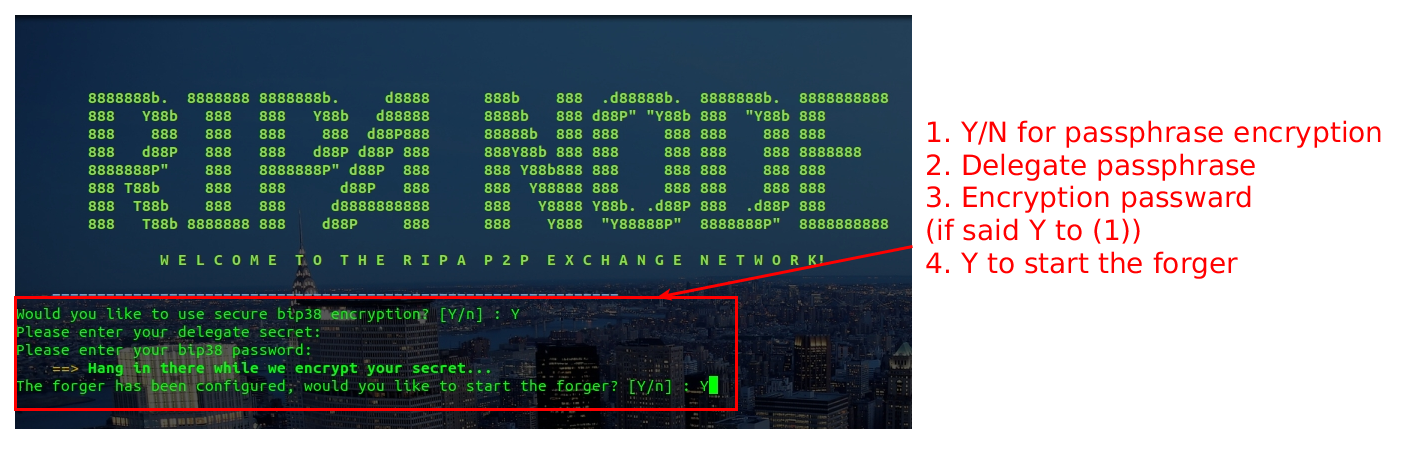 Insert node password in case you chosen (1) in the previous step 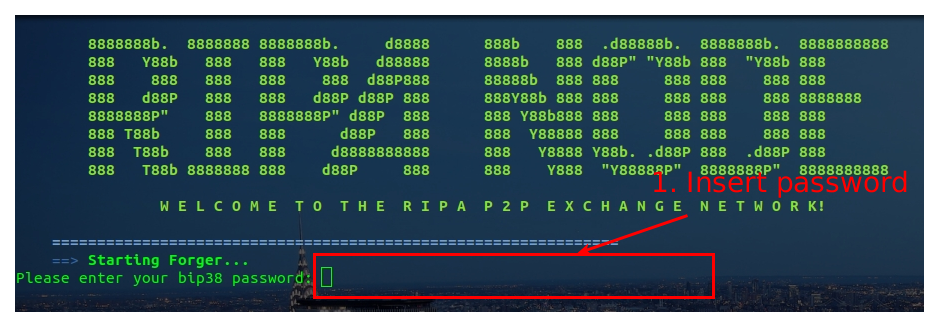 Forger is successfully started: 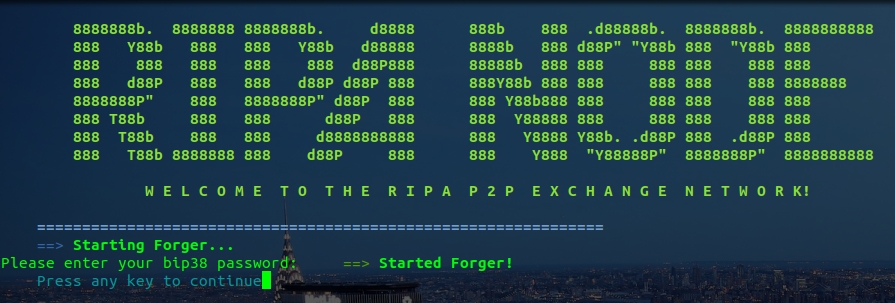 Check FORGER Logs 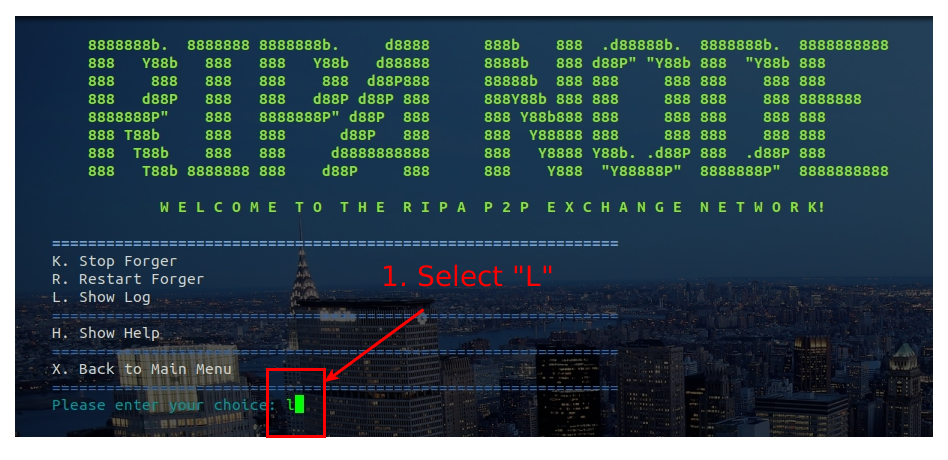 Forger started successfully 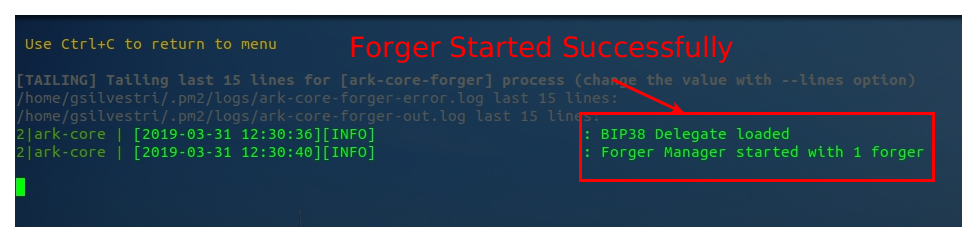 # 3. Monitor your node To monitor your node you have two options: 1. **check the logs from the main menu**: this logs are cumulative of relay and forger processes installed in the node 2. **check processes from the main menu**: this will show a detailed view of the processes run in your node with memory consumption, cpu usage of both relay and forger nodes. Select "L" from the main menu: 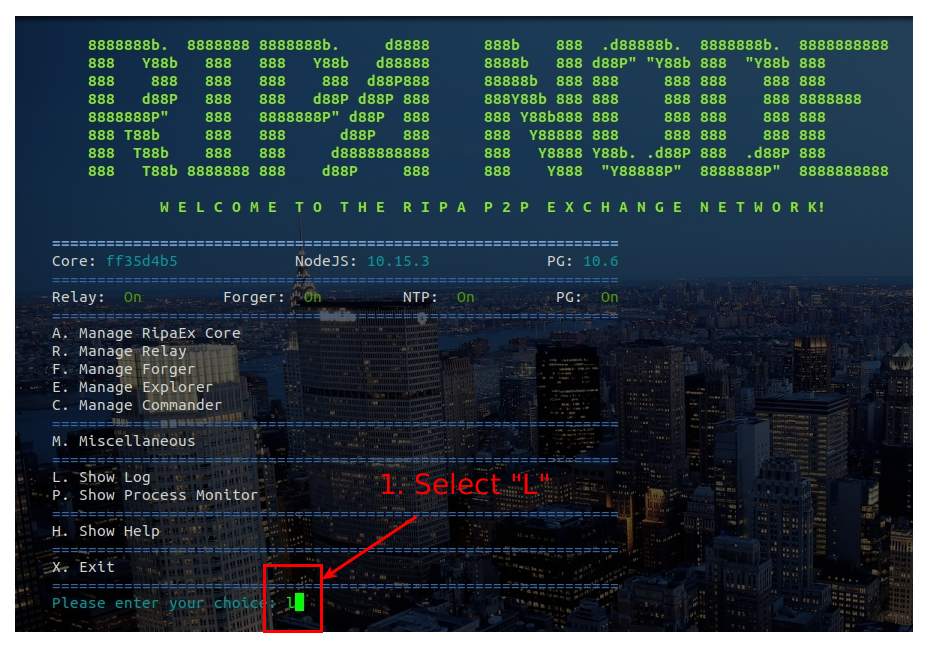 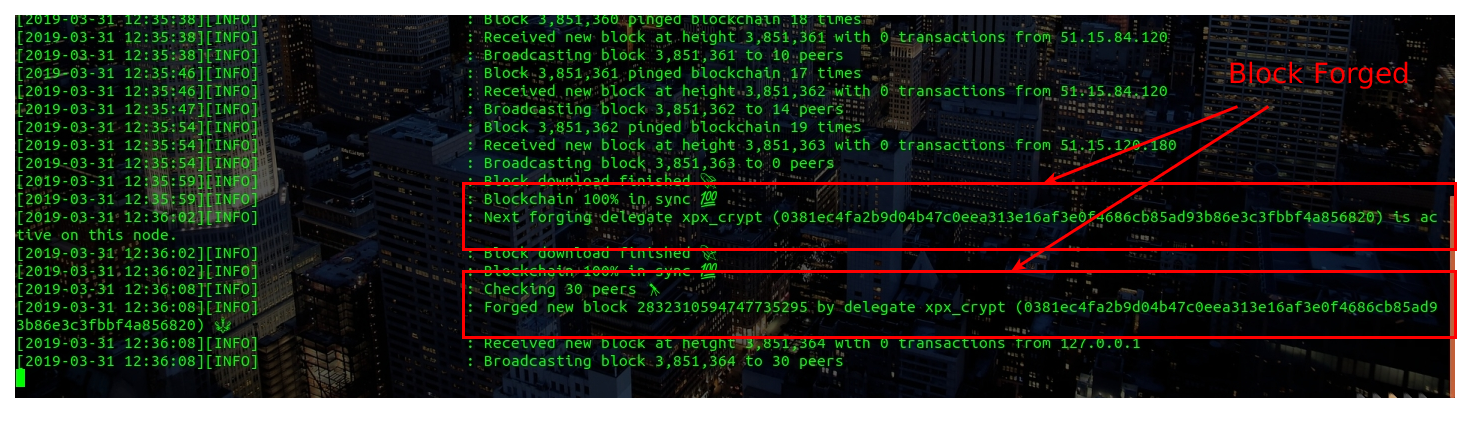 Select "P" from the main menu: 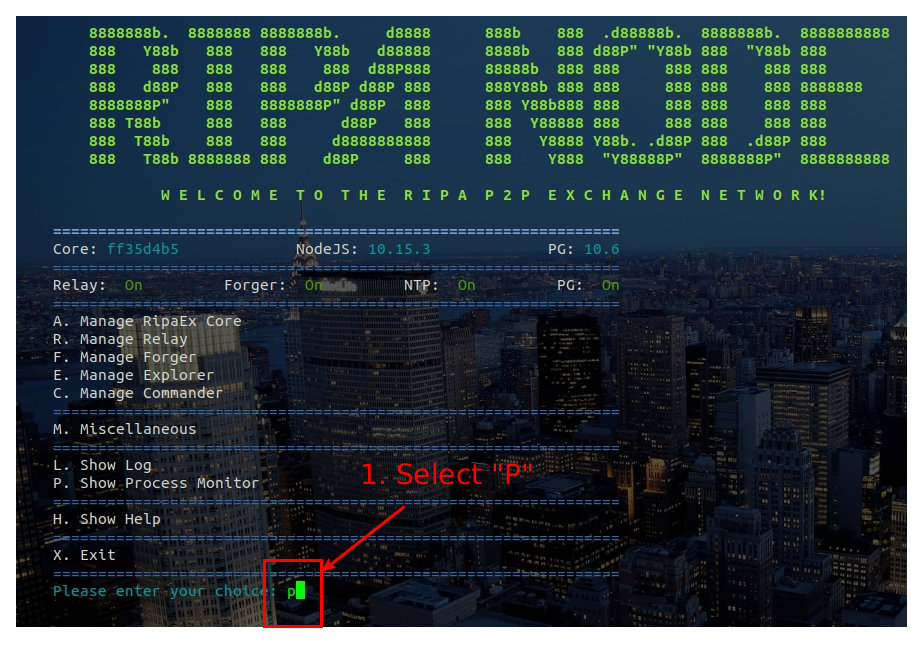 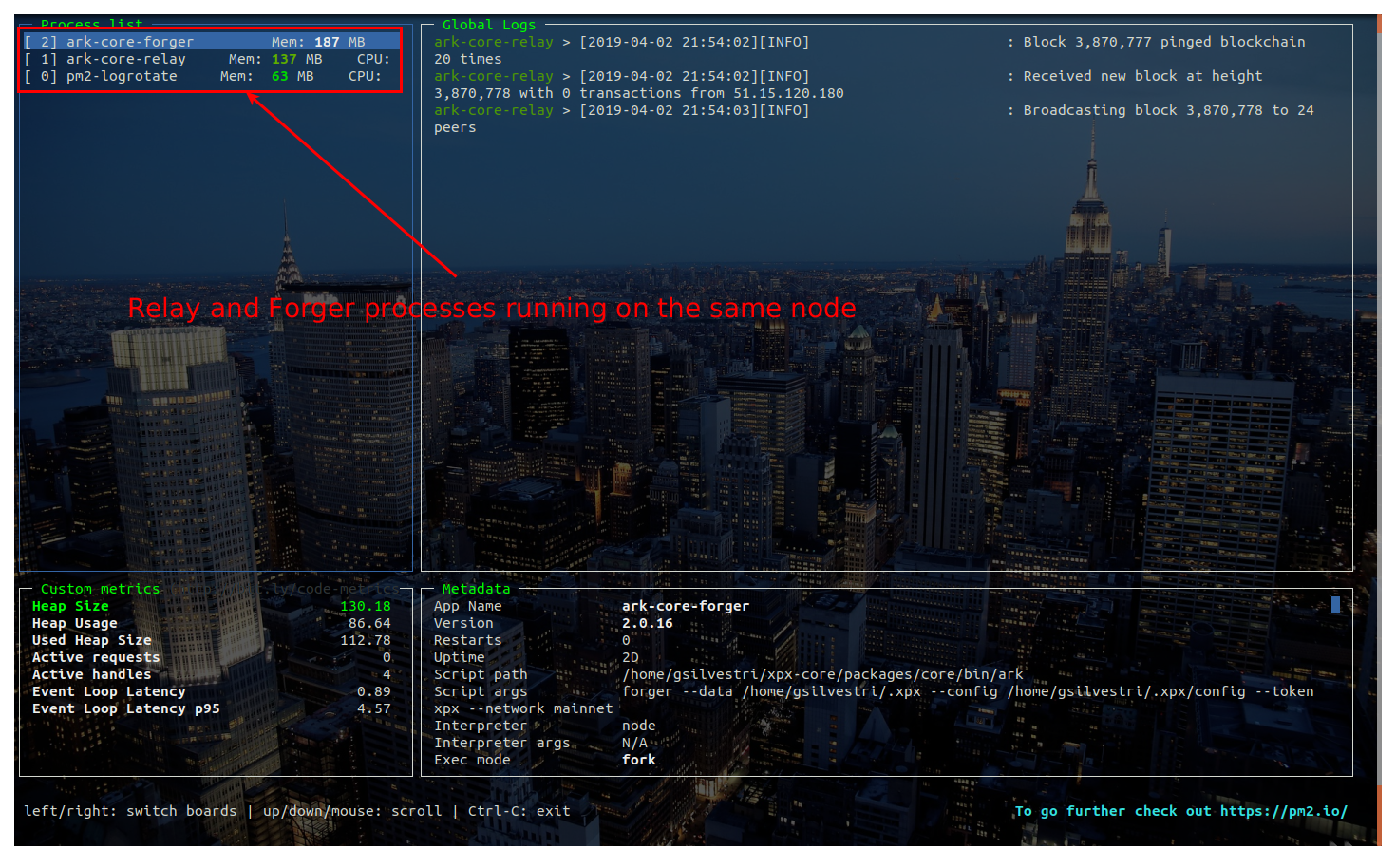 > CONGRATULATIONS: you have successfully installed your XPX Forger Node V.2.0 ## Remember to connect to us... Website: [www.ripaex.com](https://www.ripaex.com) Telegram: [t.me/ripaex](https://t.me/ripaex) Slack: [slack/ripaex](https://join.slack.com/t/ripaex/shared_invite/enQtMzM4NzUwNjU4OTQ0LTY3MDJmMTdhYTNlZjJlNGUxNzM1YjUwYjgyYjZlMDJmOTg3NTIzNThmNTYyMGQ3ODBkOTRmYzk3Y2Y4MzBkOTY) Bitcointalk ANN: [bitcointalk.org/index.php?topic=3759172](https://bitcointalk.org/index.php?topic=3759172) Whitepaper: [github.com/RipaEx/whitepaper/raw/master/eng/RipaEx_WP_EN.pdf](https://github.com/RipaEx/whitepaper/raw/master/eng/RipaEx_WP_EN.pdf) Facebook: [www.facebook.com/ripaex](https://www.facebook.com/ripaex) Twitter: [twitter.com/ripaex](https://twitter.com/ripaex) Gitter: [gitter.im/RipaEx/RipaEx](https://gitter.im/RipaEx/RipaEx) GitHub: [github.com/RipaEx/](https://github.com/RipaEx/) Blog: [steemit.com/ripaex](https://steemit.com/ripaex) |
| json metadata | {"tags":["xpx","v2","delegate","forger","ripaex"],"image":["https://cdn.steemitimages.com/DQme2q6ndFmSEF4y5sLs4XE7Cdt9dA1ksc5yUiXKdg2aas5/image.png","https://cdn.steemitimages.com/DQmRZpxAHyz5gvhPxjpJt9FGokGMapy3uuMXEnT5e5vKNzr/1_forger_menu.png","https://cdn.steemitimages.com/DQmSW2nPi7oSXCWK75FwuyAC9nQTKSgkWRt7ZtWeHyirxPg/2_configure_forger.png","https://cdn.steemitimages.com/DQmaNi9QrAQRYDk5YfiSQXdmf5JVCMbWD2cqcNZBwBCxr7t/3_start_forger.png","https://cdn.steemitimages.com/DQmT2B5k4NpGc9cYa1aoRpvbXfYJMNL4SmqjwsC7d9MyDhP/4_insert_password.png","https://cdn.steemitimages.com/DQmRq8wto2V2obaFiRWGA3ZnRA6gKeZnBEvHBun3saGYcvh/5_forger_started.jpg","https://cdn.steemitimages.com/DQmPgLCFjUXZy6YxSqvvL83mUPbGeaRNzXP3AmBUMhzJUYJ/6_check_logs.png","https://cdn.steemitimages.com/DQmZdpiFGt5fYN2jNt5F77UguXmZxDyWUFVzR7zFiP32Ja7/7_logs_ok.png","https://cdn.steemitimages.com/DQmcabXByTFJSmvWGxMLSH1G9agJcw6EBdCaadS3wrPiDHS/8b_check_processes.png","https://cdn.steemitimages.com/DQmfNKa6DKkyVEKAHA7w7U8ULE5L6BpVfhrCsQi7x88yZcd/8_check_main_logs.png","https://cdn.steemitimages.com/DQmZxafEyCx6jYoQrm31yr9eyYQZaVbWfiqi72NZbYwZJzn/7b_check_logs.png","https://cdn.steemitimages.com/DQmZmdZrxXcFjoJpUB28bR9aEgoZUDSxDKYjg1SkBfnBp8K/9_check_processes.png"],"links":["https://steemit.com/xpx/@ripaex/how-to-set-up-an-xpx-v-2-0-relay-node-xpx-2-0-migration-1-2","https://www.ripaex.com","https://t.me/ripaex","https://join.slack.com/t/ripaex/shared_invite/enQtMzM4NzUwNjU4OTQ0LTY3MDJmMTdhYTNlZjJlNGUxNzM1YjUwYjgyYjZlMDJmOTg3NTIzNThmNTYyMGQ3ODBkOTRmYzk3Y2Y4MzBkOTY","https://bitcointalk.org/index.php?topic=3759172","https://github.com/RipaEx/whitepaper/raw/master/eng/RipaEx_WP_EN.pdf","https://www.facebook.com/ripaex","https://twitter.com/ripaex","https://gitter.im/RipaEx/RipaEx","https://github.com/RipaEx/","https://steemit.com/ripaex"],"app":"steemit/0.1","format":"markdown"} |
| Transaction Info | Block #31759625/Trx 4a7929b09fb1f638d4dc1377ec949dffbc3a04d6 |
View Raw JSON Data
{
"trx_id": "4a7929b09fb1f638d4dc1377ec949dffbc3a04d6",
"block": 31759625,
"trx_in_block": 42,
"op_in_trx": 0,
"virtual_op": 0,
"timestamp": "2019-04-04T20:11:00",
"op": [
"comment",
{
"parent_author": "",
"parent_permlink": "xpx",
"author": "ripaex",
"permlink": "how-to-set-up-an-xpx-v-2-0-forger-node-xpx-2-0-migration-2-2",
"title": "How To Set Up an XPX V.2.0 FORGER node - XPX 2.0 Migration - 2/2",
"body": "\n\nThis article is following the [**How To Set Up an XPX V.2.0 RELAY node - XPX 2.0 Migration - 1/2**](https://steemit.com/xpx/@ripaex/how-to-set-up-an-xpx-v-2-0-relay-node-xpx-2-0-migration-1-2): after you have your RELAY node up-and-running you can proceed to configure and run the forger node.\n\nIt is advisable to run the forger process in the same virtual machine of the relay node, however remote configurations are possible you need to undergo additional setup for it that is out of the scope of this document.\n\n# 1. Configure XPX Forger\n1. Connect to the xpx node:\n`ssh [email protected]`\n\n2. Launch the commander script and configure the forger:\n`cd core-commander`\n`bash commander.sh`\n\n3. Select Forger menu\n\n\n4. Configure Forger\n\n\n# 2. Start Forger\n\n\nInsert node password in case you chosen (1) in the previous step\n\n\nForger is successfully started:\n\n\nCheck FORGER Logs\n\n\nForger started successfully\n\n\n# 3. Monitor your node\nTo monitor your node you have two options:\n1. **check the logs from the main menu**: this logs are cumulative of relay and forger processes installed in the node\n2. **check processes from the main menu**: this will show a detailed view of the processes run in your node with memory consumption, cpu usage of both relay and forger nodes.\n\nSelect \"L\" from the main menu:\n\n\n\n\nSelect \"P\" from the main menu:\n\n\n\n\n\n> CONGRATULATIONS: you have successfully installed your XPX Forger Node V.2.0\n\n\n\n## Remember to connect to us...\nWebsite: [www.ripaex.com](https://www.ripaex.com)\nTelegram: [t.me/ripaex](https://t.me/ripaex)\nSlack: [slack/ripaex](https://join.slack.com/t/ripaex/shared_invite/enQtMzM4NzUwNjU4OTQ0LTY3MDJmMTdhYTNlZjJlNGUxNzM1YjUwYjgyYjZlMDJmOTg3NTIzNThmNTYyMGQ3ODBkOTRmYzk3Y2Y4MzBkOTY)\nBitcointalk ANN: [bitcointalk.org/index.php?topic=3759172](https://bitcointalk.org/index.php?topic=3759172)\nWhitepaper: [github.com/RipaEx/whitepaper/raw/master/eng/RipaEx_WP_EN.pdf](https://github.com/RipaEx/whitepaper/raw/master/eng/RipaEx_WP_EN.pdf)\nFacebook: [www.facebook.com/ripaex](https://www.facebook.com/ripaex)\nTwitter: [twitter.com/ripaex](https://twitter.com/ripaex)\nGitter: [gitter.im/RipaEx/RipaEx](https://gitter.im/RipaEx/RipaEx)\nGitHub: [github.com/RipaEx/](https://github.com/RipaEx/)\nBlog: [steemit.com/ripaex](https://steemit.com/ripaex)",
"json_metadata": "{\"tags\":[\"xpx\",\"v2\",\"delegate\",\"forger\",\"ripaex\"],\"image\":[\"https://cdn.steemitimages.com/DQme2q6ndFmSEF4y5sLs4XE7Cdt9dA1ksc5yUiXKdg2aas5/image.png\",\"https://cdn.steemitimages.com/DQmRZpxAHyz5gvhPxjpJt9FGokGMapy3uuMXEnT5e5vKNzr/1_forger_menu.png\",\"https://cdn.steemitimages.com/DQmSW2nPi7oSXCWK75FwuyAC9nQTKSgkWRt7ZtWeHyirxPg/2_configure_forger.png\",\"https://cdn.steemitimages.com/DQmaNi9QrAQRYDk5YfiSQXdmf5JVCMbWD2cqcNZBwBCxr7t/3_start_forger.png\",\"https://cdn.steemitimages.com/DQmT2B5k4NpGc9cYa1aoRpvbXfYJMNL4SmqjwsC7d9MyDhP/4_insert_password.png\",\"https://cdn.steemitimages.com/DQmRq8wto2V2obaFiRWGA3ZnRA6gKeZnBEvHBun3saGYcvh/5_forger_started.jpg\",\"https://cdn.steemitimages.com/DQmPgLCFjUXZy6YxSqvvL83mUPbGeaRNzXP3AmBUMhzJUYJ/6_check_logs.png\",\"https://cdn.steemitimages.com/DQmZdpiFGt5fYN2jNt5F77UguXmZxDyWUFVzR7zFiP32Ja7/7_logs_ok.png\",\"https://cdn.steemitimages.com/DQmcabXByTFJSmvWGxMLSH1G9agJcw6EBdCaadS3wrPiDHS/8b_check_processes.png\",\"https://cdn.steemitimages.com/DQmfNKa6DKkyVEKAHA7w7U8ULE5L6BpVfhrCsQi7x88yZcd/8_check_main_logs.png\",\"https://cdn.steemitimages.com/DQmZxafEyCx6jYoQrm31yr9eyYQZaVbWfiqi72NZbYwZJzn/7b_check_logs.png\",\"https://cdn.steemitimages.com/DQmZmdZrxXcFjoJpUB28bR9aEgoZUDSxDKYjg1SkBfnBp8K/9_check_processes.png\"],\"links\":[\"https://steemit.com/xpx/@ripaex/how-to-set-up-an-xpx-v-2-0-relay-node-xpx-2-0-migration-1-2\",\"https://www.ripaex.com\",\"https://t.me/ripaex\",\"https://join.slack.com/t/ripaex/shared_invite/enQtMzM4NzUwNjU4OTQ0LTY3MDJmMTdhYTNlZjJlNGUxNzM1YjUwYjgyYjZlMDJmOTg3NTIzNThmNTYyMGQ3ODBkOTRmYzk3Y2Y4MzBkOTY\",\"https://bitcointalk.org/index.php?topic=3759172\",\"https://github.com/RipaEx/whitepaper/raw/master/eng/RipaEx_WP_EN.pdf\",\"https://www.facebook.com/ripaex\",\"https://twitter.com/ripaex\",\"https://gitter.im/RipaEx/RipaEx\",\"https://github.com/RipaEx/\",\"https://steemit.com/ripaex\"],\"app\":\"steemit/0.1\",\"format\":\"markdown\"}"
}
]
}mgranjaupvoted (1.00%) @ripaex / how-to-set-up-a-kapu-v-2-0-forger-node-2-22019/04/02 21:40:30
mgranjaupvoted (1.00%) @ripaex / how-to-set-up-a-kapu-v-2-0-forger-node-2-2
2019/04/02 21:40:30
| voter | mgranja |
| author | ripaex |
| permlink | how-to-set-up-a-kapu-v-2-0-forger-node-2-2 |
| weight | 100 (1.00%) |
| Transaction Info | Block #31703841/Trx 7d0b38b23071bf8e00e9fad1578b1c82b9783d84 |
View Raw JSON Data
{
  "trx_id": "7d0b38b23071bf8e00e9fad1578b1c82b9783d84",
  "block": 31703841,
  "trx_in_block": 29,
  "op_in_trx": 0,
  "virtual_op": 0,
  "timestamp": "2019-04-02T21:40:30",
  "op": [
    "vote",
    {
      "voter": "mgranja",
      "author": "ripaex",
      "permlink": "how-to-set-up-a-kapu-v-2-0-forger-node-2-2",
      "weight": 100
    }
  ]
}ripaexpublished a new post: how-to-set-up-an-xpx-v-2-0-relay-node-xpx-2-0-migration-1-22019/04/02 21:32:42
ripaexpublished a new post: how-to-set-up-an-xpx-v-2-0-relay-node-xpx-2-0-migration-1-2
2019/04/02 21:32:42
| parent author | |
| parent permlink | xpx |
| author | ripaex |
| permlink | how-to-set-up-an-xpx-v-2-0-relay-node-xpx-2-0-migration-1-2 |
| title | How To Set Up an XPX V.2.0 RELAY node - XPX 2.0 Migration - 1/2 |
| body | @@ -7281,52 +7281,52 @@ /DQm -ZVXE5a6h8efmjk6Ze9Mqo2qvHTUNdbnBtpq94FsYmQ8R +dYCjJZUA3TuceDV5FMW3YKAA4euD1YoUMwdA3XvYFWax /12_ |
| json metadata | {"tags":["xpx","v2","delegate","relay"],"image":["https://cdn.steemitimages.com/DQme2q6ndFmSEF4y5sLs4XE7Cdt9dA1ksc5yUiXKdg2aas5/image.png","https://cdn.steemitimages.com/DQmPREfnCwyd1nAF6t6Ug6ksBGt9S6BWoB2jiQbKDvE6G8x/1_vps.png","https://cdn.steemitimages.com/DQmUiFG5fu3rb1HgPSAUhSLgdUFa2gtLseb5o1D7W7gvuBL/2_vps.png","https://cdn.steemitimages.com/DQmT1KfnrJSv8E9sapxAkHETqSR1ySyM5UEE57qwEmivLZv/3_vps.png","https://cdn.steemitimages.com/DQmSpy2T6ugLeY4AG4Rk7EtBPRaaxeqvhDSGmtif9WrpD3B/4_login_root.png","https://cdn.steemitimages.com/DQmQNiM2MzPEvPfvN94SX3WaAgnZUBe3yJt7dq1g8voRmki/5_install_sudo.png","https://cdn.steemitimages.com/DQmWeWAAUf4RrbL4SX4XEtgVZq8bJfo8RB1bEeyzszcJTXq/6_add_user.png","https://cdn.steemitimages.com/DQmSzxGQ5rF531VZJ1VExpyAeZfNBhBt8KjJoqQ2X5ir6d5/7_login_user.png","https://cdn.steemitimages.com/DQmS8o8wEJ5noUaa7RUz6mh9HiGQZDTCWMANBCh1J1gz3Xh/8_launch_ripa_commander.png","https://cdn.steemitimages.com/DQmbCheyCovzDTj26wmi3RoU5pnz1cD1ywCiFxWuKM4NZLt/9_insert_password.png","https://cdn.steemitimages.com/DQmYdYVTcikmRxjj4WAMtFV8drvBGyL3PBABd8nvJg5PhbZ/10_install_dependencies.png","https://cdn.steemitimages.com/DQmPQi2Mz8QMMpDbLY37d6fRbZrwtakGBwGmd824f7ZXmZR/11_reboot_system.png","https://cdn.steemitimages.com/DQmdYCjJZUA3TuceDV5FMW3YKAA4euD1YoUMwdA3XvYFWax/12_launch_ripa_commander.png","https://cdn.steemitimages.com/DQmSfr9J1gJg5QbtwbnaXACouwVKXniKWDEbyGSqQEh3StF/13_install_node.png","https://cdn.steemitimages.com/DQmdsCapD8tmxubkL9MrA71nb5r4e1krnZXao4YmeUdX1ak/15_configure_network.png","https://cdn.steemitimages.com/DQmdAtDVwJjqE563fTFY2hkhdKbJXfUhFdYN6PWnXdUkJpz/16_configure_database.png","https://cdn.steemitimages.com/DQmRtB6aReVb4ncQEwGpYaYUCgamDmbJbc9Pgr3XFEPzkAP/17_configure_log.png","https://cdn.steemitimages.com/DQmZs16mZeSVRo3WZRFaRanka6JnUT18axEER8CqiKAyRzp/18_install_node.png","https://cdn.steemitimages.com/DQmPu4XQRq3MWMhMiFJQvLdLBXKf8bFmiJ8AhEBoQcKSK6K/19_launch_node.png","https://cdn.steemitimages.com/DQmYVvYgYQXharMxpja8SKPwF66U3DZfYwffm7oJDv2eUoL/20_check_log.png","https://cdn.steemitimages.com/DQmcoRqgfRZij9fY7yR9QBEXmYaJXXJM5g8wAnVkhsqNPyV/23_log_ok.png","https://cdn.steemitimages.com/DQmT5HLkLuLhgFVNMaZu3jfW7rHdrPe8ofyyrwEtJUAEM7A/21_check_process.png","https://cdn.steemitimages.com/DQmSmwhfoTfaDjAwZcPPvq7Nj6U18MCZFaCvW2RFs7fdXJS/25_processes_ok.png"],"links":["https://t.me/ripaex","https://join.slack.com/t/ripaex/shared_invite/enQtMzM4NzUwNjU4OTQ0LTY3MDJmMTdhYTNlZjJlNGUxNzM1YjUwYjgyYjZlMDJmOTg3NTIzNThmNTYyMGQ3ODBkOTRmYzk3Y2Y4MzBkOTY","mailto:[email protected]","https://www.ripaex.com","https://www.scaleway.com/","https://m.do.co/c/ac0f2bca30e9","https://www.vultr.com/?ref=7434091","https://www.ovh.com/us/vps/vps-ssd.xml","https://www.putty.org/","https://www.ripaex.io","https://bitcointalk.org/index.php?topic=3759172","https://github.com/RipaEx/whitepaper/raw/master/eng/RipaEx_WP_EN.pdf","https://www.facebook.com/ripaex","https://twitter.com/ripaex","https://gitter.im/RipaEx/RipaEx","https://github.com/RipaEx/","https://steemit.com/ripaex"],"app":"steemit/0.1","format":"markdown"} |
| Transaction Info | Block #31703685/Trx 2fda805a3450c1e58c017417dfe1c71c2793255b |
View Raw JSON Data
{
  "trx_id": "2fda805a3450c1e58c017417dfe1c71c2793255b",
  "block": 31703685,
  "trx_in_block": 26,
  "op_in_trx": 0,
  "virtual_op": 0,
  "timestamp": "2019-04-02T21:32:42",
  "op": [
    "comment",
    {
      "parent_author": "",
      "parent_permlink": "xpx",
      "author": "ripaex",
      "permlink": "how-to-set-up-an-xpx-v-2-0-relay-node-xpx-2-0-migration-1-2",
      "title": "How To Set Up an XPX V.2.0 RELAY node - XPX 2.0 Migration - 1/2",
      "body": "@@ -7281,52 +7281,52 @@\n /DQm\n-ZVXE5a6h8efmjk6Ze9Mqo2qvHTUNdbnBtpq94FsYmQ8R\n+dYCjJZUA3TuceDV5FMW3YKAA4euD1YoUMwdA3XvYFWax\n /12_\n",
      "json_metadata": "{\"tags\":[\"xpx\",\"v2\",\"delegate\",\"relay\"],\"image\":[\"https://cdn.steemitimages.com/DQme2q6ndFmSEF4y5sLs4XE7Cdt9dA1ksc5yUiXKdg2aas5/image.png\",\"https://cdn.steemitimages.com/DQmPREfnCwyd1nAF6t6Ug6ksBGt9S6BWoB2jiQbKDvE6G8x/1_vps.png\",\"https://cdn.steemitimages.com/DQmUiFG5fu3rb1HgPSAUhSLgdUFa2gtLseb5o1D7W7gvuBL/2_vps.png\",\"https://cdn.steemitimages.com/DQmT1KfnrJSv8E9sapxAkHETqSR1ySyM5UEE57qwEmivLZv/3_vps.png\",\"https://cdn.steemitimages.com/DQmSpy2T6ugLeY4AG4Rk7EtBPRaaxeqvhDSGmtif9WrpD3B/4_login_root.png\",\"https://cdn.steemitimages.com/DQmQNiM2MzPEvPfvN94SX3WaAgnZUBe3yJt7dq1g8voRmki/5_install_sudo.png\",\"https://cdn.steemitimages.com/DQmWeWAAUf4RrbL4SX4XEtgVZq8bJfo8RB1bEeyzszcJTXq/6_add_user.png\",\"https://cdn.steemitimages.com/DQmSzxGQ5rF531VZJ1VExpyAeZfNBhBt8KjJoqQ2X5ir6d5/7_login_user.png\",\"https://cdn.steemitimages.com/DQmS8o8wEJ5noUaa7RUz6mh9HiGQZDTCWMANBCh1J1gz3Xh/8_launch_ripa_commander.png\",\"https://cdn.steemitimages.com/DQmbCheyCovzDTj26wmi3RoU5pnz1cD1ywCiFxWuKM4NZLt/9_insert_password.png\",\"https://cdn.steemitimages.com/DQmYdYVTcikmRxjj4WAMtFV8drvBGyL3PBABd8nvJg5PhbZ/10_install_dependencies.png\",\"https://cdn.steemitimages.com/DQmPQi2Mz8QMMpDbLY37d6fRbZrwtakGBwGmd824f7ZXmZR/11_reboot_system.png\",\"https://cdn.steemitimages.com/DQmdYCjJZUA3TuceDV5FMW3YKAA4euD1YoUMwdA3XvYFWax/12_launch_ripa_commander.png\",\"https://cdn.steemitimages.com/DQmSfr9J1gJg5QbtwbnaXACouwVKXniKWDEbyGSqQEh3StF/13_install_node.png\",\"https://cdn.steemitimages.com/DQmdsCapD8tmxubkL9MrA71nb5r4e1krnZXao4YmeUdX1ak/15_configure_network.png\",\"https://cdn.steemitimages.com/DQmdAtDVwJjqE563fTFY2hkhdKbJXfUhFdYN6PWnXdUkJpz/16_configure_database.png\",\"https://cdn.steemitimages.com/DQmRtB6aReVb4ncQEwGpYaYUCgamDmbJbc9Pgr3XFEPzkAP/17_configure_log.png\",\"https://cdn.steemitimages.com/DQmZs16mZeSVRo3WZRFaRanka6JnUT18axEER8CqiKAyRzp/18_install_node.png\",\"https://cdn.steemitimages.com/DQmPu4XQRq3MWMhMiFJQvLdLBXKf8bFmiJ8AhEBoQcKSK6K/19_launch_node.png\",\"https://cdn.steemitimages.com/DQmYVvYgYQXharMxpja8SKPwF66U3DZfYwffm7oJDv2eUoL/20_check_log.png\",\"https://cdn.steemitimages.com/DQmcoRqgfRZij9fY7yR9QBEXmYaJXXJM5g8wAnVkhsqNPyV/23_log_ok.png\",\"https://cdn.steemitimages.com/DQmT5HLkLuLhgFVNMaZu3jfW7rHdrPe8ofyyrwEtJUAEM7A/21_check_process.png\",\"https://cdn.steemitimages.com/DQmSmwhfoTfaDjAwZcPPvq7Nj6U18MCZFaCvW2RFs7fdXJS/25_processes_ok.png\"],\"links\":[\"https://t.me/ripaex\",\"https://join.slack.com/t/ripaex/shared_invite/enQtMzM4NzUwNjU4OTQ0LTY3MDJmMTdhYTNlZjJlNGUxNzM1YjUwYjgyYjZlMDJmOTg3NTIzNThmNTYyMGQ3ODBkOTRmYzk3Y2Y4MzBkOTY\",\"mailto:[email protected]\",\"https://www.ripaex.com\",\"https://www.scaleway.com/\",\"https://m.do.co/c/ac0f2bca30e9\",\"https://www.vultr.com/?ref=7434091\",\"https://www.ovh.com/us/vps/vps-ssd.xml\",\"https://www.putty.org/\",\"https://www.ripaex.io\",\"https://bitcointalk.org/index.php?topic=3759172\",\"https://github.com/RipaEx/whitepaper/raw/master/eng/RipaEx_WP_EN.pdf\",\"https://www.facebook.com/ripaex\",\"https://twitter.com/ripaex\",\"https://gitter.im/RipaEx/RipaEx\",\"https://github.com/RipaEx/\",\"https://steemit.com/ripaex\"],\"app\":\"steemit/0.1\",\"format\":\"markdown\"}"
    }
  ]
}ripaexpublished a new post: how-to-set-up-an-xpx-v-2-0-relay-node-xpx-2-0-migration-1-22019/04/02 21:30:15
ripaexpublished a new post: how-to-set-up-an-xpx-v-2-0-relay-node-xpx-2-0-migration-1-2
2019/04/02 21:30:15
| parent author | |
| parent permlink | xpx |
| author | ripaex |
| permlink | how-to-set-up-an-xpx-v-2-0-relay-node-xpx-2-0-migration-1-2 |
| title | How To Set Up an XPX V.2.0 RELAY node - XPX 2.0 Migration - 1/2 |
| body | @@ -3464,20 +3464,19 @@ oot@ -51.15.84.120 +xx.xx.xx.xx **%0A%0A @@ -3589,52 +3589,52 @@ /DQm -bk7QQA3VWpZqt8hN8vZHAthg8V539wLWBF3jRqXuj4NT +Spy2T6ugLeY4AG4Rk7EtBPRaaxeqvhDSGmtif9WrpD3B /4_l @@ -5379,51 +5379,51 @@ DQmS -FE7F1bbnBdFQSHoyWTRF9ZJ5YGAFFedcv1pCxkDbLSe +zxGQ5rF531VZJ1VExpyAeZfNBhBt8KjJoqQ2X5ir6d5 /7_l @@ -5617,20 +5617,19 @@ xpx@ -51.15.236.82 +xx.xx.xx.xx **%0A%0A |
| json metadata | {"tags":["xpx","v2","delegate","relay"],"image":["https://cdn.steemitimages.com/DQme2q6ndFmSEF4y5sLs4XE7Cdt9dA1ksc5yUiXKdg2aas5/image.png","https://cdn.steemitimages.com/DQmPREfnCwyd1nAF6t6Ug6ksBGt9S6BWoB2jiQbKDvE6G8x/1_vps.png","https://cdn.steemitimages.com/DQmUiFG5fu3rb1HgPSAUhSLgdUFa2gtLseb5o1D7W7gvuBL/2_vps.png","https://cdn.steemitimages.com/DQmT1KfnrJSv8E9sapxAkHETqSR1ySyM5UEE57qwEmivLZv/3_vps.png","https://cdn.steemitimages.com/DQmSpy2T6ugLeY4AG4Rk7EtBPRaaxeqvhDSGmtif9WrpD3B/4_login_root.png","https://cdn.steemitimages.com/DQmQNiM2MzPEvPfvN94SX3WaAgnZUBe3yJt7dq1g8voRmki/5_install_sudo.png","https://cdn.steemitimages.com/DQmWeWAAUf4RrbL4SX4XEtgVZq8bJfo8RB1bEeyzszcJTXq/6_add_user.png","https://cdn.steemitimages.com/DQmSzxGQ5rF531VZJ1VExpyAeZfNBhBt8KjJoqQ2X5ir6d5/7_login_user.png","https://cdn.steemitimages.com/DQmS8o8wEJ5noUaa7RUz6mh9HiGQZDTCWMANBCh1J1gz3Xh/8_launch_ripa_commander.png","https://cdn.steemitimages.com/DQmbCheyCovzDTj26wmi3RoU5pnz1cD1ywCiFxWuKM4NZLt/9_insert_password.png","https://cdn.steemitimages.com/DQmYdYVTcikmRxjj4WAMtFV8drvBGyL3PBABd8nvJg5PhbZ/10_install_dependencies.png","https://cdn.steemitimages.com/DQmPQi2Mz8QMMpDbLY37d6fRbZrwtakGBwGmd824f7ZXmZR/11_reboot_system.png","https://cdn.steemitimages.com/DQmZVXE5a6h8efmjk6Ze9Mqo2qvHTUNdbnBtpq94FsYmQ8R/12_launch_ripa_commander.png","https://cdn.steemitimages.com/DQmSfr9J1gJg5QbtwbnaXACouwVKXniKWDEbyGSqQEh3StF/13_install_node.png","https://cdn.steemitimages.com/DQmdsCapD8tmxubkL9MrA71nb5r4e1krnZXao4YmeUdX1ak/15_configure_network.png","https://cdn.steemitimages.com/DQmdAtDVwJjqE563fTFY2hkhdKbJXfUhFdYN6PWnXdUkJpz/16_configure_database.png","https://cdn.steemitimages.com/DQmRtB6aReVb4ncQEwGpYaYUCgamDmbJbc9Pgr3XFEPzkAP/17_configure_log.png","https://cdn.steemitimages.com/DQmZs16mZeSVRo3WZRFaRanka6JnUT18axEER8CqiKAyRzp/18_install_node.png","https://cdn.steemitimages.com/DQmPu4XQRq3MWMhMiFJQvLdLBXKf8bFmiJ8AhEBoQcKSK6K/19_launch_node.png","https://cdn.steemitimages.com/DQmYVvYgYQXharMxpja8SKPwF66U3DZfYwffm7oJDv2eUoL/20_check_log.png","https://cdn.steemitimages.com/DQmcoRqgfRZij9fY7yR9QBEXmYaJXXJM5g8wAnVkhsqNPyV/23_log_ok.png","https://cdn.steemitimages.com/DQmT5HLkLuLhgFVNMaZu3jfW7rHdrPe8ofyyrwEtJUAEM7A/21_check_process.png","https://cdn.steemitimages.com/DQmSmwhfoTfaDjAwZcPPvq7Nj6U18MCZFaCvW2RFs7fdXJS/25_processes_ok.png"],"links":["https://t.me/ripaex","https://join.slack.com/t/ripaex/shared_invite/enQtMzM4NzUwNjU4OTQ0LTY3MDJmMTdhYTNlZjJlNGUxNzM1YjUwYjgyYjZlMDJmOTg3NTIzNThmNTYyMGQ3ODBkOTRmYzk3Y2Y4MzBkOTY","mailto:[email protected]","https://www.ripaex.com","https://www.scaleway.com/","https://m.do.co/c/ac0f2bca30e9","https://www.vultr.com/?ref=7434091","https://www.ovh.com/us/vps/vps-ssd.xml","https://www.putty.org/","https://www.ripaex.io","https://bitcointalk.org/index.php?topic=3759172","https://github.com/RipaEx/whitepaper/raw/master/eng/RipaEx_WP_EN.pdf","https://www.facebook.com/ripaex","https://twitter.com/ripaex","https://gitter.im/RipaEx/RipaEx","https://github.com/RipaEx/","https://steemit.com/ripaex"],"app":"steemit/0.1","format":"markdown"} |
| Transaction Info | Block #31703636/Trx e5749a7a5ab65bb4cbeaa06b525ee56e093bbc67 |
View Raw JSON Data
{
  "trx_id": "e5749a7a5ab65bb4cbeaa06b525ee56e093bbc67",
  "block": 31703636,
  "trx_in_block": 27,
  "op_in_trx": 0,
  "virtual_op": 0,
  "timestamp": "2019-04-02T21:30:15",
  "op": [
    "comment",
    {
      "parent_author": "",
      "parent_permlink": "xpx",
      "author": "ripaex",
      "permlink": "how-to-set-up-an-xpx-v-2-0-relay-node-xpx-2-0-migration-1-2",
      "title": "How To Set Up an XPX V.2.0 RELAY node - XPX 2.0 Migration - 1/2",
      "body": "@@ -3464,20 +3464,19 @@\n oot@\n-51.15.84.120\n+xx.xx.xx.xx\n **%0A%0A\n@@ -3589,52 +3589,52 @@\n /DQm\n-bk7QQA3VWpZqt8hN8vZHAthg8V539wLWBF3jRqXuj4NT\n+Spy2T6ugLeY4AG4Rk7EtBPRaaxeqvhDSGmtif9WrpD3B\n /4_l\n@@ -5379,51 +5379,51 @@\n DQmS\n-FE7F1bbnBdFQSHoyWTRF9ZJ5YGAFFedcv1pCxkDbLSe\n+zxGQ5rF531VZJ1VExpyAeZfNBhBt8KjJoqQ2X5ir6d5\n /7_l\n@@ -5617,20 +5617,19 @@\n xpx@\n-51.15.236.82\n+xx.xx.xx.xx\n **%0A%0A\n",
      "json_metadata": "{\"tags\":[\"xpx\",\"v2\",\"delegate\",\"relay\"],\"image\":[\"https://cdn.steemitimages.com/DQme2q6ndFmSEF4y5sLs4XE7Cdt9dA1ksc5yUiXKdg2aas5/image.png\",\"https://cdn.steemitimages.com/DQmPREfnCwyd1nAF6t6Ug6ksBGt9S6BWoB2jiQbKDvE6G8x/1_vps.png\",\"https://cdn.steemitimages.com/DQmUiFG5fu3rb1HgPSAUhSLgdUFa2gtLseb5o1D7W7gvuBL/2_vps.png\",\"https://cdn.steemitimages.com/DQmT1KfnrJSv8E9sapxAkHETqSR1ySyM5UEE57qwEmivLZv/3_vps.png\",\"https://cdn.steemitimages.com/DQmSpy2T6ugLeY4AG4Rk7EtBPRaaxeqvhDSGmtif9WrpD3B/4_login_root.png\",\"https://cdn.steemitimages.com/DQmQNiM2MzPEvPfvN94SX3WaAgnZUBe3yJt7dq1g8voRmki/5_install_sudo.png\",\"https://cdn.steemitimages.com/DQmWeWAAUf4RrbL4SX4XEtgVZq8bJfo8RB1bEeyzszcJTXq/6_add_user.png\",\"https://cdn.steemitimages.com/DQmSzxGQ5rF531VZJ1VExpyAeZfNBhBt8KjJoqQ2X5ir6d5/7_login_user.png\",\"https://cdn.steemitimages.com/DQmS8o8wEJ5noUaa7RUz6mh9HiGQZDTCWMANBCh1J1gz3Xh/8_launch_ripa_commander.png\",\"https://cdn.steemitimages.com/DQmbCheyCovzDTj26wmi3RoU5pnz1cD1ywCiFxWuKM4NZLt/9_insert_password.png\",\"https://cdn.steemitimages.com/DQmYdYVTcikmRxjj4WAMtFV8drvBGyL3PBABd8nvJg5PhbZ/10_install_dependencies.png\",\"https://cdn.steemitimages.com/DQmPQi2Mz8QMMpDbLY37d6fRbZrwtakGBwGmd824f7ZXmZR/11_reboot_system.png\",\"https://cdn.steemitimages.com/DQmZVXE5a6h8efmjk6Ze9Mqo2qvHTUNdbnBtpq94FsYmQ8R/12_launch_ripa_commander.png\",\"https://cdn.steemitimages.com/DQmSfr9J1gJg5QbtwbnaXACouwVKXniKWDEbyGSqQEh3StF/13_install_node.png\",\"https://cdn.steemitimages.com/DQmdsCapD8tmxubkL9MrA71nb5r4e1krnZXao4YmeUdX1ak/15_configure_network.png\",\"https://cdn.steemitimages.com/DQmdAtDVwJjqE563fTFY2hkhdKbJXfUhFdYN6PWnXdUkJpz/16_configure_database.png\",\"https://cdn.steemitimages.com/DQmRtB6aReVb4ncQEwGpYaYUCgamDmbJbc9Pgr3XFEPzkAP/17_configure_log.png\",\"https://cdn.steemitimages.com/DQmZs16mZeSVRo3WZRFaRanka6JnUT18axEER8CqiKAyRzp/18_install_node.png\",\"https://cdn.steemitimages.com/DQmPu4XQRq3MWMhMiFJQvLdLBXKf8bFmiJ8AhEBoQcKSK6K/19_launch_node.png\",\"https://cdn.steemitimages.com/DQmYVvYgYQXharMxpja8SKPwF66U3DZfYwffm7oJDv2eUoL/20_check_log.png\",\"https://cdn.steemitimages.com/DQmcoRqgfRZij9fY7yR9QBEXmYaJXXJM5g8wAnVkhsqNPyV/23_log_ok.png\",\"https://cdn.steemitimages.com/DQmT5HLkLuLhgFVNMaZu3jfW7rHdrPe8ofyyrwEtJUAEM7A/21_check_process.png\",\"https://cdn.steemitimages.com/DQmSmwhfoTfaDjAwZcPPvq7Nj6U18MCZFaCvW2RFs7fdXJS/25_processes_ok.png\"],\"links\":[\"https://t.me/ripaex\",\"https://join.slack.com/t/ripaex/shared_invite/enQtMzM4NzUwNjU4OTQ0LTY3MDJmMTdhYTNlZjJlNGUxNzM1YjUwYjgyYjZlMDJmOTg3NTIzNThmNTYyMGQ3ODBkOTRmYzk3Y2Y4MzBkOTY\",\"mailto:[email protected]\",\"https://www.ripaex.com\",\"https://www.scaleway.com/\",\"https://m.do.co/c/ac0f2bca30e9\",\"https://www.vultr.com/?ref=7434091\",\"https://www.ovh.com/us/vps/vps-ssd.xml\",\"https://www.putty.org/\",\"https://www.ripaex.io\",\"https://bitcointalk.org/index.php?topic=3759172\",\"https://github.com/RipaEx/whitepaper/raw/master/eng/RipaEx_WP_EN.pdf\",\"https://www.facebook.com/ripaex\",\"https://twitter.com/ripaex\",\"https://gitter.im/RipaEx/RipaEx\",\"https://github.com/RipaEx/\",\"https://steemit.com/ripaex\"],\"app\":\"steemit/0.1\",\"format\":\"markdown\"}"
    }
  ]
}ripaexpublished a new post: how-to-set-up-a-kapu-v-2-0-forger-node-2-22019/04/02 21:17:57
ripaexpublished a new post: how-to-set-up-a-kapu-v-2-0-forger-node-2-2
2019/04/02 21:17:57
| parent author | |
| parent permlink | kapu |
| author | ripaex |
| permlink | how-to-set-up-a-kapu-v-2-0-forger-node-2-2 |
| title | How To Set Up a KAPU V.2.0 FORGER node 2/2 |
| body | @@ -641,20 +641,19 @@ apu@ -51.15.236.82 +xx.xx.xx.xx %60%0A%0A2 |
| json metadata | {"tags":["kapu","v2","delegate","forger"],"image":["https://cdn.steemitimages.com/DQmXFyUQwAF9VnTkkUcYiPV2do79fd2f5xaepj5MueNQBgx/SetupNode.png","https://cdn.steemitimages.com/DQmdU6VWZtGSJsrs3FDvhPTxGzaVyPAUxB8jbC1WJhG7aFo/1_forger_menu.png","https://cdn.steemitimages.com/DQmTg715fWwzpc9YWUuUu56WMbmSzGrye12TkXffoqhGxAC/2_configure_forger.png","https://cdn.steemitimages.com/DQmTQPBmUfcXyD6QDL7y4L7aR5pbtG8sUxjwwdAMd4xz2Sm/3_start_forger.png","https://cdn.steemitimages.com/DQmP2o3iZ1qNgu46JkyNEgn3ah5ESujzZHtSsRmaqkkQUWg/4_insert_password.png","https://cdn.steemitimages.com/DQmagggKSwG57dPRtpgPWABJALaCoBmtLHp5fD16JEnYoCN/5_1_forger_started.jpg","https://cdn.steemitimages.com/DQmXhSCSMcicxgc1LbT1hVRVXPBHXpijMhJ6dSuBdKYPK2V/6_check_logs.png","https://cdn.steemitimages.com/DQmNtabjG5MPwC1weWh16a7PoCMeYrdZJY4Ufc2tsoy2wm4/7_logs_ok.png","https://cdn.steemitimages.com/DQmR77QFaKymUfFXR2xwvNkYxWn52XZuXiVoGSKoUbm7KgM/17_check_log.png","https://cdn.steemitimages.com/DQmNUbZbV1cMNagBV3zvi8hD6JPs4BE3u4LRMVw29ZApNEP/8_check_main_logs.png","https://cdn.steemitimages.com/DQmPmT5mtTgRUCBGzjF1gcy8QFoS5bJNQALxZXgPWbQ1BQy/18_check_process.png","https://cdn.steemitimages.com/DQmbZ6yhUkHXkkk3ip6UxgVHvuCDHzyT48BQa2EfrSRu8Ea/9_check_processes.png"],"links":["https://steemit.com/kapu/@ripaex/how-set-up-a-node-for-kapu-v-2-0","https://www.kapu.one","https://bitcointalk.org/index.php?topic=2035561.0","https://kapu.one/WP_EN.pdf","https://www.facebook.com/kapucoin","https://twitter.com/kapucoin","https://github.com/kapucryptocoin","https://medium.com/kapucoin"],"app":"steemit/0.1","format":"markdown"} |
| Transaction Info | Block #31703391/Trx cd5d93aab4ddc4dd2fb51648768f223d600ee1d8 |
View Raw JSON Data
{
  "trx_id": "cd5d93aab4ddc4dd2fb51648768f223d600ee1d8",
  "block": 31703391,
  "trx_in_block": 29,
  "op_in_trx": 0,
  "virtual_op": 0,
  "timestamp": "2019-04-02T21:17:57",
  "op": [
    "comment",
    {
      "parent_author": "",
      "parent_permlink": "kapu",
      "author": "ripaex",
      "permlink": "how-to-set-up-a-kapu-v-2-0-forger-node-2-2",
      "title": "How To Set Up a KAPU V.2.0 FORGER node 2/2",
      "body": "@@ -641,20 +641,19 @@\n apu@\n-51.15.236.82\n+xx.xx.xx.xx\n %60%0A%0A2\n",
      "json_metadata": "{\"tags\":[\"kapu\",\"v2\",\"delegate\",\"forger\"],\"image\":[\"https://cdn.steemitimages.com/DQmXFyUQwAF9VnTkkUcYiPV2do79fd2f5xaepj5MueNQBgx/SetupNode.png\",\"https://cdn.steemitimages.com/DQmdU6VWZtGSJsrs3FDvhPTxGzaVyPAUxB8jbC1WJhG7aFo/1_forger_menu.png\",\"https://cdn.steemitimages.com/DQmTg715fWwzpc9YWUuUu56WMbmSzGrye12TkXffoqhGxAC/2_configure_forger.png\",\"https://cdn.steemitimages.com/DQmTQPBmUfcXyD6QDL7y4L7aR5pbtG8sUxjwwdAMd4xz2Sm/3_start_forger.png\",\"https://cdn.steemitimages.com/DQmP2o3iZ1qNgu46JkyNEgn3ah5ESujzZHtSsRmaqkkQUWg/4_insert_password.png\",\"https://cdn.steemitimages.com/DQmagggKSwG57dPRtpgPWABJALaCoBmtLHp5fD16JEnYoCN/5_1_forger_started.jpg\",\"https://cdn.steemitimages.com/DQmXhSCSMcicxgc1LbT1hVRVXPBHXpijMhJ6dSuBdKYPK2V/6_check_logs.png\",\"https://cdn.steemitimages.com/DQmNtabjG5MPwC1weWh16a7PoCMeYrdZJY4Ufc2tsoy2wm4/7_logs_ok.png\",\"https://cdn.steemitimages.com/DQmR77QFaKymUfFXR2xwvNkYxWn52XZuXiVoGSKoUbm7KgM/17_check_log.png\",\"https://cdn.steemitimages.com/DQmNUbZbV1cMNagBV3zvi8hD6JPs4BE3u4LRMVw29ZApNEP/8_check_main_logs.png\",\"https://cdn.steemitimages.com/DQmPmT5mtTgRUCBGzjF1gcy8QFoS5bJNQALxZXgPWbQ1BQy/18_check_process.png\",\"https://cdn.steemitimages.com/DQmbZ6yhUkHXkkk3ip6UxgVHvuCDHzyT48BQa2EfrSRu8Ea/9_check_processes.png\"],\"links\":[\"https://steemit.com/kapu/@ripaex/how-set-up-a-node-for-kapu-v-2-0\",\"https://www.kapu.one\",\"https://bitcointalk.org/index.php?topic=2035561.0\",\"https://kapu.one/WP_EN.pdf\",\"https://www.facebook.com/kapucoin\",\"https://twitter.com/kapucoin\",\"https://github.com/kapucryptocoin\",\"https://medium.com/kapucoin\"],\"app\":\"steemit/0.1\",\"format\":\"markdown\"}"
    }
  ]
}ripaexpublished a new post: how-set-up-a-node-for-kapu-v-2-02019/04/02 21:15:57
ripaexpublished a new post: how-set-up-a-node-for-kapu-v-2-0
2019/04/02 21:15:57
| parent author | |
| parent permlink | kapu |
| author | ripaex |
| permlink | how-set-up-a-node-for-kapu-v-2-0 |
| title | How To Set Up a KAPU V.2.0 RELAY node 1/2 |
| body | @@ -3068,52 +3068,52 @@ /DQm -SSx7vAv9EtYUSm6WT7kYhnmzp7A2XsUjytNmGRkjb7S2 +bZBwMehSHHMxEkHDGCH2GHVJG9DF3TK3gsT9sgNFSGBx /4_l @@ -4034,52 +4034,52 @@ /DQm -fSV81usABNEbV6TfCXwdcXSkPGoTAiCH8q2eLf9k2a1t +Zp2vToKHjhHYdnGUzkynsUjgUh5Ro77kjKvX3hpy7S3A /6_a @@ -4868,52 +4868,52 @@ /DQm -eXoo2N88qqvoUTS3qMTx1R4df3q5D2FRx5yQLbAxDHAS +aNzPSBG9TGZYijRd1NLEaV36V4Nm97smWoXpXdyo36VE /7_e @@ -6784,52 +6784,52 @@ /DQm -Q8fxa2niN1EaGPfjLVXhnCEEYuca8syX61zksLLY6PaU +Wn7JBf4v8vQrhoTJeuz9mpRmj16ejFqWGwWtA3oR2Pbf /11_ |
| json metadata | {"tags":["kapu","v2","relay"],"image":["https://cdn.steemitimages.com/DQmXFyUQwAF9VnTkkUcYiPV2do79fd2f5xaepj5MueNQBgx/SetupNode.png","https://cdn.steemitimages.com/DQmc4YJrzSocektnJ1jEBvGUNec2UWy7RjSqtwnzrSegmbg/1_vps.png","https://cdn.steemitimages.com/DQmZ4AZwwb4Jwuk5KVjks58D839LC67gvo1hAgoZn8w77mi/2_vps.png","https://cdn.steemitimages.com/DQmQsC9TBvde3VjMwTGPCGfnDN5mEoDjkXuPfxEg7AWvpRe/3_vps.png","https://cdn.steemitimages.com/DQmbZBwMehSHHMxEkHDGCH2GHVJG9DF3TK3gsT9sgNFSGBx/4_login.png","https://cdn.steemitimages.com/DQmU28KN9Y6eCA5eEZAK8ZGAzch8bUHxzjG8p2j5m9auZwd/5_install_sudo.png","https://cdn.steemitimages.com/DQmZp2vToKHjhHYdnGUzkynsUjgUh5Ro77kjKvX3hpy7S3A/6_adduser_sudo.png","https://cdn.steemitimages.com/DQmaNzPSBG9TGZYijRd1NLEaV36V4Nm97smWoXpXdyo36VE/7_exit_login_user.png","https://cdn.steemitimages.com/DQmYYzyqiUQ3xzNTu4grN7zEwMvm8dtXVuYup3qp4Ykv1Pm/8_install_kapushell-core.png","https://cdn.steemitimages.com/DQmYKosAoybpRn9JMqfPwEnMcg84RhjsdJpWdhQU8VtYRD9/9_install_system_dependencies.png","https://cdn.steemitimages.com/DQmXX3q9sXvtpR99bmcUJBVs5ms17yTKkG3QPy6kUL2x7Lb/10_6_install.png","https://cdn.steemitimages.com/DQmRhdaUhepVJZapgcTfXHJ4D9m7tFRKTyzWh5TXBmBoKYK/10_reboot.png","https://cdn.steemitimages.com/DQmWn7JBf4v8vQrhoTJeuz9mpRmj16ejFqWGwWtA3oR2Pbf/11_run_kapushell-core.png","https://cdn.steemitimages.com/DQmda4xrKX9amDtHnKiCo8KC22FMKSb62f2RgUG6vkwwUVh/13_configure_network.png","https://cdn.steemitimages.com/DQmasCkmADi8PFZqPUfhZW5xRZWLBaVwkk9WumTpfmeca1z/14_configure_DB.png","https://cdn.steemitimages.com/DQmaLyWEshtbMFgDCzAs5wcVkx1eCrEAcbzGHLrWo3RGaSN/15_configure_log.png","https://cdn.steemitimages.com/DQmPd6RNiyi6NX4azyhAmnoJPaBKZi7e721PxsvvdapFkuE/16_start_relay.png","https://cdn.steemitimages.com/DQmR77QFaKymUfFXR2xwvNkYxWn52XZuXiVoGSKoUbm7KgM/17_check_log.png","https://cdn.steemitimages.com/DQmWfTv8cTSYmPBVbxpisDvvG76hEecWukJvPCVF7VUjLtp/19_log_ok.png","https://cdn.steemitimages.com/DQmPmT5mtTgRUCBGzjF1gcy8QFoS5bJNQALxZXgPWbQ1BQy/18_check_process.png","https://cdn.steemitimages.com/DQmUy5dB48k16emtjNREx5GPh7kCJKF41zvUMhetdgQCQ8y/21_processes_ok.png"],"app":"steemit/0.1","format":"markdown","links":["https://steemit.com/kapu/@ripaex/how-to-register-a-kapu-v-2-0-delegate","https://www.scaleway.com/","https://m.do.co/c/ac0f2bca30e9","https://www.vultr.com/?ref=7434091","https://www.ovh.com/us/vps/vps-ssd.xml","https://www.putty.org/","https://steemit.com/kapu/@ripaex/how-to-set-up-a-kapu-v-2-0-forger-node-2-2","https://www.kapu.one","https://bitcointalk.org/index.php?topic=2035561.0","https://kapu.one/WP_EN.pdf","https://www.facebook.com/kapucoin","https://twitter.com/kapucoin","https://github.com/kapucryptocoin","https://medium.com/kapucoin"]} |
| Transaction Info | Block #31703351/Trx 20863ceb2ae60646829b62a9f5b2075758a0b037 |
View Raw JSON Data
{
  "trx_id": "20863ceb2ae60646829b62a9f5b2075758a0b037",
  "block": 31703351,
  "trx_in_block": 9,
  "op_in_trx": 0,
  "virtual_op": 0,
  "timestamp": "2019-04-02T21:15:57",
  "op": [
    "comment",
    {
      "parent_author": "",
      "parent_permlink": "kapu",
      "author": "ripaex",
      "permlink": "how-set-up-a-node-for-kapu-v-2-0",
      "title": "How To Set Up a KAPU V.2.0 RELAY node 1/2",
      "body": "@@ -3068,52 +3068,52 @@\n /DQm\n-SSx7vAv9EtYUSm6WT7kYhnmzp7A2XsUjytNmGRkjb7S2\n+bZBwMehSHHMxEkHDGCH2GHVJG9DF3TK3gsT9sgNFSGBx\n /4_l\n@@ -4034,52 +4034,52 @@\n /DQm\n-fSV81usABNEbV6TfCXwdcXSkPGoTAiCH8q2eLf9k2a1t\n+Zp2vToKHjhHYdnGUzkynsUjgUh5Ro77kjKvX3hpy7S3A\n /6_a\n@@ -4868,52 +4868,52 @@\n /DQm\n-eXoo2N88qqvoUTS3qMTx1R4df3q5D2FRx5yQLbAxDHAS\n+aNzPSBG9TGZYijRd1NLEaV36V4Nm97smWoXpXdyo36VE\n /7_e\n@@ -6784,52 +6784,52 @@\n /DQm\n-Q8fxa2niN1EaGPfjLVXhnCEEYuca8syX61zksLLY6PaU\n+Wn7JBf4v8vQrhoTJeuz9mpRmj16ejFqWGwWtA3oR2Pbf\n /11_\n",
      "json_metadata": "{\"tags\":[\"kapu\",\"v2\",\"relay\"],\"image\":[\"https://cdn.steemitimages.com/DQmXFyUQwAF9VnTkkUcYiPV2do79fd2f5xaepj5MueNQBgx/SetupNode.png\",\"https://cdn.steemitimages.com/DQmc4YJrzSocektnJ1jEBvGUNec2UWy7RjSqtwnzrSegmbg/1_vps.png\",\"https://cdn.steemitimages.com/DQmZ4AZwwb4Jwuk5KVjks58D839LC67gvo1hAgoZn8w77mi/2_vps.png\",\"https://cdn.steemitimages.com/DQmQsC9TBvde3VjMwTGPCGfnDN5mEoDjkXuPfxEg7AWvpRe/3_vps.png\",\"https://cdn.steemitimages.com/DQmbZBwMehSHHMxEkHDGCH2GHVJG9DF3TK3gsT9sgNFSGBx/4_login.png\",\"https://cdn.steemitimages.com/DQmU28KN9Y6eCA5eEZAK8ZGAzch8bUHxzjG8p2j5m9auZwd/5_install_sudo.png\",\"https://cdn.steemitimages.com/DQmZp2vToKHjhHYdnGUzkynsUjgUh5Ro77kjKvX3hpy7S3A/6_adduser_sudo.png\",\"https://cdn.steemitimages.com/DQmaNzPSBG9TGZYijRd1NLEaV36V4Nm97smWoXpXdyo36VE/7_exit_login_user.png\",\"https://cdn.steemitimages.com/DQmYYzyqiUQ3xzNTu4grN7zEwMvm8dtXVuYup3qp4Ykv1Pm/8_install_kapushell-core.png\",\"https://cdn.steemitimages.com/DQmYKosAoybpRn9JMqfPwEnMcg84RhjsdJpWdhQU8VtYRD9/9_install_system_dependencies.png\",\"https://cdn.steemitimages.com/DQmXX3q9sXvtpR99bmcUJBVs5ms17yTKkG3QPy6kUL2x7Lb/10_6_install.png\",\"https://cdn.steemitimages.com/DQmRhdaUhepVJZapgcTfXHJ4D9m7tFRKTyzWh5TXBmBoKYK/10_reboot.png\",\"https://cdn.steemitimages.com/DQmWn7JBf4v8vQrhoTJeuz9mpRmj16ejFqWGwWtA3oR2Pbf/11_run_kapushell-core.png\",\"https://cdn.steemitimages.com/DQmda4xrKX9amDtHnKiCo8KC22FMKSb62f2RgUG6vkwwUVh/13_configure_network.png\",\"https://cdn.steemitimages.com/DQmasCkmADi8PFZqPUfhZW5xRZWLBaVwkk9WumTpfmeca1z/14_configure_DB.png\",\"https://cdn.steemitimages.com/DQmaLyWEshtbMFgDCzAs5wcVkx1eCrEAcbzGHLrWo3RGaSN/15_configure_log.png\",\"https://cdn.steemitimages.com/DQmPd6RNiyi6NX4azyhAmnoJPaBKZi7e721PxsvvdapFkuE/16_start_relay.png\",\"https://cdn.steemitimages.com/DQmR77QFaKymUfFXR2xwvNkYxWn52XZuXiVoGSKoUbm7KgM/17_check_log.png\",\"https://cdn.steemitimages.com/DQmWfTv8cTSYmPBVbxpisDvvG76hEecWukJvPCVF7VUjLtp/19_log_ok.png\",\"https://cdn.steemitimages.com/DQmPmT5mtTgRUCBGzjF1gcy8QFoS5bJNQALxZXgPWbQ1BQy/18_check_process.png\",\"https://cdn.steemitimages.com/DQmUy5dB48k16emtjNREx5GPh7kCJKF41zvUMhetdgQCQ8y/21_processes_ok.png\"],\"app\":\"steemit/0.1\",\"format\":\"markdown\",\"links\":[\"https://steemit.com/kapu/@ripaex/how-to-register-a-kapu-v-2-0-delegate\",\"https://www.scaleway.com/\",\"https://m.do.co/c/ac0f2bca30e9\",\"https://www.vultr.com/?ref=7434091\",\"https://www.ovh.com/us/vps/vps-ssd.xml\",\"https://www.putty.org/\",\"https://steemit.com/kapu/@ripaex/how-to-set-up-a-kapu-v-2-0-forger-node-2-2\",\"https://www.kapu.one\",\"https://bitcointalk.org/index.php?topic=2035561.0\",\"https://kapu.one/WP_EN.pdf\",\"https://www.facebook.com/kapucoin\",\"https://twitter.com/kapucoin\",\"https://github.com/kapucryptocoin\",\"https://medium.com/kapucoin\"]}"
    }
  ]
}ripaexpublished a new post: how-set-up-a-node-for-kapu-v-2-02019/04/02 21:13:06
ripaexpublished a new post: how-set-up-a-node-for-kapu-v-2-0
2019/04/02 21:13:06
| parent author | |
| parent permlink | kapu |
| author | ripaex |
| permlink | how-set-up-a-node-for-kapu-v-2-0 |
| title | How To Set Up a KAPU V.2.0 RELAY node 1/2 |
| body | @@ -2944,28 +2944,27 @@ sh root@ -51.15.236.82 +xx.xx.xx.xx **%0A%0AFor @@ -5113,20 +5113,19 @@ apu@ -51.15.236.82 +xx.xx.xx.xx **%0A%0A |
| json metadata | {"tags":["kapu","v2","relay"],"image":["https://cdn.steemitimages.com/DQmXFyUQwAF9VnTkkUcYiPV2do79fd2f5xaepj5MueNQBgx/SetupNode.png","https://cdn.steemitimages.com/DQmc4YJrzSocektnJ1jEBvGUNec2UWy7RjSqtwnzrSegmbg/1_vps.png","https://cdn.steemitimages.com/DQmZ4AZwwb4Jwuk5KVjks58D839LC67gvo1hAgoZn8w77mi/2_vps.png","https://cdn.steemitimages.com/DQmQsC9TBvde3VjMwTGPCGfnDN5mEoDjkXuPfxEg7AWvpRe/3_vps.png","https://cdn.steemitimages.com/DQmSSx7vAv9EtYUSm6WT7kYhnmzp7A2XsUjytNmGRkjb7S2/4_login.png","https://cdn.steemitimages.com/DQmU28KN9Y6eCA5eEZAK8ZGAzch8bUHxzjG8p2j5m9auZwd/5_install_sudo.png","https://cdn.steemitimages.com/DQmfSV81usABNEbV6TfCXwdcXSkPGoTAiCH8q2eLf9k2a1t/6_adduser_sudo.png","https://cdn.steemitimages.com/DQmeXoo2N88qqvoUTS3qMTx1R4df3q5D2FRx5yQLbAxDHAS/7_exit_login_user.png","https://cdn.steemitimages.com/DQmYYzyqiUQ3xzNTu4grN7zEwMvm8dtXVuYup3qp4Ykv1Pm/8_install_kapushell-core.png","https://cdn.steemitimages.com/DQmYKosAoybpRn9JMqfPwEnMcg84RhjsdJpWdhQU8VtYRD9/9_install_system_dependencies.png","https://cdn.steemitimages.com/DQmXX3q9sXvtpR99bmcUJBVs5ms17yTKkG3QPy6kUL2x7Lb/10_6_install.png","https://cdn.steemitimages.com/DQmRhdaUhepVJZapgcTfXHJ4D9m7tFRKTyzWh5TXBmBoKYK/10_reboot.png","https://cdn.steemitimages.com/DQmQ8fxa2niN1EaGPfjLVXhnCEEYuca8syX61zksLLY6PaU/11_run_kapushell-core.png","https://cdn.steemitimages.com/DQmda4xrKX9amDtHnKiCo8KC22FMKSb62f2RgUG6vkwwUVh/13_configure_network.png","https://cdn.steemitimages.com/DQmasCkmADi8PFZqPUfhZW5xRZWLBaVwkk9WumTpfmeca1z/14_configure_DB.png","https://cdn.steemitimages.com/DQmaLyWEshtbMFgDCzAs5wcVkx1eCrEAcbzGHLrWo3RGaSN/15_configure_log.png","https://cdn.steemitimages.com/DQmPd6RNiyi6NX4azyhAmnoJPaBKZi7e721PxsvvdapFkuE/16_start_relay.png","https://cdn.steemitimages.com/DQmR77QFaKymUfFXR2xwvNkYxWn52XZuXiVoGSKoUbm7KgM/17_check_log.png","https://cdn.steemitimages.com/DQmWfTv8cTSYmPBVbxpisDvvG76hEecWukJvPCVF7VUjLtp/19_log_ok.png","https://cdn.steemitimages.com/DQmPmT5mtTgRUCBGzjF1gcy8QFoS5bJNQALxZXgPWbQ1BQy/18_check_process.png","https://cdn.steemitimages.com/DQmUy5dB48k16emtjNREx5GPh7kCJKF41zvUMhetdgQCQ8y/21_processes_ok.png"],"app":"steemit/0.1","format":"markdown","links":["https://steemit.com/kapu/@ripaex/how-to-register-a-kapu-v-2-0-delegate","https://www.scaleway.com/","https://m.do.co/c/ac0f2bca30e9","https://www.vultr.com/?ref=7434091","https://www.ovh.com/us/vps/vps-ssd.xml","https://www.putty.org/","https://steemit.com/kapu/@ripaex/how-to-set-up-a-kapu-v-2-0-forger-node-2-2","https://www.kapu.one","https://bitcointalk.org/index.php?topic=2035561.0","https://kapu.one/WP_EN.pdf","https://www.facebook.com/kapucoin","https://twitter.com/kapucoin","https://github.com/kapucryptocoin","https://medium.com/kapucoin"]} |
| Transaction Info | Block #31703294/Trx 78cfa04bc361f6460e4a85eabf91f9f725a6c7d7 |
View Raw JSON Data
{
  "trx_id": "78cfa04bc361f6460e4a85eabf91f9f725a6c7d7",
  "block": 31703294,
  "trx_in_block": 18,
  "op_in_trx": 0,
  "virtual_op": 0,
  "timestamp": "2019-04-02T21:13:06",
  "op": [
    "comment",
    {
      "parent_author": "",
      "parent_permlink": "kapu",
      "author": "ripaex",
      "permlink": "how-set-up-a-node-for-kapu-v-2-0",
      "title": "How To Set Up a KAPU V.2.0 RELAY node 1/2",
      "body": "@@ -2944,28 +2944,27 @@\n sh root@\n-51.15.236.82\n+xx.xx.xx.xx\n **%0A%0AFor \n@@ -5113,20 +5113,19 @@\n apu@\n-51.15.236.82\n+xx.xx.xx.xx\n **%0A%0A\n",
      "json_metadata": "{\"tags\":[\"kapu\",\"v2\",\"relay\"],\"image\":[\"https://cdn.steemitimages.com/DQmXFyUQwAF9VnTkkUcYiPV2do79fd2f5xaepj5MueNQBgx/SetupNode.png\",\"https://cdn.steemitimages.com/DQmc4YJrzSocektnJ1jEBvGUNec2UWy7RjSqtwnzrSegmbg/1_vps.png\",\"https://cdn.steemitimages.com/DQmZ4AZwwb4Jwuk5KVjks58D839LC67gvo1hAgoZn8w77mi/2_vps.png\",\"https://cdn.steemitimages.com/DQmQsC9TBvde3VjMwTGPCGfnDN5mEoDjkXuPfxEg7AWvpRe/3_vps.png\",\"https://cdn.steemitimages.com/DQmSSx7vAv9EtYUSm6WT7kYhnmzp7A2XsUjytNmGRkjb7S2/4_login.png\",\"https://cdn.steemitimages.com/DQmU28KN9Y6eCA5eEZAK8ZGAzch8bUHxzjG8p2j5m9auZwd/5_install_sudo.png\",\"https://cdn.steemitimages.com/DQmfSV81usABNEbV6TfCXwdcXSkPGoTAiCH8q2eLf9k2a1t/6_adduser_sudo.png\",\"https://cdn.steemitimages.com/DQmeXoo2N88qqvoUTS3qMTx1R4df3q5D2FRx5yQLbAxDHAS/7_exit_login_user.png\",\"https://cdn.steemitimages.com/DQmYYzyqiUQ3xzNTu4grN7zEwMvm8dtXVuYup3qp4Ykv1Pm/8_install_kapushell-core.png\",\"https://cdn.steemitimages.com/DQmYKosAoybpRn9JMqfPwEnMcg84RhjsdJpWdhQU8VtYRD9/9_install_system_dependencies.png\",\"https://cdn.steemitimages.com/DQmXX3q9sXvtpR99bmcUJBVs5ms17yTKkG3QPy6kUL2x7Lb/10_6_install.png\",\"https://cdn.steemitimages.com/DQmRhdaUhepVJZapgcTfXHJ4D9m7tFRKTyzWh5TXBmBoKYK/10_reboot.png\",\"https://cdn.steemitimages.com/DQmQ8fxa2niN1EaGPfjLVXhnCEEYuca8syX61zksLLY6PaU/11_run_kapushell-core.png\",\"https://cdn.steemitimages.com/DQmda4xrKX9amDtHnKiCo8KC22FMKSb62f2RgUG6vkwwUVh/13_configure_network.png\",\"https://cdn.steemitimages.com/DQmasCkmADi8PFZqPUfhZW5xRZWLBaVwkk9WumTpfmeca1z/14_configure_DB.png\",\"https://cdn.steemitimages.com/DQmaLyWEshtbMFgDCzAs5wcVkx1eCrEAcbzGHLrWo3RGaSN/15_configure_log.png\",\"https://cdn.steemitimages.com/DQmPd6RNiyi6NX4azyhAmnoJPaBKZi7e721PxsvvdapFkuE/16_start_relay.png\",\"https://cdn.steemitimages.com/DQmR77QFaKymUfFXR2xwvNkYxWn52XZuXiVoGSKoUbm7KgM/17_check_log.png\",\"https://cdn.steemitimages.com/DQmWfTv8cTSYmPBVbxpisDvvG76hEecWukJvPCVF7VUjLtp/19_log_ok.png\",\"https://cdn.steemitimages.com/DQmPmT5mtTgRUCBGzjF1gcy8QFoS5bJNQALxZXgPWbQ1BQy/18_check_process.png\",\"https://cdn.steemitimages.com/DQmUy5dB48k16emtjNREx5GPh7kCJKF41zvUMhetdgQCQ8y/21_processes_ok.png\"],\"app\":\"steemit/0.1\",\"format\":\"markdown\",\"links\":[\"https://steemit.com/kapu/@ripaex/how-to-register-a-kapu-v-2-0-delegate\",\"https://www.scaleway.com/\",\"https://m.do.co/c/ac0f2bca30e9\",\"https://www.vultr.com/?ref=7434091\",\"https://www.ovh.com/us/vps/vps-ssd.xml\",\"https://www.putty.org/\",\"https://steemit.com/kapu/@ripaex/how-to-set-up-a-kapu-v-2-0-forger-node-2-2\",\"https://www.kapu.one\",\"https://bitcointalk.org/index.php?topic=2035561.0\",\"https://kapu.one/WP_EN.pdf\",\"https://www.facebook.com/kapucoin\",\"https://twitter.com/kapucoin\",\"https://github.com/kapucryptocoin\",\"https://medium.com/kapucoin\"]}"
    }
  ]
}shark.nashupvoted (100.00%) @ripaex / how-to-vote-and-un-vote-a-xpx-v-2-0-delegate2019/04/01 21:27:30
shark.nashupvoted (100.00%) @ripaex / how-to-vote-and-un-vote-a-xpx-v-2-0-delegate
2019/04/01 21:27:30
| voter | shark.nash |
| author | ripaex |
| permlink | how-to-vote-and-un-vote-a-xpx-v-2-0-delegate |
| weight | 10000 (100.00%) |
| Transaction Info | Block #31674806/Trx ea7254e1680954a2036ee75debff45b23e8510f8 |
View Raw JSON Data
{
  "trx_id": "ea7254e1680954a2036ee75debff45b23e8510f8",
  "block": 31674806,
  "trx_in_block": 18,
  "op_in_trx": 0,
  "virtual_op": 0,
  "timestamp": "2019-04-01T21:27:30",
  "op": [
    "vote",
    {
      "voter": "shark.nash",
      "author": "ripaex",
      "permlink": "how-to-vote-and-un-vote-a-xpx-v-2-0-delegate",
      "weight": 10000
    }
  ]
}sudutpandangupvoted (100.00%) @ripaex / how-to-vote-and-un-vote-a-xpx-v-2-0-delegate2019/04/01 20:58:33
sudutpandangupvoted (100.00%) @ripaex / how-to-vote-and-un-vote-a-xpx-v-2-0-delegate
2019/04/01 20:58:33
| voter | sudutpandang |
| author | ripaex |
| permlink | how-to-vote-and-un-vote-a-xpx-v-2-0-delegate |
| weight | 10000 (100.00%) |
| Transaction Info | Block #31674227/Trx 8d832de28f8152b749e7e10f4dd649e57ae5df35 |
View Raw JSON Data
{
  "trx_id": "8d832de28f8152b749e7e10f4dd649e57ae5df35",
  "block": 31674227,
  "trx_in_block": 49,
  "op_in_trx": 0,
  "virtual_op": 0,
  "timestamp": "2019-04-01T20:58:33",
  "op": [
    "vote",
    {
      "voter": "sudutpandang",
      "author": "ripaex",
      "permlink": "how-to-vote-and-un-vote-a-xpx-v-2-0-delegate",
      "weight": 10000
    }
  ]
}2019/04/01 20:32:33
2019/04/01 20:32:33
| parent author | ripaex |
| parent permlink | how-to-vote-and-un-vote-a-xpx-v-2-0-delegate |
| author | cheetah |
| permlink | cheetah-re-ripaexhow-to-vote-and-un-vote-a-xpx-v-2-0-delegate |
| title | |
| body | Hi! I am a robot. I just upvoted you! Readers might be interested in similar content by the same author: https://steemit.com/news/@ripaex/how-to-vote-and-un-vote-a-ripa-delegate |
| json metadata | |
| Transaction Info | Block #31673707/Trx 4019fe264fd6a89695e40266ebeafe944c33ccbe |
View Raw JSON Data
{
  "trx_id": "4019fe264fd6a89695e40266ebeafe944c33ccbe",
  "block": 31673707,
  "trx_in_block": 22,
  "op_in_trx": 0,
  "virtual_op": 0,
  "timestamp": "2019-04-01T20:32:33",
  "op": [
    "comment",
    {
      "parent_author": "ripaex",
      "parent_permlink": "how-to-vote-and-un-vote-a-xpx-v-2-0-delegate",
      "author": "cheetah",
      "permlink": "cheetah-re-ripaexhow-to-vote-and-un-vote-a-xpx-v-2-0-delegate",
      "title": "",
      "body": "Hi! I am a robot. I just upvoted you! Readers might be interested in similar content by the same author:\nhttps://steemit.com/news/@ripaex/how-to-vote-and-un-vote-a-ripa-delegate",
      "json_metadata": ""
    }
  ]
}cheetahupvoted (0.08%) @ripaex / how-to-vote-and-un-vote-a-xpx-v-2-0-delegate2019/04/01 20:32:30
cheetahupvoted (0.08%) @ripaex / how-to-vote-and-un-vote-a-xpx-v-2-0-delegate
2019/04/01 20:32:30
| voter | cheetah |
| author | ripaex |
| permlink | how-to-vote-and-un-vote-a-xpx-v-2-0-delegate |
| weight | 8 (0.08%) |
| Transaction Info | Block #31673706/Trx 475754112eb31ab197feb8eab67483cb4105083c |
View Raw JSON Data
{
  "trx_id": "475754112eb31ab197feb8eab67483cb4105083c",
  "block": 31673706,
  "trx_in_block": 10,
  "op_in_trx": 0,
  "virtual_op": 0,
  "timestamp": "2019-04-01T20:32:30",
  "op": [
    "vote",
    {
      "voter": "cheetah",
      "author": "ripaex",
      "permlink": "how-to-vote-and-un-vote-a-xpx-v-2-0-delegate",
      "weight": 8
    }
  ]
}ripaexupdated options for how-to-vote-and-un-vote-a-xpx-v-2-0-delegate2019/04/01 20:32:18
ripaexupdated options for how-to-vote-and-un-vote-a-xpx-v-2-0-delegate
2019/04/01 20:32:18
| author | ripaex |
| permlink | how-to-vote-and-un-vote-a-xpx-v-2-0-delegate |
| max accepted payout | 1000000.000 SBD |
| percent steem dollars | 0 |
| allow votes | true |
| allow curation rewards | true |
| extensions | [] |
| Transaction Info | Block #31673702/Trx dc68f0e6015670a97391bdae7c59672dcbca9c2d |
View Raw JSON Data
{
  "trx_id": "dc68f0e6015670a97391bdae7c59672dcbca9c2d",
  "block": 31673702,
  "trx_in_block": 37,
  "op_in_trx": 0,
  "virtual_op": 0,
  "timestamp": "2019-04-01T20:32:18",
  "op": [
    "comment_options",
    {
      "author": "ripaex",
      "permlink": "how-to-vote-and-un-vote-a-xpx-v-2-0-delegate",
      "max_accepted_payout": "1000000.000 SBD",
      "percent_steem_dollars": 0,
      "allow_votes": true,
      "allow_curation_rewards": true,
      "extensions": []
    }
  ]
}ripaexpublished a new post: how-to-vote-and-un-vote-a-xpx-v-2-0-delegate2019/04/01 20:32:18
ripaexpublished a new post: how-to-vote-and-un-vote-a-xpx-v-2-0-delegate
2019/04/01 20:32:18
| parent author | |
| parent permlink | xpx |
| author | ripaex |
| permlink | how-to-vote-and-un-vote-a-xpx-v-2-0-delegate |
| title | How To Vote and Un-Vote a XPX V.2.0 Delegate |
| body |  ### RIPA uses DPoS (Delegated Proof of Stake) consensus in order to produce / confirm blocks. You can use your RIPAex XPX to vote or un-vote a delegate. In this short guide we’ll show you how you can vote (cast a vote towards the delegate you choose — whether it is yourself or another community member you wish to support, like projects, pools, or a friend, or to un-vote a delegate you are already voting for in case you decide you want to change the vote to someone else. Voting from your RIPA wallet can provide you with extra XPX due to the forging rewards that are processed by delegates. Rewards are awarded to 101 top ranked active delegates. First if you haven’t, you will need to download and install the RIPA Desktop Client from here [RIPA Desktop Wallet](https://github.com/RipaEx/desktop-wallet/releases/latest) and then import and access the wallet you want to vote from. *If you want to register a delegate yourself, you should follow this guide first:* [How to Register A RIPA Delegate](https://steemit.com/xpx/@ripaex/how-to-register-an-xpx-v-2-0-delegate) Some basic voting info : · **1 RIPA ADDRESS CAN VOTE FOR ONLY 1 DELEGATE AT A TIME** (if you wish to vote for more than 1 delegate, split you wallet in more RIPA addresses and repeat the vote process — for example, send the amount you wish to vote from the second wallet to the second wallet. · **1 RIPA EQUALS A VOTING WEIGHT OF 1**. The more ark you hold, the more weight you hold in your possession — but note that if you split the wallet your voting power splits with it. For example, if you have 1,000 XPX your voting power is equal to 1,000 XPX, if you split that in to 2 equal wallets each having 500 XPX the voting power of the 1st wallet will be 500 XPX and the 2nd one 500 XPX. · **EACH VOTE OR UN-VOTE COSTS 1 XPX**. When you vote for a delegate it costs 1 XPX. When you un-vote, the cost is the same 1 XPX. **Don’t know who to vote for or support with your RIPA?** **Read the proposals on our forum from our current list of delegates and vote according to your plan**: [Delegates & Proposals](https://forum.ripaex.io/category/5/delegates-and-proposals) # 1 Casting your 1 Vote to a chosen Delegate 1. Click on “IMPORT ACCOUNT” if you already have a RIPA address but haven’t yet imported it into your current installation of the [RIPA Desktop Wallet](https://github.com/RipaEx/desktop-wallet/releases/latest) or 2. Click “CREATE ACCOUNT” if don’t have a RIPA Account. (Note that you will need to deposit XPX tokens first in order to pay **1 XPX** for the vote. You can buy your RIPA XPX tokens [HERE](https://www.altilly.com/market/XPX_BTC/?a=f4973&z=ripaexHome) ) or 3. Click on your wallet address if you have already imported your RIPA address. 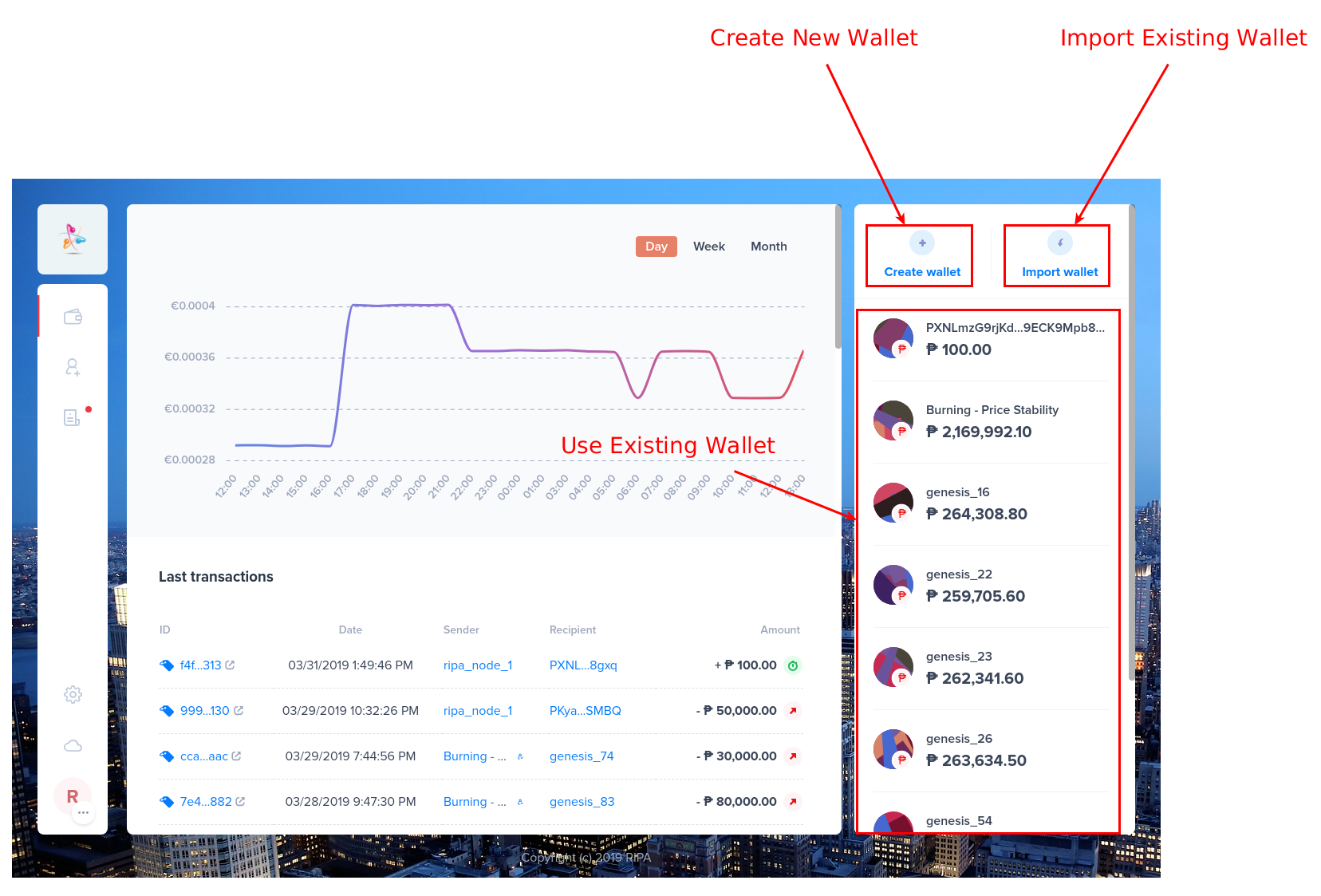 Once you have selected the wallet to use for voting click the Delegates tab 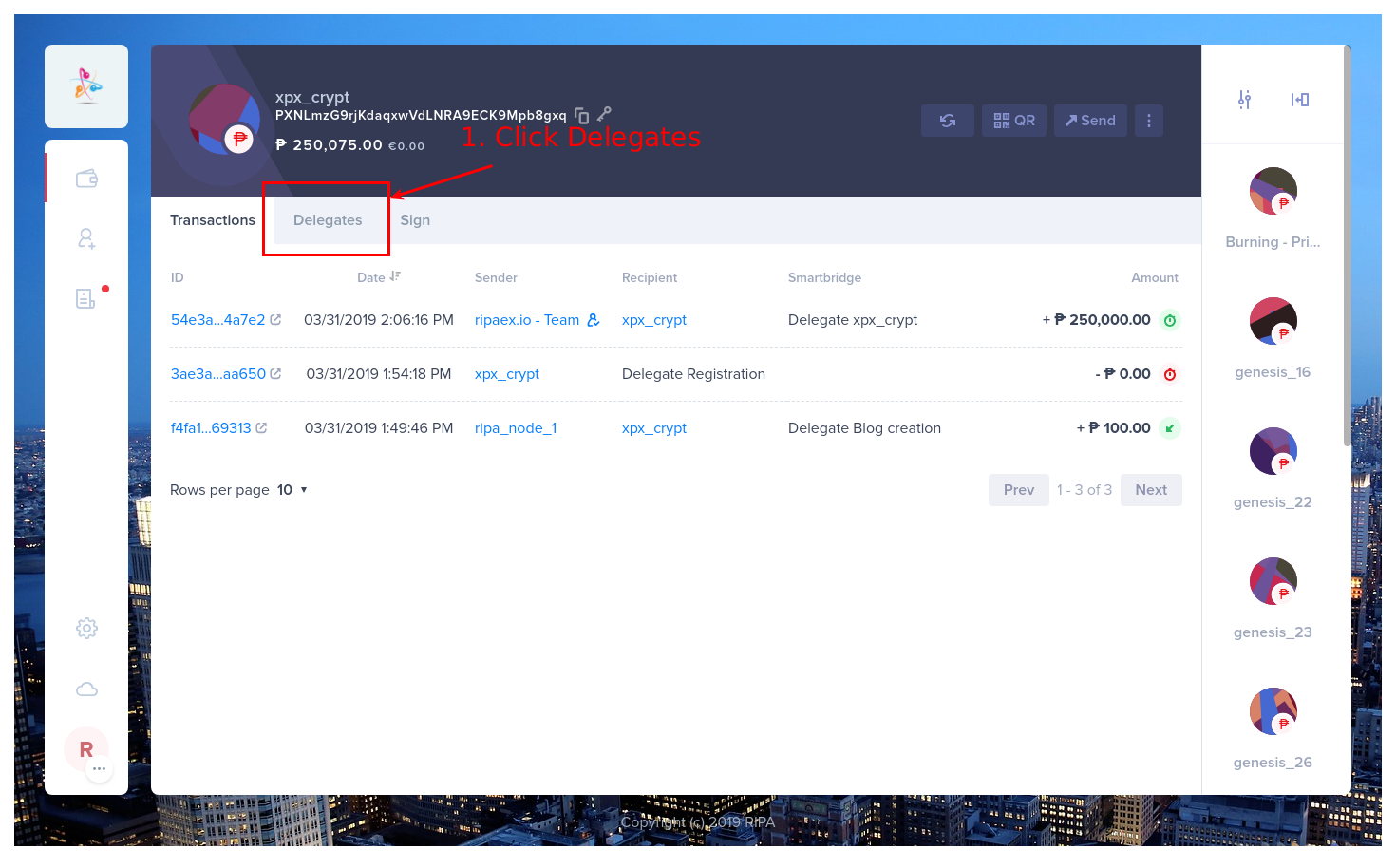 Select the delegate to vote 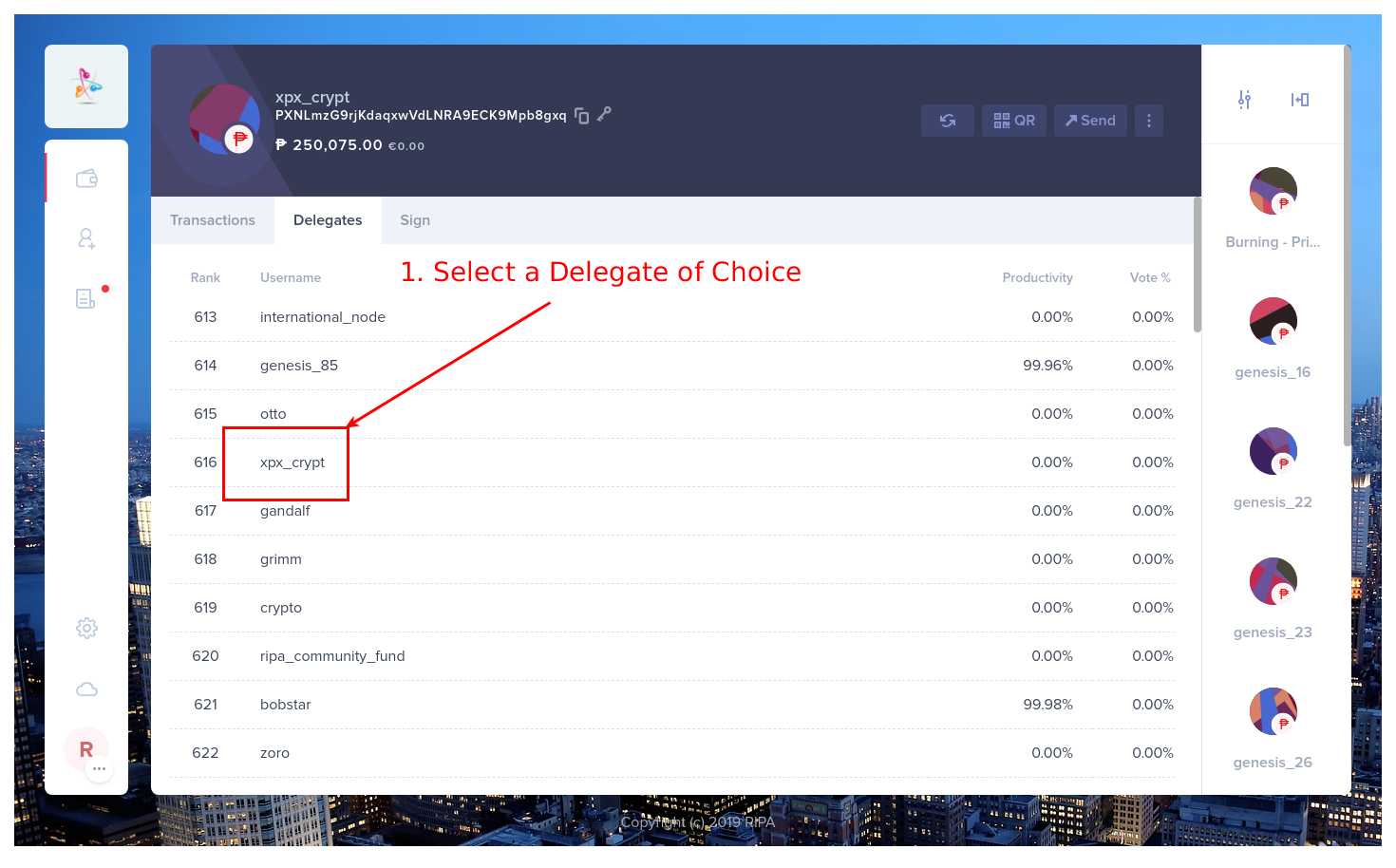 Click VOTE 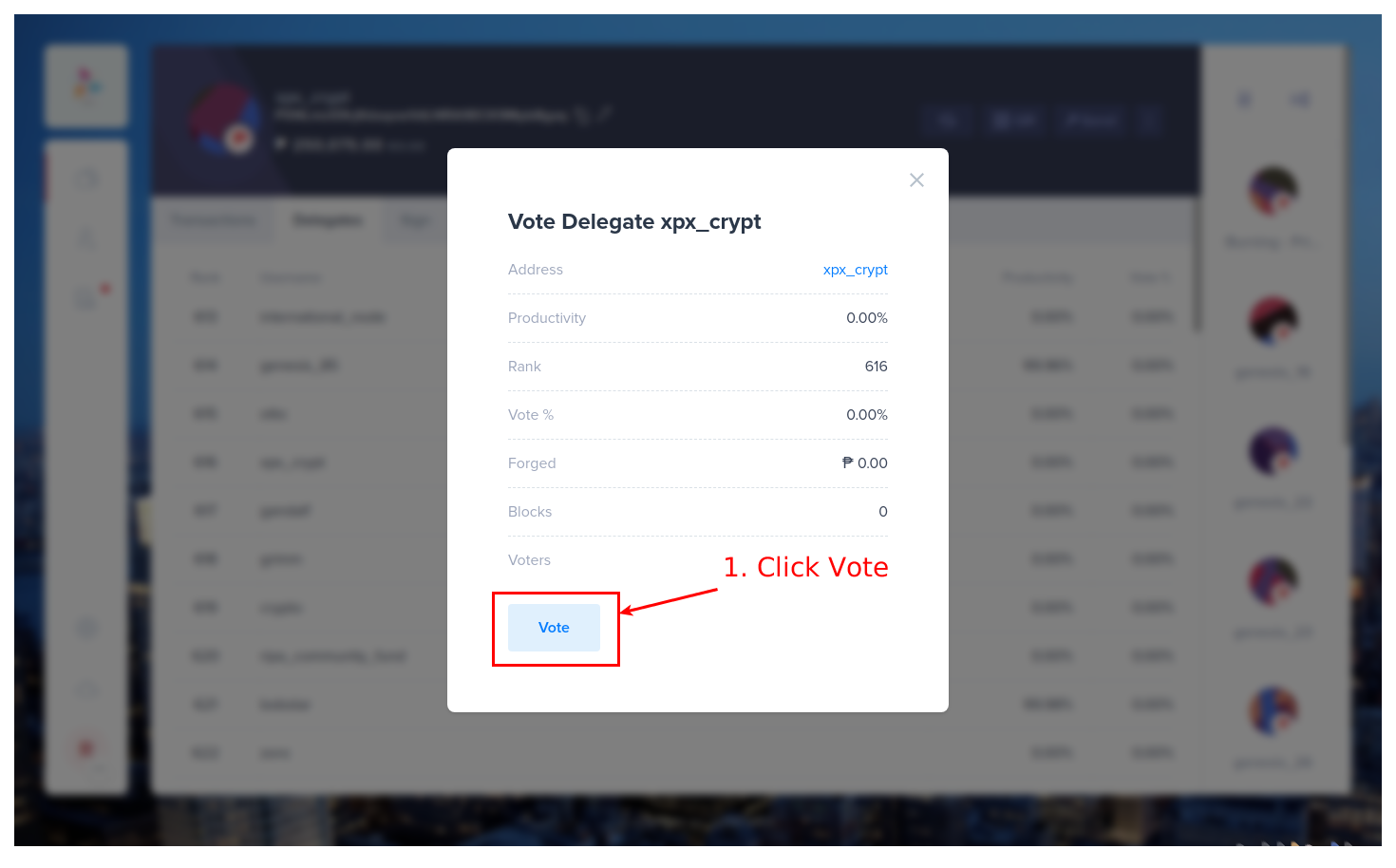 1. Insert Transaction Fee 2. Enter 1st passphrase 3. Click “NEXT” 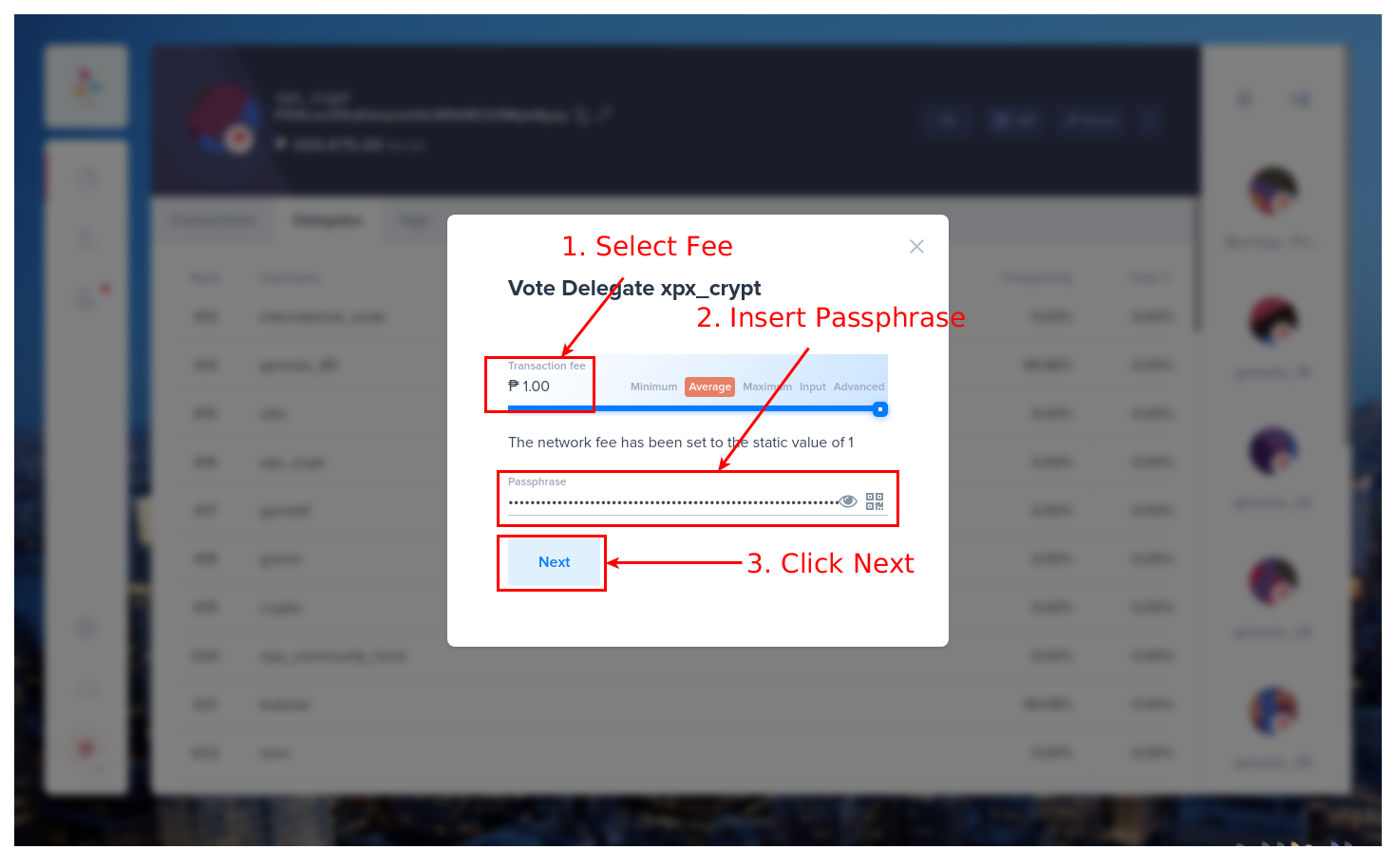 - Click the “SEND ₱ NOW” to cast your vote 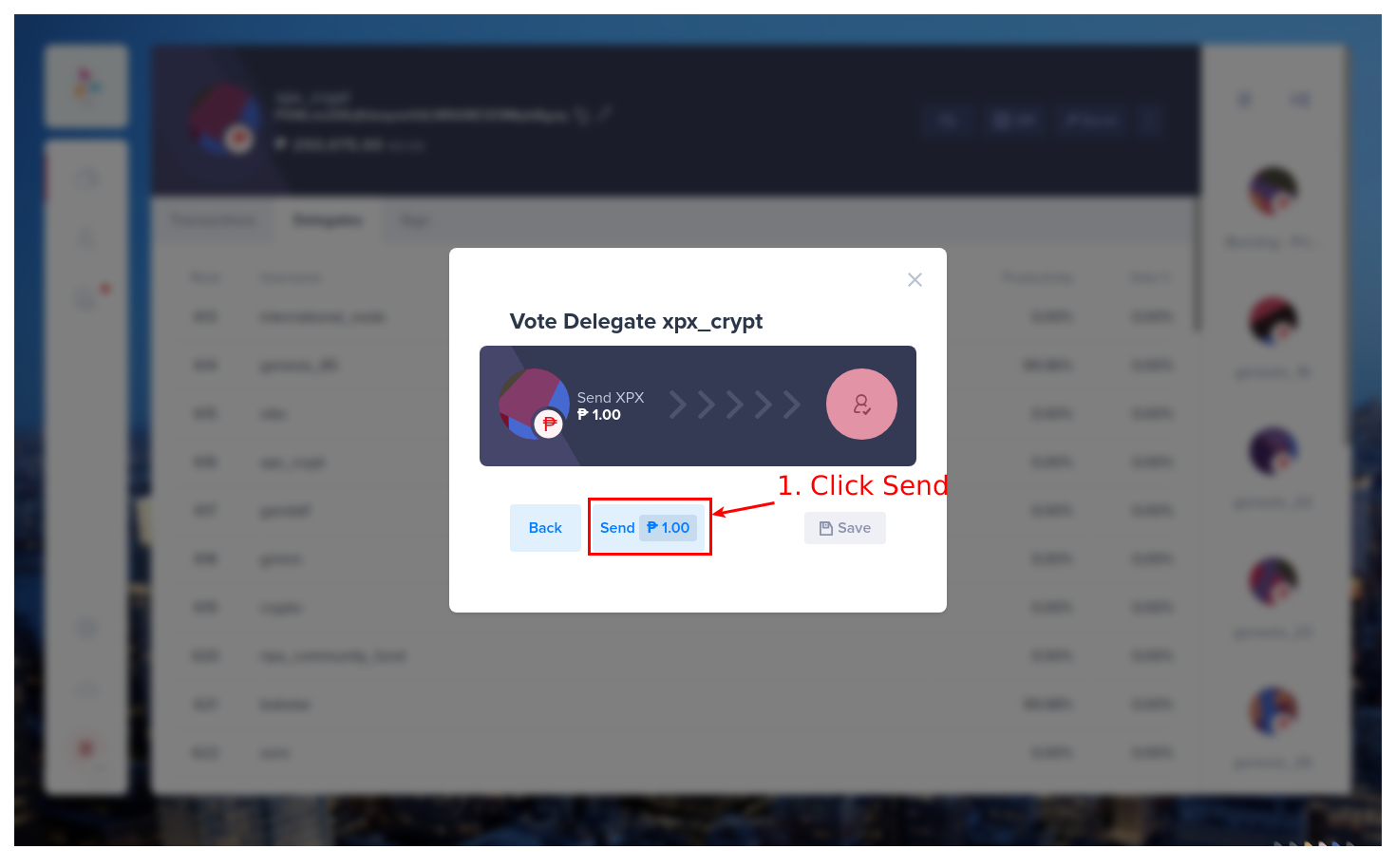 **That is it**. The delegate you voted for will gain the weight of the wallet you voted from. It takes a few minutes for the vote to reflect (usually after confirmation of the transaction and the next block is forged ) ## 2 Un-Voting a Delegate 1. Open your wallet as explained at the start of this guide 2. Click “DELEGATES” tab 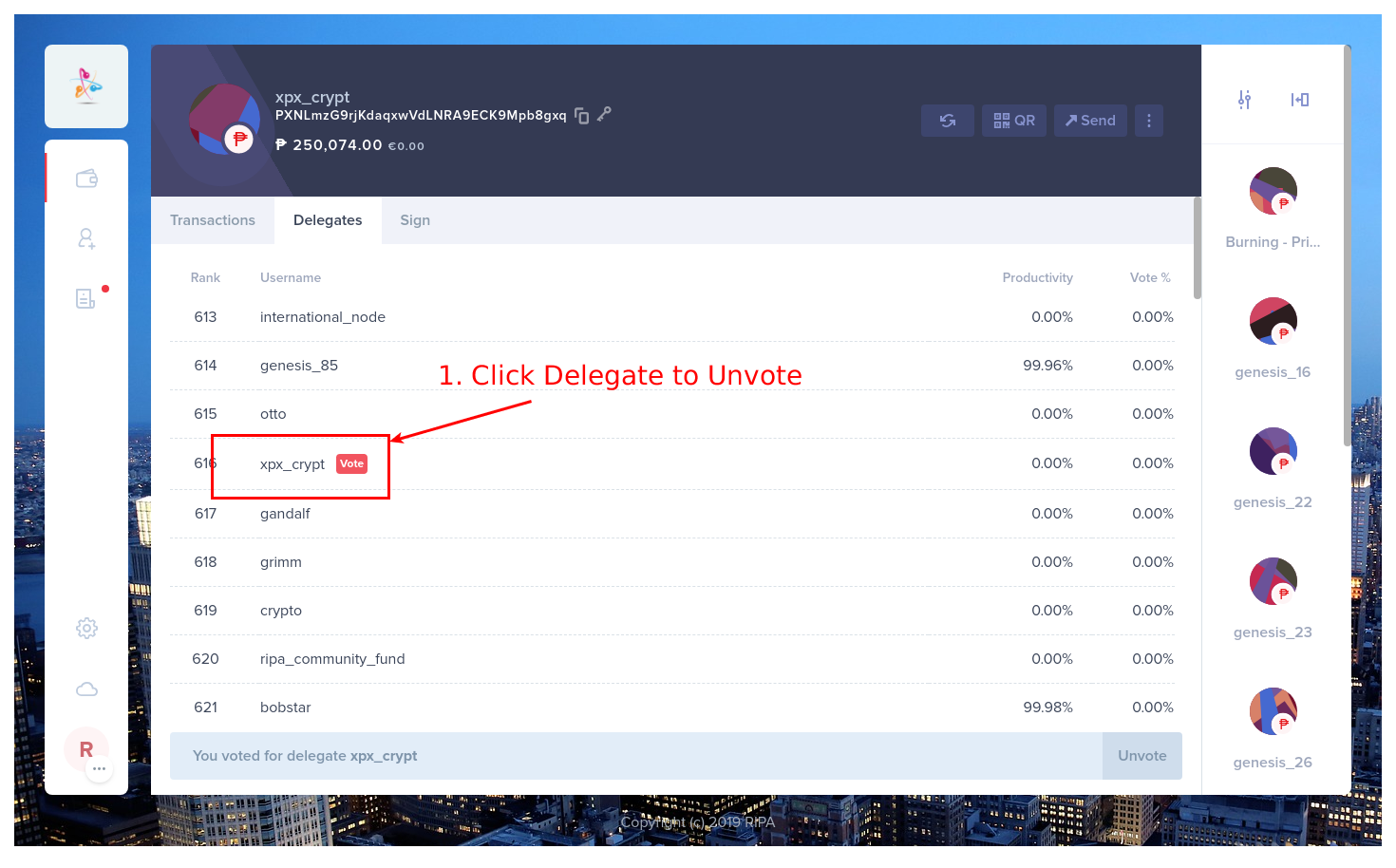 3. Click UNVOTE 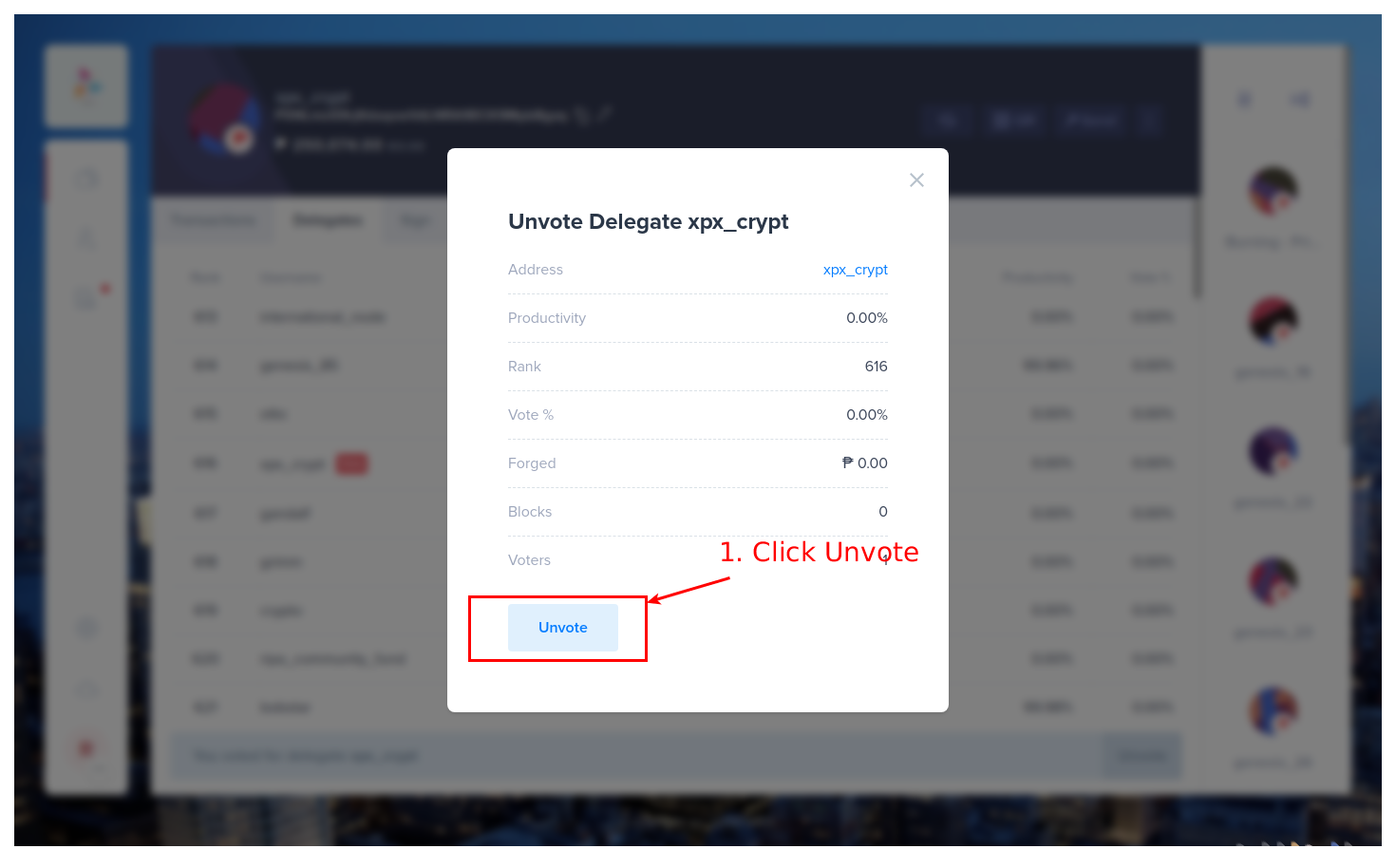 4. Click NEXT 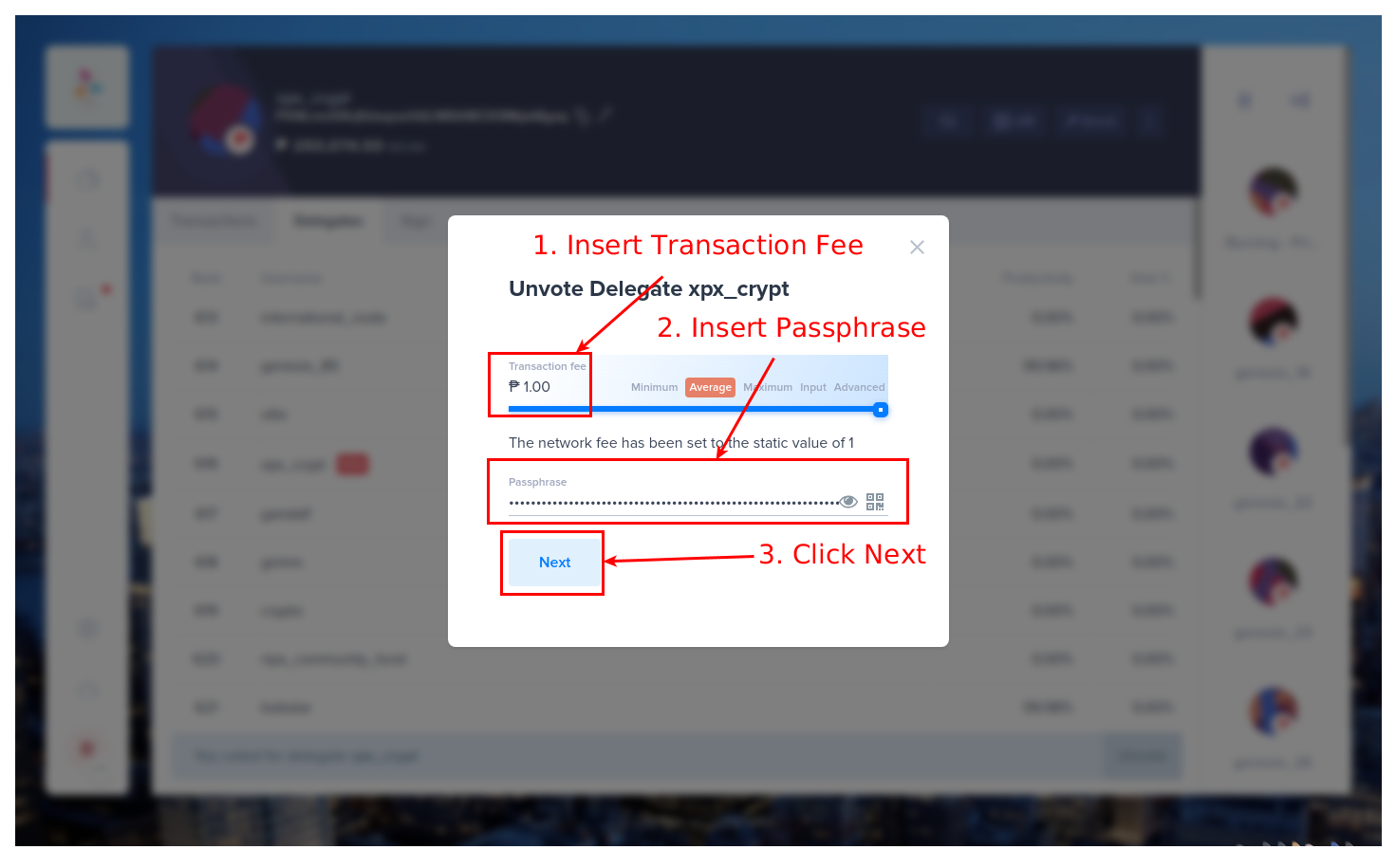 5. Click “SEND ₱ NOW!” to complete the transaction 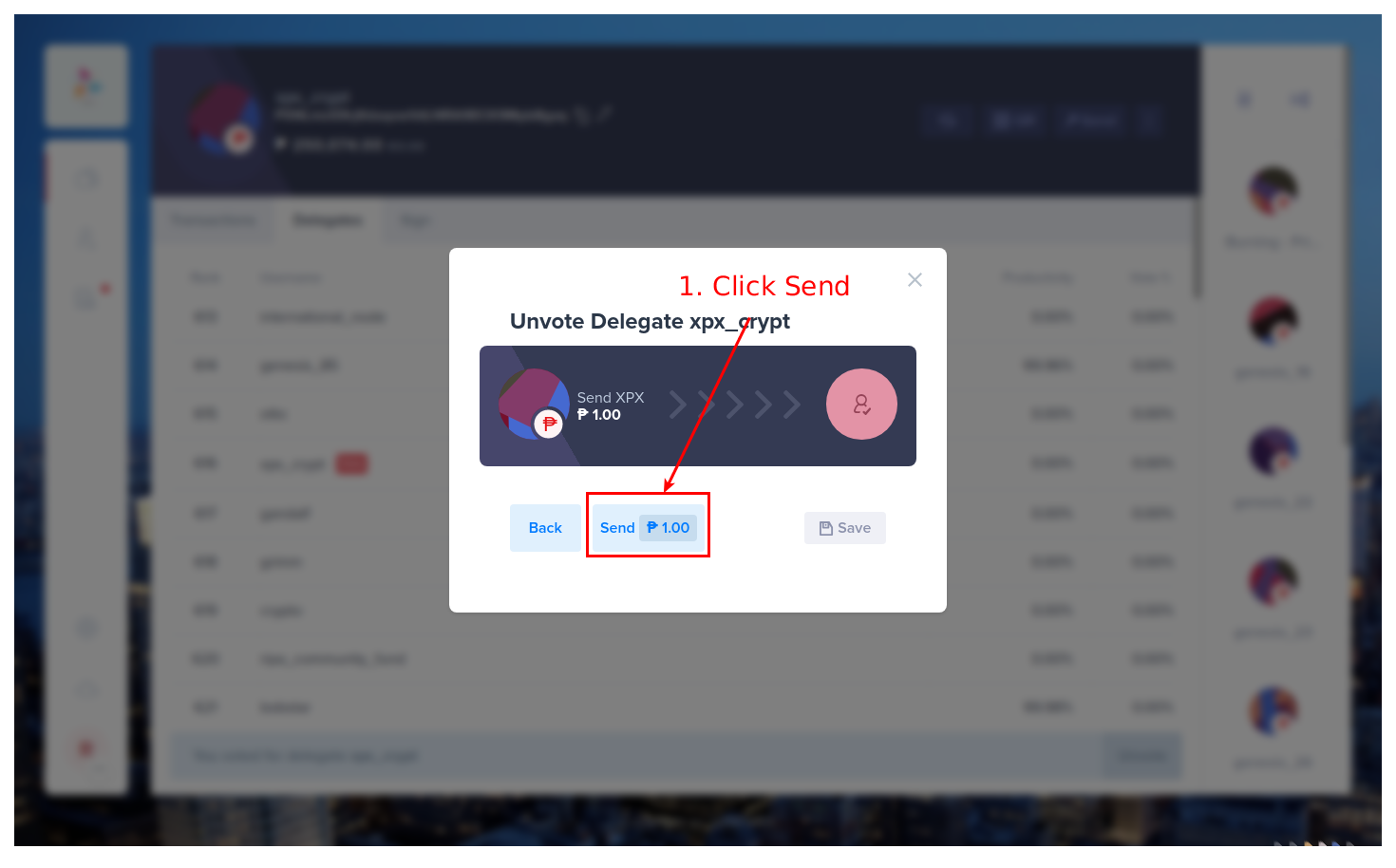 6. Check Transactions in the wallet (optional) 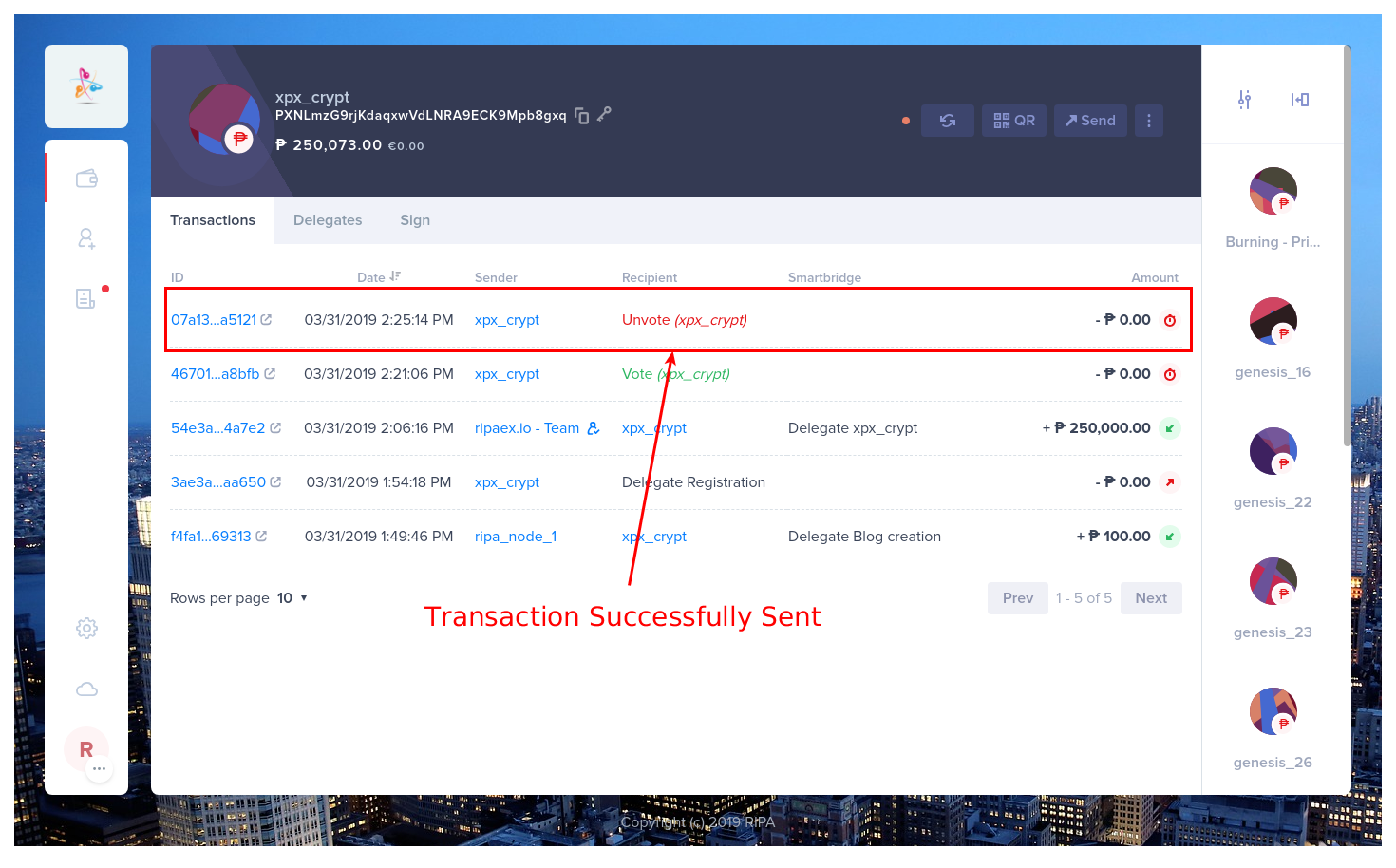 7. Check Transactions in explorer (optional) 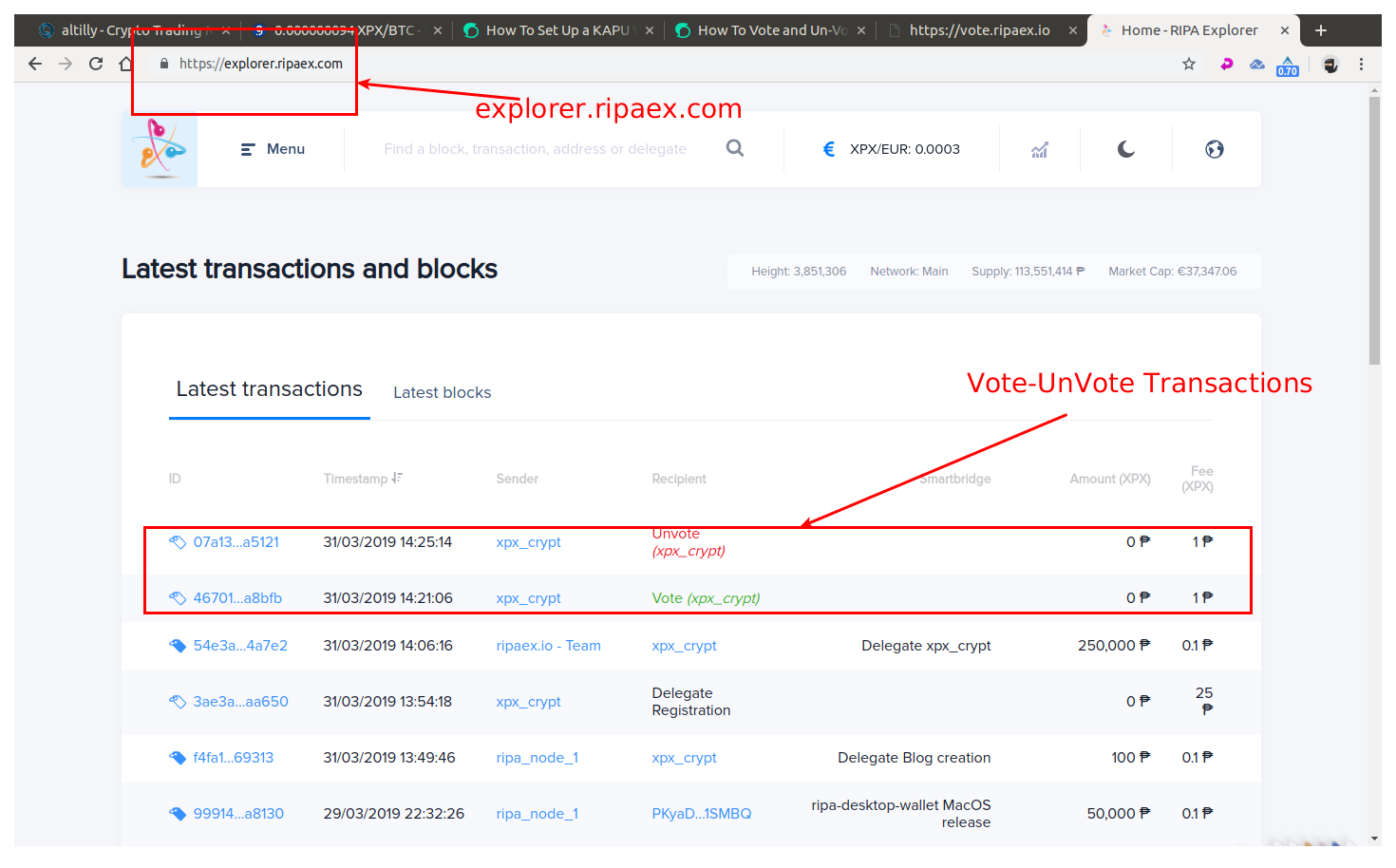 **That’s it for Voting & Un-Voting Delegates within the RIPA Blockchain**. Remember, you only have one vote per wallet. Should you want to vote for more than one Delegate, split of the amount of voting weight you wish to vote by creating additional wallets. If you need assistance or have any suggestions join our any one of our groups. An admin will be happy to assist. > ### Don’t forget to save your passphrases of all your RIPA wallets that hold your RIPA Tokens — if you lose it or it gets stolen there is nothing we can do! ## Remember to connect to us... Website: [www.ripaex.com](https://www.ripaex.com) Telegram: [t.me/ripaex](https://t.me/ripaex) Slack: [slack/ripaex](https://join.slack.com/t/ripaex/shared_invite/enQtMzM4NzUwNjU4OTQ0LTY3MDJmMTdhYTNlZjJlNGUxNzM1YjUwYjgyYjZlMDJmOTg3NTIzNThmNTYyMGQ3ODBkOTRmYzk3Y2Y4MzBkOTY) Bitcointalk ANN: [bitcointalk.org/index.php?topic=3759172](https://bitcointalk.org/index.php?topic=3759172) Whitepaper: [github.com/RipaEx/whitepaper/raw/master/eng/RipaEx_WP_EN.pdf](https://github.com/RipaEx/whitepaper/raw/master/eng/RipaEx_WP_EN.pdf) Facebook: [www.facebook.com/ripaex](https://www.facebook.com/ripaex) Twitter: [twitter.com/ripaex](https://twitter.com/ripaex) Gitter: [gitter.im/RipaEx/RipaEx](https://gitter.im/RipaEx/RipaEx) GitHub: [github.com/RipaEx/](https://github.com/RipaEx/) Blog: [steemit.com/ripaex](https://steemit.com/ripaex) |
| json metadata | {"tags":["xpx","v2","delegate","vote","ripaex"],"image":["https://cdn.steemitimages.com/DQmcHjFpWR2nCzgMfjNUup4NRGTb7k79t1ZRGKTJBMnrrmD/image.png","https://cdn.steemitimages.com/DQmSyxFkNf2FkbaRnbtF32woskK7FzEciyWkBcSPnuKmex9/1_register_options.png","https://cdn.steemitimages.com/DQmc4R3Nto6k3cUqpjnj7xYaCzsMJ2fZN8KAQ5vnTeyugsw/1_clickDelegates.png","https://cdn.steemitimages.com/DQmW5GFKhTi6dozbG8yKe6fHvEoKiJYt53RPmnFqeRJxwfq/2_clickDelegates.png","https://cdn.steemitimages.com/DQmeEMEraQ2HuMuPVuMsUkK3n5DXQ1ESFKQNnY71iyjXLC1/3_clickVote.png","https://cdn.steemitimages.com/DQmaMVd96j7fCF1S9TbrjZiz674NBop8438WaYaYxg8KFYX/4_clickNext.png","https://cdn.steemitimages.com/DQmNQgxR52fwUjQm8FLvbyiHKYppT2ScbBfYGpZDn4BS7J3/5_clickSend.png","https://cdn.steemitimages.com/DQmek3Hr8rR1ypFdZMew4pfrcMXBCbtk7oJDY3nEs8XesTF/9_clickUnvote.png","https://cdn.steemitimages.com/DQmc5boPvHnBxJENjUyXP3qmN3ELQ5obg687eYHRPpxSf9C/10_clickUnvote.png","https://cdn.steemitimages.com/DQmVaxLbBZYcz5m2p2n9r5ZQU2mmHhKkRDt8kKpRPg8cLYA/11_clickNext.png","https://cdn.steemitimages.com/DQmTnkd9nDyLPDS1LJfx6mnWPyJJ9fk2R7D1ppF6FLnwsoJ/12_clickSend.png","https://cdn.steemitimages.com/DQmSc2ddUzwGRWZ5j2WWQ9jGNd6DsDE6vLJzPRubLZy2oko/15_checkTransactions.png","https://cdn.steemitimages.com/DQmb46QVLDw9SdbTkUadhLaV8gZFhxx4DjQFiKennbudGJz/16_checkExplorer.png"],"links":["https://github.com/RipaEx/desktop-wallet/releases/latest","https://steemit.com/xpx/@ripaex/how-to-register-an-xpx-v-2-0-delegate","https://forum.ripaex.io/category/5/delegates-and-proposals","https://www.altilly.com/market/XPX_BTC/?a=f4973&z=ripaexHome","https://www.ripaex.com","https://t.me/ripaex","https://join.slack.com/t/ripaex/shared_invite/enQtMzM4NzUwNjU4OTQ0LTY3MDJmMTdhYTNlZjJlNGUxNzM1YjUwYjgyYjZlMDJmOTg3NTIzNThmNTYyMGQ3ODBkOTRmYzk3Y2Y4MzBkOTY","https://bitcointalk.org/index.php?topic=3759172","https://github.com/RipaEx/whitepaper/raw/master/eng/RipaEx_WP_EN.pdf","https://www.facebook.com/ripaex","https://twitter.com/ripaex","https://gitter.im/RipaEx/RipaEx","https://github.com/RipaEx/","https://steemit.com/ripaex"],"app":"steemit/0.1","format":"markdown"} |
| Transaction Info | Block #31673702/Trx dc68f0e6015670a97391bdae7c59672dcbca9c2d |
View Raw JSON Data
{
"trx_id": "dc68f0e6015670a97391bdae7c59672dcbca9c2d",
"block": 31673702,
"trx_in_block": 37,
"op_in_trx": 0,
"virtual_op": 0,
"timestamp": "2019-04-01T20:32:18",
"op": [
"comment",
{
"parent_author": "",
"parent_permlink": "xpx",
"author": "ripaex",
"permlink": "how-to-vote-and-un-vote-a-xpx-v-2-0-delegate",
"title": "How To Vote and Un-Vote a XPX V.2.0 Delegate",
"body": "\n\n### RIPA uses DPoS (Delegated Proof of Stake) consensus in order to produce / confirm blocks.\n\nYou can use your RIPAex XPX to vote or un-vote a delegate. In this short guide we’ll show you how you can vote (cast a vote towards the delegate you choose — whether it is yourself or another community member you wish to support, like projects, pools, or a friend, or to un-vote a delegate you are already voting for in case you decide you want to change the vote to someone else. Voting from your RIPA wallet can provide you with extra XPX due to the forging rewards that are processed by delegates. Rewards are awarded to 101 top ranked active delegates.\n\nFirst if you haven’t, you will need to download and install the RIPA Desktop Client from here [RIPA Desktop Wallet](https://github.com/RipaEx/desktop-wallet/releases/latest) and then import and access the wallet you want to vote from.\n\n*If you want to register a delegate yourself, you should follow this guide first:* [How to Register A RIPA Delegate](https://steemit.com/xpx/@ripaex/how-to-register-an-xpx-v-2-0-delegate)\n\nSome basic voting info :\n\n· **1 RIPA ADDRESS CAN VOTE FOR ONLY 1 DELEGATE AT A TIME** (if you wish to vote for more than 1 delegate, split you wallet in more RIPA addresses and repeat the vote process — for example, send the amount you wish to vote from the second wallet to the second wallet.\n\n· **1 RIPA EQUALS A VOTING WEIGHT OF 1**. The more ark you hold, the more weight you hold in your possession — but note that if you split the wallet your voting power splits with it. For example, if you have 1,000 XPX your voting power is equal to 1,000 XPX, if you split that in to 2 equal wallets each having 500 XPX the voting power of the 1st wallet will be 500 XPX and the 2nd one 500 XPX.\n\n· **EACH VOTE OR UN-VOTE COSTS 1 XPX**. When you vote for a delegate it costs 1 XPX. When you un-vote, the cost is the same 1 XPX.\n\n**Don’t know who to vote for or support with your RIPA?**\n\n**Read the proposals on our forum from our current list of delegates and vote according to your plan**: [Delegates & Proposals](https://forum.ripaex.io/category/5/delegates-and-proposals)\n\n# 1 Casting your 1 Vote to a chosen Delegate\n1. Click on “IMPORT ACCOUNT” if you already have a RIPA address but haven’t yet imported it into your current installation of the [RIPA Desktop Wallet](https://github.com/RipaEx/desktop-wallet/releases/latest) or\n2. Click “CREATE ACCOUNT” if don’t have a RIPA Account. (Note that you will need to deposit XPX tokens first in order to pay **1 XPX** for the vote. You can buy your RIPA XPX tokens [HERE](https://www.altilly.com/market/XPX_BTC/?a=f4973&z=ripaexHome) ) or\n3. Click on your wallet address if you have already imported your RIPA address.\n\n\nOnce you have selected the wallet to use for voting click the Delegates tab\n\n\nSelect the delegate to vote\n\n\nClick VOTE\n\n\n1. Insert Transaction Fee\n2. Enter 1st passphrase\n3. Click “NEXT”\n\n\n- Click the “SEND ₱ NOW” to cast your vote\n\n\n\n**That is it**. The delegate you voted for will gain the weight of the wallet you voted from. It takes a few minutes for the vote to reflect (usually after confirmation of the transaction and the next block is forged )\n\n\n## 2 Un-Voting a Delegate\n1. Open your wallet as explained at the start of this guide\n2. Click “DELEGATES” tab\n\n\n3. Click UNVOTE\n\n\n4. Click NEXT\n\n\n5. Click “SEND ₱ NOW!” to complete the transaction\n\n\n6. Check Transactions in the wallet (optional)\n\n\n7. Check Transactions in explorer (optional)\n\n\n\n**That’s it for Voting & Un-Voting Delegates within the RIPA Blockchain**. Remember, you only have one vote per wallet. Should you want to vote for more than one Delegate, split of the amount of voting weight you wish to vote by creating additional wallets.\n\nIf you need assistance or have any suggestions join our any one of our groups. An admin will be happy to assist.\n\n\n> ### Don’t forget to save your passphrases of all your RIPA wallets that hold your RIPA Tokens — if you lose it or it gets stolen there is nothing we can do!\n\n\n\n## Remember to connect to us...\nWebsite: [www.ripaex.com](https://www.ripaex.com)\nTelegram: [t.me/ripaex](https://t.me/ripaex)\nSlack: [slack/ripaex](https://join.slack.com/t/ripaex/shared_invite/enQtMzM4NzUwNjU4OTQ0LTY3MDJmMTdhYTNlZjJlNGUxNzM1YjUwYjgyYjZlMDJmOTg3NTIzNThmNTYyMGQ3ODBkOTRmYzk3Y2Y4MzBkOTY)\nBitcointalk ANN: [bitcointalk.org/index.php?topic=3759172](https://bitcointalk.org/index.php?topic=3759172)\nWhitepaper: [github.com/RipaEx/whitepaper/raw/master/eng/RipaEx_WP_EN.pdf](https://github.com/RipaEx/whitepaper/raw/master/eng/RipaEx_WP_EN.pdf)\nFacebook: [www.facebook.com/ripaex](https://www.facebook.com/ripaex)\nTwitter: [twitter.com/ripaex](https://twitter.com/ripaex)\nGitter: [gitter.im/RipaEx/RipaEx](https://gitter.im/RipaEx/RipaEx)\nGitHub: [github.com/RipaEx/](https://github.com/RipaEx/)\nBlog: [steemit.com/ripaex](https://steemit.com/ripaex)",
"json_metadata": "{\"tags\":[\"xpx\",\"v2\",\"delegate\",\"vote\",\"ripaex\"],\"image\":[\"https://cdn.steemitimages.com/DQmcHjFpWR2nCzgMfjNUup4NRGTb7k79t1ZRGKTJBMnrrmD/image.png\",\"https://cdn.steemitimages.com/DQmSyxFkNf2FkbaRnbtF32woskK7FzEciyWkBcSPnuKmex9/1_register_options.png\",\"https://cdn.steemitimages.com/DQmc4R3Nto6k3cUqpjnj7xYaCzsMJ2fZN8KAQ5vnTeyugsw/1_clickDelegates.png\",\"https://cdn.steemitimages.com/DQmW5GFKhTi6dozbG8yKe6fHvEoKiJYt53RPmnFqeRJxwfq/2_clickDelegates.png\",\"https://cdn.steemitimages.com/DQmeEMEraQ2HuMuPVuMsUkK3n5DXQ1ESFKQNnY71iyjXLC1/3_clickVote.png\",\"https://cdn.steemitimages.com/DQmaMVd96j7fCF1S9TbrjZiz674NBop8438WaYaYxg8KFYX/4_clickNext.png\",\"https://cdn.steemitimages.com/DQmNQgxR52fwUjQm8FLvbyiHKYppT2ScbBfYGpZDn4BS7J3/5_clickSend.png\",\"https://cdn.steemitimages.com/DQmek3Hr8rR1ypFdZMew4pfrcMXBCbtk7oJDY3nEs8XesTF/9_clickUnvote.png\",\"https://cdn.steemitimages.com/DQmc5boPvHnBxJENjUyXP3qmN3ELQ5obg687eYHRPpxSf9C/10_clickUnvote.png\",\"https://cdn.steemitimages.com/DQmVaxLbBZYcz5m2p2n9r5ZQU2mmHhKkRDt8kKpRPg8cLYA/11_clickNext.png\",\"https://cdn.steemitimages.com/DQmTnkd9nDyLPDS1LJfx6mnWPyJJ9fk2R7D1ppF6FLnwsoJ/12_clickSend.png\",\"https://cdn.steemitimages.com/DQmSc2ddUzwGRWZ5j2WWQ9jGNd6DsDE6vLJzPRubLZy2oko/15_checkTransactions.png\",\"https://cdn.steemitimages.com/DQmb46QVLDw9SdbTkUadhLaV8gZFhxx4DjQFiKennbudGJz/16_checkExplorer.png\"],\"links\":[\"https://github.com/RipaEx/desktop-wallet/releases/latest\",\"https://steemit.com/xpx/@ripaex/how-to-register-an-xpx-v-2-0-delegate\",\"https://forum.ripaex.io/category/5/delegates-and-proposals\",\"https://www.altilly.com/market/XPX_BTC/?a=f4973&z=ripaexHome\",\"https://www.ripaex.com\",\"https://t.me/ripaex\",\"https://join.slack.com/t/ripaex/shared_invite/enQtMzM4NzUwNjU4OTQ0LTY3MDJmMTdhYTNlZjJlNGUxNzM1YjUwYjgyYjZlMDJmOTg3NTIzNThmNTYyMGQ3ODBkOTRmYzk3Y2Y4MzBkOTY\",\"https://bitcointalk.org/index.php?topic=3759172\",\"https://github.com/RipaEx/whitepaper/raw/master/eng/RipaEx_WP_EN.pdf\",\"https://www.facebook.com/ripaex\",\"https://twitter.com/ripaex\",\"https://gitter.im/RipaEx/RipaEx\",\"https://github.com/RipaEx/\",\"https://steemit.com/ripaex\"],\"app\":\"steemit/0.1\",\"format\":\"markdown\"}"
}
]
}digital.mineupvoted (4.00%) @ripaex / how-to-register-an-xpx-v-2-0-delegate2019/04/01 19:39:06
digital.mineupvoted (4.00%) @ripaex / how-to-register-an-xpx-v-2-0-delegate
2019/04/01 19:39:06
| voter | digital.mine |
| author | ripaex |
| permlink | how-to-register-an-xpx-v-2-0-delegate |
| weight | 400 (4.00%) |
| Transaction Info | Block #31672640/Trx 0c578da4989f8cf6d0116f4a59f478534789fe49 |
View Raw JSON Data
{
  "trx_id": "0c578da4989f8cf6d0116f4a59f478534789fe49",
  "block": 31672640,
  "trx_in_block": 14,
  "op_in_trx": 0,
  "virtual_op": 0,
  "timestamp": "2019-04-01T19:39:06",
  "op": [
    "vote",
    {
      "voter": "digital.mine",
      "author": "ripaex",
      "permlink": "how-to-register-an-xpx-v-2-0-delegate",
      "weight": 400
    }
  ]
}2019/04/01 19:05:27
2019/04/01 19:05:27
| parent author | ripaex |
| parent permlink | how-to-register-an-xpx-v-2-0-delegate |
| author | cheetah |
| permlink | cheetah-re-ripaexhow-to-register-an-xpx-v-2-0-delegate |
| title | |
| body | Hi! I am a robot. I just upvoted you! Readers might be interested in similar content by the same author: https://steemit.com/news/@ripaex/registering-your-ripa-delegate |
| json metadata | |
| Transaction Info | Block #31671977/Trx f139a25dfd5c41ecf86c889db0e123fa1530182d |
View Raw JSON Data
{
  "trx_id": "f139a25dfd5c41ecf86c889db0e123fa1530182d",
  "block": 31671977,
  "trx_in_block": 53,
  "op_in_trx": 0,
  "virtual_op": 0,
  "timestamp": "2019-04-01T19:05:27",
  "op": [
    "comment",
    {
      "parent_author": "ripaex",
      "parent_permlink": "how-to-register-an-xpx-v-2-0-delegate",
      "author": "cheetah",
      "permlink": "cheetah-re-ripaexhow-to-register-an-xpx-v-2-0-delegate",
      "title": "",
      "body": "Hi! I am a robot. I just upvoted you! Readers might be interested in similar content by the same author:\nhttps://steemit.com/news/@ripaex/registering-your-ripa-delegate",
      "json_metadata": ""
    }
  ]
}cheetahupvoted (0.08%) @ripaex / how-to-register-an-xpx-v-2-0-delegate2019/04/01 19:05:24
cheetahupvoted (0.08%) @ripaex / how-to-register-an-xpx-v-2-0-delegate
2019/04/01 19:05:24
| voter | cheetah |
| author | ripaex |
| permlink | how-to-register-an-xpx-v-2-0-delegate |
| weight | 8 (0.08%) |
| Transaction Info | Block #31671976/Trx 21c088d8dc488679526c89d5baf43d05232be0eb |
View Raw JSON Data
{
  "trx_id": "21c088d8dc488679526c89d5baf43d05232be0eb",
  "block": 31671976,
  "trx_in_block": 17,
  "op_in_trx": 0,
  "virtual_op": 0,
  "timestamp": "2019-04-01T19:05:24",
  "op": [
    "vote",
    {
      "voter": "cheetah",
      "author": "ripaex",
      "permlink": "how-to-register-an-xpx-v-2-0-delegate",
      "weight": 8
    }
  ]
}ripaexupdated options for how-to-register-an-xpx-v-2-0-delegate2019/04/01 19:05:09
ripaexupdated options for how-to-register-an-xpx-v-2-0-delegate
2019/04/01 19:05:09
| author | ripaex |
| permlink | how-to-register-an-xpx-v-2-0-delegate |
| max accepted payout | 1000000.000 SBD |
| percent steem dollars | 0 |
| allow votes | true |
| allow curation rewards | true |
| extensions | [] |
| Transaction Info | Block #31671971/Trx 5ee9466197a6bb4116fc1dec84a3c024f8f982ca |
View Raw JSON Data
{
  "trx_id": "5ee9466197a6bb4116fc1dec84a3c024f8f982ca",
  "block": 31671971,
  "trx_in_block": 24,
  "op_in_trx": 0,
  "virtual_op": 0,
  "timestamp": "2019-04-01T19:05:09",
  "op": [
    "comment_options",
    {
      "author": "ripaex",
      "permlink": "how-to-register-an-xpx-v-2-0-delegate",
      "max_accepted_payout": "1000000.000 SBD",
      "percent_steem_dollars": 0,
      "allow_votes": true,
      "allow_curation_rewards": true,
      "extensions": []
    }
  ]
}ripaexpublished a new post: how-to-register-an-xpx-v-2-0-delegate2019/04/01 19:05:09
ripaexpublished a new post: how-to-register-an-xpx-v-2-0-delegate
2019/04/01 19:05:09
| parent author | |
| parent permlink | xpx |
| author | ripaex |
| permlink | how-to-register-an-xpx-v-2-0-delegate |
| title | How To Register an XPX V.2.0 Delegate |
| body |  *Why should you register a Delegate*? Delegate registration within RIPA enables you access to forge XPX tokens. By registering a delegate name you lock this information into RIPA, this is the Delegated Proof of Stake part of RIPA. Think of it as a place holder and address for your RIPA Node. With a delegate name registered you now have the ability to setup a Forging node, and create new XPX tokens while securing the RIPA network. Delegate Registration on the RIPA blockchain costs 25 XPX Tokens.These tokens are a simple monetary failsafe to prevent some delegate registration spam. Download latest RIPA desktop client for your OS from: https://github.com/RipaEx/desktop-wallet/releases/latest Unpack, install and start RIPA Client: Now you have 3 options on how you can register a delegate : 1. Click on an address that you would like associated with your new delegate name. 2. Import your account that is not yet in your wallet list. 3. Create new account for your delegate name. Which ever option you choose, make sure it has at least 25 XPX in it.  **Now that you are in your account:** Again make sure your wallet address holds at least 25 XPX Tokens. Now Click on the icon with 3 vertical dots at the top right. 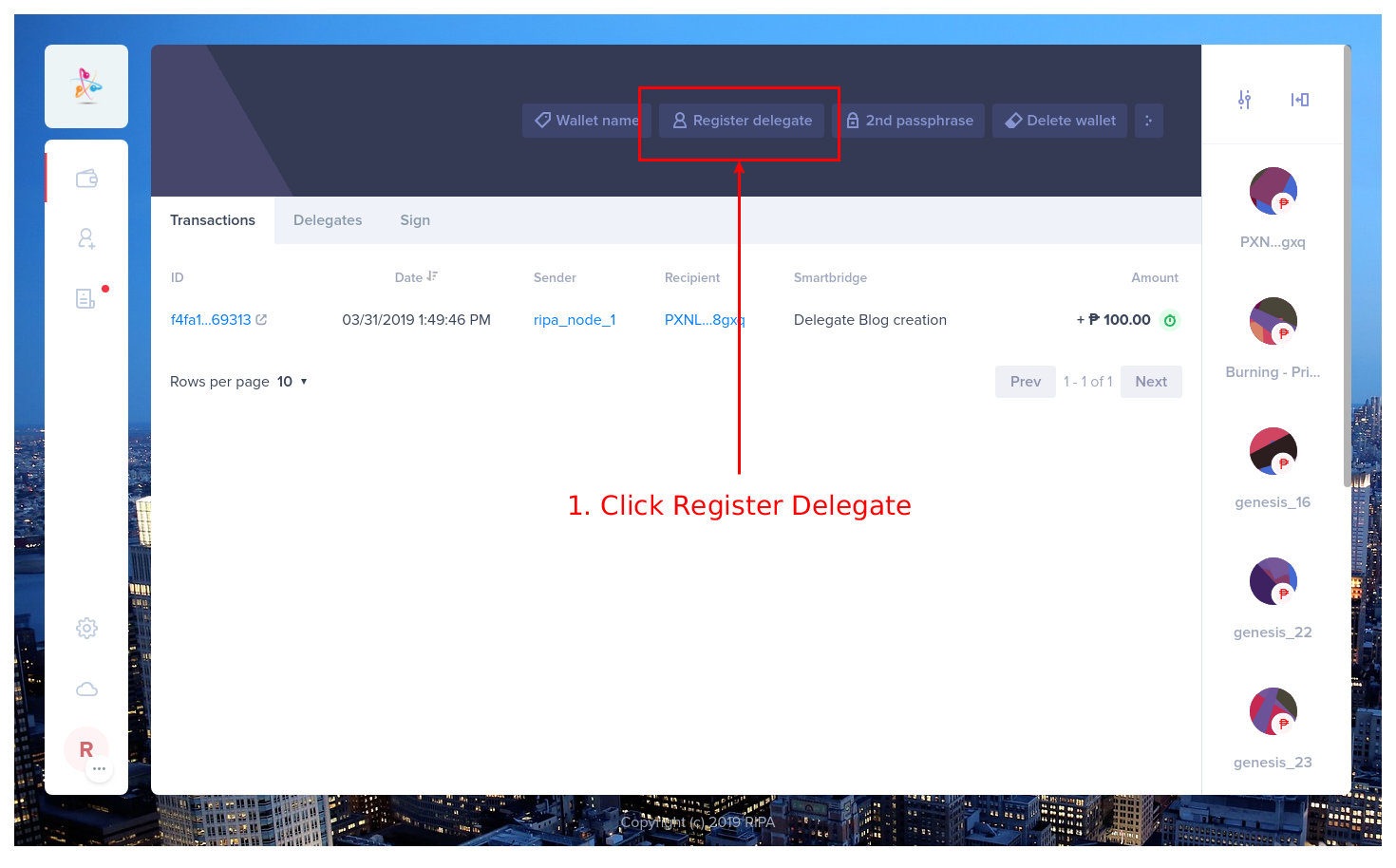 The background will fade a bit and a small menu will popup in lower center of the client. 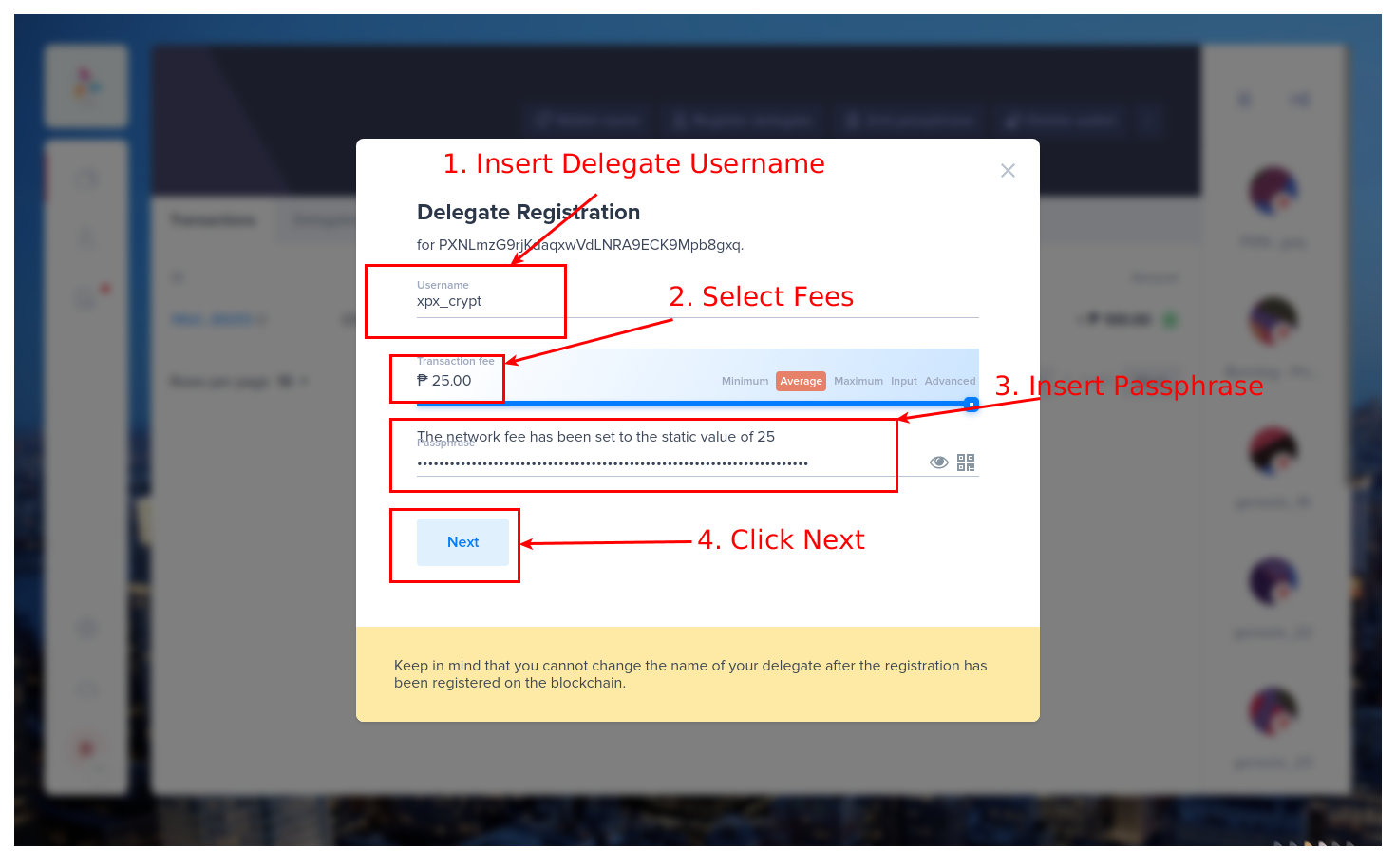 1. Click on register delegate 2. Choose your desired delegate name — it should be a unique name (not yet registered) and consists of a maximum of 20 characters. You can only use lowercase letters, numbers and 1. these special characters !@$&_. 3. Provide the passphrase(secret key) of the RIPA wallet you are registering your delegate with 4. Once done click on next 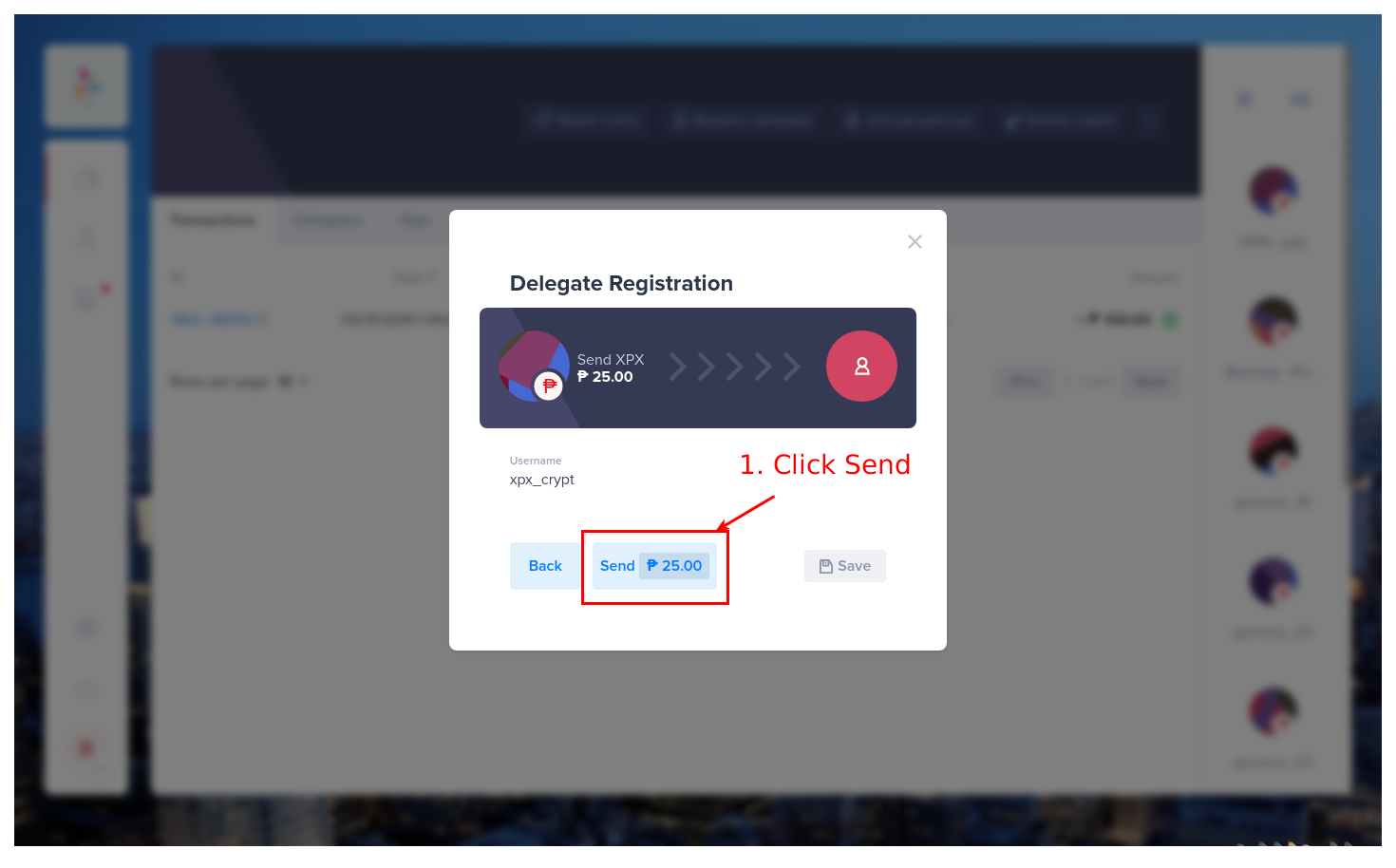 A popup will show: 1. Click on “SEND ₱25 NOW!” — that will initiate the transaction and register your delegate. You will get a message if successful in the lower left corner and the delegate registration transaction will appear in your account transactions history. 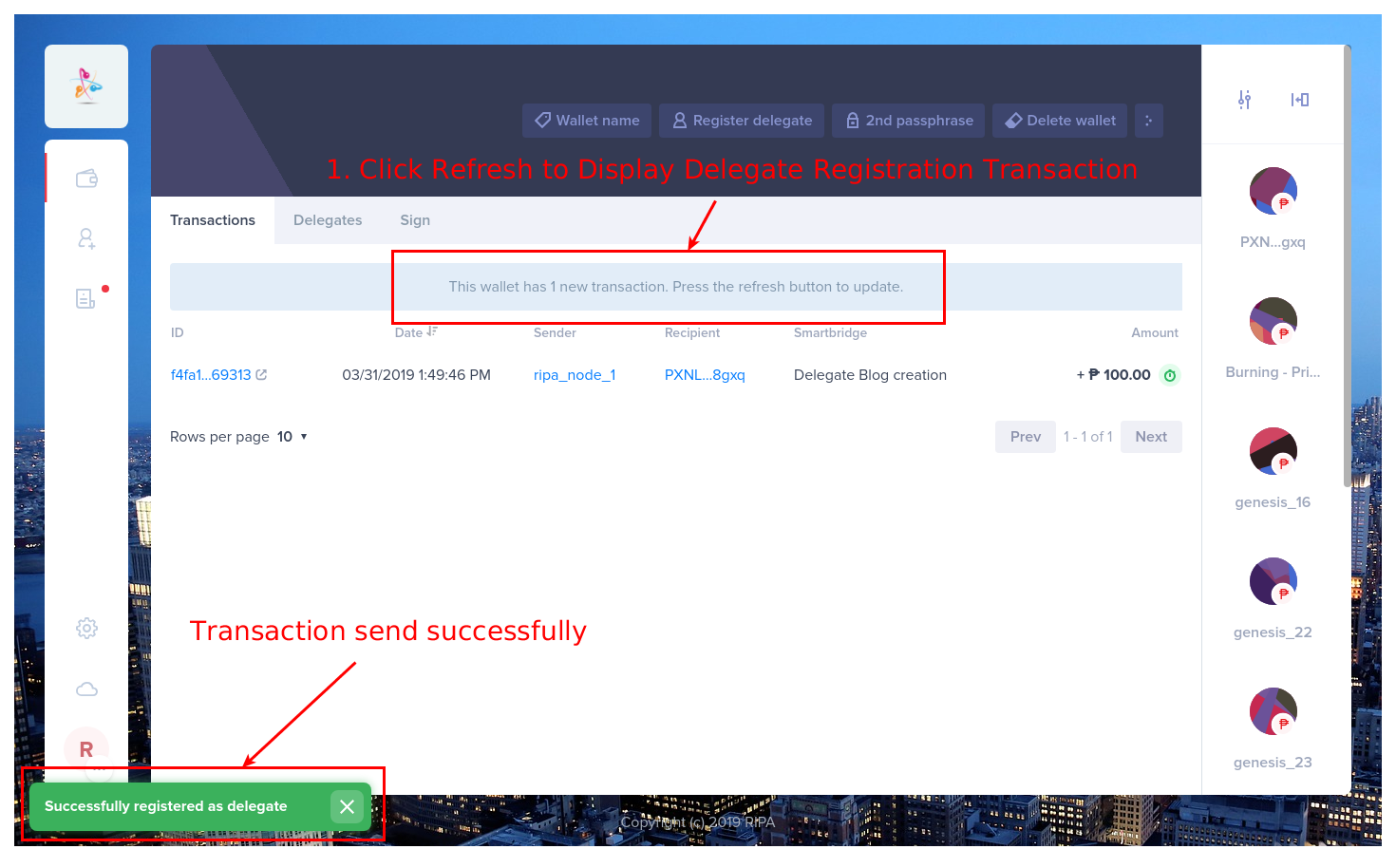 All done: click on “DELEGATE” to see your newly created delegate or visit your delegate addrss in RipaEx explorer at https://explorer.ripaex.com 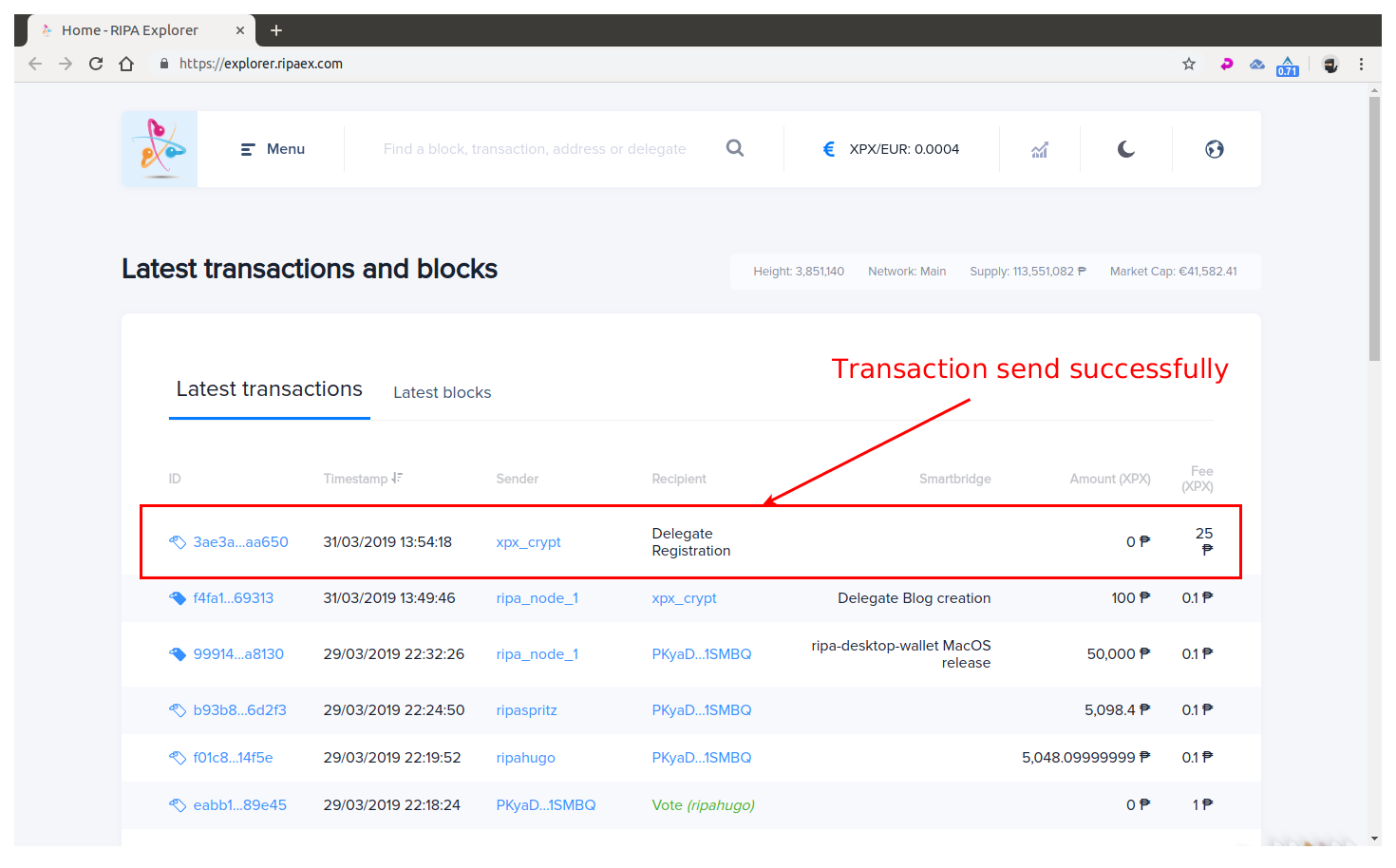 > ### Don’t forget to save your passphrases of all your RIPA wallets that hold your XPX coins — if you lose it or it gets stolen there is nothing we can do! ## Remember to connect to us... Website: [www.ripaex.com](https://www.ripaex.com) Telegram: [t.me/ripaex](https://t.me/ripaex) Slack: [slack/ripaex](https://join.slack.com/t/ripaex/shared_invite/enQtMzM4NzUwNjU4OTQ0LTY3MDJmMTdhYTNlZjJlNGUxNzM1YjUwYjgyYjZlMDJmOTg3NTIzNThmNTYyMGQ3ODBkOTRmYzk3Y2Y4MzBkOTY) Bitcointalk ANN: [bitcointalk.org/index.php?topic=3759172](https://bitcointalk.org/index.php?topic=3759172) Whitepaper: [github.com/RipaEx/whitepaper/raw/master/eng/RipaEx_WP_EN.pdf](https://github.com/RipaEx/whitepaper/raw/master/eng/RipaEx_WP_EN.pdf) Facebook: [www.facebook.com/ripaex](https://www.facebook.com/ripaex) Twitter: [twitter.com/ripaex](https://twitter.com/ripaex) Gitter: [gitter.im/RipaEx/RipaEx](https://gitter.im/RipaEx/RipaEx) GitHub: [github.com/RipaEx/](https://github.com/RipaEx/) Blog: [steemit.com/ripaex](https://steemit.com/ripaex) |
| json metadata | {"tags":["xpx","v2","delegate","registration","ripaex"],"image":["https://cdn.steemitimages.com/DQmS2FE6vEjmb8Zf8czjY4eyjdi2qpxmmkPWEGKJzMXj1Vv/banner_medium_node.jpg","https://cdn.steemitimages.com/DQmSyxFkNf2FkbaRnbtF32woskK7FzEciyWkBcSPnuKmex9/1_register_options.png","https://cdn.steemitimages.com/DQmWe2jooA187ZwZvtrx9KgfkYweTKd4QCqH2Mit2EpwTGN/2_register_delegate.png","https://cdn.steemitimages.com/DQmXawGVuuMeziymNqMecq76oDLc7NKDxHoWMQn6UzJ9TYv/3_insert_username.png","https://cdn.steemitimages.com/DQmes4vSYK8gKqNFAVw5KEdVbzYdhq43pk8pNowdrV3eAgQ/4_send_transactions.png","https://cdn.steemitimages.com/DQmcvsr3LxpLd7hhqm3PweJx2A5sJyue1jL53uPgeqgyh1K/5_delegate_registered.png","https://cdn.steemitimages.com/DQmbSR9v73VER5DD9wGjh3ZVdKdF8MVjPGLqZPvxiaRgWxD/6_delegate_registered_explorer.png"],"links":["https://github.com/RipaEx/desktop-wallet/releases/latest","https://explorer.ripaex.com","https://www.ripaex.com","https://t.me/ripaex","https://join.slack.com/t/ripaex/shared_invite/enQtMzM4NzUwNjU4OTQ0LTY3MDJmMTdhYTNlZjJlNGUxNzM1YjUwYjgyYjZlMDJmOTg3NTIzNThmNTYyMGQ3ODBkOTRmYzk3Y2Y4MzBkOTY","https://bitcointalk.org/index.php?topic=3759172","https://github.com/RipaEx/whitepaper/raw/master/eng/RipaEx_WP_EN.pdf","https://www.facebook.com/ripaex","https://twitter.com/ripaex","https://gitter.im/RipaEx/RipaEx","https://github.com/RipaEx/","https://steemit.com/ripaex"],"app":"steemit/0.1","format":"markdown"} |
| Transaction Info | Block #31671971/Trx 5ee9466197a6bb4116fc1dec84a3c024f8f982ca |
View Raw JSON Data
{
"trx_id": "5ee9466197a6bb4116fc1dec84a3c024f8f982ca",
"block": 31671971,
"trx_in_block": 24,
"op_in_trx": 0,
"virtual_op": 0,
"timestamp": "2019-04-01T19:05:09",
"op": [
"comment",
{
"parent_author": "",
"parent_permlink": "xpx",
"author": "ripaex",
"permlink": "how-to-register-an-xpx-v-2-0-delegate",
"title": "How To Register an XPX V.2.0 Delegate",
"body": "\n\n*Why should you register a Delegate*? Delegate registration within RIPA enables you access to forge XPX tokens. By registering a delegate name you lock this information into RIPA, this is the Delegated Proof of Stake part of RIPA. Think of it as a place holder and address for your RIPA Node. With a delegate name registered you now have the ability to setup a Forging node, and create new XPX tokens while securing the RIPA network.\n\nDelegate Registration on the RIPA blockchain costs 25 XPX Tokens.These tokens are a simple monetary failsafe to prevent some delegate registration spam.\n\nDownload latest RIPA desktop client for your OS from: https://github.com/RipaEx/desktop-wallet/releases/latest\n\nUnpack, install and start RIPA Client:\n\nNow you have 3 options on how you can register a delegate :\n\n1. Click on an address that you would like associated with your new delegate name.\n\n2. Import your account that is not yet in your wallet list.\n\n3. Create new account for your delegate name.\n\nWhich ever option you choose, make sure it has at least 25 XPX in it.\n\n\n\n**Now that you are in your account:**\n\nAgain make sure your wallet address holds at least 25 XPX Tokens.\n Now Click on the icon with 3 vertical dots at the top right.\n\n\n\nThe background will fade a bit and a small menu will popup in lower center of the client.\n\n\n\n1. Click on register delegate\n2. Choose your desired delegate name — it should be a unique name (not yet registered) and consists of a maximum of 20 characters. You can only use lowercase letters, numbers and 1. these special characters !@$&_.\n3. Provide the passphrase(secret key) of the RIPA wallet you are registering your delegate with\n4. Once done click on next\n\n\n\nA popup will show:\n\n\n\n1. Click on “SEND ₱25 NOW!” — that will initiate the transaction and register your delegate.\n\nYou will get a message if successful in the lower left corner and the delegate registration transaction will appear in your account transactions history.\n\n\n\nAll done: click on “DELEGATE” to see your newly created delegate or visit your delegate addrss in RipaEx explorer at https://explorer.ripaex.com\n\n\n\n> ### Don’t forget to save your passphrases of all your RIPA wallets that hold your XPX coins — if you lose it or it gets stolen there is nothing we can do!\n\n\n\n## Remember to connect to us...\nWebsite: [www.ripaex.com](https://www.ripaex.com)\nTelegram: [t.me/ripaex](https://t.me/ripaex)\nSlack: [slack/ripaex](https://join.slack.com/t/ripaex/shared_invite/enQtMzM4NzUwNjU4OTQ0LTY3MDJmMTdhYTNlZjJlNGUxNzM1YjUwYjgyYjZlMDJmOTg3NTIzNThmNTYyMGQ3ODBkOTRmYzk3Y2Y4MzBkOTY)\nBitcointalk ANN: [bitcointalk.org/index.php?topic=3759172](https://bitcointalk.org/index.php?topic=3759172)\nWhitepaper: [github.com/RipaEx/whitepaper/raw/master/eng/RipaEx_WP_EN.pdf](https://github.com/RipaEx/whitepaper/raw/master/eng/RipaEx_WP_EN.pdf)\nFacebook: [www.facebook.com/ripaex](https://www.facebook.com/ripaex)\nTwitter: [twitter.com/ripaex](https://twitter.com/ripaex)\nGitter: [gitter.im/RipaEx/RipaEx](https://gitter.im/RipaEx/RipaEx)\nGitHub: [github.com/RipaEx/](https://github.com/RipaEx/)\nBlog: [steemit.com/ripaex](https://steemit.com/ripaex)",
"json_metadata": "{\"tags\":[\"xpx\",\"v2\",\"delegate\",\"registration\",\"ripaex\"],\"image\":[\"https://cdn.steemitimages.com/DQmS2FE6vEjmb8Zf8czjY4eyjdi2qpxmmkPWEGKJzMXj1Vv/banner_medium_node.jpg\",\"https://cdn.steemitimages.com/DQmSyxFkNf2FkbaRnbtF32woskK7FzEciyWkBcSPnuKmex9/1_register_options.png\",\"https://cdn.steemitimages.com/DQmWe2jooA187ZwZvtrx9KgfkYweTKd4QCqH2Mit2EpwTGN/2_register_delegate.png\",\"https://cdn.steemitimages.com/DQmXawGVuuMeziymNqMecq76oDLc7NKDxHoWMQn6UzJ9TYv/3_insert_username.png\",\"https://cdn.steemitimages.com/DQmes4vSYK8gKqNFAVw5KEdVbzYdhq43pk8pNowdrV3eAgQ/4_send_transactions.png\",\"https://cdn.steemitimages.com/DQmcvsr3LxpLd7hhqm3PweJx2A5sJyue1jL53uPgeqgyh1K/5_delegate_registered.png\",\"https://cdn.steemitimages.com/DQmbSR9v73VER5DD9wGjh3ZVdKdF8MVjPGLqZPvxiaRgWxD/6_delegate_registered_explorer.png\"],\"links\":[\"https://github.com/RipaEx/desktop-wallet/releases/latest\",\"https://explorer.ripaex.com\",\"https://www.ripaex.com\",\"https://t.me/ripaex\",\"https://join.slack.com/t/ripaex/shared_invite/enQtMzM4NzUwNjU4OTQ0LTY3MDJmMTdhYTNlZjJlNGUxNzM1YjUwYjgyYjZlMDJmOTg3NTIzNThmNTYyMGQ3ODBkOTRmYzk3Y2Y4MzBkOTY\",\"https://bitcointalk.org/index.php?topic=3759172\",\"https://github.com/RipaEx/whitepaper/raw/master/eng/RipaEx_WP_EN.pdf\",\"https://www.facebook.com/ripaex\",\"https://twitter.com/ripaex\",\"https://gitter.im/RipaEx/RipaEx\",\"https://github.com/RipaEx/\",\"https://steemit.com/ripaex\"],\"app\":\"steemit/0.1\",\"format\":\"markdown\"}"
}
]
}ivafupvoted (100.00%) @ripaex / how-to-set-up-an-xpx-v-2-0-relay-node-xpx-2-0-migration-1-22019/03/26 12:42:06
ivafupvoted (100.00%) @ripaex / how-to-set-up-an-xpx-v-2-0-relay-node-xpx-2-0-migration-1-2
2019/03/26 12:42:06
| voter | ivaf |
| author | ripaex |
| permlink | how-to-set-up-an-xpx-v-2-0-relay-node-xpx-2-0-migration-1-2 |
| weight | 10000 (100.00%) |
| Transaction Info | Block #31491609/Trx 507aaa264c41afc50119c083cf4af1a890746159 |
View Raw JSON Data
{
  "trx_id": "507aaa264c41afc50119c083cf4af1a890746159",
  "block": 31491609,
  "trx_in_block": 3,
  "op_in_trx": 0,
  "virtual_op": 0,
  "timestamp": "2019-03-26T12:42:06",
  "op": [
    "vote",
    {
      "voter": "ivaf",
      "author": "ripaex",
      "permlink": "how-to-set-up-an-xpx-v-2-0-relay-node-xpx-2-0-migration-1-2",
      "weight": 10000
    }
  ]
}compostorganicoupvoted (100.00%) @ripaex / how-set-up-a-node-for-kapu-v-2-02019/03/15 00:21:09
compostorganicoupvoted (100.00%) @ripaex / how-set-up-a-node-for-kapu-v-2-0
2019/03/15 00:21:09
| voter | compostorganico |
| author | ripaex |
| permlink | how-set-up-a-node-for-kapu-v-2-0 |
| weight | 10000 (100.00%) |
| Transaction Info | Block #31160221/Trx ebaf55b234c03a59589ca9af4aada2bf21ee1e9e |
View Raw JSON Data
{
  "trx_id": "ebaf55b234c03a59589ca9af4aada2bf21ee1e9e",
  "block": 31160221,
  "trx_in_block": 1,
  "op_in_trx": 0,
  "virtual_op": 0,
  "timestamp": "2019-03-15T00:21:09",
  "op": [
    "vote",
    {
      "voter": "compostorganico",
      "author": "ripaex",
      "permlink": "how-set-up-a-node-for-kapu-v-2-0",
      "weight": 10000
    }
  ]
}2019/03/14 23:36:33
2019/03/14 23:36:33
| parent author | ripaex |
| parent permlink | how-to-register-a-kapu-v-2-0-delegate |
| author | steemcleaners |
| permlink | re-ripaex-how-to-register-a-kapu-v-2-0-delegate-20190314t233630836z |
| title | |
| body | [Source](https://blog.ark.io/how-do-i-register-as-an-ark-delegate-133ed2bf218) [Plagiarism](http://www.plagiarism.org/plagiarism-101/what-is-plagiarism/) is the copying & pasting of others work without giving credit to the original author or artist. Plagiarized posts are considered spam. Spam is discouraged by the community, and may result in action from the [cheetah bot](https://steemit.com/faq.html#What_is__cheetah). [More information and tips on sharing content.](https://steemcleaners.org/copy-paste-plagiarism/) If you believe this comment is in error, please contact us in [#disputes on Discord](https://discord.gg/YR2Wy5A) |
| json metadata | {"app":"steemcleaners/0.3","format":"markdown+html","community":"steemcleaners"} |
| Transaction Info | Block #31159330/Trx b9fc81b0eac5597686e2474673d2f8d448253f19 |
View Raw JSON Data
{
  "trx_id": "b9fc81b0eac5597686e2474673d2f8d448253f19",
  "block": 31159330,
  "trx_in_block": 7,
  "op_in_trx": 0,
  "virtual_op": 0,
  "timestamp": "2019-03-14T23:36:33",
  "op": [
    "comment",
    {
      "parent_author": "ripaex",
      "parent_permlink": "how-to-register-a-kapu-v-2-0-delegate",
      "author": "steemcleaners",
      "permlink": "re-ripaex-how-to-register-a-kapu-v-2-0-delegate-20190314t233630836z",
      "title": "",
      "body": "[Source](https://blog.ark.io/how-do-i-register-as-an-ark-delegate-133ed2bf218)\n[Plagiarism](http://www.plagiarism.org/plagiarism-101/what-is-plagiarism/) is the copying & pasting of others work without giving credit to the original author or artist. Plagiarized posts are considered spam. \r\n\r\nSpam is discouraged by the community, and may result in action from the [cheetah bot](https://steemit.com/faq.html#What_is__cheetah).\r\n\r\n[More information and tips on sharing content.](https://steemcleaners.org/copy-paste-plagiarism/)\r\n\r\nIf you believe this comment is in error, please contact us in [#disputes on Discord](https://discord.gg/YR2Wy5A)",
      "json_metadata": "{\"app\":\"steemcleaners/0.3\",\"format\":\"markdown+html\",\"community\":\"steemcleaners\"}"
    }
  ]
}2019/03/14 22:21:09
2019/03/14 22:21:09
| voter | digital.mine |
| author | ripaex |
| permlink | how-to-set-up-an-xpx-v-2-0-relay-node-xpx-2-0-migration-1-2 |
| weight | 400 (4.00%) |
| Transaction Info | Block #31157823/Trx 05bf68e03b2ad8a5ddb476f8921aa57526bb3cfd |
View Raw JSON Data
{
  "trx_id": "05bf68e03b2ad8a5ddb476f8921aa57526bb3cfd",
  "block": 31157823,
  "trx_in_block": 0,
  "op_in_trx": 0,
  "virtual_op": 0,
  "timestamp": "2019-03-14T22:21:09",
  "op": [
    "vote",
    {
      "voter": "digital.mine",
      "author": "ripaex",
      "permlink": "how-to-set-up-an-xpx-v-2-0-relay-node-xpx-2-0-migration-1-2",
      "weight": 400
    }
  ]
}stopiupvoted (100.00%) @ripaex / how-to-set-up-an-xpx-v-2-0-relay-node-xpx-2-0-migration-1-22019/03/14 22:08:18
stopiupvoted (100.00%) @ripaex / how-to-set-up-an-xpx-v-2-0-relay-node-xpx-2-0-migration-1-2
2019/03/14 22:08:18
| voter | stopi |
| author | ripaex |
| permlink | how-to-set-up-an-xpx-v-2-0-relay-node-xpx-2-0-migration-1-2 |
| weight | 10000 (100.00%) |
| Transaction Info | Block #31157566/Trx 780cd363884bb692ddc7c213aba9bb1b55fb8fc3 |
View Raw JSON Data
{
  "trx_id": "780cd363884bb692ddc7c213aba9bb1b55fb8fc3",
  "block": 31157566,
  "trx_in_block": 22,
  "op_in_trx": 0,
  "virtual_op": 0,
  "timestamp": "2019-03-14T22:08:18",
  "op": [
    "vote",
    {
      "voter": "stopi",
      "author": "ripaex",
      "permlink": "how-to-set-up-an-xpx-v-2-0-relay-node-xpx-2-0-migration-1-2",
      "weight": 10000
    }
  ]
}elowinupvoted (80.00%) @ripaex / how-to-set-up-an-xpx-v-2-0-relay-node-xpx-2-0-migration-1-22019/03/14 22:05:48
elowinupvoted (80.00%) @ripaex / how-to-set-up-an-xpx-v-2-0-relay-node-xpx-2-0-migration-1-2
2019/03/14 22:05:48
| voter | elowin |
| author | ripaex |
| permlink | how-to-set-up-an-xpx-v-2-0-relay-node-xpx-2-0-migration-1-2 |
| weight | 8000 (80.00%) |
| Transaction Info | Block #31157516/Trx 7d068da6682138a544663b640392b7a68b5631d4 |
View Raw JSON Data
{
  "trx_id": "7d068da6682138a544663b640392b7a68b5631d4",
  "block": 31157516,
  "trx_in_block": 17,
  "op_in_trx": 0,
  "virtual_op": 0,
  "timestamp": "2019-03-14T22:05:48",
  "op": [
    "vote",
    {
      "voter": "elowin",
      "author": "ripaex",
      "permlink": "how-to-set-up-an-xpx-v-2-0-relay-node-xpx-2-0-migration-1-2",
      "weight": 8000
    }
  ]
}ripaexpublished a new post: how-to-set-up-an-xpx-v-2-0-relay-node-xpx-2-0-migration-1-22019/03/14 21:51:00
ripaexpublished a new post: how-to-set-up-an-xpx-v-2-0-relay-node-xpx-2-0-migration-1-2
2019/03/14 21:51:00
| parent author | |
| parent permlink | xpx |
| author | ripaex |
| permlink | how-to-set-up-an-xpx-v-2-0-relay-node-xpx-2-0-migration-1-2 |
| title | How To Set Up an XPX V.2.0 RELAY node - XPX 2.0 Migration - 1/2 |
| body | @@ -158,17 +158,17 @@ nesday 0 -2 +3 /27/2019 |
| json metadata | {"tags":["xpx","v2","delegate","relay"],"image":["https://cdn.steemitimages.com/DQme2q6ndFmSEF4y5sLs4XE7Cdt9dA1ksc5yUiXKdg2aas5/image.png","https://cdn.steemitimages.com/DQmPREfnCwyd1nAF6t6Ug6ksBGt9S6BWoB2jiQbKDvE6G8x/1_vps.png","https://cdn.steemitimages.com/DQmUiFG5fu3rb1HgPSAUhSLgdUFa2gtLseb5o1D7W7gvuBL/2_vps.png","https://cdn.steemitimages.com/DQmT1KfnrJSv8E9sapxAkHETqSR1ySyM5UEE57qwEmivLZv/3_vps.png","https://cdn.steemitimages.com/DQmbk7QQA3VWpZqt8hN8vZHAthg8V539wLWBF3jRqXuj4NT/4_login_root.png","https://cdn.steemitimages.com/DQmQNiM2MzPEvPfvN94SX3WaAgnZUBe3yJt7dq1g8voRmki/5_install_sudo.png","https://cdn.steemitimages.com/DQmWeWAAUf4RrbL4SX4XEtgVZq8bJfo8RB1bEeyzszcJTXq/6_add_user.png","https://cdn.steemitimages.com/DQmSFE7F1bbnBdFQSHoyWTRF9ZJ5YGAFFedcv1pCxkDbLSe/7_login_user.png","https://cdn.steemitimages.com/DQmS8o8wEJ5noUaa7RUz6mh9HiGQZDTCWMANBCh1J1gz3Xh/8_launch_ripa_commander.png","https://cdn.steemitimages.com/DQmbCheyCovzDTj26wmi3RoU5pnz1cD1ywCiFxWuKM4NZLt/9_insert_password.png","https://cdn.steemitimages.com/DQmYdYVTcikmRxjj4WAMtFV8drvBGyL3PBABd8nvJg5PhbZ/10_install_dependencies.png","https://cdn.steemitimages.com/DQmPQi2Mz8QMMpDbLY37d6fRbZrwtakGBwGmd824f7ZXmZR/11_reboot_system.png","https://cdn.steemitimages.com/DQmZVXE5a6h8efmjk6Ze9Mqo2qvHTUNdbnBtpq94FsYmQ8R/12_launch_ripa_commander.png","https://cdn.steemitimages.com/DQmSfr9J1gJg5QbtwbnaXACouwVKXniKWDEbyGSqQEh3StF/13_install_node.png","https://cdn.steemitimages.com/DQmdsCapD8tmxubkL9MrA71nb5r4e1krnZXao4YmeUdX1ak/15_configure_network.png","https://cdn.steemitimages.com/DQmdAtDVwJjqE563fTFY2hkhdKbJXfUhFdYN6PWnXdUkJpz/16_configure_database.png","https://cdn.steemitimages.com/DQmRtB6aReVb4ncQEwGpYaYUCgamDmbJbc9Pgr3XFEPzkAP/17_configure_log.png","https://cdn.steemitimages.com/DQmZs16mZeSVRo3WZRFaRanka6JnUT18axEER8CqiKAyRzp/18_install_node.png","https://cdn.steemitimages.com/DQmPu4XQRq3MWMhMiFJQvLdLBXKf8bFmiJ8AhEBoQcKSK6K/19_launch_node.png","https://cdn.steemitimages.com/DQmYVvYgYQXharMxpja8SKPwF66U3DZfYwffm7oJDv2eUoL/20_check_log.png","https://cdn.steemitimages.com/DQmcoRqgfRZij9fY7yR9QBEXmYaJXXJM5g8wAnVkhsqNPyV/23_log_ok.png","https://cdn.steemitimages.com/DQmT5HLkLuLhgFVNMaZu3jfW7rHdrPe8ofyyrwEtJUAEM7A/21_check_process.png","https://cdn.steemitimages.com/DQmSmwhfoTfaDjAwZcPPvq7Nj6U18MCZFaCvW2RFs7fdXJS/25_processes_ok.png"],"links":["https://t.me/ripaex","https://join.slack.com/t/ripaex/shared_invite/enQtMzM4NzUwNjU4OTQ0LTY3MDJmMTdhYTNlZjJlNGUxNzM1YjUwYjgyYjZlMDJmOTg3NTIzNThmNTYyMGQ3ODBkOTRmYzk3Y2Y4MzBkOTY","mailto:[email protected]","https://www.ripaex.com","https://www.scaleway.com/","https://m.do.co/c/ac0f2bca30e9","https://www.vultr.com/?ref=7434091","https://www.ovh.com/us/vps/vps-ssd.xml","https://www.putty.org/","https://www.ripaex.io","https://bitcointalk.org/index.php?topic=3759172","https://github.com/RipaEx/whitepaper/raw/master/eng/RipaEx_WP_EN.pdf","https://www.facebook.com/ripaex","https://twitter.com/ripaex","https://gitter.im/RipaEx/RipaEx","https://github.com/RipaEx/","https://steemit.com/ripaex"],"app":"steemit/0.1","format":"markdown"} |
| Transaction Info | Block #31157221/Trx ab5bc00eb003f971ce6fec54498fe3774767307d |
View Raw JSON Data
{
  "trx_id": "ab5bc00eb003f971ce6fec54498fe3774767307d",
  "block": 31157221,
  "trx_in_block": 19,
  "op_in_trx": 0,
  "virtual_op": 0,
  "timestamp": "2019-03-14T21:51:00",
  "op": [
    "comment",
    {
      "parent_author": "",
      "parent_permlink": "xpx",
      "author": "ripaex",
      "permlink": "how-to-set-up-an-xpx-v-2-0-relay-node-xpx-2-0-migration-1-2",
      "title": "How To Set Up an XPX V.2.0 RELAY node - XPX 2.0 Migration - 1/2",
      "body": "@@ -158,17 +158,17 @@\n nesday 0\n-2\n+3\n /27/2019\n",
      "json_metadata": "{\"tags\":[\"xpx\",\"v2\",\"delegate\",\"relay\"],\"image\":[\"https://cdn.steemitimages.com/DQme2q6ndFmSEF4y5sLs4XE7Cdt9dA1ksc5yUiXKdg2aas5/image.png\",\"https://cdn.steemitimages.com/DQmPREfnCwyd1nAF6t6Ug6ksBGt9S6BWoB2jiQbKDvE6G8x/1_vps.png\",\"https://cdn.steemitimages.com/DQmUiFG5fu3rb1HgPSAUhSLgdUFa2gtLseb5o1D7W7gvuBL/2_vps.png\",\"https://cdn.steemitimages.com/DQmT1KfnrJSv8E9sapxAkHETqSR1ySyM5UEE57qwEmivLZv/3_vps.png\",\"https://cdn.steemitimages.com/DQmbk7QQA3VWpZqt8hN8vZHAthg8V539wLWBF3jRqXuj4NT/4_login_root.png\",\"https://cdn.steemitimages.com/DQmQNiM2MzPEvPfvN94SX3WaAgnZUBe3yJt7dq1g8voRmki/5_install_sudo.png\",\"https://cdn.steemitimages.com/DQmWeWAAUf4RrbL4SX4XEtgVZq8bJfo8RB1bEeyzszcJTXq/6_add_user.png\",\"https://cdn.steemitimages.com/DQmSFE7F1bbnBdFQSHoyWTRF9ZJ5YGAFFedcv1pCxkDbLSe/7_login_user.png\",\"https://cdn.steemitimages.com/DQmS8o8wEJ5noUaa7RUz6mh9HiGQZDTCWMANBCh1J1gz3Xh/8_launch_ripa_commander.png\",\"https://cdn.steemitimages.com/DQmbCheyCovzDTj26wmi3RoU5pnz1cD1ywCiFxWuKM4NZLt/9_insert_password.png\",\"https://cdn.steemitimages.com/DQmYdYVTcikmRxjj4WAMtFV8drvBGyL3PBABd8nvJg5PhbZ/10_install_dependencies.png\",\"https://cdn.steemitimages.com/DQmPQi2Mz8QMMpDbLY37d6fRbZrwtakGBwGmd824f7ZXmZR/11_reboot_system.png\",\"https://cdn.steemitimages.com/DQmZVXE5a6h8efmjk6Ze9Mqo2qvHTUNdbnBtpq94FsYmQ8R/12_launch_ripa_commander.png\",\"https://cdn.steemitimages.com/DQmSfr9J1gJg5QbtwbnaXACouwVKXniKWDEbyGSqQEh3StF/13_install_node.png\",\"https://cdn.steemitimages.com/DQmdsCapD8tmxubkL9MrA71nb5r4e1krnZXao4YmeUdX1ak/15_configure_network.png\",\"https://cdn.steemitimages.com/DQmdAtDVwJjqE563fTFY2hkhdKbJXfUhFdYN6PWnXdUkJpz/16_configure_database.png\",\"https://cdn.steemitimages.com/DQmRtB6aReVb4ncQEwGpYaYUCgamDmbJbc9Pgr3XFEPzkAP/17_configure_log.png\",\"https://cdn.steemitimages.com/DQmZs16mZeSVRo3WZRFaRanka6JnUT18axEER8CqiKAyRzp/18_install_node.png\",\"https://cdn.steemitimages.com/DQmPu4XQRq3MWMhMiFJQvLdLBXKf8bFmiJ8AhEBoQcKSK6K/19_launch_node.png\",\"https://cdn.steemitimages.com/DQmYVvYgYQXharMxpja8SKPwF66U3DZfYwffm7oJDv2eUoL/20_check_log.png\",\"https://cdn.steemitimages.com/DQmcoRqgfRZij9fY7yR9QBEXmYaJXXJM5g8wAnVkhsqNPyV/23_log_ok.png\",\"https://cdn.steemitimages.com/DQmT5HLkLuLhgFVNMaZu3jfW7rHdrPe8ofyyrwEtJUAEM7A/21_check_process.png\",\"https://cdn.steemitimages.com/DQmSmwhfoTfaDjAwZcPPvq7Nj6U18MCZFaCvW2RFs7fdXJS/25_processes_ok.png\"],\"links\":[\"https://t.me/ripaex\",\"https://join.slack.com/t/ripaex/shared_invite/enQtMzM4NzUwNjU4OTQ0LTY3MDJmMTdhYTNlZjJlNGUxNzM1YjUwYjgyYjZlMDJmOTg3NTIzNThmNTYyMGQ3ODBkOTRmYzk3Y2Y4MzBkOTY\",\"mailto:[email protected]\",\"https://www.ripaex.com\",\"https://www.scaleway.com/\",\"https://m.do.co/c/ac0f2bca30e9\",\"https://www.vultr.com/?ref=7434091\",\"https://www.ovh.com/us/vps/vps-ssd.xml\",\"https://www.putty.org/\",\"https://www.ripaex.io\",\"https://bitcointalk.org/index.php?topic=3759172\",\"https://github.com/RipaEx/whitepaper/raw/master/eng/RipaEx_WP_EN.pdf\",\"https://www.facebook.com/ripaex\",\"https://twitter.com/ripaex\",\"https://gitter.im/RipaEx/RipaEx\",\"https://github.com/RipaEx/\",\"https://steemit.com/ripaex\"],\"app\":\"steemit/0.1\",\"format\":\"markdown\"}"
    }
  ]
}ripaexpublished a new post: how-to-set-up-an-xpx-v-2-0-relay-node-xpx-2-0-migration-1-22019/03/14 21:46:45
ripaexpublished a new post: how-to-set-up-an-xpx-v-2-0-relay-node-xpx-2-0-migration-1-2
2019/03/14 21:46:45
| parent author | |
| parent permlink | xpx |
| author | ripaex |
| permlink | how-to-set-up-an-xpx-v-2-0-relay-node-xpx-2-0-migration-1-2 |
| title | How To Set Up an XPX V.2.0 RELAY node - XPX 2.0 Migration - 1/2 |
| body | @@ -1421,17 +1421,16 @@ it)%0A%E2%80%8A- 5 -2 0GB free |
| json metadata | {"tags":["xpx","v2","delegate","relay"],"image":["https://cdn.steemitimages.com/DQme2q6ndFmSEF4y5sLs4XE7Cdt9dA1ksc5yUiXKdg2aas5/image.png","https://cdn.steemitimages.com/DQmPREfnCwyd1nAF6t6Ug6ksBGt9S6BWoB2jiQbKDvE6G8x/1_vps.png","https://cdn.steemitimages.com/DQmUiFG5fu3rb1HgPSAUhSLgdUFa2gtLseb5o1D7W7gvuBL/2_vps.png","https://cdn.steemitimages.com/DQmT1KfnrJSv8E9sapxAkHETqSR1ySyM5UEE57qwEmivLZv/3_vps.png","https://cdn.steemitimages.com/DQmbk7QQA3VWpZqt8hN8vZHAthg8V539wLWBF3jRqXuj4NT/4_login_root.png","https://cdn.steemitimages.com/DQmQNiM2MzPEvPfvN94SX3WaAgnZUBe3yJt7dq1g8voRmki/5_install_sudo.png","https://cdn.steemitimages.com/DQmWeWAAUf4RrbL4SX4XEtgVZq8bJfo8RB1bEeyzszcJTXq/6_add_user.png","https://cdn.steemitimages.com/DQmSFE7F1bbnBdFQSHoyWTRF9ZJ5YGAFFedcv1pCxkDbLSe/7_login_user.png","https://cdn.steemitimages.com/DQmS8o8wEJ5noUaa7RUz6mh9HiGQZDTCWMANBCh1J1gz3Xh/8_launch_ripa_commander.png","https://cdn.steemitimages.com/DQmbCheyCovzDTj26wmi3RoU5pnz1cD1ywCiFxWuKM4NZLt/9_insert_password.png","https://cdn.steemitimages.com/DQmYdYVTcikmRxjj4WAMtFV8drvBGyL3PBABd8nvJg5PhbZ/10_install_dependencies.png","https://cdn.steemitimages.com/DQmPQi2Mz8QMMpDbLY37d6fRbZrwtakGBwGmd824f7ZXmZR/11_reboot_system.png","https://cdn.steemitimages.com/DQmZVXE5a6h8efmjk6Ze9Mqo2qvHTUNdbnBtpq94FsYmQ8R/12_launch_ripa_commander.png","https://cdn.steemitimages.com/DQmSfr9J1gJg5QbtwbnaXACouwVKXniKWDEbyGSqQEh3StF/13_install_node.png","https://cdn.steemitimages.com/DQmdsCapD8tmxubkL9MrA71nb5r4e1krnZXao4YmeUdX1ak/15_configure_network.png","https://cdn.steemitimages.com/DQmdAtDVwJjqE563fTFY2hkhdKbJXfUhFdYN6PWnXdUkJpz/16_configure_database.png","https://cdn.steemitimages.com/DQmRtB6aReVb4ncQEwGpYaYUCgamDmbJbc9Pgr3XFEPzkAP/17_configure_log.png","https://cdn.steemitimages.com/DQmZs16mZeSVRo3WZRFaRanka6JnUT18axEER8CqiKAyRzp/18_install_node.png","https://cdn.steemitimages.com/DQmPu4XQRq3MWMhMiFJQvLdLBXKf8bFmiJ8AhEBoQcKSK6K/19_launch_node.png","https://cdn.steemitimages.com/DQmYVvYgYQXharMxpja8SKPwF66U3DZfYwffm7oJDv2eUoL/20_check_log.png","https://cdn.steemitimages.com/DQmcoRqgfRZij9fY7yR9QBEXmYaJXXJM5g8wAnVkhsqNPyV/23_log_ok.png","https://cdn.steemitimages.com/DQmT5HLkLuLhgFVNMaZu3jfW7rHdrPe8ofyyrwEtJUAEM7A/21_check_process.png","https://cdn.steemitimages.com/DQmSmwhfoTfaDjAwZcPPvq7Nj6U18MCZFaCvW2RFs7fdXJS/25_processes_ok.png"],"links":["https://t.me/ripaex","https://join.slack.com/t/ripaex/shared_invite/enQtMzM4NzUwNjU4OTQ0LTY3MDJmMTdhYTNlZjJlNGUxNzM1YjUwYjgyYjZlMDJmOTg3NTIzNThmNTYyMGQ3ODBkOTRmYzk3Y2Y4MzBkOTY","mailto:[email protected]","https://www.ripaex.com","https://www.scaleway.com/","https://m.do.co/c/ac0f2bca30e9","https://www.vultr.com/?ref=7434091","https://www.ovh.com/us/vps/vps-ssd.xml","https://www.putty.org/","https://www.ripaex.io","https://bitcointalk.org/index.php?topic=3759172","https://github.com/RipaEx/whitepaper/raw/master/eng/RipaEx_WP_EN.pdf","https://www.facebook.com/ripaex","https://twitter.com/ripaex","https://gitter.im/RipaEx/RipaEx","https://github.com/RipaEx/","https://steemit.com/ripaex"],"app":"steemit/0.1","format":"markdown"} |
| Transaction Info | Block #31157136/Trx f123652b7978b2ef25afc4ae1ef30c62f03bfe1c |
View Raw JSON Data
{
  "trx_id": "f123652b7978b2ef25afc4ae1ef30c62f03bfe1c",
  "block": 31157136,
  "trx_in_block": 13,
  "op_in_trx": 0,
  "virtual_op": 0,
  "timestamp": "2019-03-14T21:46:45",
  "op": [
    "comment",
    {
      "parent_author": "",
      "parent_permlink": "xpx",
      "author": "ripaex",
      "permlink": "how-to-set-up-an-xpx-v-2-0-relay-node-xpx-2-0-migration-1-2",
      "title": "How To Set Up an XPX V.2.0 RELAY node - XPX 2.0 Migration - 1/2",
      "body": "@@ -1421,17 +1421,16 @@\n it)%0A%E2%80%8A- 5\n-2\n 0GB free\n",
      "json_metadata": "{\"tags\":[\"xpx\",\"v2\",\"delegate\",\"relay\"],\"image\":[\"https://cdn.steemitimages.com/DQme2q6ndFmSEF4y5sLs4XE7Cdt9dA1ksc5yUiXKdg2aas5/image.png\",\"https://cdn.steemitimages.com/DQmPREfnCwyd1nAF6t6Ug6ksBGt9S6BWoB2jiQbKDvE6G8x/1_vps.png\",\"https://cdn.steemitimages.com/DQmUiFG5fu3rb1HgPSAUhSLgdUFa2gtLseb5o1D7W7gvuBL/2_vps.png\",\"https://cdn.steemitimages.com/DQmT1KfnrJSv8E9sapxAkHETqSR1ySyM5UEE57qwEmivLZv/3_vps.png\",\"https://cdn.steemitimages.com/DQmbk7QQA3VWpZqt8hN8vZHAthg8V539wLWBF3jRqXuj4NT/4_login_root.png\",\"https://cdn.steemitimages.com/DQmQNiM2MzPEvPfvN94SX3WaAgnZUBe3yJt7dq1g8voRmki/5_install_sudo.png\",\"https://cdn.steemitimages.com/DQmWeWAAUf4RrbL4SX4XEtgVZq8bJfo8RB1bEeyzszcJTXq/6_add_user.png\",\"https://cdn.steemitimages.com/DQmSFE7F1bbnBdFQSHoyWTRF9ZJ5YGAFFedcv1pCxkDbLSe/7_login_user.png\",\"https://cdn.steemitimages.com/DQmS8o8wEJ5noUaa7RUz6mh9HiGQZDTCWMANBCh1J1gz3Xh/8_launch_ripa_commander.png\",\"https://cdn.steemitimages.com/DQmbCheyCovzDTj26wmi3RoU5pnz1cD1ywCiFxWuKM4NZLt/9_insert_password.png\",\"https://cdn.steemitimages.com/DQmYdYVTcikmRxjj4WAMtFV8drvBGyL3PBABd8nvJg5PhbZ/10_install_dependencies.png\",\"https://cdn.steemitimages.com/DQmPQi2Mz8QMMpDbLY37d6fRbZrwtakGBwGmd824f7ZXmZR/11_reboot_system.png\",\"https://cdn.steemitimages.com/DQmZVXE5a6h8efmjk6Ze9Mqo2qvHTUNdbnBtpq94FsYmQ8R/12_launch_ripa_commander.png\",\"https://cdn.steemitimages.com/DQmSfr9J1gJg5QbtwbnaXACouwVKXniKWDEbyGSqQEh3StF/13_install_node.png\",\"https://cdn.steemitimages.com/DQmdsCapD8tmxubkL9MrA71nb5r4e1krnZXao4YmeUdX1ak/15_configure_network.png\",\"https://cdn.steemitimages.com/DQmdAtDVwJjqE563fTFY2hkhdKbJXfUhFdYN6PWnXdUkJpz/16_configure_database.png\",\"https://cdn.steemitimages.com/DQmRtB6aReVb4ncQEwGpYaYUCgamDmbJbc9Pgr3XFEPzkAP/17_configure_log.png\",\"https://cdn.steemitimages.com/DQmZs16mZeSVRo3WZRFaRanka6JnUT18axEER8CqiKAyRzp/18_install_node.png\",\"https://cdn.steemitimages.com/DQmPu4XQRq3MWMhMiFJQvLdLBXKf8bFmiJ8AhEBoQcKSK6K/19_launch_node.png\",\"https://cdn.steemitimages.com/DQmYVvYgYQXharMxpja8SKPwF66U3DZfYwffm7oJDv2eUoL/20_check_log.png\",\"https://cdn.steemitimages.com/DQmcoRqgfRZij9fY7yR9QBEXmYaJXXJM5g8wAnVkhsqNPyV/23_log_ok.png\",\"https://cdn.steemitimages.com/DQmT5HLkLuLhgFVNMaZu3jfW7rHdrPe8ofyyrwEtJUAEM7A/21_check_process.png\",\"https://cdn.steemitimages.com/DQmSmwhfoTfaDjAwZcPPvq7Nj6U18MCZFaCvW2RFs7fdXJS/25_processes_ok.png\"],\"links\":[\"https://t.me/ripaex\",\"https://join.slack.com/t/ripaex/shared_invite/enQtMzM4NzUwNjU4OTQ0LTY3MDJmMTdhYTNlZjJlNGUxNzM1YjUwYjgyYjZlMDJmOTg3NTIzNThmNTYyMGQ3ODBkOTRmYzk3Y2Y4MzBkOTY\",\"mailto:[email protected]\",\"https://www.ripaex.com\",\"https://www.scaleway.com/\",\"https://m.do.co/c/ac0f2bca30e9\",\"https://www.vultr.com/?ref=7434091\",\"https://www.ovh.com/us/vps/vps-ssd.xml\",\"https://www.putty.org/\",\"https://www.ripaex.io\",\"https://bitcointalk.org/index.php?topic=3759172\",\"https://github.com/RipaEx/whitepaper/raw/master/eng/RipaEx_WP_EN.pdf\",\"https://www.facebook.com/ripaex\",\"https://twitter.com/ripaex\",\"https://gitter.im/RipaEx/RipaEx\",\"https://github.com/RipaEx/\",\"https://steemit.com/ripaex\"],\"app\":\"steemit/0.1\",\"format\":\"markdown\"}"
    }
  ]
}2019/03/14 21:44:12
2019/03/14 21:44:12
| parent author | ripaex |
| parent permlink | how-to-set-up-an-xpx-v-2-0-relay-node-xpx-2-0-migration-1-2 |
| author | cheetah |
| permlink | cheetah-re-ripaexhow-to-set-up-an-xpx-v-2-0-relay-node-xpx-2-0-migration-1-2 |
| title | |
| body | Hi! I am a robot. I just upvoted you! I found similar content that readers might be interested in: https://blog.ark.io/how-to-setup-a-node-for-ark-and-a-basic-cheat-sheet-4f82910719da |
| json metadata | |
| Transaction Info | Block #31157085/Trx 83f625dad30ca2c00831010443b2748478e95f2f |
View Raw JSON Data
{
  "trx_id": "83f625dad30ca2c00831010443b2748478e95f2f",
  "block": 31157085,
  "trx_in_block": 22,
  "op_in_trx": 0,
  "virtual_op": 0,
  "timestamp": "2019-03-14T21:44:12",
  "op": [
    "comment",
    {
      "parent_author": "ripaex",
      "parent_permlink": "how-to-set-up-an-xpx-v-2-0-relay-node-xpx-2-0-migration-1-2",
      "author": "cheetah",
      "permlink": "cheetah-re-ripaexhow-to-set-up-an-xpx-v-2-0-relay-node-xpx-2-0-migration-1-2",
      "title": "",
      "body": "Hi! I am a robot. I just upvoted you! I found similar content that readers might be interested in:\nhttps://blog.ark.io/how-to-setup-a-node-for-ark-and-a-basic-cheat-sheet-4f82910719da",
      "json_metadata": ""
    }
  ]
}cheetahupvoted (0.08%) @ripaex / how-to-set-up-an-xpx-v-2-0-relay-node-xpx-2-0-migration-1-22019/03/14 21:44:09
cheetahupvoted (0.08%) @ripaex / how-to-set-up-an-xpx-v-2-0-relay-node-xpx-2-0-migration-1-2
2019/03/14 21:44:09
| voter | cheetah |
| author | ripaex |
| permlink | how-to-set-up-an-xpx-v-2-0-relay-node-xpx-2-0-migration-1-2 |
| weight | 8 (0.08%) |
| Transaction Info | Block #31157084/Trx e727a0025714629253ff43a354d608bc2f8f5b15 |
View Raw JSON Data
{
  "trx_id": "e727a0025714629253ff43a354d608bc2f8f5b15",
  "block": 31157084,
  "trx_in_block": 20,
  "op_in_trx": 0,
  "virtual_op": 0,
  "timestamp": "2019-03-14T21:44:09",
  "op": [
    "vote",
    {
      "voter": "cheetah",
      "author": "ripaex",
      "permlink": "how-to-set-up-an-xpx-v-2-0-relay-node-xpx-2-0-migration-1-2",
      "weight": 8
    }
  ]
}ripaexupdated options for how-to-set-up-an-xpx-v-2-0-relay-node-xpx-2-0-migration-1-22019/03/14 21:43:57
ripaexupdated options for how-to-set-up-an-xpx-v-2-0-relay-node-xpx-2-0-migration-1-2
2019/03/14 21:43:57
| author | ripaex |
| permlink | how-to-set-up-an-xpx-v-2-0-relay-node-xpx-2-0-migration-1-2 |
| max accepted payout | 1000000.000 SBD |
| percent steem dollars | 0 |
| allow votes | true |
| allow curation rewards | true |
| extensions | [] |
| Transaction Info | Block #31157080/Trx de6b115d20047c805ade978de2fdd13ba278f505 |
View Raw JSON Data
{
  "trx_id": "de6b115d20047c805ade978de2fdd13ba278f505",
  "block": 31157080,
  "trx_in_block": 11,
  "op_in_trx": 0,
  "virtual_op": 0,
  "timestamp": "2019-03-14T21:43:57",
  "op": [
    "comment_options",
    {
      "author": "ripaex",
      "permlink": "how-to-set-up-an-xpx-v-2-0-relay-node-xpx-2-0-migration-1-2",
      "max_accepted_payout": "1000000.000 SBD",
      "percent_steem_dollars": 0,
      "allow_votes": true,
      "allow_curation_rewards": true,
      "extensions": []
    }
  ]
}ripaexpublished a new post: how-to-set-up-an-xpx-v-2-0-relay-node-xpx-2-0-migration-1-22019/03/14 21:43:57
ripaexpublished a new post: how-to-set-up-an-xpx-v-2-0-relay-node-xpx-2-0-migration-1-2
2019/03/14 21:43:57
| parent author | |
| parent permlink | xpx |
| author | ripaex |
| permlink | how-to-set-up-an-xpx-v-2-0-relay-node-xpx-2-0-migration-1-2 |
| title | How To Set Up an XPX V.2.0 RELAY node - XPX 2.0 Migration - 1/2 |
| body |  **XPX MainNET will be switched to the XPX 2.0 codebase from Wednesday 02/27/2019 at 12:00 CET to Monday 04/01/2019 12:00 CET.** **During this time all the XPX 1.0 nodes will be shutted down to be replaced to XPX 2.0 RELAY node: on Monday 04/01/2019 starting at 12:01 CET the XPX 2.0 FORGED will be started and the XPX MainNET will be officially migrated to the 2.0 codebase.** **You can follow this guide before that that to get Your infrastructure ready for the migration however DO NOT SWITCH ON YOUR FORGER to not create problems of compatibility with the still functioning XPX 1.0 network.** For any problem during this migration feel free to contact us in [Telegram](https://t.me/ripaex), [Slack](https://join.slack.com/t/ripaex/shared_invite/enQtMzM4NzUwNjU4OTQ0LTY3MDJmMTdhYTNlZjJlNGUxNzM1YjUwYjgyYjZlMDJmOTg3NTIzNThmNTYyMGQ3ODBkOTRmYzk3Y2Y4MzBkOTY), [e-mail](mailto:[email protected]) and other contact channels present in our website at [www.ripaex.com](https://www.ripaex.com) ### Minimum requirements for running XPX node (active nodes): - at least 1 DEDICATED CPU core (no shared ones), x86 or x64 architecture (the higher the CPU clock speed, the better, recommendation 2 CPUs+) - 4 GB RAM (the more the better, recommendation 8GB+), - Linux — Ubuntu 18.04 (this is optimal, and this guide is written for it) - 520GB free space (we recommend SSD/m.2, as opposed to traditional HDD drives, recommendation 100GB+) ### Recommended VPS/Cloud providers: - [**ScaleWay**](https://www.scaleway.com/) - [**Digital Ocean**](https://m.do.co/c/ac0f2bca30e9) - [** Vultr**](https://www.vultr.com/?ref=7434091) - [**OVH**](https://www.ovh.com/us/vps/vps-ssd.xml) For this guide, we’ll use [**ScaleWay**](https://www.scaleway.com/), you can get a START1-M VPS for **€7.99/month ( 4 X86 64bit cores, 4Gb Ram, 100Gb SSD, 300 Mbit/s unmetered transfer) But all providers have similar deals.** # 1. Get yourself a server for your node We will create a VPS via ScaleWay interface, for the Linux distro we will use a START1-M vps in the Paris installation: 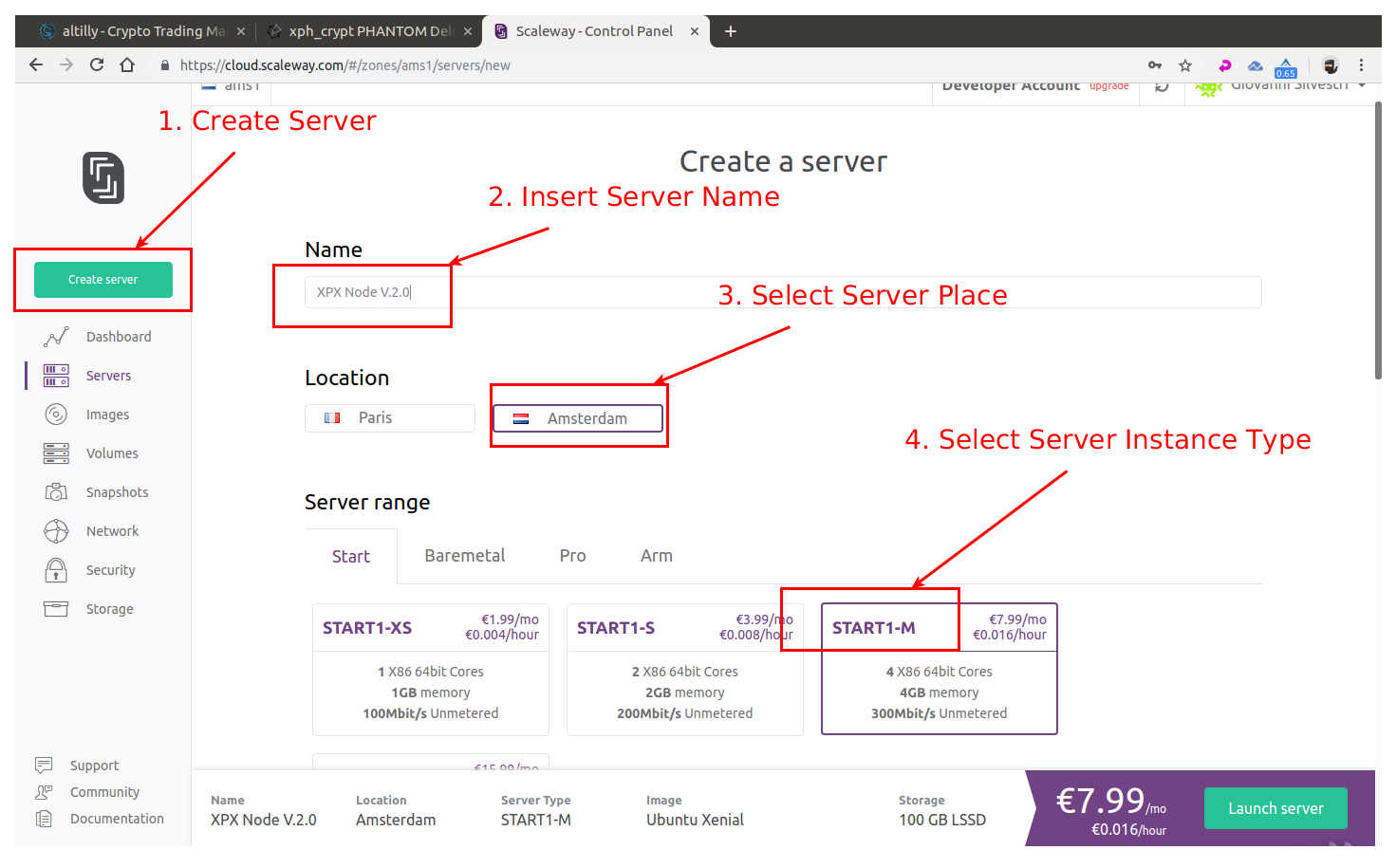 Select Ubuntu 18.04 x64 - Bionic Beaver as operating system instance 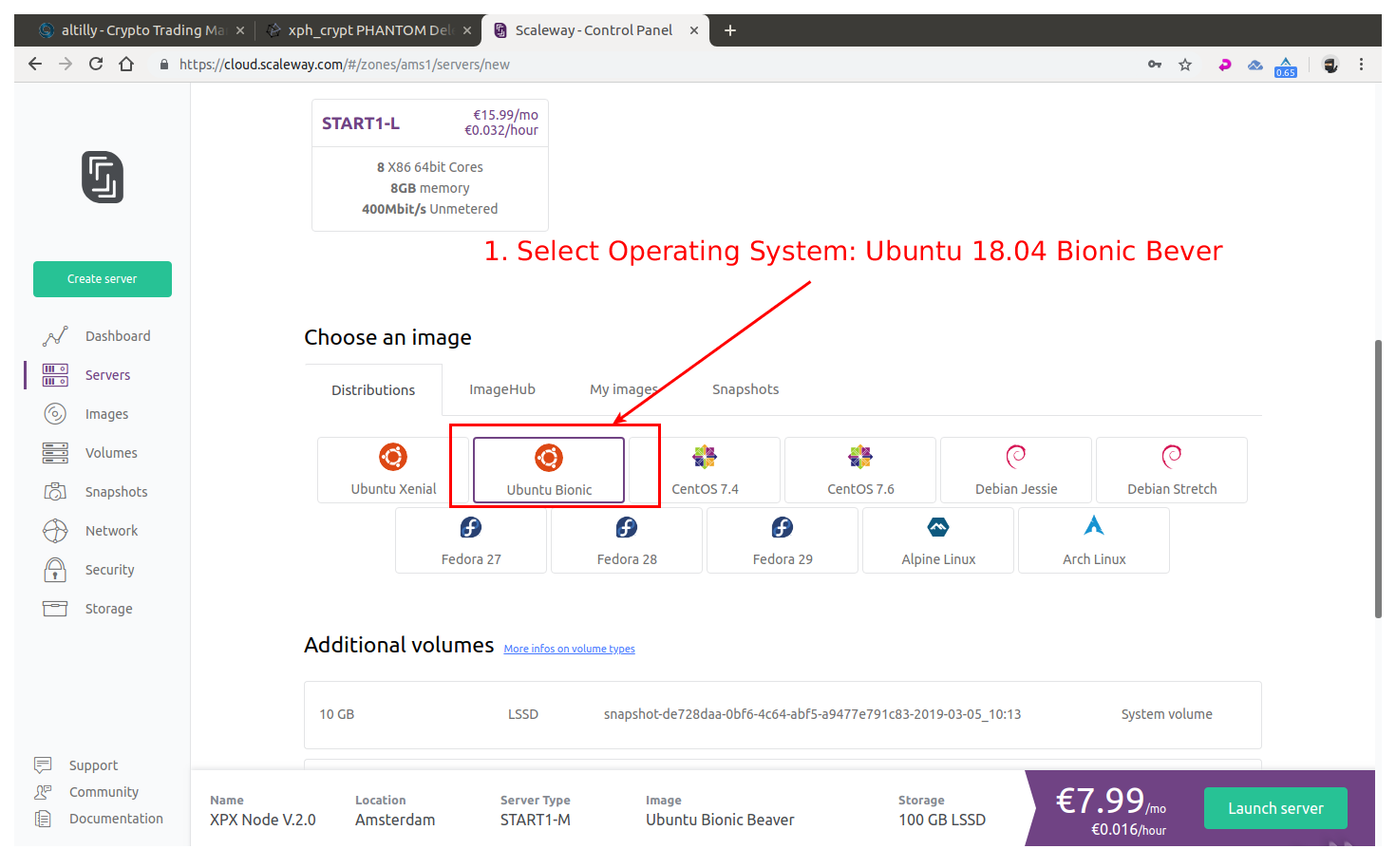 Select disk size and click Launch Server 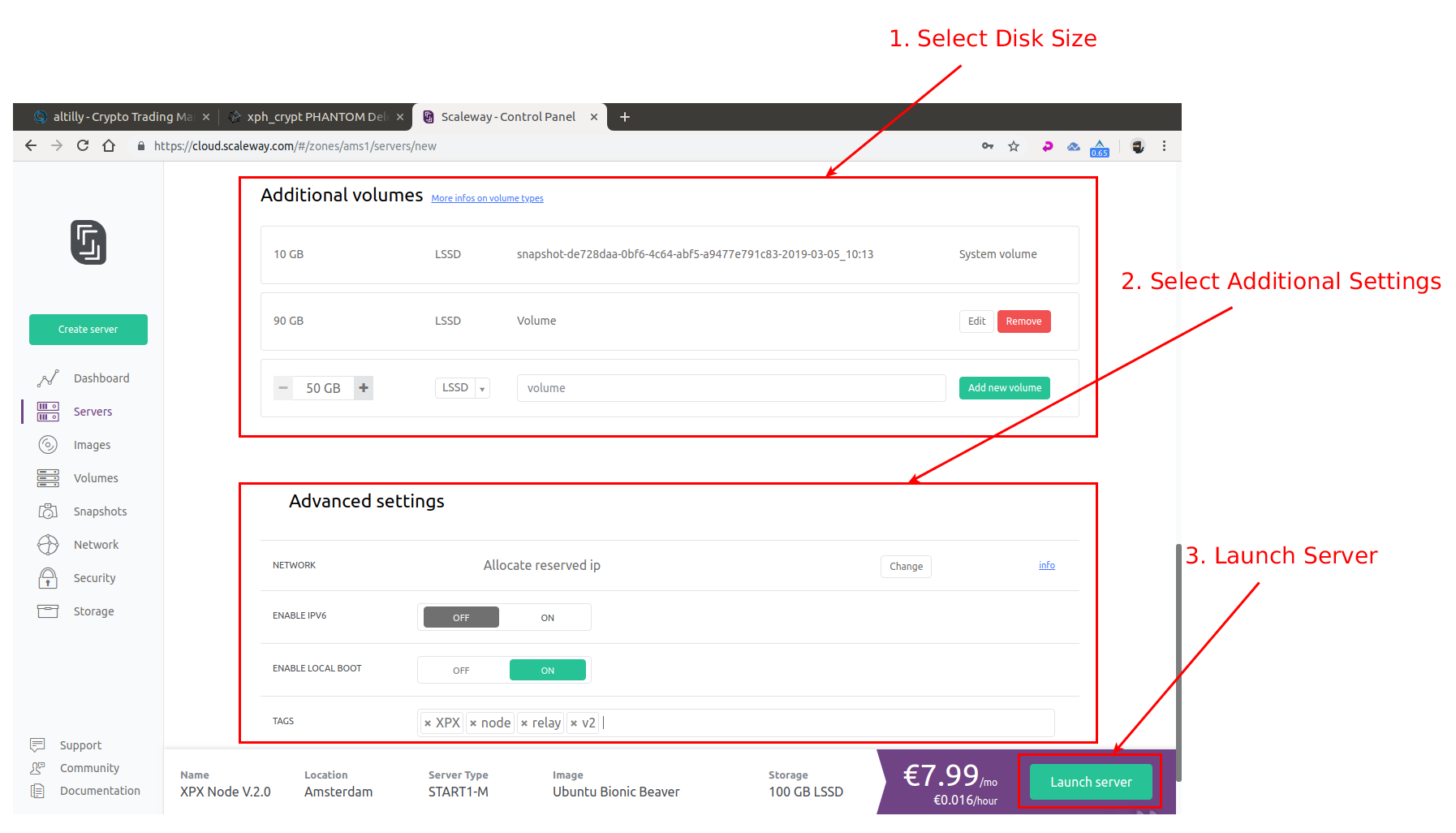 Once your server instance is ready, you will see all the login info into the server instance page: **username:** root **password:** none **IP:** xxx.xxx.xxx.xxx indicated into the server page **SSH port:** 22 (this is default) # 2. Connect to your newly created server instance via SSH **Windows:** you can use any SSH client. For our example we will use Putty (an open-source client you can download here: [PUTTY DOWNLOAD](https://www.putty.org/)) **MAC OS:** open Terminal ( To start Terminal, go to your Mac’s Applications folder => click on the Utilities folder => then click on Terminal). **Linux:** depending on your distribution, you can usually also open it by pressing a combination of “Ctrl + Alt + T” keys. _For terminal in Linux / MAC OS you can connect with this command:_ **ssh user@<server-ip>** example for our instance of server in Linux / MAC OS would be: **ssh [email protected]** For our guide we’ll use Terminal (Ubuntu) — start it up: 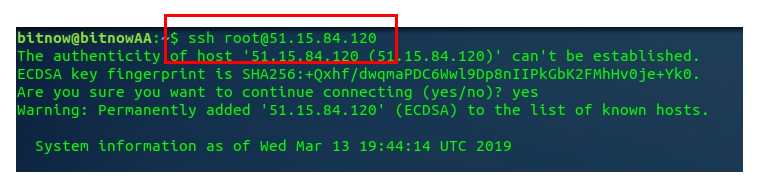 Now the command line will be shown, asking you to provide the username that you checked in the ScaleWay control panel you need to install the SUDO tool as the ScaleWay VPS does not come with this tool installed: use the command `apt install sudo` to install it: 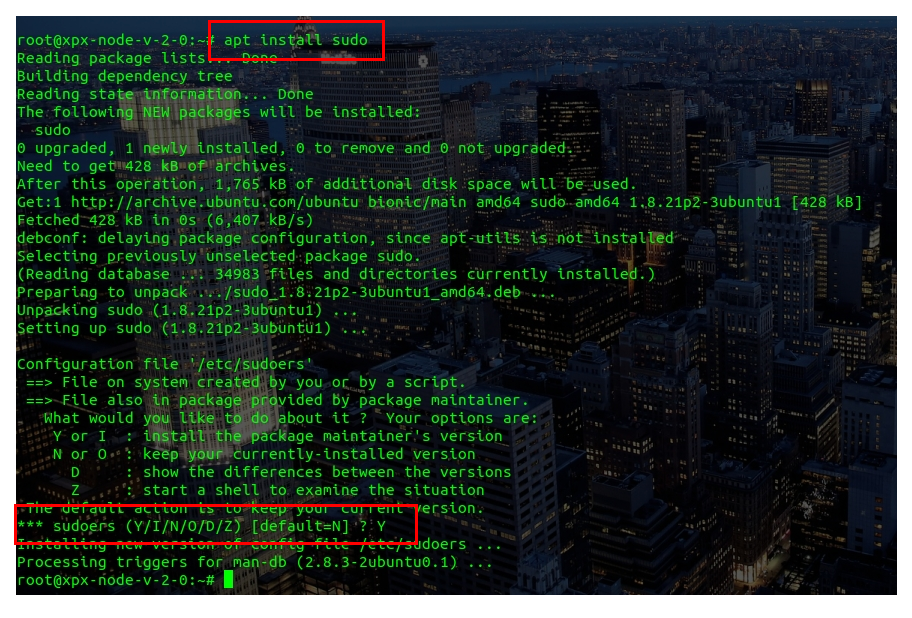 # 3. Setting Up Regular User With Sudo Privileges Now that we successfully connected and changed the password for root it is time to create a new regular user with sudo privileges (sudo privileges allow a user to run programs with the security privileges of another user). **How to add new regular user:** **adduser < yourusername >** our example: **adduser xpx** Enter a new password, enter it again, and press [enter] 6 times to accept all of the default values. 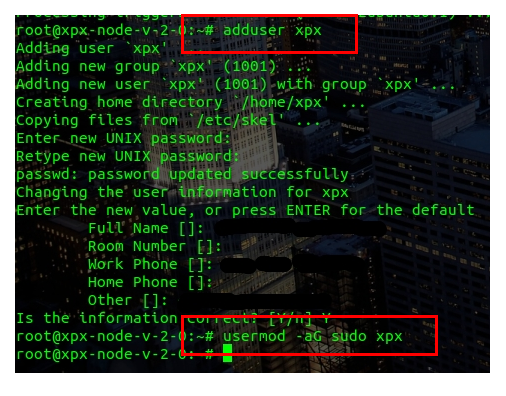 Now that we have successfully created user with the username xpx (you can choose whatever username you want except root of course), it is time to assign this regular user sudo privileges. **How to add sudo privileges to our newly created regular user:** **usermod -a -G sudo** < yourusername > our example: **usermod -a -G sudo xpx** Now it is time to disconnect and reconnect as the newly created user (in our case ripa and not as root. Type **exit** and press [enter]. Your SSH session will close. # 4. Connecting Using Your New User Connect to your server, but now instead of logging in as root, we will login with new user. Type your username and press enter, followed by the password of that user: 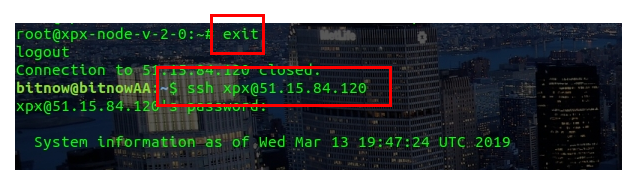 _For terminal in Linux / MAC OS you can connect with this command:_ **ssh yourusername@<server-ip>** example for our instance of server in Linux / MAC OS would be: **ssh [email protected]** # 5. Installing the XPX Node Now that we have our node ready, it is time to install XPX. First we will download the XPX installer called “`xpxshell-core`” simply by executing these commands: 1. Download core-commander: `git clone https://github.com/RipaEx/core-commander.git` 2. Execute the file: `cd core-commander` `bash commander.sh` 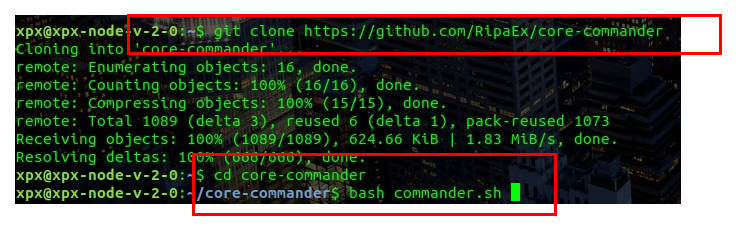 Now the core-commander installation script will open. At the first step, you will need to provide your user’s password (in our example, the password for user xpx). 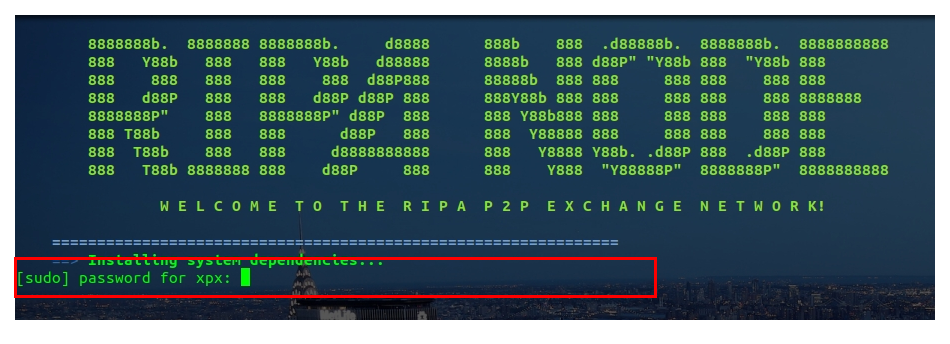 Since this is your first time running this installer, it will check for all of the dependencies and updates the RIPA node needs to run — press [enter] to continue and be patient. It might take a while, so do not interrupt the process. 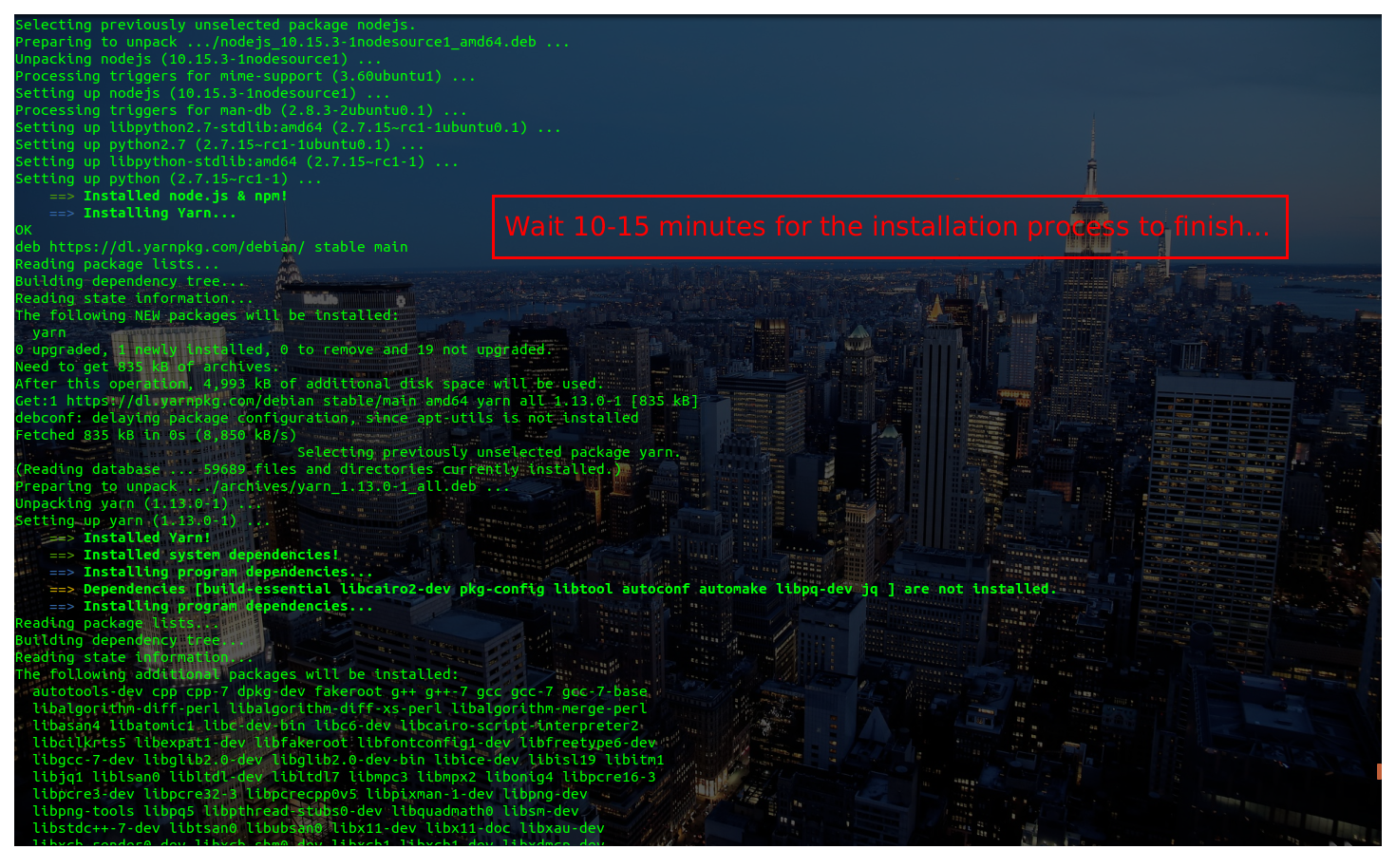 (installing prerequisites — don’t interrupt) After this process finishes you will be asked to reboot your server — execute with the command: Y 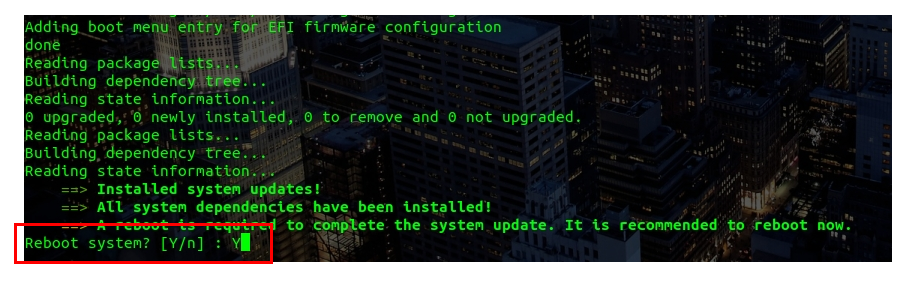 After the node has rebooted reconnect to the node with your user, and execute : `cd core-commander` `bash commander.sh` Provide your password if asked to enter the menu. 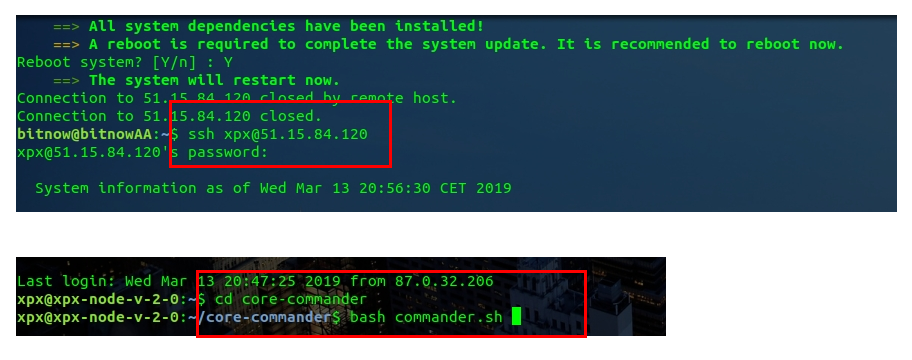 You will now enter into core-commander menu: there are a lot of options, and since this is our first installation, you will input letter I and press [enter] to execute the Install XPX process. 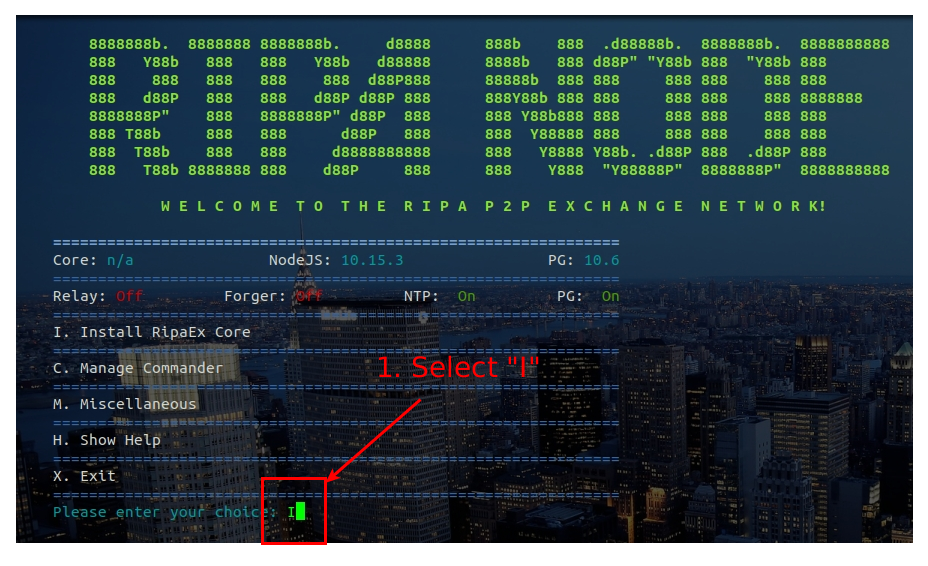 Now the XPX node installation will start follow the instructions on screen to configure your node as you like: 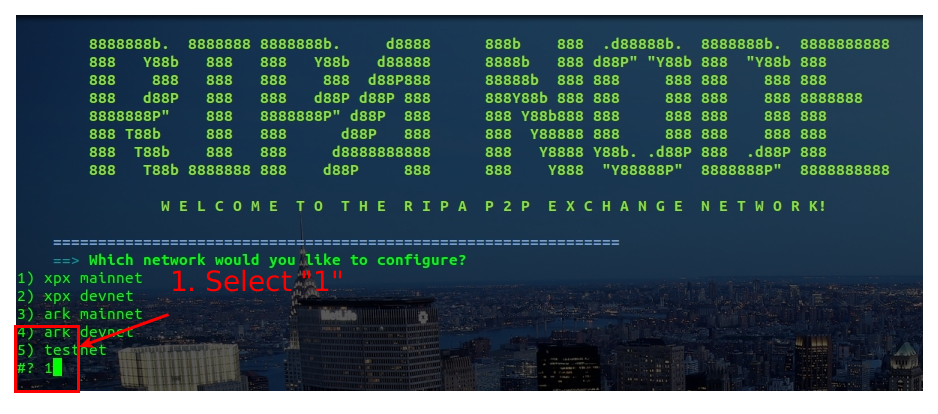 Figure 1: configure network 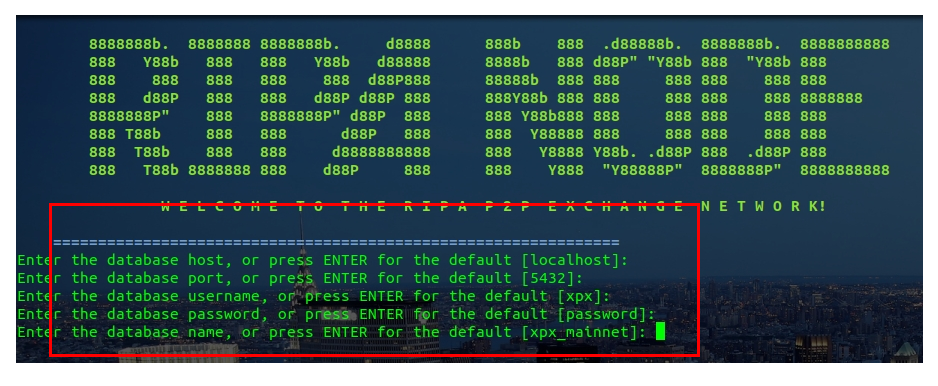 Figure 2: configure database 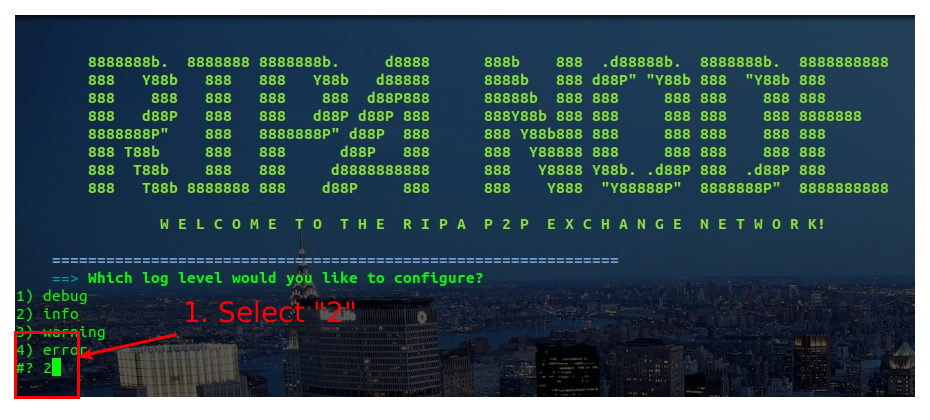 Figure 3: configure log After configuration has been performed the node will be downloaded, configured, compiled: **do not interrupt this process**. 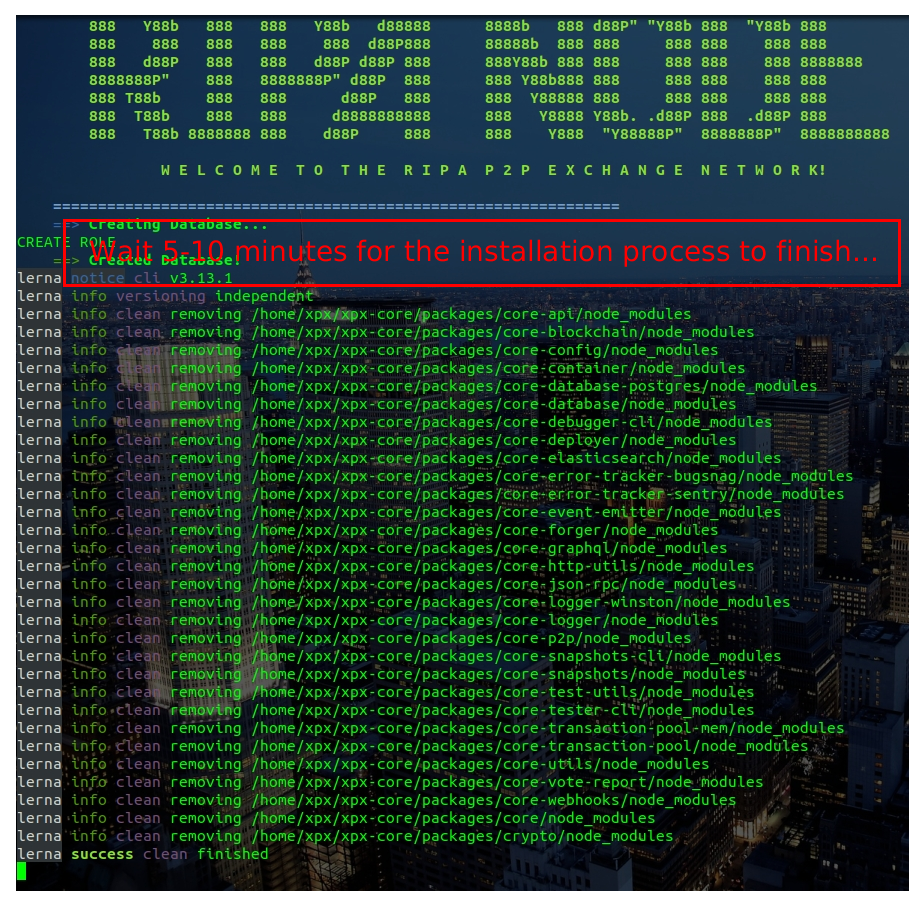 (installing node — don’t interrupt) At the end you will be asked to start the relay node: choose "Y" to this question 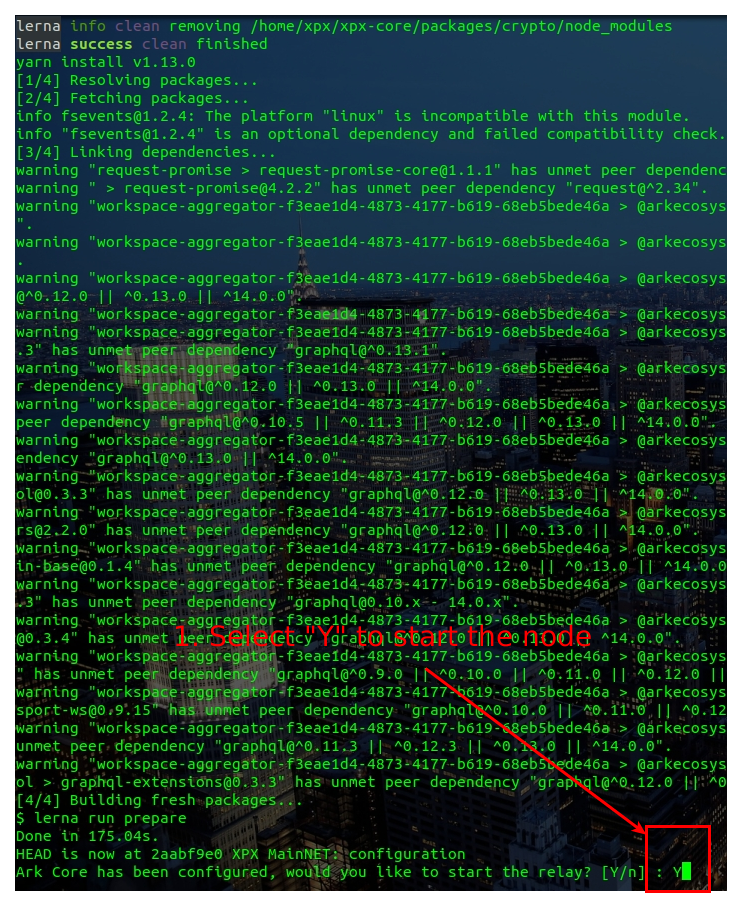 # 6. Checking XPX Node Status Now you can use option "L" or "P" from the core-commander main menu to check the LOGs of your node or to check the processes in execution: 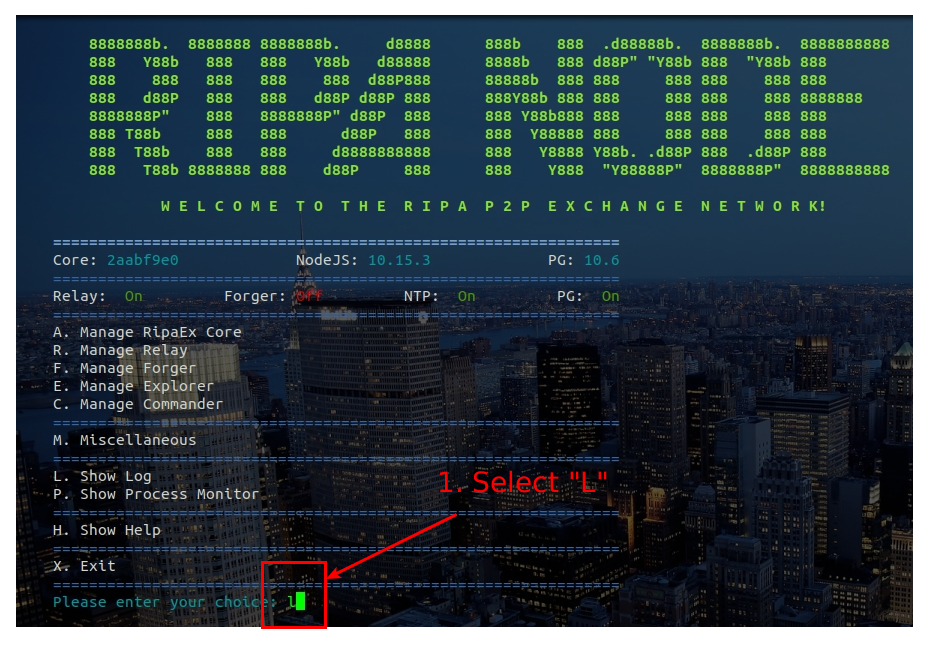 Figure 1: check node logs 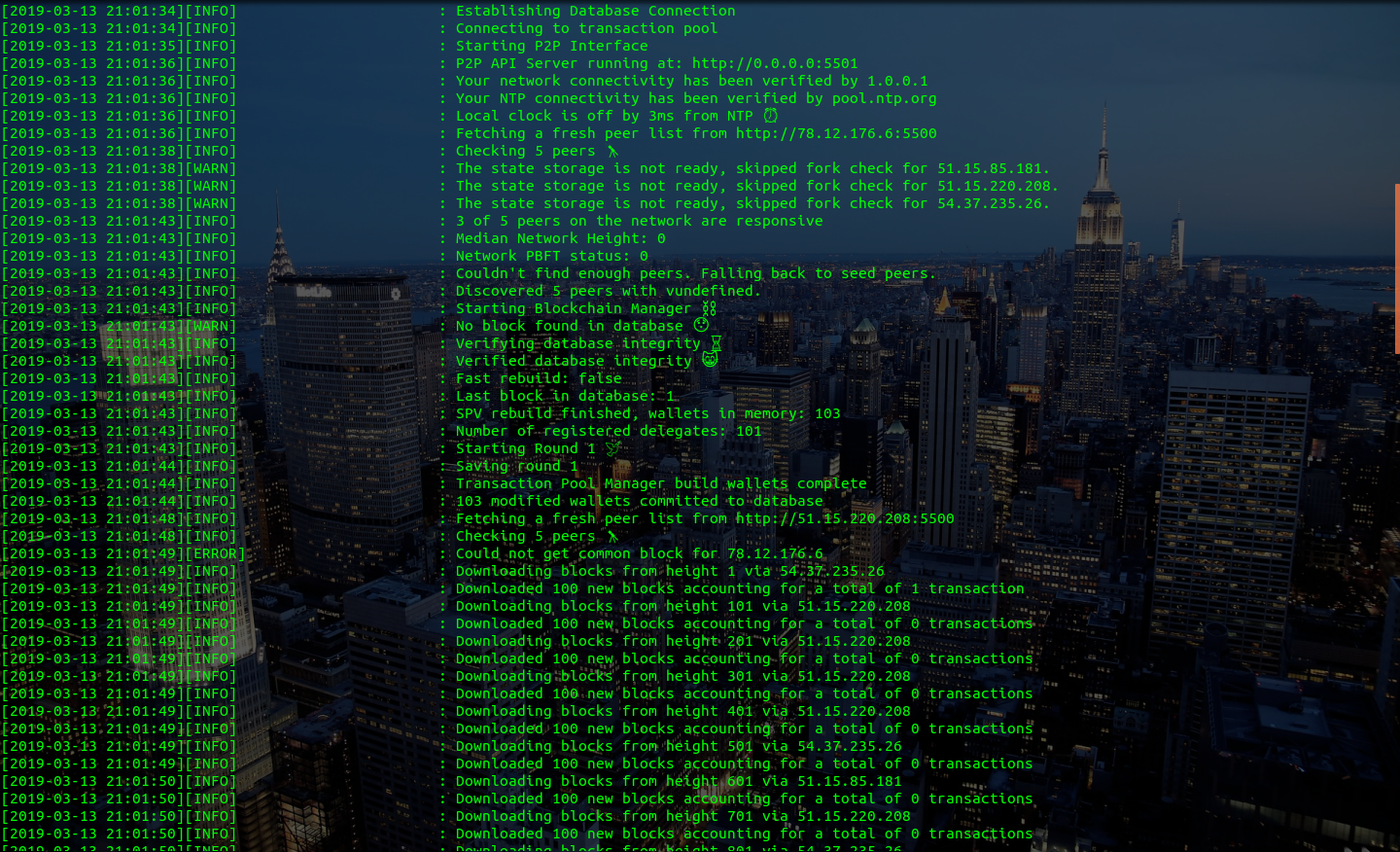 Figure 2: node logs 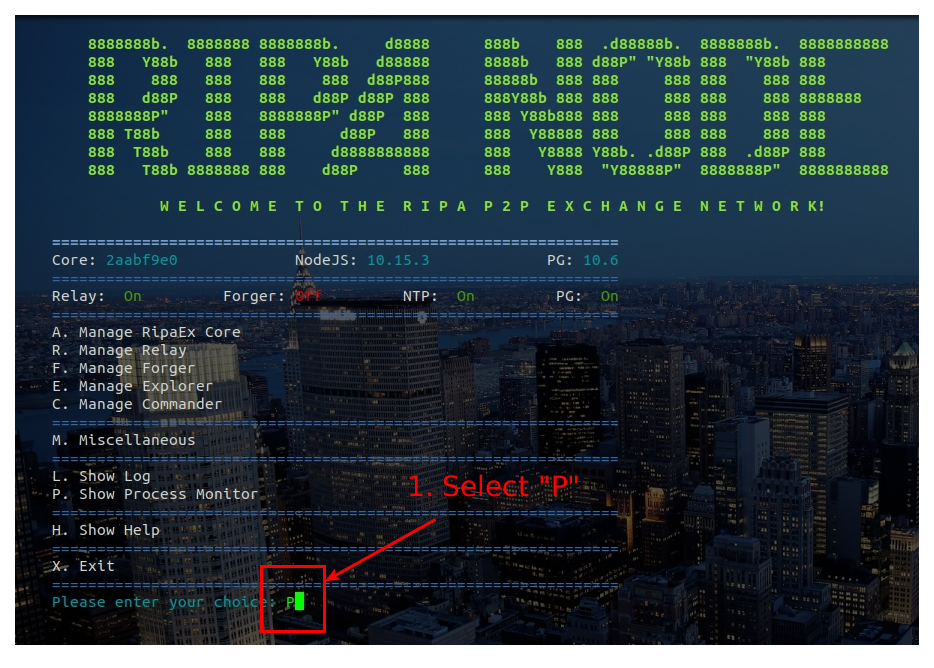 Figure 3: check node processes 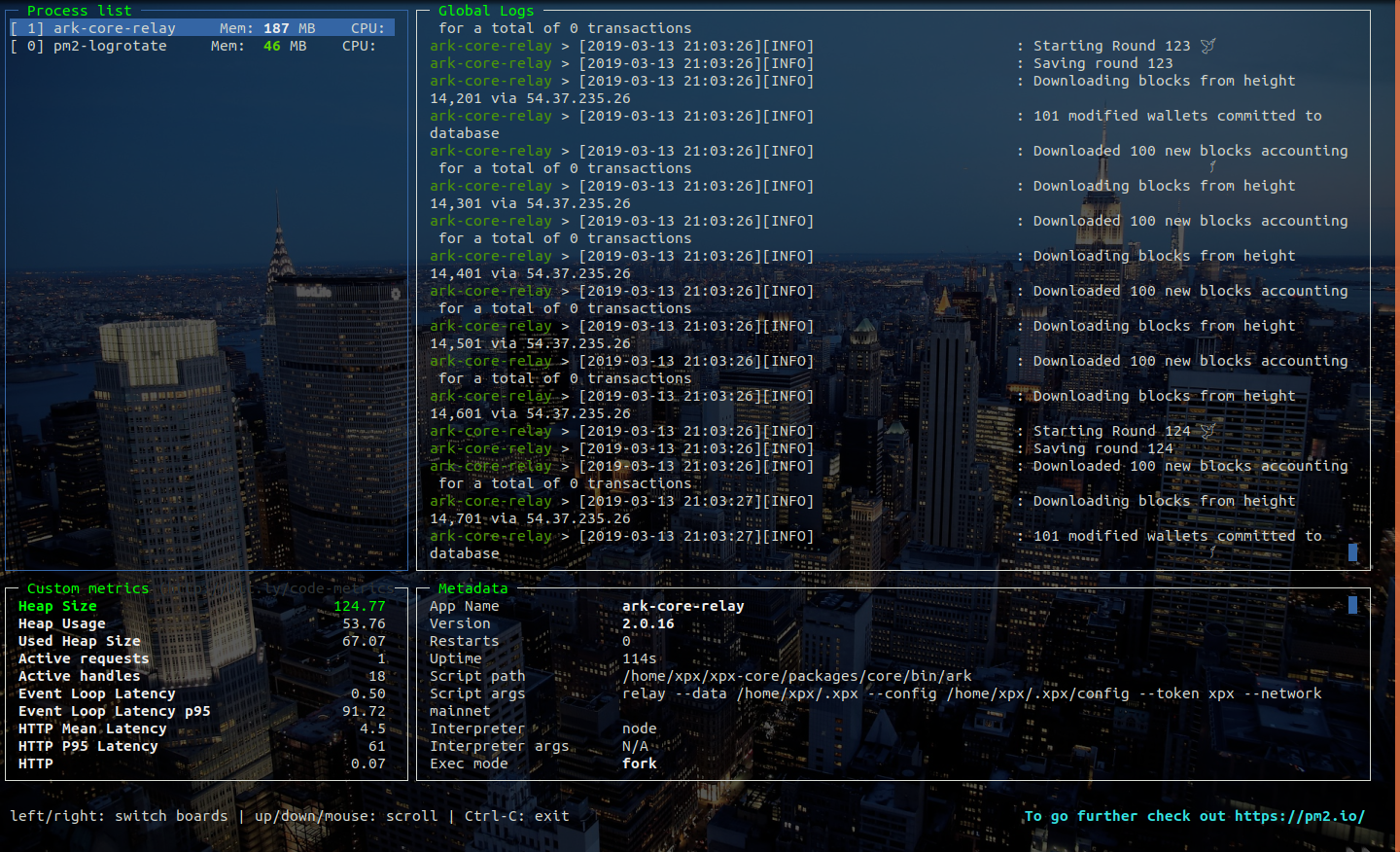 Figure 4: node processes > CONGRATULATIONS: you have successfully installed your XPX Relay Node V.2.0 **REMEMBER TO NOT SWITCH ON THE FORGER UNTIL MONDAY 04/01/2019 at 12:01 CET** **Follow RipaEx socials to know the exact date of the XPX 2.0 migration** ## Remember to connect to us... Website: [www.ripaex.io](https://www.ripaex.io) Telegram: [t.me/ripaex](https://t.me/ripaex) Bitcointalk ANN: [bitcointalk.org/index.php?topic=3759172](https://bitcointalk.org/index.php?topic=3759172) Whitepaper: [github.com/RipaEx/whitepaper/raw/master/eng/RipaEx_WP_EN.pdf](https://github.com/RipaEx/whitepaper/raw/master/eng/RipaEx_WP_EN.pdf) Facebook: [www.facebook.com/ripaex](https://www.facebook.com/ripaex) Twitter: [twitter.com/ripaex](https://twitter.com/ripaex) Gitter: [gitter.im/RipaEx/RipaEx](https://gitter.im/RipaEx/RipaEx) GitHub: [github.com/RipaEx/](https://github.com/RipaEx/) Blog: [steemit.com/ripaex](https://steemit.com/ripaex) |
| json metadata | {"tags":["xpx","v2","delegate","relay"],"image":["https://cdn.steemitimages.com/DQme2q6ndFmSEF4y5sLs4XE7Cdt9dA1ksc5yUiXKdg2aas5/image.png","https://cdn.steemitimages.com/DQmPREfnCwyd1nAF6t6Ug6ksBGt9S6BWoB2jiQbKDvE6G8x/1_vps.png","https://cdn.steemitimages.com/DQmUiFG5fu3rb1HgPSAUhSLgdUFa2gtLseb5o1D7W7gvuBL/2_vps.png","https://cdn.steemitimages.com/DQmT1KfnrJSv8E9sapxAkHETqSR1ySyM5UEE57qwEmivLZv/3_vps.png","https://cdn.steemitimages.com/DQmbk7QQA3VWpZqt8hN8vZHAthg8V539wLWBF3jRqXuj4NT/4_login_root.png","https://cdn.steemitimages.com/DQmQNiM2MzPEvPfvN94SX3WaAgnZUBe3yJt7dq1g8voRmki/5_install_sudo.png","https://cdn.steemitimages.com/DQmWeWAAUf4RrbL4SX4XEtgVZq8bJfo8RB1bEeyzszcJTXq/6_add_user.png","https://cdn.steemitimages.com/DQmSFE7F1bbnBdFQSHoyWTRF9ZJ5YGAFFedcv1pCxkDbLSe/7_login_user.png","https://cdn.steemitimages.com/DQmS8o8wEJ5noUaa7RUz6mh9HiGQZDTCWMANBCh1J1gz3Xh/8_launch_ripa_commander.png","https://cdn.steemitimages.com/DQmbCheyCovzDTj26wmi3RoU5pnz1cD1ywCiFxWuKM4NZLt/9_insert_password.png","https://cdn.steemitimages.com/DQmYdYVTcikmRxjj4WAMtFV8drvBGyL3PBABd8nvJg5PhbZ/10_install_dependencies.png","https://cdn.steemitimages.com/DQmPQi2Mz8QMMpDbLY37d6fRbZrwtakGBwGmd824f7ZXmZR/11_reboot_system.png","https://cdn.steemitimages.com/DQmZVXE5a6h8efmjk6Ze9Mqo2qvHTUNdbnBtpq94FsYmQ8R/12_launch_ripa_commander.png","https://cdn.steemitimages.com/DQmSfr9J1gJg5QbtwbnaXACouwVKXniKWDEbyGSqQEh3StF/13_install_node.png","https://cdn.steemitimages.com/DQmdsCapD8tmxubkL9MrA71nb5r4e1krnZXao4YmeUdX1ak/15_configure_network.png","https://cdn.steemitimages.com/DQmdAtDVwJjqE563fTFY2hkhdKbJXfUhFdYN6PWnXdUkJpz/16_configure_database.png","https://cdn.steemitimages.com/DQmRtB6aReVb4ncQEwGpYaYUCgamDmbJbc9Pgr3XFEPzkAP/17_configure_log.png","https://cdn.steemitimages.com/DQmZs16mZeSVRo3WZRFaRanka6JnUT18axEER8CqiKAyRzp/18_install_node.png","https://cdn.steemitimages.com/DQmPu4XQRq3MWMhMiFJQvLdLBXKf8bFmiJ8AhEBoQcKSK6K/19_launch_node.png","https://cdn.steemitimages.com/DQmYVvYgYQXharMxpja8SKPwF66U3DZfYwffm7oJDv2eUoL/20_check_log.png","https://cdn.steemitimages.com/DQmcoRqgfRZij9fY7yR9QBEXmYaJXXJM5g8wAnVkhsqNPyV/23_log_ok.png","https://cdn.steemitimages.com/DQmT5HLkLuLhgFVNMaZu3jfW7rHdrPe8ofyyrwEtJUAEM7A/21_check_process.png","https://cdn.steemitimages.com/DQmSmwhfoTfaDjAwZcPPvq7Nj6U18MCZFaCvW2RFs7fdXJS/25_processes_ok.png"],"links":["https://t.me/ripaex","https://join.slack.com/t/ripaex/shared_invite/enQtMzM4NzUwNjU4OTQ0LTY3MDJmMTdhYTNlZjJlNGUxNzM1YjUwYjgyYjZlMDJmOTg3NTIzNThmNTYyMGQ3ODBkOTRmYzk3Y2Y4MzBkOTY","mailto:[email protected]","https://www.ripaex.com","https://www.scaleway.com/","https://m.do.co/c/ac0f2bca30e9","https://www.vultr.com/?ref=7434091","https://www.ovh.com/us/vps/vps-ssd.xml","https://www.putty.org/","https://www.ripaex.io","https://bitcointalk.org/index.php?topic=3759172","https://github.com/RipaEx/whitepaper/raw/master/eng/RipaEx_WP_EN.pdf","https://www.facebook.com/ripaex","https://twitter.com/ripaex","https://gitter.im/RipaEx/RipaEx","https://github.com/RipaEx/","https://steemit.com/ripaex"],"app":"steemit/0.1","format":"markdown"} |
| Transaction Info | Block #31157080/Trx de6b115d20047c805ade978de2fdd13ba278f505 |
View Raw JSON Data
{
"trx_id": "de6b115d20047c805ade978de2fdd13ba278f505",
"block": 31157080,
"trx_in_block": 11,
"op_in_trx": 0,
"virtual_op": 0,
"timestamp": "2019-03-14T21:43:57",
"op": [
"comment",
{
"parent_author": "",
"parent_permlink": "xpx",
"author": "ripaex",
"permlink": "how-to-set-up-an-xpx-v-2-0-relay-node-xpx-2-0-migration-1-2",
"title": "How To Set Up an XPX V.2.0 RELAY node - XPX 2.0 Migration - 1/2",
"body": "\n\n**XPX MainNET will be switched to the XPX 2.0 codebase from Wednesday 02/27/2019 at 12:00 CET to Monday 04/01/2019 12:00 CET.**\n\n**During this time all the XPX 1.0 nodes will be shutted down to be replaced to XPX 2.0 RELAY node: on Monday 04/01/2019 starting at 12:01 CET the XPX 2.0 FORGED will be started and the XPX MainNET will be officially migrated to the 2.0 codebase.**\n\n**You can follow this guide before that that to get Your infrastructure ready for the migration however DO NOT SWITCH ON YOUR FORGER to not create problems of compatibility with the still functioning XPX 1.0 network.**\n\nFor any problem during this migration feel free to contact us in [Telegram](https://t.me/ripaex), [Slack](https://join.slack.com/t/ripaex/shared_invite/enQtMzM4NzUwNjU4OTQ0LTY3MDJmMTdhYTNlZjJlNGUxNzM1YjUwYjgyYjZlMDJmOTg3NTIzNThmNTYyMGQ3ODBkOTRmYzk3Y2Y4MzBkOTY), [e-mail](mailto:[email protected]) and other contact channels present in our website at [www.ripaex.com](https://www.ripaex.com)\n\n\n\n### Minimum requirements for running XPX node (active nodes):\n - at least 1 DEDICATED CPU core (no shared ones), x86 or x64 architecture (the higher the CPU clock speed, the better, recommendation 2 CPUs+)\n - 4 GB RAM (the more the better, recommendation 8GB+),\n - Linux — Ubuntu 18.04 (this is optimal, and this guide is written for it)\n - 520GB free space (we recommend SSD/m.2, as opposed to traditional HDD drives, recommendation 100GB+)\n\n### Recommended VPS/Cloud providers:\n- [**ScaleWay**](https://www.scaleway.com/)\n- [**Digital Ocean**](https://m.do.co/c/ac0f2bca30e9)\n- [** Vultr**](https://www.vultr.com/?ref=7434091)\n- [**OVH**](https://www.ovh.com/us/vps/vps-ssd.xml)\n\nFor this guide, we’ll use [**ScaleWay**](https://www.scaleway.com/), you can get a START1-M VPS for **€7.99/month ( 4 X86 64bit cores, 4Gb Ram, 100Gb SSD, 300 Mbit/s unmetered transfer) But all providers have similar deals.**\n\n# 1. Get yourself a server for your node\n\nWe will create a VPS via ScaleWay interface, for the Linux distro we will use a START1-M vps in the Paris installation:\n\n\nSelect Ubuntu 18.04 x64 - Bionic Beaver as operating system instance\n\n\nSelect disk size and click Launch Server\n\n\nOnce your server instance is ready, you will see all the login info into the server instance page:\n\n**username:** root\n**password:** none\n**IP:** xxx.xxx.xxx.xxx indicated into the server page\n**SSH port:** 22 (this is default)\n\n\n# 2. Connect to your newly created server instance via SSH\n**Windows:** you can use any SSH client. For our example we will use Putty (an open-source client you can download here: [PUTTY DOWNLOAD](https://www.putty.org/))\n**MAC OS:** open Terminal ( To start Terminal, go to your Mac’s Applications folder => click on the Utilities folder => then click on Terminal).\n**Linux:** depending on your distribution, you can usually also open it by pressing a combination of “Ctrl + Alt + T” keys.\n\n_For terminal in Linux / MAC OS you can connect with this command:_\n**ssh user@<server-ip>**\nexample for our instance of server in Linux / MAC OS would be: \n**ssh [email protected]**\n\nFor our guide we’ll use Terminal (Ubuntu) — start it up:\n\n\nNow the command line will be shown, asking you to provide the username that you checked in the ScaleWay control panel you need to install the SUDO tool as the ScaleWay VPS does not come with this tool installed: use the command `apt install sudo` to install it:\n\n\n\n# 3. Setting Up Regular User With Sudo Privileges\nNow that we successfully connected and changed the password for root it is time to create a new regular user with sudo privileges (sudo privileges allow a user to run programs with the security privileges of another user).\n\n**How to add new regular user:**\n\n**adduser < yourusername >**\nour example: **adduser xpx**\nEnter a new password, enter it again, and press [enter] 6 times to accept all of the default values.\n\n\nNow that we have successfully created user with the username xpx (you can choose whatever username you want except root of course), it is time to assign this regular user sudo privileges.\n\n**How to add sudo privileges to our newly created regular user:**\n\n**usermod -a -G sudo** < yourusername >\nour example: **usermod -a -G sudo xpx**\n\nNow it is time to disconnect and reconnect as the newly created user (in our case ripa and not as root. Type **exit** and press [enter]. Your SSH session will close.\n\n\n# 4. Connecting Using Your New User\nConnect to your server, but now instead of logging in as root, we will login with new user. Type your username and press enter, followed by the password of that user:\n\n\n_For terminal in Linux / MAC OS you can connect with this command:_\n**ssh yourusername@<server-ip>**\nexample for our instance of server in Linux / MAC OS would be: \n**ssh [email protected]**\n\n\n# 5. Installing the XPX Node\nNow that we have our node ready, it is time to install XPX. First we will download the XPX installer called “`xpxshell-core`” simply by executing these commands:\n\n1. Download core-commander:\n`git clone https://github.com/RipaEx/core-commander.git`\n\n2. Execute the file:\n`cd core-commander`\n`bash commander.sh`\n\n\nNow the core-commander installation script will open. At the first step, you will need to provide your user’s password (in our example, the password for user xpx).\n\n\nSince this is your first time running this installer, it will check for all of the dependencies and updates the RIPA node needs to run — press [enter] to continue and be patient. It might take a while, so do not interrupt the process.\n\n\n(installing prerequisites — don’t interrupt)\n\nAfter this process finishes you will be asked to reboot your server — execute with the command: Y\n\n\n\nAfter the node has rebooted reconnect to the node with your user, and execute :\n`cd core-commander`\n`bash commander.sh`\nProvide your password if asked to enter the menu.\n\n\nYou will now enter into core-commander menu: there are a lot of options, and since this is our first installation, you will input letter I and press [enter] to execute the Install XPX process. \n\n\nNow the XPX node installation will start follow the instructions on screen to configure your node as you like:\n\nFigure 1: configure network\n\n\nFigure 2: configure database\n\n\nFigure 3: configure log\n\nAfter configuration has been performed the node will be downloaded, configured, compiled: **do not interrupt this process**. \n\n\n(installing node — don’t interrupt)\n\nAt the end you will be asked to start the relay node: choose \"Y\" to this question\n\n\n\n# 6. Checking XPX Node Status\nNow you can use option \"L\" or \"P\" from the core-commander main menu to check the LOGs of your node or to check the processes in execution:\n\nFigure 1: check node logs\n\n\nFigure 2: node logs\n\n\nFigure 3: check node processes\n\n\nFigure 4: node processes\n\n> CONGRATULATIONS: you have successfully installed your XPX Relay Node V.2.0\n\n**REMEMBER TO NOT SWITCH ON THE FORGER UNTIL MONDAY 04/01/2019 at 12:01 CET**\n\n**Follow RipaEx socials to know the exact date of the XPX 2.0 migration**\n\n## Remember to connect to us...\nWebsite: [www.ripaex.io](https://www.ripaex.io)\nTelegram: [t.me/ripaex](https://t.me/ripaex)\nBitcointalk ANN: [bitcointalk.org/index.php?topic=3759172](https://bitcointalk.org/index.php?topic=3759172)\nWhitepaper: [github.com/RipaEx/whitepaper/raw/master/eng/RipaEx_WP_EN.pdf](https://github.com/RipaEx/whitepaper/raw/master/eng/RipaEx_WP_EN.pdf)\nFacebook: [www.facebook.com/ripaex](https://www.facebook.com/ripaex)\nTwitter: [twitter.com/ripaex](https://twitter.com/ripaex)\nGitter: [gitter.im/RipaEx/RipaEx](https://gitter.im/RipaEx/RipaEx)\nGitHub: [github.com/RipaEx/](https://github.com/RipaEx/)\nBlog: [steemit.com/ripaex](https://steemit.com/ripaex)",
"json_metadata": "{\"tags\":[\"xpx\",\"v2\",\"delegate\",\"relay\"],\"image\":[\"https://cdn.steemitimages.com/DQme2q6ndFmSEF4y5sLs4XE7Cdt9dA1ksc5yUiXKdg2aas5/image.png\",\"https://cdn.steemitimages.com/DQmPREfnCwyd1nAF6t6Ug6ksBGt9S6BWoB2jiQbKDvE6G8x/1_vps.png\",\"https://cdn.steemitimages.com/DQmUiFG5fu3rb1HgPSAUhSLgdUFa2gtLseb5o1D7W7gvuBL/2_vps.png\",\"https://cdn.steemitimages.com/DQmT1KfnrJSv8E9sapxAkHETqSR1ySyM5UEE57qwEmivLZv/3_vps.png\",\"https://cdn.steemitimages.com/DQmbk7QQA3VWpZqt8hN8vZHAthg8V539wLWBF3jRqXuj4NT/4_login_root.png\",\"https://cdn.steemitimages.com/DQmQNiM2MzPEvPfvN94SX3WaAgnZUBe3yJt7dq1g8voRmki/5_install_sudo.png\",\"https://cdn.steemitimages.com/DQmWeWAAUf4RrbL4SX4XEtgVZq8bJfo8RB1bEeyzszcJTXq/6_add_user.png\",\"https://cdn.steemitimages.com/DQmSFE7F1bbnBdFQSHoyWTRF9ZJ5YGAFFedcv1pCxkDbLSe/7_login_user.png\",\"https://cdn.steemitimages.com/DQmS8o8wEJ5noUaa7RUz6mh9HiGQZDTCWMANBCh1J1gz3Xh/8_launch_ripa_commander.png\",\"https://cdn.steemitimages.com/DQmbCheyCovzDTj26wmi3RoU5pnz1cD1ywCiFxWuKM4NZLt/9_insert_password.png\",\"https://cdn.steemitimages.com/DQmYdYVTcikmRxjj4WAMtFV8drvBGyL3PBABd8nvJg5PhbZ/10_install_dependencies.png\",\"https://cdn.steemitimages.com/DQmPQi2Mz8QMMpDbLY37d6fRbZrwtakGBwGmd824f7ZXmZR/11_reboot_system.png\",\"https://cdn.steemitimages.com/DQmZVXE5a6h8efmjk6Ze9Mqo2qvHTUNdbnBtpq94FsYmQ8R/12_launch_ripa_commander.png\",\"https://cdn.steemitimages.com/DQmSfr9J1gJg5QbtwbnaXACouwVKXniKWDEbyGSqQEh3StF/13_install_node.png\",\"https://cdn.steemitimages.com/DQmdsCapD8tmxubkL9MrA71nb5r4e1krnZXao4YmeUdX1ak/15_configure_network.png\",\"https://cdn.steemitimages.com/DQmdAtDVwJjqE563fTFY2hkhdKbJXfUhFdYN6PWnXdUkJpz/16_configure_database.png\",\"https://cdn.steemitimages.com/DQmRtB6aReVb4ncQEwGpYaYUCgamDmbJbc9Pgr3XFEPzkAP/17_configure_log.png\",\"https://cdn.steemitimages.com/DQmZs16mZeSVRo3WZRFaRanka6JnUT18axEER8CqiKAyRzp/18_install_node.png\",\"https://cdn.steemitimages.com/DQmPu4XQRq3MWMhMiFJQvLdLBXKf8bFmiJ8AhEBoQcKSK6K/19_launch_node.png\",\"https://cdn.steemitimages.com/DQmYVvYgYQXharMxpja8SKPwF66U3DZfYwffm7oJDv2eUoL/20_check_log.png\",\"https://cdn.steemitimages.com/DQmcoRqgfRZij9fY7yR9QBEXmYaJXXJM5g8wAnVkhsqNPyV/23_log_ok.png\",\"https://cdn.steemitimages.com/DQmT5HLkLuLhgFVNMaZu3jfW7rHdrPe8ofyyrwEtJUAEM7A/21_check_process.png\",\"https://cdn.steemitimages.com/DQmSmwhfoTfaDjAwZcPPvq7Nj6U18MCZFaCvW2RFs7fdXJS/25_processes_ok.png\"],\"links\":[\"https://t.me/ripaex\",\"https://join.slack.com/t/ripaex/shared_invite/enQtMzM4NzUwNjU4OTQ0LTY3MDJmMTdhYTNlZjJlNGUxNzM1YjUwYjgyYjZlMDJmOTg3NTIzNThmNTYyMGQ3ODBkOTRmYzk3Y2Y4MzBkOTY\",\"mailto:[email protected]\",\"https://www.ripaex.com\",\"https://www.scaleway.com/\",\"https://m.do.co/c/ac0f2bca30e9\",\"https://www.vultr.com/?ref=7434091\",\"https://www.ovh.com/us/vps/vps-ssd.xml\",\"https://www.putty.org/\",\"https://www.ripaex.io\",\"https://bitcointalk.org/index.php?topic=3759172\",\"https://github.com/RipaEx/whitepaper/raw/master/eng/RipaEx_WP_EN.pdf\",\"https://www.facebook.com/ripaex\",\"https://twitter.com/ripaex\",\"https://gitter.im/RipaEx/RipaEx\",\"https://github.com/RipaEx/\",\"https://steemit.com/ripaex\"],\"app\":\"steemit/0.1\",\"format\":\"markdown\"}"
}
]
}ripaexpublished a new post: how-set-up-a-node-for-kapu-v-2-02019/03/14 19:37:33
ripaexpublished a new post: how-set-up-a-node-for-kapu-v-2-0
2019/03/14 19:37:33
| parent author | |
| parent permlink | kapu |
| author | ripaex |
| permlink | how-set-up-a-node-for-kapu-v-2-0 |
| title | How To Set Up a KAPU V.2.0 RELAY node 1/2 |
| body |  Don’t forget to read: - [**How to Register your KAPU V.2.0 Delegate**](https://steemit.com/kapu/@ripaex/how-to-register-a-kapu-v-2-0-delegate), as you will need the passphrase of your delegate wallet later on in this installation - **Set up your second passphrase as soon as possible**. Your node will have your first passphrase and if it should get hacked, your funds will be exposed. ### Minimum requirements for running KAPU node (active nodes): - at least 1 DEDICATED CPU core (no shared ones), x86 or x64 architecture (the higher the CPU clock speed, the better, recommendation 2 CPUs+) - 4 GB RAM (the more the better, recommendation 8GB+), - Linux — Ubuntu 18.04 (this is optimal, and this guide is written for it) - 520GB free space (we recommend SSD/m.2, as opposed to traditional HDD drives, recommendation 100GB+) ### Recommended VPS/Cloud providers: - [**ScaleWay**](https://www.scaleway.com/) - [**Digital Ocean**](https://m.do.co/c/ac0f2bca30e9) - [** Vultr**](https://www.vultr.com/?ref=7434091) - [**OVH**](https://www.ovh.com/us/vps/vps-ssd.xml) For this guide, we’ll use [**ScaleWay**](https://www.scaleway.com/), you can get a START1-M VPS for **€7.99/month ( 4 X86 64bit cores, 4Gb Ram, 100Gb SSD, 300 Mbit/s unmetered transfer) But all providers have similar deals.** # 1. Get yourself a server for your node (for our guide we’ll use [**ScaleWay**](https://www.scaleway.com/)) We will create a VPS via ScaleWay interface, for the Linux distro we will use a START1-M vps in the Paris installation: 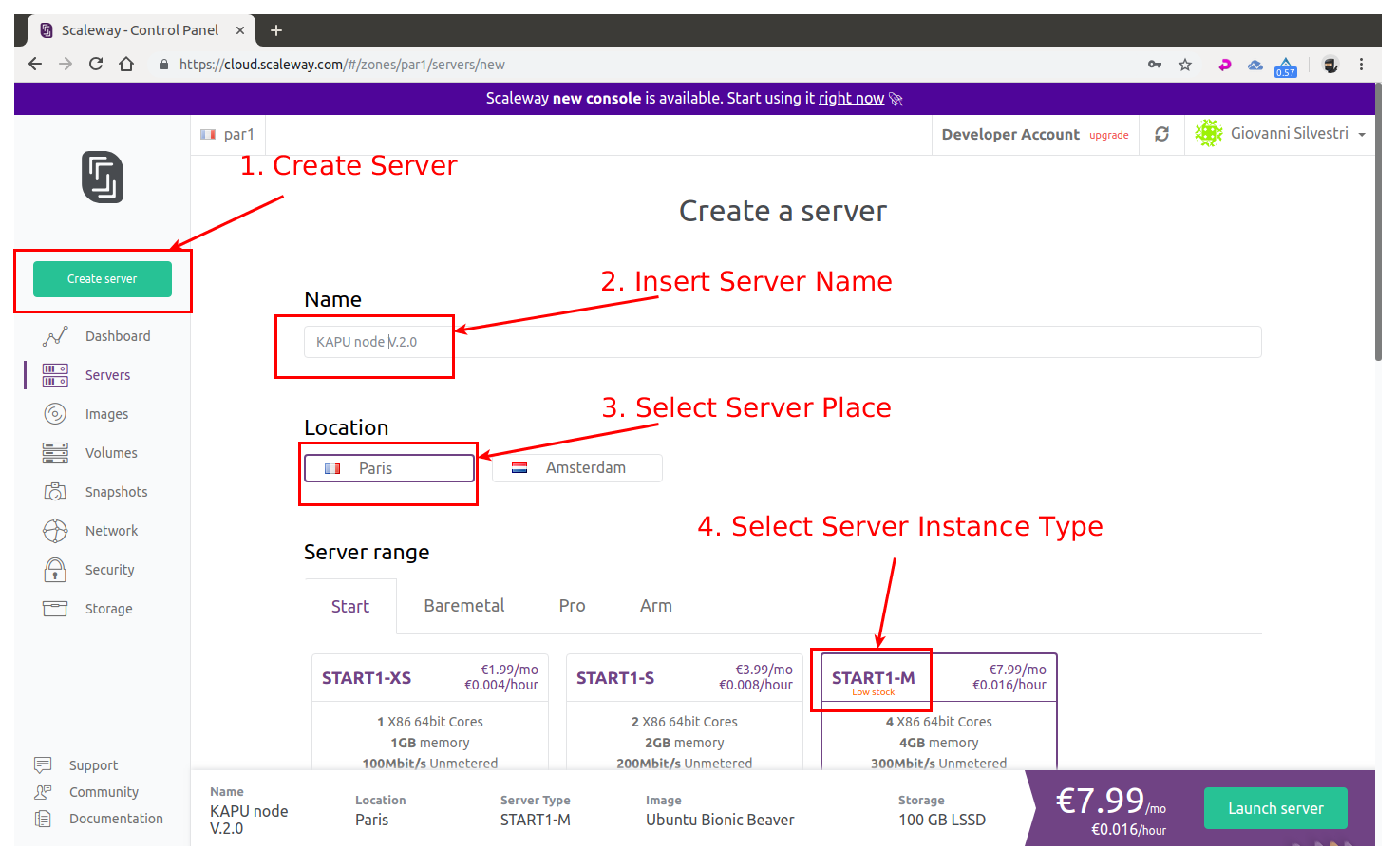 Select Ubuntu 18.04 x64 - Bionic Beaver as operating system instance 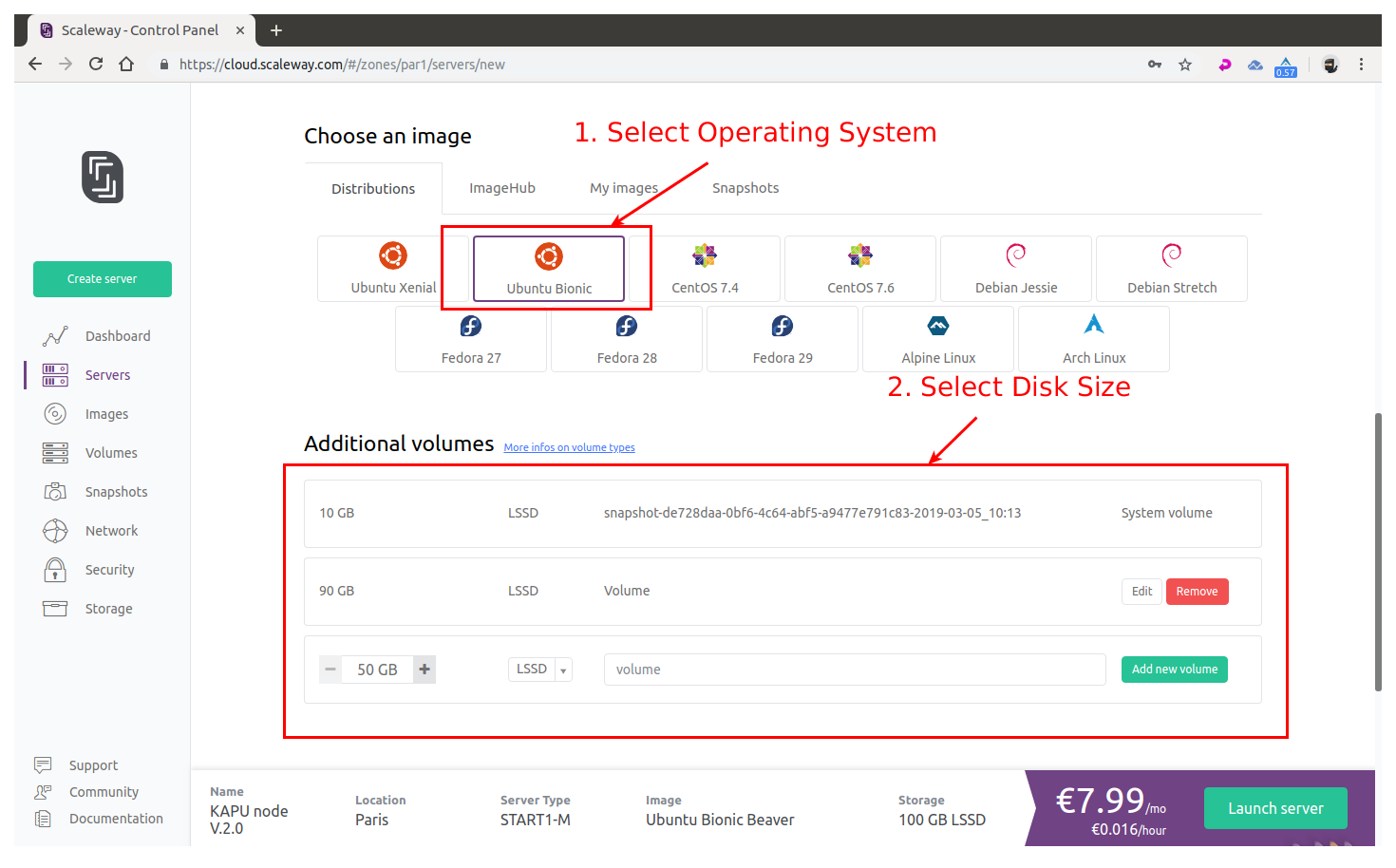 Select disk size and click Launch Server 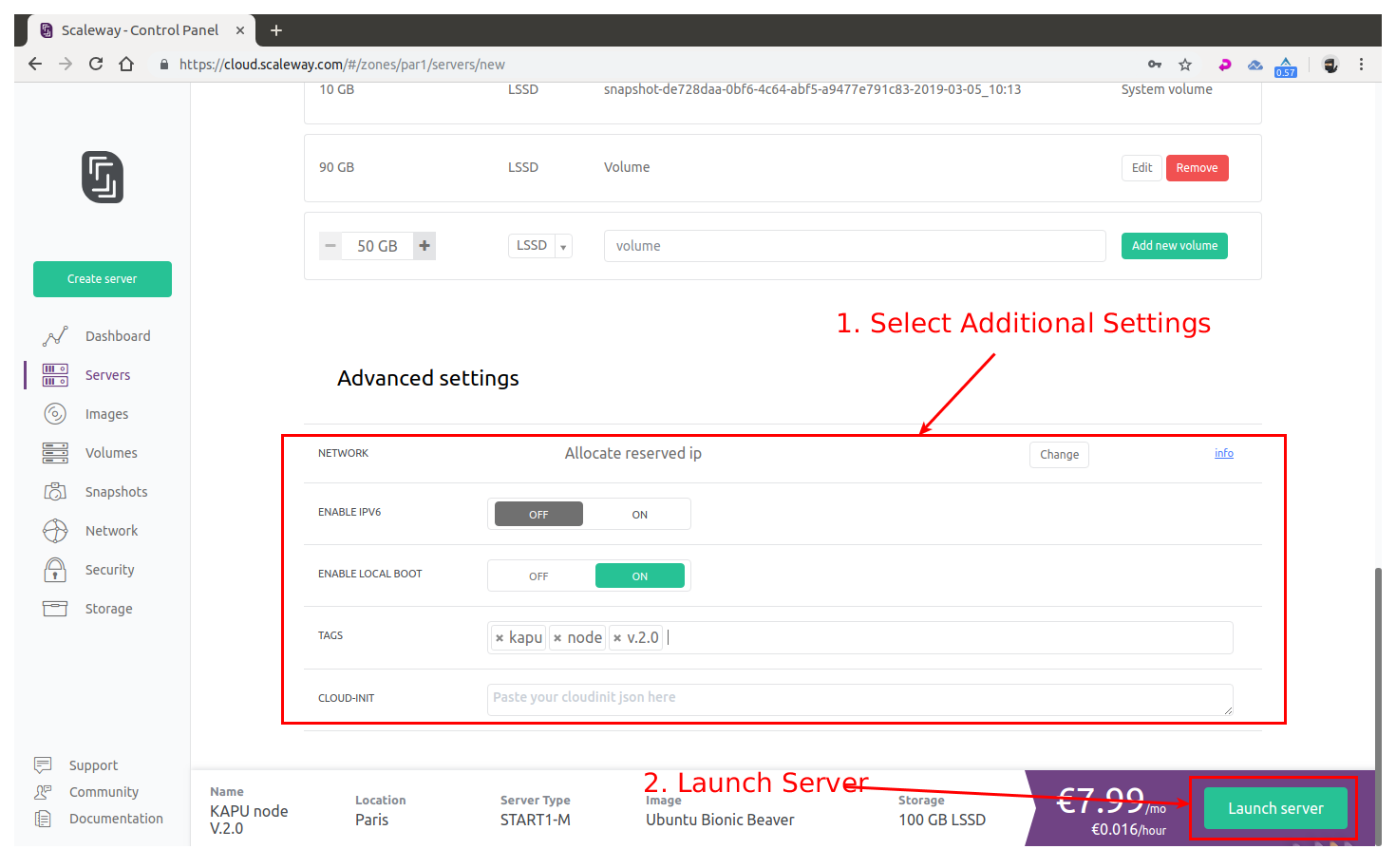 Once your server instance is ready, you will see all the login info into the server instance page: **username:** root **password:** none **IP:** xxx.xxx.xxx.xxx indicated into the server page **SSH port:** 22 (this is default) # 2. Connect to your newly created server instance via SSH **Windows:** you can use any SSH client. For our example we will use Putty (an open-source client you can download here: [PUTTY DOWNLOAD](https://www.putty.org/)) **MAC OS:** open Terminal ( To start Terminal, go to your Mac’s Applications folder => click on the Utilities folder => then click on Terminal). **Linux:** depending on your distribution, you can usually also open it by pressing a combination of “Ctrl + Alt + T” keys. _For terminal in Linux / MAC OS you can connect with this command:_ **ssh user@<server-ip>** example for our instance of server in Linux / MAC OS would be: **ssh [email protected]** For our guide we’ll use Terminal (Ubuntu) — start it up: 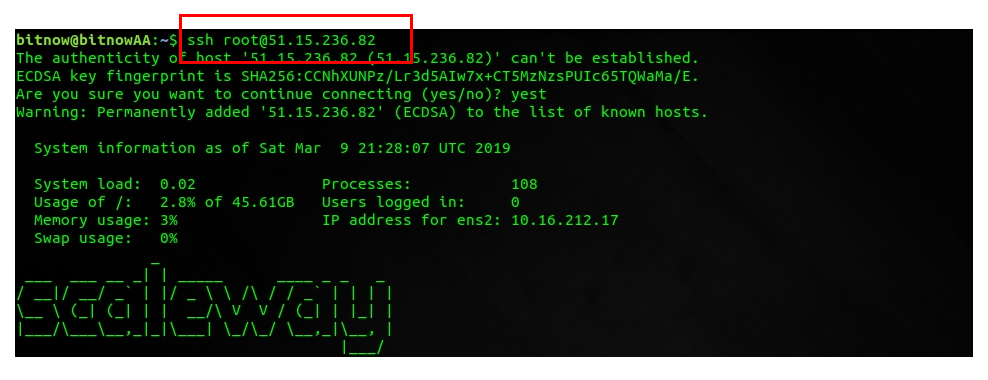 Now the command line will be shown, asking you to provide the username that you checked in the ScaleWay control panel you need to install the SUDO tool as the ScaleWay VPS does not come with this tool installed: use the command `apt install sudo` to install it: 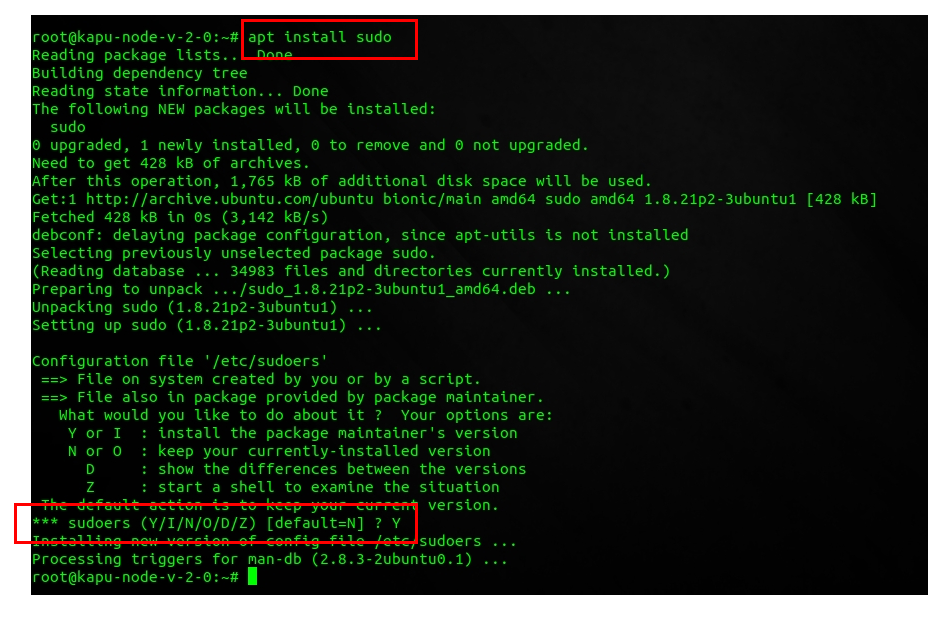 # 3. Setting Up Regular User With Sudo Privileges Now that we successfully connected and changed the password for root it is time to create a new regular user with sudo privileges (sudo privileges allow a user to run programs with the security privileges of another user). **How to add new regular user:** **adduser < yourusername >** our example: **adduser kapu** Enter a new password, enter it again, and press [enter] 6 times to accept all of the default values. 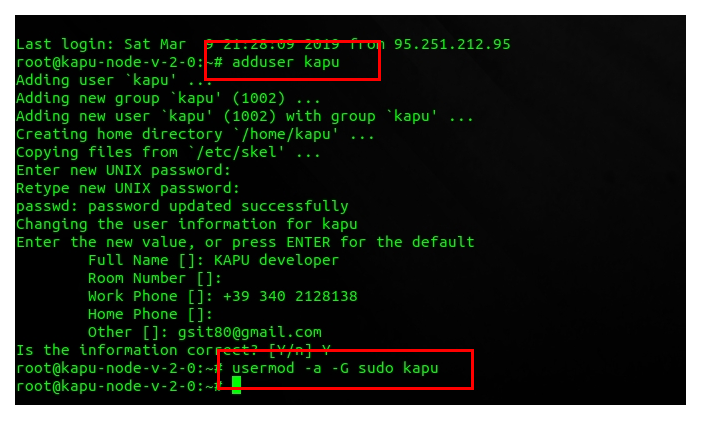 Now that we have successfully created user with the username kapu (you can choose whatever username you want except root of course), it is time to assign this regular user sudo privileges. **How to add sudo privileges to our newly created regular user:** **usermod -a -G sudo** < yourusername > our example: **usermod -a -G sudo kapu** Now it is time to disconnect and reconnect as the newly created user (in our case ripa and not as root. Type **exit** and press [enter]. Your SSH session will close. # 4. Connecting Using Your New User Connect to your server, but now instead of logging in as root, we will login with new user. Type your username and press enter, followed by the password of that user: 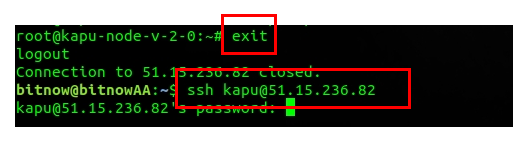 _For terminal in Linux / MAC OS you can connect with this command:_ **ssh yourusername@<server-ip>** example for our instance of server in Linux / MAC OS would be: **ssh [email protected]** # 5. Installing the KAPU Node Now that we have our node ready, it is time to install KAPU. First we will download the KAPU installer called “`kapushell-core`” simply by executing these commands: 1. Download kapushell-core: `git clone https://github.com/Kapucryptocoin/kapushell-core.git` 2. Execute the file: `cd kapushell-core` `bash kapushellcore.sh` 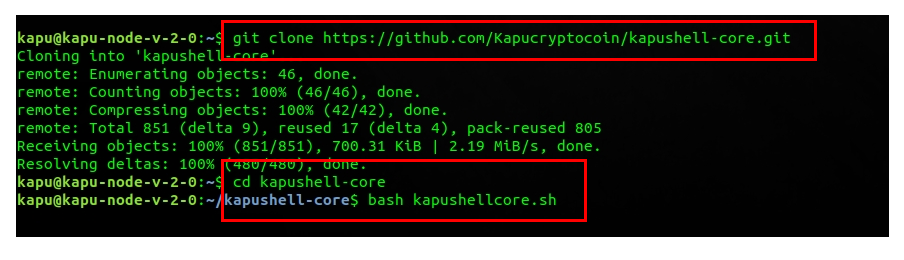 Now the kapushell-core installation script will open. At the first step, you will need to provide your user’s password (in our example, the password for user kapu). 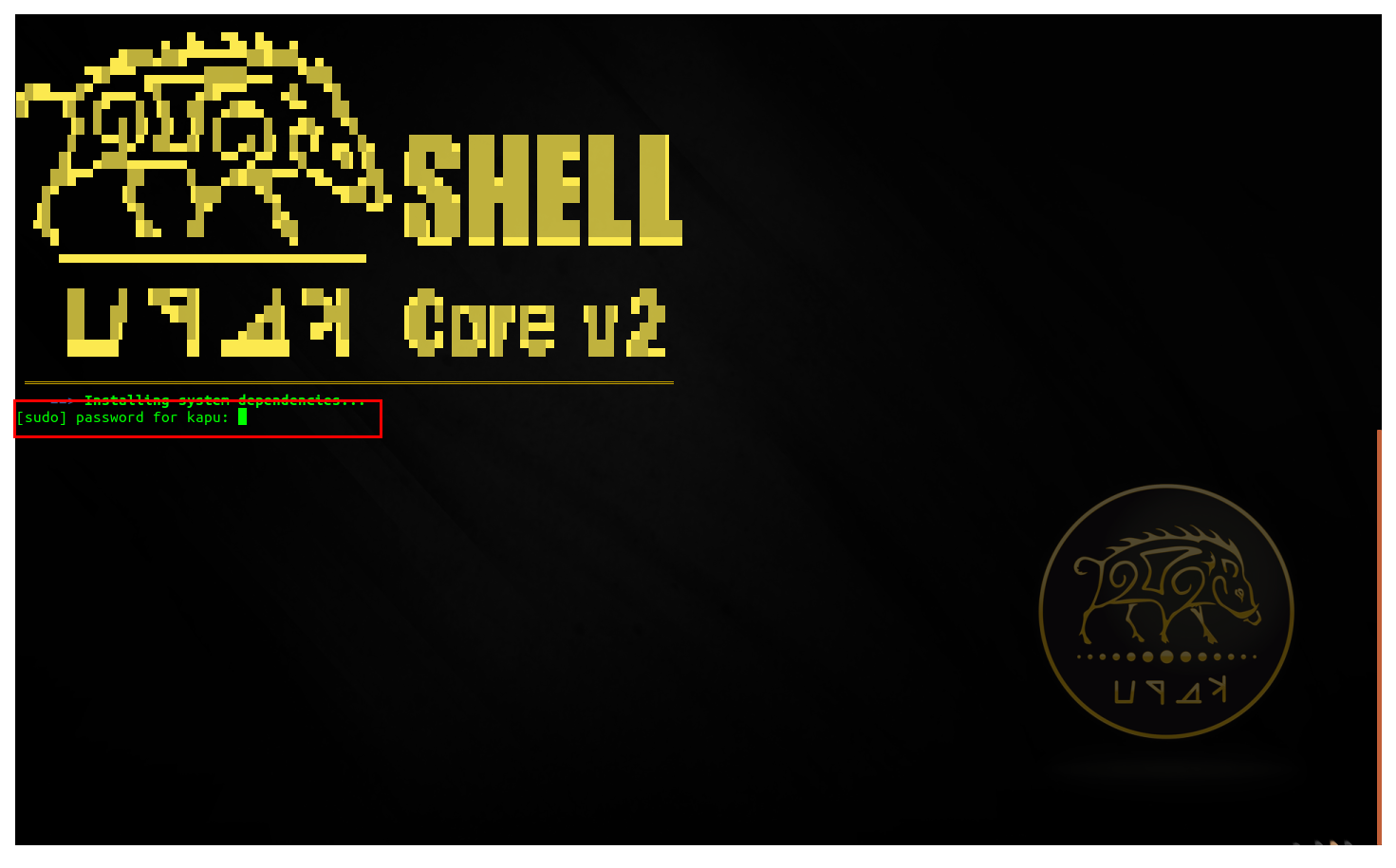 Since this is your first time running this installer, it will check for all of the dependencies and updates the RIPA node needs to run — press [enter] to continue and be patient. It might take a while, so do not interrupt the process. 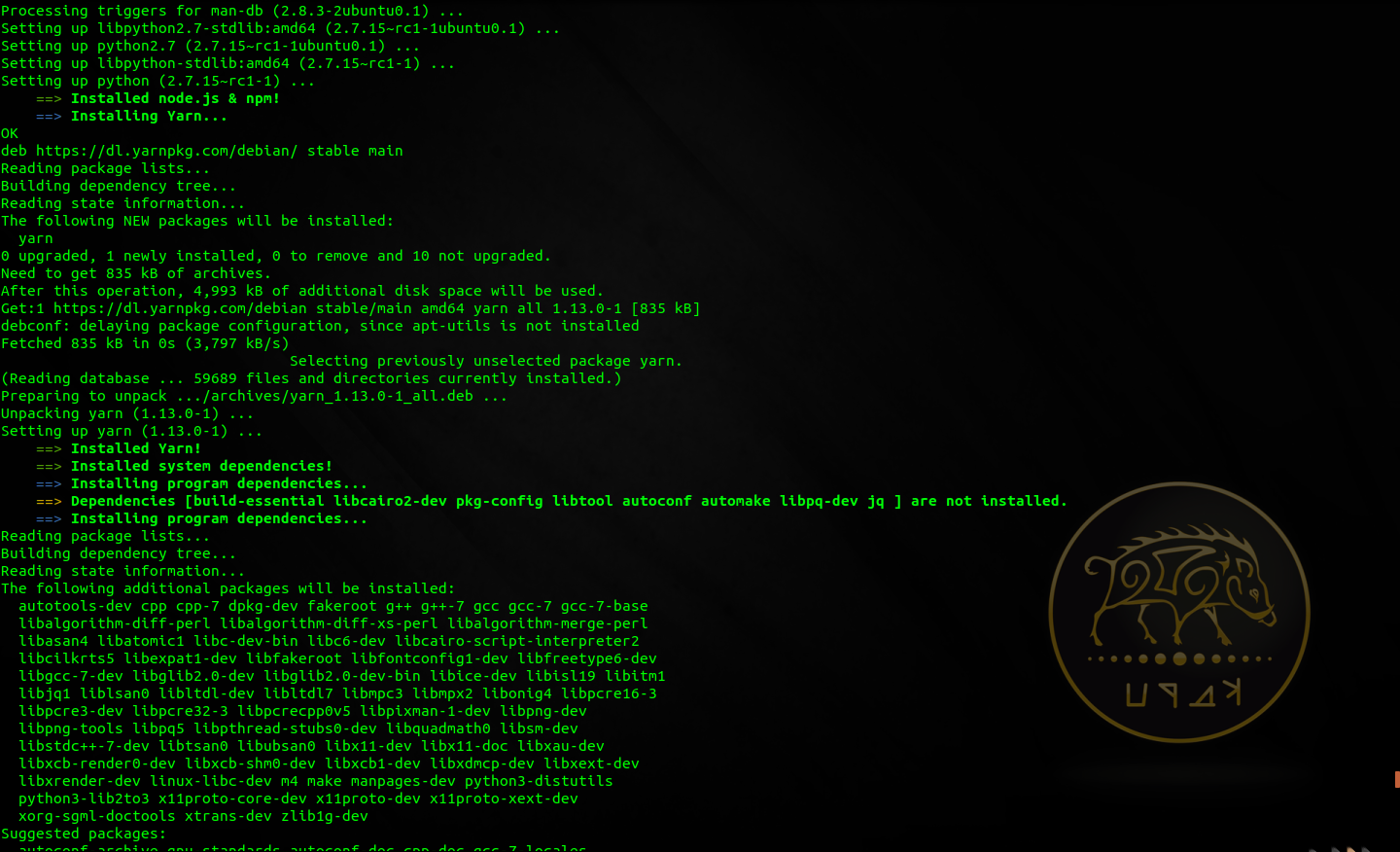 (installing prerequisites — don’t interrupt) After this process finishes you will be asked to reboot your server — execute with the command: Y 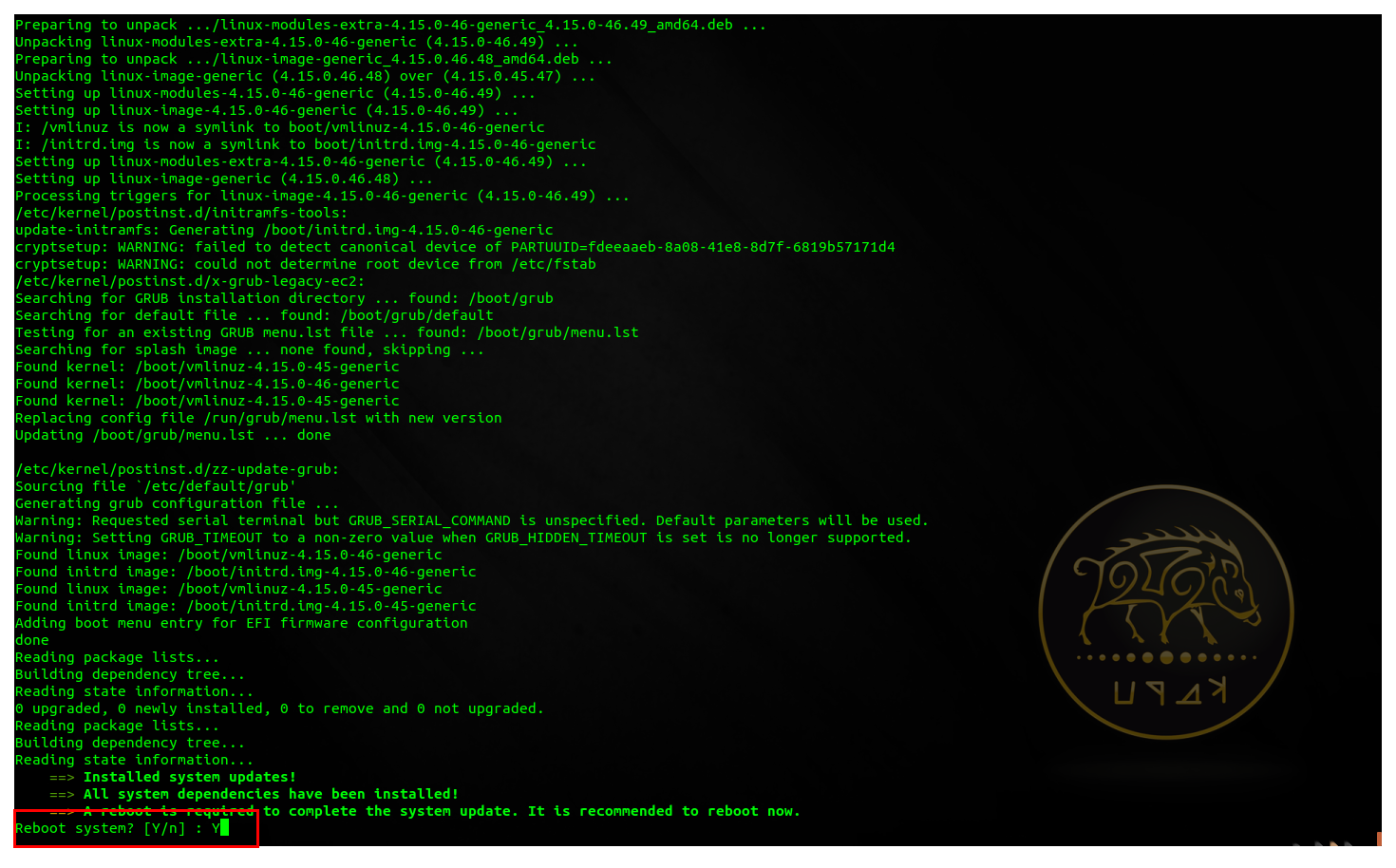 After the node has rebooted reconnect to the node with your user, and execute : `cd kapushell-core` `bash kapushellcore.sh` Provide your password if asked to enter the menu.  You will now enter into kapushell-core menu: there are a lot of options, and since this is our first installation, you will input letter I and press [enter] to execute the Install KAPU process. Now the KAPU node installation will start follow the instructions on screen to configure your node as you like: 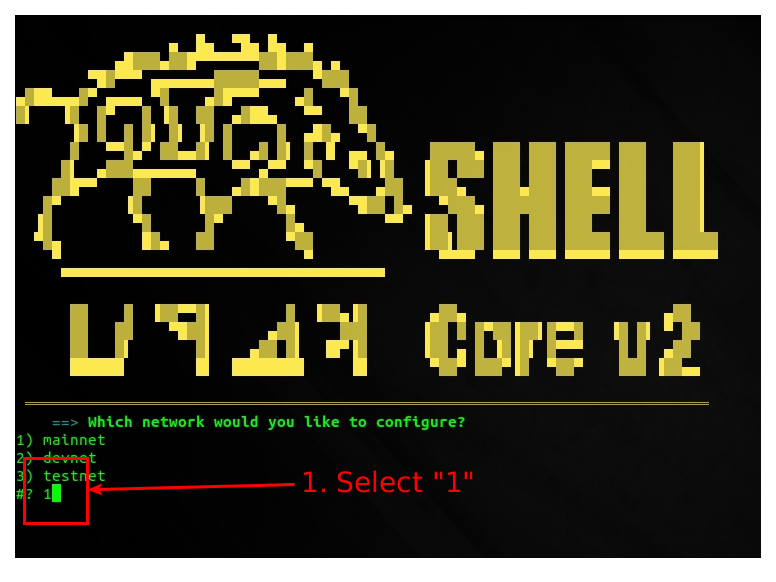 Figure 1: configure network 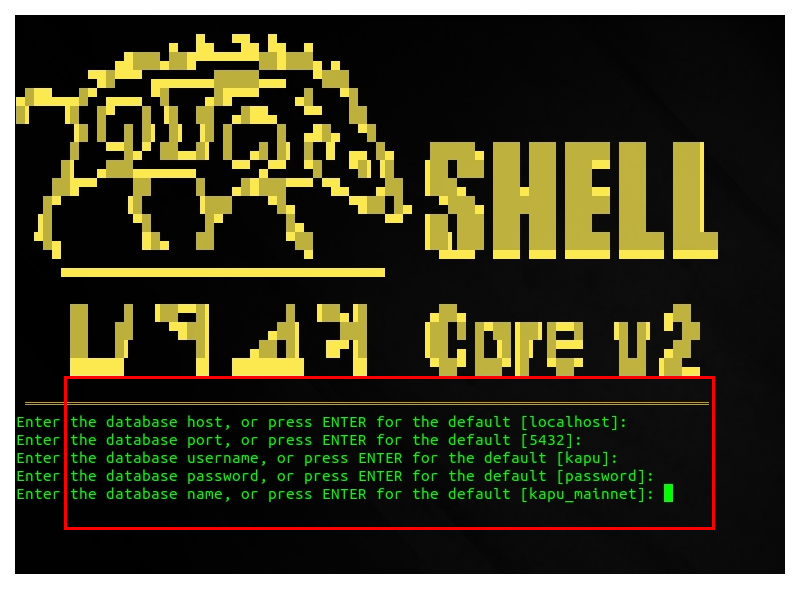 Figure 2: configure database 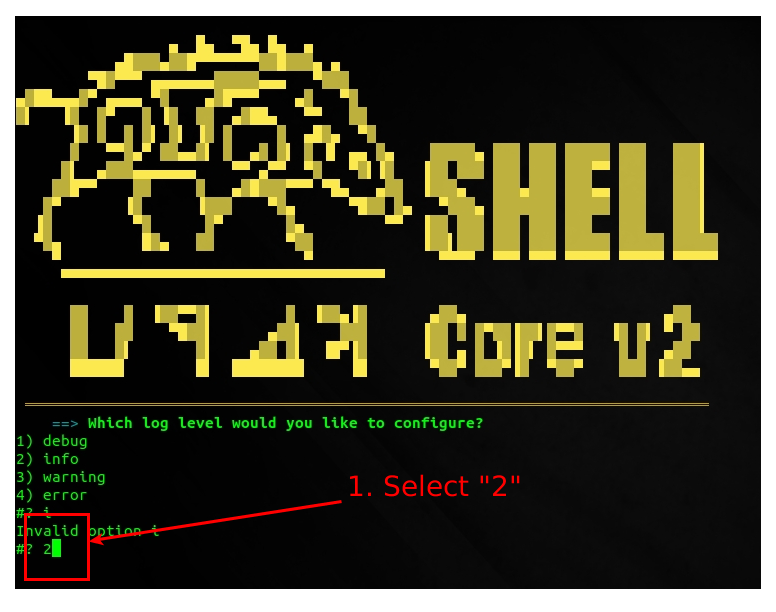 Figure 3: configure log After configuration has been performed the node will be downloaded, configured, compiled: **do not interrupt this process**. At the end you will be asked to start the relay node: choose "Y" to this question 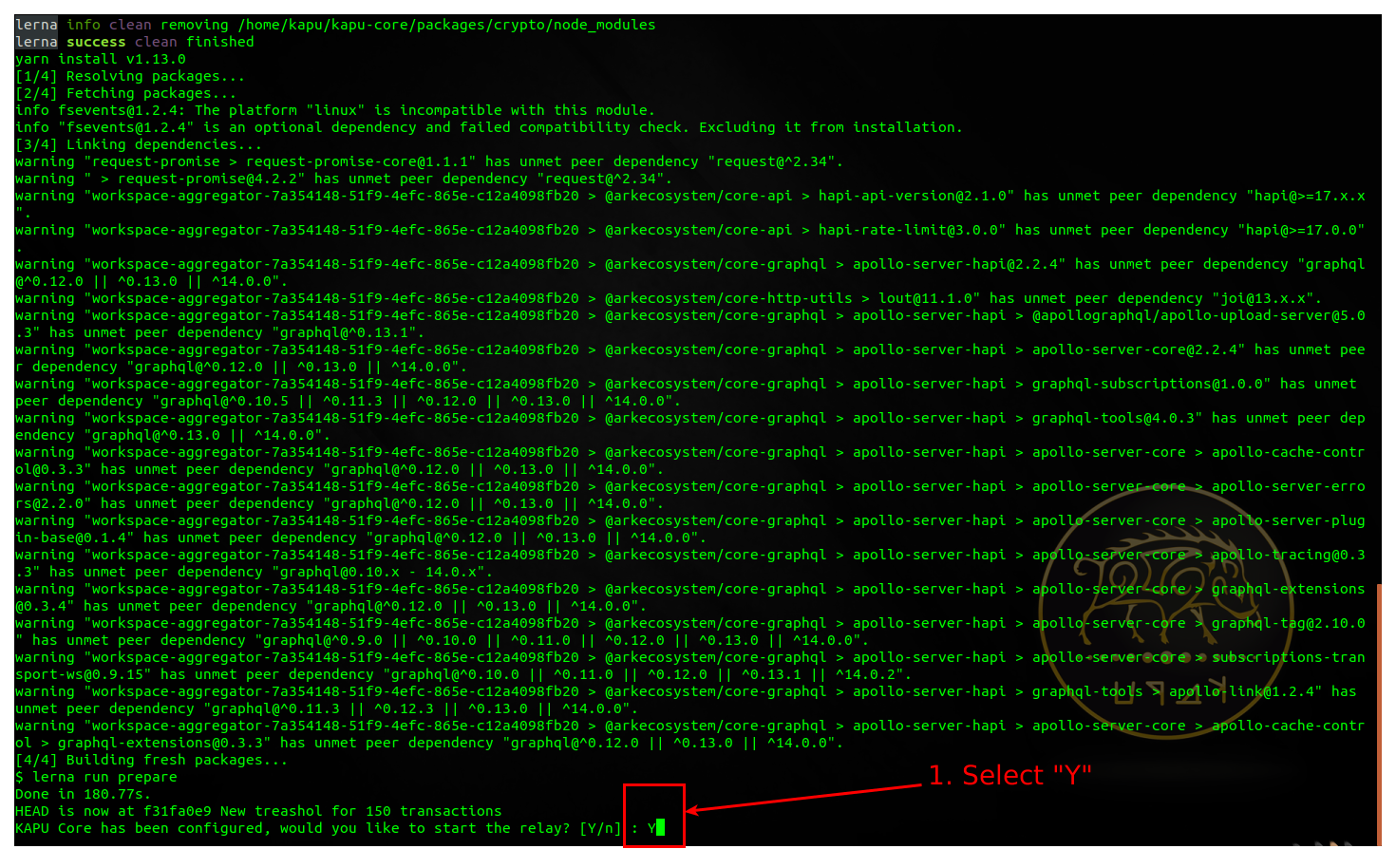 # 6. Checking KAPU Node Status Now you can use option "L" or "P" from the kapushell-core main menu to check the LOGs of your node or to check the processes in execution: 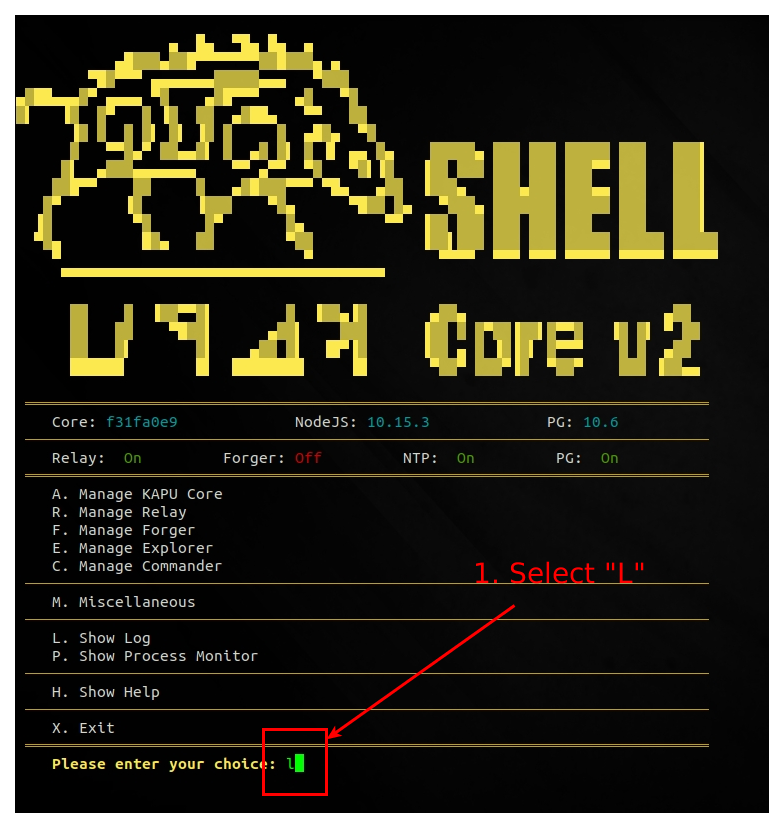 Figure 1: check node logs 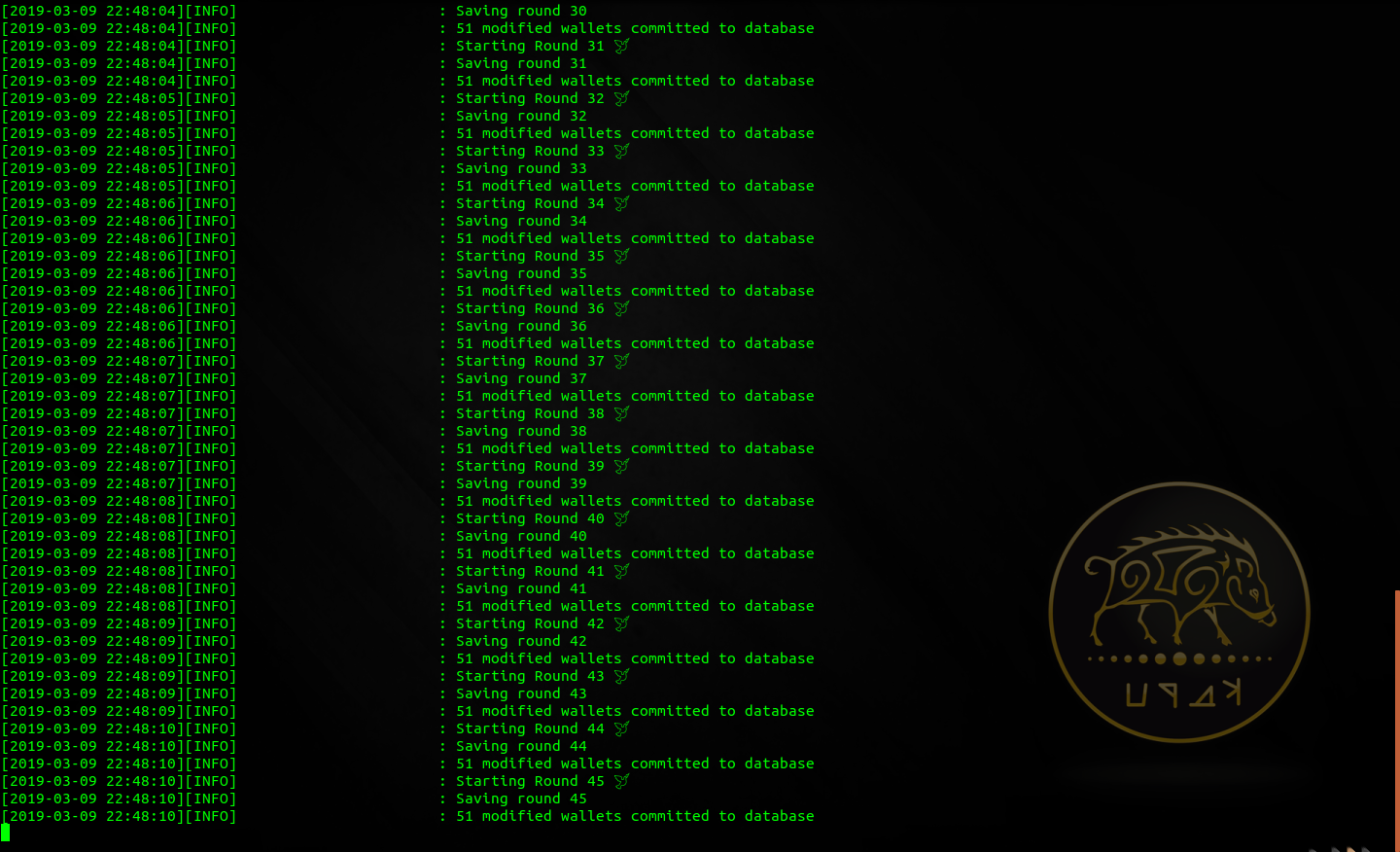 Figure 2: node logs 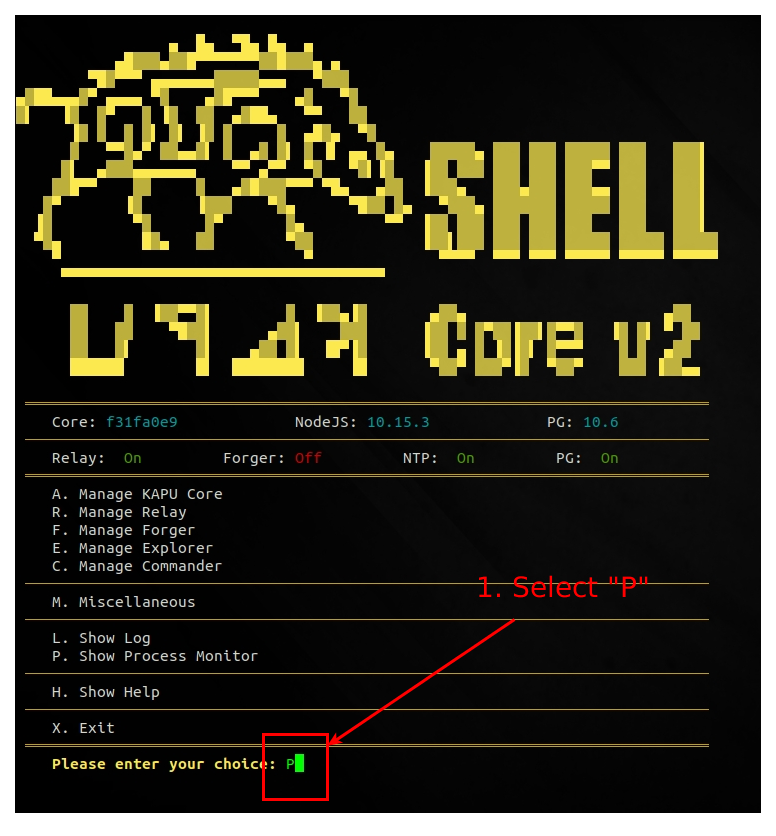 Figure 3: check node processes 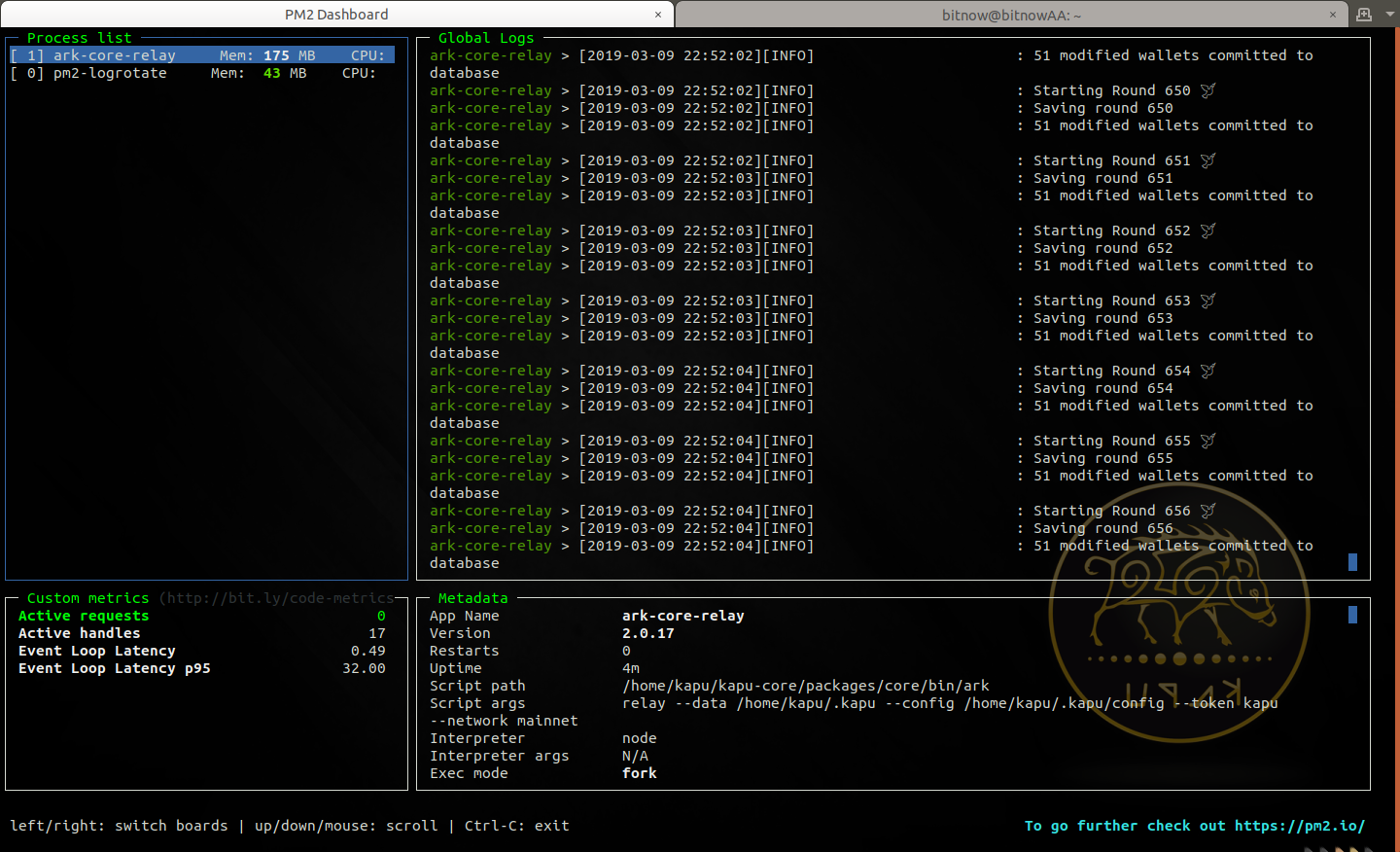 Figure 4: node processes > CONGRATULATIONS: you have successfully installed your KAPU Relay Node V.2.0 **Follow our guides to register a delegate and start a forger to get some KAPUs as reward of your dedications to the DPOS ecosystem!!** [**How To Set Up a KAPU V.2.0 FORGER node 2/2**](https://steemit.com/kapu/@ripaex/how-to-set-up-a-kapu-v-2-0-forger-node-2-2) ## Remember to connect to us... **Website**: [www.kapu.one](https://www.kapu.one) **Bitcointalk ANN**: [bitcointalk.org/index.php?topic=2035561.0](https://bitcointalk.org/index.php?topic=2035561.0) **Whitepaper**: [kapu.one/WP_EN.pdf](https://kapu.one/WP_EN.pdf) **Facebook**: [www.facebook.com/kapucoin](https://www.facebook.com/kapucoin) **Twitter**: [twitter.com/kapucoin](https://twitter.com/kapucoin) **GitHub**: [github.com/kapucryptocoin](https://github.com/kapucryptocoin) **Medium**: [medium.com/kapucoin](https://medium.com/kapucoin) |
| json metadata | {"tags":["kapu","v2","relay"],"image":["https://cdn.steemitimages.com/DQmXFyUQwAF9VnTkkUcYiPV2do79fd2f5xaepj5MueNQBgx/SetupNode.png","https://cdn.steemitimages.com/DQmc4YJrzSocektnJ1jEBvGUNec2UWy7RjSqtwnzrSegmbg/1_vps.png","https://cdn.steemitimages.com/DQmZ4AZwwb4Jwuk5KVjks58D839LC67gvo1hAgoZn8w77mi/2_vps.png","https://cdn.steemitimages.com/DQmQsC9TBvde3VjMwTGPCGfnDN5mEoDjkXuPfxEg7AWvpRe/3_vps.png","https://cdn.steemitimages.com/DQmSSx7vAv9EtYUSm6WT7kYhnmzp7A2XsUjytNmGRkjb7S2/4_login.png","https://cdn.steemitimages.com/DQmU28KN9Y6eCA5eEZAK8ZGAzch8bUHxzjG8p2j5m9auZwd/5_install_sudo.png","https://cdn.steemitimages.com/DQmfSV81usABNEbV6TfCXwdcXSkPGoTAiCH8q2eLf9k2a1t/6_adduser_sudo.png","https://cdn.steemitimages.com/DQmeXoo2N88qqvoUTS3qMTx1R4df3q5D2FRx5yQLbAxDHAS/7_exit_login_user.png","https://cdn.steemitimages.com/DQmYYzyqiUQ3xzNTu4grN7zEwMvm8dtXVuYup3qp4Ykv1Pm/8_install_kapushell-core.png","https://cdn.steemitimages.com/DQmYKosAoybpRn9JMqfPwEnMcg84RhjsdJpWdhQU8VtYRD9/9_install_system_dependencies.png","https://cdn.steemitimages.com/DQmXX3q9sXvtpR99bmcUJBVs5ms17yTKkG3QPy6kUL2x7Lb/10_6_install.png","https://cdn.steemitimages.com/DQmRhdaUhepVJZapgcTfXHJ4D9m7tFRKTyzWh5TXBmBoKYK/10_reboot.png","https://cdn.steemitimages.com/DQmQ8fxa2niN1EaGPfjLVXhnCEEYuca8syX61zksLLY6PaU/11_run_kapushell-core.png","https://cdn.steemitimages.com/DQmda4xrKX9amDtHnKiCo8KC22FMKSb62f2RgUG6vkwwUVh/13_configure_network.png","https://cdn.steemitimages.com/DQmasCkmADi8PFZqPUfhZW5xRZWLBaVwkk9WumTpfmeca1z/14_configure_DB.png","https://cdn.steemitimages.com/DQmaLyWEshtbMFgDCzAs5wcVkx1eCrEAcbzGHLrWo3RGaSN/15_configure_log.png","https://cdn.steemitimages.com/DQmPd6RNiyi6NX4azyhAmnoJPaBKZi7e721PxsvvdapFkuE/16_start_relay.png","https://cdn.steemitimages.com/DQmR77QFaKymUfFXR2xwvNkYxWn52XZuXiVoGSKoUbm7KgM/17_check_log.png","https://cdn.steemitimages.com/DQmWfTv8cTSYmPBVbxpisDvvG76hEecWukJvPCVF7VUjLtp/19_log_ok.png","https://cdn.steemitimages.com/DQmPmT5mtTgRUCBGzjF1gcy8QFoS5bJNQALxZXgPWbQ1BQy/18_check_process.png","https://cdn.steemitimages.com/DQmUy5dB48k16emtjNREx5GPh7kCJKF41zvUMhetdgQCQ8y/21_processes_ok.png"],"app":"steemit/0.1","format":"markdown","links":["https://steemit.com/kapu/@ripaex/how-to-register-a-kapu-v-2-0-delegate","https://www.scaleway.com/","https://m.do.co/c/ac0f2bca30e9","https://www.vultr.com/?ref=7434091","https://www.ovh.com/us/vps/vps-ssd.xml","https://www.putty.org/","https://steemit.com/kapu/@ripaex/how-to-set-up-a-kapu-v-2-0-forger-node-2-2","https://www.kapu.one","https://bitcointalk.org/index.php?topic=2035561.0","https://kapu.one/WP_EN.pdf","https://www.facebook.com/kapucoin","https://twitter.com/kapucoin","https://github.com/kapucryptocoin","https://medium.com/kapucoin"]} |
| Transaction Info | Block #31154554/Trx a27f9c16c6703510cf55e38b19e042fa8d4a08cf |
View Raw JSON Data
{
"trx_id": "a27f9c16c6703510cf55e38b19e042fa8d4a08cf",
"block": 31154554,
"trx_in_block": 37,
"op_in_trx": 0,
"virtual_op": 0,
"timestamp": "2019-03-14T19:37:33",
"op": [
"comment",
{
"parent_author": "",
"parent_permlink": "kapu",
"author": "ripaex",
"permlink": "how-set-up-a-node-for-kapu-v-2-0",
"title": "How To Set Up a KAPU V.2.0 RELAY node 1/2",
"body": "\n\nDon’t forget to read:\n- [**How to Register your KAPU V.2.0 Delegate**](https://steemit.com/kapu/@ripaex/how-to-register-a-kapu-v-2-0-delegate), as you will need the passphrase of your delegate wallet later on in this installation\n- **Set up your second passphrase as soon as possible**. Your node will have your first passphrase and if it should get hacked, your funds will be exposed.\n\n### Minimum requirements for running KAPU node (active nodes):\n - at least 1 DEDICATED CPU core (no shared ones), x86 or x64 architecture (the higher the CPU clock speed, the better, recommendation 2 CPUs+)\n - 4 GB RAM (the more the better, recommendation 8GB+),\n - Linux — Ubuntu 18.04 (this is optimal, and this guide is written for it)\n - 520GB free space (we recommend SSD/m.2, as opposed to traditional HDD drives, recommendation 100GB+)\n\n### Recommended VPS/Cloud providers:\n- [**ScaleWay**](https://www.scaleway.com/)\n- [**Digital Ocean**](https://m.do.co/c/ac0f2bca30e9)\n- [** Vultr**](https://www.vultr.com/?ref=7434091)\n- [**OVH**](https://www.ovh.com/us/vps/vps-ssd.xml)\n\nFor this guide, we’ll use [**ScaleWay**](https://www.scaleway.com/), you can get a START1-M VPS for **€7.99/month ( 4 X86 64bit cores, 4Gb Ram, 100Gb SSD, 300 Mbit/s unmetered transfer) But all providers have similar deals.**\n\n# 1. Get yourself a server for your node\n(for our guide we’ll use [**ScaleWay**](https://www.scaleway.com/))\n\nWe will create a VPS via ScaleWay interface, for the Linux distro we will use a START1-M vps in the Paris installation:\n\n\nSelect Ubuntu 18.04 x64 - Bionic Beaver as operating system instance\n\n\nSelect disk size and click Launch Server\n\n\nOnce your server instance is ready, you will see all the login info into the server instance page:\n\n**username:** root\n**password:** none\n**IP:** xxx.xxx.xxx.xxx indicated into the server page\n**SSH port:** 22 (this is default)\n\n\n# 2. Connect to your newly created server instance via SSH\n**Windows:** you can use any SSH client. For our example we will use Putty (an open-source client you can download here: [PUTTY DOWNLOAD](https://www.putty.org/))\n**MAC OS:** open Terminal ( To start Terminal, go to your Mac’s Applications folder => click on the Utilities folder => then click on Terminal).\n**Linux:** depending on your distribution, you can usually also open it by pressing a combination of “Ctrl + Alt + T” keys.\n\n_For terminal in Linux / MAC OS you can connect with this command:_\n**ssh user@<server-ip>**\nexample for our instance of server in Linux / MAC OS would be: \n**ssh [email protected]**\n\nFor our guide we’ll use Terminal (Ubuntu) — start it up:\n\n\nNow the command line will be shown, asking you to provide the username that you checked in the ScaleWay control panel you need to install the SUDO tool as the ScaleWay VPS does not come with this tool installed: use the command `apt install sudo` to install it:\n\n\n\n# 3. Setting Up Regular User With Sudo Privileges\nNow that we successfully connected and changed the password for root it is time to create a new regular user with sudo privileges (sudo privileges allow a user to run programs with the security privileges of another user).\n\n**How to add new regular user:**\n\n**adduser < yourusername >**\nour example: **adduser kapu**\nEnter a new password, enter it again, and press [enter] 6 times to accept all of the default values.\n\n\nNow that we have successfully created user with the username kapu (you can choose whatever username you want except root of course), it is time to assign this regular user sudo privileges.\n\n**How to add sudo privileges to our newly created regular user:**\n\n**usermod -a -G sudo** < yourusername >\nour example: **usermod -a -G sudo kapu**\n\nNow it is time to disconnect and reconnect as the newly created user (in our case ripa and not as root. Type **exit** and press [enter]. Your SSH session will close.\n\n\n# 4. Connecting Using Your New User\nConnect to your server, but now instead of logging in as root, we will login with new user. Type your username and press enter, followed by the password of that user:\n\n\n_For terminal in Linux / MAC OS you can connect with this command:_\n**ssh yourusername@<server-ip>**\nexample for our instance of server in Linux / MAC OS would be: \n**ssh [email protected]**\n\n\n# 5. Installing the KAPU Node\nNow that we have our node ready, it is time to install KAPU. First we will download the KAPU installer called “`kapushell-core`” simply by executing these commands:\n\n1. Download kapushell-core:\n`git clone https://github.com/Kapucryptocoin/kapushell-core.git`\n\n2. Execute the file:\n`cd kapushell-core`\n`bash kapushellcore.sh`\n\n\nNow the kapushell-core installation script will open. At the first step, you will need to provide your user’s password (in our example, the password for user kapu).\n\n\nSince this is your first time running this installer, it will check for all of the dependencies and updates the RIPA node needs to run — press [enter] to continue and be patient. It might take a while, so do not interrupt the process.\n\n\n(installing prerequisites — don’t interrupt)\n\nAfter this process finishes you will be asked to reboot your server — execute with the command: Y\n\n\nAfter the node has rebooted reconnect to the node with your user, and execute :\n`cd kapushell-core`\n`bash kapushellcore.sh`\nProvide your password if asked to enter the menu.\n\n\nYou will now enter into kapushell-core menu: there are a lot of options, and since this is our first installation, you will input letter I and press [enter] to execute the Install KAPU process. Now the KAPU node installation will start follow the instructions on screen to configure your node as you like:\n\nFigure 1: configure network\n\n\nFigure 2: configure database\n\n\nFigure 3: configure log\n\nAfter configuration has been performed the node will be downloaded, configured, compiled: **do not interrupt this process**. At the end you will be asked to start the relay node: choose \"Y\" to this question\n\n\n\n# 6. Checking KAPU Node Status\nNow you can use option \"L\" or \"P\" from the kapushell-core main menu to check the LOGs of your node or to check the processes in execution:\n\nFigure 1: check node logs\n\n\nFigure 2: node logs\n\n\nFigure 3: check node processes\n\n\nFigure 4: node processes\n\n> CONGRATULATIONS: you have successfully installed your KAPU Relay Node V.2.0\n\n**Follow our guides to register a delegate and start a forger to get some KAPUs as reward of your dedications to the DPOS ecosystem!!**\n\n[**How To Set Up a KAPU V.2.0 FORGER node 2/2**](https://steemit.com/kapu/@ripaex/how-to-set-up-a-kapu-v-2-0-forger-node-2-2)\n\n\n\n## Remember to connect to us...\n**Website**: [www.kapu.one](https://www.kapu.one)\n**Bitcointalk ANN**: [bitcointalk.org/index.php?topic=2035561.0](https://bitcointalk.org/index.php?topic=2035561.0)\n**Whitepaper**: [kapu.one/WP_EN.pdf](https://kapu.one/WP_EN.pdf)\n**Facebook**: [www.facebook.com/kapucoin](https://www.facebook.com/kapucoin)\n**Twitter**: [twitter.com/kapucoin](https://twitter.com/kapucoin)\n**GitHub**: [github.com/kapucryptocoin](https://github.com/kapucryptocoin)\n**Medium**: [medium.com/kapucoin](https://medium.com/kapucoin)",
"json_metadata": "{\"tags\":[\"kapu\",\"v2\",\"relay\"],\"image\":[\"https://cdn.steemitimages.com/DQmXFyUQwAF9VnTkkUcYiPV2do79fd2f5xaepj5MueNQBgx/SetupNode.png\",\"https://cdn.steemitimages.com/DQmc4YJrzSocektnJ1jEBvGUNec2UWy7RjSqtwnzrSegmbg/1_vps.png\",\"https://cdn.steemitimages.com/DQmZ4AZwwb4Jwuk5KVjks58D839LC67gvo1hAgoZn8w77mi/2_vps.png\",\"https://cdn.steemitimages.com/DQmQsC9TBvde3VjMwTGPCGfnDN5mEoDjkXuPfxEg7AWvpRe/3_vps.png\",\"https://cdn.steemitimages.com/DQmSSx7vAv9EtYUSm6WT7kYhnmzp7A2XsUjytNmGRkjb7S2/4_login.png\",\"https://cdn.steemitimages.com/DQmU28KN9Y6eCA5eEZAK8ZGAzch8bUHxzjG8p2j5m9auZwd/5_install_sudo.png\",\"https://cdn.steemitimages.com/DQmfSV81usABNEbV6TfCXwdcXSkPGoTAiCH8q2eLf9k2a1t/6_adduser_sudo.png\",\"https://cdn.steemitimages.com/DQmeXoo2N88qqvoUTS3qMTx1R4df3q5D2FRx5yQLbAxDHAS/7_exit_login_user.png\",\"https://cdn.steemitimages.com/DQmYYzyqiUQ3xzNTu4grN7zEwMvm8dtXVuYup3qp4Ykv1Pm/8_install_kapushell-core.png\",\"https://cdn.steemitimages.com/DQmYKosAoybpRn9JMqfPwEnMcg84RhjsdJpWdhQU8VtYRD9/9_install_system_dependencies.png\",\"https://cdn.steemitimages.com/DQmXX3q9sXvtpR99bmcUJBVs5ms17yTKkG3QPy6kUL2x7Lb/10_6_install.png\",\"https://cdn.steemitimages.com/DQmRhdaUhepVJZapgcTfXHJ4D9m7tFRKTyzWh5TXBmBoKYK/10_reboot.png\",\"https://cdn.steemitimages.com/DQmQ8fxa2niN1EaGPfjLVXhnCEEYuca8syX61zksLLY6PaU/11_run_kapushell-core.png\",\"https://cdn.steemitimages.com/DQmda4xrKX9amDtHnKiCo8KC22FMKSb62f2RgUG6vkwwUVh/13_configure_network.png\",\"https://cdn.steemitimages.com/DQmasCkmADi8PFZqPUfhZW5xRZWLBaVwkk9WumTpfmeca1z/14_configure_DB.png\",\"https://cdn.steemitimages.com/DQmaLyWEshtbMFgDCzAs5wcVkx1eCrEAcbzGHLrWo3RGaSN/15_configure_log.png\",\"https://cdn.steemitimages.com/DQmPd6RNiyi6NX4azyhAmnoJPaBKZi7e721PxsvvdapFkuE/16_start_relay.png\",\"https://cdn.steemitimages.com/DQmR77QFaKymUfFXR2xwvNkYxWn52XZuXiVoGSKoUbm7KgM/17_check_log.png\",\"https://cdn.steemitimages.com/DQmWfTv8cTSYmPBVbxpisDvvG76hEecWukJvPCVF7VUjLtp/19_log_ok.png\",\"https://cdn.steemitimages.com/DQmPmT5mtTgRUCBGzjF1gcy8QFoS5bJNQALxZXgPWbQ1BQy/18_check_process.png\",\"https://cdn.steemitimages.com/DQmUy5dB48k16emtjNREx5GPh7kCJKF41zvUMhetdgQCQ8y/21_processes_ok.png\"],\"app\":\"steemit/0.1\",\"format\":\"markdown\",\"links\":[\"https://steemit.com/kapu/@ripaex/how-to-register-a-kapu-v-2-0-delegate\",\"https://www.scaleway.com/\",\"https://m.do.co/c/ac0f2bca30e9\",\"https://www.vultr.com/?ref=7434091\",\"https://www.ovh.com/us/vps/vps-ssd.xml\",\"https://www.putty.org/\",\"https://steemit.com/kapu/@ripaex/how-to-set-up-a-kapu-v-2-0-forger-node-2-2\",\"https://www.kapu.one\",\"https://bitcointalk.org/index.php?topic=2035561.0\",\"https://kapu.one/WP_EN.pdf\",\"https://www.facebook.com/kapucoin\",\"https://twitter.com/kapucoin\",\"https://github.com/kapucryptocoin\",\"https://medium.com/kapucoin\"]}"
}
]
}2019/03/13 21:20:27
2019/03/13 21:20:27
| parent author | ripaex |
| parent permlink | how-to-set-up-a-kapu-v-2-0-forger-node-2-2 |
| author | digital.mine |
| permlink | re-ripaex-how-to-set-up-a-kapu-v-2-0-forger-node-2-2-20190313t212027574z |
| title | |
| body | Thanks for your 20SP delegation. We will upvote and resteem your posts! If you want to be shared on twitter as well with more than 4800 followers just add 50 SP to your 20SP delegation! Join our community on discord here: https://discord.gg/bAcUWPb |
| json metadata | {"tags":["kapu"],"links":["https://discord.gg/bAcUWPb"],"app":"steemit/0.1"} |
| Transaction Info | Block #31127829/Trx 5941d13ffcf53de6baf5520ca716be5218bf55f6 |
View Raw JSON Data
{
  "trx_id": "5941d13ffcf53de6baf5520ca716be5218bf55f6",
  "block": 31127829,
  "trx_in_block": 10,
  "op_in_trx": 0,
  "virtual_op": 0,
  "timestamp": "2019-03-13T21:20:27",
  "op": [
    "comment",
    {
      "parent_author": "ripaex",
      "parent_permlink": "how-to-set-up-a-kapu-v-2-0-forger-node-2-2",
      "author": "digital.mine",
      "permlink": "re-ripaex-how-to-set-up-a-kapu-v-2-0-forger-node-2-2-20190313t212027574z",
      "title": "",
      "body": "Thanks for your 20SP delegation. We will upvote and resteem your posts!\nIf you want to be shared on twitter as well with more than 4800 followers just add 50 SP to your 20SP delegation!\nJoin our community on discord here: https://discord.gg/bAcUWPb",
      "json_metadata": "{\"tags\":[\"kapu\"],\"links\":[\"https://discord.gg/bAcUWPb\"],\"app\":\"steemit/0.1\"}"
    }
  ]
}ripaexdelegated 24.586 SP to @digital.mine2019/03/13 20:38:00
ripaexdelegated 24.586 SP to @digital.mine
2019/03/13 20:38:00
| delegator | ripaex |
| delegatee | digital.mine |
| vesting shares | 40036.312512 VESTS |
| Transaction Info | Block #31126980/Trx e7e355342db46a1117ea5f7f71a4023f10a47baf |
View Raw JSON Data
{
  "trx_id": "e7e355342db46a1117ea5f7f71a4023f10a47baf",
  "block": 31126980,
  "trx_in_block": 8,
  "op_in_trx": 0,
  "virtual_op": 0,
  "timestamp": "2019-03-13T20:38:00",
  "op": [
    "delegate_vesting_shares",
    {
      "delegator": "ripaex",
      "delegatee": "digital.mine",
      "vesting_shares": "40036.312512 VESTS"
    }
  ]
}ripaexfollowed @digital.mine2019/03/10 23:01:24
ripaexfollowed @digital.mine
2019/03/10 23:01:24
| required auths | [] |
| required posting auths | ["ripaex"] |
| id | follow |
| json | ["follow",{"follower":"ripaex","following":"digital.mine","what":["blog"]}] |
| Transaction Info | Block #31043493/Trx 97ba44b2a7111358553cae059240eb38ba133a73 |
View Raw JSON Data
{
  "trx_id": "97ba44b2a7111358553cae059240eb38ba133a73",
  "block": 31043493,
  "trx_in_block": 21,
  "op_in_trx": 0,
  "virtual_op": 0,
  "timestamp": "2019-03-10T23:01:24",
  "op": [
    "custom_json",
    {
      "required_auths": [],
      "required_posting_auths": [
        "ripaex"
      ],
      "id": "follow",
      "json": "[\"follow\",{\"follower\":\"ripaex\",\"following\":\"digital.mine\",\"what\":[\"blog\"]}]"
    }
  ]
}steemitboardupvoted (1.00%) @ripaex / how-to-set-up-a-kapu-v-2-0-forger-node-2-22019/03/10 21:38:39
steemitboardupvoted (1.00%) @ripaex / how-to-set-up-a-kapu-v-2-0-forger-node-2-2
2019/03/10 21:38:39
| voter | steemitboard |
| author | ripaex |
| permlink | how-to-set-up-a-kapu-v-2-0-forger-node-2-2 |
| weight | 100 (1.00%) |
| Transaction Info | Block #31041839/Trx 9522f13b3ef96463e187600e38942856ff9861cb |
View Raw JSON Data
{
  "trx_id": "9522f13b3ef96463e187600e38942856ff9861cb",
  "block": 31041839,
  "trx_in_block": 27,
  "op_in_trx": 0,
  "virtual_op": 0,
  "timestamp": "2019-03-10T21:38:39",
  "op": [
    "vote",
    {
      "voter": "steemitboard",
      "author": "ripaex",
      "permlink": "how-to-set-up-a-kapu-v-2-0-forger-node-2-2",
      "weight": 100
    }
  ]
}2019/03/10 21:38:36
2019/03/10 21:38:36
| parent author | ripaex |
| parent permlink | how-to-set-up-a-kapu-v-2-0-forger-node-2-2 |
| author | steemitboard |
| permlink | steemitboard-notify-ripaex-20190310t213838000z |
| title | |
| body | Congratulations @ripaex! You have completed the following achievement on the Steem blockchain and have been rewarded with new badge(s) : <table><tr><td>https://steemitimages.com/60x70/http://steemitboard.com/@ripaex/posts.png?201903102056</td><td>You published more than 30 posts. Your next target is to reach 40 posts.</td></tr> </table> <sub>_[Click here to view your Board](https://steemitboard.com/@ripaex)_</sub> <sub>_If you no longer want to receive notifications, reply to this comment with the word_ `STOP`</sub> To support your work, I also upvoted your post! ###### [Vote for @Steemitboard as a witness](https://v2.steemconnect.com/sign/account-witness-vote?witness=steemitboard&approve=1) and get one more award and increased upvotes! |
| json metadata | {"image":["https://steemitboard.com/img/notify.png"]} |
| Transaction Info | Block #31041838/Trx 32bb0f68f8936124fbd192a367a31e0715a1b3b4 |
View Raw JSON Data
{
  "trx_id": "32bb0f68f8936124fbd192a367a31e0715a1b3b4",
  "block": 31041838,
  "trx_in_block": 57,
  "op_in_trx": 0,
  "virtual_op": 0,
  "timestamp": "2019-03-10T21:38:36",
  "op": [
    "comment",
    {
      "parent_author": "ripaex",
      "parent_permlink": "how-to-set-up-a-kapu-v-2-0-forger-node-2-2",
      "author": "steemitboard",
      "permlink": "steemitboard-notify-ripaex-20190310t213838000z",
      "title": "",
      "body": "Congratulations @ripaex! You have completed the following achievement on the Steem blockchain and have been rewarded with new badge(s) :\n\n<table><tr><td>https://steemitimages.com/60x70/http://steemitboard.com/@ripaex/posts.png?201903102056</td><td>You published more than 30 posts. Your next target is to reach 40 posts.</td></tr>\n</table>\n\n<sub>_[Click here to view your Board](https://steemitboard.com/@ripaex)_</sub>\n<sub>_If you no longer want to receive notifications, reply to this comment with the word_ `STOP`</sub>\n\n\nTo support your work, I also upvoted your post!\n\n\n###### [Vote for @Steemitboard as a witness](https://v2.steemconnect.com/sign/account-witness-vote?witness=steemitboard&approve=1) and get one more award and increased upvotes!",
      "json_metadata": "{\"image\":[\"https://steemitboard.com/img/notify.png\"]}"
    }
  ]
}ripaexpublished a new post: how-to-set-up-a-kapu-v-2-0-forger-node-2-22019/03/10 20:06:39
ripaexpublished a new post: how-to-set-up-a-kapu-v-2-0-forger-node-2-2
2019/03/10 20:06:39
| parent author | |
| parent permlink | kapu |
| author | ripaex |
| permlink | how-to-set-up-a-kapu-v-2-0-forger-node-2-2 |
| title | How To Set Up a KAPU V.2.0 FORGER node 2/2 |
| body |  This article is following the [**How To Set Up a KAPU V.2.0 RELAY node 1/2**](https://steemit.com/kapu/@ripaex/how-set-up-a-node-for-kapu-v-2-0): after you have your RELAY node up-and-running you can proceed to configure and run the forger node. It is advisable to run the forger process in the same virtual machine of the relay node, however remote configurations are possible you need to undergo additional setup for it that is out of the scope of this document. # 1. Configure KAPU Forger 1. Connect to the kapu node: `ssh [email protected]` 2. Launch the kapushell-core script and configure the forger: `cd kapushell-core` `bash kapushellcore.sh` 3. Select Forger menu 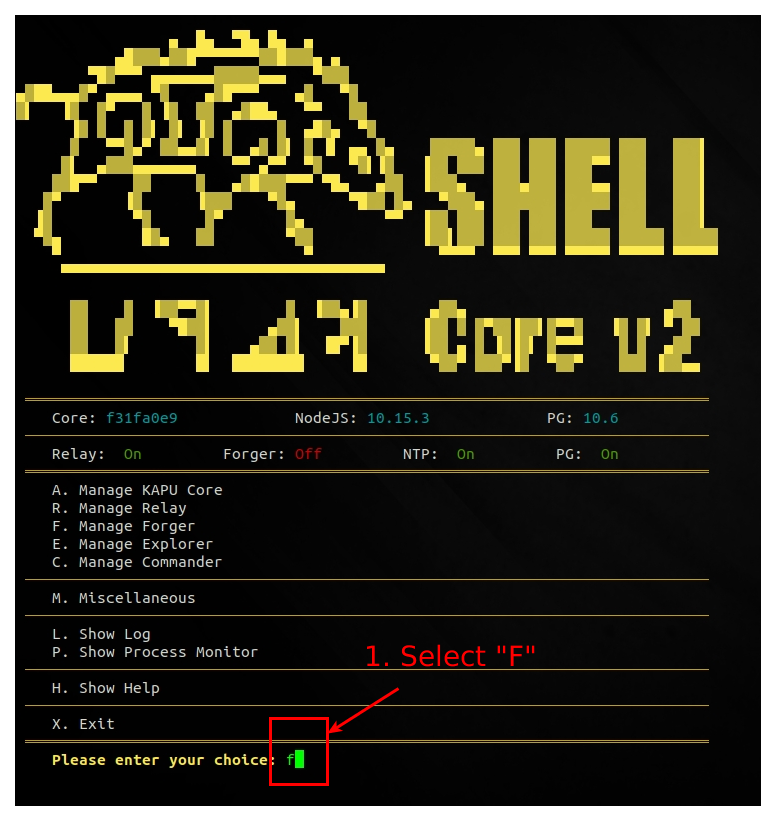 4. Configure Forger 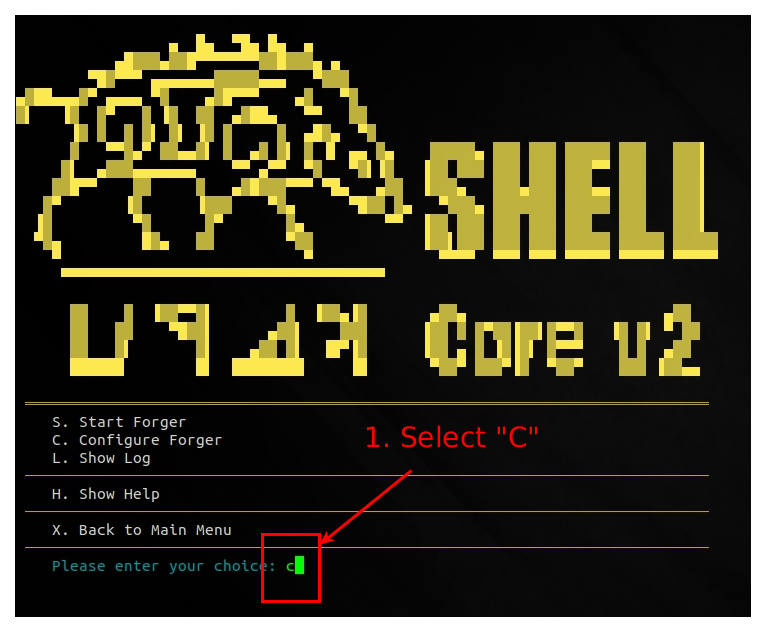 # 2. Start Forger 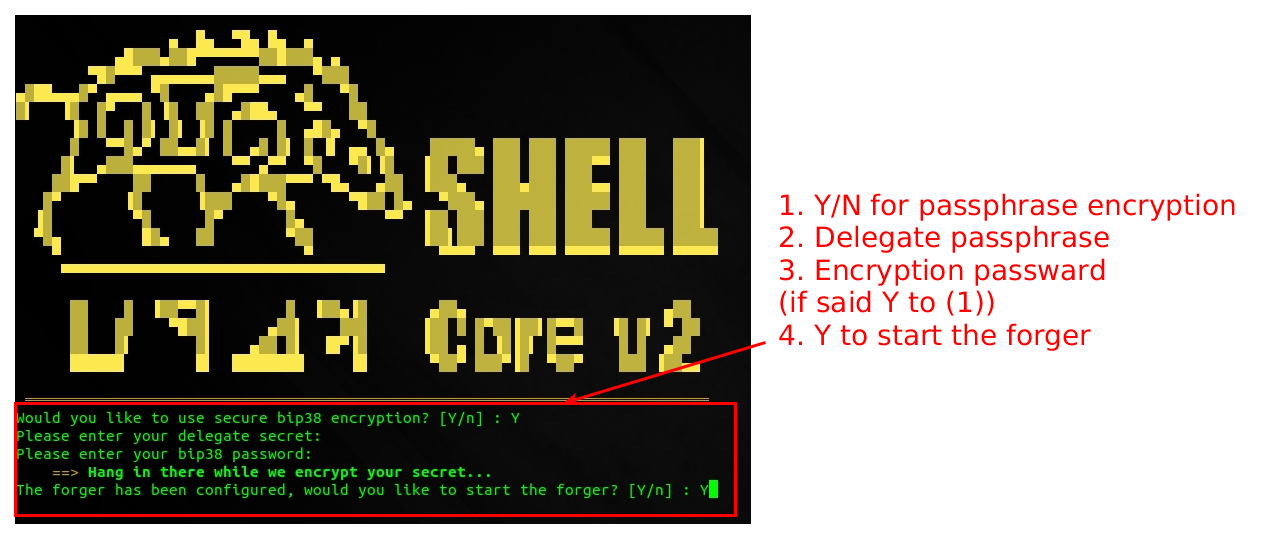 Insert node password in case you chosen (1) in the previous step 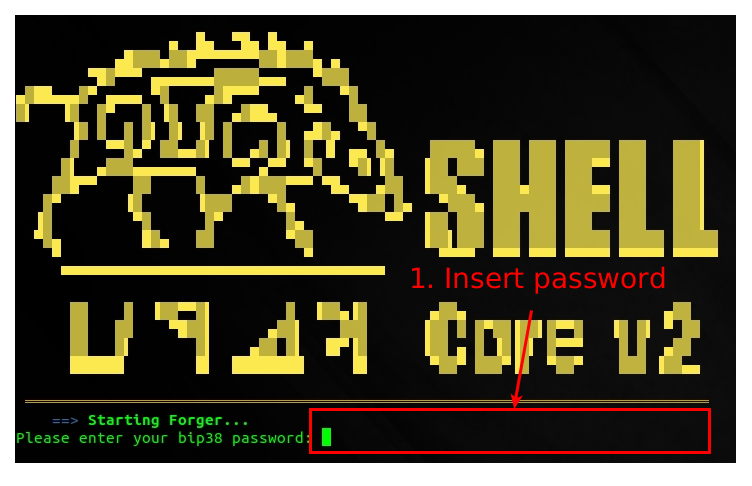 Forger is successfully started: 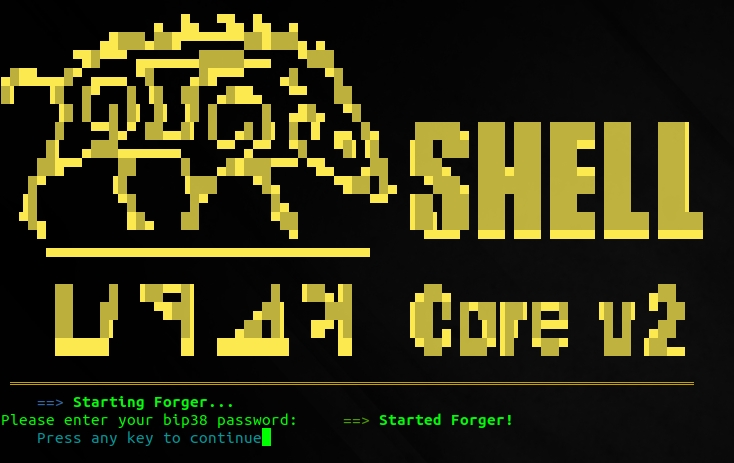 Check FORGER Logs 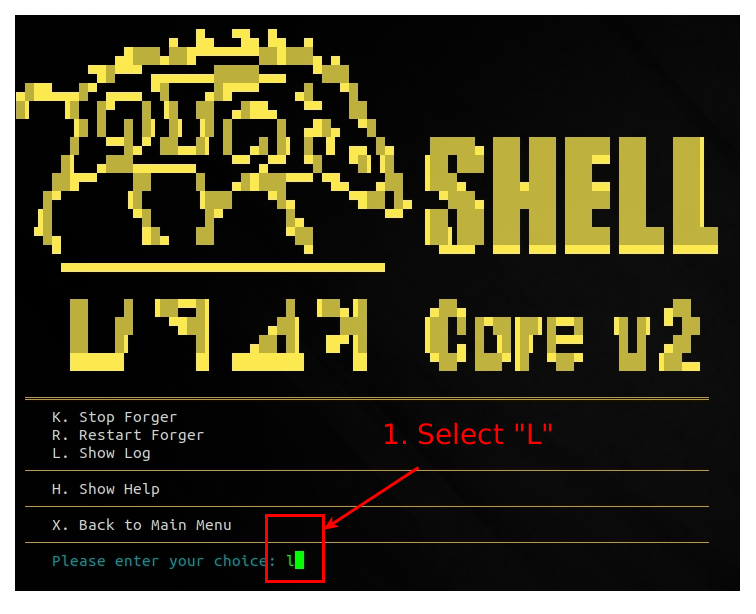 Forger started successfully 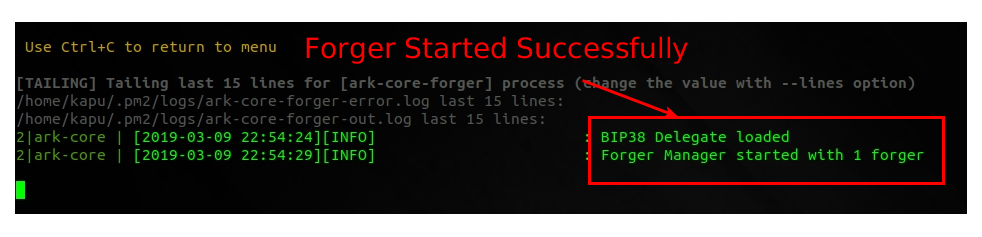 # 3. Monitor your node To monitor your node you have two options: 1. **check the logs from the main menu**: this logs are cumulative of relay and forger processes installed in the node 2. **check processes from the main menu**: this will show a detailed view of the processes run in your node with memory consumption, cpu usage of both relay and forger nodes. Select "L" from the main menu:  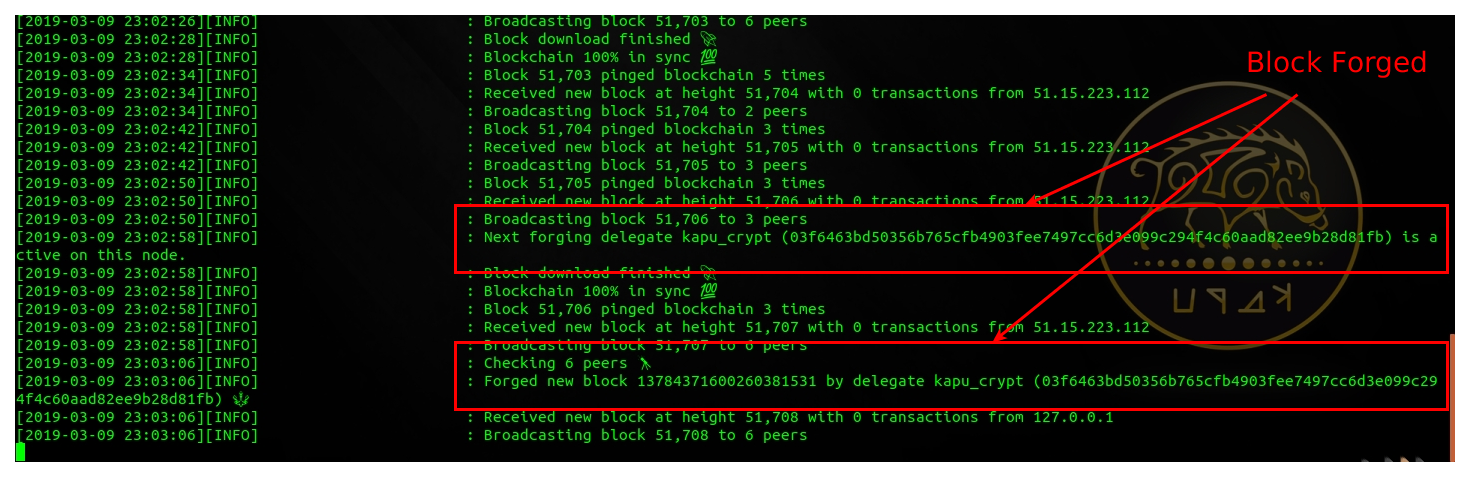 Select "P" from the main menu:  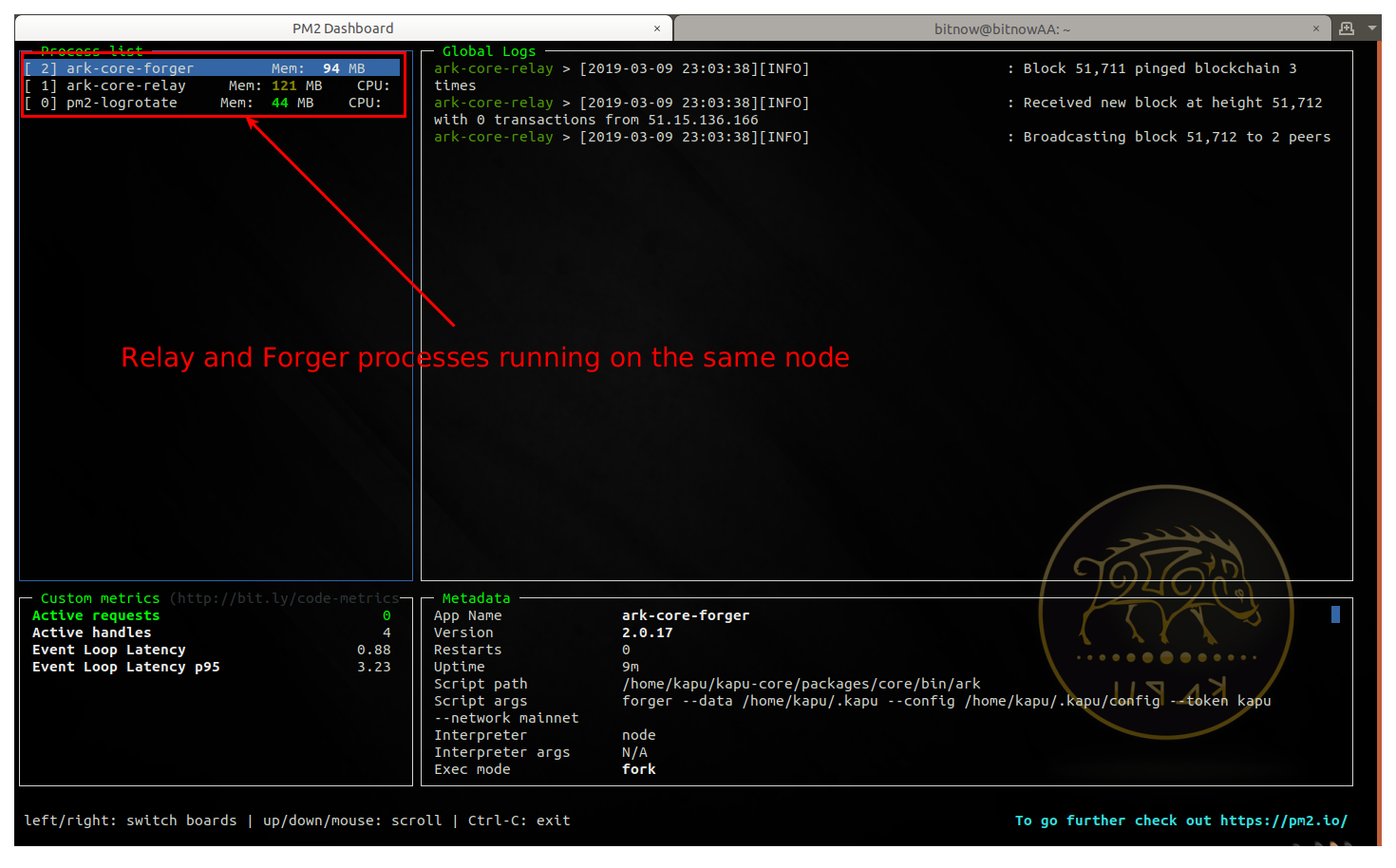 > CONGRATULATIONS: you have successfully installed your KAPU Forger Node V.2.0 ## Remember to connect to us... **Website**: [www.kapu.one](https://www.kapu.one) **Bitcointalk ANN**: [bitcointalk.org/index.php?topic=2035561.0](https://bitcointalk.org/index.php?topic=2035561.0) **Whitepaper**: [kapu.one/WP_EN.pdf](https://kapu.one/WP_EN.pdf) **Facebook**: [www.facebook.com/kapucoin](https://www.facebook.com/kapucoin) **Twitter**: [twitter.com/kapucoin](https://twitter.com/kapucoin) **GitHub**: [github.com/kapucryptocoin](https://github.com/kapucryptocoin) **Medium**: [medium.com/kapucoin](https://medium.com/kapucoin) |
| json metadata | {"tags":["kapu","v2","delegate","forger"],"image":["https://cdn.steemitimages.com/DQmXFyUQwAF9VnTkkUcYiPV2do79fd2f5xaepj5MueNQBgx/SetupNode.png","https://cdn.steemitimages.com/DQmdU6VWZtGSJsrs3FDvhPTxGzaVyPAUxB8jbC1WJhG7aFo/1_forger_menu.png","https://cdn.steemitimages.com/DQmTg715fWwzpc9YWUuUu56WMbmSzGrye12TkXffoqhGxAC/2_configure_forger.png","https://cdn.steemitimages.com/DQmTQPBmUfcXyD6QDL7y4L7aR5pbtG8sUxjwwdAMd4xz2Sm/3_start_forger.png","https://cdn.steemitimages.com/DQmP2o3iZ1qNgu46JkyNEgn3ah5ESujzZHtSsRmaqkkQUWg/4_insert_password.png","https://cdn.steemitimages.com/DQmagggKSwG57dPRtpgPWABJALaCoBmtLHp5fD16JEnYoCN/5_1_forger_started.jpg","https://cdn.steemitimages.com/DQmXhSCSMcicxgc1LbT1hVRVXPBHXpijMhJ6dSuBdKYPK2V/6_check_logs.png","https://cdn.steemitimages.com/DQmNtabjG5MPwC1weWh16a7PoCMeYrdZJY4Ufc2tsoy2wm4/7_logs_ok.png","https://cdn.steemitimages.com/DQmR77QFaKymUfFXR2xwvNkYxWn52XZuXiVoGSKoUbm7KgM/17_check_log.png","https://cdn.steemitimages.com/DQmNUbZbV1cMNagBV3zvi8hD6JPs4BE3u4LRMVw29ZApNEP/8_check_main_logs.png","https://cdn.steemitimages.com/DQmPmT5mtTgRUCBGzjF1gcy8QFoS5bJNQALxZXgPWbQ1BQy/18_check_process.png","https://cdn.steemitimages.com/DQmbZ6yhUkHXkkk3ip6UxgVHvuCDHzyT48BQa2EfrSRu8Ea/9_check_processes.png"],"links":["https://steemit.com/kapu/@ripaex/how-set-up-a-node-for-kapu-v-2-0","https://www.kapu.one","https://bitcointalk.org/index.php?topic=2035561.0","https://kapu.one/WP_EN.pdf","https://www.facebook.com/kapucoin","https://twitter.com/kapucoin","https://github.com/kapucryptocoin","https://medium.com/kapucoin"],"app":"steemit/0.1","format":"markdown"} |
| Transaction Info | Block #31040001/Trx 955f662b62362a866a85cea97483ad58b1cd0b1a |
View Raw JSON Data
{
"trx_id": "955f662b62362a866a85cea97483ad58b1cd0b1a",
"block": 31040001,
"trx_in_block": 20,
"op_in_trx": 0,
"virtual_op": 0,
"timestamp": "2019-03-10T20:06:39",
"op": [
"comment",
{
"parent_author": "",
"parent_permlink": "kapu",
"author": "ripaex",
"permlink": "how-to-set-up-a-kapu-v-2-0-forger-node-2-2",
"title": "How To Set Up a KAPU V.2.0 FORGER node 2/2",
"body": "\n\nThis article is following the [**How To Set Up a KAPU V.2.0 RELAY node 1/2**](https://steemit.com/kapu/@ripaex/how-set-up-a-node-for-kapu-v-2-0): after you have your RELAY node up-and-running you can proceed to configure and run the forger node.\n\nIt is advisable to run the forger process in the same virtual machine of the relay node, however remote configurations are possible you need to undergo additional setup for it that is out of the scope of this document.\n\n# 1. Configure KAPU Forger\n1. Connect to the kapu node:\n`ssh [email protected]`\n\n2. Launch the kapushell-core script and configure the forger:\n`cd kapushell-core`\n`bash kapushellcore.sh`\n\n3. Select Forger menu\n\n\n4. Configure Forger\n\n\n\n# 2. Start Forger\n\n\nInsert node password in case you chosen (1) in the previous step\n\n\nForger is successfully started:\n\n\nCheck FORGER Logs\n\n\nForger started successfully\n\n\n\n# 3. Monitor your node\nTo monitor your node you have two options:\n1. **check the logs from the main menu**: this logs are cumulative of relay and forger processes installed in the node\n2. **check processes from the main menu**: this will show a detailed view of the processes run in your node with memory consumption, cpu usage of both relay and forger nodes.\n\nSelect \"L\" from the main menu:\n\n\n\n\nSelect \"P\" from the main menu:\n\n\n\n\n\n> CONGRATULATIONS: you have successfully installed your KAPU Forger Node V.2.0\n\n\n## Remember to connect to us...\n**Website**: [www.kapu.one](https://www.kapu.one)\n**Bitcointalk ANN**: [bitcointalk.org/index.php?topic=2035561.0](https://bitcointalk.org/index.php?topic=2035561.0)\n**Whitepaper**: [kapu.one/WP_EN.pdf](https://kapu.one/WP_EN.pdf)\n**Facebook**: [www.facebook.com/kapucoin](https://www.facebook.com/kapucoin)\n**Twitter**: [twitter.com/kapucoin](https://twitter.com/kapucoin)\n**GitHub**: [github.com/kapucryptocoin](https://github.com/kapucryptocoin)\n**Medium**: [medium.com/kapucoin](https://medium.com/kapucoin)",
"json_metadata": "{\"tags\":[\"kapu\",\"v2\",\"delegate\",\"forger\"],\"image\":[\"https://cdn.steemitimages.com/DQmXFyUQwAF9VnTkkUcYiPV2do79fd2f5xaepj5MueNQBgx/SetupNode.png\",\"https://cdn.steemitimages.com/DQmdU6VWZtGSJsrs3FDvhPTxGzaVyPAUxB8jbC1WJhG7aFo/1_forger_menu.png\",\"https://cdn.steemitimages.com/DQmTg715fWwzpc9YWUuUu56WMbmSzGrye12TkXffoqhGxAC/2_configure_forger.png\",\"https://cdn.steemitimages.com/DQmTQPBmUfcXyD6QDL7y4L7aR5pbtG8sUxjwwdAMd4xz2Sm/3_start_forger.png\",\"https://cdn.steemitimages.com/DQmP2o3iZ1qNgu46JkyNEgn3ah5ESujzZHtSsRmaqkkQUWg/4_insert_password.png\",\"https://cdn.steemitimages.com/DQmagggKSwG57dPRtpgPWABJALaCoBmtLHp5fD16JEnYoCN/5_1_forger_started.jpg\",\"https://cdn.steemitimages.com/DQmXhSCSMcicxgc1LbT1hVRVXPBHXpijMhJ6dSuBdKYPK2V/6_check_logs.png\",\"https://cdn.steemitimages.com/DQmNtabjG5MPwC1weWh16a7PoCMeYrdZJY4Ufc2tsoy2wm4/7_logs_ok.png\",\"https://cdn.steemitimages.com/DQmR77QFaKymUfFXR2xwvNkYxWn52XZuXiVoGSKoUbm7KgM/17_check_log.png\",\"https://cdn.steemitimages.com/DQmNUbZbV1cMNagBV3zvi8hD6JPs4BE3u4LRMVw29ZApNEP/8_check_main_logs.png\",\"https://cdn.steemitimages.com/DQmPmT5mtTgRUCBGzjF1gcy8QFoS5bJNQALxZXgPWbQ1BQy/18_check_process.png\",\"https://cdn.steemitimages.com/DQmbZ6yhUkHXkkk3ip6UxgVHvuCDHzyT48BQa2EfrSRu8Ea/9_check_processes.png\"],\"links\":[\"https://steemit.com/kapu/@ripaex/how-set-up-a-node-for-kapu-v-2-0\",\"https://www.kapu.one\",\"https://bitcointalk.org/index.php?topic=2035561.0\",\"https://kapu.one/WP_EN.pdf\",\"https://www.facebook.com/kapucoin\",\"https://twitter.com/kapucoin\",\"https://github.com/kapucryptocoin\",\"https://medium.com/kapucoin\"],\"app\":\"steemit/0.1\",\"format\":\"markdown\"}"
}
]
}ripaexpublished a new post: how-set-up-a-node-for-kapu-v-2-02019/03/10 19:56:33
ripaexpublished a new post: how-set-up-a-node-for-kapu-v-2-0
2019/03/10 19:56:33
| parent author | |
| parent permlink | kapu |
| author | ripaex |
| permlink | how-set-up-a-node-for-kapu-v-2-0 |
| title | How To Set Up a KAPU V.2.0 RELAY node 1/2 |
| body | @@ -8928,44 +8928,46 @@ How -to Register your KAPU V.2.0 Delegate +To Set Up a KAPU V.2.0 FORGER node 2/2 **%5D( @@ -9002,32 +9002,30 @@ paex/how-to- -register +set-up -a-kapu-v-2- @@ -9026,24 +9026,31 @@ u-v-2-0- -delegate +forger-node-2-2 )%0A%0A%0A%0A## |
| json metadata | {"tags":["kapu","v2","relay"],"image":["https://cdn.steemitimages.com/DQmXFyUQwAF9VnTkkUcYiPV2do79fd2f5xaepj5MueNQBgx/SetupNode.png","https://cdn.steemitimages.com/DQmc4YJrzSocektnJ1jEBvGUNec2UWy7RjSqtwnzrSegmbg/1_vps.png","https://cdn.steemitimages.com/DQmZ4AZwwb4Jwuk5KVjks58D839LC67gvo1hAgoZn8w77mi/2_vps.png","https://cdn.steemitimages.com/DQmQsC9TBvde3VjMwTGPCGfnDN5mEoDjkXuPfxEg7AWvpRe/3_vps.png","https://cdn.steemitimages.com/DQmSSx7vAv9EtYUSm6WT7kYhnmzp7A2XsUjytNmGRkjb7S2/4_login.png","https://cdn.steemitimages.com/DQmU28KN9Y6eCA5eEZAK8ZGAzch8bUHxzjG8p2j5m9auZwd/5_install_sudo.png","https://cdn.steemitimages.com/DQmfSV81usABNEbV6TfCXwdcXSkPGoTAiCH8q2eLf9k2a1t/6_adduser_sudo.png","https://cdn.steemitimages.com/DQmeXoo2N88qqvoUTS3qMTx1R4df3q5D2FRx5yQLbAxDHAS/7_exit_login_user.png","https://cdn.steemitimages.com/DQmYYzyqiUQ3xzNTu4grN7zEwMvm8dtXVuYup3qp4Ykv1Pm/8_install_kapushell-core.png","https://cdn.steemitimages.com/DQmYKosAoybpRn9JMqfPwEnMcg84RhjsdJpWdhQU8VtYRD9/9_install_system_dependencies.png","https://cdn.steemitimages.com/DQmXX3q9sXvtpR99bmcUJBVs5ms17yTKkG3QPy6kUL2x7Lb/10_6_install.png","https://cdn.steemitimages.com/DQmRhdaUhepVJZapgcTfXHJ4D9m7tFRKTyzWh5TXBmBoKYK/10_reboot.png","https://cdn.steemitimages.com/DQmQ8fxa2niN1EaGPfjLVXhnCEEYuca8syX61zksLLY6PaU/11_run_kapushell-core.png","https://cdn.steemitimages.com/DQmda4xrKX9amDtHnKiCo8KC22FMKSb62f2RgUG6vkwwUVh/13_configure_network.png","https://cdn.steemitimages.com/DQmasCkmADi8PFZqPUfhZW5xRZWLBaVwkk9WumTpfmeca1z/14_configure_DB.png","https://cdn.steemitimages.com/DQmaLyWEshtbMFgDCzAs5wcVkx1eCrEAcbzGHLrWo3RGaSN/15_configure_log.png","https://cdn.steemitimages.com/DQmPd6RNiyi6NX4azyhAmnoJPaBKZi7e721PxsvvdapFkuE/16_start_relay.png","https://cdn.steemitimages.com/DQmR77QFaKymUfFXR2xwvNkYxWn52XZuXiVoGSKoUbm7KgM/17_check_log.png","https://cdn.steemitimages.com/DQmWfTv8cTSYmPBVbxpisDvvG76hEecWukJvPCVF7VUjLtp/19_log_ok.png","https://cdn.steemitimages.com/DQmPmT5mtTgRUCBGzjF1gcy8QFoS5bJNQALxZXgPWbQ1BQy/18_check_process.png","https://cdn.steemitimages.com/DQmUy5dB48k16emtjNREx5GPh7kCJKF41zvUMhetdgQCQ8y/21_processes_ok.png"],"app":"steemit/0.1","format":"markdown","links":["https://steemit.com/kapu/@ripaex/how-to-register-a-kapu-v-2-0-delegate","https://www.scaleway.com/","https://m.do.co/c/ac0f2bca30e9","https://www.vultr.com/?ref=7434091","https://www.ovh.com/us/vps/vps-ssd.xml","https://www.putty.org/","https://steemit.com/kapu/@ripaex/how-to-set-up-a-kapu-v-2-0-forger-node-2-2","https://www.kapu.one","https://bitcointalk.org/index.php?topic=2035561.0","https://kapu.one/WP_EN.pdf","https://www.facebook.com/kapucoin","https://twitter.com/kapucoin","https://github.com/kapucryptocoin","https://medium.com/kapucoin"]} |
| Transaction Info | Block #31039799/Trx 96c31b79a4ddd02c2dfe81248f2010723ba69127 |
View Raw JSON Data
{
  "trx_id": "96c31b79a4ddd02c2dfe81248f2010723ba69127",
  "block": 31039799,
  "trx_in_block": 45,
  "op_in_trx": 0,
  "virtual_op": 0,
  "timestamp": "2019-03-10T19:56:33",
  "op": [
    "comment",
    {
      "parent_author": "",
      "parent_permlink": "kapu",
      "author": "ripaex",
      "permlink": "how-set-up-a-node-for-kapu-v-2-0",
      "title": "How To Set Up a KAPU V.2.0 RELAY node 1/2",
      "body": "@@ -8928,44 +8928,46 @@\n How \n-to Register your KAPU V.2.0 Delegate\n+To Set Up a KAPU V.2.0 FORGER node 2/2\n **%5D(\n@@ -9002,32 +9002,30 @@\n paex/how-to-\n-register\n+set-up\n -a-kapu-v-2-\n@@ -9026,24 +9026,31 @@\n u-v-2-0-\n-delegate\n+forger-node-2-2\n )%0A%0A%0A%0A## \n",
      "json_metadata": "{\"tags\":[\"kapu\",\"v2\",\"relay\"],\"image\":[\"https://cdn.steemitimages.com/DQmXFyUQwAF9VnTkkUcYiPV2do79fd2f5xaepj5MueNQBgx/SetupNode.png\",\"https://cdn.steemitimages.com/DQmc4YJrzSocektnJ1jEBvGUNec2UWy7RjSqtwnzrSegmbg/1_vps.png\",\"https://cdn.steemitimages.com/DQmZ4AZwwb4Jwuk5KVjks58D839LC67gvo1hAgoZn8w77mi/2_vps.png\",\"https://cdn.steemitimages.com/DQmQsC9TBvde3VjMwTGPCGfnDN5mEoDjkXuPfxEg7AWvpRe/3_vps.png\",\"https://cdn.steemitimages.com/DQmSSx7vAv9EtYUSm6WT7kYhnmzp7A2XsUjytNmGRkjb7S2/4_login.png\",\"https://cdn.steemitimages.com/DQmU28KN9Y6eCA5eEZAK8ZGAzch8bUHxzjG8p2j5m9auZwd/5_install_sudo.png\",\"https://cdn.steemitimages.com/DQmfSV81usABNEbV6TfCXwdcXSkPGoTAiCH8q2eLf9k2a1t/6_adduser_sudo.png\",\"https://cdn.steemitimages.com/DQmeXoo2N88qqvoUTS3qMTx1R4df3q5D2FRx5yQLbAxDHAS/7_exit_login_user.png\",\"https://cdn.steemitimages.com/DQmYYzyqiUQ3xzNTu4grN7zEwMvm8dtXVuYup3qp4Ykv1Pm/8_install_kapushell-core.png\",\"https://cdn.steemitimages.com/DQmYKosAoybpRn9JMqfPwEnMcg84RhjsdJpWdhQU8VtYRD9/9_install_system_dependencies.png\",\"https://cdn.steemitimages.com/DQmXX3q9sXvtpR99bmcUJBVs5ms17yTKkG3QPy6kUL2x7Lb/10_6_install.png\",\"https://cdn.steemitimages.com/DQmRhdaUhepVJZapgcTfXHJ4D9m7tFRKTyzWh5TXBmBoKYK/10_reboot.png\",\"https://cdn.steemitimages.com/DQmQ8fxa2niN1EaGPfjLVXhnCEEYuca8syX61zksLLY6PaU/11_run_kapushell-core.png\",\"https://cdn.steemitimages.com/DQmda4xrKX9amDtHnKiCo8KC22FMKSb62f2RgUG6vkwwUVh/13_configure_network.png\",\"https://cdn.steemitimages.com/DQmasCkmADi8PFZqPUfhZW5xRZWLBaVwkk9WumTpfmeca1z/14_configure_DB.png\",\"https://cdn.steemitimages.com/DQmaLyWEshtbMFgDCzAs5wcVkx1eCrEAcbzGHLrWo3RGaSN/15_configure_log.png\",\"https://cdn.steemitimages.com/DQmPd6RNiyi6NX4azyhAmnoJPaBKZi7e721PxsvvdapFkuE/16_start_relay.png\",\"https://cdn.steemitimages.com/DQmR77QFaKymUfFXR2xwvNkYxWn52XZuXiVoGSKoUbm7KgM/17_check_log.png\",\"https://cdn.steemitimages.com/DQmWfTv8cTSYmPBVbxpisDvvG76hEecWukJvPCVF7VUjLtp/19_log_ok.png\",\"https://cdn.steemitimages.com/DQmPmT5mtTgRUCBGzjF1gcy8QFoS5bJNQALxZXgPWbQ1BQy/18_check_process.png\",\"https://cdn.steemitimages.com/DQmUy5dB48k16emtjNREx5GPh7kCJKF41zvUMhetdgQCQ8y/21_processes_ok.png\"],\"app\":\"steemit/0.1\",\"format\":\"markdown\",\"links\":[\"https://steemit.com/kapu/@ripaex/how-to-register-a-kapu-v-2-0-delegate\",\"https://www.scaleway.com/\",\"https://m.do.co/c/ac0f2bca30e9\",\"https://www.vultr.com/?ref=7434091\",\"https://www.ovh.com/us/vps/vps-ssd.xml\",\"https://www.putty.org/\",\"https://steemit.com/kapu/@ripaex/how-to-set-up-a-kapu-v-2-0-forger-node-2-2\",\"https://www.kapu.one\",\"https://bitcointalk.org/index.php?topic=2035561.0\",\"https://kapu.one/WP_EN.pdf\",\"https://www.facebook.com/kapucoin\",\"https://twitter.com/kapucoin\",\"https://github.com/kapucryptocoin\",\"https://medium.com/kapucoin\"]}"
    }
  ]
}ripaexupdated options for how-to-set-up-a-kapu-v-2-0-forger-node-2-22019/03/10 19:55:30
ripaexupdated options for how-to-set-up-a-kapu-v-2-0-forger-node-2-2
2019/03/10 19:55:30
| author | ripaex |
| permlink | how-to-set-up-a-kapu-v-2-0-forger-node-2-2 |
| max accepted payout | 1000000.000 SBD |
| percent steem dollars | 0 |
| allow votes | true |
| allow curation rewards | true |
| extensions | [] |
| Transaction Info | Block #31039778/Trx d5a33c0aafccd199df08f696749aa5d4749421ed |
View Raw JSON Data
{
  "trx_id": "d5a33c0aafccd199df08f696749aa5d4749421ed",
  "block": 31039778,
  "trx_in_block": 1,
  "op_in_trx": 0,
  "virtual_op": 0,
  "timestamp": "2019-03-10T19:55:30",
  "op": [
    "comment_options",
    {
      "author": "ripaex",
      "permlink": "how-to-set-up-a-kapu-v-2-0-forger-node-2-2",
      "max_accepted_payout": "1000000.000 SBD",
      "percent_steem_dollars": 0,
      "allow_votes": true,
      "allow_curation_rewards": true,
      "extensions": []
    }
  ]
}ripaexpublished a new post: how-to-set-up-a-kapu-v-2-0-forger-node-2-22019/03/10 19:55:30
ripaexpublished a new post: how-to-set-up-a-kapu-v-2-0-forger-node-2-2
2019/03/10 19:55:30
| parent author | |
| parent permlink | kapu |
| author | ripaex |
| permlink | how-to-set-up-a-kapu-v-2-0-forger-node-2-2 |
| title | How To Set Up a KAPU V.2.0 FORGER node 2/2 |
| body |  This article is following the [**How To Set Up a KAPU V.2.0 RELAY node 1/2**](https://steemit.com/kapu/@ripaex/how-set-up-a-node-for-kapu-v-2-0): after you have your RELAY node up-and-running you can proceed to configure and run the forger node. It is advisable to run the forger process in the same virtual machine of the relay node, however remote configurations are possible you need to undergo additional setup for it that is out of the scope of this document. # 1. Configure KAPU Forger 1. Connect to the kapu node: `ssh [email protected]` 2. Launch the kapushell-core script and configure the forger: `cd kapushell-core` `bash kapushellcore.sh` 3. Select Forger menu  4. Configure Forger  # 2. Start Forger  Insert node password in case you chosen (1) in the previous step  Forger is successfully started:  Check FORGER Logs  Forger started successfully  # 3. Monitor your node To monitor your node you have two options: 1. **check the logs from the main menu**: this logs are cumulative of relay and forger processes installed in the node 2. **check processes from the main menu**: this will show a detailed view of the processes run in your node with memory consumption, cpu usage of both relay and forger nodes. Select "L" from the main menu:   Select "P" from the main menu:   > CONGRATULATIONS: you have successfully installed your KAPU Forger Node V.2.0 ## Remember to connect to us... **Website**: [www.kapu.one](https://www.kapu.one) **Bitcointalk ANN**: [bitcointalk.org/index.php?topic=2035561.0](https://bitcointalk.org/index.php?topic=2035561.0) **Whitepaper**: [kapu.one/WP_EN.pdf](https://kapu.one/WP_EN.pdf) **Facebook**: [www.facebook.com/kapucoin](https://www.facebook.com/kapucoin) **Twitter**: [twitter.com/kapucoin](https://twitter.com/kapucoin) **GitHub**: [github.com/kapucryptocoin](https://github.com/kapucryptocoin) **Medium**: [medium.com/kapucoin](https://medium.com/kapucoin) |
| json metadata | {"tags":["kapu","v2","delegate","forger"],"image":["https://cdn.steemitimages.com/DQmXFyUQwAF9VnTkkUcYiPV2do79fd2f5xaepj5MueNQBgx/SetupNode.png","https://cdn.steemitimages.com/DQmdU6VWZtGSJsrs3FDvhPTxGzaVyPAUxB8jbC1WJhG7aFo/1_forger_menu.png","https://cdn.steemitimages.com/DQmTg715fWwzpc9YWUuUu56WMbmSzGrye12TkXffoqhGxAC/2_configure_forger.png","https://cdn.steemitimages.com/DQmTQPBmUfcXyD6QDL7y4L7aR5pbtG8sUxjwwdAMd4xz2Sm/3_start_forger.png","https://cdn.steemitimages.com/DQmP2o3iZ1qNgu46JkyNEgn3ah5ESujzZHtSsRmaqkkQUWg/4_insert_password.png","https://cdn.steemitimages.com/DQmagggKSwG57dPRtpgPWABJALaCoBmtLHp5fD16JEnYoCN/5_1_forger_started.jpg","https://cdn.steemitimages.com/DQmXhSCSMcicxgc1LbT1hVRVXPBHXpijMhJ6dSuBdKYPK2V/6_check_logs.png","https://cdn.steemitimages.com/DQmNtabjG5MPwC1weWh16a7PoCMeYrdZJY4Ufc2tsoy2wm4/7_logs_ok.png","https://cdn.steemitimages.com/DQmR77QFaKymUfFXR2xwvNkYxWn52XZuXiVoGSKoUbm7KgM/17_check_log.png","https://cdn.steemitimages.com/DQmNUbZbV1cMNagBV3zvi8hD6JPs4BE3u4LRMVw29ZApNEP/8_check_main_logs.png","https://cdn.steemitimages.com/DQmPmT5mtTgRUCBGzjF1gcy8QFoS5bJNQALxZXgPWbQ1BQy/18_check_process.png","https://cdn.steemitimages.com/DQmbZ6yhUkHXkkk3ip6UxgVHvuCDHzyT48BQa2EfrSRu8Ea/9_check_processes.png"],"links":["https://steemit.com/kapu/@ripaex/how-set-up-a-node-for-kapu-v-2-0","https://www.kapu.one","https://bitcointalk.org/index.php?topic=2035561.0","https://kapu.one/WP_EN.pdf","https://www.facebook.com/kapucoin","https://twitter.com/kapucoin","https://github.com/kapucryptocoin","https://medium.com/kapucoin"],"app":"steemit/0.1","format":"markdown"} |
| Transaction Info | Block #31039778/Trx d5a33c0aafccd199df08f696749aa5d4749421ed |
View Raw JSON Data
{
"trx_id": "d5a33c0aafccd199df08f696749aa5d4749421ed",
"block": 31039778,
"trx_in_block": 1,
"op_in_trx": 0,
"virtual_op": 0,
"timestamp": "2019-03-10T19:55:30",
"op": [
"comment",
{
"parent_author": "",
"parent_permlink": "kapu",
"author": "ripaex",
"permlink": "how-to-set-up-a-kapu-v-2-0-forger-node-2-2",
"title": "How To Set Up a KAPU V.2.0 FORGER node 2/2",
"body": "\n\nThis article is following the [**How To Set Up a KAPU V.2.0 RELAY node 1/2**](https://steemit.com/kapu/@ripaex/how-set-up-a-node-for-kapu-v-2-0): after you have your RELAY node up-and-running you can proceed to configure and run the forger node.\n\nIt is advisable to run the forger process in the same virtual machine of the relay node, however remote configurations are possible you need to undergo additional setup for it that is out of the scope of this document.\n\n# 1. Configure KAPU Forger\n1. Connect to the kapu node:\n`ssh [email protected]`\n\n2. Launch the kapushell-core script and configure the forger:\n`cd kapushell-core`\n`bash kapushellcore.sh`\n\n3. Select Forger menu\n\n\n4. Configure Forger\n\n\n\n# 2. Start Forger\n\n\nInsert node password in case you chosen (1) in the previous step\n\n\nForger is successfully started:\n\n\nCheck FORGER Logs\n\n\nForger started successfully\n\n\n\n# 3. Monitor your node\nTo monitor your node you have two options:\n1. **check the logs from the main menu**: this logs are cumulative of relay and forger processes installed in the node\n2. **check processes from the main menu**: this will show a detailed view of the processes run in your node with memory consumption, cpu usage of both relay and forger nodes.\n\nSelect \"L\" from the main menu:\n\n\n\n\nSelect \"P\" from the main menu:\n\n\n\n\n\n> CONGRATULATIONS: you have successfully installed your KAPU Forger Node V.2.0\n\n\n## Remember to connect to us...\n**Website**: [www.kapu.one](https://www.kapu.one)\n**Bitcointalk ANN**: [bitcointalk.org/index.php?topic=2035561.0](https://bitcointalk.org/index.php?topic=2035561.0)\n**Whitepaper**: [kapu.one/WP_EN.pdf](https://kapu.one/WP_EN.pdf)\n**Facebook**: [www.facebook.com/kapucoin](https://www.facebook.com/kapucoin)\n**Twitter**: [twitter.com/kapucoin](https://twitter.com/kapucoin)\n**GitHub**: [github.com/kapucryptocoin](https://github.com/kapucryptocoin)\n**Medium**: [medium.com/kapucoin](https://medium.com/kapucoin)",
"json_metadata": "{\"tags\":[\"kapu\",\"v2\",\"delegate\",\"forger\"],\"image\":[\"https://cdn.steemitimages.com/DQmXFyUQwAF9VnTkkUcYiPV2do79fd2f5xaepj5MueNQBgx/SetupNode.png\",\"https://cdn.steemitimages.com/DQmdU6VWZtGSJsrs3FDvhPTxGzaVyPAUxB8jbC1WJhG7aFo/1_forger_menu.png\",\"https://cdn.steemitimages.com/DQmTg715fWwzpc9YWUuUu56WMbmSzGrye12TkXffoqhGxAC/2_configure_forger.png\",\"https://cdn.steemitimages.com/DQmTQPBmUfcXyD6QDL7y4L7aR5pbtG8sUxjwwdAMd4xz2Sm/3_start_forger.png\",\"https://cdn.steemitimages.com/DQmP2o3iZ1qNgu46JkyNEgn3ah5ESujzZHtSsRmaqkkQUWg/4_insert_password.png\",\"https://cdn.steemitimages.com/DQmagggKSwG57dPRtpgPWABJALaCoBmtLHp5fD16JEnYoCN/5_1_forger_started.jpg\",\"https://cdn.steemitimages.com/DQmXhSCSMcicxgc1LbT1hVRVXPBHXpijMhJ6dSuBdKYPK2V/6_check_logs.png\",\"https://cdn.steemitimages.com/DQmNtabjG5MPwC1weWh16a7PoCMeYrdZJY4Ufc2tsoy2wm4/7_logs_ok.png\",\"https://cdn.steemitimages.com/DQmR77QFaKymUfFXR2xwvNkYxWn52XZuXiVoGSKoUbm7KgM/17_check_log.png\",\"https://cdn.steemitimages.com/DQmNUbZbV1cMNagBV3zvi8hD6JPs4BE3u4LRMVw29ZApNEP/8_check_main_logs.png\",\"https://cdn.steemitimages.com/DQmPmT5mtTgRUCBGzjF1gcy8QFoS5bJNQALxZXgPWbQ1BQy/18_check_process.png\",\"https://cdn.steemitimages.com/DQmbZ6yhUkHXkkk3ip6UxgVHvuCDHzyT48BQa2EfrSRu8Ea/9_check_processes.png\"],\"links\":[\"https://steemit.com/kapu/@ripaex/how-set-up-a-node-for-kapu-v-2-0\",\"https://www.kapu.one\",\"https://bitcointalk.org/index.php?topic=2035561.0\",\"https://kapu.one/WP_EN.pdf\",\"https://www.facebook.com/kapucoin\",\"https://twitter.com/kapucoin\",\"https://github.com/kapucryptocoin\",\"https://medium.com/kapucoin\"],\"app\":\"steemit/0.1\",\"format\":\"markdown\"}"
}
]
}millibotupvoted (5.00%) @ripaex / how-set-up-a-node-for-kapu-v-2-02019/03/10 19:23:09
millibotupvoted (5.00%) @ripaex / how-set-up-a-node-for-kapu-v-2-0
2019/03/10 19:23:09
| voter | millibot |
| author | ripaex |
| permlink | how-set-up-a-node-for-kapu-v-2-0 |
| weight | 500 (5.00%) |
| Transaction Info | Block #31039131/Trx ab24b17397e71cc0337e31e3bc8f68a37d8e0bdd |
View Raw JSON Data
{
  "trx_id": "ab24b17397e71cc0337e31e3bc8f68a37d8e0bdd",
  "block": 31039131,
  "trx_in_block": 1,
  "op_in_trx": 0,
  "virtual_op": 0,
  "timestamp": "2019-03-10T19:23:09",
  "op": [
    "vote",
    {
      "voter": "millibot",
      "author": "ripaex",
      "permlink": "how-set-up-a-node-for-kapu-v-2-0",
      "weight": 500
    }
  ]
}ripaexpublished a new post: how-set-up-a-node-for-kapu-v-2-02019/03/10 19:21:06
ripaexpublished a new post: how-set-up-a-node-for-kapu-v-2-0
2019/03/10 19:21:06
| parent author | |
| parent permlink | kapu |
| author | ripaex |
| permlink | how-set-up-a-node-for-kapu-v-2-0 |
| title | How To Set Up a KAPU V.2.0 RELAY node 1/2 |
| body |  Don’t forget to read: - [**How to Register your KAPU V.2.0 Delegate**](https://steemit.com/kapu/@ripaex/how-to-register-a-kapu-v-2-0-delegate), as you will need the passphrase of your delegate wallet later on in this installation - **Set up your second passphrase as soon as possible**. Your node will have your first passphrase and if it should get hacked, your funds will be exposed. ### Minimum requirements for running KAPU node (active nodes): - at least 1 DEDICATED CPU core (no shared ones), x86 or x64 architecture (the higher the CPU clock speed, the better, recommendation 2 CPUs+) - 4 GB RAM (the more the better, recommendation 8GB+), - Linux — Ubuntu 18.04 (this is optimal, and this guide is written for it) - 520GB free space (we recommend SSD/m.2, as opposed to traditional HDD drives, recommendation 100GB+) ### Recommended VPS/Cloud providers: - [**ScaleWay**](https://www.scaleway.com/) - [**Digital Ocean**](https://m.do.co/c/ac0f2bca30e9) - [** Vultr**](https://www.vultr.com/?ref=7434091) - [**OVH**](https://www.ovh.com/us/vps/vps-ssd.xml) For this guide, we’ll use [**ScaleWay**](https://www.scaleway.com/), you can get a START1-M VPS for **€7.99/month ( 4 X86 64bit cores, 4Gb Ram, 100Gb SSD, 300 Mbit/s unmetered transfer) But all providers have similar deals.** # 1. Get yourself a server for your node (for our guide we’ll use [**ScaleWay**](https://www.scaleway.com/)) We will create a VPS via ScaleWay interface, for the Linux distro we will use a START1-M vps in the Paris installation:  Select Ubuntu 18.04 x64 - Bionic Beaver as operating system instance  Select disk size and click Launch Server  Once your server instance is ready, you will see all the login info into the server instance page: **username:** root **password:** none **IP:** xxx.xxx.xxx.xxx indicated into the server page **SSH port:** 22 (this is default) # 2. Connect to your newly created server instance via SSH **Windows:** you can use any SSH client. For our example we will use Putty (an open-source client you can download here: [PUTTY DOWNLOAD](https://www.putty.org/)) **MAC OS:** open Terminal ( To start Terminal, go to your Mac’s Applications folder => click on the Utilities folder => then click on Terminal). **Linux:** depending on your distribution, you can usually also open it by pressing a combination of “Ctrl + Alt + T” keys. _For terminal in Linux / MAC OS you can connect with this command:_ **ssh user@<server-ip>** example for our instance of server in Linux / MAC OS would be: **ssh [email protected]** For our guide we’ll use Terminal (Ubuntu) — start it up:  Now the command line will be shown, asking you to provide the username that you checked in the ScaleWay control panel you need to install the SUDO tool as the ScaleWay VPS does not come with this tool installed: use the command `apt install sudo` to install it:  # 3. Setting Up Regular User With Sudo Privileges Now that we successfully connected and changed the password for root it is time to create a new regular user with sudo privileges (sudo privileges allow a user to run programs with the security privileges of another user). **How to add new regular user:** **adduser < yourusername >** our example: **adduser kapu** Enter a new password, enter it again, and press [enter] 6 times to accept all of the default values.  Now that we have successfully created user with the username kapu (you can choose whatever username you want except root of course), it is time to assign this regular user sudo privileges. **How to add sudo privileges to our newly created regular user:** **usermod -a -G sudo** < yourusername > our example: **usermod -a -G sudo kapu** Now it is time to disconnect and reconnect as the newly created user (in our case ripa and not as root. Type **exit** and press [enter]. Your SSH session will close. # 4. Connecting Using Your New User Connect to your server, but now instead of logging in as root, we will login with new user. Type your username and press enter, followed by the password of that user:  _For terminal in Linux / MAC OS you can connect with this command:_ **ssh yourusername@<server-ip>** example for our instance of server in Linux / MAC OS would be: **ssh [email protected]** # 5. Installing the KAPU Node Now that we have our node ready, it is time to install KAPU. First we will download the KAPU installer called “`kapushell-core`” simply by executing these commands: 1. Download kapushell-core: `git clone https://github.com/Kapucryptocoin/kapushell-core.git` 2. Execute the file: `cd kapushell-core` `bash kapushellcore.sh`  Now the kapushell-core installation script will open. At the first step, you will need to provide your user’s password (in our example, the password for user kapu).  Since this is your first time running this installer, it will check for all of the dependencies and updates the RIPA node needs to run — press [enter] to continue and be patient. It might take a while, so do not interrupt the process.  (installing prerequisites — don’t interrupt) After this process finishes you will be asked to reboot your server — execute with the command: Y  After the node has rebooted reconnect to the node with your user, and execute : `cd kapushell-core` `bash kapushellcore.sh` Provide your password if asked to enter the menu.  You will now enter into kapushell-core menu: there are a lot of options, and since this is our first installation, you will input letter I and press [enter] to execute the Install KAPU process. Now the KAPU node installation will start follow the instructions on screen to configure your node as you like:  Figure 1: configure network  Figure 2: configure database  Figure 3: configure log After configuration has been performed the node will be downloaded, configured, compiled: **do not interrupt this process**. At the end you will be asked to start the relay node: choose "Y" to this question  # 6. Checking KAPU Node Status Now you can use option "L" or "P" from the kapushell-core main menu to check the LOGs of your node or to check the processes in execution:  Figure 1: check node logs  Figure 2: node logs  Figure 3: check node processes  Figure 4: node processes > CONGRATULATIONS: you have successfully installed your KAPU Relay Node V.2.0 **Follow our guides to register a delegate and start a forger to get some KAPUs as reward of your dedications to the DPOS ecosystem!!** [**How to Register your KAPU V.2.0 Delegate**](https://steemit.com/kapu/@ripaex/how-to-register-a-kapu-v-2-0-delegate) ## Remember to connect to us... **Website**: [www.kapu.one](https://www.kapu.one) **Bitcointalk ANN**: [bitcointalk.org/index.php?topic=2035561.0](https://bitcointalk.org/index.php?topic=2035561.0) **Whitepaper**: [kapu.one/WP_EN.pdf](https://kapu.one/WP_EN.pdf) **Facebook**: [www.facebook.com/kapucoin](https://www.facebook.com/kapucoin) **Twitter**: [twitter.com/kapucoin](https://twitter.com/kapucoin) **GitHub**: [github.com/kapucryptocoin](https://github.com/kapucryptocoin) **Medium**: [medium.com/kapucoin](https://medium.com/kapucoin) |
| json metadata | {"tags":["kapu","v2","relay"],"image":["https://cdn.steemitimages.com/DQmXFyUQwAF9VnTkkUcYiPV2do79fd2f5xaepj5MueNQBgx/SetupNode.png","https://cdn.steemitimages.com/DQmc4YJrzSocektnJ1jEBvGUNec2UWy7RjSqtwnzrSegmbg/1_vps.png","https://cdn.steemitimages.com/DQmZ4AZwwb4Jwuk5KVjks58D839LC67gvo1hAgoZn8w77mi/2_vps.png","https://cdn.steemitimages.com/DQmQsC9TBvde3VjMwTGPCGfnDN5mEoDjkXuPfxEg7AWvpRe/3_vps.png","https://cdn.steemitimages.com/DQmSSx7vAv9EtYUSm6WT7kYhnmzp7A2XsUjytNmGRkjb7S2/4_login.png","https://cdn.steemitimages.com/DQmU28KN9Y6eCA5eEZAK8ZGAzch8bUHxzjG8p2j5m9auZwd/5_install_sudo.png","https://cdn.steemitimages.com/DQmfSV81usABNEbV6TfCXwdcXSkPGoTAiCH8q2eLf9k2a1t/6_adduser_sudo.png","https://cdn.steemitimages.com/DQmeXoo2N88qqvoUTS3qMTx1R4df3q5D2FRx5yQLbAxDHAS/7_exit_login_user.png","https://cdn.steemitimages.com/DQmYYzyqiUQ3xzNTu4grN7zEwMvm8dtXVuYup3qp4Ykv1Pm/8_install_kapushell-core.png","https://cdn.steemitimages.com/DQmYKosAoybpRn9JMqfPwEnMcg84RhjsdJpWdhQU8VtYRD9/9_install_system_dependencies.png","https://cdn.steemitimages.com/DQmXX3q9sXvtpR99bmcUJBVs5ms17yTKkG3QPy6kUL2x7Lb/10_6_install.png","https://cdn.steemitimages.com/DQmRhdaUhepVJZapgcTfXHJ4D9m7tFRKTyzWh5TXBmBoKYK/10_reboot.png","https://cdn.steemitimages.com/DQmQ8fxa2niN1EaGPfjLVXhnCEEYuca8syX61zksLLY6PaU/11_run_kapushell-core.png","https://cdn.steemitimages.com/DQmda4xrKX9amDtHnKiCo8KC22FMKSb62f2RgUG6vkwwUVh/13_configure_network.png","https://cdn.steemitimages.com/DQmasCkmADi8PFZqPUfhZW5xRZWLBaVwkk9WumTpfmeca1z/14_configure_DB.png","https://cdn.steemitimages.com/DQmaLyWEshtbMFgDCzAs5wcVkx1eCrEAcbzGHLrWo3RGaSN/15_configure_log.png","https://cdn.steemitimages.com/DQmPd6RNiyi6NX4azyhAmnoJPaBKZi7e721PxsvvdapFkuE/16_start_relay.png","https://cdn.steemitimages.com/DQmR77QFaKymUfFXR2xwvNkYxWn52XZuXiVoGSKoUbm7KgM/17_check_log.png","https://cdn.steemitimages.com/DQmWfTv8cTSYmPBVbxpisDvvG76hEecWukJvPCVF7VUjLtp/19_log_ok.png","https://cdn.steemitimages.com/DQmPmT5mtTgRUCBGzjF1gcy8QFoS5bJNQALxZXgPWbQ1BQy/18_check_process.png","https://cdn.steemitimages.com/DQmUy5dB48k16emtjNREx5GPh7kCJKF41zvUMhetdgQCQ8y/21_processes_ok.png"],"app":"steemit/0.1","format":"markdown","links":["https://steemit.com/kapu/@ripaex/how-to-register-a-kapu-v-2-0-delegate","https://www.scaleway.com/","https://m.do.co/c/ac0f2bca30e9","https://www.vultr.com/?ref=7434091","https://www.ovh.com/us/vps/vps-ssd.xml","https://www.putty.org/","https://www.kapu.one","https://bitcointalk.org/index.php?topic=2035561.0","https://kapu.one/WP_EN.pdf","https://www.facebook.com/kapucoin","https://twitter.com/kapucoin","https://github.com/kapucryptocoin","https://medium.com/kapucoin"]} |
| Transaction Info | Block #31039090/Trx b90689a43118944f6564d71db750bcd5e5d37975 |
View Raw JSON Data
{
"trx_id": "b90689a43118944f6564d71db750bcd5e5d37975",
"block": 31039090,
"trx_in_block": 1,
"op_in_trx": 0,
"virtual_op": 0,
"timestamp": "2019-03-10T19:21:06",
"op": [
"comment",
{
"parent_author": "",
"parent_permlink": "kapu",
"author": "ripaex",
"permlink": "how-set-up-a-node-for-kapu-v-2-0",
"title": "How To Set Up a KAPU V.2.0 RELAY node 1/2",
"body": "\n\nDon’t forget to read:\n- [**How to Register your KAPU V.2.0 Delegate**](https://steemit.com/kapu/@ripaex/how-to-register-a-kapu-v-2-0-delegate), as you will need the passphrase of your delegate wallet later on in this installation\n- **Set up your second passphrase as soon as possible**. Your node will have your first passphrase and if it should get hacked, your funds will be exposed.\n\n### Minimum requirements for running KAPU node (active nodes):\n - at least 1 DEDICATED CPU core (no shared ones), x86 or x64 architecture (the higher the CPU clock speed, the better, recommendation 2 CPUs+)\n - 4 GB RAM (the more the better, recommendation 8GB+),\n - Linux — Ubuntu 18.04 (this is optimal, and this guide is written for it)\n - 520GB free space (we recommend SSD/m.2, as opposed to traditional HDD drives, recommendation 100GB+)\n\n### Recommended VPS/Cloud providers:\n- [**ScaleWay**](https://www.scaleway.com/)\n- [**Digital Ocean**](https://m.do.co/c/ac0f2bca30e9)\n- [** Vultr**](https://www.vultr.com/?ref=7434091)\n- [**OVH**](https://www.ovh.com/us/vps/vps-ssd.xml)\n\nFor this guide, we’ll use [**ScaleWay**](https://www.scaleway.com/), you can get a START1-M VPS for **€7.99/month ( 4 X86 64bit cores, 4Gb Ram, 100Gb SSD, 300 Mbit/s unmetered transfer) But all providers have similar deals.**\n\n# 1. Get yourself a server for your node\n(for our guide we’ll use [**ScaleWay**](https://www.scaleway.com/))\n\nWe will create a VPS via ScaleWay interface, for the Linux distro we will use a START1-M vps in the Paris installation:\n\n\nSelect Ubuntu 18.04 x64 - Bionic Beaver as operating system instance\n\n\nSelect disk size and click Launch Server\n\n\nOnce your server instance is ready, you will see all the login info into the server instance page:\n\n**username:** root\n**password:** none\n**IP:** xxx.xxx.xxx.xxx indicated into the server page\n**SSH port:** 22 (this is default)\n\n\n# 2. Connect to your newly created server instance via SSH\n**Windows:** you can use any SSH client. For our example we will use Putty (an open-source client you can download here: [PUTTY DOWNLOAD](https://www.putty.org/))\n**MAC OS:** open Terminal ( To start Terminal, go to your Mac’s Applications folder => click on the Utilities folder => then click on Terminal).\n**Linux:** depending on your distribution, you can usually also open it by pressing a combination of “Ctrl + Alt + T” keys.\n\n_For terminal in Linux / MAC OS you can connect with this command:_\n**ssh user@<server-ip>**\nexample for our instance of server in Linux / MAC OS would be: \n**ssh [email protected]**\n\nFor our guide we’ll use Terminal (Ubuntu) — start it up:\n\n\nNow the command line will be shown, asking you to provide the username that you checked in the ScaleWay control panel you need to install the SUDO tool as the ScaleWay VPS does not come with this tool installed: use the command `apt install sudo` to install it:\n\n\n\n# 3. Setting Up Regular User With Sudo Privileges\nNow that we successfully connected and changed the password for root it is time to create a new regular user with sudo privileges (sudo privileges allow a user to run programs with the security privileges of another user).\n\n**How to add new regular user:**\n\n**adduser < yourusername >**\nour example: **adduser kapu**\nEnter a new password, enter it again, and press [enter] 6 times to accept all of the default values.\n\n\nNow that we have successfully created user with the username kapu (you can choose whatever username you want except root of course), it is time to assign this regular user sudo privileges.\n\n**How to add sudo privileges to our newly created regular user:**\n\n**usermod -a -G sudo** < yourusername >\nour example: **usermod -a -G sudo kapu**\n\nNow it is time to disconnect and reconnect as the newly created user (in our case ripa and not as root. Type **exit** and press [enter]. Your SSH session will close.\n\n\n# 4. Connecting Using Your New User\nConnect to your server, but now instead of logging in as root, we will login with new user. Type your username and press enter, followed by the password of that user:\n\n\n_For terminal in Linux / MAC OS you can connect with this command:_\n**ssh yourusername@<server-ip>**\nexample for our instance of server in Linux / MAC OS would be: \n**ssh [email protected]**\n\n\n# 5. Installing the KAPU Node\nNow that we have our node ready, it is time to install KAPU. First we will download the KAPU installer called “`kapushell-core`” simply by executing these commands:\n\n1. Download kapushell-core:\n`git clone https://github.com/Kapucryptocoin/kapushell-core.git`\n\n2. Execute the file:\n`cd kapushell-core`\n`bash kapushellcore.sh`\n\n\nNow the kapushell-core installation script will open. At the first step, you will need to provide your user’s password (in our example, the password for user kapu).\n\n\nSince this is your first time running this installer, it will check for all of the dependencies and updates the RIPA node needs to run — press [enter] to continue and be patient. It might take a while, so do not interrupt the process.\n\n\n(installing prerequisites — don’t interrupt)\n\nAfter this process finishes you will be asked to reboot your server — execute with the command: Y\n\n\nAfter the node has rebooted reconnect to the node with your user, and execute :\n`cd kapushell-core`\n`bash kapushellcore.sh`\nProvide your password if asked to enter the menu.\n\n\nYou will now enter into kapushell-core menu: there are a lot of options, and since this is our first installation, you will input letter I and press [enter] to execute the Install KAPU process. Now the KAPU node installation will start follow the instructions on screen to configure your node as you like:\n\nFigure 1: configure network\n\n\nFigure 2: configure database\n\n\nFigure 3: configure log\n\nAfter configuration has been performed the node will be downloaded, configured, compiled: **do not interrupt this process**. At the end you will be asked to start the relay node: choose \"Y\" to this question\n\n\n\n# 6. Checking KAPU Node Status\nNow you can use option \"L\" or \"P\" from the kapushell-core main menu to check the LOGs of your node or to check the processes in execution:\n\nFigure 1: check node logs\n\n\nFigure 2: node logs\n\n\nFigure 3: check node processes\n\n\nFigure 4: node processes\n\n> CONGRATULATIONS: you have successfully installed your KAPU Relay Node V.2.0\n\n**Follow our guides to register a delegate and start a forger to get some KAPUs as reward of your dedications to the DPOS ecosystem!!**\n\n[**How to Register your KAPU V.2.0 Delegate**](https://steemit.com/kapu/@ripaex/how-to-register-a-kapu-v-2-0-delegate)\n\n\n\n## Remember to connect to us...\n**Website**: [www.kapu.one](https://www.kapu.one)\n**Bitcointalk ANN**: [bitcointalk.org/index.php?topic=2035561.0](https://bitcointalk.org/index.php?topic=2035561.0)\n**Whitepaper**: [kapu.one/WP_EN.pdf](https://kapu.one/WP_EN.pdf)\n**Facebook**: [www.facebook.com/kapucoin](https://www.facebook.com/kapucoin)\n**Twitter**: [twitter.com/kapucoin](https://twitter.com/kapucoin)\n**GitHub**: [github.com/kapucryptocoin](https://github.com/kapucryptocoin)\n**Medium**: [medium.com/kapucoin](https://medium.com/kapucoin)",
"json_metadata": "{\"tags\":[\"kapu\",\"v2\",\"relay\"],\"image\":[\"https://cdn.steemitimages.com/DQmXFyUQwAF9VnTkkUcYiPV2do79fd2f5xaepj5MueNQBgx/SetupNode.png\",\"https://cdn.steemitimages.com/DQmc4YJrzSocektnJ1jEBvGUNec2UWy7RjSqtwnzrSegmbg/1_vps.png\",\"https://cdn.steemitimages.com/DQmZ4AZwwb4Jwuk5KVjks58D839LC67gvo1hAgoZn8w77mi/2_vps.png\",\"https://cdn.steemitimages.com/DQmQsC9TBvde3VjMwTGPCGfnDN5mEoDjkXuPfxEg7AWvpRe/3_vps.png\",\"https://cdn.steemitimages.com/DQmSSx7vAv9EtYUSm6WT7kYhnmzp7A2XsUjytNmGRkjb7S2/4_login.png\",\"https://cdn.steemitimages.com/DQmU28KN9Y6eCA5eEZAK8ZGAzch8bUHxzjG8p2j5m9auZwd/5_install_sudo.png\",\"https://cdn.steemitimages.com/DQmfSV81usABNEbV6TfCXwdcXSkPGoTAiCH8q2eLf9k2a1t/6_adduser_sudo.png\",\"https://cdn.steemitimages.com/DQmeXoo2N88qqvoUTS3qMTx1R4df3q5D2FRx5yQLbAxDHAS/7_exit_login_user.png\",\"https://cdn.steemitimages.com/DQmYYzyqiUQ3xzNTu4grN7zEwMvm8dtXVuYup3qp4Ykv1Pm/8_install_kapushell-core.png\",\"https://cdn.steemitimages.com/DQmYKosAoybpRn9JMqfPwEnMcg84RhjsdJpWdhQU8VtYRD9/9_install_system_dependencies.png\",\"https://cdn.steemitimages.com/DQmXX3q9sXvtpR99bmcUJBVs5ms17yTKkG3QPy6kUL2x7Lb/10_6_install.png\",\"https://cdn.steemitimages.com/DQmRhdaUhepVJZapgcTfXHJ4D9m7tFRKTyzWh5TXBmBoKYK/10_reboot.png\",\"https://cdn.steemitimages.com/DQmQ8fxa2niN1EaGPfjLVXhnCEEYuca8syX61zksLLY6PaU/11_run_kapushell-core.png\",\"https://cdn.steemitimages.com/DQmda4xrKX9amDtHnKiCo8KC22FMKSb62f2RgUG6vkwwUVh/13_configure_network.png\",\"https://cdn.steemitimages.com/DQmasCkmADi8PFZqPUfhZW5xRZWLBaVwkk9WumTpfmeca1z/14_configure_DB.png\",\"https://cdn.steemitimages.com/DQmaLyWEshtbMFgDCzAs5wcVkx1eCrEAcbzGHLrWo3RGaSN/15_configure_log.png\",\"https://cdn.steemitimages.com/DQmPd6RNiyi6NX4azyhAmnoJPaBKZi7e721PxsvvdapFkuE/16_start_relay.png\",\"https://cdn.steemitimages.com/DQmR77QFaKymUfFXR2xwvNkYxWn52XZuXiVoGSKoUbm7KgM/17_check_log.png\",\"https://cdn.steemitimages.com/DQmWfTv8cTSYmPBVbxpisDvvG76hEecWukJvPCVF7VUjLtp/19_log_ok.png\",\"https://cdn.steemitimages.com/DQmPmT5mtTgRUCBGzjF1gcy8QFoS5bJNQALxZXgPWbQ1BQy/18_check_process.png\",\"https://cdn.steemitimages.com/DQmUy5dB48k16emtjNREx5GPh7kCJKF41zvUMhetdgQCQ8y/21_processes_ok.png\"],\"app\":\"steemit/0.1\",\"format\":\"markdown\",\"links\":[\"https://steemit.com/kapu/@ripaex/how-to-register-a-kapu-v-2-0-delegate\",\"https://www.scaleway.com/\",\"https://m.do.co/c/ac0f2bca30e9\",\"https://www.vultr.com/?ref=7434091\",\"https://www.ovh.com/us/vps/vps-ssd.xml\",\"https://www.putty.org/\",\"https://www.kapu.one\",\"https://bitcointalk.org/index.php?topic=2035561.0\",\"https://kapu.one/WP_EN.pdf\",\"https://www.facebook.com/kapucoin\",\"https://twitter.com/kapucoin\",\"https://github.com/kapucryptocoin\",\"https://medium.com/kapucoin\"]}"
}
]
}ripaexpublished a new post: how-set-up-a-node-for-kapu-v-2-02019/03/10 19:17:48
ripaexpublished a new post: how-set-up-a-node-for-kapu-v-2-0
2019/03/10 19:17:48
| parent author | |
| parent permlink | kapu |
| author | ripaex |
| permlink | how-set-up-a-node-for-kapu-v-2-0 |
| title | How To Set Up a KAPU V.2.0 RELAY node |
| body | @@ -336,16 +336,18 @@ ation%0A- +** Set up y @@ -387,16 +387,18 @@ possible +** . Your n |
| json metadata | {"tags":["kapu","v2","relay"],"image":["https://cdn.steemitimages.com/DQmXFyUQwAF9VnTkkUcYiPV2do79fd2f5xaepj5MueNQBgx/SetupNode.png","https://cdn.steemitimages.com/DQmc4YJrzSocektnJ1jEBvGUNec2UWy7RjSqtwnzrSegmbg/1_vps.png","https://cdn.steemitimages.com/DQmZ4AZwwb4Jwuk5KVjks58D839LC67gvo1hAgoZn8w77mi/2_vps.png","https://cdn.steemitimages.com/DQmQsC9TBvde3VjMwTGPCGfnDN5mEoDjkXuPfxEg7AWvpRe/3_vps.png","https://cdn.steemitimages.com/DQmSSx7vAv9EtYUSm6WT7kYhnmzp7A2XsUjytNmGRkjb7S2/4_login.png","https://cdn.steemitimages.com/DQmU28KN9Y6eCA5eEZAK8ZGAzch8bUHxzjG8p2j5m9auZwd/5_install_sudo.png","https://cdn.steemitimages.com/DQmfSV81usABNEbV6TfCXwdcXSkPGoTAiCH8q2eLf9k2a1t/6_adduser_sudo.png","https://cdn.steemitimages.com/DQmeXoo2N88qqvoUTS3qMTx1R4df3q5D2FRx5yQLbAxDHAS/7_exit_login_user.png","https://cdn.steemitimages.com/DQmYYzyqiUQ3xzNTu4grN7zEwMvm8dtXVuYup3qp4Ykv1Pm/8_install_kapushell-core.png","https://cdn.steemitimages.com/DQmYKosAoybpRn9JMqfPwEnMcg84RhjsdJpWdhQU8VtYRD9/9_install_system_dependencies.png","https://cdn.steemitimages.com/DQmXX3q9sXvtpR99bmcUJBVs5ms17yTKkG3QPy6kUL2x7Lb/10_6_install.png","https://cdn.steemitimages.com/DQmRhdaUhepVJZapgcTfXHJ4D9m7tFRKTyzWh5TXBmBoKYK/10_reboot.png","https://cdn.steemitimages.com/DQmQ8fxa2niN1EaGPfjLVXhnCEEYuca8syX61zksLLY6PaU/11_run_kapushell-core.png","https://cdn.steemitimages.com/DQmda4xrKX9amDtHnKiCo8KC22FMKSb62f2RgUG6vkwwUVh/13_configure_network.png","https://cdn.steemitimages.com/DQmasCkmADi8PFZqPUfhZW5xRZWLBaVwkk9WumTpfmeca1z/14_configure_DB.png","https://cdn.steemitimages.com/DQmaLyWEshtbMFgDCzAs5wcVkx1eCrEAcbzGHLrWo3RGaSN/15_configure_log.png","https://cdn.steemitimages.com/DQmPd6RNiyi6NX4azyhAmnoJPaBKZi7e721PxsvvdapFkuE/16_start_relay.png","https://cdn.steemitimages.com/DQmR77QFaKymUfFXR2xwvNkYxWn52XZuXiVoGSKoUbm7KgM/17_check_log.png","https://cdn.steemitimages.com/DQmWfTv8cTSYmPBVbxpisDvvG76hEecWukJvPCVF7VUjLtp/19_log_ok.png","https://cdn.steemitimages.com/DQmPmT5mtTgRUCBGzjF1gcy8QFoS5bJNQALxZXgPWbQ1BQy/18_check_process.png","https://cdn.steemitimages.com/DQmUy5dB48k16emtjNREx5GPh7kCJKF41zvUMhetdgQCQ8y/21_processes_ok.png"],"app":"steemit/0.1","format":"markdown","links":["https://steemit.com/kapu/@ripaex/how-to-register-a-kapu-v-2-0-delegate","https://www.scaleway.com/","https://m.do.co/c/ac0f2bca30e9","https://www.vultr.com/?ref=7434091","https://www.ovh.com/us/vps/vps-ssd.xml","https://www.putty.org/","https://www.kapu.one","https://bitcointalk.org/index.php?topic=2035561.0","https://kapu.one/WP_EN.pdf","https://www.facebook.com/kapucoin","https://twitter.com/kapucoin","https://github.com/kapucryptocoin","https://medium.com/kapucoin"]} |
| Transaction Info | Block #31039024/Trx 40c706db9f4e0c16ebd6d34d24a319669c1833c5 |
View Raw JSON Data
{
  "trx_id": "40c706db9f4e0c16ebd6d34d24a319669c1833c5",
  "block": 31039024,
  "trx_in_block": 8,
  "op_in_trx": 0,
  "virtual_op": 0,
  "timestamp": "2019-03-10T19:17:48",
  "op": [
    "comment",
    {
      "parent_author": "",
      "parent_permlink": "kapu",
      "author": "ripaex",
      "permlink": "how-set-up-a-node-for-kapu-v-2-0",
      "title": "How To Set Up a KAPU V.2.0 RELAY node",
      "body": "@@ -336,16 +336,18 @@\n ation%0A- \n+**\n Set up y\n@@ -387,16 +387,18 @@\n possible\n+**\n . Your n\n",
      "json_metadata": "{\"tags\":[\"kapu\",\"v2\",\"relay\"],\"image\":[\"https://cdn.steemitimages.com/DQmXFyUQwAF9VnTkkUcYiPV2do79fd2f5xaepj5MueNQBgx/SetupNode.png\",\"https://cdn.steemitimages.com/DQmc4YJrzSocektnJ1jEBvGUNec2UWy7RjSqtwnzrSegmbg/1_vps.png\",\"https://cdn.steemitimages.com/DQmZ4AZwwb4Jwuk5KVjks58D839LC67gvo1hAgoZn8w77mi/2_vps.png\",\"https://cdn.steemitimages.com/DQmQsC9TBvde3VjMwTGPCGfnDN5mEoDjkXuPfxEg7AWvpRe/3_vps.png\",\"https://cdn.steemitimages.com/DQmSSx7vAv9EtYUSm6WT7kYhnmzp7A2XsUjytNmGRkjb7S2/4_login.png\",\"https://cdn.steemitimages.com/DQmU28KN9Y6eCA5eEZAK8ZGAzch8bUHxzjG8p2j5m9auZwd/5_install_sudo.png\",\"https://cdn.steemitimages.com/DQmfSV81usABNEbV6TfCXwdcXSkPGoTAiCH8q2eLf9k2a1t/6_adduser_sudo.png\",\"https://cdn.steemitimages.com/DQmeXoo2N88qqvoUTS3qMTx1R4df3q5D2FRx5yQLbAxDHAS/7_exit_login_user.png\",\"https://cdn.steemitimages.com/DQmYYzyqiUQ3xzNTu4grN7zEwMvm8dtXVuYup3qp4Ykv1Pm/8_install_kapushell-core.png\",\"https://cdn.steemitimages.com/DQmYKosAoybpRn9JMqfPwEnMcg84RhjsdJpWdhQU8VtYRD9/9_install_system_dependencies.png\",\"https://cdn.steemitimages.com/DQmXX3q9sXvtpR99bmcUJBVs5ms17yTKkG3QPy6kUL2x7Lb/10_6_install.png\",\"https://cdn.steemitimages.com/DQmRhdaUhepVJZapgcTfXHJ4D9m7tFRKTyzWh5TXBmBoKYK/10_reboot.png\",\"https://cdn.steemitimages.com/DQmQ8fxa2niN1EaGPfjLVXhnCEEYuca8syX61zksLLY6PaU/11_run_kapushell-core.png\",\"https://cdn.steemitimages.com/DQmda4xrKX9amDtHnKiCo8KC22FMKSb62f2RgUG6vkwwUVh/13_configure_network.png\",\"https://cdn.steemitimages.com/DQmasCkmADi8PFZqPUfhZW5xRZWLBaVwkk9WumTpfmeca1z/14_configure_DB.png\",\"https://cdn.steemitimages.com/DQmaLyWEshtbMFgDCzAs5wcVkx1eCrEAcbzGHLrWo3RGaSN/15_configure_log.png\",\"https://cdn.steemitimages.com/DQmPd6RNiyi6NX4azyhAmnoJPaBKZi7e721PxsvvdapFkuE/16_start_relay.png\",\"https://cdn.steemitimages.com/DQmR77QFaKymUfFXR2xwvNkYxWn52XZuXiVoGSKoUbm7KgM/17_check_log.png\",\"https://cdn.steemitimages.com/DQmWfTv8cTSYmPBVbxpisDvvG76hEecWukJvPCVF7VUjLtp/19_log_ok.png\",\"https://cdn.steemitimages.com/DQmPmT5mtTgRUCBGzjF1gcy8QFoS5bJNQALxZXgPWbQ1BQy/18_check_process.png\",\"https://cdn.steemitimages.com/DQmUy5dB48k16emtjNREx5GPh7kCJKF41zvUMhetdgQCQ8y/21_processes_ok.png\"],\"app\":\"steemit/0.1\",\"format\":\"markdown\",\"links\":[\"https://steemit.com/kapu/@ripaex/how-to-register-a-kapu-v-2-0-delegate\",\"https://www.scaleway.com/\",\"https://m.do.co/c/ac0f2bca30e9\",\"https://www.vultr.com/?ref=7434091\",\"https://www.ovh.com/us/vps/vps-ssd.xml\",\"https://www.putty.org/\",\"https://www.kapu.one\",\"https://bitcointalk.org/index.php?topic=2035561.0\",\"https://kapu.one/WP_EN.pdf\",\"https://www.facebook.com/kapucoin\",\"https://twitter.com/kapucoin\",\"https://github.com/kapucryptocoin\",\"https://medium.com/kapucoin\"]}"
    }
  ]
}2019/03/10 19:14:09
2019/03/10 19:14:09
| delegator | steem |
| delegatee | ripaex |
| vesting shares | 0.000000 VESTS |
| Transaction Info | Block #31038951/Trx 0a6bbaf661e609fadc68775119a8fe598d4a18ca |
View Raw JSON Data
{
  "trx_id": "0a6bbaf661e609fadc68775119a8fe598d4a18ca",
  "block": 31038951,
  "trx_in_block": 3,
  "op_in_trx": 0,
  "virtual_op": 0,
  "timestamp": "2019-03-10T19:14:09",
  "op": [
    "delegate_vesting_shares",
    {
      "delegator": "steem",
      "delegatee": "ripaex",
      "vesting_shares": "0.000000 VESTS"
    }
  ]
}filipinoupvoted (10.00%) @ripaex / how-to-vote-and-un-vote-a-kapu-v-2-0-delegate2019/03/10 18:32:57
filipinoupvoted (10.00%) @ripaex / how-to-vote-and-un-vote-a-kapu-v-2-0-delegate
2019/03/10 18:32:57
| voter | filipino |
| author | ripaex |
| permlink | how-to-vote-and-un-vote-a-kapu-v-2-0-delegate |
| weight | 1000 (10.00%) |
| Transaction Info | Block #31038132/Trx 905a583392d58e55079a3f0af22f2069b28380b0 |
View Raw JSON Data
{
  "trx_id": "905a583392d58e55079a3f0af22f2069b28380b0",
  "block": 31038132,
  "trx_in_block": 4,
  "op_in_trx": 0,
  "virtual_op": 0,
  "timestamp": "2019-03-10T18:32:57",
  "op": [
    "vote",
    {
      "voter": "filipino",
      "author": "ripaex",
      "permlink": "how-to-vote-and-un-vote-a-kapu-v-2-0-delegate",
      "weight": 1000
    }
  ]
}2019/03/10 17:30:09
2019/03/10 17:30:09
| from | booster |
| to | ripaex |
| amount | 0.001 STEEM |
| memo | Congratulations on your POWER UP - Now make your STEEM POWER work for you by delegating to @Booster Marketing Services. For more information, check out (we use SteemConnect): http://booster.ink/ |
| Transaction Info | Block #31036882/Trx cbc617ac16e8429c477a2cb046d39bcf5609ac9c |
View Raw JSON Data
{
  "trx_id": "cbc617ac16e8429c477a2cb046d39bcf5609ac9c",
  "block": 31036882,
  "trx_in_block": 15,
  "op_in_trx": 0,
  "virtual_op": 0,
  "timestamp": "2019-03-10T17:30:09",
  "op": [
    "transfer",
    {
      "from": "booster",
      "to": "ripaex",
      "amount": "0.001 STEEM",
      "memo": "Congratulations on your POWER UP - Now make your STEEM POWER work for you by delegating to @Booster Marketing Services.  For more information, check out (we use SteemConnect): http://booster.ink/"
    }
  ]
}2019/03/10 17:23:06
2019/03/10 17:23:06
| from | allaz |
| to | ripaex |
| amount | 0.001 STEEM |
| memo | Promote your post. Your post will be min. 10 resteemed with over 13000 followers and min. 25 Upvote Different account. Your post will be more popular and you will find new friends. Send 0.5 SBD or STEEM to @allaz (post URL as memo ) Service Active. |
| Transaction Info | Block #31036741/Trx d34e3b2043a27450551504dbf07313189e72a5f7 |
View Raw JSON Data
{
  "trx_id": "d34e3b2043a27450551504dbf07313189e72a5f7",
  "block": 31036741,
  "trx_in_block": 15,
  "op_in_trx": 0,
  "virtual_op": 0,
  "timestamp": "2019-03-10T17:23:06",
  "op": [
    "transfer",
    {
      "from": "allaz",
      "to": "ripaex",
      "amount": "0.001 STEEM",
      "memo": "Promote your post. Your post will be min. 10  resteemed with over 13000  followers and min. 25  Upvote Different account. Your post will be more popular and you will find new friends. Send 0.5 SBD or STEEM to @allaz (post URL as memo ) Service Active."
    }
  ]
}2019/03/10 17:21:51
2019/03/10 17:21:51
| parent author | ripaex |
| parent permlink | how-to-vote-and-un-vote-a-kapu-v-2-0-delegate |
| author | cheetah |
| permlink | cheetah-re-ripaexhow-to-vote-and-un-vote-a-kapu-v-2-0-delegate |
| title | |
| body | Hi! I am a robot. I just upvoted you! I found similar content that readers might be interested in: https://forum.kapu.one/ |
| json metadata | |
| Transaction Info | Block #31036716/Trx c66953e6e99ac1853eaa4ac70c496adc4c0e1115 |
View Raw JSON Data
{
  "trx_id": "c66953e6e99ac1853eaa4ac70c496adc4c0e1115",
  "block": 31036716,
  "trx_in_block": 16,
  "op_in_trx": 0,
  "virtual_op": 0,
  "timestamp": "2019-03-10T17:21:51",
  "op": [
    "comment",
    {
      "parent_author": "ripaex",
      "parent_permlink": "how-to-vote-and-un-vote-a-kapu-v-2-0-delegate",
      "author": "cheetah",
      "permlink": "cheetah-re-ripaexhow-to-vote-and-un-vote-a-kapu-v-2-0-delegate",
      "title": "",
      "body": "Hi! I am a robot. I just upvoted you! I found similar content that readers might be interested in:\nhttps://forum.kapu.one/",
      "json_metadata": ""
    }
  ]
}cheetahupvoted (0.08%) @ripaex / how-to-vote-and-un-vote-a-kapu-v-2-0-delegate2019/03/10 17:21:48
cheetahupvoted (0.08%) @ripaex / how-to-vote-and-un-vote-a-kapu-v-2-0-delegate
2019/03/10 17:21:48
| voter | cheetah |
| author | ripaex |
| permlink | how-to-vote-and-un-vote-a-kapu-v-2-0-delegate |
| weight | 8 (0.08%) |
| Transaction Info | Block #31036715/Trx 14670c5b0089dacadd9a77fd217f1e51b069d676 |
View Raw JSON Data
{
  "trx_id": "14670c5b0089dacadd9a77fd217f1e51b069d676",
  "block": 31036715,
  "trx_in_block": 10,
  "op_in_trx": 0,
  "virtual_op": 0,
  "timestamp": "2019-03-10T17:21:48",
  "op": [
    "vote",
    {
      "voter": "cheetah",
      "author": "ripaex",
      "permlink": "how-to-vote-and-un-vote-a-kapu-v-2-0-delegate",
      "weight": 8
    }
  ]
}ripaexupdated options for how-to-vote-and-un-vote-a-kapu-v-2-0-delegate2019/03/10 17:21:33
ripaexupdated options for how-to-vote-and-un-vote-a-kapu-v-2-0-delegate
2019/03/10 17:21:33
| author | ripaex |
| permlink | how-to-vote-and-un-vote-a-kapu-v-2-0-delegate |
| max accepted payout | 1000000.000 SBD |
| percent steem dollars | 0 |
| allow votes | true |
| allow curation rewards | true |
| extensions | [] |
| Transaction Info | Block #31036710/Trx a475a7199414b24ff5576aa8a46ba08238fa7380 |
View Raw JSON Data
{
  "trx_id": "a475a7199414b24ff5576aa8a46ba08238fa7380",
  "block": 31036710,
  "trx_in_block": 28,
  "op_in_trx": 0,
  "virtual_op": 0,
  "timestamp": "2019-03-10T17:21:33",
  "op": [
    "comment_options",
    {
      "author": "ripaex",
      "permlink": "how-to-vote-and-un-vote-a-kapu-v-2-0-delegate",
      "max_accepted_payout": "1000000.000 SBD",
      "percent_steem_dollars": 0,
      "allow_votes": true,
      "allow_curation_rewards": true,
      "extensions": []
    }
  ]
}ripaexpublished a new post: how-to-vote-and-un-vote-a-kapu-v-2-0-delegate2019/03/10 17:21:33
ripaexpublished a new post: how-to-vote-and-un-vote-a-kapu-v-2-0-delegate
2019/03/10 17:21:33
| parent author | |
| parent permlink | kapu |
| author | ripaex |
| permlink | how-to-vote-and-un-vote-a-kapu-v-2-0-delegate |
| title | How To Vote and Un-Vote a KAPU V.2.0 Delegate |
| body |  ### KAPU uses DPoS (Delegated Proof of Stake) consensus in order to produce / confirm blocks. You can use your KAPU to vote or un-vote a delegate. In this short guide we’ll show you how you can vote (cast a vote towards the delegate you choose — whether it is yourself or another community member you wish to support, like projects, pools, or a friend, or to un-vote a delegate you are already voting for in case you decide you want to change the vote to someone else. Voting from your KAPU wallet can provide you with extra KAPU due to the forging rewards that are processed by delegates. Rewards are awarded to 101 top ranked active delegates. First if you haven’t, you will need to download and install the KAPU Desktop Client from here [KAPU Desktop Wallet](https://github.com/kapucryptocoin/desktop-wallet/releases/latest) and then import and access the wallet you want to vote from. *If you want to register a delegate yourself, you should follow this guide first:* [How To Register a KAPU V.2.0 Delegate ](https://steemit.com/kapu/@ripaex/how-to-register-a-kapu-v-2-0-delegate) Some basic voting info : · **1 KAPU ADDRESS CAN VOTE FOR ONLY 1 DELEGATE AT A TIME** (if you wish to vote for more than 1 delegate, split you wallet in more KAPU addresses and repeat the vote process — for example, send the amount you wish to vote from the second wallet to the second wallet. · **1 KAPU EQUALS A VOTING WEIGHT OF 1**. The more ark you hold, the more weight you hold in your possession — but note that if you split the wallet your voting power splits with it. For example, if you have 1,000 KAPU your voting power is equal to 1,000 KAPU, if you split that in to 2 equal wallets each having 500 KAPU the voting power of the 1st wallet will be 500 KAPU and the 2nd one 500 KAPU. · **EACH VOTE OR UN-VOTE COSTS 1 KAPU**. When you vote for a delegate it costs 1 KAPU. When you un-vote, the cost is the same 1 KAPU. **Don’t know who to vote for or support with your KAPU?** **Read the proposals on our forum from our current list of delegates and vote according to your plan**: [Delegates & Proposals](https://forum.kapu.one/category/6/delegates-proposals) # 1 Casting your 1 Vote to a chosen Delegate 1. Click on “IMPORT ACCOUNT” if you already have a KAPU address but haven’t yet imported it into your current installation of the [KAPU Desktop Wallet](https://github.com/kapucryptocoin/desktop-wallet/releases/latest) 2. Click “CREATE ACCOUNT” if don’t have a KAPU Account. (Note that you will need to deposit KAPU tokens first in order to pay **1 KAPU** for the vote. ) 3. Click on your wallet address if you have already imported your KAPU address. 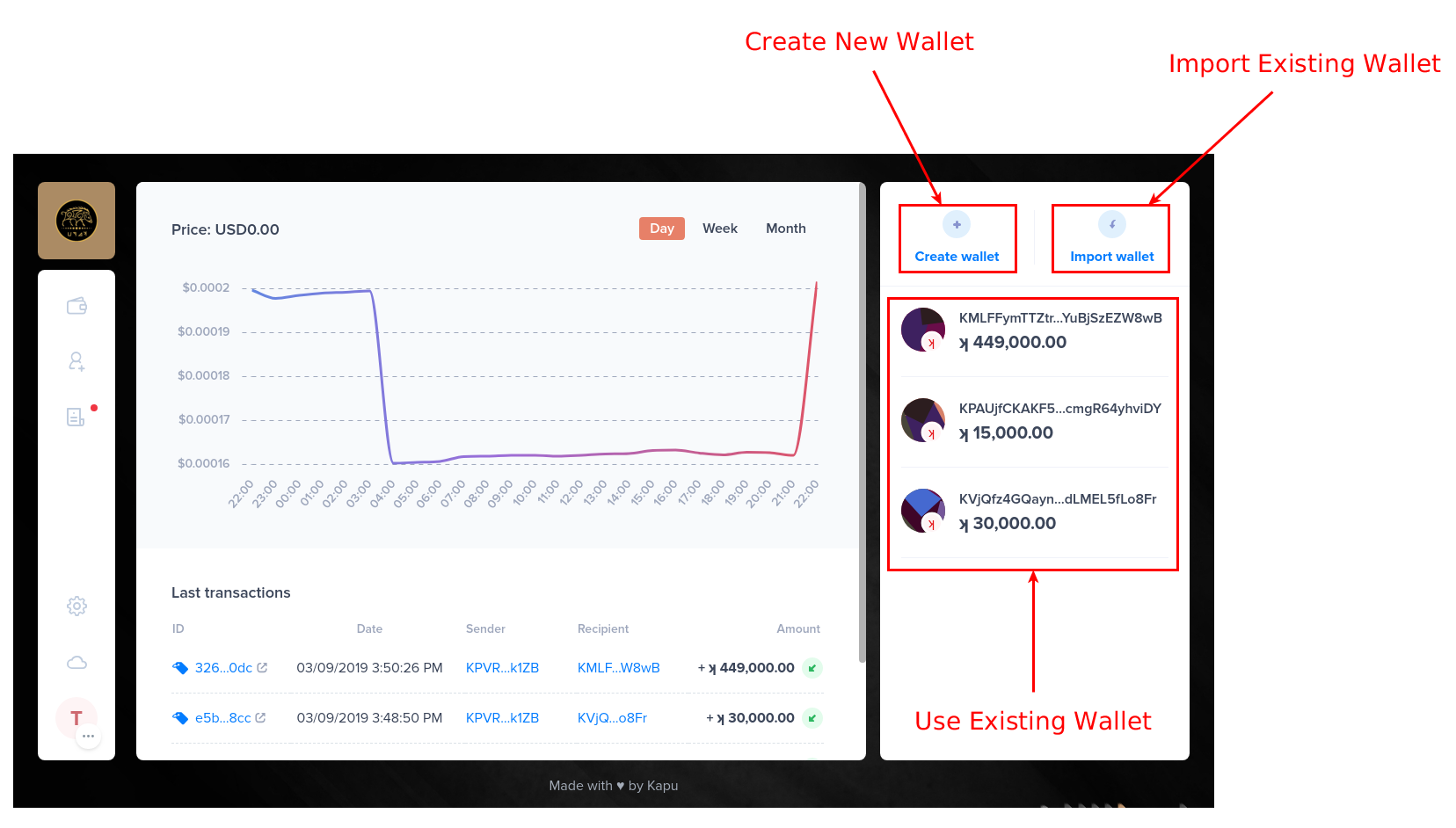 Once you have selected the wallet to use for voting click the Delegates tab 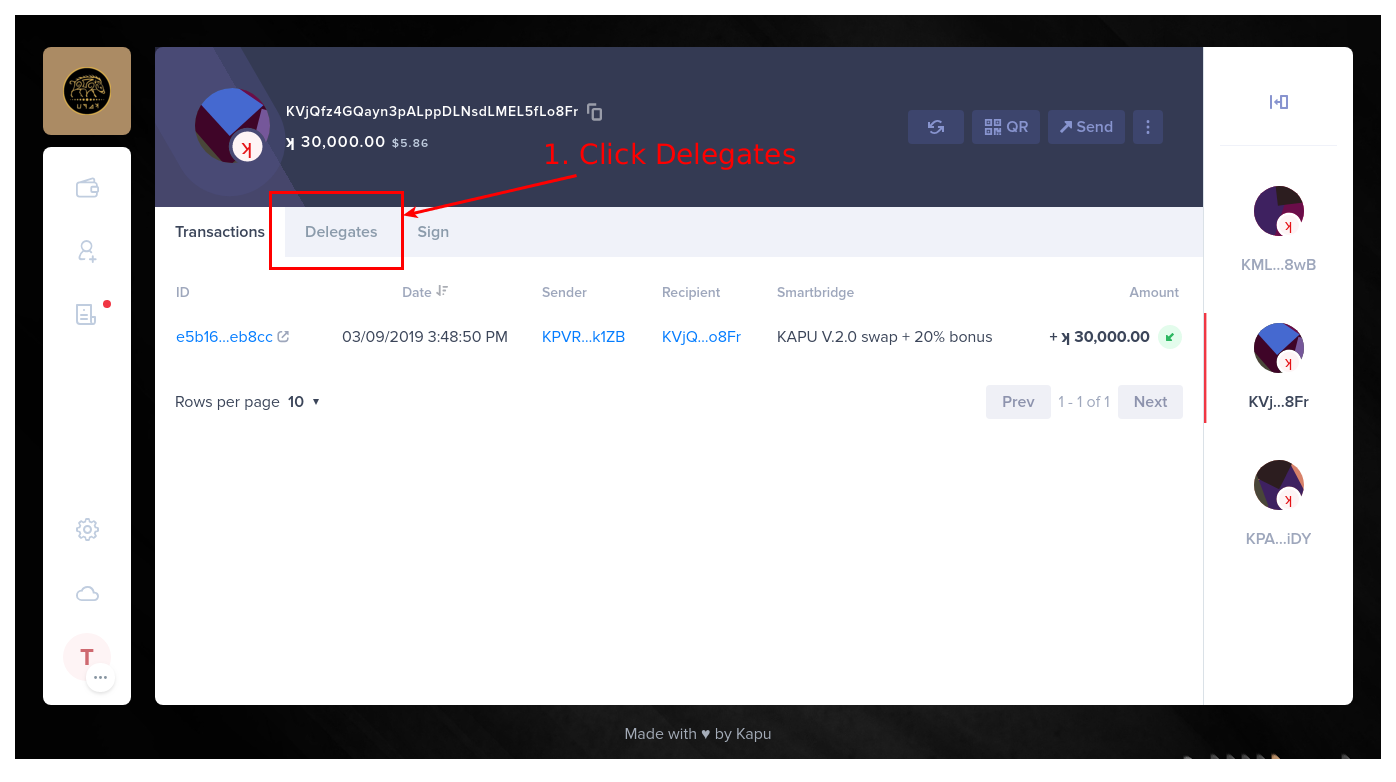 Select the delegate to vote 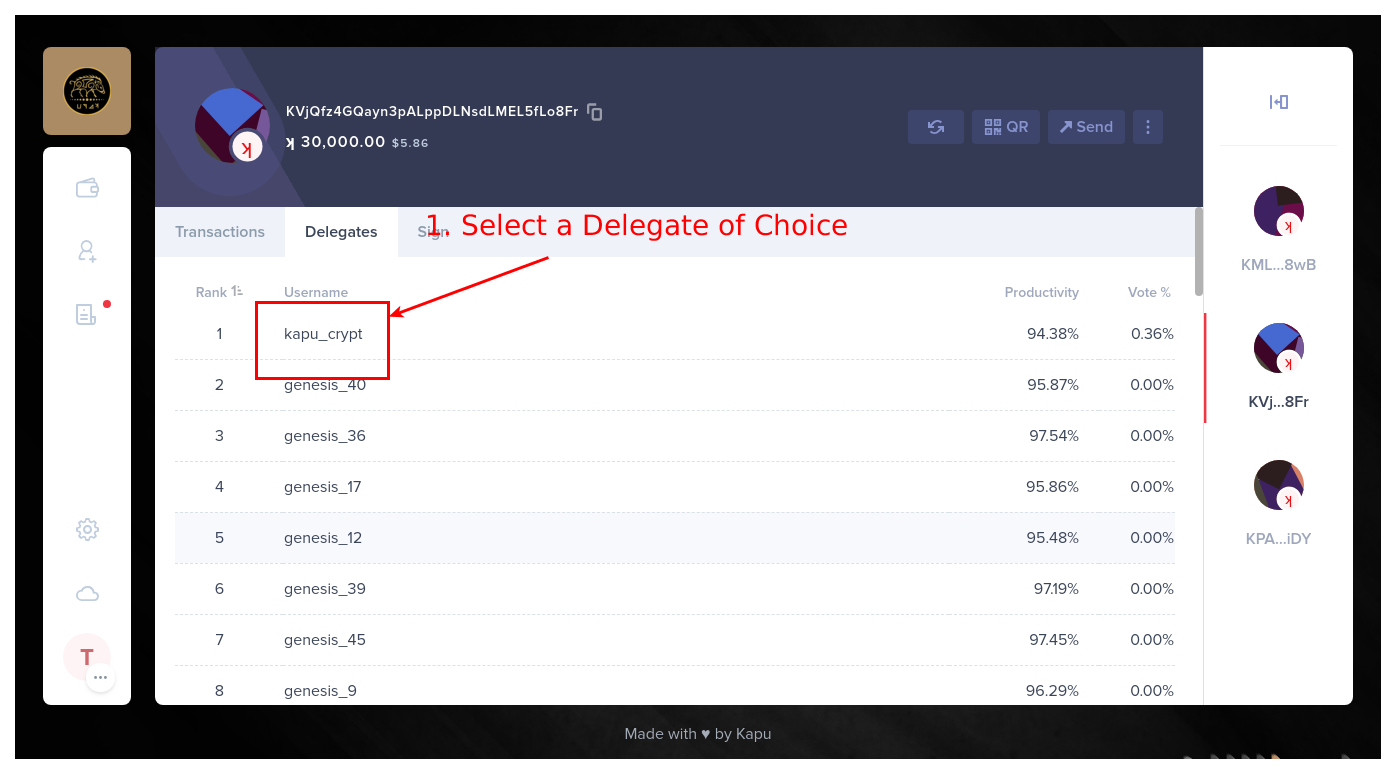 Click VOTE 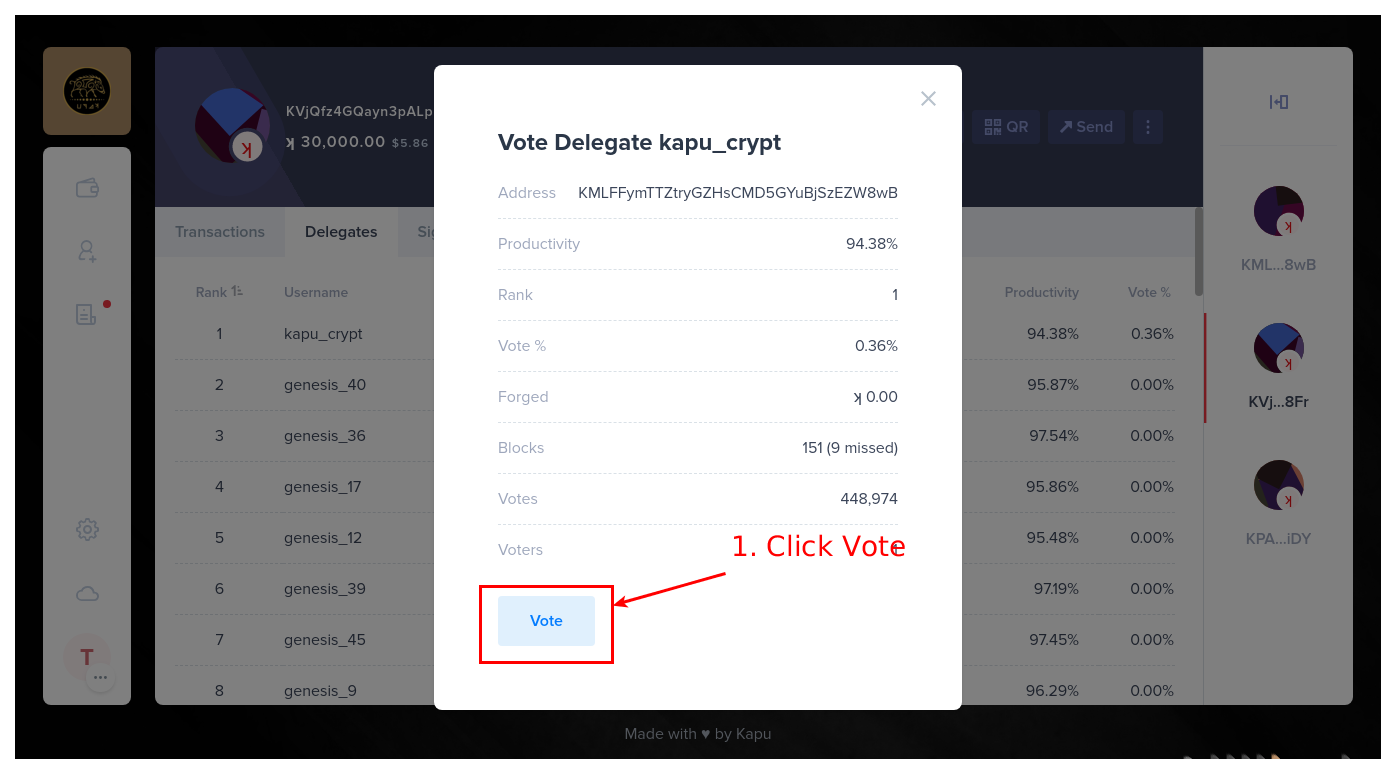 1. Insert Transaction Fee 2. Enter 1st passphrase 3. Click “NEXT” 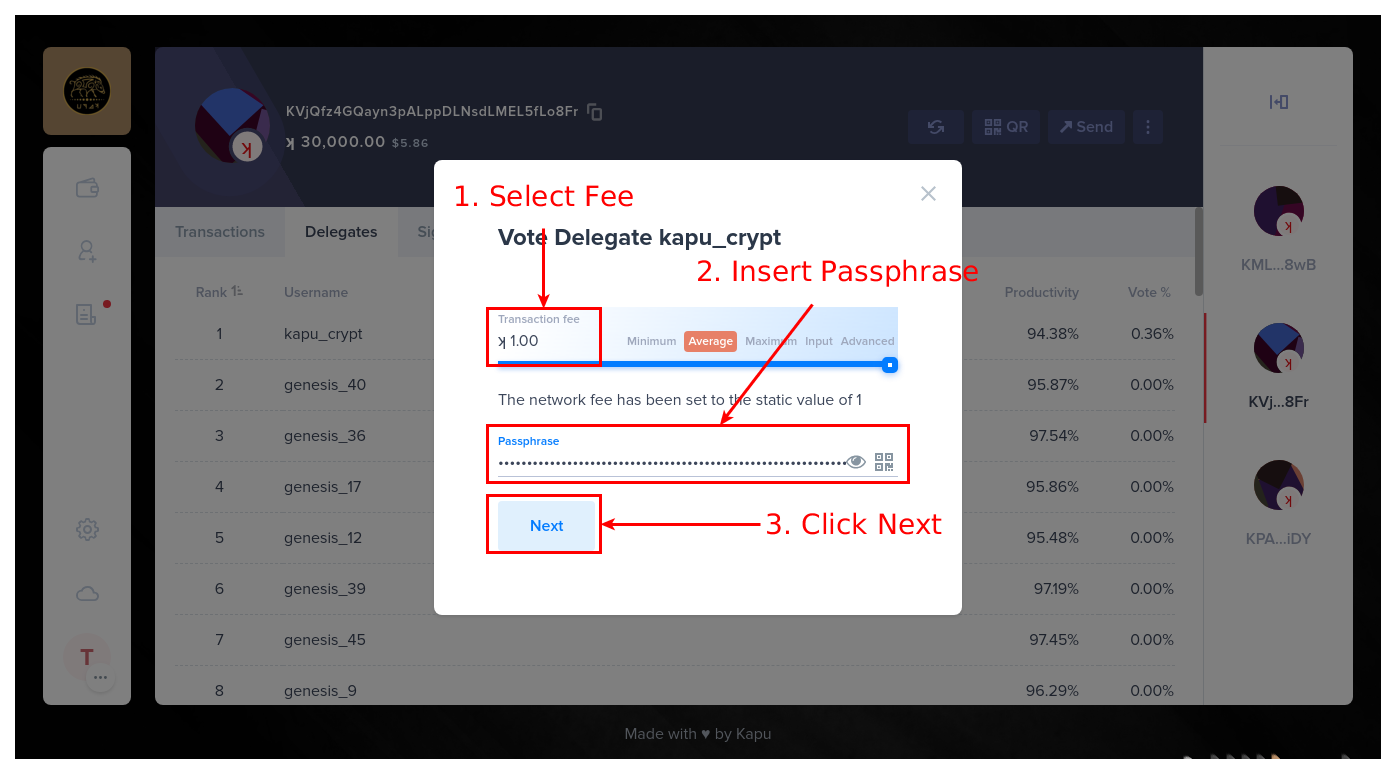 - Click the “SEND ₱ NOW” to cast your vote 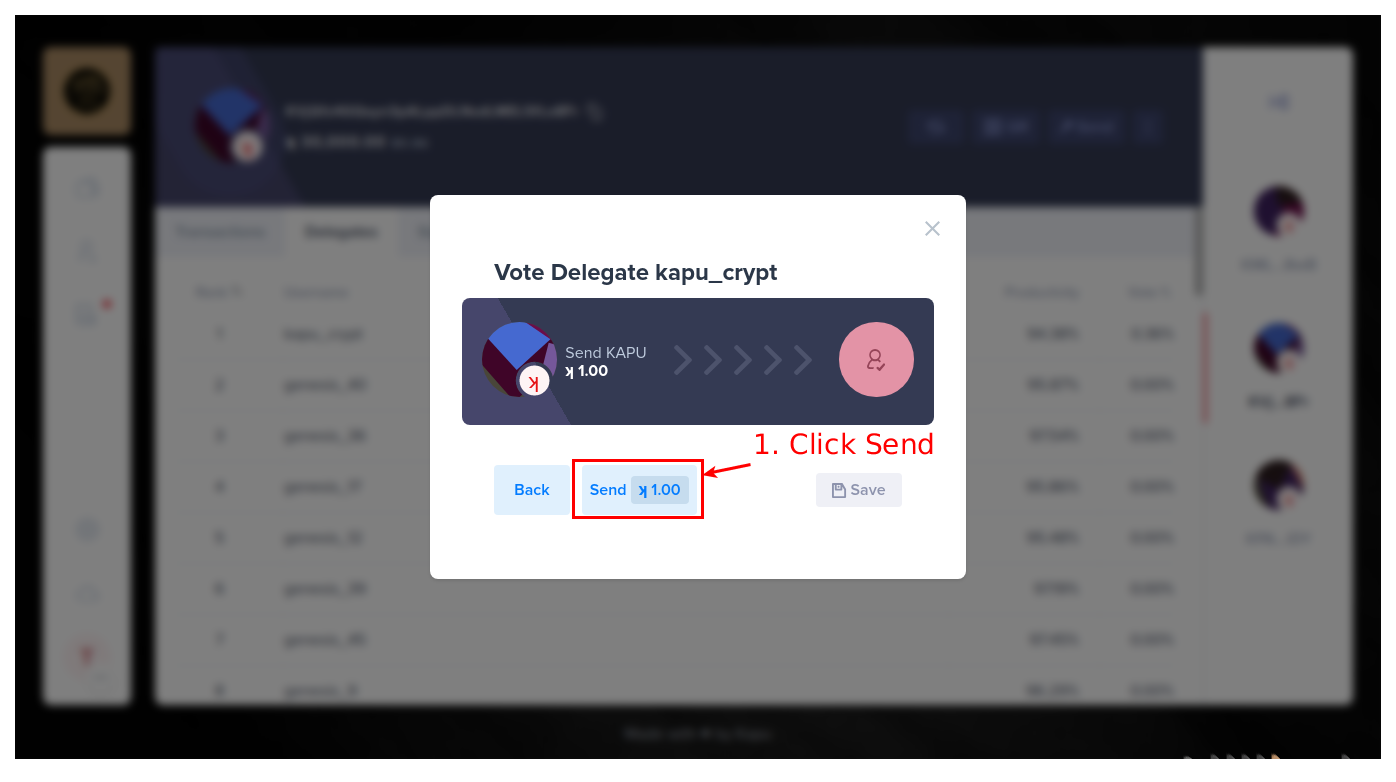 **That is it**. The delegate you voted for will gain the weight of the wallet you voted from. It takes a few minutes for the vote to reflect (usually after confirmation of the transaction and the next block is forged ) ## 2 Un-Voting a Delegate 1. Open your wallet as explained at the start of this guide 2. Click “DELEGATES” tab 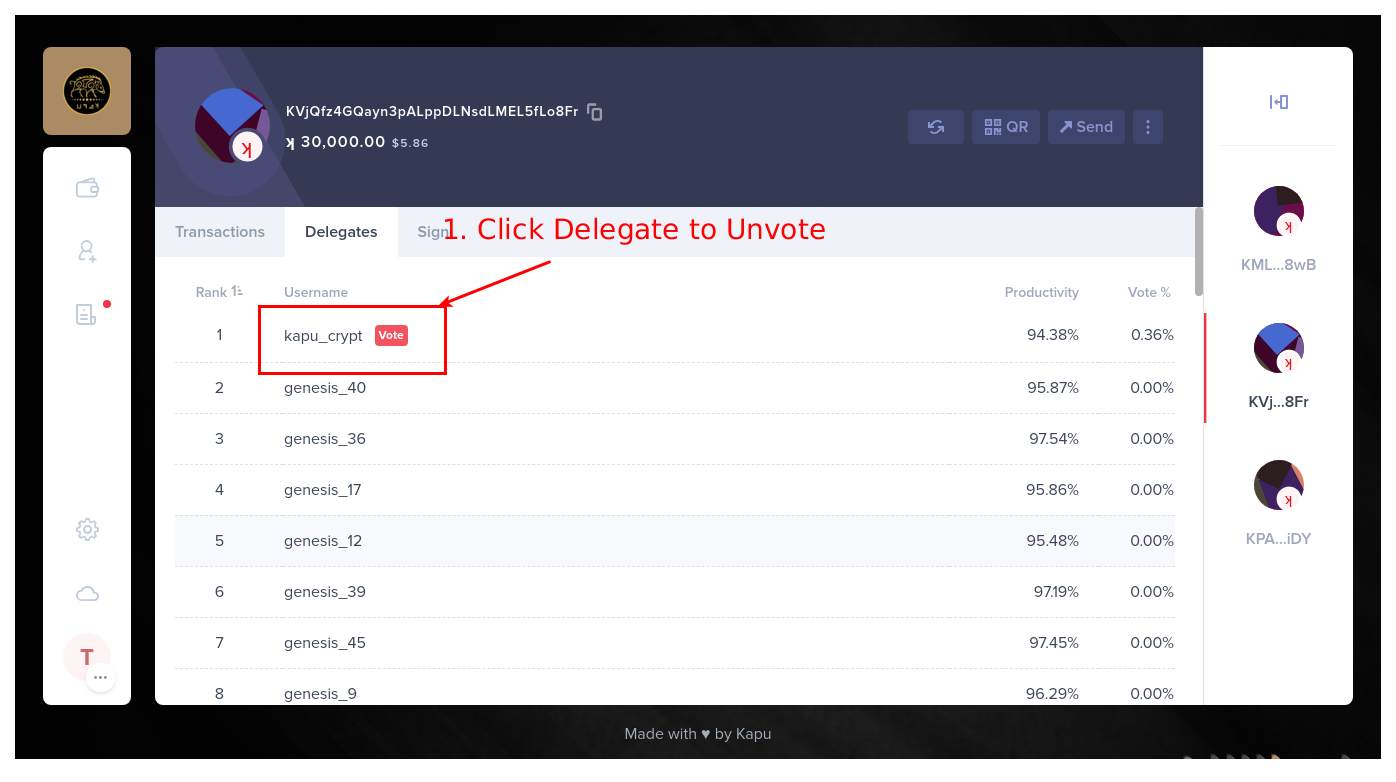 3. Click UNVOTE 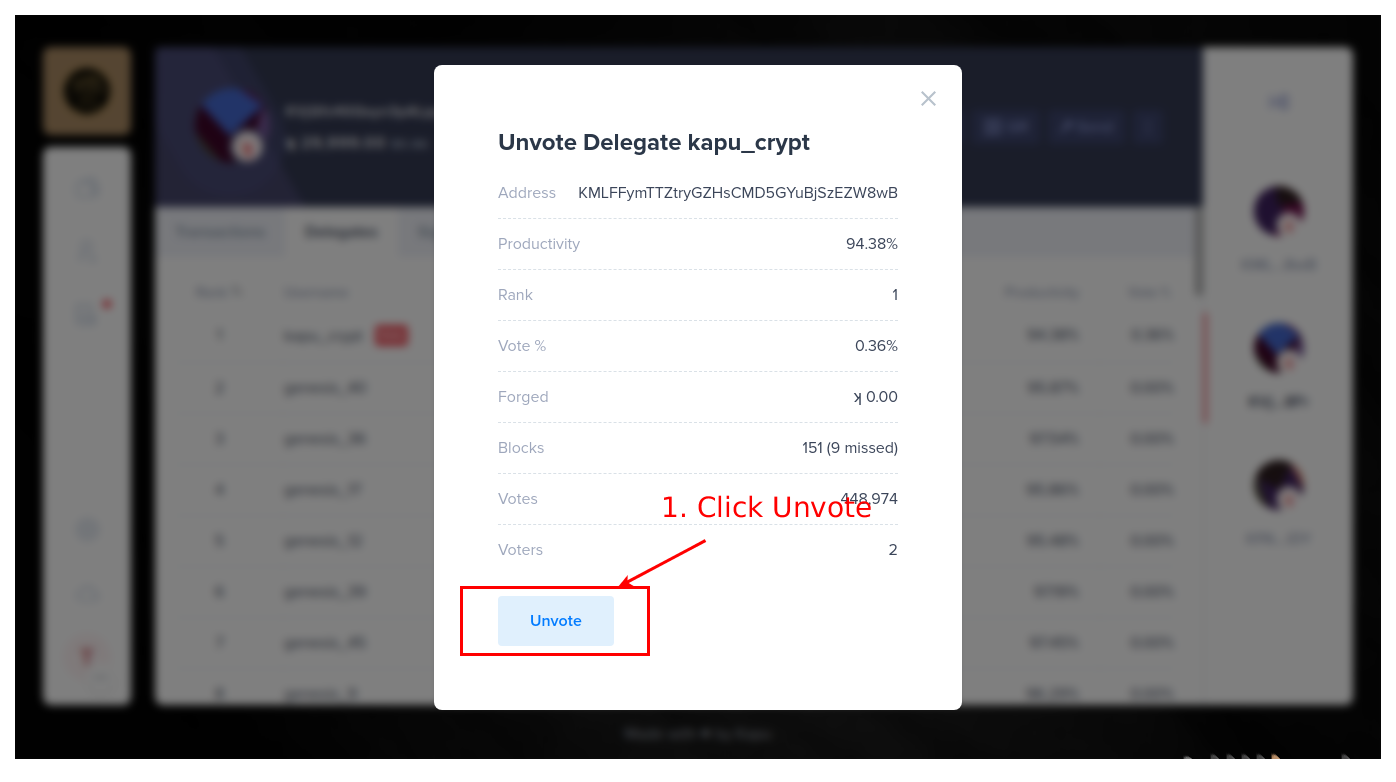 4. Click NEXT 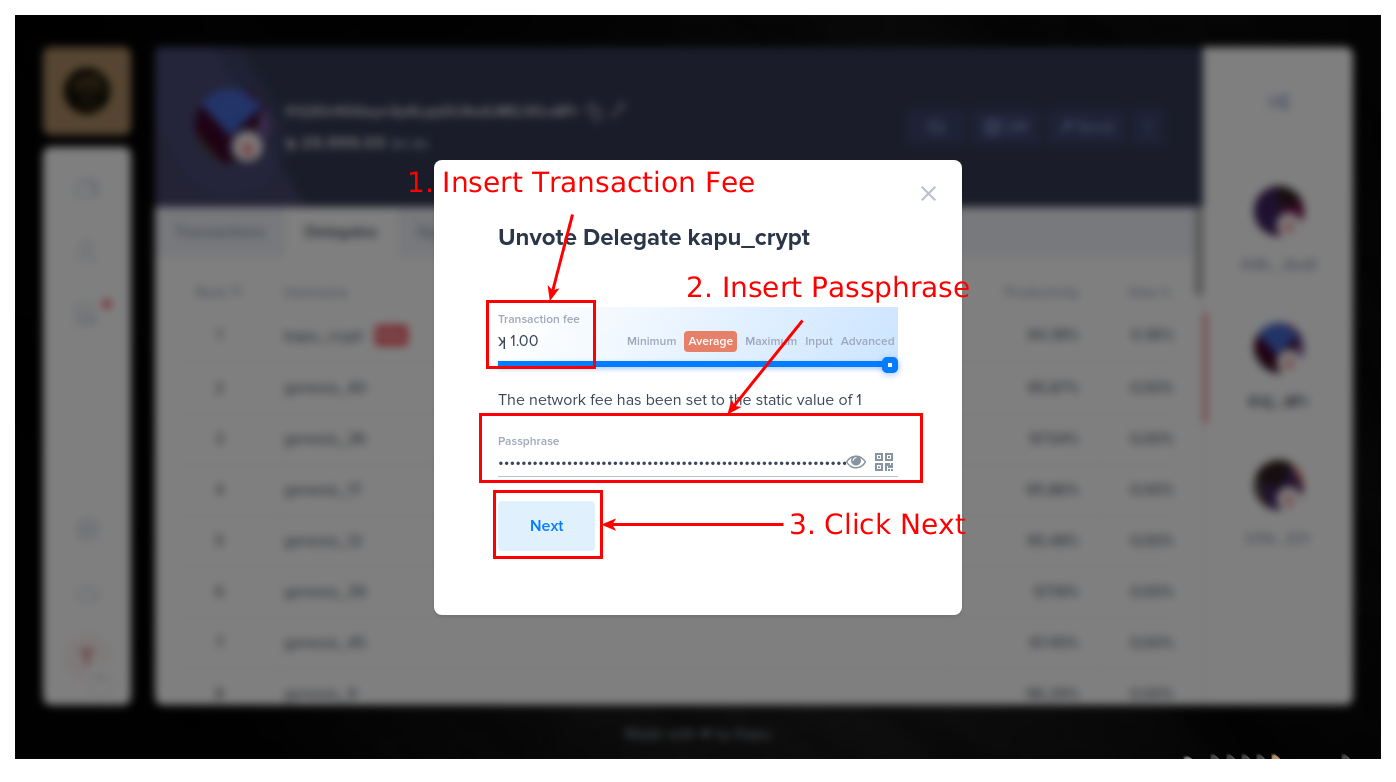 5. Click “SEND ₱ NOW!” to complete the transaction 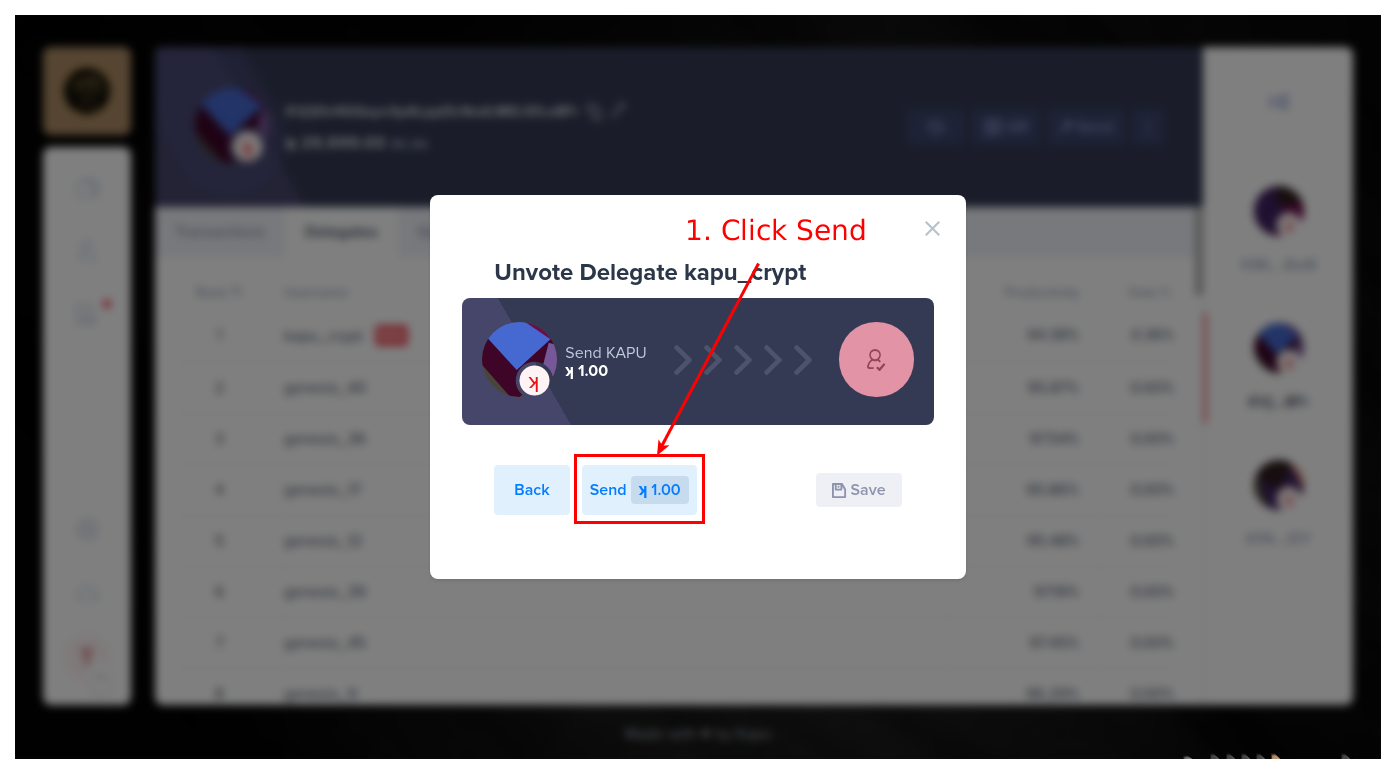 6. Check Transactions in the wallet (optional) 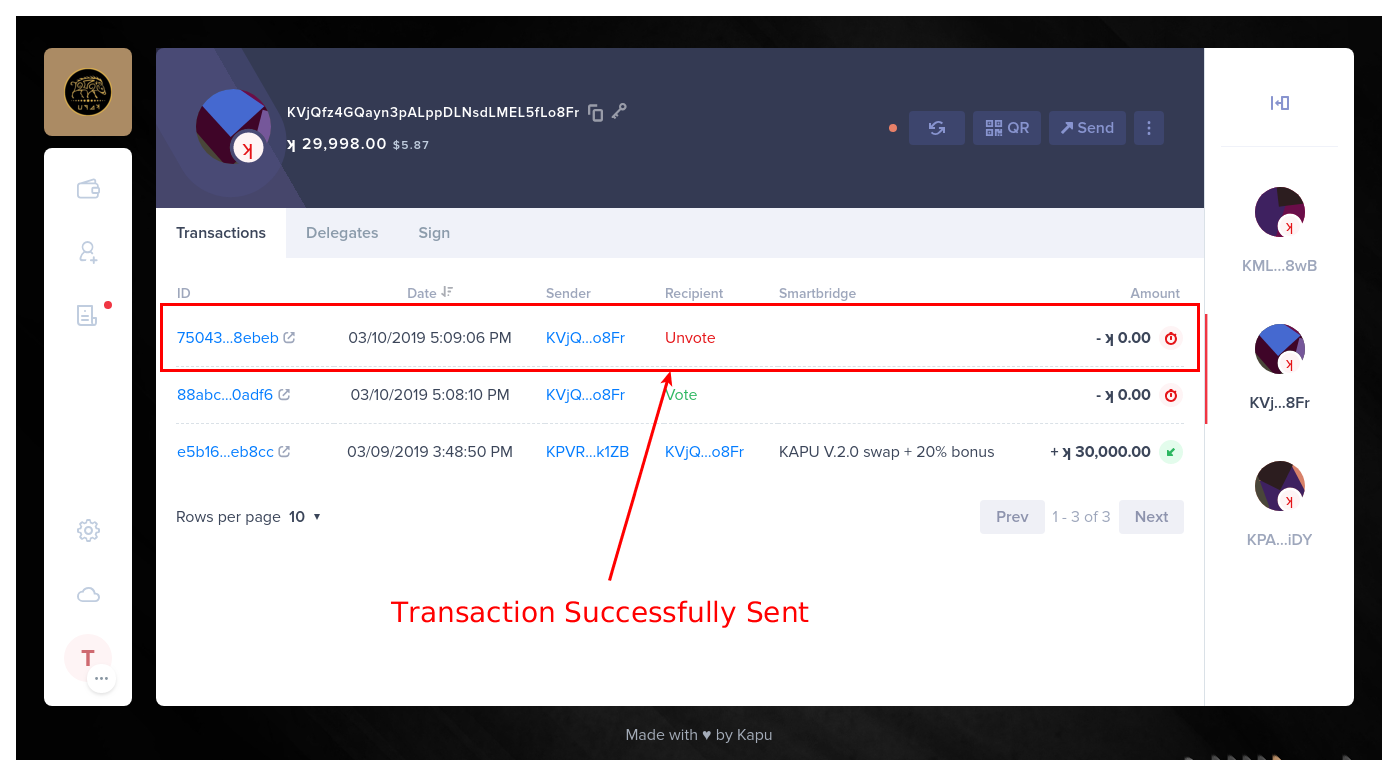 7. Check Transactions in explorer (optional) 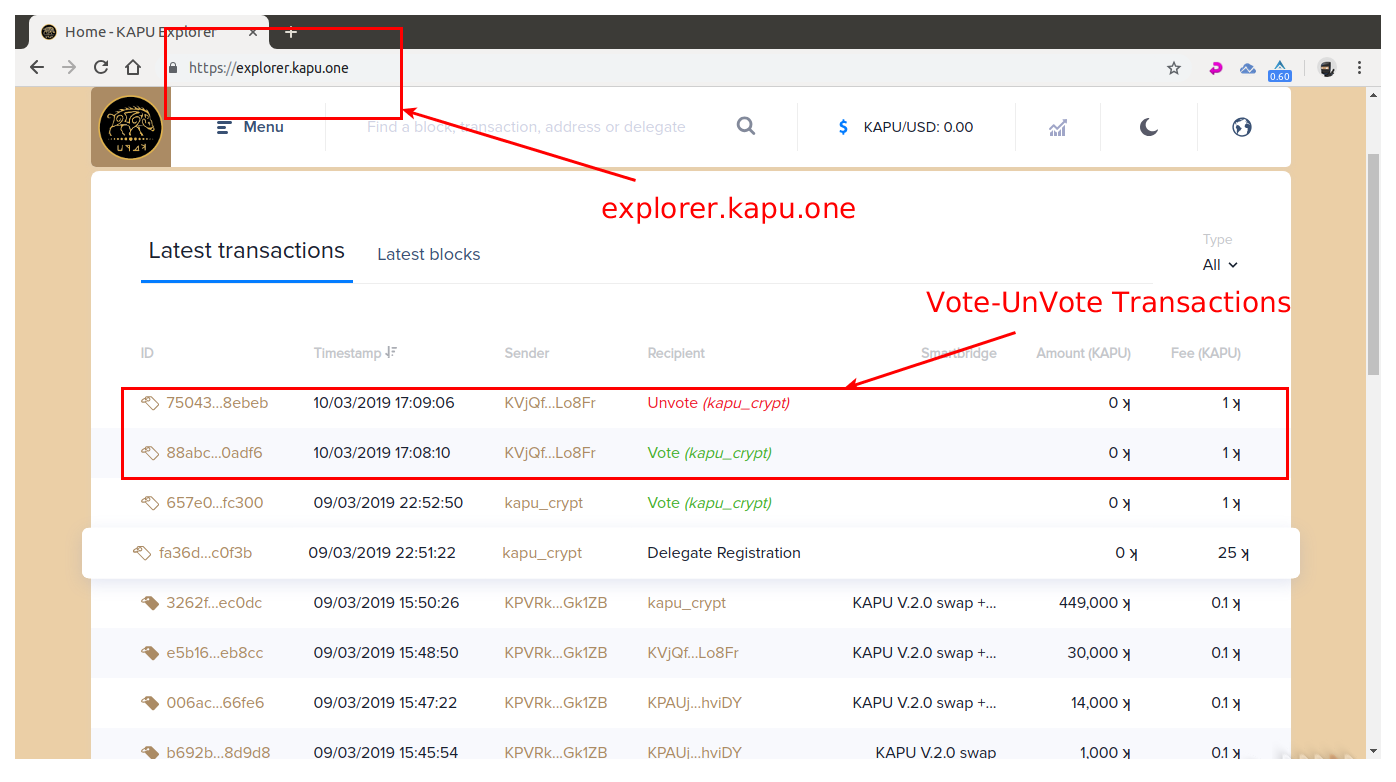 **That’s it for Voting & Un-Voting Delegates within the KAPU Blockchain**. Remember, you only have one vote per wallet. Should you want to vote for more than one Delegate, split of the amount of voting weight you wish to vote by creating additional wallets. If you need assistance or have any suggestions join our any one of our groups. An admin will be happy to assist. > ### Don’t forget to save your passphrases of all your KAPU wallets that hold your KAPU coins — if you lose it or it gets stolen there is nothing we can do! ## Remember to connect to us... **Website**: [www.kapu.one](https://www.kapu.one) **Bitcointalk ANN**: [bitcointalk.org/index.php?topic=2035561.0](https://bitcointalk.org/index.php?topic=2035561.0) **Whitepaper**: [kapu.one/WP_EN.pdf](https://kapu.one/WP_EN.pdf) **Facebook**: [www.facebook.com/kapucoin](https://www.facebook.com/kapucoin) **Twitter**: [twitter.com/kapucoin](https://twitter.com/kapucoin) **GitHub**: [github.com/kapucryptocoin](https://github.com/kapucryptocoin) **Medium**: [medium.com/kapucoin](https://medium.com/kapucoin) |
| json metadata | {"tags":["kapu","v2","delegate","vote","unvote"],"image":["https://cdn.steemitimages.com/DQmXKwDxR7Z4KbunWtdvFDFATVVBV4Wv5wjYL6Ur1NNSNDs/banner_light_no_writings.png","https://cdn.steemitimages.com/DQmToVCnbRFCdtY9MJjzKdVXQMPJ1TChS7G8RvWBXPQNMLK/1_register_options.png","https://cdn.steemitimages.com/DQmPBRbPUXpDH2mXEeJXUyW62Z4uP7Wbe3iTpKPFNaDtntS/1_clickDelegates.png","https://cdn.steemitimages.com/DQmeL18FxyZBefDE7gBYg2efMW2EFJLPD3ibu8cCiuM5a3g/2_clickDelegate.png","https://cdn.steemitimages.com/DQmWueBnjjvQcrLpLEgywVewvcgLQQjukuPzkyW9anV62Z7/3_clickVote.png","https://cdn.steemitimages.com/DQmST2Y8KFJboBXnmLmHWdQjKHW2sxbvz9Xp5DtTnXg7T7z/4_clickNext.png","https://cdn.steemitimages.com/DQmeFYuURwkEgafaGJ2uNaCT4x2X6nt16Q67bbP1tkSbiqt/5_clickSend.png","https://cdn.steemitimages.com/DQmTej681njsApQr7ei9cR2qDBpSFqgnaZrwfxn4cW33U58/9_clickUnvote.png","https://cdn.steemitimages.com/DQmNfbWBMRqgX9tSPAj7tJGdMiy5eg9Dk9myrEt7NUDVFJk/10_clickUnvote.png","https://cdn.steemitimages.com/DQmQ4vYGzepzgmpurBBgMbEsLuxWrRmFgds1mNk366A7UxX/11_clickNext.png","https://cdn.steemitimages.com/DQmWfHGR8FFnRXDSyuZ14S5CuNtv89rj463Bbzw5cRcBPeE/12_clickSend.png","https://cdn.steemitimages.com/DQmcKGDz46JxH8MPGC7gH7GMTncEFTMD4yhA4KAvnP3qfDZ/15_checkTransaction.png","https://cdn.steemitimages.com/DQmSjpuRQRvdLaMvsZVd29M5YE6PXnxKus7hyHwDhNjvJF4/16_checkExplorer.png"],"links":["https://github.com/kapucryptocoin/desktop-wallet/releases/latest","https://steemit.com/kapu/@ripaex/how-to-register-a-kapu-v-2-0-delegate","https://forum.kapu.one/category/6/delegates-proposals","https://www.kapu.one","https://bitcointalk.org/index.php?topic=2035561.0","https://kapu.one/WP_EN.pdf","https://www.facebook.com/kapucoin","https://twitter.com/kapucoin","https://github.com/kapucryptocoin","https://medium.com/kapucoin"],"app":"steemit/0.1","format":"markdown"} |
| Transaction Info | Block #31036710/Trx a475a7199414b24ff5576aa8a46ba08238fa7380 |
View Raw JSON Data
{
"trx_id": "a475a7199414b24ff5576aa8a46ba08238fa7380",
"block": 31036710,
"trx_in_block": 28,
"op_in_trx": 0,
"virtual_op": 0,
"timestamp": "2019-03-10T17:21:33",
"op": [
"comment",
{
"parent_author": "",
"parent_permlink": "kapu",
"author": "ripaex",
"permlink": "how-to-vote-and-un-vote-a-kapu-v-2-0-delegate",
"title": "How To Vote and Un-Vote a KAPU V.2.0 Delegate",
"body": "\n\n\n### KAPU uses DPoS (Delegated Proof of Stake) consensus in order to produce / confirm blocks.\n\nYou can use your KAPU to vote or un-vote a delegate. In this short guide we’ll show you how you can vote (cast a vote towards the delegate you choose — whether it is yourself or another community member you wish to support, like projects, pools, or a friend, or to un-vote a delegate you are already voting for in case you decide you want to change the vote to someone else. Voting from your KAPU wallet can provide you with extra KAPU due to the forging rewards that are processed by delegates. Rewards are awarded to 101 top ranked active delegates.\n\nFirst if you haven’t, you will need to download and install the KAPU Desktop Client from here [KAPU Desktop Wallet](https://github.com/kapucryptocoin/desktop-wallet/releases/latest) and then import and access the wallet you want to vote from.\n\n*If you want to register a delegate yourself, you should follow this guide first:* [How To Register a KAPU V.2.0 Delegate\n](https://steemit.com/kapu/@ripaex/how-to-register-a-kapu-v-2-0-delegate)\n\nSome basic voting info :\n\n· **1 KAPU ADDRESS CAN VOTE FOR ONLY 1 DELEGATE AT A TIME** (if you wish to vote for more than 1 delegate, split you wallet in more KAPU addresses and repeat the vote process — for example, send the amount you wish to vote from the second wallet to the second wallet.\n\n· **1 KAPU EQUALS A VOTING WEIGHT OF 1**. The more ark you hold, the more weight you hold in your possession — but note that if you split the wallet your voting power splits with it. For example, if you have 1,000 KAPU your voting power is equal to 1,000 KAPU, if you split that in to 2 equal wallets each having 500 KAPU the voting power of the 1st wallet will be 500 KAPU and the 2nd one 500 KAPU.\n\n· **EACH VOTE OR UN-VOTE COSTS 1 KAPU**. When you vote for a delegate it costs 1 KAPU. When you un-vote, the cost is the same 1 KAPU.\n\n**Don’t know who to vote for or support with your KAPU?**\n\n**Read the proposals on our forum from our current list of delegates and vote according to your plan**: [Delegates & Proposals](https://forum.kapu.one/category/6/delegates-proposals)\n\n# 1 Casting your 1 Vote to a chosen Delegate\n1. Click on “IMPORT ACCOUNT” if you already have a KAPU address but haven’t yet imported it into your current installation of the [KAPU Desktop Wallet](https://github.com/kapucryptocoin/desktop-wallet/releases/latest) \n2. Click “CREATE ACCOUNT” if don’t have a KAPU Account. (Note that you will need to deposit KAPU tokens first in order to pay **1 KAPU** for the vote. )\n3. Click on your wallet address if you have already imported your KAPU address.\n\n\nOnce you have selected the wallet to use for voting click the Delegates tab\n\n\nSelect the delegate to vote\n\n\nClick VOTE\n\n\n1. Insert Transaction Fee\n2. Enter 1st passphrase\n3. Click “NEXT”\n\n\n- Click the “SEND ₱ NOW” to cast your vote\n\n\n\n**That is it**. The delegate you voted for will gain the weight of the wallet you voted from. It takes a few minutes for the vote to reflect (usually after confirmation of the transaction and the next block is forged )\n\n## 2 Un-Voting a Delegate\n1. Open your wallet as explained at the start of this guide\n2. Click “DELEGATES” tab\n\n\n3. Click UNVOTE\n\n\n4. Click NEXT\n\n\n5. Click “SEND ₱ NOW!” to complete the transaction\n\n\n6. Check Transactions in the wallet (optional)\n\n\n7. Check Transactions in explorer (optional)\n\n\n**That’s it for Voting & Un-Voting Delegates within the KAPU Blockchain**. Remember, you only have one vote per wallet. Should you want to vote for more than one Delegate, split of the amount of voting weight you wish to vote by creating additional wallets.\n\nIf you need assistance or have any suggestions join our any one of our groups. An admin will be happy to assist.\n\n\n> ### Don’t forget to save your passphrases of all your KAPU wallets that hold your KAPU coins — if you lose it or it gets stolen there is nothing we can do!\n\n\n## Remember to connect to us...\n**Website**: [www.kapu.one](https://www.kapu.one)\n**Bitcointalk ANN**: [bitcointalk.org/index.php?topic=2035561.0](https://bitcointalk.org/index.php?topic=2035561.0)\n**Whitepaper**: [kapu.one/WP_EN.pdf](https://kapu.one/WP_EN.pdf)\n**Facebook**: [www.facebook.com/kapucoin](https://www.facebook.com/kapucoin)\n**Twitter**: [twitter.com/kapucoin](https://twitter.com/kapucoin)\n**GitHub**: [github.com/kapucryptocoin](https://github.com/kapucryptocoin)\n**Medium**: [medium.com/kapucoin](https://medium.com/kapucoin)",
"json_metadata": "{\"tags\":[\"kapu\",\"v2\",\"delegate\",\"vote\",\"unvote\"],\"image\":[\"https://cdn.steemitimages.com/DQmXKwDxR7Z4KbunWtdvFDFATVVBV4Wv5wjYL6Ur1NNSNDs/banner_light_no_writings.png\",\"https://cdn.steemitimages.com/DQmToVCnbRFCdtY9MJjzKdVXQMPJ1TChS7G8RvWBXPQNMLK/1_register_options.png\",\"https://cdn.steemitimages.com/DQmPBRbPUXpDH2mXEeJXUyW62Z4uP7Wbe3iTpKPFNaDtntS/1_clickDelegates.png\",\"https://cdn.steemitimages.com/DQmeL18FxyZBefDE7gBYg2efMW2EFJLPD3ibu8cCiuM5a3g/2_clickDelegate.png\",\"https://cdn.steemitimages.com/DQmWueBnjjvQcrLpLEgywVewvcgLQQjukuPzkyW9anV62Z7/3_clickVote.png\",\"https://cdn.steemitimages.com/DQmST2Y8KFJboBXnmLmHWdQjKHW2sxbvz9Xp5DtTnXg7T7z/4_clickNext.png\",\"https://cdn.steemitimages.com/DQmeFYuURwkEgafaGJ2uNaCT4x2X6nt16Q67bbP1tkSbiqt/5_clickSend.png\",\"https://cdn.steemitimages.com/DQmTej681njsApQr7ei9cR2qDBpSFqgnaZrwfxn4cW33U58/9_clickUnvote.png\",\"https://cdn.steemitimages.com/DQmNfbWBMRqgX9tSPAj7tJGdMiy5eg9Dk9myrEt7NUDVFJk/10_clickUnvote.png\",\"https://cdn.steemitimages.com/DQmQ4vYGzepzgmpurBBgMbEsLuxWrRmFgds1mNk366A7UxX/11_clickNext.png\",\"https://cdn.steemitimages.com/DQmWfHGR8FFnRXDSyuZ14S5CuNtv89rj463Bbzw5cRcBPeE/12_clickSend.png\",\"https://cdn.steemitimages.com/DQmcKGDz46JxH8MPGC7gH7GMTncEFTMD4yhA4KAvnP3qfDZ/15_checkTransaction.png\",\"https://cdn.steemitimages.com/DQmSjpuRQRvdLaMvsZVd29M5YE6PXnxKus7hyHwDhNjvJF4/16_checkExplorer.png\"],\"links\":[\"https://github.com/kapucryptocoin/desktop-wallet/releases/latest\",\"https://steemit.com/kapu/@ripaex/how-to-register-a-kapu-v-2-0-delegate\",\"https://forum.kapu.one/category/6/delegates-proposals\",\"https://www.kapu.one\",\"https://bitcointalk.org/index.php?topic=2035561.0\",\"https://kapu.one/WP_EN.pdf\",\"https://www.facebook.com/kapucoin\",\"https://twitter.com/kapucoin\",\"https://github.com/kapucryptocoin\",\"https://medium.com/kapucoin\"],\"app\":\"steemit/0.1\",\"format\":\"markdown\"}"
}
]
}blocktradespowered up 38.440 STEEM to @ripaex2019/03/10 17:21:27
blocktradespowered up 38.440 STEEM to @ripaex
2019/03/10 17:21:27
| from | blocktrades |
| to | ripaex |
| amount | 38.440 STEEM |
| Transaction Info | Block #31036708/Trx 3590ec56501aa2a53bbbcac7ef4cbd23f8ab98d5 |
View Raw JSON Data
{
  "trx_id": "3590ec56501aa2a53bbbcac7ef4cbd23f8ab98d5",
  "block": 31036708,
  "trx_in_block": 33,
  "op_in_trx": 0,
  "virtual_op": 0,
  "timestamp": "2019-03-10T17:21:27",
  "op": [
    "transfer_to_vesting",
    {
      "from": "blocktrades",
      "to": "ripaex",
      "amount": "38.440 STEEM"
    }
  ]
}ripaexcancelled power down2019/03/10 17:07:48
ripaexcancelled power down
2019/03/10 17:07:48
| account | ripaex |
| vesting shares | 0.000000 VESTS |
| Transaction Info | Block #31036435/Trx 2baf7959ea6ab9c446ed57557b26a1f3d850d014 |
View Raw JSON Data
{
  "trx_id": "2baf7959ea6ab9c446ed57557b26a1f3d850d014",
  "block": 31036435,
  "trx_in_block": 22,
  "op_in_trx": 0,
  "virtual_op": 0,
  "timestamp": "2019-03-10T17:07:48",
  "op": [
    "withdraw_vesting",
    {
      "account": "ripaex",
      "vesting_shares": "0.000000 VESTS"
    }
  ]
}ripaexstarted power down of 1.411 SP2019/03/10 17:04:18
ripaexstarted power down of 1.411 SP
2019/03/10 17:04:18
| account | ripaex |
| vesting shares | 2297.504898 VESTS |
| Transaction Info | Block #31036365/Trx 6c7212fe173f749881339d145ee7f1f242d4f38b |
View Raw JSON Data
{
  "trx_id": "6c7212fe173f749881339d145ee7f1f242d4f38b",
  "block": 31036365,
  "trx_in_block": 27,
  "op_in_trx": 0,
  "virtual_op": 0,
  "timestamp": "2019-03-10T17:04:18",
  "op": [
    "withdraw_vesting",
    {
      "account": "ripaex",
      "vesting_shares": "2297.504898 VESTS"
    }
  ]
}2019/03/10 17:03:24
2019/03/10 17:03:24
| from | ripaex |
| to | ripaex |
| amount | 0.107 STEEM |
| Transaction Info | Block #31036347/Trx d0c7a0d280f7eb42735bcb8c44b4a4b8009065f2 |
View Raw JSON Data
{
  "trx_id": "d0c7a0d280f7eb42735bcb8c44b4a4b8009065f2",
  "block": 31036347,
  "trx_in_block": 4,
  "op_in_trx": 0,
  "virtual_op": 0,
  "timestamp": "2019-03-10T17:03:24",
  "op": [
    "transfer_to_vesting",
    {
      "from": "ripaex",
      "to": "ripaex",
      "amount": "0.107 STEEM"
    }
  ]
}2019/03/10 16:53:48
2019/03/10 16:53:48
| delegator | steem |
| delegatee | ripaex |
| vesting shares | 27949.343403 VESTS |
| Transaction Info | Block #31036155/Trx 342895b164dc8d0f3c6a68282bcb89c01e048c14 |
View Raw JSON Data
{
  "trx_id": "342895b164dc8d0f3c6a68282bcb89c01e048c14",
  "block": 31036155,
  "trx_in_block": 7,
  "op_in_trx": 0,
  "virtual_op": 0,
  "timestamp": "2019-03-10T16:53:48",
  "op": [
    "delegate_vesting_shares",
    {
      "delegator": "steem",
      "delegatee": "ripaex",
      "vesting_shares": "27949.343403 VESTS"
    }
  ]
}ripaexclaimed reward balance: 0.107 STEEM, 0.657 SBD, 1.155 SP2019/03/10 16:46:30
ripaexclaimed reward balance: 0.107 STEEM, 0.657 SBD, 1.155 SP
2019/03/10 16:46:30
| account | ripaex |
| reward steem | 0.107 STEEM |
| reward sbd | 0.657 SBD |
| reward vests | 1880.054505 VESTS |
| Transaction Info | Block #31036009/Trx f4a16cc0f4b93720263807fc1c3aa7643aed16e8 |
View Raw JSON Data
{
  "trx_id": "f4a16cc0f4b93720263807fc1c3aa7643aed16e8",
  "block": 31036009,
  "trx_in_block": 19,
  "op_in_trx": 0,
  "virtual_op": 0,
  "timestamp": "2019-03-10T16:46:30",
  "op": [
    "claim_reward_balance",
    {
      "account": "ripaex",
      "reward_steem": "0.107 STEEM",
      "reward_sbd": "0.657 SBD",
      "reward_vests": "1880.054505 VESTS"
    }
  ]
}thetroublenotesupvoted (1.00%) @ripaex / how-set-up-a-node-for-kapu-v-2-02019/03/10 16:37:42
thetroublenotesupvoted (1.00%) @ripaex / how-set-up-a-node-for-kapu-v-2-0
2019/03/10 16:37:42
| voter | thetroublenotes |
| author | ripaex |
| permlink | how-set-up-a-node-for-kapu-v-2-0 |
| weight | 100 (1.00%) |
| Transaction Info | Block #31035833/Trx 9e73c3cf333e311a2d835b1407ff449ec71b1ee4 |
View Raw JSON Data
{
  "trx_id": "9e73c3cf333e311a2d835b1407ff449ec71b1ee4",
  "block": 31035833,
  "trx_in_block": 24,
  "op_in_trx": 0,
  "virtual_op": 0,
  "timestamp": "2019-03-10T16:37:42",
  "op": [
    "vote",
    {
      "voter": "thetroublenotes",
      "author": "ripaex",
      "permlink": "how-set-up-a-node-for-kapu-v-2-0",
      "weight": 100
    }
  ]
}ripaexpublished a new post: how-set-up-a-node-for-kapu-v-2-02019/03/10 16:36:33
ripaexpublished a new post: how-set-up-a-node-for-kapu-v-2-0
2019/03/10 16:36:33
| parent author | |
| parent permlink | kapu |
| author | ripaex |
| permlink | how-set-up-a-node-for-kapu-v-2-0 |
| title | How To Set Up a KAPU V.2.0 RELAY node |
| body |  Don’t forget to read: - [**How to Register your KAPU V.2.0 Delegate**](https://steemit.com/kapu/@ripaex/how-to-register-a-kapu-v-2-0-delegate), as you will need the passphrase of your delegate wallet later on in this installation - Set up your second passphrase as soon as possible. Your node will have your first passphrase and if it should get hacked, your funds will be exposed. ### Minimum requirements for running KAPU node (active nodes): - at least 1 DEDICATED CPU core (no shared ones), x86 or x64 architecture (the higher the CPU clock speed, the better, recommendation 2 CPUs+) - 4 GB RAM (the more the better, recommendation 8GB+), - Linux — Ubuntu 18.04 (this is optimal, and this guide is written for it) - 520GB free space (we recommend SSD/m.2, as opposed to traditional HDD drives, recommendation 100GB+) ### Recommended VPS/Cloud providers: - [**ScaleWay**](https://www.scaleway.com/) - [**Digital Ocean**](https://m.do.co/c/ac0f2bca30e9) - [** Vultr**](https://www.vultr.com/?ref=7434091) - [**OVH**](https://www.ovh.com/us/vps/vps-ssd.xml) For this guide, we’ll use [**ScaleWay**](https://www.scaleway.com/), you can get a START1-M VPS for **€7.99/month ( 4 X86 64bit cores, 4Gb Ram, 100Gb SSD, 300 Mbit/s unmetered transfer) But all providers have similar deals.** # 1. Get yourself a server for your node (for our guide we’ll use [**ScaleWay**](https://www.scaleway.com/)) We will create a VPS via ScaleWay interface, for the Linux distro we will use a START1-M vps in the Paris installation:  Select Ubuntu 18.04 x64 - Bionic Beaver as operating system instance  Select disk size and click Launch Server  Once your server instance is ready, you will see all the login info into the server instance page: **username:** root **password:** none **IP:** xxx.xxx.xxx.xxx indicated into the server page **SSH port:** 22 (this is default) # 2. Connect to your newly created server instance via SSH **Windows:** you can use any SSH client. For our example we will use Putty (an open-source client you can download here: [PUTTY DOWNLOAD](https://www.putty.org/)) **MAC OS:** open Terminal ( To start Terminal, go to your Mac’s Applications folder => click on the Utilities folder => then click on Terminal). **Linux:** depending on your distribution, you can usually also open it by pressing a combination of “Ctrl + Alt + T” keys. _For terminal in Linux / MAC OS you can connect with this command:_ **ssh user@<server-ip>** example for our instance of server in Linux / MAC OS would be: **ssh [email protected]** For our guide we’ll use Terminal (Ubuntu) — start it up:  Now the command line will be shown, asking you to provide the username that you checked in the ScaleWay control panel you need to install the SUDO tool as the ScaleWay VPS does not come with this tool installed: use the command `apt install sudo` to install it:  # 3. Setting Up Regular User With Sudo Privileges Now that we successfully connected and changed the password for root it is time to create a new regular user with sudo privileges (sudo privileges allow a user to run programs with the security privileges of another user). **How to add new regular user:** **adduser < yourusername >** our example: **adduser kapu** Enter a new password, enter it again, and press [enter] 6 times to accept all of the default values.  Now that we have successfully created user with the username kapu (you can choose whatever username you want except root of course), it is time to assign this regular user sudo privileges. **How to add sudo privileges to our newly created regular user:** **usermod -a -G sudo** < yourusername > our example: **usermod -a -G sudo kapu** Now it is time to disconnect and reconnect as the newly created user (in our case ripa and not as root. Type **exit** and press [enter]. Your SSH session will close. # 4. Connecting Using Your New User Connect to your server, but now instead of logging in as root, we will login with new user. Type your username and press enter, followed by the password of that user:  _For terminal in Linux / MAC OS you can connect with this command:_ **ssh yourusername@<server-ip>** example for our instance of server in Linux / MAC OS would be: **ssh [email protected]** # 5. Installing the KAPU Node Now that we have our node ready, it is time to install KAPU. First we will download the KAPU installer called “`kapushell-core`” simply by executing these commands: 1. Download kapushell-core: `git clone https://github.com/Kapucryptocoin/kapushell-core.git` 2. Execute the file: `cd kapushell-core` `bash kapushellcore.sh`  Now the kapushell-core installation script will open. At the first step, you will need to provide your user’s password (in our example, the password for user kapu).  Since this is your first time running this installer, it will check for all of the dependencies and updates the RIPA node needs to run — press [enter] to continue and be patient. It might take a while, so do not interrupt the process.  (installing prerequisites — don’t interrupt) After this process finishes you will be asked to reboot your server — execute with the command: Y  After the node has rebooted reconnect to the node with your user, and execute : `cd kapushell-core` `bash kapushellcore.sh` Provide your password if asked to enter the menu.  You will now enter into kapushell-core menu: there are a lot of options, and since this is our first installation, you will input letter I and press [enter] to execute the Install KAPU process. Now the KAPU node installation will start follow the instructions on screen to configure your node as you like:  Figure 1: configure network  Figure 2: configure database  Figure 3: configure log After configuration has been performed the node will be downloaded, configured, compiled: **do not interrupt this process**. At the end you will be asked to start the relay node: choose "Y" to this question  # 6. Checking KAPU Node Status Now you can use option "L" or "P" from the kapushell-core main menu to check the LOGs of your node or to check the processes in execution:  Figure 1: check node logs  Figure 2: node logs  Figure 3: check node processes  Figure 4: node processes > CONGRATULATIONS: you have successfully installed your KAPU Relay Node V.2.0 **Follow our guides to register a delegate and start a forger to get some KAPUs as reward of your dedications to the DPOS ecosystem!!** [**How to Register your KAPU V.2.0 Delegate**](https://steemit.com/kapu/@ripaex/how-to-register-a-kapu-v-2-0-delegate) ## Remember to connect to us... **Website**: [www.kapu.one](https://www.kapu.one) **Bitcointalk ANN**: [bitcointalk.org/index.php?topic=2035561.0](https://bitcointalk.org/index.php?topic=2035561.0) **Whitepaper**: [kapu.one/WP_EN.pdf](https://kapu.one/WP_EN.pdf) **Facebook**: [www.facebook.com/kapucoin](https://www.facebook.com/kapucoin) **Twitter**: [twitter.com/kapucoin](https://twitter.com/kapucoin) **GitHub**: [github.com/kapucryptocoin](https://github.com/kapucryptocoin) **Medium**: [medium.com/kapucoin](https://medium.com/kapucoin) |
| json metadata | {"tags":["kapu","v2","relay"],"image":["https://cdn.steemitimages.com/DQmXFyUQwAF9VnTkkUcYiPV2do79fd2f5xaepj5MueNQBgx/SetupNode.png","https://cdn.steemitimages.com/DQmc4YJrzSocektnJ1jEBvGUNec2UWy7RjSqtwnzrSegmbg/1_vps.png","https://cdn.steemitimages.com/DQmZ4AZwwb4Jwuk5KVjks58D839LC67gvo1hAgoZn8w77mi/2_vps.png","https://cdn.steemitimages.com/DQmQsC9TBvde3VjMwTGPCGfnDN5mEoDjkXuPfxEg7AWvpRe/3_vps.png","https://cdn.steemitimages.com/DQmSSx7vAv9EtYUSm6WT7kYhnmzp7A2XsUjytNmGRkjb7S2/4_login.png","https://cdn.steemitimages.com/DQmU28KN9Y6eCA5eEZAK8ZGAzch8bUHxzjG8p2j5m9auZwd/5_install_sudo.png","https://cdn.steemitimages.com/DQmfSV81usABNEbV6TfCXwdcXSkPGoTAiCH8q2eLf9k2a1t/6_adduser_sudo.png","https://cdn.steemitimages.com/DQmeXoo2N88qqvoUTS3qMTx1R4df3q5D2FRx5yQLbAxDHAS/7_exit_login_user.png","https://cdn.steemitimages.com/DQmYYzyqiUQ3xzNTu4grN7zEwMvm8dtXVuYup3qp4Ykv1Pm/8_install_kapushell-core.png","https://cdn.steemitimages.com/DQmYKosAoybpRn9JMqfPwEnMcg84RhjsdJpWdhQU8VtYRD9/9_install_system_dependencies.png","https://cdn.steemitimages.com/DQmXX3q9sXvtpR99bmcUJBVs5ms17yTKkG3QPy6kUL2x7Lb/10_6_install.png","https://cdn.steemitimages.com/DQmRhdaUhepVJZapgcTfXHJ4D9m7tFRKTyzWh5TXBmBoKYK/10_reboot.png","https://cdn.steemitimages.com/DQmQ8fxa2niN1EaGPfjLVXhnCEEYuca8syX61zksLLY6PaU/11_run_kapushell-core.png","https://cdn.steemitimages.com/DQmda4xrKX9amDtHnKiCo8KC22FMKSb62f2RgUG6vkwwUVh/13_configure_network.png","https://cdn.steemitimages.com/DQmasCkmADi8PFZqPUfhZW5xRZWLBaVwkk9WumTpfmeca1z/14_configure_DB.png","https://cdn.steemitimages.com/DQmaLyWEshtbMFgDCzAs5wcVkx1eCrEAcbzGHLrWo3RGaSN/15_configure_log.png","https://cdn.steemitimages.com/DQmPd6RNiyi6NX4azyhAmnoJPaBKZi7e721PxsvvdapFkuE/16_start_relay.png","https://cdn.steemitimages.com/DQmR77QFaKymUfFXR2xwvNkYxWn52XZuXiVoGSKoUbm7KgM/17_check_log.png","https://cdn.steemitimages.com/DQmWfTv8cTSYmPBVbxpisDvvG76hEecWukJvPCVF7VUjLtp/19_log_ok.png","https://cdn.steemitimages.com/DQmPmT5mtTgRUCBGzjF1gcy8QFoS5bJNQALxZXgPWbQ1BQy/18_check_process.png","https://cdn.steemitimages.com/DQmUy5dB48k16emtjNREx5GPh7kCJKF41zvUMhetdgQCQ8y/21_processes_ok.png"],"app":"steemit/0.1","format":"markdown","links":["https://steemit.com/kapu/@ripaex/how-to-register-a-kapu-v-2-0-delegate","https://www.scaleway.com/","https://m.do.co/c/ac0f2bca30e9","https://www.vultr.com/?ref=7434091","https://www.ovh.com/us/vps/vps-ssd.xml","https://www.putty.org/","https://www.kapu.one","https://bitcointalk.org/index.php?topic=2035561.0","https://kapu.one/WP_EN.pdf","https://www.facebook.com/kapucoin","https://twitter.com/kapucoin","https://github.com/kapucryptocoin","https://medium.com/kapucoin"]} |
| Transaction Info | Block #31035810/Trx 0f5e0107d3f07d0ba4fc7907b150f1e53d03c0da |
View Raw JSON Data
{
"trx_id": "0f5e0107d3f07d0ba4fc7907b150f1e53d03c0da",
"block": 31035810,
"trx_in_block": 27,
"op_in_trx": 0,
"virtual_op": 0,
"timestamp": "2019-03-10T16:36:33",
"op": [
"comment",
{
"parent_author": "",
"parent_permlink": "kapu",
"author": "ripaex",
"permlink": "how-set-up-a-node-for-kapu-v-2-0",
"title": "How To Set Up a KAPU V.2.0 RELAY node",
"body": "\n\nDon’t forget to read:\n- [**How to Register your KAPU V.2.0 Delegate**](https://steemit.com/kapu/@ripaex/how-to-register-a-kapu-v-2-0-delegate), as you will need the passphrase of your delegate wallet later on in this installation\n- Set up your second passphrase as soon as possible. Your node will have your first passphrase and if it should get hacked, your funds will be exposed.\n\n### Minimum requirements for running KAPU node (active nodes):\n - at least 1 DEDICATED CPU core (no shared ones), x86 or x64 architecture (the higher the CPU clock speed, the better, recommendation 2 CPUs+)\n - 4 GB RAM (the more the better, recommendation 8GB+),\n - Linux — Ubuntu 18.04 (this is optimal, and this guide is written for it)\n - 520GB free space (we recommend SSD/m.2, as opposed to traditional HDD drives, recommendation 100GB+)\n\n### Recommended VPS/Cloud providers:\n- [**ScaleWay**](https://www.scaleway.com/)\n- [**Digital Ocean**](https://m.do.co/c/ac0f2bca30e9)\n- [** Vultr**](https://www.vultr.com/?ref=7434091)\n- [**OVH**](https://www.ovh.com/us/vps/vps-ssd.xml)\n\nFor this guide, we’ll use [**ScaleWay**](https://www.scaleway.com/), you can get a START1-M VPS for **€7.99/month ( 4 X86 64bit cores, 4Gb Ram, 100Gb SSD, 300 Mbit/s unmetered transfer) But all providers have similar deals.**\n\n# 1. Get yourself a server for your node\n(for our guide we’ll use [**ScaleWay**](https://www.scaleway.com/))\n\nWe will create a VPS via ScaleWay interface, for the Linux distro we will use a START1-M vps in the Paris installation:\n\n\nSelect Ubuntu 18.04 x64 - Bionic Beaver as operating system instance\n\n\nSelect disk size and click Launch Server\n\n\nOnce your server instance is ready, you will see all the login info into the server instance page:\n\n**username:** root\n**password:** none\n**IP:** xxx.xxx.xxx.xxx indicated into the server page\n**SSH port:** 22 (this is default)\n\n\n# 2. Connect to your newly created server instance via SSH\n**Windows:** you can use any SSH client. For our example we will use Putty (an open-source client you can download here: [PUTTY DOWNLOAD](https://www.putty.org/))\n**MAC OS:** open Terminal ( To start Terminal, go to your Mac’s Applications folder => click on the Utilities folder => then click on Terminal).\n**Linux:** depending on your distribution, you can usually also open it by pressing a combination of “Ctrl + Alt + T” keys.\n\n_For terminal in Linux / MAC OS you can connect with this command:_\n**ssh user@<server-ip>**\nexample for our instance of server in Linux / MAC OS would be: \n**ssh [email protected]**\n\nFor our guide we’ll use Terminal (Ubuntu) — start it up:\n\n\nNow the command line will be shown, asking you to provide the username that you checked in the ScaleWay control panel you need to install the SUDO tool as the ScaleWay VPS does not come with this tool installed: use the command `apt install sudo` to install it:\n\n\n\n# 3. Setting Up Regular User With Sudo Privileges\nNow that we successfully connected and changed the password for root it is time to create a new regular user with sudo privileges (sudo privileges allow a user to run programs with the security privileges of another user).\n\n**How to add new regular user:**\n\n**adduser < yourusername >**\nour example: **adduser kapu**\nEnter a new password, enter it again, and press [enter] 6 times to accept all of the default values.\n\n\nNow that we have successfully created user with the username kapu (you can choose whatever username you want except root of course), it is time to assign this regular user sudo privileges.\n\n**How to add sudo privileges to our newly created regular user:**\n\n**usermod -a -G sudo** < yourusername >\nour example: **usermod -a -G sudo kapu**\n\nNow it is time to disconnect and reconnect as the newly created user (in our case ripa and not as root. Type **exit** and press [enter]. Your SSH session will close.\n\n\n# 4. Connecting Using Your New User\nConnect to your server, but now instead of logging in as root, we will login with new user. Type your username and press enter, followed by the password of that user:\n\n\n_For terminal in Linux / MAC OS you can connect with this command:_\n**ssh yourusername@<server-ip>**\nexample for our instance of server in Linux / MAC OS would be: \n**ssh [email protected]**\n\n\n# 5. Installing the KAPU Node\nNow that we have our node ready, it is time to install KAPU. First we will download the KAPU installer called “`kapushell-core`” simply by executing these commands:\n\n1. Download kapushell-core:\n`git clone https://github.com/Kapucryptocoin/kapushell-core.git`\n\n2. Execute the file:\n`cd kapushell-core`\n`bash kapushellcore.sh`\n\n\nNow the kapushell-core installation script will open. At the first step, you will need to provide your user’s password (in our example, the password for user kapu).\n\n\nSince this is your first time running this installer, it will check for all of the dependencies and updates the RIPA node needs to run — press [enter] to continue and be patient. It might take a while, so do not interrupt the process.\n\n\n(installing prerequisites — don’t interrupt)\n\nAfter this process finishes you will be asked to reboot your server — execute with the command: Y\n\n\nAfter the node has rebooted reconnect to the node with your user, and execute :\n`cd kapushell-core`\n`bash kapushellcore.sh`\nProvide your password if asked to enter the menu.\n\n\nYou will now enter into kapushell-core menu: there are a lot of options, and since this is our first installation, you will input letter I and press [enter] to execute the Install KAPU process. Now the KAPU node installation will start follow the instructions on screen to configure your node as you like:\n\nFigure 1: configure network\n\n\nFigure 2: configure database\n\n\nFigure 3: configure log\n\nAfter configuration has been performed the node will be downloaded, configured, compiled: **do not interrupt this process**. At the end you will be asked to start the relay node: choose \"Y\" to this question\n\n\n\n# 6. Checking KAPU Node Status\nNow you can use option \"L\" or \"P\" from the kapushell-core main menu to check the LOGs of your node or to check the processes in execution:\n\nFigure 1: check node logs\n\n\nFigure 2: node logs\n\n\nFigure 3: check node processes\n\n\nFigure 4: node processes\n\n> CONGRATULATIONS: you have successfully installed your KAPU Relay Node V.2.0\n\n**Follow our guides to register a delegate and start a forger to get some KAPUs as reward of your dedications to the DPOS ecosystem!!**\n\n[**How to Register your KAPU V.2.0 Delegate**](https://steemit.com/kapu/@ripaex/how-to-register-a-kapu-v-2-0-delegate)\n\n\n\n## Remember to connect to us...\n**Website**: [www.kapu.one](https://www.kapu.one)\n**Bitcointalk ANN**: [bitcointalk.org/index.php?topic=2035561.0](https://bitcointalk.org/index.php?topic=2035561.0)\n**Whitepaper**: [kapu.one/WP_EN.pdf](https://kapu.one/WP_EN.pdf)\n**Facebook**: [www.facebook.com/kapucoin](https://www.facebook.com/kapucoin)\n**Twitter**: [twitter.com/kapucoin](https://twitter.com/kapucoin)\n**GitHub**: [github.com/kapucryptocoin](https://github.com/kapucryptocoin)\n**Medium**: [medium.com/kapucoin](https://medium.com/kapucoin)",
"json_metadata": "{\"tags\":[\"kapu\",\"v2\",\"relay\"],\"image\":[\"https://cdn.steemitimages.com/DQmXFyUQwAF9VnTkkUcYiPV2do79fd2f5xaepj5MueNQBgx/SetupNode.png\",\"https://cdn.steemitimages.com/DQmc4YJrzSocektnJ1jEBvGUNec2UWy7RjSqtwnzrSegmbg/1_vps.png\",\"https://cdn.steemitimages.com/DQmZ4AZwwb4Jwuk5KVjks58D839LC67gvo1hAgoZn8w77mi/2_vps.png\",\"https://cdn.steemitimages.com/DQmQsC9TBvde3VjMwTGPCGfnDN5mEoDjkXuPfxEg7AWvpRe/3_vps.png\",\"https://cdn.steemitimages.com/DQmSSx7vAv9EtYUSm6WT7kYhnmzp7A2XsUjytNmGRkjb7S2/4_login.png\",\"https://cdn.steemitimages.com/DQmU28KN9Y6eCA5eEZAK8ZGAzch8bUHxzjG8p2j5m9auZwd/5_install_sudo.png\",\"https://cdn.steemitimages.com/DQmfSV81usABNEbV6TfCXwdcXSkPGoTAiCH8q2eLf9k2a1t/6_adduser_sudo.png\",\"https://cdn.steemitimages.com/DQmeXoo2N88qqvoUTS3qMTx1R4df3q5D2FRx5yQLbAxDHAS/7_exit_login_user.png\",\"https://cdn.steemitimages.com/DQmYYzyqiUQ3xzNTu4grN7zEwMvm8dtXVuYup3qp4Ykv1Pm/8_install_kapushell-core.png\",\"https://cdn.steemitimages.com/DQmYKosAoybpRn9JMqfPwEnMcg84RhjsdJpWdhQU8VtYRD9/9_install_system_dependencies.png\",\"https://cdn.steemitimages.com/DQmXX3q9sXvtpR99bmcUJBVs5ms17yTKkG3QPy6kUL2x7Lb/10_6_install.png\",\"https://cdn.steemitimages.com/DQmRhdaUhepVJZapgcTfXHJ4D9m7tFRKTyzWh5TXBmBoKYK/10_reboot.png\",\"https://cdn.steemitimages.com/DQmQ8fxa2niN1EaGPfjLVXhnCEEYuca8syX61zksLLY6PaU/11_run_kapushell-core.png\",\"https://cdn.steemitimages.com/DQmda4xrKX9amDtHnKiCo8KC22FMKSb62f2RgUG6vkwwUVh/13_configure_network.png\",\"https://cdn.steemitimages.com/DQmasCkmADi8PFZqPUfhZW5xRZWLBaVwkk9WumTpfmeca1z/14_configure_DB.png\",\"https://cdn.steemitimages.com/DQmaLyWEshtbMFgDCzAs5wcVkx1eCrEAcbzGHLrWo3RGaSN/15_configure_log.png\",\"https://cdn.steemitimages.com/DQmPd6RNiyi6NX4azyhAmnoJPaBKZi7e721PxsvvdapFkuE/16_start_relay.png\",\"https://cdn.steemitimages.com/DQmR77QFaKymUfFXR2xwvNkYxWn52XZuXiVoGSKoUbm7KgM/17_check_log.png\",\"https://cdn.steemitimages.com/DQmWfTv8cTSYmPBVbxpisDvvG76hEecWukJvPCVF7VUjLtp/19_log_ok.png\",\"https://cdn.steemitimages.com/DQmPmT5mtTgRUCBGzjF1gcy8QFoS5bJNQALxZXgPWbQ1BQy/18_check_process.png\",\"https://cdn.steemitimages.com/DQmUy5dB48k16emtjNREx5GPh7kCJKF41zvUMhetdgQCQ8y/21_processes_ok.png\"],\"app\":\"steemit/0.1\",\"format\":\"markdown\",\"links\":[\"https://steemit.com/kapu/@ripaex/how-to-register-a-kapu-v-2-0-delegate\",\"https://www.scaleway.com/\",\"https://m.do.co/c/ac0f2bca30e9\",\"https://www.vultr.com/?ref=7434091\",\"https://www.ovh.com/us/vps/vps-ssd.xml\",\"https://www.putty.org/\",\"https://www.kapu.one\",\"https://bitcointalk.org/index.php?topic=2035561.0\",\"https://kapu.one/WP_EN.pdf\",\"https://www.facebook.com/kapucoin\",\"https://twitter.com/kapucoin\",\"https://github.com/kapucryptocoin\",\"https://medium.com/kapucoin\"]}"
}
]
}zinkuupvoted (5.00%) @ripaex / how-to-register-a-kapu-v-2-0-delegate2019/03/10 16:20:54
zinkuupvoted (5.00%) @ripaex / how-to-register-a-kapu-v-2-0-delegate
2019/03/10 16:20:54
| voter | zinku |
| author | ripaex |
| permlink | how-to-register-a-kapu-v-2-0-delegate |
| weight | 500 (5.00%) |
| Transaction Info | Block #31035497/Trx 9a0711a94a43d722e2ceafa6529e859e16b0501f |
View Raw JSON Data
{
  "trx_id": "9a0711a94a43d722e2ceafa6529e859e16b0501f",
  "block": 31035497,
  "trx_in_block": 11,
  "op_in_trx": 0,
  "virtual_op": 0,
  "timestamp": "2019-03-10T16:20:54",
  "op": [
    "vote",
    {
      "voter": "zinku",
      "author": "ripaex",
      "permlink": "how-to-register-a-kapu-v-2-0-delegate",
      "weight": 500
    }
  ]
}ripaexpublished a new post: how-to-register-a-kapu-v-2-0-delegate2019/03/10 16:00:57
ripaexpublished a new post: how-to-register-a-kapu-v-2-0-delegate
2019/03/10 16:00:57
| parent author | |
| parent permlink | kapu |
| author | ripaex |
| permlink | how-to-register-a-kapu-v-2-0-delegate |
| title | How To Register a KAPU V.2.0 Delegate |
| body | @@ -118,16 +118,17 @@ e.png)%0A%0A +* Why shou |
| json metadata | {"tags":["kapu","v2","delegate","registration"],"image":["https://cdn.steemitimages.com/DQmVCiQYCbG4weDGvYEGwiTyfmK26pdByX1trc6H7GHET15/RegisterDelegate.png","https://cdn.steemitimages.com/DQmToVCnbRFCdtY9MJjzKdVXQMPJ1TChS7G8RvWBXPQNMLK/1_register_options.png","https://cdn.steemitimages.com/DQmVjF5yBwp35mwYzw7WJxD92ZTg2krNwjrPbQYYLgqeJac/2_register_delegate.png","https://cdn.steemitimages.com/DQmNkKUWk4G5tc4vdHvPnvgWwLLaFV7wS6bUbaoLyqVSzgA/3_insert_username.png","https://cdn.steemitimages.com/DQmPu9oGUqJqG5WbKRAnSKKdJkJKW6RyHV7xoJPFR3mVeYy/4_send_transactions.png","https://cdn.steemitimages.com/DQmQaeq1N6pL1TYtWrV7Bzpg5Hs3YAYsyDByiopVZxFkcfQ/5_delegate_registered.png"],"links":["https://github.com/kapucryptocoin/desktop-wallet/releases/latest","https://www.kapu.one","https://bitcointalk.org/index.php?topic=2035561.0","https://kapu.one/WP_EN.pdf","https://www.facebook.com/kapucoin","https://twitter.com/kapucoin","https://github.com/kapucryptocoin","https://medium.com/kapucoin"],"app":"steemit/0.1","format":"markdown"} |
| Transaction Info | Block #31035098/Trx e16a8c9574c1f5f472123948be7d76e8f88f3505 |
View Raw JSON Data
{
  "trx_id": "e16a8c9574c1f5f472123948be7d76e8f88f3505",
  "block": 31035098,
  "trx_in_block": 31,
  "op_in_trx": 0,
  "virtual_op": 0,
  "timestamp": "2019-03-10T16:00:57",
  "op": [
    "comment",
    {
      "parent_author": "",
      "parent_permlink": "kapu",
      "author": "ripaex",
      "permlink": "how-to-register-a-kapu-v-2-0-delegate",
      "title": "How To Register a KAPU V.2.0 Delegate",
      "body": "@@ -118,16 +118,17 @@\n e.png)%0A%0A\n+*\n Why shou\n",
      "json_metadata": "{\"tags\":[\"kapu\",\"v2\",\"delegate\",\"registration\"],\"image\":[\"https://cdn.steemitimages.com/DQmVCiQYCbG4weDGvYEGwiTyfmK26pdByX1trc6H7GHET15/RegisterDelegate.png\",\"https://cdn.steemitimages.com/DQmToVCnbRFCdtY9MJjzKdVXQMPJ1TChS7G8RvWBXPQNMLK/1_register_options.png\",\"https://cdn.steemitimages.com/DQmVjF5yBwp35mwYzw7WJxD92ZTg2krNwjrPbQYYLgqeJac/2_register_delegate.png\",\"https://cdn.steemitimages.com/DQmNkKUWk4G5tc4vdHvPnvgWwLLaFV7wS6bUbaoLyqVSzgA/3_insert_username.png\",\"https://cdn.steemitimages.com/DQmPu9oGUqJqG5WbKRAnSKKdJkJKW6RyHV7xoJPFR3mVeYy/4_send_transactions.png\",\"https://cdn.steemitimages.com/DQmQaeq1N6pL1TYtWrV7Bzpg5Hs3YAYsyDByiopVZxFkcfQ/5_delegate_registered.png\"],\"links\":[\"https://github.com/kapucryptocoin/desktop-wallet/releases/latest\",\"https://www.kapu.one\",\"https://bitcointalk.org/index.php?topic=2035561.0\",\"https://kapu.one/WP_EN.pdf\",\"https://www.facebook.com/kapucoin\",\"https://twitter.com/kapucoin\",\"https://github.com/kapucryptocoin\",\"https://medium.com/kapucoin\"],\"app\":\"steemit/0.1\",\"format\":\"markdown\"}"
    }
  ]
}ripaexpublished a new post: how-set-up-a-node-for-kapu-v-2-02019/03/10 16:00:30
ripaexpublished a new post: how-set-up-a-node-for-kapu-v-2-0
2019/03/10 16:00:30
| parent author | |
| parent permlink | kapu |
| author | ripaex |
| permlink | how-set-up-a-node-for-kapu-v-2-0 |
| title | How Set Up a KAPU V.2.0 RELAY node |
| body | @@ -157,16 +157,22 @@ ur KAPU +V.2.0 Delegate @@ -199,12 +199,12 @@ com/ -news +kapu /@ri @@ -212,29 +212,36 @@ aex/ +how-to- register -ing-your-kapu +-a-kapu-v-2-0 -del @@ -8913,16 +8913,135 @@ em!!**%0A%0A +%5B**How to Register your KAPU V.2.0 Delegate**%5D(https://steemit.com/kapu/@ripaex/how-to-register-a-kapu-v-2-0-delegate)%0A %0A%0A%0A## Re |
| json metadata | {"tags":["kapu","v2","relay"],"image":["https://cdn.steemitimages.com/DQmXFyUQwAF9VnTkkUcYiPV2do79fd2f5xaepj5MueNQBgx/SetupNode.png","https://cdn.steemitimages.com/DQmc4YJrzSocektnJ1jEBvGUNec2UWy7RjSqtwnzrSegmbg/1_vps.png","https://cdn.steemitimages.com/DQmZ4AZwwb4Jwuk5KVjks58D839LC67gvo1hAgoZn8w77mi/2_vps.png","https://cdn.steemitimages.com/DQmQsC9TBvde3VjMwTGPCGfnDN5mEoDjkXuPfxEg7AWvpRe/3_vps.png","https://cdn.steemitimages.com/DQmSSx7vAv9EtYUSm6WT7kYhnmzp7A2XsUjytNmGRkjb7S2/4_login.png","https://cdn.steemitimages.com/DQmU28KN9Y6eCA5eEZAK8ZGAzch8bUHxzjG8p2j5m9auZwd/5_install_sudo.png","https://cdn.steemitimages.com/DQmfSV81usABNEbV6TfCXwdcXSkPGoTAiCH8q2eLf9k2a1t/6_adduser_sudo.png","https://cdn.steemitimages.com/DQmeXoo2N88qqvoUTS3qMTx1R4df3q5D2FRx5yQLbAxDHAS/7_exit_login_user.png","https://cdn.steemitimages.com/DQmYYzyqiUQ3xzNTu4grN7zEwMvm8dtXVuYup3qp4Ykv1Pm/8_install_kapushell-core.png","https://cdn.steemitimages.com/DQmYKosAoybpRn9JMqfPwEnMcg84RhjsdJpWdhQU8VtYRD9/9_install_system_dependencies.png","https://cdn.steemitimages.com/DQmXX3q9sXvtpR99bmcUJBVs5ms17yTKkG3QPy6kUL2x7Lb/10_6_install.png","https://cdn.steemitimages.com/DQmRhdaUhepVJZapgcTfXHJ4D9m7tFRKTyzWh5TXBmBoKYK/10_reboot.png","https://cdn.steemitimages.com/DQmQ8fxa2niN1EaGPfjLVXhnCEEYuca8syX61zksLLY6PaU/11_run_kapushell-core.png","https://cdn.steemitimages.com/DQmda4xrKX9amDtHnKiCo8KC22FMKSb62f2RgUG6vkwwUVh/13_configure_network.png","https://cdn.steemitimages.com/DQmasCkmADi8PFZqPUfhZW5xRZWLBaVwkk9WumTpfmeca1z/14_configure_DB.png","https://cdn.steemitimages.com/DQmaLyWEshtbMFgDCzAs5wcVkx1eCrEAcbzGHLrWo3RGaSN/15_configure_log.png","https://cdn.steemitimages.com/DQmPd6RNiyi6NX4azyhAmnoJPaBKZi7e721PxsvvdapFkuE/16_start_relay.png","https://cdn.steemitimages.com/DQmR77QFaKymUfFXR2xwvNkYxWn52XZuXiVoGSKoUbm7KgM/17_check_log.png","https://cdn.steemitimages.com/DQmWfTv8cTSYmPBVbxpisDvvG76hEecWukJvPCVF7VUjLtp/19_log_ok.png","https://cdn.steemitimages.com/DQmPmT5mtTgRUCBGzjF1gcy8QFoS5bJNQALxZXgPWbQ1BQy/18_check_process.png","https://cdn.steemitimages.com/DQmUy5dB48k16emtjNREx5GPh7kCJKF41zvUMhetdgQCQ8y/21_processes_ok.png"],"app":"steemit/0.1","format":"markdown","links":["https://steemit.com/kapu/@ripaex/how-to-register-a-kapu-v-2-0-delegate","https://www.scaleway.com/","https://m.do.co/c/ac0f2bca30e9","https://www.vultr.com/?ref=7434091","https://www.ovh.com/us/vps/vps-ssd.xml","https://www.putty.org/","https://www.kapu.one","https://bitcointalk.org/index.php?topic=2035561.0","https://kapu.one/WP_EN.pdf","https://www.facebook.com/kapucoin","https://twitter.com/kapucoin","https://github.com/kapucryptocoin","https://medium.com/kapucoin"]} |
| Transaction Info | Block #31035089/Trx 9e28bff5667720970edfecff3f02b4748d680083 |
View Raw JSON Data
{
  "trx_id": "9e28bff5667720970edfecff3f02b4748d680083",
  "block": 31035089,
  "trx_in_block": 46,
  "op_in_trx": 0,
  "virtual_op": 0,
  "timestamp": "2019-03-10T16:00:30",
  "op": [
    "comment",
    {
      "parent_author": "",
      "parent_permlink": "kapu",
      "author": "ripaex",
      "permlink": "how-set-up-a-node-for-kapu-v-2-0",
      "title": "How Set Up a KAPU V.2.0 RELAY node",
      "body": "@@ -157,16 +157,22 @@\n ur KAPU \n+V.2.0 \n Delegate\n@@ -199,12 +199,12 @@\n com/\n-news\n+kapu\n /@ri\n@@ -212,29 +212,36 @@\n aex/\n+how-to-\n register\n-ing-your-kapu\n+-a-kapu-v-2-0\n -del\n@@ -8913,16 +8913,135 @@\n em!!**%0A%0A\n+%5B**How to Register your KAPU V.2.0 Delegate**%5D(https://steemit.com/kapu/@ripaex/how-to-register-a-kapu-v-2-0-delegate)%0A\n %0A%0A%0A## Re\n",
      "json_metadata": "{\"tags\":[\"kapu\",\"v2\",\"relay\"],\"image\":[\"https://cdn.steemitimages.com/DQmXFyUQwAF9VnTkkUcYiPV2do79fd2f5xaepj5MueNQBgx/SetupNode.png\",\"https://cdn.steemitimages.com/DQmc4YJrzSocektnJ1jEBvGUNec2UWy7RjSqtwnzrSegmbg/1_vps.png\",\"https://cdn.steemitimages.com/DQmZ4AZwwb4Jwuk5KVjks58D839LC67gvo1hAgoZn8w77mi/2_vps.png\",\"https://cdn.steemitimages.com/DQmQsC9TBvde3VjMwTGPCGfnDN5mEoDjkXuPfxEg7AWvpRe/3_vps.png\",\"https://cdn.steemitimages.com/DQmSSx7vAv9EtYUSm6WT7kYhnmzp7A2XsUjytNmGRkjb7S2/4_login.png\",\"https://cdn.steemitimages.com/DQmU28KN9Y6eCA5eEZAK8ZGAzch8bUHxzjG8p2j5m9auZwd/5_install_sudo.png\",\"https://cdn.steemitimages.com/DQmfSV81usABNEbV6TfCXwdcXSkPGoTAiCH8q2eLf9k2a1t/6_adduser_sudo.png\",\"https://cdn.steemitimages.com/DQmeXoo2N88qqvoUTS3qMTx1R4df3q5D2FRx5yQLbAxDHAS/7_exit_login_user.png\",\"https://cdn.steemitimages.com/DQmYYzyqiUQ3xzNTu4grN7zEwMvm8dtXVuYup3qp4Ykv1Pm/8_install_kapushell-core.png\",\"https://cdn.steemitimages.com/DQmYKosAoybpRn9JMqfPwEnMcg84RhjsdJpWdhQU8VtYRD9/9_install_system_dependencies.png\",\"https://cdn.steemitimages.com/DQmXX3q9sXvtpR99bmcUJBVs5ms17yTKkG3QPy6kUL2x7Lb/10_6_install.png\",\"https://cdn.steemitimages.com/DQmRhdaUhepVJZapgcTfXHJ4D9m7tFRKTyzWh5TXBmBoKYK/10_reboot.png\",\"https://cdn.steemitimages.com/DQmQ8fxa2niN1EaGPfjLVXhnCEEYuca8syX61zksLLY6PaU/11_run_kapushell-core.png\",\"https://cdn.steemitimages.com/DQmda4xrKX9amDtHnKiCo8KC22FMKSb62f2RgUG6vkwwUVh/13_configure_network.png\",\"https://cdn.steemitimages.com/DQmasCkmADi8PFZqPUfhZW5xRZWLBaVwkk9WumTpfmeca1z/14_configure_DB.png\",\"https://cdn.steemitimages.com/DQmaLyWEshtbMFgDCzAs5wcVkx1eCrEAcbzGHLrWo3RGaSN/15_configure_log.png\",\"https://cdn.steemitimages.com/DQmPd6RNiyi6NX4azyhAmnoJPaBKZi7e721PxsvvdapFkuE/16_start_relay.png\",\"https://cdn.steemitimages.com/DQmR77QFaKymUfFXR2xwvNkYxWn52XZuXiVoGSKoUbm7KgM/17_check_log.png\",\"https://cdn.steemitimages.com/DQmWfTv8cTSYmPBVbxpisDvvG76hEecWukJvPCVF7VUjLtp/19_log_ok.png\",\"https://cdn.steemitimages.com/DQmPmT5mtTgRUCBGzjF1gcy8QFoS5bJNQALxZXgPWbQ1BQy/18_check_process.png\",\"https://cdn.steemitimages.com/DQmUy5dB48k16emtjNREx5GPh7kCJKF41zvUMhetdgQCQ8y/21_processes_ok.png\"],\"app\":\"steemit/0.1\",\"format\":\"markdown\",\"links\":[\"https://steemit.com/kapu/@ripaex/how-to-register-a-kapu-v-2-0-delegate\",\"https://www.scaleway.com/\",\"https://m.do.co/c/ac0f2bca30e9\",\"https://www.vultr.com/?ref=7434091\",\"https://www.ovh.com/us/vps/vps-ssd.xml\",\"https://www.putty.org/\",\"https://www.kapu.one\",\"https://bitcointalk.org/index.php?topic=2035561.0\",\"https://kapu.one/WP_EN.pdf\",\"https://www.facebook.com/kapucoin\",\"https://twitter.com/kapucoin\",\"https://github.com/kapucryptocoin\",\"https://medium.com/kapucoin\"]}"
    }
  ]
}2019/03/10 15:59:54
2019/03/10 15:59:54
| parent author | ripaex |
| parent permlink | how-to-register-a-kapu-v-2-0-delegate |
| author | cheetah |
| permlink | cheetah-re-ripaexhow-to-register-a-kapu-v-2-0-delegate |
| title | |
| body | Hi! I am a robot. I just upvoted you! I found similar content that readers might be interested in: https://blog.ark.io/how-do-i-register-as-an-ark-delegate-133ed2bf218 |
| json metadata | |
| Transaction Info | Block #31035077/Trx a8f3541bd5f8d8793383443fb0c2f31b22d6933f |
View Raw JSON Data
{
  "trx_id": "a8f3541bd5f8d8793383443fb0c2f31b22d6933f",
  "block": 31035077,
  "trx_in_block": 5,
  "op_in_trx": 0,
  "virtual_op": 0,
  "timestamp": "2019-03-10T15:59:54",
  "op": [
    "comment",
    {
      "parent_author": "ripaex",
      "parent_permlink": "how-to-register-a-kapu-v-2-0-delegate",
      "author": "cheetah",
      "permlink": "cheetah-re-ripaexhow-to-register-a-kapu-v-2-0-delegate",
      "title": "",
      "body": "Hi! I am a robot. I just upvoted you! I found similar content that readers might be interested in:\nhttps://blog.ark.io/how-do-i-register-as-an-ark-delegate-133ed2bf218",
      "json_metadata": ""
    }
  ]
}Manabar
Voting Power100.00%
Downvote Power100.00%
Resource Credits100.00%
Reputation Progress37.21%
{
  "voting_manabar": {
    "current_mana": "39286611990",
    "last_update_time": 1668691104
  },
  "downvote_manabar": {
    "current_mana": "9821652997",
    "last_update_time": 1668691104
  },
  "rc_account": {
    "account": "ripaex",
    "rc_manabar": {
      "current_mana": 2082714695,
      "last_update_time": 1671110331
    },
    "max_rc_creation_adjustment": {
      "amount": "2020748973",
      "precision": 6,
      "nai": "@@000000037"
    },
    "max_rc": 2082714695
  }
}
Account Metadata
| POSTING JSON METADATA | |
| profile | {"profile_image":"https://cdn.steemitimages.com/DQmZvxmiAmZyL5CXLi9iYBJyzrJDchMnCqtwJXBygiFwq1k/RIPA_light_mini_transparent.png","cover_image":"https://cdn.steemitimages.com/DQmRdH4PPwKxTcEEM9MYHXaHxzQTYD8Q7oC3vamUgR18yPj/MediumBanner3.png","name":"RipaEx","about":"BitNow","location":"London","website":"https://www.ripaex.io"} |
| JSON METADATA | |
| profile | {"profile_image":"https://cdn.steemitimages.com/DQmZvxmiAmZyL5CXLi9iYBJyzrJDchMnCqtwJXBygiFwq1k/RIPA_light_mini_transparent.png","cover_image":"https://cdn.steemitimages.com/DQmRdH4PPwKxTcEEM9MYHXaHxzQTYD8Q7oC3vamUgR18yPj/MediumBanner3.png","name":"RipaEx","about":"BitNow","location":"London","website":"https://www.ripaex.io"} |
{
  "posting_json_metadata": {
    "profile": {
      "profile_image": "https://cdn.steemitimages.com/DQmZvxmiAmZyL5CXLi9iYBJyzrJDchMnCqtwJXBygiFwq1k/RIPA_light_mini_transparent.png",
      "cover_image": "https://cdn.steemitimages.com/DQmRdH4PPwKxTcEEM9MYHXaHxzQTYD8Q7oC3vamUgR18yPj/MediumBanner3.png",
      "name": "RipaEx",
      "about": "BitNow",
      "location": "London",
      "website": "https://www.ripaex.io"
    }
  },
  "json_metadata": {
    "profile": {
      "profile_image": "https://cdn.steemitimages.com/DQmZvxmiAmZyL5CXLi9iYBJyzrJDchMnCqtwJXBygiFwq1k/RIPA_light_mini_transparent.png",
      "cover_image": "https://cdn.steemitimages.com/DQmRdH4PPwKxTcEEM9MYHXaHxzQTYD8Q7oC3vamUgR18yPj/MediumBanner3.png",
      "name": "RipaEx",
      "about": "BitNow",
      "location": "London",
      "website": "https://www.ripaex.io"
    }
  }
}
Auth Keys
Owner
Single Signature
Public Keys
STM8j6dXnkzMFf56cpkM9333GEqZ8TFoDjBVCxD9psivU9deJQSj71/1
Active
Single Signature
Public Keys
STM5bQ5wfhT3ssiCuTBu57YXFUFLNAkzREUyYCs54i9U6fHvCxvcN1/1
Posting
Single Signature
Public Keys
STM5ArS9rnRRzG5pcXRn3ZgK47jXs1gR93JzTdYGjEDvxqCHGXSYp1/1
Memo
STM81fqFcBfXkeiyJgf3HpAbVqVcZFNRtBYKsBGkX3pc5dxmP2Tfa
{
  "owner": {
    "weight_threshold": 1,
    "account_auths": [],
    "key_auths": [
      [
        "STM8j6dXnkzMFf56cpkM9333GEqZ8TFoDjBVCxD9psivU9deJQSj7",
        1
      ]
    ]
  },
  "active": {
    "weight_threshold": 1,
    "account_auths": [],
    "key_auths": [
      [
        "STM5bQ5wfhT3ssiCuTBu57YXFUFLNAkzREUyYCs54i9U6fHvCxvcN",
        1
      ]
    ]
  },
  "posting": {
    "weight_threshold": 1,
    "account_auths": [],
    "key_auths": [
      [
        "STM5ArS9rnRRzG5pcXRn3ZgK47jXs1gR93JzTdYGjEDvxqCHGXSYp",
        1
      ]
    ]
  },
  "memo": "STM81fqFcBfXkeiyJgf3HpAbVqVcZFNRtBYKsBGkX3pc5dxmP2Tfa"
}
Witness Votes
0 / 30
No active witness votes.
[]