

VOTING POWER100.00%
DOWNVOTE POWER100.00%
RESOURCE CREDITS100.00%
REPUTATION PROGRESS0.00%
Net Worth
0.000USD
STEEM
0.000STEEM
SBD
0.000SBD
Effective Power
1.200SP
├── Own SP
0.000SP
└── Incoming DelegationsDeleg
+1.200SP
Detailed Balance
| STEEM | ||
| balance | 0.000STEEM | STEEM |
| market_balance | 0.000STEEM | STEEM |
| savings_balance | 0.000STEEM | STEEM |
| reward_steem_balance | 0.000STEEM | STEEM |
| STEEM POWER | ||
| Own SP | 0.000SP | SP |
| Delegated Out | 0.000SP | SP |
| Delegation In | 1.200SP | SP |
| Effective Power | 1.200SP | SP |
| Reward SP (pending) | 0.000SP | SP |
| SBD | ||
| sbd_balance | 0.000SBD | SBD |
| sbd_conversions | 0.000SBD | SBD |
| sbd_market_balance | 0.000SBD | SBD |
| savings_sbd_balance | 0.000SBD | SBD |
| reward_sbd_balance | 0.000SBD | SBD |
{
  "balance": "0.000 STEEM",
  "savings_balance": "0.000 STEEM",
  "reward_steem_balance": "0.000 STEEM",
  "vesting_shares": "0.000000 VESTS",
  "delegated_vesting_shares": "0.000000 VESTS",
  "received_vesting_shares": "1953.311140 VESTS",
  "sbd_balance": "0.000 SBD",
  "savings_sbd_balance": "0.000 SBD",
  "reward_sbd_balance": "0.000 SBD",
  "conversions": []
}
Account Info
| name | hazel1 |
| id | 1322103 |
| rank | 1,504,061 |
| reputation | 638149338 |
| created | 2019-09-24T07:31:39 |
| recovery_account | steem |
| proxy | None |
| post_count | 2 |
| comment_count | 0 |
| lifetime_vote_count | 0 |
| witnesses_voted_for | 0 |
| last_post | 2019-11-15T12:30:03 |
| last_root_post | 2019-11-15T12:30:03 |
| last_vote_time | 1970-01-01T00:00:00 |
| proxied_vsf_votes | 0, 0, 0, 0 |
| can_vote | 1 |
| voting_power | 0 |
| delayed_votes | 0 |
| balance | 0.000 STEEM |
| savings_balance | 0.000 STEEM |
| sbd_balance | 0.000 SBD |
| savings_sbd_balance | 0.000 SBD |
| vesting_shares | 0.000000 VESTS |
| delegated_vesting_shares | 0.000000 VESTS |
| received_vesting_shares | 1953.311140 VESTS |
| reward_vesting_balance | 0.000000 VESTS |
| vesting_balance | 0.000 STEEM |
| vesting_withdraw_rate | 0.000000 VESTS |
| next_vesting_withdrawal | 1969-12-31T23:59:59 |
| withdrawn | 0 |
| to_withdraw | 0 |
| withdraw_routes | 0 |
| savings_withdraw_requests | 0 |
| last_account_recovery | 1970-01-01T00:00:00 |
| reset_account | null |
| last_owner_update | 1970-01-01T00:00:00 |
| last_account_update | 1970-01-01T00:00:00 |
| mined | No |
| sbd_seconds | 0 |
| sbd_last_interest_payment | 1970-01-01T00:00:00 |
| savings_sbd_last_interest_payment | 1970-01-01T00:00:00 |
{
  "id": 1322103,
  "name": "hazel1",
  "owner": {
    "weight_threshold": 1,
    "account_auths": [],
    "key_auths": [
      [
        "STM7KGdRm7s5bBFoei8huf8NWP12Dgf44iMnGrUQs9KA7BCM2Sz9G",
        1
      ]
    ]
  },
  "active": {
    "weight_threshold": 1,
    "account_auths": [],
    "key_auths": [
      [
        "STM8jANJUh3Y4QVVenR9D1cFX89agFTgmPVDvmRTKHQRqhjAzhr1p",
        1
      ]
    ]
  },
  "posting": {
    "weight_threshold": 1,
    "account_auths": [],
    "key_auths": [
      [
        "STM6dVWzSiS3cdNZKxcqXW61tHmwuDsL9UoELmYHTkSPX3xggLdKS",
        1
      ]
    ]
  },
  "memo_key": "STM6r4nVCU7PfsDQTqCfQ45VMKiXoMEhaaPz3z5ZMqvuvPkYDVShg",
  "json_metadata": "{}",
  "posting_json_metadata": "",
  "proxy": "",
  "last_owner_update": "1970-01-01T00:00:00",
  "last_account_update": "1970-01-01T00:00:00",
  "created": "2019-09-24T07:31:39",
  "mined": false,
  "recovery_account": "steem",
  "last_account_recovery": "1970-01-01T00:00:00",
  "reset_account": "null",
  "comment_count": 0,
  "lifetime_vote_count": 0,
  "post_count": 2,
  "can_vote": true,
  "voting_manabar": {
    "current_mana": 1953311140,
    "last_update_time": 1588932405
  },
  "downvote_manabar": {
    "current_mana": 488327785,
    "last_update_time": 1588932405
  },
  "voting_power": 0,
  "balance": "0.000 STEEM",
  "savings_balance": "0.000 STEEM",
  "sbd_balance": "0.000 SBD",
  "sbd_seconds": "0",
  "sbd_seconds_last_update": "1970-01-01T00:00:00",
  "sbd_last_interest_payment": "1970-01-01T00:00:00",
  "savings_sbd_balance": "0.000 SBD",
  "savings_sbd_seconds": "0",
  "savings_sbd_seconds_last_update": "1970-01-01T00:00:00",
  "savings_sbd_last_interest_payment": "1970-01-01T00:00:00",
  "savings_withdraw_requests": 0,
  "reward_sbd_balance": "0.000 SBD",
  "reward_steem_balance": "0.000 STEEM",
  "reward_vesting_balance": "0.000000 VESTS",
  "reward_vesting_steem": "0.000 STEEM",
  "vesting_shares": "0.000000 VESTS",
  "delegated_vesting_shares": "0.000000 VESTS",
  "received_vesting_shares": "1953.311140 VESTS",
  "vesting_withdraw_rate": "0.000000 VESTS",
  "next_vesting_withdrawal": "1969-12-31T23:59:59",
  "withdrawn": 0,
  "to_withdraw": 0,
  "withdraw_routes": 0,
  "curation_rewards": 0,
  "posting_rewards": 0,
  "proxied_vsf_votes": [
    0,
    0,
    0,
    0
  ],
  "witnesses_voted_for": 0,
  "last_post": "2019-11-15T12:30:03",
  "last_root_post": "2019-11-15T12:30:03",
  "last_vote_time": "1970-01-01T00:00:00",
  "post_bandwidth": 0,
  "pending_claimed_accounts": 0,
  "vesting_balance": "0.000 STEEM",
  "reputation": 638149338,
  "transfer_history": [],
  "market_history": [],
  "post_history": [],
  "vote_history": [],
  "other_history": [],
  "witness_votes": [],
  "tags_usage": [],
  "guest_bloggers": [],
  "rank": 1504061
}
Withdraw Routes
| Incoming | Outgoing |
|---|---|
Empty | Empty |
{
  "incoming": [],
  "outgoing": []
}From Date
To Date
2022/01/07 11:31:24
2022/01/07 11:31:24
| author | cigatisol |
| body | You can view MBOX Files In Gmail with the help of Cigati <a href="https://www.cigatisolutions.com/mbox-converter/">MBOX Converter</a>, which can easily migrate your MBOX file into Gmail and other email clients. |
| json metadata | {"links":["https://www.cigatisolutions.com/mbox-converter/"],"app":"steemit/0.2"} |
| parent author | hazel1 |
| parent permlink | how-to-view-mbox-files-in-gmail |
| permlink | r5c80c |
| title | |
| Transaction Info | Block #60523669/Trx f6041616d519db09a0a2e7c3336159625fc35ed0 |
View Raw JSON Data
{
  "block": 60523669,
  "op": [
    "comment",
    {
      "author": "cigatisol",
      "body": "You can view MBOX Files In Gmail with the help of Cigati <a href=\"https://www.cigatisolutions.com/mbox-converter/\">MBOX Converter</a>, which can easily migrate your MBOX file into Gmail and other email clients.",
      "json_metadata": "{\"links\":[\"https://www.cigatisolutions.com/mbox-converter/\"],\"app\":\"steemit/0.2\"}",
      "parent_author": "hazel1",
      "parent_permlink": "how-to-view-mbox-files-in-gmail",
      "permlink": "r5c80c",
      "title": ""
    }
  ],
  "op_in_trx": 0,
  "timestamp": "2022-01-07T11:31:24",
  "trx_id": "f6041616d519db09a0a2e7c3336159625fc35ed0",
  "trx_in_block": 10,
  "virtual_op": 0
}2020/05/08 10:06:45
2020/05/08 10:06:45
| delegatee | hazel1 |
| delegator | steem |
| vesting shares | 1953.311140 VESTS |
| Transaction Info | Block #43194037/Trx af49bd73253a90554fb6fb62001c5a37ddbbfe6a |
View Raw JSON Data
{
  "block": 43194037,
  "op": [
    "delegate_vesting_shares",
    {
      "delegatee": "hazel1",
      "delegator": "steem",
      "vesting_shares": "1953.311140 VESTS"
    }
  ],
  "op_in_trx": 0,
  "timestamp": "2020-05-08T10:06:45",
  "trx_id": "af49bd73253a90554fb6fb62001c5a37ddbbfe6a",
  "trx_in_block": 32,
  "virtual_op": 0
}2020/02/14 12:42:51
2020/02/14 12:42:51
| delegatee | hazel1 |
| delegator | steem |
| vesting shares | 9810.607056 VESTS |
| Transaction Info | Block #40812209/Trx 5f82a29939843098df175d8d6b64d2d9c92f4b29 |
View Raw JSON Data
{
  "block": 40812209,
  "op": [
    "delegate_vesting_shares",
    {
      "delegatee": "hazel1",
      "delegator": "steem",
      "vesting_shares": "9810.607056 VESTS"
    }
  ],
  "op_in_trx": 0,
  "timestamp": "2020-02-14T12:42:51",
  "trx_id": "5f82a29939843098df175d8d6b64d2d9c92f4b29",
  "trx_in_block": 9,
  "virtual_op": 0
}2020/01/13 08:11:03
2020/01/13 08:11:03
| delegatee | hazel1 |
| delegator | steem |
| vesting shares | 29488.242559 VESTS |
| Transaction Info | Block #39887076/Trx 99b5e6f211fdfcd94080993e28d309280550d9e3 |
View Raw JSON Data
{
  "block": 39887076,
  "op": [
    "delegate_vesting_shares",
    {
      "delegatee": "hazel1",
      "delegator": "steem",
      "vesting_shares": "29488.242559 VESTS"
    }
  ],
  "op_in_trx": 0,
  "timestamp": "2020-01-13T08:11:03",
  "trx_id": "99b5e6f211fdfcd94080993e28d309280550d9e3",
  "trx_in_block": 33,
  "virtual_op": 0
}filipinoupvoted (10.00%) @hazel1 / how-to-view-mbox-files-in-gmail2019/11/15 13:32:09
filipinoupvoted (10.00%) @hazel1 / how-to-view-mbox-files-in-gmail
2019/11/15 13:32:09
| author | hazel1 |
| permlink | how-to-view-mbox-files-in-gmail |
| voter | filipino |
| weight | 1000 (10.00%) |
| Transaction Info | Block #38197422/Trx 3ecde9af4b13ecb5ce97a27a4b24e435c702e38b |
View Raw JSON Data
{
  "block": 38197422,
  "op": [
    "vote",
    {
      "author": "hazel1",
      "permlink": "how-to-view-mbox-files-in-gmail",
      "voter": "filipino",
      "weight": 1000
    }
  ],
  "op_in_trx": 0,
  "timestamp": "2019-11-15T13:32:09",
  "trx_id": "3ecde9af4b13ecb5ce97a27a4b24e435c702e38b",
  "trx_in_block": 2,
  "virtual_op": 0
}yeheyupvoted (10.00%) @hazel1 / how-to-view-mbox-files-in-gmail2019/11/15 13:03:12
yeheyupvoted (10.00%) @hazel1 / how-to-view-mbox-files-in-gmail
2019/11/15 13:03:12
| author | hazel1 |
| permlink | how-to-view-mbox-files-in-gmail |
| voter | yehey |
| weight | 1000 (10.00%) |
| Transaction Info | Block #38196843/Trx 446bc4023f52e6b8c1543721fb5e165e8b8eb0a3 |
View Raw JSON Data
{
  "block": 38196843,
  "op": [
    "vote",
    {
      "author": "hazel1",
      "permlink": "how-to-view-mbox-files-in-gmail",
      "voter": "yehey",
      "weight": 1000
    }
  ],
  "op_in_trx": 0,
  "timestamp": "2019-11-15T13:03:12",
  "trx_id": "446bc4023f52e6b8c1543721fb5e165e8b8eb0a3",
  "trx_in_block": 37,
  "virtual_op": 0
}lockoutupvoted (100.00%) @hazel1 / how-to-view-mbox-files-in-gmail2019/11/15 12:51:03
lockoutupvoted (100.00%) @hazel1 / how-to-view-mbox-files-in-gmail
2019/11/15 12:51:03
| author | hazel1 |
| permlink | how-to-view-mbox-files-in-gmail |
| voter | lockout |
| weight | 10000 (100.00%) |
| Transaction Info | Block #38196602/Trx 3155e02b360a08759d580716331530b6ec91d914 |
View Raw JSON Data
{
  "block": 38196602,
  "op": [
    "vote",
    {
      "author": "hazel1",
      "permlink": "how-to-view-mbox-files-in-gmail",
      "voter": "lockout",
      "weight": 10000
    }
  ],
  "op_in_trx": 0,
  "timestamp": "2019-11-15T12:51:03",
  "trx_id": "3155e02b360a08759d580716331530b6ec91d914",
  "trx_in_block": 30,
  "virtual_op": 0
}hazel1published a new post: how-to-view-mbox-files-in-gmail2019/11/15 12:30:51
hazel1published a new post: how-to-view-mbox-files-in-gmail
2019/11/15 12:30:51
| author | hazel1 |
| body | Having a local copy of your important data will always help to avoid unexpected data corruption and data loss situations. Did you ever think how to upload these backed up data back into the email client? In this blog, we are going to discuss how to view MBOX files in Gmail. Nowadays, for many reasons users want to backup their Gmail data into the local system. Also, the users mostly prefer the MBOX file format to create the local copy of their mailbox data. But while trying to import archived data back into the Gmail account, most of them face different problems. The main reason behind it is, Gmail doesn't provide any direct option to upload MBOX file. <strong>Expert Choice:</strong> MBOX to Gmail Wizard tool is a brilliant software solution to open MBOX files in Gmail account. This tool will provide an instant transfer of MBOX data to the desired Gmail account. The various unique features of this tool make it as the most recommended expert choice. Find the free demo version from here: <em>“I have been a Gmail user for a very long time. Also, I am using the same account to manage both personal and business data. But for last few days I am facing storage issues. So at last, I removed a few of my unimportant email messages from the account. I always make sure to keep a copy of the data in the MBOX file before it deletes. But now I got an urgent work where I need some of the old data. Anyone, please suggest me a solution to upload my data back into Gmail.”</em> Do you have similar issues? Are you also searching for a solution for<strong><a href=""> how to import MBOX files in Gmail</a></strong>? Then no need to worry anymore. We have an excellent solution to solve all your problems. Download the utility from the given button. <a href="https://www.bitrecover.com/dl/bitrecover-mbox-to-gmail-wizard.exe"></a> <strong><h2>How to View MBOX Files in Gmail? - Stepwise Procedure</h2></strong> Launch the MBOX to Gmail migration tool in your windows system and follow theses procedure to open MBOX files in Gmail: <strong>Step 1: </strong>Open the installed migration tool from your system 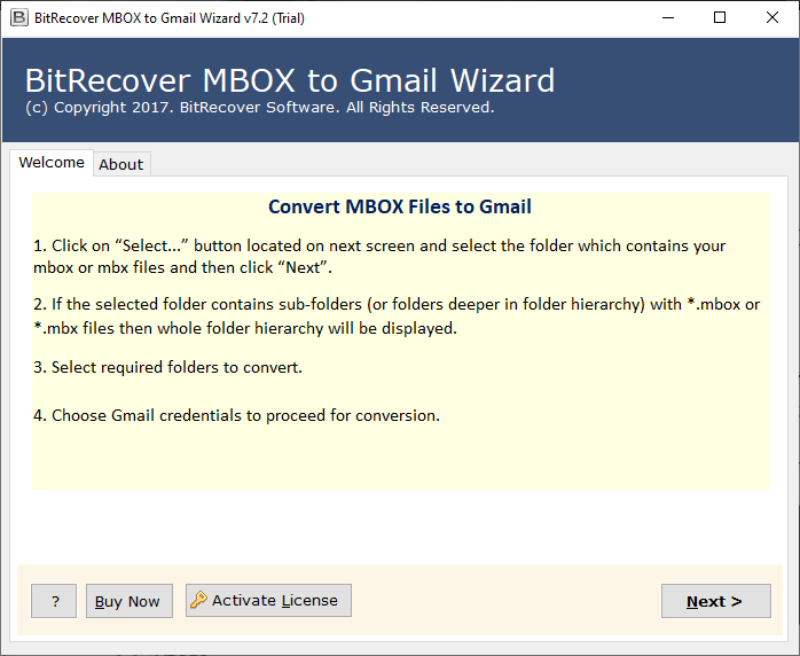 <strong>Step 2: </strong>Upload the MBOX file through the Select Files/Select Folders option. Then click on Next. 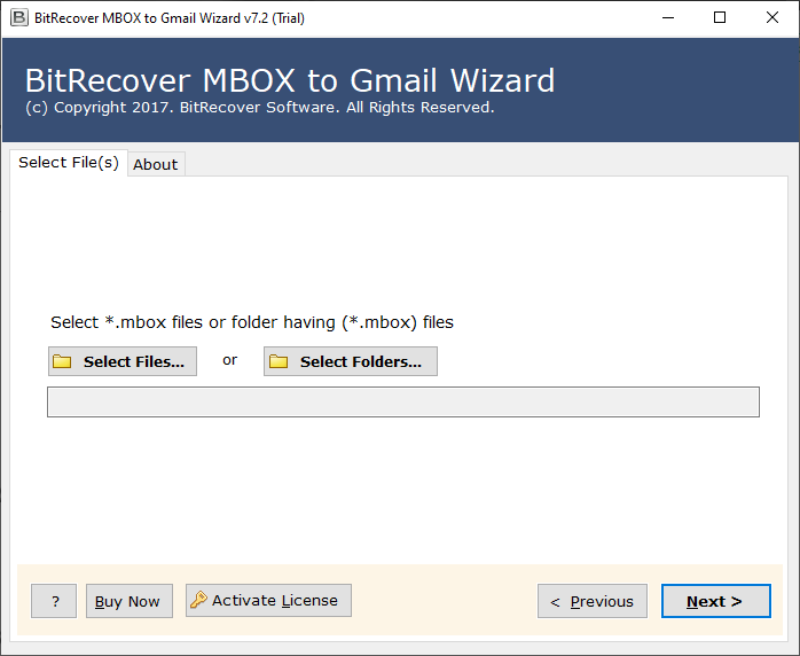 <strong>Step 3:</strong> Pick the MBOX files from the Select Folder tab & hit the Next button. 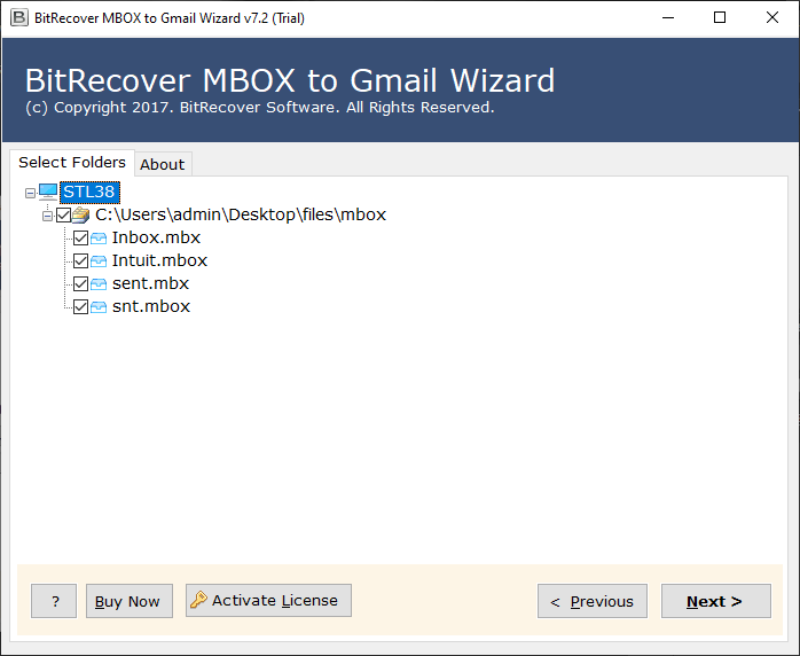 <strong>Step 4: </strong>Finally enter the Gmail login credentials & click on the Next button. 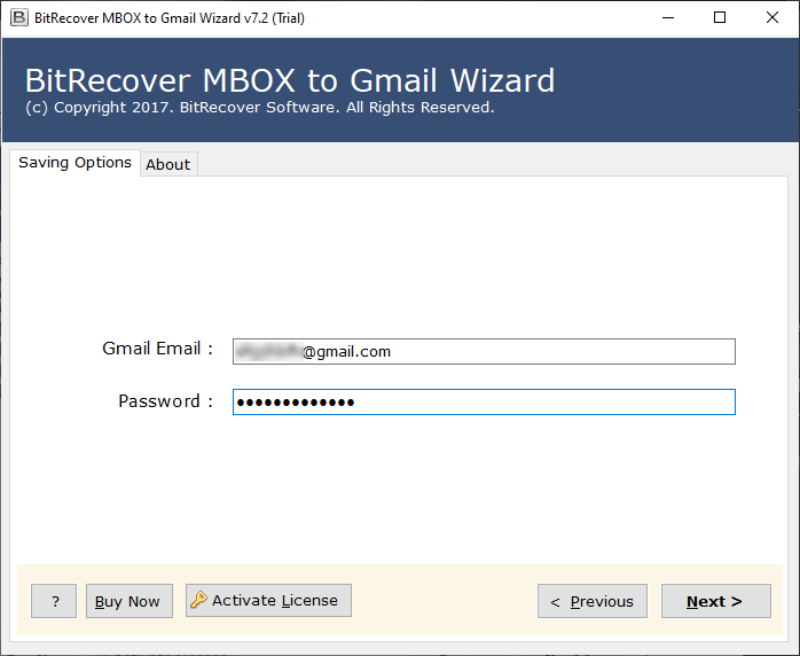 <strong>Step 5: </strong>The utility initiates the MBOX data transfer with a progress report. 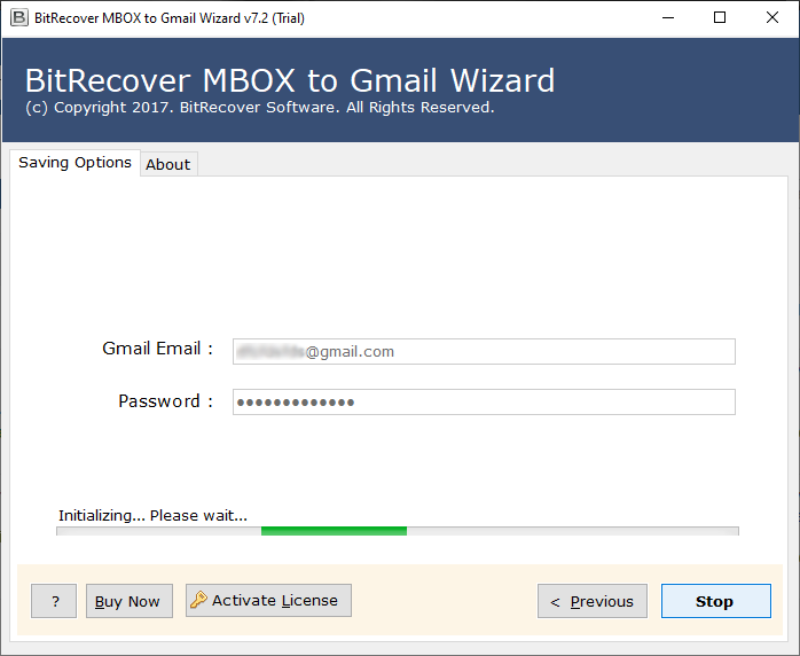 After complete the entire steps the entire MBOX file data will move into the given Gmail account. So the user can easily view MBOX files in Gmail accounts <strong><h2>Brilliant Solution to Open MBOX files in Gmail Account </h2></strong> Are you trying to open your MBOX file data through the Gmail account? Then MBOX to Gmail migration tool is the best choice for you. This tool is designed to reduce the user effort to access their archived MBOX data through the desired Gmail account. It provides the instant transfer of email data from MBOX to Gmail. The utility includes several efficient features to simplify the migration process and secure the data. Understand various tool features from the below section. <strong>1. Direct Data Transfer:</strong>The tool provide the direct conversion of the email messages from the MBOX file to Gmail. With the help of Gmail login credentials like email address & password, user can move any MBOX data to the desired Gmail account instantly. <strong>2. Dual Import Option: </strong>Trough two different options such as Select File & Select Folder user can import the required MBOX file into the software. <strong>(a) Select File:</strong> It allows to selectively upload single MBOX file. <strong>(b) Select Folder:</strong> Through this users can upload a bulk number of MBOX files as a folder. <strong>3. User-friendly Interface:</strong> The wizard structure helps the users to effortlessly work with the tool. Both technical and nontechnical users can easily use the tool without any special training. <strong>4. Attachments & Properties Management: </strong>All email properties & attachments are maintained as it was in the MBOX. After the successful migration user can view MBOX files in Gmail with all its attachments. <strong>5. Maintain Folder Hierarchy: </strong>During the migration process, software retains the structure of all folders. It helps to maintain the folder hierarchy as it was in the MBOX file. <strong> 6. No File Size limitation: </strong>The tool doesn't have any restriction on the size of MBOX file. So the user can easily move large sized MBOX files. <strong>7. Live Progress Report:</strong> During the data transfer take place, the user can easily track the progress. That is the tool provides live progress of the migration process through its interface. These are the few important features of MBOX to the Gmail migration tool. While working with the tool you can find many other advanced features that help to effortlessly open MBOX files in Gmail. <strong><h3>Final Words</h3></strong> After reading this blog now you all are aware of How to view MBOX files in Gmail. In the above section, we provided detailed step by step procures of the secure migration process. With the help of the above mentioned third party tool user can easily open the MBOX file data through Gmail |
| json metadata | {"tags":["to","view","mbox","files","in","gmail"],"image":["https://cdn.steemitimages.com/DQmPwficw4RRXFzWMGQckoep7jnMPycdCnh2ftmSKYP1YRX/download-button.png","https://cdn.steemitimages.com/DQmaBdN83nhHj61jCdhdg9ZKqH1MyqXFY4aBopnv6fbZd6Y/run-mbox-to-gmail-wizard.png","https://cdn.steemitimages.com/DQmeqzikhBYyrD3RfHCD9y6Wv9Zd2yJmGPvu92CveFH1Kpf/select-mbox-files.png","https://cdn.steemitimages.com/DQmS2RFEYiakZWCcdwryfqhdfyGniSYWzB2w17NusTdPsJn/choose-files.png","https://cdn.steemitimages.com/DQmVECCjDAJhZydr3QUVj4vv7WRiSTVq35iniEw7tKi5QKj/gmail-login-details.png","https://cdn.steemitimages.com/DQmcGTh7GHbDv44iHX48D89moMsiAHt7DPxuUR8QCjDHjsY/conversion-process.png"],"links":["https://www.bitrecover.com/dl/bitrecover-mbox-to-gmail-wizard.exe"],"app":"steemit/0.1","format":"markdown"} |
| parent author | |
| parent permlink | how |
| permlink | how-to-view-mbox-files-in-gmail |
| title | Explore How to View MBOX Files In Gmail – Reliable Solution |
| Transaction Info | Block #38196198/Trx d3d804d893e68a49e1a13f8b10c189060aea150d |
View Raw JSON Data
{
"block": 38196198,
"op": [
"comment",
{
"author": "hazel1",
"body": "Having a local copy of your important data will always help to avoid unexpected data corruption and data loss situations. Did you ever think how to upload these backed up data back into the email client? In this blog, we are going to discuss how to view MBOX files in Gmail. \n\nNowadays, for many reasons users want to backup their Gmail data into the local system. Also, the users mostly prefer the MBOX file format to create the local copy of their mailbox data. But while trying to import archived data back into the Gmail account, most of them face different problems. The main reason behind it is, Gmail doesn't provide any direct option to upload MBOX file.\n\n<strong>Expert Choice:</strong> MBOX to Gmail Wizard tool is a brilliant software solution to open MBOX files in Gmail account. This tool will provide an instant transfer of MBOX data to the desired Gmail account. The various unique features of this tool make it as the most recommended expert choice. Find the free demo version from here:\n\n<em>“I have been a Gmail user for a very long time. Also, I am using the same account to manage both personal and business data. But for last few days I am facing storage issues. So at last, I removed a few of my unimportant email messages from the account. I always make sure to keep a copy of the data in the MBOX file before it deletes. But now I got an urgent work where I need some of the old data. Anyone, please suggest me a solution to upload my data back into Gmail.”</em>\n\nDo you have similar issues? Are you also searching for a solution for<strong><a href=\"\"> how to import MBOX files in Gmail</a></strong>? Then no need to worry anymore. We have an excellent solution to solve all your problems. Download the utility from the given button.\n\n<a href=\"https://www.bitrecover.com/dl/bitrecover-mbox-to-gmail-wizard.exe\"></a>\n\n<strong><h2>How to View MBOX Files in Gmail? - Stepwise Procedure</h2></strong>\n\nLaunch the MBOX to Gmail migration tool in your windows system and follow theses procedure to open MBOX files in Gmail:\n\n<strong>Step 1: </strong>Open the installed migration tool from your system\n\n<strong>Step 2: </strong>Upload the MBOX file through the Select Files/Select Folders option. Then click on Next.\n\n<strong>Step 3:</strong> Pick the MBOX files from the Select Folder tab & hit the Next button. \n\n<strong>Step 4: </strong>Finally enter the Gmail login credentials & click on the Next button.\n\n<strong>Step 5: </strong>The utility initiates the MBOX data transfer with a progress report.\n\n\nAfter complete the entire steps the entire MBOX file data will move into the given Gmail account. So the user can easily view MBOX files in Gmail accounts\n\n<strong><h2>Brilliant Solution to Open MBOX files in Gmail Account </h2></strong>\n\nAre you trying to open your MBOX file data through the Gmail account? Then MBOX to Gmail migration tool is the best choice for you. This tool is designed to reduce the user effort to access their archived MBOX data through the desired Gmail account. It provides the instant transfer of email data from MBOX to Gmail. The utility includes several efficient features to simplify the migration process and secure the data. Understand various tool features from the below section.\n\n<strong>1. Direct Data Transfer:</strong>The tool provide the direct conversion of the email messages from the MBOX file to Gmail. With the help of Gmail login credentials like email address & password, user can move any MBOX data to the desired Gmail account instantly.\n\n\n<strong>2. Dual Import Option: </strong>Trough two different options such as Select File & Select Folder user can import the required MBOX file into the software.\n<strong>(a) Select File:</strong> It allows to selectively upload single MBOX file.\n<strong>(b) Select Folder:</strong> Through this users can upload a bulk number of MBOX files as a folder.\n\n<strong>3. User-friendly Interface:</strong> The wizard structure helps the users to effortlessly work with the tool. Both technical and nontechnical users can easily use the tool without any special training.\n\n<strong>4. Attachments & Properties Management: </strong>All email properties & attachments are maintained as it was in the MBOX. After the successful migration user can view MBOX files in Gmail with all its attachments.\n\n<strong>5. Maintain Folder Hierarchy: </strong>During the migration process, software retains the structure of all folders. It helps to maintain the folder hierarchy as it was in the MBOX file. \n\n<strong> 6. No File Size limitation: </strong>The tool doesn't have any restriction on the size of MBOX file. So the user can easily move large sized MBOX files.\n\n <strong>7. Live Progress Report:</strong> During the data transfer take place, the user can easily track the progress. That is the tool provides live progress of the migration process through its interface.\n\n\nThese are the few important features of MBOX to the Gmail migration tool. While working with the tool you can find many other advanced features that help to effortlessly open MBOX files in Gmail.\n\n<strong><h3>Final Words</h3></strong>\n\nAfter reading this blog now you all are aware of How to view MBOX files in Gmail. In the above section, we provided detailed step by step procures of the secure migration process. With the help of the above mentioned third party tool user can easily open the MBOX file data through Gmail",
"json_metadata": "{\"tags\":[\"to\",\"view\",\"mbox\",\"files\",\"in\",\"gmail\"],\"image\":[\"https://cdn.steemitimages.com/DQmPwficw4RRXFzWMGQckoep7jnMPycdCnh2ftmSKYP1YRX/download-button.png\",\"https://cdn.steemitimages.com/DQmaBdN83nhHj61jCdhdg9ZKqH1MyqXFY4aBopnv6fbZd6Y/run-mbox-to-gmail-wizard.png\",\"https://cdn.steemitimages.com/DQmeqzikhBYyrD3RfHCD9y6Wv9Zd2yJmGPvu92CveFH1Kpf/select-mbox-files.png\",\"https://cdn.steemitimages.com/DQmS2RFEYiakZWCcdwryfqhdfyGniSYWzB2w17NusTdPsJn/choose-files.png\",\"https://cdn.steemitimages.com/DQmVECCjDAJhZydr3QUVj4vv7WRiSTVq35iniEw7tKi5QKj/gmail-login-details.png\",\"https://cdn.steemitimages.com/DQmcGTh7GHbDv44iHX48D89moMsiAHt7DPxuUR8QCjDHjsY/conversion-process.png\"],\"links\":[\"https://www.bitrecover.com/dl/bitrecover-mbox-to-gmail-wizard.exe\"],\"app\":\"steemit/0.1\",\"format\":\"markdown\"}",
"parent_author": "",
"parent_permlink": "how",
"permlink": "how-to-view-mbox-files-in-gmail",
"title": "Explore How to View MBOX Files In Gmail – Reliable Solution"
}
],
"op_in_trx": 0,
"timestamp": "2019-11-15T12:30:51",
"trx_id": "d3d804d893e68a49e1a13f8b10c189060aea150d",
"trx_in_block": 4,
"virtual_op": 0
}hazel1published a new post: how-to-view-mbox-files-in-gmail2019/11/15 12:30:03
hazel1published a new post: how-to-view-mbox-files-in-gmail
2019/11/15 12:30:03
| author | hazel1 |
| body | Having a local copy of your important data will always help to avoid unexpected data corruption and data loss situations. Did you ever think how to upload these backed up data back into the email client? In this blog, we are going to discuss how to view MBOX files in Gmail. Nowadays, for many reasons users want to backup their Gmail data into the local system. Also, the users mostly prefer the MBOX file format to create the local copy of their mailbox data. But while trying to import archived data back into the Gmail account, most of them face different problems. The main reason behind it is, Gmail doesn't provide any direct option to upload MBOX file. <strong>Expert Choice:</strong> MBOX to Gmail Wizard tool is a brilliant software solution to open MBOX files in Gmail account. This tool will provide an instant transfer of MBOX data to the desired Gmail account. The various unique features of this tool make it as the most recommended expert choice. Find the free demo version from here: <em>“I have been a Gmail user for a very long time. Also, I am using the same account to manage both personal and business data. But for last few days I am facing storage issues. So at last, I removed a few of my unimportant email messages from the account. I always make sure to keep a copy of the data in the MBOX file before it deletes. But now I got an urgent work where I need some of the old data. Anyone, please suggest me a solution to upload my data back into Gmail.”</em> Do you have similar issues? Are you also searching for a solution for<strong><a href=""> how to import MBOX files in Gmail</a></strong>? Then no need to worry anymore. We have an excellent solution to solve all your problems. Download the utility from the given button. <a href="https://www.bitrecover.com/dl/bitrecover-mbox-to-gmail-wizard.exe"></a> <strong><h2>How to View MBOX Files in Gmail? - Stepwise Procedure</h2></strong> Launch the MBOX to Gmail migration tool in your windows system and follow theses procedure to open MBOX files in Gmail: <strong>Step 1: </strong>Open the installed migration tool from your system  <strong>Step 2: </strong>Upload the MBOX file through the Select Files/Select Folders option. Then click on Next.  <strong>Step 3:</strong> Pick the MBOX files from the Select Folder tab & hit the Next button.  <strong>Step 4: </strong>Finally enter the Gmail login credentials & click on the Next button.  <strong>Step 5: </strong>The utility initiates the MBOX data transfer with a progress report.  After complete the entire steps the entire MBOX file data will move into the given Gmail account. So the user can easily view MBOX files in Gmail accounts <strong><h2>Brilliant Solution to Open MBOX files in Gmail Account </h2></strong> Are you trying to open your MBOX file data through the Gmail account? Then MBOX to Gmail migration tool is the best choice for you. This tool is designed to reduce the user effort to access their archived MBOX data through the desired Gmail account. It provides the instant transfer of email data from MBOX to Gmail. The utility includes several efficient features to simplify the migration process and secure the data. Understand various tool features from the below section. <strong>1. Direct Data Transfer:</strong>The tool provide the direct conversion of the email messages from the MBOX file to Gmail. With the help of Gmail login credentials like email address & password, user can move any MBOX data to the desired Gmail account instantly. <strong>2. Dual Import Option: </strong>Trough two different options such as Select File & Select Folder user can import the required MBOX file into the software. <strong>(a) Select File:</strong> It allows to selectively upload single MBOX file. <strong>(b) Select Folder:</strong> Through this users can upload a bulk number of MBOX files as a folder. <strong>3. User-friendly Interface:</strong> The wizard structure helps the users to effortlessly work with the tool. Both technical and nontechnical users can easily use the tool without any special training. <strong>4. Attachments & Properties Management: </strong>All email properties & attachments are maintained as it was in the MBOX. After the successful migration user can view MBOX files in Gmail with all its attachments. <strong>5. Maintain Folder Hierarchy: </strong>During the migration process, software retains the structure of all folders. It helps to maintain the folder hierarchy as it was in the MBOX file. <strong> 6. No File Size limitation: </strong>The tool doesn't have any restriction on the size of MBOX file. So the user can easily move large sized MBOX files. <strong>7. Live Progress Report:</strong> During the data transfer take place, the user can easily track the progress. That is the tool provides live progress of the migration process through its interface. These are the few important features of MBOX to the Gmail migration tool. While working with the tool you can find many other advanced features that help to effortlessly open MBOX files in Gmail. <strong><h3>Final Words</h3></strong> After reading this blog now you all are aware of How to view MBOX files in Gmail. In the above section, we provided detailed step by step procures of the secure migration process. With the help of the above mentioned third party tool user can easily open the MBOX file data through Gmail |
| json metadata | {"tags":["how","to","view","mbox","files","in","gmail"],"image":["https://cdn.steemitimages.com/DQmPwficw4RRXFzWMGQckoep7jnMPycdCnh2ftmSKYP1YRX/download-button.png","https://cdn.steemitimages.com/DQmaBdN83nhHj61jCdhdg9ZKqH1MyqXFY4aBopnv6fbZd6Y/run-mbox-to-gmail-wizard.png","https://cdn.steemitimages.com/DQmeqzikhBYyrD3RfHCD9y6Wv9Zd2yJmGPvu92CveFH1Kpf/select-mbox-files.png","https://cdn.steemitimages.com/DQmS2RFEYiakZWCcdwryfqhdfyGniSYWzB2w17NusTdPsJn/choose-files.png","https://cdn.steemitimages.com/DQmVECCjDAJhZydr3QUVj4vv7WRiSTVq35iniEw7tKi5QKj/gmail-login-details.png","https://cdn.steemitimages.com/DQmcGTh7GHbDv44iHX48D89moMsiAHt7DPxuUR8QCjDHjsY/conversion-process.png"],"links":["https://www.bitrecover.com/dl/bitrecover-mbox-to-gmail-wizard.exe"],"app":"steemit/0.1","format":"markdown"} |
| parent author | |
| parent permlink | how |
| permlink | how-to-view-mbox-files-in-gmail |
| title | how to view mbox files in gmail |
| Transaction Info | Block #38196182/Trx 7b40a0953954719bd78bce9babb9293a81b24215 |
View Raw JSON Data
{
"block": 38196182,
"op": [
"comment",
{
"author": "hazel1",
"body": "Having a local copy of your important data will always help to avoid unexpected data corruption and data loss situations. Did you ever think how to upload these backed up data back into the email client? In this blog, we are going to discuss how to view MBOX files in Gmail. \n\nNowadays, for many reasons users want to backup their Gmail data into the local system. Also, the users mostly prefer the MBOX file format to create the local copy of their mailbox data. But while trying to import archived data back into the Gmail account, most of them face different problems. The main reason behind it is, Gmail doesn't provide any direct option to upload MBOX file.\n\n<strong>Expert Choice:</strong> MBOX to Gmail Wizard tool is a brilliant software solution to open MBOX files in Gmail account. This tool will provide an instant transfer of MBOX data to the desired Gmail account. The various unique features of this tool make it as the most recommended expert choice. Find the free demo version from here:\n\n<em>“I have been a Gmail user for a very long time. Also, I am using the same account to manage both personal and business data. But for last few days I am facing storage issues. So at last, I removed a few of my unimportant email messages from the account. I always make sure to keep a copy of the data in the MBOX file before it deletes. But now I got an urgent work where I need some of the old data. Anyone, please suggest me a solution to upload my data back into Gmail.”</em>\n\nDo you have similar issues? Are you also searching for a solution for<strong><a href=\"\"> how to import MBOX files in Gmail</a></strong>? Then no need to worry anymore. We have an excellent solution to solve all your problems. Download the utility from the given button.\n\n<a href=\"https://www.bitrecover.com/dl/bitrecover-mbox-to-gmail-wizard.exe\"></a>\n\n<strong><h2>How to View MBOX Files in Gmail? - Stepwise Procedure</h2></strong>\n\nLaunch the MBOX to Gmail migration tool in your windows system and follow theses procedure to open MBOX files in Gmail:\n\n<strong>Step 1: </strong>Open the installed migration tool from your system\n\n<strong>Step 2: </strong>Upload the MBOX file through the Select Files/Select Folders option. Then click on Next.\n\n<strong>Step 3:</strong> Pick the MBOX files from the Select Folder tab & hit the Next button. \n\n<strong>Step 4: </strong>Finally enter the Gmail login credentials & click on the Next button.\n\n<strong>Step 5: </strong>The utility initiates the MBOX data transfer with a progress report.\n\n\nAfter complete the entire steps the entire MBOX file data will move into the given Gmail account. So the user can easily view MBOX files in Gmail accounts\n\n<strong><h2>Brilliant Solution to Open MBOX files in Gmail Account </h2></strong>\n\nAre you trying to open your MBOX file data through the Gmail account? Then MBOX to Gmail migration tool is the best choice for you. This tool is designed to reduce the user effort to access their archived MBOX data through the desired Gmail account. It provides the instant transfer of email data from MBOX to Gmail. The utility includes several efficient features to simplify the migration process and secure the data. Understand various tool features from the below section.\n\n<strong>1. Direct Data Transfer:</strong>The tool provide the direct conversion of the email messages from the MBOX file to Gmail. With the help of Gmail login credentials like email address & password, user can move any MBOX data to the desired Gmail account instantly.\n\n\n<strong>2. Dual Import Option: </strong>Trough two different options such as Select File & Select Folder user can import the required MBOX file into the software.\n<strong>(a) Select File:</strong> It allows to selectively upload single MBOX file.\n<strong>(b) Select Folder:</strong> Through this users can upload a bulk number of MBOX files as a folder.\n\n<strong>3. User-friendly Interface:</strong> The wizard structure helps the users to effortlessly work with the tool. Both technical and nontechnical users can easily use the tool without any special training.\n\n<strong>4. Attachments & Properties Management: </strong>All email properties & attachments are maintained as it was in the MBOX. After the successful migration user can view MBOX files in Gmail with all its attachments.\n\n<strong>5. Maintain Folder Hierarchy: </strong>During the migration process, software retains the structure of all folders. It helps to maintain the folder hierarchy as it was in the MBOX file. \n\n<strong> 6. No File Size limitation: </strong>The tool doesn't have any restriction on the size of MBOX file. So the user can easily move large sized MBOX files.\n\n <strong>7. Live Progress Report:</strong> During the data transfer take place, the user can easily track the progress. That is the tool provides live progress of the migration process through its interface.\n\n\nThese are the few important features of MBOX to the Gmail migration tool. While working with the tool you can find many other advanced features that help to effortlessly open MBOX files in Gmail.\n\n<strong><h3>Final Words</h3></strong>\n\nAfter reading this blog now you all are aware of How to view MBOX files in Gmail. In the above section, we provided detailed step by step procures of the secure migration process. With the help of the above mentioned third party tool user can easily open the MBOX file data through Gmail",
"json_metadata": "{\"tags\":[\"how\",\"to\",\"view\",\"mbox\",\"files\",\"in\",\"gmail\"],\"image\":[\"https://cdn.steemitimages.com/DQmPwficw4RRXFzWMGQckoep7jnMPycdCnh2ftmSKYP1YRX/download-button.png\",\"https://cdn.steemitimages.com/DQmaBdN83nhHj61jCdhdg9ZKqH1MyqXFY4aBopnv6fbZd6Y/run-mbox-to-gmail-wizard.png\",\"https://cdn.steemitimages.com/DQmeqzikhBYyrD3RfHCD9y6Wv9Zd2yJmGPvu92CveFH1Kpf/select-mbox-files.png\",\"https://cdn.steemitimages.com/DQmS2RFEYiakZWCcdwryfqhdfyGniSYWzB2w17NusTdPsJn/choose-files.png\",\"https://cdn.steemitimages.com/DQmVECCjDAJhZydr3QUVj4vv7WRiSTVq35iniEw7tKi5QKj/gmail-login-details.png\",\"https://cdn.steemitimages.com/DQmcGTh7GHbDv44iHX48D89moMsiAHt7DPxuUR8QCjDHjsY/conversion-process.png\"],\"links\":[\"https://www.bitrecover.com/dl/bitrecover-mbox-to-gmail-wizard.exe\"],\"app\":\"steemit/0.1\",\"format\":\"markdown\"}",
"parent_author": "",
"parent_permlink": "how",
"permlink": "how-to-view-mbox-files-in-gmail",
"title": "how to view mbox files in gmail"
}
],
"op_in_trx": 0,
"timestamp": "2019-11-15T12:30:03",
"trx_id": "7b40a0953954719bd78bce9babb9293a81b24215",
"trx_in_block": 8,
"virtual_op": 0
}2019/09/24 08:41:21
2019/09/24 08:41:21
| delegatee | hazel1 |
| delegator | steem |
| vesting shares | 29684.837940 VESTS |
| Transaction Info | Block #36697035/Trx 1a6bc942ef3ae67a4f74e53603a3cee4f071f213 |
View Raw JSON Data
{
  "block": 36697035,
  "op": [
    "delegate_vesting_shares",
    {
      "delegatee": "hazel1",
      "delegator": "steem",
      "vesting_shares": "29684.837940 VESTS"
    }
  ],
  "op_in_trx": 0,
  "timestamp": "2019-09-24T08:41:21",
  "trx_id": "1a6bc942ef3ae67a4f74e53603a3cee4f071f213",
  "trx_in_block": 13,
  "virtual_op": 0
}filipinoupvoted (10.00%) @hazel1 / extract-attachments-from-pst-file2019/09/24 08:32:21
filipinoupvoted (10.00%) @hazel1 / extract-attachments-from-pst-file
2019/09/24 08:32:21
| author | hazel1 |
| permlink | extract-attachments-from-pst-file |
| voter | filipino |
| weight | 1000 (10.00%) |
| Transaction Info | Block #36696855/Trx 8a4334e236cfea2051a9c48e6d5c897585012007 |
View Raw JSON Data
{
  "block": 36696855,
  "op": [
    "vote",
    {
      "author": "hazel1",
      "permlink": "extract-attachments-from-pst-file",
      "voter": "filipino",
      "weight": 1000
    }
  ],
  "op_in_trx": 0,
  "timestamp": "2019-09-24T08:32:21",
  "trx_id": "8a4334e236cfea2051a9c48e6d5c897585012007",
  "trx_in_block": 9,
  "virtual_op": 0
}hazel1published a new post: extract-attachments-from-pst-file2019/09/24 07:58:51
hazel1published a new post: extract-attachments-from-pst-file
2019/09/24 07:58:51
| author | hazel1 |
| body | Many times, due to the exceeding file size limit of PST file, users wish to extract attachments from PST file and increase the storage space in PST file. But, mostly they do not know how to extract attachments from Outlook PST file without Outlook application. If you are also among those who are looking for the same solution, discover the direct method given to extract attachments from PST file. In this write-up, we have tried to give a proper stepwise solution to extract attachments from PST file with ease. If you try the manual method to extract all attachments from PST files, it may have some limitations. To avoid these restrictions and risk of data loss or file corruption, it is better to choose the automated solution to extract attachments from PST file. Also, many user queries can be solved with this tool. <h3>Some User Queries</h3> How do I extract an email attachment from PST file ? How do I extract all attachments from Outlook ? Is there a way to export multiple PST email attachments to local storage ? <h2>Solution to Extract All Attachments from Outlook PST File</h2> The tool to export attachments from Outlook PST file is a very efficient software solution. The utility is useful and allows to extract attachments from PST file with ease.<strong> <a href = "https://www.4n6soft.com/outlook-attachment-extractor/">Outlook Attachment Extractor </a></strong>offers a variety of features and benefits. To extract attachments from Outlook PST, the utility gives different options such as Delete old folder, Open folder after export is done, etc. The simple and interactive interface of the software makes it easy for all type of users to extract attachments. Also, with this utility, you can extract multiple attachments from PST file. So, download the tool and follow a few simple steps to extract all attachments from PST file. <a href="https://www.4n6soft.com/outlook-attachment-extractor/"></a> <h2>How to Extract Attachments from PST File – Complete Steps </h2> 1. Firstly, download and run the solution to extract all PST attachments on any Windows computer. 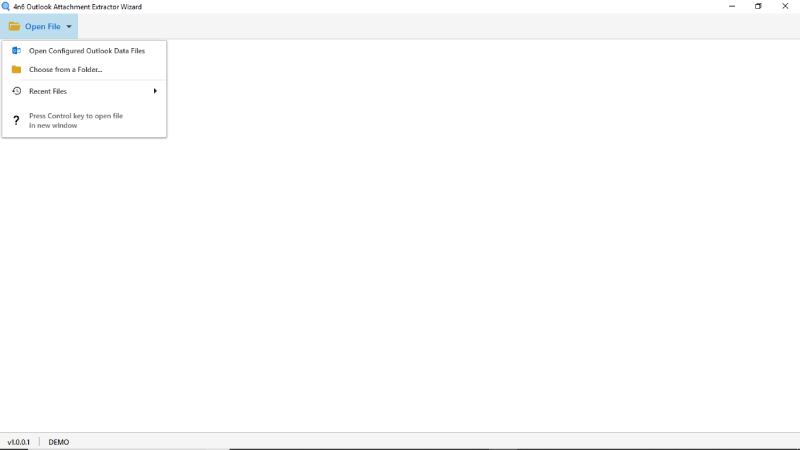 2. Now, from the Open File option, add the required PST files to export attachments. Also, the tool gives an option to select from the recently added files. 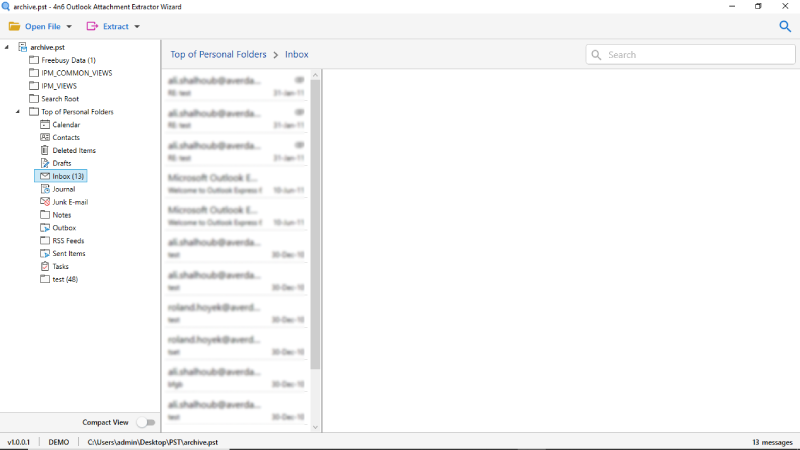 3. The tool gives a complete preview of the added file. Also, you can check emails for attachments. Click on Extract to choose Attachments option. 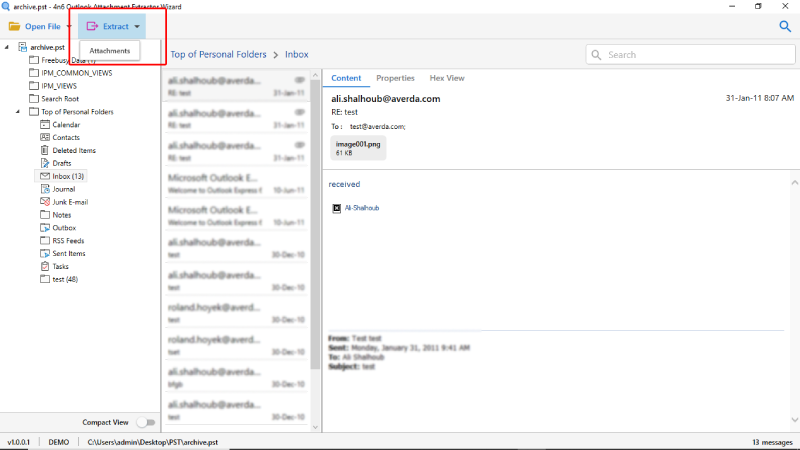 4. The software to extract attachments from Outlook PST file will give multiple options. Select the required option along with the destination path to save Output files. 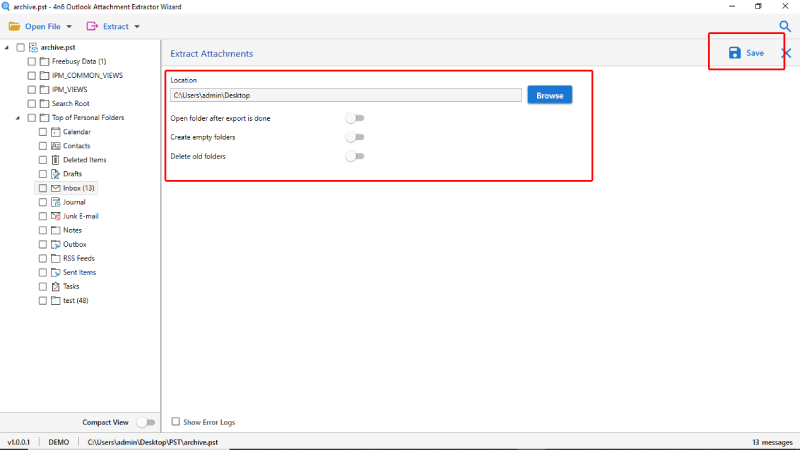 5. In the end, click on Save button. 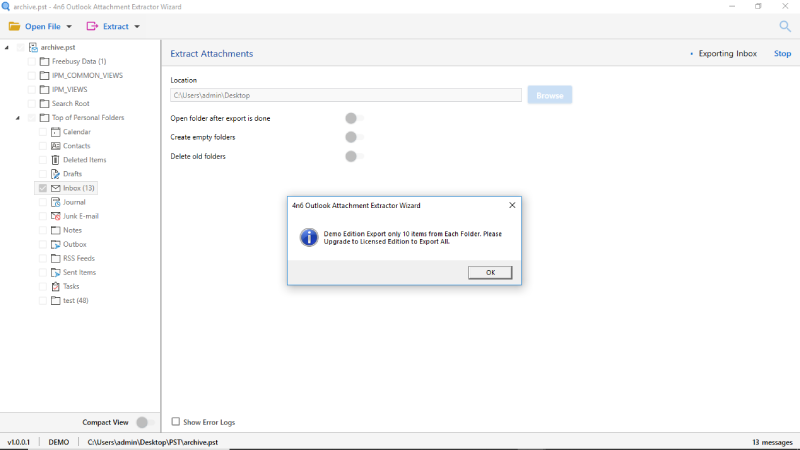 <h3>Features of Outlook Attachment Extractor</h3> 1. The utility to extract attachments from PST file is a multi-featured software solution. It can be installed on any version of Windows Operating System. 2. The tool allows to extract multiple PST file attachments at once without any limitation. Any number of PST file attachments can be extracted. 3. To extract all attachments from PST file, you do not need Outlook application. The software is completely standalone and does not require any external support. 4. It gives an option to open folder after export is done. By choosing this option, the tool will automatically open the folder containing Output files once the export is done. 5. With tool to extract attachments from PST files, you can choose the destination path and save output files at desired location. 6 The tool gives a complete preview of all emails along with their attachments. Also, there is a compact view option using which you can choose to view system and user folders. <h4>Closure</h4> In the above article, an appropriate solution to extract attachments from PST file has been mentioned. It is suggested to use this utility instead of going with the manual method to avoid risk. It offers a number of features. You can extract multiple email attachments together with this tool. Also, there is a trial version available for the tool. You can experience the software working before purchasing. |
| json metadata | {"tags":["extract","attachments","from","pst","file"],"image":["https://cdn.steemitimages.com/DQmPwficw4RRXFzWMGQckoep7jnMPycdCnh2ftmSKYP1YRX/download-button-1-1.png","https://cdn.steemitimages.com/DQmYo57Hxo3J51zZ6aoPirqRfmNaZ5AP5rUFTzaa1KxiZr9/run-tool.png","https://cdn.steemitimages.com/DQmf4kbzTGWCa7ZFJBU6YCh6y41RFAtZoSpxtdiwW7vi6eW/add-outlook-files.png","https://cdn.steemitimages.com/DQmcyznkwKpdXVeMQzC6vA4UQXzbvjtU3Aa55mzrrhJX7hv/check-preview-cextract.png","https://cdn.steemitimages.com/DQmbfmXezVL7xKfmD6NKCPfQXAGsZP5GobNJAig9w25jvQ9/extract-attachment-options.png","https://cdn.steemitimages.com/DQmdUk1iT3HRGUjgRjqXKNTSZjaM39WqJCe5utAvReTQECe/extract-attachment-complete.png"],"links":["https://www.4n6soft.com/outlook-attachment-extractor/"],"app":"steemit/0.1","format":"markdown"} |
| parent author | |
| parent permlink | extract |
| permlink | extract-attachments-from-pst-file |
| title | How to Extract Attachments from PST File ? - Export All Attachments from Outlook PST Files |
| Transaction Info | Block #36696185/Trx 6fec0ebea95de0f38c4fc22209a2c8db6295e4b1 |
View Raw JSON Data
{
"block": 36696185,
"op": [
"comment",
{
"author": "hazel1",
"body": "Many times, due to the exceeding file size limit of PST file, users wish to extract attachments from PST file and increase the storage space in PST file. But, mostly they do not know how to extract attachments from Outlook PST file without Outlook application. If you are also among those who are looking for the same solution, discover the direct method given to extract attachments from PST file.\n\nIn this write-up, we have tried to give a proper stepwise solution to extract attachments from PST file with ease. If you try the manual method to extract all attachments from PST files, it may have some limitations. To avoid these restrictions and risk of data loss or file corruption, it is better to choose the automated solution to extract attachments from PST file. Also, many user queries can be solved with this tool.\n\n<h3>Some User Queries</h3>\n\nHow do I extract an email attachment from PST file ?\nHow do I extract all attachments from Outlook ?\nIs there a way to export multiple PST email attachments to local storage ?\n\n<h2>Solution to Extract All Attachments from Outlook PST File</h2>\n\nThe tool to export attachments from Outlook PST file is a very efficient software solution. The utility is useful and allows to extract attachments from PST file with ease.<strong> <a href = \"https://www.4n6soft.com/outlook-attachment-extractor/\">Outlook Attachment Extractor </a></strong>offers a variety of features and benefits. To extract attachments from Outlook PST, the utility gives different options such as Delete old folder, Open folder after export is done, etc. The simple and interactive interface of the software makes it easy for all type of users to extract attachments. Also, with this utility, you can extract multiple attachments from PST file. \n\nSo, download the tool and follow a few simple steps to extract all attachments from PST file.\n<a href=\"https://www.4n6soft.com/outlook-attachment-extractor/\"></a>\n\n<h2>How to Extract Attachments from PST File – Complete Steps </h2>\n\n1. Firstly, download and run the solution to extract all PST attachments on any Windows computer.\n\n2. Now, from the Open File option, add the required PST files to export attachments. Also, the tool gives an option to select from the recently added files.\n\n3. The tool gives a complete preview of the added file. Also, you can check emails for attachments. Click on Extract to choose Attachments option.\n\n4. The software to extract attachments from Outlook PST file will give multiple options. Select the required option along with the destination path to save Output files.\n\n5. In the end, click on Save button.\n\n\n\n<h3>Features of Outlook Attachment Extractor</h3>\n\n1. The utility to extract attachments from PST file is a multi-featured software solution. It can be installed on any version of Windows Operating System.\n2. The tool allows to extract multiple PST file attachments at once without any limitation. Any number of PST file attachments can be extracted.\n3. To extract all attachments from PST file, you do not need Outlook application. The software is completely standalone and does not require any external support.\n4. It gives an option to open folder after export is done. By choosing this option, the tool will automatically open the folder containing Output files once the export is done.\n5. With tool to extract attachments from PST files, you can choose the destination path and save output files at desired location.\n6 The tool gives a complete preview of all emails along with their attachments. Also, there is a compact view option using which you can choose to view system and user folders. \n\n<h4>Closure</h4>\n\nIn the above article, an appropriate solution to extract attachments from PST file has been mentioned. It is suggested to use this utility instead of going with the manual method to avoid risk. It offers a number of features. You can extract multiple email attachments together with this tool. Also, there is a trial version available for the tool. You can experience the software working before purchasing.",
"json_metadata": "{\"tags\":[\"extract\",\"attachments\",\"from\",\"pst\",\"file\"],\"image\":[\"https://cdn.steemitimages.com/DQmPwficw4RRXFzWMGQckoep7jnMPycdCnh2ftmSKYP1YRX/download-button-1-1.png\",\"https://cdn.steemitimages.com/DQmYo57Hxo3J51zZ6aoPirqRfmNaZ5AP5rUFTzaa1KxiZr9/run-tool.png\",\"https://cdn.steemitimages.com/DQmf4kbzTGWCa7ZFJBU6YCh6y41RFAtZoSpxtdiwW7vi6eW/add-outlook-files.png\",\"https://cdn.steemitimages.com/DQmcyznkwKpdXVeMQzC6vA4UQXzbvjtU3Aa55mzrrhJX7hv/check-preview-cextract.png\",\"https://cdn.steemitimages.com/DQmbfmXezVL7xKfmD6NKCPfQXAGsZP5GobNJAig9w25jvQ9/extract-attachment-options.png\",\"https://cdn.steemitimages.com/DQmdUk1iT3HRGUjgRjqXKNTSZjaM39WqJCe5utAvReTQECe/extract-attachment-complete.png\"],\"links\":[\"https://www.4n6soft.com/outlook-attachment-extractor/\"],\"app\":\"steemit/0.1\",\"format\":\"markdown\"}",
"parent_author": "",
"parent_permlink": "extract",
"permlink": "extract-attachments-from-pst-file",
"title": "How to Extract Attachments from PST File ? - Export All Attachments from Outlook PST Files"
}
],
"op_in_trx": 0,
"timestamp": "2019-09-24T07:58:51",
"trx_id": "6fec0ebea95de0f38c4fc22209a2c8db6295e4b1",
"trx_in_block": 5,
"virtual_op": 0
}hazel1published a new post: extract-attachments-from-pst-file2019/09/24 07:57:51
hazel1published a new post: extract-attachments-from-pst-file
2019/09/24 07:57:51
| author | hazel1 |
| body | Many times, due to the exceeding file size limit of PST file, users wish to extract attachments from PST file and increase the storage space in PST file. But, mostly they do not know how to extract attachments from Outlook PST file without Outlook application. If you are also among those who are looking for the same solution, discover the direct method given to extract attachments from PST file. In this write-up, we have tried to give a proper stepwise solution to extract attachments from PST file with ease. If you try the manual method to extract all attachments from PST files, it may have some limitations. To avoid these restrictions and risk of data loss or file corruption, it is better to choose the automated solution to extract attachments from PST file. Also, many user queries can be solved with this tool. <h3>Some User Queries</h3> How do I extract an email attachment from PST file ? How do I extract all attachments from Outlook ? Is there a way to export multiple PST email attachments to local storage ? <h2>Solution to Extract All Attachments from Outlook PST File</h2> The tool to export attachments from Outlook PST file is a very efficient software solution. The utility is useful and allows to extract attachments from PST file with ease.<strong> <a href = "https://www.4n6soft.com/outlook-attachment-extractor/">Outlook Attachment Extractor </a></strong>offers a variety of features and benefits. To extract attachments from Outlook PST, the utility gives different options such as Delete old folder, Open folder after export is done, etc. The simple and interactive interface of the software makes it easy for all type of users to extract attachments. Also, with this utility, you can extract multiple attachments from PST file. So, download the tool and follow a few simple steps to extract all attachments from PST file. <a href="https://www.4n6soft.com/outlook-attachment-extractor/"></a> <h2>How to Extract Attachments from PST File – Complete Steps </h2> 1. Firstly, download and run the solution to extract all PST attachments on any Windows computer.  2. Now, from the Open File option, add the required PST files to export attachments. Also, the tool gives an option to select from the recently added files.  3. The tool gives a complete preview of the added file. Also, you can check emails for attachments. Click on Extract to choose Attachments option.  4. The software to extract attachments from Outlook PST file will give multiple options. Select the required option along with the destination path to save Output files.  5. In the end, click on Save button.  <h3>Features of Outlook Attachment Extractor</h3> 1. The utility to extract attachments from PST file is a multi-featured software solution. It can be installed on any version of Windows Operating System. 2. The tool allows to extract multiple PST file attachments at once without any limitation. Any number of PST file attachments can be extracted. 3. To extract all attachments from PST file, you do not need Outlook application. The software is completely standalone and does not require any external support. 4. It gives an option to open folder after export is done. By choosing this option, the tool will automatically open the folder containing Output files once the export is done. 5. With tool to extract attachments from PST files, you can choose the destination path and save output files at desired location. 6 The tool gives a complete preview of all emails along with their attachments. Also, there is a compact view option using which you can choose to view system and user folders. <h4>Closure</h4> In the above article, an appropriate solution to extract attachments from PST file has been mentioned. It is suggested to use this utility instead of going with the manual method to avoid risk. It offers a number of features. You can extract multiple email attachments together with this tool. Also, there is a trial version available for the tool. You can experience the software working before purchasing. |
| json metadata | {"tags":["extract","attachments","from","pst","file"],"image":["https://cdn.steemitimages.com/DQmPwficw4RRXFzWMGQckoep7jnMPycdCnh2ftmSKYP1YRX/download-button-1-1.png","https://cdn.steemitimages.com/DQmYo57Hxo3J51zZ6aoPirqRfmNaZ5AP5rUFTzaa1KxiZr9/run-tool.png","https://cdn.steemitimages.com/DQmf4kbzTGWCa7ZFJBU6YCh6y41RFAtZoSpxtdiwW7vi6eW/add-outlook-files.png","https://cdn.steemitimages.com/DQmcyznkwKpdXVeMQzC6vA4UQXzbvjtU3Aa55mzrrhJX7hv/check-preview-cextract.png","https://cdn.steemitimages.com/DQmbfmXezVL7xKfmD6NKCPfQXAGsZP5GobNJAig9w25jvQ9/extract-attachment-options.png","https://cdn.steemitimages.com/DQmdUk1iT3HRGUjgRjqXKNTSZjaM39WqJCe5utAvReTQECe/extract-attachment-complete.png"],"links":["https://www.4n6soft.com/outlook-attachment-extractor/"],"app":"steemit/0.1","format":"markdown"} |
| parent author | |
| parent permlink | extract |
| permlink | extract-attachments-from-pst-file |
| title | Extract Attachments from PST File |
| Transaction Info | Block #36696166/Trx 570fd9a9b0c5a84b35c587c5a7036f4167334890 |
View Raw JSON Data
{
"block": 36696166,
"op": [
"comment",
{
"author": "hazel1",
"body": "Many times, due to the exceeding file size limit of PST file, users wish to extract attachments from PST file and increase the storage space in PST file. But, mostly they do not know how to extract attachments from Outlook PST file without Outlook application. If you are also among those who are looking for the same solution, discover the direct method given to extract attachments from PST file.\n\nIn this write-up, we have tried to give a proper stepwise solution to extract attachments from PST file with ease. If you try the manual method to extract all attachments from PST files, it may have some limitations. To avoid these restrictions and risk of data loss or file corruption, it is better to choose the automated solution to extract attachments from PST file. Also, many user queries can be solved with this tool.\n\n<h3>Some User Queries</h3>\n\nHow do I extract an email attachment from PST file ?\nHow do I extract all attachments from Outlook ?\nIs there a way to export multiple PST email attachments to local storage ?\n\n<h2>Solution to Extract All Attachments from Outlook PST File</h2>\n\nThe tool to export attachments from Outlook PST file is a very efficient software solution. The utility is useful and allows to extract attachments from PST file with ease.<strong> <a href = \"https://www.4n6soft.com/outlook-attachment-extractor/\">Outlook Attachment Extractor </a></strong>offers a variety of features and benefits. To extract attachments from Outlook PST, the utility gives different options such as Delete old folder, Open folder after export is done, etc. The simple and interactive interface of the software makes it easy for all type of users to extract attachments. Also, with this utility, you can extract multiple attachments from PST file. \n\nSo, download the tool and follow a few simple steps to extract all attachments from PST file.\n<a href=\"https://www.4n6soft.com/outlook-attachment-extractor/\"></a>\n\n<h2>How to Extract Attachments from PST File – Complete Steps </h2>\n\n1. Firstly, download and run the solution to extract all PST attachments on any Windows computer.\n\n2. Now, from the Open File option, add the required PST files to export attachments. Also, the tool gives an option to select from the recently added files.\n\n3. The tool gives a complete preview of the added file. Also, you can check emails for attachments. Click on Extract to choose Attachments option.\n\n4. The software to extract attachments from Outlook PST file will give multiple options. Select the required option along with the destination path to save Output files.\n\n5. In the end, click on Save button.\n\n\n\n<h3>Features of Outlook Attachment Extractor</h3>\n\n1. The utility to extract attachments from PST file is a multi-featured software solution. It can be installed on any version of Windows Operating System.\n2. The tool allows to extract multiple PST file attachments at once without any limitation. Any number of PST file attachments can be extracted.\n3. To extract all attachments from PST file, you do not need Outlook application. The software is completely standalone and does not require any external support.\n4. It gives an option to open folder after export is done. By choosing this option, the tool will automatically open the folder containing Output files once the export is done.\n5. With tool to extract attachments from PST files, you can choose the destination path and save output files at desired location.\n6 The tool gives a complete preview of all emails along with their attachments. Also, there is a compact view option using which you can choose to view system and user folders. \n\n<h4>Closure</h4>\n\nIn the above article, an appropriate solution to extract attachments from PST file has been mentioned. It is suggested to use this utility instead of going with the manual method to avoid risk. It offers a number of features. You can extract multiple email attachments together with this tool. Also, there is a trial version available for the tool. You can experience the software working before purchasing.",
"json_metadata": "{\"tags\":[\"extract\",\"attachments\",\"from\",\"pst\",\"file\"],\"image\":[\"https://cdn.steemitimages.com/DQmPwficw4RRXFzWMGQckoep7jnMPycdCnh2ftmSKYP1YRX/download-button-1-1.png\",\"https://cdn.steemitimages.com/DQmYo57Hxo3J51zZ6aoPirqRfmNaZ5AP5rUFTzaa1KxiZr9/run-tool.png\",\"https://cdn.steemitimages.com/DQmf4kbzTGWCa7ZFJBU6YCh6y41RFAtZoSpxtdiwW7vi6eW/add-outlook-files.png\",\"https://cdn.steemitimages.com/DQmcyznkwKpdXVeMQzC6vA4UQXzbvjtU3Aa55mzrrhJX7hv/check-preview-cextract.png\",\"https://cdn.steemitimages.com/DQmbfmXezVL7xKfmD6NKCPfQXAGsZP5GobNJAig9w25jvQ9/extract-attachment-options.png\",\"https://cdn.steemitimages.com/DQmdUk1iT3HRGUjgRjqXKNTSZjaM39WqJCe5utAvReTQECe/extract-attachment-complete.png\"],\"links\":[\"https://www.4n6soft.com/outlook-attachment-extractor/\"],\"app\":\"steemit/0.1\",\"format\":\"markdown\"}",
"parent_author": "",
"parent_permlink": "extract",
"permlink": "extract-attachments-from-pst-file",
"title": "Extract Attachments from PST File"
}
],
"op_in_trx": 0,
"timestamp": "2019-09-24T07:57:51",
"trx_id": "570fd9a9b0c5a84b35c587c5a7036f4167334890",
"trx_in_block": 17,
"virtual_op": 0
}2019/09/24 07:31:39
2019/09/24 07:31:39
| delegatee | hazel1 |
| delegator | steem |
| vesting shares | 30300.000000 VESTS |
| Transaction Info | Block #36695642/Trx d4c6950cb59ac4c2ddcc3c5bde34d5f5c470e26c |
View Raw JSON Data
{
  "block": 36695642,
  "op": [
    "delegate_vesting_shares",
    {
      "delegatee": "hazel1",
      "delegator": "steem",
      "vesting_shares": "30300.000000 VESTS"
    }
  ],
  "op_in_trx": 0,
  "timestamp": "2019-09-24T07:31:39",
  "trx_id": "d4c6950cb59ac4c2ddcc3c5bde34d5f5c470e26c",
  "trx_in_block": 1,
  "virtual_op": 0
}2019/09/24 07:31:39
2019/09/24 07:31:39
| active | {"account_auths":[],"key_auths":[["STM8jANJUh3Y4QVVenR9D1cFX89agFTgmPVDvmRTKHQRqhjAzhr1p",1]],"weight_threshold":1} |
| creator | steem |
| extensions | [] |
| json metadata | {} |
| memo key | STM6r4nVCU7PfsDQTqCfQ45VMKiXoMEhaaPz3z5ZMqvuvPkYDVShg |
| new account name | hazel1 |
| owner | {"account_auths":[],"key_auths":[["STM7KGdRm7s5bBFoei8huf8NWP12Dgf44iMnGrUQs9KA7BCM2Sz9G",1]],"weight_threshold":1} |
| posting | {"account_auths":[],"key_auths":[["STM6dVWzSiS3cdNZKxcqXW61tHmwuDsL9UoELmYHTkSPX3xggLdKS",1]],"weight_threshold":1} |
| Transaction Info | Block #36695642/Trx d4c6950cb59ac4c2ddcc3c5bde34d5f5c470e26c |
View Raw JSON Data
{
  "block": 36695642,
  "op": [
    "create_claimed_account",
    {
      "active": {
        "account_auths": [],
        "key_auths": [
          [
            "STM8jANJUh3Y4QVVenR9D1cFX89agFTgmPVDvmRTKHQRqhjAzhr1p",
            1
          ]
        ],
        "weight_threshold": 1
      },
      "creator": "steem",
      "extensions": [],
      "json_metadata": "{}",
      "memo_key": "STM6r4nVCU7PfsDQTqCfQ45VMKiXoMEhaaPz3z5ZMqvuvPkYDVShg",
      "new_account_name": "hazel1",
      "owner": {
        "account_auths": [],
        "key_auths": [
          [
            "STM7KGdRm7s5bBFoei8huf8NWP12Dgf44iMnGrUQs9KA7BCM2Sz9G",
            1
          ]
        ],
        "weight_threshold": 1
      },
      "posting": {
        "account_auths": [],
        "key_auths": [
          [
            "STM6dVWzSiS3cdNZKxcqXW61tHmwuDsL9UoELmYHTkSPX3xggLdKS",
            1
          ]
        ],
        "weight_threshold": 1
      }
    }
  ],
  "op_in_trx": 0,
  "timestamp": "2019-09-24T07:31:39",
  "trx_id": "d4c6950cb59ac4c2ddcc3c5bde34d5f5c470e26c",
  "trx_in_block": 1,
  "virtual_op": 0
}Manabar
Voting Power100.00%
Downvote Power100.00%
Resource Credits100.00%
Reputation Progress0.00%
{
  "voting_manabar": {
    "current_mana": 1953311140,
    "last_update_time": 1588932405
  },
  "downvote_manabar": {
    "current_mana": 488327785,
    "last_update_time": 1588932405
  },
  "rc_account": {
    "account": "hazel1",
    "rc_manabar": {
      "current_mana": "15747590583",
      "last_update_time": 1588932405
    },
    "max_rc_creation_adjustment": {
      "amount": "5936983527",
      "precision": 6,
      "nai": "@@000000037"
    },
    "max_rc": "7890294667"
  }
}
Account Metadata
| POSTING JSON METADATA | |
| None | |
| JSON METADATA | |
| None |
{
  "posting_json_metadata": {},
  "json_metadata": {}
}
Auth Keys
Owner
Single Signature
Public Keys
STM7KGdRm7s5bBFoei8huf8NWP12Dgf44iMnGrUQs9KA7BCM2Sz9G1/1
Active
Single Signature
Public Keys
STM8jANJUh3Y4QVVenR9D1cFX89agFTgmPVDvmRTKHQRqhjAzhr1p1/1
Posting
Single Signature
Public Keys
STM6dVWzSiS3cdNZKxcqXW61tHmwuDsL9UoELmYHTkSPX3xggLdKS1/1
Memo
STM6r4nVCU7PfsDQTqCfQ45VMKiXoMEhaaPz3z5ZMqvuvPkYDVShg
{
  "owner": {
    "weight_threshold": 1,
    "account_auths": [],
    "key_auths": [
      [
        "STM7KGdRm7s5bBFoei8huf8NWP12Dgf44iMnGrUQs9KA7BCM2Sz9G",
        1
      ]
    ]
  },
  "active": {
    "weight_threshold": 1,
    "account_auths": [],
    "key_auths": [
      [
        "STM8jANJUh3Y4QVVenR9D1cFX89agFTgmPVDvmRTKHQRqhjAzhr1p",
        1
      ]
    ]
  },
  "posting": {
    "weight_threshold": 1,
    "account_auths": [],
    "key_auths": [
      [
        "STM6dVWzSiS3cdNZKxcqXW61tHmwuDsL9UoELmYHTkSPX3xggLdKS",
        1
      ]
    ]
  },
  "memo": "STM6r4nVCU7PfsDQTqCfQ45VMKiXoMEhaaPz3z5ZMqvuvPkYDVShg"
}
Witness Votes
0 / 30
No active witness votes.
[]