

VOTING POWER100.00%
DOWNVOTE POWER100.00%
RESOURCE CREDITS100.00%
REPUTATION PROGRESS24.19%
Net Worth
0.251USD
STEEM
0.011STEEM
SBD
0.037SBD
Effective Power
5.075SP
├── Own SP
4.004SP
└── Incoming DelegationsDeleg
+1.071SP
Detailed Balance
| STEEM | ||
| balance | 0.002STEEM | STEEM |
| market_balance | 0.000STEEM | STEEM |
| savings_balance | 0.000STEEM | STEEM |
| reward_steem_balance | 0.009STEEM | STEEM |
| STEEM POWER | ||
| Own SP | 4.004SP | SP |
| Delegated Out | 0.000SP | SP |
| Delegation In | 1.071SP | SP |
| Effective Power | 5.075SP | SP |
| Reward SP (pending) | 0.035SP | SP |
| SBD | ||
| sbd_balance | 0.000SBD | SBD |
| sbd_conversions | 0.000SBD | SBD |
| sbd_market_balance | 0.000SBD | SBD |
| savings_sbd_balance | 0.000SBD | SBD |
| reward_sbd_balance | 0.037SBD | SBD |
{
  "balance": "0.002 STEEM",
  "savings_balance": "0.000 STEEM",
  "reward_steem_balance": "0.009 STEEM",
  "vesting_shares": "6512.575587 VESTS",
  "delegated_vesting_shares": "0.000000 VESTS",
  "received_vesting_shares": "1741.904685 VESTS",
  "sbd_balance": "0.000 SBD",
  "savings_sbd_balance": "0.000 SBD",
  "reward_sbd_balance": "0.037 SBD",
  "conversions": []
}
Account Info
| name | farahulfa |
| id | 629688 |
| rank | 217,037 |
| reputation | 82370507324 |
| created | 2018-01-20T04:29:06 |
| recovery_account | steem |
| proxy | None |
| post_count | 35 |
| comment_count | 0 |
| lifetime_vote_count | 0 |
| witnesses_voted_for | 0 |
| last_post | 2018-03-27T09:51:27 |
| last_root_post | 2018-03-27T09:35:54 |
| last_vote_time | 2018-03-27T17:30:21 |
| proxied_vsf_votes | 0, 0, 0, 0 |
| can_vote | 1 |
| voting_power | 0 |
| delayed_votes | 0 |
| balance | 0.002 STEEM |
| savings_balance | 0.000 STEEM |
| sbd_balance | 0.000 SBD |
| savings_sbd_balance | 0.000 SBD |
| vesting_shares | 6512.575587 VESTS |
| delegated_vesting_shares | 0.000000 VESTS |
| received_vesting_shares | 1741.904685 VESTS |
| reward_vesting_balance | 71.383823 VESTS |
| vesting_balance | 0.000 STEEM |
| vesting_withdraw_rate | 0.000000 VESTS |
| next_vesting_withdrawal | 1969-12-31T23:59:59 |
| withdrawn | 0 |
| to_withdraw | 0 |
| withdraw_routes | 0 |
| savings_withdraw_requests | 0 |
| last_account_recovery | 1970-01-01T00:00:00 |
| reset_account | null |
| last_owner_update | 1970-01-01T00:00:00 |
| last_account_update | 2018-12-07T09:24:39 |
| mined | No |
| sbd_seconds | 3,138,621 |
| sbd_last_interest_payment | 2018-03-22T15:52:57 |
| savings_sbd_last_interest_payment | 1970-01-01T00:00:00 |
{
  "active": {
    "account_auths": [],
    "key_auths": [
      [
        "STM7FSku3VCAvKRoU3yGdq59F4DiBNGyVgvi8TprMeq2vDXhe4ptH",
        1
      ]
    ],
    "weight_threshold": 1
  },
  "balance": "0.002 STEEM",
  "can_vote": true,
  "comment_count": 0,
  "created": "2018-01-20T04:29:06",
  "curation_rewards": 11,
  "delegated_vesting_shares": "0.000000 VESTS",
  "downvote_manabar": {
    "current_mana": 2063620068,
    "last_update_time": 1699900983
  },
  "guest_bloggers": [],
  "id": 629688,
  "json_metadata": "{\"profile\":{\"cover_image\":\"https://img.esteem.ws/r5no5mdfgd.jpg\",\"profile_image\":\"https://img.esteem.ws/9ien1pvqx3.jpg\",\"about\":\"\",\"website\":\"website\",\"location\":\"Johor bahru,malaysia\",\"name\":\"Farah Ulfa\"}}",
  "last_account_recovery": "1970-01-01T00:00:00",
  "last_account_update": "2018-12-07T09:24:39",
  "last_owner_update": "1970-01-01T00:00:00",
  "last_post": "2018-03-27T09:51:27",
  "last_root_post": "2018-03-27T09:35:54",
  "last_vote_time": "2018-03-27T17:30:21",
  "lifetime_vote_count": 0,
  "market_history": [],
  "memo_key": "STM76QZC98vftim9py7c4tPCchyvthJ7H7hy5rAPLJiJvkUTfUsMD",
  "mined": false,
  "name": "farahulfa",
  "next_vesting_withdrawal": "1969-12-31T23:59:59",
  "other_history": [],
  "owner": {
    "account_auths": [],
    "key_auths": [
      [
        "STM8HsMU6dAVYVR5myckb1YFg3nwWXP1w6Va8WQYGu3Wd7VdG9tkc",
        1
      ]
    ],
    "weight_threshold": 1
  },
  "pending_claimed_accounts": 0,
  "post_bandwidth": 0,
  "post_count": 35,
  "post_history": [],
  "posting": {
    "account_auths": [
      [
        "busy.app",
        1
      ],
      [
        "dlive.app",
        1
      ],
      [
        "utopian.app",
        1
      ]
    ],
    "key_auths": [
      [
        "STM7A69xajH3dPhNFB1GubJoYcYXcRzwk7JWpJx4UDxh66FXVkW1W",
        1
      ]
    ],
    "weight_threshold": 1
  },
  "posting_json_metadata": "{\"profile\":{\"cover_image\":\"https://img.esteem.ws/r5no5mdfgd.jpg\",\"profile_image\":\"https://img.esteem.ws/9ien1pvqx3.jpg\",\"about\":\"\",\"website\":\"website\",\"location\":\"Johor bahru,malaysia\",\"name\":\"Farah Ulfa\"}}",
  "posting_rewards": 5410,
  "proxied_vsf_votes": [
    0,
    0,
    0,
    0
  ],
  "proxy": "",
  "received_vesting_shares": "1741.904685 VESTS",
  "recovery_account": "steem",
  "reputation": "82370507324",
  "reset_account": "null",
  "reward_sbd_balance": "0.037 SBD",
  "reward_steem_balance": "0.009 STEEM",
  "reward_vesting_balance": "71.383823 VESTS",
  "reward_vesting_steem": "0.035 STEEM",
  "savings_balance": "0.000 STEEM",
  "savings_sbd_balance": "0.000 SBD",
  "savings_sbd_last_interest_payment": "1970-01-01T00:00:00",
  "savings_sbd_seconds": "0",
  "savings_sbd_seconds_last_update": "1970-01-01T00:00:00",
  "savings_withdraw_requests": 0,
  "sbd_balance": "0.000 SBD",
  "sbd_last_interest_payment": "2018-03-22T15:52:57",
  "sbd_seconds": "3138621",
  "sbd_seconds_last_update": "2018-03-23T11:24:06",
  "tags_usage": [],
  "to_withdraw": 0,
  "transfer_history": [],
  "vesting_balance": "0.000 STEEM",
  "vesting_shares": "6512.575587 VESTS",
  "vesting_withdraw_rate": "0.000000 VESTS",
  "vote_history": [],
  "voting_manabar": {
    "current_mana": "8254480272",
    "last_update_time": 1699900983
  },
  "voting_power": 0,
  "withdraw_routes": 0,
  "withdrawn": 0,
  "witness_votes": [],
  "witnesses_voted_for": 0,
  "rank": 217037
}
Withdraw Routes
| Incoming | Outgoing |
|---|---|
Empty | Empty |
{
  "incoming": [],
  "outgoing": []
}From Date
To Date
steemdelegated 1.071 SP to @farahulfa2023/11/13 18:43:03
steemdelegated 1.071 SP to @farahulfa
2023/11/13 18:43:03
| delegatee | farahulfa |
| delegator | steem |
| vesting shares | 1741.904685 VESTS |
| Transaction Info | Block #79852280/Trx 54f5e06662f96e8adfd3e4684521540e5e773753 |
View Raw JSON Data
{
  "block": 79852280,
  "op": [
    "delegate_vesting_shares",
    {
      "delegatee": "farahulfa",
      "delegator": "steem",
      "vesting_shares": "1741.904685 VESTS"
    }
  ],
  "op_in_trx": 0,
  "timestamp": "2023-11-13T18:43:03",
  "trx_id": "54f5e06662f96e8adfd3e4684521540e5e773753",
  "trx_in_block": 5,
  "virtual_op": 0
}steemdelegated 1.372 SP to @farahulfa2023/09/21 21:46:33
steemdelegated 1.372 SP to @farahulfa
2023/09/21 21:46:33
| delegatee | farahulfa |
| delegator | steem |
| vesting shares | 2231.052148 VESTS |
| Transaction Info | Block #78347762/Trx 55488b44102a23105bb1f64664c45654d8e4da06 |
View Raw JSON Data
{
  "block": 78347762,
  "op": [
    "delegate_vesting_shares",
    {
      "delegatee": "farahulfa",
      "delegator": "steem",
      "vesting_shares": "2231.052148 VESTS"
    }
  ],
  "op_in_trx": 0,
  "timestamp": "2023-09-21T21:46:33",
  "trx_id": "55488b44102a23105bb1f64664c45654d8e4da06",
  "trx_in_block": 5,
  "virtual_op": 0
}steemdelegated 1.508 SP to @farahulfa2022/11/03 11:35:00
steemdelegated 1.508 SP to @farahulfa
2022/11/03 11:35:00
| delegatee | farahulfa |
| delegator | steem |
| vesting shares | 2452.733586 VESTS |
| Transaction Info | Block #69113117/Trx 41075df7915d3668cec18d8b93a3f99dd63b5dac |
View Raw JSON Data
{
  "block": 69113117,
  "op": [
    "delegate_vesting_shares",
    {
      "delegatee": "farahulfa",
      "delegator": "steem",
      "vesting_shares": "2452.733586 VESTS"
    }
  ],
  "op_in_trx": 0,
  "timestamp": "2022-11-03T11:35:00",
  "trx_id": "41075df7915d3668cec18d8b93a3f99dd63b5dac",
  "trx_in_block": 1,
  "virtual_op": 0
}steemdelegated 1.644 SP to @farahulfa2022/01/17 10:51:24
steemdelegated 1.644 SP to @farahulfa
2022/01/17 10:51:24
| delegatee | farahulfa |
| delegator | steem |
| vesting shares | 2673.266817 VESTS |
| Transaction Info | Block #60809292/Trx d6393bc9e56d5d3dbe9de88b3fb9051c139444ca |
View Raw JSON Data
{
  "block": 60809292,
  "op": [
    "delegate_vesting_shares",
    {
      "delegatee": "farahulfa",
      "delegator": "steem",
      "vesting_shares": "2673.266817 VESTS"
    }
  ],
  "op_in_trx": 0,
  "timestamp": "2022-01-17T10:51:24",
  "trx_id": "d6393bc9e56d5d3dbe9de88b3fb9051c139444ca",
  "trx_in_block": 5,
  "virtual_op": 0
}steemdelegated 1.757 SP to @farahulfa2021/06/14 00:46:57
steemdelegated 1.757 SP to @farahulfa
2021/06/14 00:46:57
| delegatee | farahulfa |
| delegator | steem |
| vesting shares | 2857.035475 VESTS |
| Transaction Info | Block #54607687/Trx a49bfb0d03911f31d54dc7da79c88bd5f7b815ac |
View Raw JSON Data
{
  "block": 54607687,
  "op": [
    "delegate_vesting_shares",
    {
      "delegatee": "farahulfa",
      "delegator": "steem",
      "vesting_shares": "2857.035475 VESTS"
    }
  ],
  "op_in_trx": 0,
  "timestamp": "2021-06-14T00:46:57",
  "trx_id": "a49bfb0d03911f31d54dc7da79c88bd5f7b815ac",
  "trx_in_block": 6,
  "virtual_op": 0
}steemdelegated 1.872 SP to @farahulfa2020/12/11 11:05:45
steemdelegated 1.872 SP to @farahulfa
2020/12/11 11:05:45
| delegatee | farahulfa |
| delegator | steem |
| vesting shares | 3044.457449 VESTS |
| Transaction Info | Block #49355145/Trx 930b2aee22206fd423556f3233c9b35b1c26fef3 |
View Raw JSON Data
{
  "block": 49355145,
  "op": [
    "delegate_vesting_shares",
    {
      "delegatee": "farahulfa",
      "delegator": "steem",
      "vesting_shares": "3044.457449 VESTS"
    }
  ],
  "op_in_trx": 0,
  "timestamp": "2020-12-11T11:05:45",
  "trx_id": "930b2aee22206fd423556f3233c9b35b1c26fef3",
  "trx_in_block": 0,
  "virtual_op": 0
}steemdelegated 1.176 SP to @farahulfa2020/12/06 04:43:00
steemdelegated 1.176 SP to @farahulfa
2020/12/06 04:43:00
| delegatee | farahulfa |
| delegator | steem |
| vesting shares | 1912.543513 VESTS |
| Transaction Info | Block #49206711/Trx 1231f195a2b2b7e49d1329c8d103848fd8c1c771 |
View Raw JSON Data
{
  "block": 49206711,
  "op": [
    "delegate_vesting_shares",
    {
      "delegatee": "farahulfa",
      "delegator": "steem",
      "vesting_shares": "1912.543513 VESTS"
    }
  ],
  "op_in_trx": 0,
  "timestamp": "2020-12-06T04:43:00",
  "trx_id": "1231f195a2b2b7e49d1329c8d103848fd8c1c771",
  "trx_in_block": 3,
  "virtual_op": 0
}steemdelegated 1.876 SP to @farahulfa2020/12/05 14:43:57
steemdelegated 1.876 SP to @farahulfa
2020/12/05 14:43:57
| delegatee | farahulfa |
| delegator | steem |
| vesting shares | 3050.665303 VESTS |
| Transaction Info | Block #49190244/Trx 045e4f01e5fcc1a44dccf1e7de7990e7a86f425e |
View Raw JSON Data
{
  "block": 49190244,
  "op": [
    "delegate_vesting_shares",
    {
      "delegatee": "farahulfa",
      "delegator": "steem",
      "vesting_shares": "3050.665303 VESTS"
    }
  ],
  "op_in_trx": 0,
  "timestamp": "2020-12-05T14:43:57",
  "trx_id": "045e4f01e5fcc1a44dccf1e7de7990e7a86f425e",
  "trx_in_block": 0,
  "virtual_op": 0
}steemdelegated 1.180 SP to @farahulfa2020/11/02 15:31:36
steemdelegated 1.180 SP to @farahulfa
2020/11/02 15:31:36
| delegatee | farahulfa |
| delegator | steem |
| vesting shares | 1920.017158 VESTS |
| Transaction Info | Block #48257668/Trx 5dbbbca261e08d1b202390ca1a344ea66f7d34b7 |
View Raw JSON Data
{
  "block": 48257668,
  "op": [
    "delegate_vesting_shares",
    {
      "delegatee": "farahulfa",
      "delegator": "steem",
      "vesting_shares": "1920.017158 VESTS"
    }
  ],
  "op_in_trx": 0,
  "timestamp": "2020-11-02T15:31:36",
  "trx_id": "5dbbbca261e08d1b202390ca1a344ea66f7d34b7",
  "trx_in_block": 0,
  "virtual_op": 0
}steemdelegated 2.000 SP to @farahulfa2020/05/09 05:40:12
steemdelegated 2.000 SP to @farahulfa
2020/05/09 05:40:12
| delegatee | farahulfa |
| delegator | steem |
| vesting shares | 3253.470662 VESTS |
| Transaction Info | Block #43216955/Trx a9bb43016dd23688369c62beb43b7a58b3905f42 |
View Raw JSON Data
{
  "block": 43216955,
  "op": [
    "delegate_vesting_shares",
    {
      "delegatee": "farahulfa",
      "delegator": "steem",
      "vesting_shares": "3253.470662 VESTS"
    }
  ],
  "op_in_trx": 0,
  "timestamp": "2020-05-09T05:40:12",
  "trx_id": "a9bb43016dd23688369c62beb43b7a58b3905f42",
  "trx_in_block": 12,
  "virtual_op": 0
}steemdelegated 1.201 SP to @farahulfa2020/05/08 09:16:03
steemdelegated 1.201 SP to @farahulfa
2020/05/08 09:16:03
| delegatee | farahulfa |
| delegator | steem |
| vesting shares | 1953.311140 VESTS |
| Transaction Info | Block #43193047/Trx 600cb490b62331c9fee19563c5d8a86cddb8a900 |
View Raw JSON Data
{
  "block": 43193047,
  "op": [
    "delegate_vesting_shares",
    {
      "delegatee": "farahulfa",
      "delegator": "steem",
      "vesting_shares": "1953.311140 VESTS"
    }
  ],
  "op_in_trx": 0,
  "timestamp": "2020-05-08T09:16:03",
  "trx_id": "600cb490b62331c9fee19563c5d8a86cddb8a900",
  "trx_in_block": 18,
  "virtual_op": 0
}2020/01/20 05:30:09
2020/01/20 05:30:09
| author | steemitboard |
| body | Congratulations @farahulfa! You received a personal award! <table><tr><td>https://steemitimages.com/70x70/http://steemitboard.com/@farahulfa/birthday2.png</td><td>Happy Birthday! - You are on the Steem blockchain for 2 years!</td></tr></table> <sub>_You can view [your badges on your Steem Board](https://steemitboard.com/@farahulfa) and compare to others on the [Steem Ranking](https://steemitboard.com/ranking/index.php?name=farahulfa)_</sub> ###### [Vote for @Steemitboard as a witness](https://v2.steemconnect.com/sign/account-witness-vote?witness=steemitboard&approve=1) to get one more award and increased upvotes! |
| json metadata | {"image":["https://steemitboard.com/img/notify.png"]} |
| parent author | farahulfa |
| parent permlink | learn-python-digital-imaging-with-opencv-and-numpy-packages |
| permlink | steemitboard-notify-farahulfa-20200120t053009000z |
| title | |
| Transaction Info | Block #40085068/Trx e60572310ad20d43c4b69c05745e976eb09fdbe9 |
View Raw JSON Data
{
  "block": 40085068,
  "op": [
    "comment",
    {
      "author": "steemitboard",
      "body": "Congratulations @farahulfa! You received a personal award!\n\n<table><tr><td>https://steemitimages.com/70x70/http://steemitboard.com/@farahulfa/birthday2.png</td><td>Happy Birthday! - You are on the Steem blockchain for 2 years!</td></tr></table>\n\n<sub>_You can view [your badges on your Steem Board](https://steemitboard.com/@farahulfa) and compare to others on the [Steem Ranking](https://steemitboard.com/ranking/index.php?name=farahulfa)_</sub>\n\n\n###### [Vote for @Steemitboard as a witness](https://v2.steemconnect.com/sign/account-witness-vote?witness=steemitboard&approve=1) to get one more award and increased upvotes!",
      "json_metadata": "{\"image\":[\"https://steemitboard.com/img/notify.png\"]}",
      "parent_author": "farahulfa",
      "parent_permlink": "learn-python-digital-imaging-with-opencv-and-numpy-packages",
      "permlink": "steemitboard-notify-farahulfa-20200120t053009000z",
      "title": ""
    }
  ],
  "op_in_trx": 0,
  "timestamp": "2020-01-20T05:30:09",
  "trx_id": "e60572310ad20d43c4b69c05745e976eb09fdbe9",
  "trx_in_block": 9,
  "virtual_op": 0
}steemdelegated 2.115 SP to @farahulfa2019/06/18 08:06:51
steemdelegated 2.115 SP to @farahulfa
2019/06/18 08:06:51
| delegatee | farahulfa |
| delegator | steem |
| vesting shares | 3440.731939 VESTS |
| Transaction Info | Block #33901683/Trx 780837698cdeb7e5e2b29339d513b53436aa35b2 |
View Raw JSON Data
{
  "block": 33901683,
  "op": [
    "delegate_vesting_shares",
    {
      "delegatee": "farahulfa",
      "delegator": "steem",
      "vesting_shares": "3440.731939 VESTS"
    }
  ],
  "op_in_trx": 0,
  "timestamp": "2019-06-18T08:06:51",
  "trx_id": "780837698cdeb7e5e2b29339d513b53436aa35b2",
  "trx_in_block": 11,
  "virtual_op": 0
}2019/01/20 05:41:12
2019/01/20 05:41:12
| author | steemitboard |
| body | Congratulations @farahulfa! You received a personal award! <table><tr><td>https://steemitimages.com/70x70/http://steemitboard.com/@farahulfa/birthday1.png</td><td><p>Happy Birthday! - You are on the Steem blockchain for 1 year!<p></td></tr></table> <sub>_[Click here to view your Board](https://steemitboard.com/@farahulfa)_</sub> > Support [SteemitBoard's project](https://steemit.com/@steemitboard)! **[Vote for its witness](https://v2.steemconnect.com/sign/account-witness-vote?witness=steemitboard&approve=1)** and **get one more award**! |
| json metadata | {"image":["https://steemitboard.com/img/notify.png"]} |
| parent author | farahulfa |
| parent permlink | learn-python-digital-imaging-with-opencv-and-numpy-packages |
| permlink | steemitboard-notify-farahulfa-20190120t054112000z |
| title | |
| Transaction Info | Block #29612673/Trx 8afb97f8864d67aabbf500c229765f13a62b6e50 |
View Raw JSON Data
{
  "block": 29612673,
  "op": [
    "comment",
    {
      "author": "steemitboard",
      "body": "Congratulations @farahulfa! You received a personal award!\n\n<table><tr><td>https://steemitimages.com/70x70/http://steemitboard.com/@farahulfa/birthday1.png</td><td><p>Happy Birthday! - You are on the Steem blockchain for 1 year!<p></td></tr></table>\n\n<sub>_[Click here to view your Board](https://steemitboard.com/@farahulfa)_</sub>\n\n\n> Support [SteemitBoard's project](https://steemit.com/@steemitboard)! **[Vote for its witness](https://v2.steemconnect.com/sign/account-witness-vote?witness=steemitboard&approve=1)** and **get one more award**!",
      "json_metadata": "{\"image\":[\"https://steemitboard.com/img/notify.png\"]}",
      "parent_author": "farahulfa",
      "parent_permlink": "learn-python-digital-imaging-with-opencv-and-numpy-packages",
      "permlink": "steemitboard-notify-farahulfa-20190120t054112000z",
      "title": ""
    }
  ],
  "op_in_trx": 0,
  "timestamp": "2019-01-20T05:41:12",
  "trx_id": "8afb97f8864d67aabbf500c229765f13a62b6e50",
  "trx_in_block": 1,
  "virtual_op": 0
}farahulfaupdated their account properties2018/12/07 09:24:39
farahulfaupdated their account properties
2018/12/07 09:24:39
| account | farahulfa |
| json metadata | {"profile":{"cover_image":"https://img.esteem.ws/r5no5mdfgd.jpg","profile_image":"https://img.esteem.ws/9ien1pvqx3.jpg","about":"","website":"website","location":"Johor bahru,malaysia","name":"Farah Ulfa"}} |
| memo key | STM76QZC98vftim9py7c4tPCchyvthJ7H7hy5rAPLJiJvkUTfUsMD |
| Transaction Info | Block #28350913/Trx 1c2b4075d1ed6ce3b50e55691f7bd21fb86c1386 |
View Raw JSON Data
{
  "block": 28350913,
  "op": [
    "account_update",
    {
      "account": "farahulfa",
      "json_metadata": "{\"profile\":{\"cover_image\":\"https://img.esteem.ws/r5no5mdfgd.jpg\",\"profile_image\":\"https://img.esteem.ws/9ien1pvqx3.jpg\",\"about\":\"\",\"website\":\"website\",\"location\":\"Johor bahru,malaysia\",\"name\":\"Farah Ulfa\"}}",
      "memo_key": "STM76QZC98vftim9py7c4tPCchyvthJ7H7hy5rAPLJiJvkUTfUsMD"
    }
  ],
  "op_in_trx": 0,
  "timestamp": "2018-12-07T09:24:39",
  "trx_id": "1c2b4075d1ed6ce3b50e55691f7bd21fb86c1386",
  "trx_in_block": 0,
  "virtual_op": 0
}farahulfaupdated their account properties2018/12/07 09:23:51
farahulfaupdated their account properties
2018/12/07 09:23:51
| account | farahulfa |
| json metadata | {"profile":{"cover_image":"https://img.esteem.ws/r5no5mdfgd.jpg","profile_image":"https://img.esteem.ws/9ien1pvqx3.jpg","about":"","website":"website","location":"Johor bahru,malaysia"}} |
| memo key | STM76QZC98vftim9py7c4tPCchyvthJ7H7hy5rAPLJiJvkUTfUsMD |
| posting | {"account_auths":[["busy.app",1],["dlive.app",1],["utopian.app",1]],"key_auths":[["STM7A69xajH3dPhNFB1GubJoYcYXcRzwk7JWpJx4UDxh66FXVkW1W",1]],"weight_threshold":1} |
| Transaction Info | Block #28350897/Trx 2590c8939ad5a2565550ecf93eacb5f0f362352a |
View Raw JSON Data
{
  "block": 28350897,
  "op": [
    "account_update",
    {
      "account": "farahulfa",
      "json_metadata": "{\"profile\":{\"cover_image\":\"https://img.esteem.ws/r5no5mdfgd.jpg\",\"profile_image\":\"https://img.esteem.ws/9ien1pvqx3.jpg\",\"about\":\"\",\"website\":\"website\",\"location\":\"Johor bahru,malaysia\"}}",
      "memo_key": "STM76QZC98vftim9py7c4tPCchyvthJ7H7hy5rAPLJiJvkUTfUsMD",
      "posting": {
        "account_auths": [
          [
            "busy.app",
            1
          ],
          [
            "dlive.app",
            1
          ],
          [
            "utopian.app",
            1
          ]
        ],
        "key_auths": [
          [
            "STM7A69xajH3dPhNFB1GubJoYcYXcRzwk7JWpJx4UDxh66FXVkW1W",
            1
          ]
        ],
        "weight_threshold": 1
      }
    }
  ],
  "op_in_trx": 0,
  "timestamp": "2018-12-07T09:23:51",
  "trx_id": "2590c8939ad5a2565550ecf93eacb5f0f362352a",
  "trx_in_block": 4,
  "virtual_op": 0
}steemdelegated 2.238 SP to @farahulfa2018/06/26 18:40:15
steemdelegated 2.238 SP to @farahulfa
2018/06/26 18:40:15
| delegatee | farahulfa |
| delegator | steem |
| vesting shares | 3639.849884 VESTS |
| Transaction Info | Block #23667478/Trx 39a85f726a2b9f9355b1cbd0529d1755048b78de |
View Raw JSON Data
{
  "block": 23667478,
  "op": [
    "delegate_vesting_shares",
    {
      "delegatee": "farahulfa",
      "delegator": "steem",
      "vesting_shares": "3639.849884 VESTS"
    }
  ],
  "op_in_trx": 0,
  "timestamp": "2018-06-26T18:40:15",
  "trx_id": "39a85f726a2b9f9355b1cbd0529d1755048b78de",
  "trx_in_block": 19,
  "virtual_op": 0
}steemdelegated 14.793 SP to @farahulfa2018/04/15 11:35:39
steemdelegated 14.793 SP to @farahulfa
2018/04/15 11:35:39
| delegatee | farahulfa |
| delegator | steem |
| vesting shares | 24059.756795 VESTS |
| Transaction Info | Block #21587430/Trx 98768e127117071064a5684380a9aef58798a1e1 |
View Raw JSON Data
{
  "block": 21587430,
  "op": [
    "delegate_vesting_shares",
    {
      "delegatee": "farahulfa",
      "delegator": "steem",
      "vesting_shares": "24059.756795 VESTS"
    }
  ],
  "op_in_trx": 0,
  "timestamp": "2018-04-15T11:35:39",
  "trx_id": "98768e127117071064a5684380a9aef58798a1e1",
  "trx_in_block": 2,
  "virtual_op": 0
}parley.appsent 0.001 STEEM to @farahulfa- "Have a amazing day! 😊"2018/04/10 20:52:09
parley.appsent 0.001 STEEM to @farahulfa- "Have a amazing day! 😊"
2018/04/10 20:52:09
| amount | 0.001 STEEM |
| from | parley.app |
| memo | Have a amazing day! 😊 |
| to | farahulfa |
| Transaction Info | Block #21454585/Trx 2d33b44f928e6009617d9e3330dd1127b50ffb63 |
View Raw JSON Data
{
  "block": 21454585,
  "op": [
    "transfer",
    {
      "amount": "0.001 STEEM",
      "from": "parley.app",
      "memo": "Have a amazing day! 😊",
      "to": "farahulfa"
    }
  ],
  "op_in_trx": 0,
  "timestamp": "2018-04-10T20:52:09",
  "trx_id": "2d33b44f928e6009617d9e3330dd1127b50ffb63",
  "trx_in_block": 66,
  "virtual_op": 0
}farahulfareceived 0.009 STEEM, 0.037 SBD, 0.044 SP author reward for @farahulfa / learn-python-digital-imaging-with-opencv-blur-effect-part-22018/04/02 17:12:57
farahulfareceived 0.009 STEEM, 0.037 SBD, 0.044 SP author reward for @farahulfa / learn-python-digital-imaging-with-opencv-blur-effect-part-2
2018/04/02 17:12:57
| author | farahulfa |
| permlink | learn-python-digital-imaging-with-opencv-blur-effect-part-2 |
| sbd payout | 0.037 SBD |
| steem payout | 0.009 STEEM |
| vesting payout | 71.383823 VESTS |
| Transaction Info | Block #21219825/Virtual Operation #7 |
View Raw JSON Data
{
  "block": 21219825,
  "op": [
    "author_reward",
    {
      "author": "farahulfa",
      "permlink": "learn-python-digital-imaging-with-opencv-blur-effect-part-2",
      "sbd_payout": "0.037 SBD",
      "steem_payout": "0.009 STEEM",
      "vesting_payout": "71.383823 VESTS"
    }
  ],
  "op_in_trx": 0,
  "timestamp": "2018-04-02T17:12:57",
  "trx_id": "0000000000000000000000000000000000000000",
  "trx_in_block": 4294967295,
  "virtual_op": 7
}utopian.payreceived 0.029 SP benefactor reward from @farahulfa2018/04/02 17:12:57
utopian.payreceived 0.029 SP benefactor reward from @farahulfa
2018/04/02 17:12:57
| author | farahulfa |
| benefactor | utopian.pay |
| permlink | learn-python-digital-imaging-with-opencv-blur-effect-part-2 |
| sbd payout | 0.000 SBD |
| steem payout | 0.000 STEEM |
| vesting payout | 46.909369 VESTS |
| Transaction Info | Block #21219825/Virtual Operation #6 |
View Raw JSON Data
{
  "block": 21219825,
  "op": [
    "comment_benefactor_reward",
    {
      "author": "farahulfa",
      "benefactor": "utopian.pay",
      "permlink": "learn-python-digital-imaging-with-opencv-blur-effect-part-2",
      "sbd_payout": "0.000 SBD",
      "steem_payout": "0.000 STEEM",
      "vesting_payout": "46.909369 VESTS"
    }
  ],
  "op_in_trx": 0,
  "timestamp": "2018-04-02T17:12:57",
  "trx_id": "0000000000000000000000000000000000000000",
  "trx_in_block": 4294967295,
  "virtual_op": 6
}2018/03/27 17:47:36
2018/03/27 17:47:36
| author | scipio |
| body | Your contribution cannot be approved because it does not follow the [Utopian Rules](https://utopian.io/rules). Explanation: You've explained (some of) the code you were using incorrectly, and as a whole you only discuss 4 trivial code snippets using 1 OpenCV method for each snippet. And combined those examples don't lead to anything. Te code in your first resize (which you call "zoom") example, contains the following lines: ``` img = cv.imread('test.jpg',1) sizex, sizey = img.shape[0]*1, img.shape[0]*1 img_new =cv.resize(img, (sizex, sizey)) ``` Not only doesn't the `*1` operation do anything, in effect you are passing the same value (`img.shape[0]`) twice (once to both the `sizex` and `sizey` arguments of the `resize()` method), which in effect does **not** "zoom" but "square" the image (same width as height). But you probably didn't even notice / understand that because your "explanation" of this code is: ``` To know the dimensions or the physical size of the image and the number of channels in it you can use the shape, this code img.shape img.shape[0]1, img.shape[0]1 width and height will multiply 1. ``` The number of channels in it? Multiply by 1? (...) You can contact us on [Discord](https://discord.gg/uTyJkNm). **[[utopian-moderator]](https://utopian.io/moderators)** |
| json metadata | {"tags":["utopian-io"],"community":"utopian","app":"utopian/1.0.0"} |
| parent author | farahulfa |
| parent permlink | learn-python-digital-imaging-with-opencv-and-numpy-packages |
| permlink | re-farahulfa-learn-python-digital-imaging-with-opencv-and-numpy-packages-20180327t174723426z |
| title | |
| Transaction Info | Block #21047773/Trx 59f4d93cbd2bec71f44bdd42177374b6a74d99ce |
View Raw JSON Data
{
  "block": 21047773,
  "op": [
    "comment",
    {
      "author": "scipio",
      "body": "Your contribution cannot be approved because it does not follow the [Utopian Rules](https://utopian.io/rules).\n\nExplanation:\nYou've explained (some of) the code you were using incorrectly, and as a whole you only discuss 4 trivial code snippets using 1 OpenCV method for each snippet. And combined those examples don't lead to anything.\n\nTe code in your first resize (which you call \"zoom\") example, contains the following lines:\n```\nimg = cv.imread('test.jpg',1)\nsizex, sizey = img.shape[0]*1, img.shape[0]*1\nimg_new =cv.resize(img, (sizex, sizey))\n```\nNot only doesn't the `*1` operation do anything, in effect you are passing the same value (`img.shape[0]`) twice (once to both the `sizex` and `sizey` arguments of the `resize()` method), which in effect does **not** \"zoom\" but \"square\" the image (same width as height). But you probably didn't even notice / understand that because your \"explanation\" of this code is:\n\n```\nTo know the dimensions or the physical size of the image and the number of channels in it you can use the shape, this code img.shape img.shape[0]1, img.shape[0]1 width and height will multiply 1.\n```\n\nThe number of channels in it? Multiply by 1?\n\n(...)\n\nYou can contact us on [Discord](https://discord.gg/uTyJkNm).\n**[[utopian-moderator]](https://utopian.io/moderators)**",
      "json_metadata": "{\"tags\":[\"utopian-io\"],\"community\":\"utopian\",\"app\":\"utopian/1.0.0\"}",
      "parent_author": "farahulfa",
      "parent_permlink": "learn-python-digital-imaging-with-opencv-and-numpy-packages",
      "permlink": "re-farahulfa-learn-python-digital-imaging-with-opencv-and-numpy-packages-20180327t174723426z",
      "title": ""
    }
  ],
  "op_in_trx": 0,
  "timestamp": "2018-03-27T17:47:36",
  "trx_id": "59f4d93cbd2bec71f44bdd42177374b6a74d99ce",
  "trx_in_block": 35,
  "virtual_op": 0
}farahulfapublished a new post: learn-python-digital-imaging-with-opencv-and-numpy-packages2018/03/27 17:39:00
farahulfapublished a new post: learn-python-digital-imaging-with-opencv-and-numpy-packages
2018/03/27 17:39:00
| author | farahulfa |
| body | #### What Will I Learn? - You will learn Python - You will learn OpenCV - You will learn PYCharm - You will learn Digital Imaging #### Requirements - PYCharm - OpenCV Package - NumPY Package #### Difficulty - Intermediate #### Tutorial Contents <center></center> Hello Everyone, I want to tell you about how to make digital imaging with python using OpenCV Package. But first, you must have PYCharm or NetBeans to run Digital Imaging Program. Okay, here I'm using PYCharm, follow my instructions. 1 . The first program we make **Zoom** program, this is tutorial how to make zoom with Python using OpenCV and NumPY packages. - Create new Python file on your PYCharm with name resize-zoom. - Copy an image to folder project. - Write the source code below. ``` import numpy as np import cv2 as cv img = cv.imread('test.jpg',1) sizex, sizey = img.shape[0]*1, img.shape[0]*1 img_new =cv.resize(img, (sizex, sizey)) cv.imshow('Old Image', img) cv.imshow('Image After Resize', img_new) cv.waitKey(0) cv.destroyAllWindows() ``` - Run it, and see the output.  **Explanation Code:** ``import numpy as np`` ``import cv2 as cv`` To called OpenCV and NumPY package on this program. `` img = cv.imread('test.jpg',1)`` The img variable saves the result of the image file invocation performed by the function cv.imread ``sizex, sizey = img.shape[0]*1, img.shape[0]*1`` ``img_new =cv.resize(img, (sizex, sizey))`` To know the dimensions or the physical size of the image and the number of channels in it you can use the shape, this code ``img.shape img.shape[0]1, img.shape[0]1`` width and height will multiply 1. And then, **resize()** function for change size image. ``cv.imshow('Old Image', img)`` To show image file default, you can use cv.imshow('Title window', variable image file) ``cv.imshow('Image After Resize', img_new)`` this code to show image file after zoomed, because at there you call variable which image has zoomed. 2 . The Second program about how to blur an image with python using OpenCV and NumPY Packages. On this program, we will use the **Averaging** technique. - Create new Python file on your PYCharm with name averaging. - Copy an image to folder project. - Write the source code below. ``` import numpy as np import cv2 as cv img = cv.imread('test.jpg',1) blur = cv.blur(img, (10,10)) cv.imshow('Old Image', img) cv.imshow('Image After Blur', blur) cv.waitKey(0) cv.destroyAllWindows() ``` - Run it, and see the output. 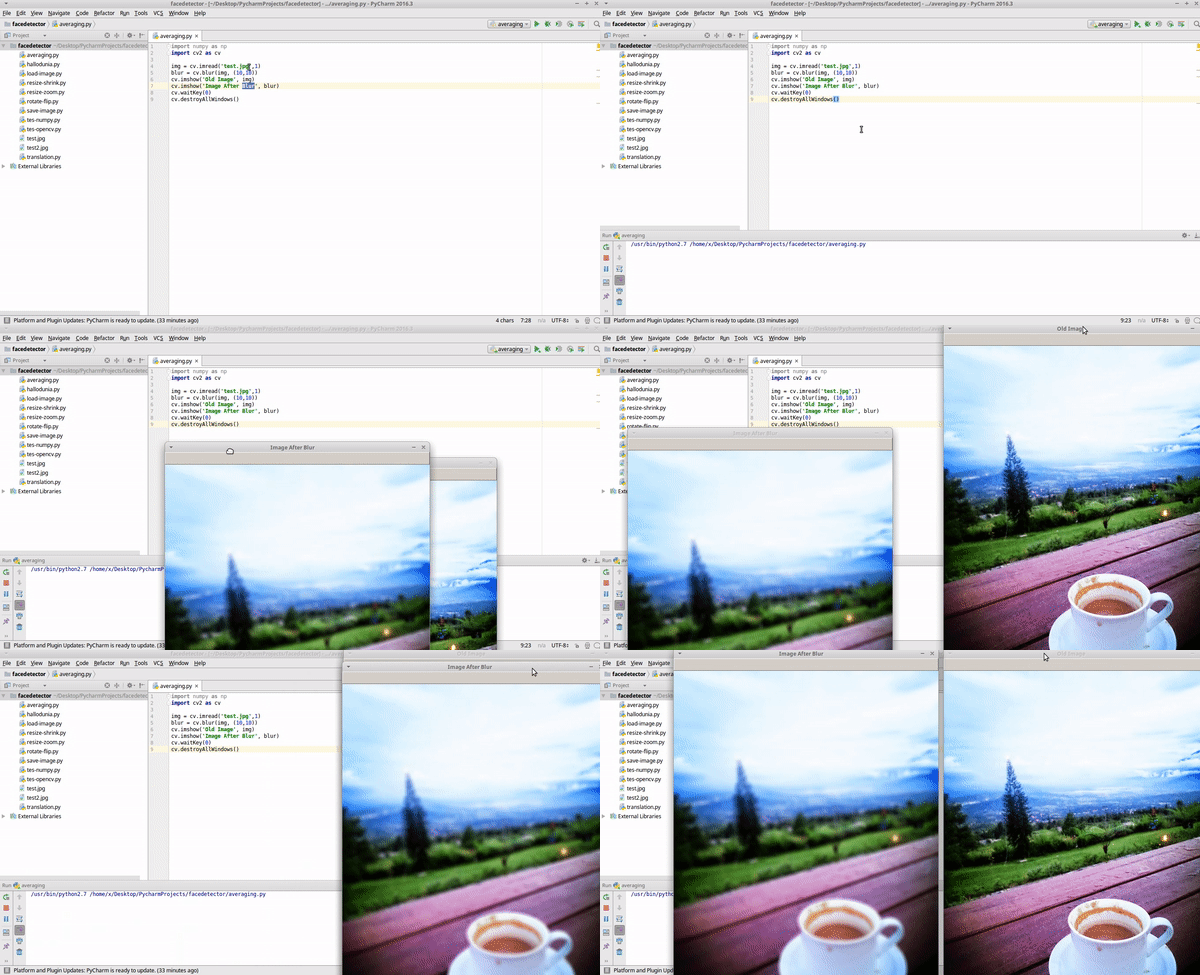 **Explanation Code:** ``blur = cv.blur(img, (10,10))`` This code has two arguments are **img** to called a variable where image file place and (10,10) where the intent of 2 argument that is to regulate how high rate of bleeding to be obtained. The high value will result in the higher blur effect. 3 . This third program if you want to clear the noise image, can use technique **Median Blur** - Create new Python file on your PYCharm with name median-blur. - Copy an image to folder project. ***Attention! use noise-effect images for this technique.*** - Write the source code below. ``` import numpy as np import cv2 as cv img = cv.imread('noise.jpg',1) blur = cv.medianBlur(img,5) cv.imshow('Old Image', img) cv.imshow('Image After Gaussian Blur', blur) cv.waitKey(0) cv.destroyAllWindows() ``` - Run it, and see output. 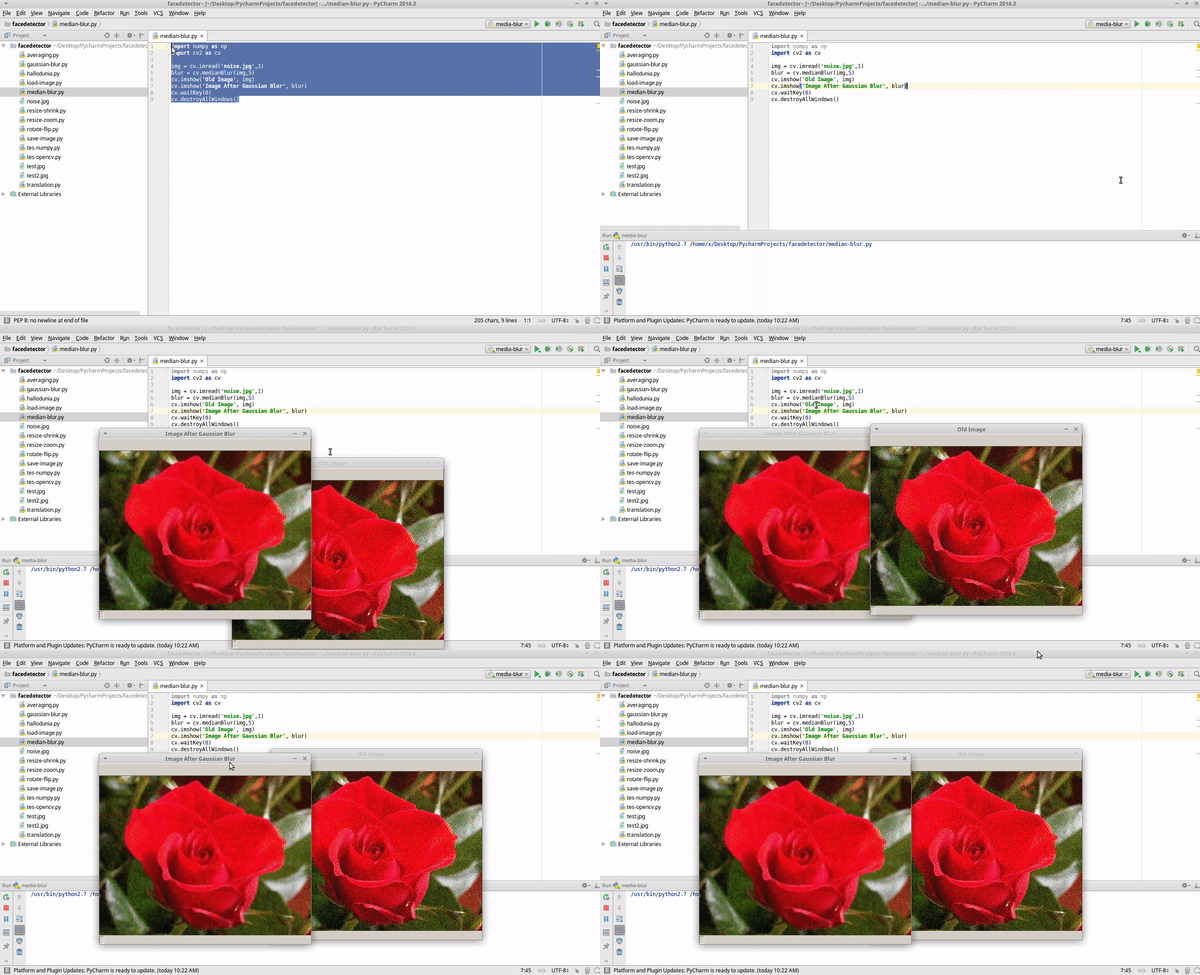 **Explanation Code:** ``blur = cv.medianBlur(img,5)`` Just use the two arguments src as img variable where the image file is stored, and its value is 5 to set the strength of the resulting blur. 4 . The fourth program uses the Edge Detection technique which only detects the line of objects in each image - Create new Python file on your PYCharm with name edge-detection. - Copy an image to folder project. - Write the source code below. ``` import numpy as np import cv2 as cv img = cv.imread('test.jpg',1) blur = cv.Canny(img,50,60) cv.imshow('Old Image', img) cv.imshow('Image After Edge Detection', blur) cv.waitKey(0) cv.destroyAllWindows() ``` - Run it, and see output. 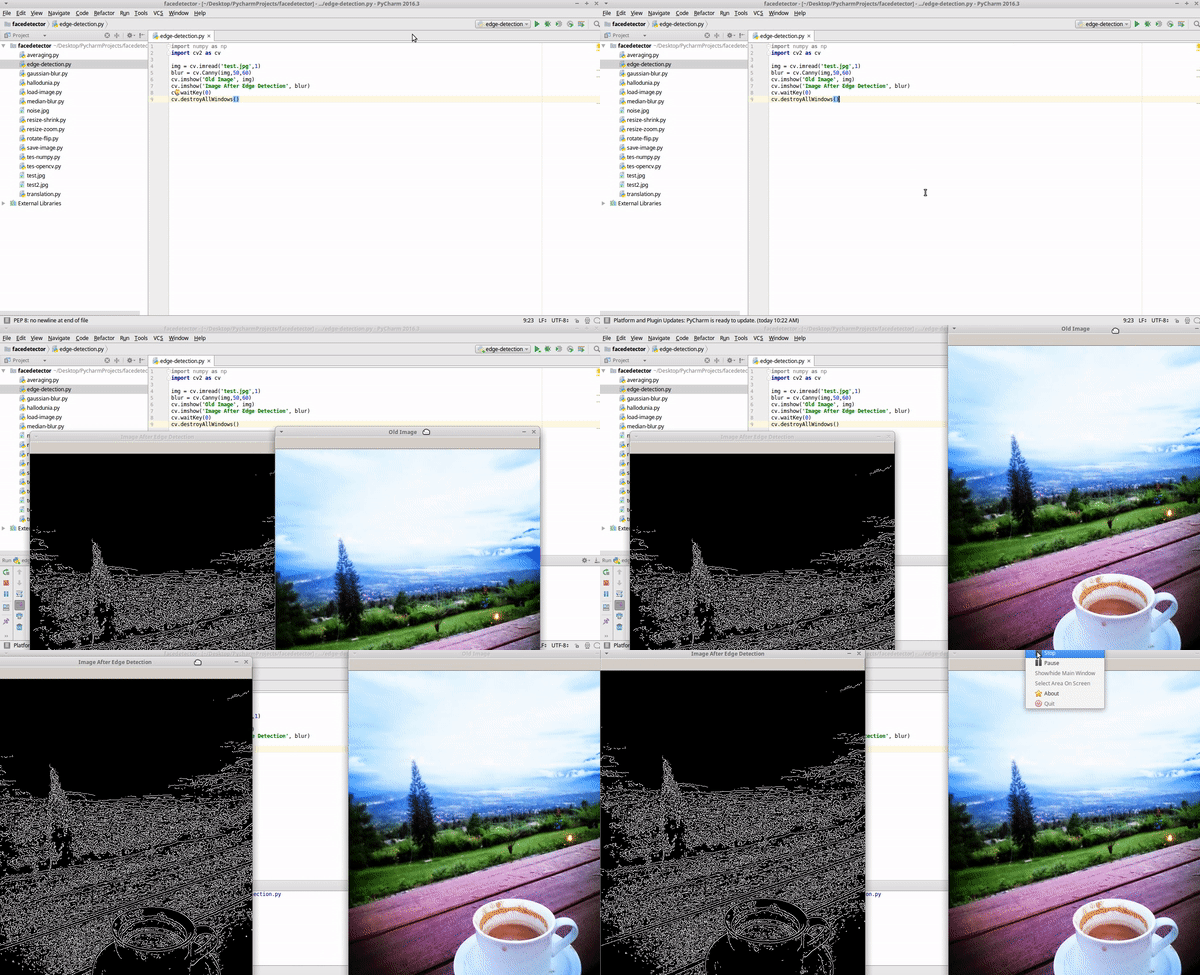 **Explanation Code:** ``blur = cv.Canny(img,50,60)`` Value 50 as minVal. Value 60 as maxVal. minVal and maxVal which means as the value that governs the intensity of the gradient on the object. If the value is changed to be smaller, then the line will be much more detailed. #### Curriculum - [How To install and Open Image with OpenCV Package](https://utopian.io/utopian-io/@farahulfa/application-face-detection-and-digital-imaging-with-python-on-pychram-part2-opencv) <br /><hr/><em>Posted on <a href="https://utopian.io/utopian-io/@farahulfa/learn-python-digital-imaging-with-opencv-and-numpy-packages">Utopian.io - Rewarding Open Source Contributors</a></em><hr/> |
| json metadata | {"community":"utopian","app":"utopian/1.0.0","format":"markdown","repository":{"id":5108051,"name":"opencv","full_name":"opencv/opencv","html_url":"https://github.com/opencv/opencv","fork":false,"owner":{"login":"opencv"}},"pullRequests":[],"platform":"github","type":"tutorials","tags":["utopian-io","utopian-io","opencv","python","digital-imaging"],"users":["farahulfa"],"links":["https://cdn-images-1.medium.com/max/568/1*Y1S4hciQTfrB3xJuk2remA.png","https://steemit-production-imageproxy-web.s3.amazonaws.com/U5dqy4rQPsXubvYBZdoBU1sVzTEqmp1","https://steemitimages.com/0x0/https://im5.ezgif.com/tmp/ezgif-5-ee3d95cc01.gif","https://steemitimages.com/0x0/https://im2.ezgif.com/tmp/ezgif-2-a8fc425466.gif","https://steemitimages.com/0x0/https://im2.ezgif.com/tmp/ezgif-2-147f96ca88.gif","https://utopian.io/utopian-io/@farahulfa/application-face-detection-and-digital-imaging-with-python-on-pychram-part2-opencv"],"image":["https://cdn-images-1.medium.com/max/568/1*Y1S4hciQTfrB3xJuk2remA.png","https://steemit-production-imageproxy-web.s3.amazonaws.com/U5dqy4rQPsXubvYBZdoBU1sVzTEqmp1","https://steemitimages.com/0x0/https://im5.ezgif.com/tmp/ezgif-5-ee3d95cc01.gif","https://steemitimages.com/0x0/https://im2.ezgif.com/tmp/ezgif-2-a8fc425466.gif","https://steemitimages.com/0x0/https://im2.ezgif.com/tmp/ezgif-2-147f96ca88.gif"],"moderator":{"account":"scipio","time":"2018-03-27T17:38:59.154Z","flagged":true,"reviewed":false,"pending":false},"questions":[],"score":null} |
| parent author | |
| parent permlink | utopian-io |
| permlink | learn-python-digital-imaging-with-opencv-and-numpy-packages |
| title | Learn Python Digital Imaging with OpenCV and NumPY Packages |
| Transaction Info | Block #21047601/Trx fe2071605f4479234a82054710cb1aa521b57ca3 |
View Raw JSON Data
{
"block": 21047601,
"op": [
"comment",
{
"author": "farahulfa",
"body": "\n#### What Will I Learn?\n\n- You will learn Python\n- You will learn OpenCV\n- You will learn PYCharm\n- You will learn Digital Imaging\n\n#### Requirements\n\n- PYCharm\n- OpenCV Package\n- NumPY Package\n\n#### Difficulty\n\n- Intermediate\n\n#### Tutorial Contents\n<center></center>\n\nHello Everyone, I want to tell you about how to make digital imaging with python using OpenCV Package. But first, you must have PYCharm or NetBeans to run Digital Imaging Program. \n\nOkay, here I'm using PYCharm, follow my instructions.\n\n1 . The first program we make **Zoom** program, this is tutorial how to make zoom with Python using OpenCV and NumPY packages.\n\n- Create new Python file on your PYCharm with name resize-zoom.\n- Copy an image to folder project.\n- Write the source code below.\n``` \nimport numpy as np\nimport cv2 as cv\n\nimg = cv.imread('test.jpg',1)\nsizex, sizey = img.shape[0]*1, img.shape[0]*1\nimg_new =cv.resize(img, (sizex, sizey))\ncv.imshow('Old Image', img)\ncv.imshow('Image After Resize', img_new)\ncv.waitKey(0)\ncv.destroyAllWindows()\n```\n- Run it, and see the output.\n\n\n**Explanation Code:**\n\n``import numpy as np``\n\n\n``import cv2 as cv``\n\nTo called OpenCV and NumPY package on this program.\n\n`` img = cv.imread('test.jpg',1)``\n\nThe img variable saves the result of the image file invocation performed by the function cv.imread\n\n``sizex, sizey = img.shape[0]*1, img.shape[0]*1``\n\n``img_new =cv.resize(img, (sizex, sizey))``\n\nTo know the dimensions or the physical size of the image and the number of channels in it you can use the shape, this code ``img.shape img.shape[0]1, img.shape[0]1`` width and height will multiply 1. And then, **resize()** function for change size image.\n\n``cv.imshow('Old Image', img)``\nTo show image file default, you can use cv.imshow('Title window', variable image file)\n\n``cv.imshow('Image After Resize', img_new)`` this code to show image file after zoomed, because at there you call variable which image has zoomed.\n\n2 . The Second program about how to blur an image with python using OpenCV and NumPY Packages.\nOn this program, we will use the **Averaging** technique.\n\n- Create new Python file on your PYCharm with name averaging.\n- Copy an image to folder project.\n- Write the source code below.\n```\nimport numpy as np\nimport cv2 as cv\n\nimg = cv.imread('test.jpg',1)\nblur = cv.blur(img, (10,10))\ncv.imshow('Old Image', img)\ncv.imshow('Image After Blur', blur)\ncv.waitKey(0)\ncv.destroyAllWindows()\n```\n\n- Run it, and see the output.\n\n\n**Explanation Code:**\n\n``blur = cv.blur(img, (10,10))``\nThis code has two arguments are **img** to called a variable where image file place and (10,10) where the intent of 2 argument that is to regulate how high rate of bleeding to be obtained. The high value will result in the higher blur effect.\n\n3 . This third program if you want to clear the noise image, can use technique **Median Blur**\n\n- Create new Python file on your PYCharm with name median-blur.\n- Copy an image to folder project. ***Attention! use noise-effect images for this technique.***\n- Write the source code below.\n```\nimport numpy as np\nimport cv2 as cv\n\nimg = cv.imread('noise.jpg',1)\nblur = cv.medianBlur(img,5)\ncv.imshow('Old Image', img)\ncv.imshow('Image After Gaussian Blur', blur)\ncv.waitKey(0)\ncv.destroyAllWindows()\n```\n- Run it, and see output.\n\n\n**Explanation Code:**\n``blur = cv.medianBlur(img,5)`` Just use the two arguments src as img variable where the image file is stored, and its value is 5 to set the strength of the resulting blur.\n\n4 . The fourth program uses the Edge Detection technique which only detects the line of objects in each image\n\n- Create new Python file on your PYCharm with name edge-detection.\n- Copy an image to folder project.\n- Write the source code below.\n```\nimport numpy as np\nimport cv2 as cv\n\nimg = cv.imread('test.jpg',1)\nblur = cv.Canny(img,50,60)\ncv.imshow('Old Image', img)\ncv.imshow('Image After Edge Detection', blur)\ncv.waitKey(0)\ncv.destroyAllWindows()\n```\n- Run it, and see output.\n\n\n**Explanation Code:**\n\n``blur = cv.Canny(img,50,60)``\n\nValue 50 as minVal.\n\nValue 60 as maxVal.\nminVal and maxVal which means as the value that governs the intensity of the gradient on the object.\nIf the value is changed to be smaller, then the line will be much more detailed.\n\n#### Curriculum\n\n- [How To install and Open Image with OpenCV Package](https://utopian.io/utopian-io/@farahulfa/application-face-detection-and-digital-imaging-with-python-on-pychram-part2-opencv)\n\n \n\n<br /><hr/><em>Posted on <a href=\"https://utopian.io/utopian-io/@farahulfa/learn-python-digital-imaging-with-opencv-and-numpy-packages\">Utopian.io - Rewarding Open Source Contributors</a></em><hr/>",
"json_metadata": "{\"community\":\"utopian\",\"app\":\"utopian/1.0.0\",\"format\":\"markdown\",\"repository\":{\"id\":5108051,\"name\":\"opencv\",\"full_name\":\"opencv/opencv\",\"html_url\":\"https://github.com/opencv/opencv\",\"fork\":false,\"owner\":{\"login\":\"opencv\"}},\"pullRequests\":[],\"platform\":\"github\",\"type\":\"tutorials\",\"tags\":[\"utopian-io\",\"utopian-io\",\"opencv\",\"python\",\"digital-imaging\"],\"users\":[\"farahulfa\"],\"links\":[\"https://cdn-images-1.medium.com/max/568/1*Y1S4hciQTfrB3xJuk2remA.png\",\"https://steemit-production-imageproxy-web.s3.amazonaws.com/U5dqy4rQPsXubvYBZdoBU1sVzTEqmp1\",\"https://steemitimages.com/0x0/https://im5.ezgif.com/tmp/ezgif-5-ee3d95cc01.gif\",\"https://steemitimages.com/0x0/https://im2.ezgif.com/tmp/ezgif-2-a8fc425466.gif\",\"https://steemitimages.com/0x0/https://im2.ezgif.com/tmp/ezgif-2-147f96ca88.gif\",\"https://utopian.io/utopian-io/@farahulfa/application-face-detection-and-digital-imaging-with-python-on-pychram-part2-opencv\"],\"image\":[\"https://cdn-images-1.medium.com/max/568/1*Y1S4hciQTfrB3xJuk2remA.png\",\"https://steemit-production-imageproxy-web.s3.amazonaws.com/U5dqy4rQPsXubvYBZdoBU1sVzTEqmp1\",\"https://steemitimages.com/0x0/https://im5.ezgif.com/tmp/ezgif-5-ee3d95cc01.gif\",\"https://steemitimages.com/0x0/https://im2.ezgif.com/tmp/ezgif-2-a8fc425466.gif\",\"https://steemitimages.com/0x0/https://im2.ezgif.com/tmp/ezgif-2-147f96ca88.gif\"],\"moderator\":{\"account\":\"scipio\",\"time\":\"2018-03-27T17:38:59.154Z\",\"flagged\":true,\"reviewed\":false,\"pending\":false},\"questions\":[],\"score\":null}",
"parent_author": "",
"parent_permlink": "utopian-io",
"permlink": "learn-python-digital-imaging-with-opencv-and-numpy-packages",
"title": "Learn Python Digital Imaging with OpenCV and NumPY Packages"
}
],
"op_in_trx": 0,
"timestamp": "2018-03-27T17:39:00",
"trx_id": "fe2071605f4479234a82054710cb1aa521b57ca3",
"trx_in_block": 32,
"virtual_op": 0
}farahulfaremoved vote from (0.00%) @farahulfa / learn-python-digital-imaging-with-opencv-and-numpy-packages2018/03/27 17:30:21
farahulfaremoved vote from (0.00%) @farahulfa / learn-python-digital-imaging-with-opencv-and-numpy-packages
2018/03/27 17:30:21
| author | farahulfa |
| permlink | learn-python-digital-imaging-with-opencv-and-numpy-packages |
| voter | farahulfa |
| weight | 0 (0.00%) |
| Transaction Info | Block #21047428/Trx 5731071a04433e47edf62a71fe650d9ea2e1a0ae |
View Raw JSON Data
{
  "block": 21047428,
  "op": [
    "vote",
    {
      "author": "farahulfa",
      "permlink": "learn-python-digital-imaging-with-opencv-and-numpy-packages",
      "voter": "farahulfa",
      "weight": 0
    }
  ],
  "op_in_trx": 0,
  "timestamp": "2018-03-27T17:30:21",
  "trx_id": "5731071a04433e47edf62a71fe650d9ea2e1a0ae",
  "trx_in_block": 32,
  "virtual_op": 0
}farahulfaupvoted (100.00%) @farahulfa / learn-python-digital-imaging-with-opencv-and-numpy-packages2018/03/27 17:30:12
farahulfaupvoted (100.00%) @farahulfa / learn-python-digital-imaging-with-opencv-and-numpy-packages
2018/03/27 17:30:12
| author | farahulfa |
| permlink | learn-python-digital-imaging-with-opencv-and-numpy-packages |
| voter | farahulfa |
| weight | 10000 (100.00%) |
| Transaction Info | Block #21047425/Trx e6c2496f0f538b89fe0e83811094518714ae5413 |
View Raw JSON Data
{
  "block": 21047425,
  "op": [
    "vote",
    {
      "author": "farahulfa",
      "permlink": "learn-python-digital-imaging-with-opencv-and-numpy-packages",
      "voter": "farahulfa",
      "weight": 10000
    }
  ],
  "op_in_trx": 0,
  "timestamp": "2018-03-27T17:30:12",
  "trx_id": "e6c2496f0f538b89fe0e83811094518714ae5413",
  "trx_in_block": 45,
  "virtual_op": 0
}2018/03/27 12:44:09
2018/03/27 12:44:09
| author | creon |
| body | Your contribution cannot be approved because it does not follow the [Utopian Rules](https://utopian.io/rules). Hi, this is the reason your contribution was rejected The tutorial is too trivial to be accepted and has nothing to do with the title of your tutorial. You only install numpy, pycharm and opencv created a file and saved it - this is much too little information and simply too trivial to be a valuable contribution. You can contact us on [Discord](https://discord.gg/uTyJkNm). **[[utopian-moderator]](https://utopian.io/moderators)** |
| json metadata | {"tags":["utopian-io"],"community":"utopian","app":"utopian/1.0.0"} |
| parent author | farahulfa |
| parent permlink | application-face-detection-and-digital-imaging-with-python-on-pychram-part2-opencv |
| permlink | re-farahulfa-application-face-detection-and-digital-imaging-with-python-on-pychram-part2-opencv-20180327t124402376z |
| title | |
| Transaction Info | Block #21041705/Trx e00ba28efe3a52404969f2b4c95ebce12facb780 |
View Raw JSON Data
{
  "block": 21041705,
  "op": [
    "comment",
    {
      "author": "creon",
      "body": "Your contribution cannot be approved because it does not follow the [Utopian Rules](https://utopian.io/rules).\n\nHi, this is the reason your contribution was rejected\n\nThe tutorial is too trivial to be accepted and has nothing to do with the title of your tutorial. You only install numpy, pycharm and opencv created a file and saved it  - this is much too little information and simply too trivial to be a valuable contribution.\n\n\nYou can contact us on [Discord](https://discord.gg/uTyJkNm).\n**[[utopian-moderator]](https://utopian.io/moderators)**",
      "json_metadata": "{\"tags\":[\"utopian-io\"],\"community\":\"utopian\",\"app\":\"utopian/1.0.0\"}",
      "parent_author": "farahulfa",
      "parent_permlink": "application-face-detection-and-digital-imaging-with-python-on-pychram-part2-opencv",
      "permlink": "re-farahulfa-application-face-detection-and-digital-imaging-with-python-on-pychram-part2-opencv-20180327t124402376z",
      "title": ""
    }
  ],
  "op_in_trx": 0,
  "timestamp": "2018-03-27T12:44:09",
  "trx_id": "e00ba28efe3a52404969f2b4c95ebce12facb780",
  "trx_in_block": 49,
  "virtual_op": 0
}2018/03/27 12:42:27
2018/03/27 12:42:27
| author | farahulfa |
| body | #### What Will I Learn? - You will learn Python - You will learn OpenCV - You will learn Pycharm #### Requirements - Pycharm - Package Numpy - Package OpenCV #### Difficulty - Basic #### Tutorial Contents Hello All of member Utopian, now I wanna make a tutorial how to make "Application Face Detection and Digital Imaging with Python," but first you must know, what is numpy and read my [previous tutorials](https://utopian.io/utopian-io/@farahulfa/application-face-detection-and-digital-imaging-with-python-on-pychram-part1-numpy) to understand in this tutorial. ##### Explanation OpenCV OpenCV is the main module used to perform processing on the creation of "Application Face Detection and Digital Imaging with Python." OpenCV can perform many tasks, from reading image files, performing color editings, to detecting faces efficiently. ##### Add Numpy Package on PYCharm [linux]. **1 . Open your Terminal. Write this command *sudo pip install opencv-python***  **2 . Open your PYCharm. Click File > Settings > Project: facedetector > Project Interpreter > click +.**  **3 . search opencv-python > click install package.**  **4 . Test your OpenCV package. Click right on project facedetector > new > Python file > Set Name file with tes-opencv > write this code.** ``` import cv2 print (cv2.__version__) ``` **5 . Run it. if success, congratulation your OpenCV package already installed.**  ##### Add Numpy Package on PYCharm [Windows]. 1. open this [link](https://opencv.org/opencv-3.3.html) 2. Select ***sourceforge*** on line ***Windows self-extracting archive*** and download it. 3. Search the file you downloaded and extract the opencv file. 4. Open folder ***opencv\build\python\2.7\x86*** and then copy file ***cv2***. 5. Open folder ***C:\Python27\DLLs*** and paste file ***cv2***. 6. Open folder ***C:\Python27\Lib\site-packages*** and paste file ***cv2***. 7. Open your PYCharm and restart it. 8. Test your OpenCV package. Click right on project name > new > Python file > Set Name file with tes-opencv > write this code. ``` import cv2 print (cv2.__version__) ``` 9 . Run it. if success, congritulation your OpenCV package allready installed. ##### Open image file with python, OpenCV and NumPY packages on PYCharm **1 . copy an image file to project facedetector folder.**  **2 . Create New python file, set name with load-image.** **3 . Write this code.** ``` import numpy as np import cv2 as cv img = cv.imread('test.jpg',1) cv.imshow('image',img) cv.waitKey(0) cv.destroyAllWindows() ``` **4 . Run it, and see that result.**  ##### Explain Source Code. **This code to call numpy and opencv packages.** ``` import numpy as np import cv2 as cv ``` **This code to make variable img and use opencv to read test.jpg image file and 1 to read image as full color, if 0 to read image as grayscale, if -1 will be opened as is.** ``` img = cv.imread('test.jpg',1) ``` **This code to show image on variable img.** ``` cv.imshow('image',img) ``` **This code to close the window after you click any button. 0 intends to close the window within 0 milliseconds.** ``` cv.waitKey(0) ``` **This code to close all open windows.** ``` cv.destroyAllWindows() ``` ##### Save image file with python, OpenCV and NumPY packages on PYCharm **1 . Create New fpython file one project facedetector, and set name *save-image*** **2 . Write this code.** ``` import numpy as np import cv2 as cv img = cv.imread('test.jpg',0) cv.imshow('image',img) cv.waitKey(0) cv.imwrite('test2.jpg',img) cv.destroyAllWindows() ``` **3 . Run it, and see result.**  ##### Explain Source Code. **This code to make variable img and use opencv to read test.jpg image file and 0 to read image as grayscale, if 1 to read image as full color, if -1 will be opened as is.** ``` img = cv.imread('test.jpg',0) ``` **This code to save a new image file with name test2.jpg after you click any button**. ``` cv.imwrite('test2.jpg',img) ``` Okay all this tutorial to continue with another tutorial. #### Curriculum - [Install And learn About NumPY](https://utopian.io/utopian-io/@farahulfa/application-face-detection-and-digital-imaging-with-python-on-pychram-part1-numpy) <br /><hr/><em>Posted on <a href="https://utopian.io/utopian-io/@farahulfa/application-face-detection-and-digital-imaging-with-python-on-pychram-part2-opencv">Utopian.io - Rewarding Open Source Contributors</a></em><hr/> |
| json metadata | {"community":"utopian","app":"utopian/1.0.0","format":"markdown","repository":{"id":5108051,"name":"opencv","full_name":"opencv/opencv","html_url":"https://github.com/opencv/opencv","fork":false,"owner":{"login":"opencv"}},"pullRequests":[],"platform":"github","type":"tutorials","tags":["utopian-io","python","opencv","steemit"],"users":["farahulfa"],"links":["https://utopian.io/utopian-io/@farahulfa/application-face-detection-and-digital-imaging-with-python-on-pychram-part1-numpy","https://res.cloudinary.com/hpiynhbhq/image/upload/v1521965220/fidbnon9tblf91aoqtps.png","https://res.cloudinary.com/hpiynhbhq/image/upload/v1521965738/fm22fj6iqv9ogdr5ifhz.png","https://res.cloudinary.com/hpiynhbhq/image/upload/v1521965831/osdiaquxyav8w45ng7h6.png","https://res.cloudinary.com/hpiynhbhq/image/upload/v1521966077/brxt4j0e8nxo6j0tqfqy.png","https://opencv.org/opencv-3.3.html","https://res.cloudinary.com/hpiynhbhq/image/upload/v1521967203/kgdavhzakp52ecoodm7i.png","https://res.cloudinary.com/hpiynhbhq/image/upload/v1521967585/tk0grzbiqgtoerhu7atp.png","https://im.ezgif.com/tmp/ezgif-1-c6e4a3fb94.gif"],"image":["https://res.cloudinary.com/hpiynhbhq/image/upload/v1521965220/fidbnon9tblf91aoqtps.png","https://res.cloudinary.com/hpiynhbhq/image/upload/v1521965738/fm22fj6iqv9ogdr5ifhz.png","https://res.cloudinary.com/hpiynhbhq/image/upload/v1521965831/osdiaquxyav8w45ng7h6.png","https://res.cloudinary.com/hpiynhbhq/image/upload/v1521966077/brxt4j0e8nxo6j0tqfqy.png","https://res.cloudinary.com/hpiynhbhq/image/upload/v1521967203/kgdavhzakp52ecoodm7i.png","https://res.cloudinary.com/hpiynhbhq/image/upload/v1521967585/tk0grzbiqgtoerhu7atp.png","https://im.ezgif.com/tmp/ezgif-1-c6e4a3fb94.gif"],"moderator":{"account":"creon","time":"2018-03-27T12:42:28.259Z","flagged":true,"reviewed":false,"pending":false},"questions":[],"score":null} |
| parent author | |
| parent permlink | utopian-io |
| permlink | application-face-detection-and-digital-imaging-with-python-on-pychram-part2-opencv |
| title | Open and Save Image file with Python Language, Numpy and OpenCV Packages on PYCharm |
| Transaction Info | Block #21041671/Trx 7d233ff2ffdfee872f34b0df72e95d45ffbbb974 |
View Raw JSON Data
{
"block": 21041671,
"op": [
"comment",
{
"author": "farahulfa",
"body": "\n#### What Will I Learn?\n\n- You will learn Python\n- You will learn OpenCV\n- You will learn Pycharm\n\n#### Requirements\n\n- Pycharm\n- Package Numpy\n- Package OpenCV\n\n#### Difficulty\n\n- Basic\n\n#### Tutorial Contents\nHello All of member Utopian, now I wanna make a tutorial how to make \"Application Face Detection and Digital Imaging with Python,\" but first you must know, what is numpy and read my [previous tutorials](https://utopian.io/utopian-io/@farahulfa/application-face-detection-and-digital-imaging-with-python-on-pychram-part1-numpy) to understand in this tutorial.\n\n##### Explanation OpenCV\n\nOpenCV is the main module used to perform processing on the creation of \"Application Face Detection and Digital Imaging with Python.\" OpenCV can perform many tasks, from reading image files, performing color editings, to detecting faces efficiently.\n\n##### Add Numpy Package on PYCharm [linux].\n\n**1 . Open your Terminal. Write this command *sudo pip install opencv-python***\n\n\n\n**2 . Open your PYCharm. Click File > Settings > Project: facedetector > Project Interpreter > click +.**\n\n\n\n**3 . search opencv-python > click install package.**\n\n\n\n**4 . Test your OpenCV package. Click right on project facedetector > new > Python file > Set Name file with tes-opencv > write this code.**\n```\nimport cv2\nprint (cv2.__version__)\n```\n\n**5 . Run it. if success, congratulation your OpenCV package already installed.**\n\n\n\n##### Add Numpy Package on PYCharm [Windows].\n\n1. open this [link](https://opencv.org/opencv-3.3.html)\n2. Select ***sourceforge*** on line ***Windows self-extracting archive*** and download it.\n3. Search the file you downloaded and extract the opencv file.\n4. Open folder ***opencv\\build\\python\\2.7\\x86*** and then copy file ***cv2***.\n5. Open folder ***C:\\Python27\\DLLs*** and paste file ***cv2***.\n6. Open folder ***C:\\Python27\\Lib\\site-packages*** and paste file ***cv2***.\n7. Open your PYCharm and restart it.\n8. Test your OpenCV package. Click right on project name > new > Python file > Set Name file with tes-opencv > write this code.\n```\nimport cv2\nprint (cv2.__version__)\n```\n9 . Run it. if success, congritulation your OpenCV package allready installed.\n\n##### Open image file with python, OpenCV and NumPY packages on PYCharm\n\n**1 . copy an image file to project facedetector folder.**\n\n\n**2 . Create New python file, set name with load-image.**\n**3 . Write this code.**\n```\nimport numpy as np\nimport cv2 as cv\n\nimg = cv.imread('test.jpg',1)\ncv.imshow('image',img)\ncv.waitKey(0)\ncv.destroyAllWindows()\n```\n**4 . Run it, and see that result.**\n\n\n##### Explain Source Code.\n**This code to call numpy and opencv packages.**\n``` \nimport numpy as np\nimport cv2 as cv\n```\n\n**This code to make variable img and use opencv to read test.jpg image file and 1 to read image as full color, if 0 to read image as grayscale, if -1 will be opened as is.**\n```\nimg = cv.imread('test.jpg',1)\n```\n\n**This code to show image on variable img.**\n```\ncv.imshow('image',img)\n```\n\n**This code to close the window after you click any button. 0 intends to close the window within 0 milliseconds.**\n```\ncv.waitKey(0)\n\n```\n\n**This code to close all open windows.**\n```\ncv.destroyAllWindows()\n```\n\n##### Save image file with python, OpenCV and NumPY packages on PYCharm\n\n**1 . Create New fpython file one project facedetector, and set name *save-image***\n**2 . Write this code.**\n``` \nimport numpy as np\nimport cv2 as cv\n\nimg = cv.imread('test.jpg',0)\ncv.imshow('image',img)\ncv.waitKey(0)\ncv.imwrite('test2.jpg',img)\ncv.destroyAllWindows()\n```\n **3 . Run it, and see result.**\n\n\n\n##### Explain Source Code.\n\n**This code to make variable img and use opencv to read test.jpg image file and 0 to read image as grayscale, if 1 to read image as full color, if -1 will be opened as is.**\n```\nimg = cv.imread('test.jpg',0)\n```\n\n**This code to save a new image file with name test2.jpg after you click any button**.\n```\ncv.imwrite('test2.jpg',img)\n```\n\nOkay all this tutorial to continue with another tutorial.\n\n#### Curriculum \n\n- [Install And learn About NumPY](https://utopian.io/utopian-io/@farahulfa/application-face-detection-and-digital-imaging-with-python-on-pychram-part1-numpy)\n\n\n<br /><hr/><em>Posted on <a href=\"https://utopian.io/utopian-io/@farahulfa/application-face-detection-and-digital-imaging-with-python-on-pychram-part2-opencv\">Utopian.io - Rewarding Open Source Contributors</a></em><hr/>",
"json_metadata": "{\"community\":\"utopian\",\"app\":\"utopian/1.0.0\",\"format\":\"markdown\",\"repository\":{\"id\":5108051,\"name\":\"opencv\",\"full_name\":\"opencv/opencv\",\"html_url\":\"https://github.com/opencv/opencv\",\"fork\":false,\"owner\":{\"login\":\"opencv\"}},\"pullRequests\":[],\"platform\":\"github\",\"type\":\"tutorials\",\"tags\":[\"utopian-io\",\"python\",\"opencv\",\"steemit\"],\"users\":[\"farahulfa\"],\"links\":[\"https://utopian.io/utopian-io/@farahulfa/application-face-detection-and-digital-imaging-with-python-on-pychram-part1-numpy\",\"https://res.cloudinary.com/hpiynhbhq/image/upload/v1521965220/fidbnon9tblf91aoqtps.png\",\"https://res.cloudinary.com/hpiynhbhq/image/upload/v1521965738/fm22fj6iqv9ogdr5ifhz.png\",\"https://res.cloudinary.com/hpiynhbhq/image/upload/v1521965831/osdiaquxyav8w45ng7h6.png\",\"https://res.cloudinary.com/hpiynhbhq/image/upload/v1521966077/brxt4j0e8nxo6j0tqfqy.png\",\"https://opencv.org/opencv-3.3.html\",\"https://res.cloudinary.com/hpiynhbhq/image/upload/v1521967203/kgdavhzakp52ecoodm7i.png\",\"https://res.cloudinary.com/hpiynhbhq/image/upload/v1521967585/tk0grzbiqgtoerhu7atp.png\",\"https://im.ezgif.com/tmp/ezgif-1-c6e4a3fb94.gif\"],\"image\":[\"https://res.cloudinary.com/hpiynhbhq/image/upload/v1521965220/fidbnon9tblf91aoqtps.png\",\"https://res.cloudinary.com/hpiynhbhq/image/upload/v1521965738/fm22fj6iqv9ogdr5ifhz.png\",\"https://res.cloudinary.com/hpiynhbhq/image/upload/v1521965831/osdiaquxyav8w45ng7h6.png\",\"https://res.cloudinary.com/hpiynhbhq/image/upload/v1521966077/brxt4j0e8nxo6j0tqfqy.png\",\"https://res.cloudinary.com/hpiynhbhq/image/upload/v1521967203/kgdavhzakp52ecoodm7i.png\",\"https://res.cloudinary.com/hpiynhbhq/image/upload/v1521967585/tk0grzbiqgtoerhu7atp.png\",\"https://im.ezgif.com/tmp/ezgif-1-c6e4a3fb94.gif\"],\"moderator\":{\"account\":\"creon\",\"time\":\"2018-03-27T12:42:28.259Z\",\"flagged\":true,\"reviewed\":false,\"pending\":false},\"questions\":[],\"score\":null}",
"parent_author": "",
"parent_permlink": "utopian-io",
"permlink": "application-face-detection-and-digital-imaging-with-python-on-pychram-part2-opencv",
"title": "Open and Save Image file with Python Language, Numpy and OpenCV Packages on PYCharm"
}
],
"op_in_trx": 0,
"timestamp": "2018-03-27T12:42:27",
"trx_id": "7d233ff2ffdfee872f34b0df72e95d45ffbbb974",
"trx_in_block": 55,
"virtual_op": 0
}wil1liamsent 0.001 STEEM to @farahulfa- "Hi farahulfa, I'm a 16 year old student who passionately develops bots for Steemit. My recent bot called TrendChecker tells you what rank your post has in Hot/Trending/Promoted! To use it you just ne..."2018/03/27 11:07:00
wil1liamsent 0.001 STEEM to @farahulfa- "Hi farahulfa, I'm a 16 year old student who passionately develops bots for Steemit. My recent bot called TrendChecker tells you what rank your post has in Hot/Trending/Promoted! To use it you just ne..."
2018/03/27 11:07:00
| amount | 0.001 STEEM |
| from | wil1liam |
| memo | Hi farahulfa, I'm a 16 year old student who passionately develops bots for Steemit. My recent bot called TrendChecker tells you what rank your post has in Hot/Trending/Promoted! To use it you just need to send me 0.001 SBD/STEEM with the url of your post as the memo. I hope you will try it out and if you want to know more about the bot check out my blog post about it: https://steemit.com/utopian-io/@wil1liam/introducing-trendchecker-instantly-know-how-high-your-post-is-in-hot-trending-promoted I hope you do not condsider this spam and you are at least happy about about the free money xD :) -@wil1liam |
| to | farahulfa |
| Transaction Info | Block #21039763/Trx 647f33fd2747c30314d7513ebfaa225631752814 |
View Raw JSON Data
{
  "block": 21039763,
  "op": [
    "transfer",
    {
      "amount": "0.001 STEEM",
      "from": "wil1liam",
      "memo": "Hi farahulfa,  I'm a 16 year old student who passionately develops bots for Steemit. My recent bot called TrendChecker tells you what rank your post has in Hot/Trending/Promoted! To use it you just need to send me 0.001 SBD/STEEM with the url of your post as the memo. I hope you will try it out and if you want to know more about the bot check out my blog post about it: https://steemit.com/utopian-io/@wil1liam/introducing-trendchecker-instantly-know-how-high-your-post-is-in-hot-trending-promoted I hope you do not condsider this spam and you are at least happy about about the free money xD :)  -@wil1liam",
      "to": "farahulfa"
    }
  ],
  "op_in_trx": 0,
  "timestamp": "2018-03-27T11:07:00",
  "trx_id": "647f33fd2747c30314d7513ebfaa225631752814",
  "trx_in_block": 17,
  "virtual_op": 0
}mamiccoupvoted (100.00%) @farahulfa / learn-python-digital-imaging-with-opencv-and-numpy-packages2018/03/27 10:16:27
mamiccoupvoted (100.00%) @farahulfa / learn-python-digital-imaging-with-opencv-and-numpy-packages
2018/03/27 10:16:27
| author | farahulfa |
| permlink | learn-python-digital-imaging-with-opencv-and-numpy-packages |
| voter | mamicco |
| weight | 10000 (100.00%) |
| Transaction Info | Block #21038752/Trx a1fb8681d2a565fd820eff0d0d383e427ec2cc27 |
View Raw JSON Data
{
  "block": 21038752,
  "op": [
    "vote",
    {
      "author": "farahulfa",
      "permlink": "learn-python-digital-imaging-with-opencv-and-numpy-packages",
      "voter": "mamicco",
      "weight": 10000
    }
  ],
  "op_in_trx": 0,
  "timestamp": "2018-03-27T10:16:27",
  "trx_id": "a1fb8681d2a565fd820eff0d0d383e427ec2cc27",
  "trx_in_block": 3,
  "virtual_op": 0
}2018/03/27 09:51:54
2018/03/27 09:51:54
| author | kissyou |
| permlink | re-farahulfa-learn-python-digital-imaging-with-opencv-and-numpy-packages-20180327t093659544z |
| voter | farahulfa |
| weight | 10000 (100.00%) |
| Transaction Info | Block #21038261/Trx 33731598067075aa47978a98ebaf3bc7809d524c |
View Raw JSON Data
{
  "block": 21038261,
  "op": [
    "vote",
    {
      "author": "kissyou",
      "permlink": "re-farahulfa-learn-python-digital-imaging-with-opencv-and-numpy-packages-20180327t093659544z",
      "voter": "farahulfa",
      "weight": 10000
    }
  ],
  "op_in_trx": 0,
  "timestamp": "2018-03-27T09:51:54",
  "trx_id": "33731598067075aa47978a98ebaf3bc7809d524c",
  "trx_in_block": 33,
  "virtual_op": 0
}2018/03/27 09:51:27
2018/03/27 09:51:27
| author | farahulfa |
| body | thank you for supporting me @kissyou |
| json metadata | {"tags":["utopian-io"],"community":"utopian","app":"utopian/1.0.0"} |
| parent author | kissyou |
| parent permlink | re-farahulfa-learn-python-digital-imaging-with-opencv-and-numpy-packages-20180327t093659544z |
| permlink | re-kissyou-re-farahulfa-learn-python-digital-imaging-with-opencv-and-numpy-packages-20180327t095123593z |
| title | |
| Transaction Info | Block #21038252/Trx 2b7897ba7aee34b1de1836fbcedef8da7f2b659d |
View Raw JSON Data
{
  "block": 21038252,
  "op": [
    "comment",
    {
      "author": "farahulfa",
      "body": "thank you for supporting me @kissyou",
      "json_metadata": "{\"tags\":[\"utopian-io\"],\"community\":\"utopian\",\"app\":\"utopian/1.0.0\"}",
      "parent_author": "kissyou",
      "parent_permlink": "re-farahulfa-learn-python-digital-imaging-with-opencv-and-numpy-packages-20180327t093659544z",
      "permlink": "re-kissyou-re-farahulfa-learn-python-digital-imaging-with-opencv-and-numpy-packages-20180327t095123593z",
      "title": ""
    }
  ],
  "op_in_trx": 0,
  "timestamp": "2018-03-27T09:51:27",
  "trx_id": "2b7897ba7aee34b1de1836fbcedef8da7f2b659d",
  "trx_in_block": 54,
  "virtual_op": 0
}2018/03/27 09:37:09
2018/03/27 09:37:09
| author | kissyou |
| body | You can really write. I love your post @farahulfa |
| json metadata | {"tags":["utopian-io"],"users":["farahulfa"],"app":"steemit/0.1"} |
| parent author | farahulfa |
| parent permlink | learn-python-digital-imaging-with-opencv-and-numpy-packages |
| permlink | re-farahulfa-learn-python-digital-imaging-with-opencv-and-numpy-packages-20180327t093659544z |
| title | |
| Transaction Info | Block #21037966/Trx 4e54c9fe69a1664b1769abc27fc0214524ba5573 |
View Raw JSON Data
{
  "block": 21037966,
  "op": [
    "comment",
    {
      "author": "kissyou",
      "body": "You can really write. I love your post @farahulfa",
      "json_metadata": "{\"tags\":[\"utopian-io\"],\"users\":[\"farahulfa\"],\"app\":\"steemit/0.1\"}",
      "parent_author": "farahulfa",
      "parent_permlink": "learn-python-digital-imaging-with-opencv-and-numpy-packages",
      "permlink": "re-farahulfa-learn-python-digital-imaging-with-opencv-and-numpy-packages-20180327t093659544z",
      "title": ""
    }
  ],
  "op_in_trx": 0,
  "timestamp": "2018-03-27T09:37:09",
  "trx_id": "4e54c9fe69a1664b1769abc27fc0214524ba5573",
  "trx_in_block": 23,
  "virtual_op": 0
}kissyouupvoted (100.00%) @farahulfa / learn-python-digital-imaging-with-opencv-and-numpy-packages2018/03/27 09:36:48
kissyouupvoted (100.00%) @farahulfa / learn-python-digital-imaging-with-opencv-and-numpy-packages
2018/03/27 09:36:48
| author | farahulfa |
| permlink | learn-python-digital-imaging-with-opencv-and-numpy-packages |
| voter | kissyou |
| weight | 10000 (100.00%) |
| Transaction Info | Block #21037959/Trx c60f74d0057fcd5c6802024832a0fa6218be1461 |
View Raw JSON Data
{
  "block": 21037959,
  "op": [
    "vote",
    {
      "author": "farahulfa",
      "permlink": "learn-python-digital-imaging-with-opencv-and-numpy-packages",
      "voter": "kissyou",
      "weight": 10000
    }
  ],
  "op_in_trx": 0,
  "timestamp": "2018-03-27T09:36:48",
  "trx_id": "c60f74d0057fcd5c6802024832a0fa6218be1461",
  "trx_in_block": 35,
  "virtual_op": 0
}farahulfaupdated options for learn-python-digital-imaging-with-opencv-and-numpy-packages2018/03/27 09:35:54
farahulfaupdated options for learn-python-digital-imaging-with-opencv-and-numpy-packages
2018/03/27 09:35:54
| allow curation rewards | true |
| allow votes | true |
| author | farahulfa |
| extensions | [[0,{"beneficiaries":[{"account":"utopian.pay","weight":2500}]}]] |
| max accepted payout | 1000000.000 SBD |
| percent steem dollars | 10000 |
| permlink | learn-python-digital-imaging-with-opencv-and-numpy-packages |
| Transaction Info | Block #21037941/Trx ad636039cfb70a08170c0c007d98716d31111d65 |
View Raw JSON Data
{
  "block": 21037941,
  "op": [
    "comment_options",
    {
      "allow_curation_rewards": true,
      "allow_votes": true,
      "author": "farahulfa",
      "extensions": [
        [
          0,
          {
            "beneficiaries": [
              {
                "account": "utopian.pay",
                "weight": 2500
              }
            ]
          }
        ]
      ],
      "max_accepted_payout": "1000000.000 SBD",
      "percent_steem_dollars": 10000,
      "permlink": "learn-python-digital-imaging-with-opencv-and-numpy-packages"
    }
  ],
  "op_in_trx": 0,
  "timestamp": "2018-03-27T09:35:54",
  "trx_id": "ad636039cfb70a08170c0c007d98716d31111d65",
  "trx_in_block": 30,
  "virtual_op": 0
}farahulfapublished a new post: learn-python-digital-imaging-with-opencv-and-numpy-packages2018/03/27 09:35:54
farahulfapublished a new post: learn-python-digital-imaging-with-opencv-and-numpy-packages
2018/03/27 09:35:54
| author | farahulfa |
| body | #### What Will I Learn? - You will learn Python - You will learn OpenCV - You will learn PYCharm - You will learn Digital Imaging #### Requirements - PYCharm - OpenCV Package - NumPY Package #### Difficulty - Intermediate #### Tutorial Contents <center></center> Hello Everyone, I want to tell you about how to make digital imaging with python using OpenCV Package. But first, you must have PYCharm or NetBeans to run Digital Imaging Program. Okay, here I'm using PYCharm, follow my instructions. 1 . The first program we make **Zoom** program, this is tutorial how to make zoom with Python using OpenCV and NumPY packages. - Create new Python file on your PYCharm with name resize-zoom. - Copy an image to folder project. - Write the source code below. ``` import numpy as np import cv2 as cv img = cv.imread('test.jpg',1) sizex, sizey = img.shape[0]*1, img.shape[0]*1 img_new =cv.resize(img, (sizex, sizey)) cv.imshow('Old Image', img) cv.imshow('Image After Resize', img_new) cv.waitKey(0) cv.destroyAllWindows() ``` - Run it, and see the output.  **Explanation Code:** ``import numpy as np`` ``import cv2 as cv`` To called OpenCV and NumPY package on this program. `` img = cv.imread('test.jpg',1)`` The img variable saves the result of the image file invocation performed by the function cv.imread ``sizex, sizey = img.shape[0]*1, img.shape[0]*1`` ``img_new =cv.resize(img, (sizex, sizey))`` To know the dimensions or the physical size of the image and the number of channels in it you can use the shape, this code ``img.shape img.shape[0]1, img.shape[0]1`` width and height will multiply 1. And then, **resize()** function for change size image. ``cv.imshow('Old Image', img)`` To show image file default, you can use cv.imshow('Title window', variable image file) ``cv.imshow('Image After Resize', img_new)`` this code to show image file after zoomed, because at there you call variable which image has zoomed. 2 . The Second program about how to blur an image with python using OpenCV and NumPY Packages. On this program, we will use the **Averaging** technique. - Create new Python file on your PYCharm with name averaging. - Copy an image to folder project. - Write the source code below. ``` import numpy as np import cv2 as cv img = cv.imread('test.jpg',1) blur = cv.blur(img, (10,10)) cv.imshow('Old Image', img) cv.imshow('Image After Blur', blur) cv.waitKey(0) cv.destroyAllWindows() ``` - Run it, and see the output.  **Explanation Code:** ``blur = cv.blur(img, (10,10))`` This code has two arguments are **img** to called a variable where image file place and (10,10) where the intent of 2 argument that is to regulate how high rate of bleeding to be obtained. The high value will result in the higher blur effect. 3 . This third program if you want to clear the noise image, can use technique **Median Blur** - Create new Python file on your PYCharm with name median-blur. - Copy an image to folder project. ***Attention! use noise-effect images for this technique.*** - Write the source code below. ``` import numpy as np import cv2 as cv img = cv.imread('noise.jpg',1) blur = cv.medianBlur(img,5) cv.imshow('Old Image', img) cv.imshow('Image After Gaussian Blur', blur) cv.waitKey(0) cv.destroyAllWindows() ``` - Run it, and see output.  **Explanation Code:** ``blur = cv.medianBlur(img,5)`` Just use the two arguments src as img variable where the image file is stored, and its value is 5 to set the strength of the resulting blur. 4 . The fourth program uses the Edge Detection technique which only detects the line of objects in each image - Create new Python file on your PYCharm with name edge-detection. - Copy an image to folder project. - Write the source code below. ``` import numpy as np import cv2 as cv img = cv.imread('test.jpg',1) blur = cv.Canny(img,50,60) cv.imshow('Old Image', img) cv.imshow('Image After Edge Detection', blur) cv.waitKey(0) cv.destroyAllWindows() ``` - Run it, and see output.  **Explanation Code:** ``blur = cv.Canny(img,50,60)`` Value 50 as minVal. Value 60 as maxVal. minVal and maxVal which means as the value that governs the intensity of the gradient on the object. If the value is changed to be smaller, then the line will be much more detailed. #### Curriculum - [How To install and Open Image with OpenCV Package](https://utopian.io/utopian-io/@farahulfa/application-face-detection-and-digital-imaging-with-python-on-pychram-part2-opencv) <br /><hr/><em>Posted on <a href="https://utopian.io/utopian-io/@farahulfa/learn-python-digital-imaging-with-opencv-and-numpy-packages">Utopian.io - Rewarding Open Source Contributors</a></em><hr/> |
| json metadata | {"community":"utopian","app":"utopian/1.0.0","format":"markdown","repository":{"id":5108051,"name":"opencv","full_name":"opencv/opencv","html_url":"https://github.com/opencv/opencv","fork":false,"owner":{"login":"opencv"}},"pullRequests":[],"platform":"github","type":"tutorials","tags":["utopian-io","utopian-io","opencv","python","digital-imaging"],"users":["farahulfa"],"links":["https://cdn-images-1.medium.com/max/568/1*Y1S4hciQTfrB3xJuk2remA.png","https://steemit-production-imageproxy-web.s3.amazonaws.com/U5dqy4rQPsXubvYBZdoBU1sVzTEqmp1","https://steemitimages.com/0x0/https://im5.ezgif.com/tmp/ezgif-5-ee3d95cc01.gif","https://steemitimages.com/0x0/https://im2.ezgif.com/tmp/ezgif-2-a8fc425466.gif","https://steemitimages.com/0x0/https://im2.ezgif.com/tmp/ezgif-2-147f96ca88.gif","https://utopian.io/utopian-io/@farahulfa/application-face-detection-and-digital-imaging-with-python-on-pychram-part2-opencv"],"image":["https://cdn-images-1.medium.com/max/568/1*Y1S4hciQTfrB3xJuk2remA.png","https://steemit-production-imageproxy-web.s3.amazonaws.com/U5dqy4rQPsXubvYBZdoBU1sVzTEqmp1","https://steemitimages.com/0x0/https://im5.ezgif.com/tmp/ezgif-5-ee3d95cc01.gif","https://steemitimages.com/0x0/https://im2.ezgif.com/tmp/ezgif-2-a8fc425466.gif","https://steemitimages.com/0x0/https://im2.ezgif.com/tmp/ezgif-2-147f96ca88.gif"]} |
| parent author | |
| parent permlink | utopian-io |
| permlink | learn-python-digital-imaging-with-opencv-and-numpy-packages |
| title | Learn Python Digital Imaging with OpenCV and NumPY Packages |
| Transaction Info | Block #21037941/Trx ad636039cfb70a08170c0c007d98716d31111d65 |
View Raw JSON Data
{
"block": 21037941,
"op": [
"comment",
{
"author": "farahulfa",
"body": "\n#### What Will I Learn?\n\n- You will learn Python\n- You will learn OpenCV\n- You will learn PYCharm\n- You will learn Digital Imaging\n\n#### Requirements\n\n- PYCharm\n- OpenCV Package\n- NumPY Package\n\n#### Difficulty\n\n- Intermediate\n\n#### Tutorial Contents\n<center></center>\n\nHello Everyone, I want to tell you about how to make digital imaging with python using OpenCV Package. But first, you must have PYCharm or NetBeans to run Digital Imaging Program. \n\nOkay, here I'm using PYCharm, follow my instructions.\n\n1 . The first program we make **Zoom** program, this is tutorial how to make zoom with Python using OpenCV and NumPY packages.\n\n- Create new Python file on your PYCharm with name resize-zoom.\n- Copy an image to folder project.\n- Write the source code below.\n``` \nimport numpy as np\nimport cv2 as cv\n\nimg = cv.imread('test.jpg',1)\nsizex, sizey = img.shape[0]*1, img.shape[0]*1\nimg_new =cv.resize(img, (sizex, sizey))\ncv.imshow('Old Image', img)\ncv.imshow('Image After Resize', img_new)\ncv.waitKey(0)\ncv.destroyAllWindows()\n```\n- Run it, and see the output.\n\n\n**Explanation Code:**\n\n``import numpy as np``\n\n\n``import cv2 as cv``\n\nTo called OpenCV and NumPY package on this program.\n\n`` img = cv.imread('test.jpg',1)``\n\nThe img variable saves the result of the image file invocation performed by the function cv.imread\n\n``sizex, sizey = img.shape[0]*1, img.shape[0]*1``\n\n``img_new =cv.resize(img, (sizex, sizey))``\n\nTo know the dimensions or the physical size of the image and the number of channels in it you can use the shape, this code ``img.shape img.shape[0]1, img.shape[0]1`` width and height will multiply 1. And then, **resize()** function for change size image.\n\n``cv.imshow('Old Image', img)``\nTo show image file default, you can use cv.imshow('Title window', variable image file)\n\n``cv.imshow('Image After Resize', img_new)`` this code to show image file after zoomed, because at there you call variable which image has zoomed.\n\n2 . The Second program about how to blur an image with python using OpenCV and NumPY Packages.\nOn this program, we will use the **Averaging** technique.\n\n- Create new Python file on your PYCharm with name averaging.\n- Copy an image to folder project.\n- Write the source code below.\n```\nimport numpy as np\nimport cv2 as cv\n\nimg = cv.imread('test.jpg',1)\nblur = cv.blur(img, (10,10))\ncv.imshow('Old Image', img)\ncv.imshow('Image After Blur', blur)\ncv.waitKey(0)\ncv.destroyAllWindows()\n```\n\n- Run it, and see the output.\n\n\n**Explanation Code:**\n\n``blur = cv.blur(img, (10,10))``\nThis code has two arguments are **img** to called a variable where image file place and (10,10) where the intent of 2 argument that is to regulate how high rate of bleeding to be obtained. The high value will result in the higher blur effect.\n\n3 . This third program if you want to clear the noise image, can use technique **Median Blur**\n\n- Create new Python file on your PYCharm with name median-blur.\n- Copy an image to folder project. ***Attention! use noise-effect images for this technique.***\n- Write the source code below.\n```\nimport numpy as np\nimport cv2 as cv\n\nimg = cv.imread('noise.jpg',1)\nblur = cv.medianBlur(img,5)\ncv.imshow('Old Image', img)\ncv.imshow('Image After Gaussian Blur', blur)\ncv.waitKey(0)\ncv.destroyAllWindows()\n```\n- Run it, and see output.\n\n\n**Explanation Code:**\n``blur = cv.medianBlur(img,5)`` Just use the two arguments src as img variable where the image file is stored, and its value is 5 to set the strength of the resulting blur.\n\n4 . The fourth program uses the Edge Detection technique which only detects the line of objects in each image\n\n- Create new Python file on your PYCharm with name edge-detection.\n- Copy an image to folder project.\n- Write the source code below.\n```\nimport numpy as np\nimport cv2 as cv\n\nimg = cv.imread('test.jpg',1)\nblur = cv.Canny(img,50,60)\ncv.imshow('Old Image', img)\ncv.imshow('Image After Edge Detection', blur)\ncv.waitKey(0)\ncv.destroyAllWindows()\n```\n- Run it, and see output.\n\n\n**Explanation Code:**\n\n``blur = cv.Canny(img,50,60)``\n\nValue 50 as minVal.\n\nValue 60 as maxVal.\nminVal and maxVal which means as the value that governs the intensity of the gradient on the object.\nIf the value is changed to be smaller, then the line will be much more detailed.\n\n#### Curriculum\n\n- [How To install and Open Image with OpenCV Package](https://utopian.io/utopian-io/@farahulfa/application-face-detection-and-digital-imaging-with-python-on-pychram-part2-opencv)\n\n \n\n<br /><hr/><em>Posted on <a href=\"https://utopian.io/utopian-io/@farahulfa/learn-python-digital-imaging-with-opencv-and-numpy-packages\">Utopian.io - Rewarding Open Source Contributors</a></em><hr/>",
"json_metadata": "{\"community\":\"utopian\",\"app\":\"utopian/1.0.0\",\"format\":\"markdown\",\"repository\":{\"id\":5108051,\"name\":\"opencv\",\"full_name\":\"opencv/opencv\",\"html_url\":\"https://github.com/opencv/opencv\",\"fork\":false,\"owner\":{\"login\":\"opencv\"}},\"pullRequests\":[],\"platform\":\"github\",\"type\":\"tutorials\",\"tags\":[\"utopian-io\",\"utopian-io\",\"opencv\",\"python\",\"digital-imaging\"],\"users\":[\"farahulfa\"],\"links\":[\"https://cdn-images-1.medium.com/max/568/1*Y1S4hciQTfrB3xJuk2remA.png\",\"https://steemit-production-imageproxy-web.s3.amazonaws.com/U5dqy4rQPsXubvYBZdoBU1sVzTEqmp1\",\"https://steemitimages.com/0x0/https://im5.ezgif.com/tmp/ezgif-5-ee3d95cc01.gif\",\"https://steemitimages.com/0x0/https://im2.ezgif.com/tmp/ezgif-2-a8fc425466.gif\",\"https://steemitimages.com/0x0/https://im2.ezgif.com/tmp/ezgif-2-147f96ca88.gif\",\"https://utopian.io/utopian-io/@farahulfa/application-face-detection-and-digital-imaging-with-python-on-pychram-part2-opencv\"],\"image\":[\"https://cdn-images-1.medium.com/max/568/1*Y1S4hciQTfrB3xJuk2remA.png\",\"https://steemit-production-imageproxy-web.s3.amazonaws.com/U5dqy4rQPsXubvYBZdoBU1sVzTEqmp1\",\"https://steemitimages.com/0x0/https://im5.ezgif.com/tmp/ezgif-5-ee3d95cc01.gif\",\"https://steemitimages.com/0x0/https://im2.ezgif.com/tmp/ezgif-2-a8fc425466.gif\",\"https://steemitimages.com/0x0/https://im2.ezgif.com/tmp/ezgif-2-147f96ca88.gif\"]}",
"parent_author": "",
"parent_permlink": "utopian-io",
"permlink": "learn-python-digital-imaging-with-opencv-and-numpy-packages",
"title": "Learn Python Digital Imaging with OpenCV and NumPY Packages"
}
],
"op_in_trx": 0,
"timestamp": "2018-03-27T09:35:54",
"trx_id": "ad636039cfb70a08170c0c007d98716d31111d65",
"trx_in_block": 30,
"virtual_op": 0
}2018/03/27 03:33:30
2018/03/27 03:33:30
| author | farahulfa |
| body | if you said that, means the contribution of existing tutorial categories in utopian can be deleted because there is already google |
| json metadata | {"tags":["utopian-io"],"community":"utopian","app":"utopian/1.0.0"} |
| parent author | miguepersa |
| parent permlink | re-farahulfa-learn-python-digital-imaging-with-opencv-resize-part-1-20180326t221514676z |
| permlink | re-miguepersa-re-farahulfa-learn-python-digital-imaging-with-opencv-resize-part-1-20180327t033328438z |
| title | |
| Transaction Info | Block #21030693/Trx 752253c1a635e6941b126e5c548e1f936fda1a7b |
View Raw JSON Data
{
  "block": 21030693,
  "op": [
    "comment",
    {
      "author": "farahulfa",
      "body": "if you said that, means the contribution of existing tutorial categories in utopian can be deleted because there is already google",
      "json_metadata": "{\"tags\":[\"utopian-io\"],\"community\":\"utopian\",\"app\":\"utopian/1.0.0\"}",
      "parent_author": "miguepersa",
      "parent_permlink": "re-farahulfa-learn-python-digital-imaging-with-opencv-resize-part-1-20180326t221514676z",
      "permlink": "re-miguepersa-re-farahulfa-learn-python-digital-imaging-with-opencv-resize-part-1-20180327t033328438z",
      "title": ""
    }
  ],
  "op_in_trx": 0,
  "timestamp": "2018-03-27T03:33:30",
  "trx_id": "752253c1a635e6941b126e5c548e1f936fda1a7b",
  "trx_in_block": 28,
  "virtual_op": 0
}2018/03/26 22:40:33
2018/03/26 22:40:33
| author | miguepersa |
| body | Your contribution cannot be approved because it does not follow the [Utopian Rules](https://utopian.io/rules). - The content of this tutorial is well documented in the OpenCV documentation. You can check it <a href="https://docs.opencv.org/3.0-beta/modules/imgproc/doc/filtering.html">here</a> and <a href="https://docs.opencv.org/3.0-beta/doc/py_tutorials/py_imgproc/py_canny/py_canny.html">here</a> You can contact us on [Discord](https://discord.gg/uTyJkNm). **[[utopian-moderator]](https://utopian.io/moderators)** |
| json metadata | {"tags":["utopian-io"],"community":"utopian","app":"utopian/1.0.0"} |
| parent author | farahulfa |
| parent permlink | learn-python-digital-imaging-with-opencv-blur-effect-part-2 |
| permlink | re-farahulfa-learn-python-digital-imaging-with-opencv-blur-effect-part-2-20180326t224029568z |
| title | |
| Transaction Info | Block #21024835/Trx 626bd777d1a428dd3963e99fad8e58f3d8a71170 |
View Raw JSON Data
{
  "block": 21024835,
  "op": [
    "comment",
    {
      "author": "miguepersa",
      "body": "Your contribution cannot be approved because it does not follow the [Utopian Rules](https://utopian.io/rules).\n\n- The content of this tutorial is well documented in the OpenCV documentation. You can check it <a href=\"https://docs.opencv.org/3.0-beta/modules/imgproc/doc/filtering.html\">here</a> and <a href=\"https://docs.opencv.org/3.0-beta/doc/py_tutorials/py_imgproc/py_canny/py_canny.html\">here</a>\n\nYou can contact us on [Discord](https://discord.gg/uTyJkNm).\n**[[utopian-moderator]](https://utopian.io/moderators)**",
      "json_metadata": "{\"tags\":[\"utopian-io\"],\"community\":\"utopian\",\"app\":\"utopian/1.0.0\"}",
      "parent_author": "farahulfa",
      "parent_permlink": "learn-python-digital-imaging-with-opencv-blur-effect-part-2",
      "permlink": "re-farahulfa-learn-python-digital-imaging-with-opencv-blur-effect-part-2-20180326t224029568z",
      "title": ""
    }
  ],
  "op_in_trx": 0,
  "timestamp": "2018-03-26T22:40:33",
  "trx_id": "626bd777d1a428dd3963e99fad8e58f3d8a71170",
  "trx_in_block": 43,
  "virtual_op": 0
}farahulfapublished a new post: learn-python-digital-imaging-with-opencv-blur-effect-part-22018/03/26 22:38:57
farahulfapublished a new post: learn-python-digital-imaging-with-opencv-blur-effect-part-2
2018/03/26 22:38:57
| author | farahulfa |
| body | #### What Will I Learn? - You will learn Python - You will learn OpenCV - You will learn Digital Imaging #### Requirements - PYCharm - OpenCV Package - NumPY Package #### Difficulty - Intermediate #### Tutorial Contents ##### What Is Blur Effect? The blur effect is an effect that results in a blurred image, out of focus, blur, and things like that. But with OpenCV, we can recognize the code structure to make the image blur, and there are several techniques to blur an image that we will discuss in this part include: - Averaging - Gaussian Blur - Median Blur - Edge Detection ##### Averaging The first technique is called averaging because the process of blurring the image is done by taking the average of the entire image and changing it to a new value. To get a blur effect with this technique, we can use the function **blur()** ###### Example Program: 1. Create new Python file on your PYCharm with name averaging. 2. Copy an image to folder project. 3. Write the source code below. ``` import numpy as np import cv2 as cv img = cv.imread('test.jpg',1) blur = cv.blur(img, (10,10)) cv.imshow('Old Image', img) cv.imshow('Image After Blur', blur) cv.waitKey(0) cv.destroyAllWindows() ``` 4 . Run it, and see output.  ###### Explanation Code: ``` blur = cv.blur(img, (10,10)) ``` In the above code, two arguments are (10,10) where the intent of 2 argument that is to regulate how high rate of bleeding to be obtained. The high value will result in the higher blur effect. ##### Gaussian Blur Another blur effect that can be used is Gaussian Blur which in OpenCV can be present through the **GaussianBlur ()** function. The most basic Gaussian Blur structure is as follows: ``` cv.GaussianBlur (src (sigmaX, sigmaY), border) ``` - src = image to be blurred. - sigmaX = sets the number of standard deviations based on the gaussian blur filter on the X-axis. - sigmaY = sets the number of standard deviations based on the Gaussian blur filter on the Y-axis. - border = set the resulting border due to using this filter. The default is in condition 0. ###### Example Program: 1. Create new Python file on your PYCharm with name gaussian-blur. 2. Copy an image to folder project. 3. Write the source code below. ``` import numpy as np import cv2 as cv img = cv.imread('test.jpg',1) blur = cv.GaussianBlur(img, (5,5),0) cv.imshow('Old Image', img) cv.imshow('Image After Gaussian Blur', blur) cv.waitKey(0) cv.destroyAllWindows() ``` 4 . Run it, and see output.  ###### Explanation Code: ``` blur = cv.GaussianBlur(img, (5,5),0) ``` the same explanation as above just this function add border function which set default 0 ##### Median Blur Median Blur can be used to minimize noise effects on the image. This blur technique can be used using the **medianBlur ()** function. ###### Example Program: 1. Create new Python file on your PYCharm with name median-blur. 2. Copy an image to folder project. ***Attention! use noise-effect images for this technique.*** 3. Write the source code below. ``` import numpy as np import cv2 as cv img = cv.imread('noise.jpg',1) blur = cv.medianBlur(img,5) cv.imshow('Old Image', img) cv.imshow('Image After Gaussian Blur', blur) cv.waitKey(0) cv.destroyAllWindows() ``` 4 . Run it, and see output.  ###### Explanation Code: ``` blur = cv.medianBlur(img,5) ``` Just use the two arguments src as img and its value is 5 to set the strength of the resulting blur. ##### Edge Detection Edge Detection is an algorithm that serves to detect the object line. One of the functions that can be used for Edge Detection is **Canny ()**. The structure for this Edge Detection function itself as follows: ``` cv.Canny (src, minVal, maxVal) ``` - src = image file that will be used for Edge Detection function. - minVal = the value that governs the intensity of the gradient on the object. - maxVal = value that regulates the intensity of the gradient on the object. If you enter a low number in minVal or maxVal, the edge that will be in shape is much more detailed in than with the high inserted value. ###### Example Program: 1. Create new Python file on your PYCharm with name edge-detection. 2. Copy an image to folder project. ***Attention! use noise-effect images for this technique.*** 3. Write the source code below. ``` import numpy as np import cv2 as cv img = cv.imread('test.jpg',1) blur = cv.Canny(img,50,60) cv.imshow('Old Image', img) cv.imshow('Image After Edge Detection', blur) cv.waitKey(0) cv.destroyAllWindows() ``` 4 . Run it, and see output.  ###### Explanation Code: ``` blur = cv.Canny(img,50,60) ``` Value 50 as minVal.<br> Value 60 as maxVal.<br> If the value in fox becomes smaller, then the edge will be much more detail. Okay until here first learning about Python Digital Imaging with OpenCV [Blur Effect - Part 2]. For the third part will discuss how to draw with python language using OpenCV package. #### Curriculum - [Learn Python Digital Imaging with OpenCV [Resize - Part 1]](https://utopian.io/utopian-io/@farahulfa/learn-python-digital-imaging-with-opencv-resize-part-1) - [How To install and Open Image with OpenCV Package](https://utopian.io/utopian-io/@farahulfa/application-face-detection-and-digital-imaging-with-python-on-pychram-part2-opencv) <br /><hr/><em>Posted on <a href="https://utopian.io/utopian-io/@farahulfa/learn-python-digital-imaging-with-opencv-blur-effect-part-2">Utopian.io - Rewarding Open Source Contributors</a></em><hr/> |
| json metadata | {"community":"utopian","app":"utopian/1.0.0","format":"markdown","repository":{"id":5108051,"name":"opencv","full_name":"opencv/opencv","html_url":"https://github.com/opencv/opencv","fork":false,"owner":{"login":"opencv"}},"pullRequests":[],"platform":"github","type":"tutorials","tags":["utopian-io","opencv","python","digital-imaging"],"users":["farahulfa"],"links":["https://im5.ezgif.com/tmp/ezgif-5-ee3d95cc01.gif","https://im2.ezgif.com/tmp/ezgif-2-03446334ad.gif","https://im2.ezgif.com/tmp/ezgif-2-a8fc425466.gif","https://im2.ezgif.com/tmp/ezgif-2-147f96ca88.gif","https://utopian.io/utopian-io/@farahulfa/learn-python-digital-imaging-with-opencv-resize-part-1","https://utopian.io/utopian-io/@farahulfa/application-face-detection-and-digital-imaging-with-python-on-pychram-part2-opencv"],"image":["https://im5.ezgif.com/tmp/ezgif-5-ee3d95cc01.gif","https://im2.ezgif.com/tmp/ezgif-2-03446334ad.gif","https://im2.ezgif.com/tmp/ezgif-2-a8fc425466.gif","https://im2.ezgif.com/tmp/ezgif-2-147f96ca88.gif"],"moderator":{"account":"miguepersa","time":"2018-03-26T22:38:55.430Z","flagged":true,"reviewed":false,"pending":false},"questions":[],"score":null} |
| parent author | |
| parent permlink | utopian-io |
| permlink | learn-python-digital-imaging-with-opencv-blur-effect-part-2 |
| title | Learn Python Digital Imaging with OpenCV [Blur Effect - Part 2] |
| Transaction Info | Block #21024803/Trx d132b972d3db9f162c62e2aaa6e8c68d112a5598 |
View Raw JSON Data
{
"block": 21024803,
"op": [
"comment",
{
"author": "farahulfa",
"body": "\n#### What Will I Learn?\n\n- You will learn Python\n- You will learn OpenCV\n- You will learn Digital Imaging\n\n#### Requirements\n\n- PYCharm\n- OpenCV Package\n- NumPY Package\n\n#### Difficulty\n\n- Intermediate\n\n#### Tutorial Contents\n\n##### What Is Blur Effect?\nThe blur effect is an effect that results in a blurred image, out of focus, blur, and things like that.\nBut with OpenCV, we can recognize the code structure to make the image blur, and there are several techniques to blur an image that we will discuss in this part include:\n- Averaging\n- Gaussian Blur\n- Median Blur\n- Edge Detection\n\n##### Averaging\n\nThe first technique is called averaging because the process of blurring the image is done by taking the average of the entire image and changing it to a new value.\nTo get a blur effect with this technique, we can use the function **blur()**\n\n###### Example Program:\n\n1. Create new Python file on your PYCharm with name averaging.\n\n2. Copy an image to folder project.\n\n3. Write the source code below.\n```\nimport numpy as np\nimport cv2 as cv\n\nimg = cv.imread('test.jpg',1)\nblur = cv.blur(img, (10,10))\ncv.imshow('Old Image', img)\ncv.imshow('Image After Blur', blur)\ncv.waitKey(0)\ncv.destroyAllWindows()\n```\n4 . Run it, and see output. \n\n\n###### Explanation Code:\n```\nblur = cv.blur(img, (10,10))\n```\nIn the above code, two arguments are (10,10) where the intent of 2 argument that is to regulate how high rate of bleeding to be obtained. The high value will result in the higher blur effect.\n\n##### Gaussian Blur\nAnother blur effect that can be used is Gaussian Blur which in OpenCV can be present through the **GaussianBlur ()** function. The most basic Gaussian Blur structure is as follows:\n```\ncv.GaussianBlur (src (sigmaX, sigmaY), border)\n```\n- src = image to be blurred.\n- sigmaX = sets the number of standard deviations based on the gaussian blur filter on the X-axis.\n- sigmaY = sets the number of standard deviations based on the Gaussian blur filter on the Y-axis.\n- border = set the resulting border due to using this filter. The default is in condition 0.\n\n###### Example Program:\n\n1. Create new Python file on your PYCharm with name gaussian-blur.\n\n2. Copy an image to folder project.\n\n3. Write the source code below.\n```\nimport numpy as np\nimport cv2 as cv\n\nimg = cv.imread('test.jpg',1)\nblur = cv.GaussianBlur(img, (5,5),0)\ncv.imshow('Old Image', img)\ncv.imshow('Image After Gaussian Blur', blur)\ncv.waitKey(0)\ncv.destroyAllWindows()\n```\n4 . Run it, and see output. \n\n###### Explanation Code:\n```\nblur = cv.GaussianBlur(img, (5,5),0)\n```\nthe same explanation as above just this function add border function which set default 0\n\n##### Median Blur\nMedian Blur can be used to minimize noise effects on the image. This blur technique can be used using the **medianBlur ()** function.\n\n###### Example Program:\n\n1. Create new Python file on your PYCharm with name median-blur.\n\n2. Copy an image to folder project. ***Attention! use noise-effect images for this technique.***\n\n3. Write the source code below.\n```\nimport numpy as np\nimport cv2 as cv\n\nimg = cv.imread('noise.jpg',1)\nblur = cv.medianBlur(img,5)\ncv.imshow('Old Image', img)\ncv.imshow('Image After Gaussian Blur', blur)\ncv.waitKey(0)\ncv.destroyAllWindows()\n```\n4 . Run it, and see output.\n\n\n###### Explanation Code:\n```\nblur = cv.medianBlur(img,5)\n```\nJust use the two arguments src as img and its value is 5 to set the strength of the resulting blur.\n\n##### Edge Detection\n\nEdge Detection is an algorithm that serves to detect the object line. One of the functions that can be used for Edge Detection is **Canny ()**.\nThe structure for this Edge Detection function itself as follows:\n```\ncv.Canny (src, minVal, maxVal)\n```\n- src = image file that will be used for Edge Detection function.\n- minVal = the value that governs the intensity of the gradient on the object.\n- maxVal = value that regulates the intensity of the gradient on the object.\n\nIf you enter a low number in minVal or maxVal, the edge that will be in shape is much more detailed in than with the high inserted value.\n###### Example Program:\n\n1. Create new Python file on your PYCharm with name edge-detection.\n\n2. Copy an image to folder project. ***Attention! use noise-effect images for this technique.***\n\n3. Write the source code below.\n```\nimport numpy as np\nimport cv2 as cv\n\nimg = cv.imread('test.jpg',1)\nblur = cv.Canny(img,50,60)\ncv.imshow('Old Image', img)\ncv.imshow('Image After Edge Detection', blur)\ncv.waitKey(0)\ncv.destroyAllWindows()\n```\n4 . Run it, and see output.\n\n\n###### Explanation Code:\n```\nblur = cv.Canny(img,50,60)\n```\nValue 50 as minVal.<br>\nValue 60 as maxVal.<br>\nIf the value in fox becomes smaller, then the edge will be much more detail.\n\nOkay until here first learning about Python Digital Imaging with OpenCV [Blur Effect - Part 2]. For the third part will discuss how to draw with python language using OpenCV package.\n#### Curriculum\n\n- [Learn Python Digital Imaging with OpenCV [Resize - Part 1]](https://utopian.io/utopian-io/@farahulfa/learn-python-digital-imaging-with-opencv-resize-part-1)\n- [How To install and Open Image with OpenCV Package](https://utopian.io/utopian-io/@farahulfa/application-face-detection-and-digital-imaging-with-python-on-pychram-part2-opencv)\n\n<br /><hr/><em>Posted on <a href=\"https://utopian.io/utopian-io/@farahulfa/learn-python-digital-imaging-with-opencv-blur-effect-part-2\">Utopian.io - Rewarding Open Source Contributors</a></em><hr/>",
"json_metadata": "{\"community\":\"utopian\",\"app\":\"utopian/1.0.0\",\"format\":\"markdown\",\"repository\":{\"id\":5108051,\"name\":\"opencv\",\"full_name\":\"opencv/opencv\",\"html_url\":\"https://github.com/opencv/opencv\",\"fork\":false,\"owner\":{\"login\":\"opencv\"}},\"pullRequests\":[],\"platform\":\"github\",\"type\":\"tutorials\",\"tags\":[\"utopian-io\",\"opencv\",\"python\",\"digital-imaging\"],\"users\":[\"farahulfa\"],\"links\":[\"https://im5.ezgif.com/tmp/ezgif-5-ee3d95cc01.gif\",\"https://im2.ezgif.com/tmp/ezgif-2-03446334ad.gif\",\"https://im2.ezgif.com/tmp/ezgif-2-a8fc425466.gif\",\"https://im2.ezgif.com/tmp/ezgif-2-147f96ca88.gif\",\"https://utopian.io/utopian-io/@farahulfa/learn-python-digital-imaging-with-opencv-resize-part-1\",\"https://utopian.io/utopian-io/@farahulfa/application-face-detection-and-digital-imaging-with-python-on-pychram-part2-opencv\"],\"image\":[\"https://im5.ezgif.com/tmp/ezgif-5-ee3d95cc01.gif\",\"https://im2.ezgif.com/tmp/ezgif-2-03446334ad.gif\",\"https://im2.ezgif.com/tmp/ezgif-2-a8fc425466.gif\",\"https://im2.ezgif.com/tmp/ezgif-2-147f96ca88.gif\"],\"moderator\":{\"account\":\"miguepersa\",\"time\":\"2018-03-26T22:38:55.430Z\",\"flagged\":true,\"reviewed\":false,\"pending\":false},\"questions\":[],\"score\":null}",
"parent_author": "",
"parent_permlink": "utopian-io",
"permlink": "learn-python-digital-imaging-with-opencv-blur-effect-part-2",
"title": "Learn Python Digital Imaging with OpenCV [Blur Effect - Part 2]"
}
],
"op_in_trx": 0,
"timestamp": "2018-03-26T22:38:57",
"trx_id": "d132b972d3db9f162c62e2aaa6e8c68d112a5598",
"trx_in_block": 7,
"virtual_op": 0
}2018/03/26 22:15:18
2018/03/26 22:15:18
| author | miguepersa |
| body | Your contribution cannot be approved because it does not follow the [Utopian Rules](https://utopian.io/rules). - The content of this tutorial is well documented in the OpenCV documentation. You can check it <a href="https://docs.opencv.org/3.0-beta/modules/imgproc/doc/geometric_transformations.html?highlight=resize#cv2.resize">here</a> and <a href="https://docs.opencv.org/3.0-beta/doc/py_tutorials/py_imgproc/py_geometric_transformations/py_geometric_transformations.html#geometric-transformations">here</a> You can contact us on [Discord](https://discord.gg/uTyJkNm). **[[utopian-moderator]](https://utopian.io/moderators)** |
| json metadata | {"tags":["utopian-io"],"community":"utopian","app":"utopian/1.0.0"} |
| parent author | farahulfa |
| parent permlink | learn-python-digital-imaging-with-opencv-resize-part-1 |
| permlink | re-farahulfa-learn-python-digital-imaging-with-opencv-resize-part-1-20180326t221514676z |
| title | |
| Transaction Info | Block #21024330/Trx d08619fa202fc280553fca03b5a6765c0b823237 |
View Raw JSON Data
{
  "block": 21024330,
  "op": [
    "comment",
    {
      "author": "miguepersa",
      "body": "Your contribution cannot be approved because it does not follow the [Utopian Rules](https://utopian.io/rules).\n\n- The content of this tutorial is well documented in the OpenCV documentation. You can check it <a href=\"https://docs.opencv.org/3.0-beta/modules/imgproc/doc/geometric_transformations.html?highlight=resize#cv2.resize\">here</a> and <a href=\"https://docs.opencv.org/3.0-beta/doc/py_tutorials/py_imgproc/py_geometric_transformations/py_geometric_transformations.html#geometric-transformations\">here</a>\n\nYou can contact us on [Discord](https://discord.gg/uTyJkNm).\n**[[utopian-moderator]](https://utopian.io/moderators)**",
      "json_metadata": "{\"tags\":[\"utopian-io\"],\"community\":\"utopian\",\"app\":\"utopian/1.0.0\"}",
      "parent_author": "farahulfa",
      "parent_permlink": "learn-python-digital-imaging-with-opencv-resize-part-1",
      "permlink": "re-farahulfa-learn-python-digital-imaging-with-opencv-resize-part-1-20180326t221514676z",
      "title": ""
    }
  ],
  "op_in_trx": 0,
  "timestamp": "2018-03-26T22:15:18",
  "trx_id": "d08619fa202fc280553fca03b5a6765c0b823237",
  "trx_in_block": 118,
  "virtual_op": 0
}farahulfapublished a new post: learn-python-digital-imaging-with-opencv-resize-part-12018/03/26 22:12:33
farahulfapublished a new post: learn-python-digital-imaging-with-opencv-resize-part-1
2018/03/26 22:12:33
| author | farahulfa |
| body | #### What Will I Learn? - You will learn Python - You will learn OpenCV - You will learn PYCharm #### Requirements - PYCharm - OpenCV Package - NumPY Package #### Difficulty - Intermediate #### Tutorial Contents ##### What is Digital Imaging? From [wikipedia](https://en.wikipedia.org/wiki/Digital_imaging), Digital imaging or digital image acquisition is the creation of photographic images, such as of a physical scene or of the interior structure of an object. The term is often assumed to imply or include the processing, compression, storage, printing, and display of such images. ##### What is OpenCV? From [wikipedia](https://en.wikipedia.org/wiki/OpenCV), OpenCV (Open Source Computer Vision) is a library of programming functions mainly aimed at real-time computer vision.[1] Originally developed by Intel, it was later supported by Willow Garage then Itseez (which was later acquired by Intel[2]). The library is cross-platform and free for use under the open-source BSD license. ##### What is Resize? Resize is the process of resizing the size of an image, whether enlarged or scaled to help that purpose, OpenCV provides resize functionality. This function has several arguments as follows: 1. **src1** : the first image file to be resized 2. **width** : setting the width of the new image. 3. **height** : setting the height of the new image. 4. **interpolation** : the type of interpolation used. There are two options that can be used, namely INTER_AREA commonly used to shrink the image or INTER_CUBIC & INTER_LINEAR to enlarge the image. If not set, then by default INTER_LINEAR will be used. ##### Resize Example Program. ###### Zoom 1 . Create new Python file on your PYCharm with name resize-zoom. 2 . Copy an image to folder project. 3 . Write the source code below. ``` import numpy as np import cv2 as cv img = cv.imread('test.jpg',1) sizex, sizey = img.shape[0]*1, img.shape[0]*1 img_new =cv.resize(img, (sizex, sizey)) cv.imshow('Old Image', img) cv.imshow('Image After Resize', img_new) cv.waitKey(0) cv.destroyAllWindows() ``` 4 . Run it, and see output.  **Explaination Code:** ``` sizex, sizey = img.shape[0]*1, img.shape[0]*1 img_new =cv.resize(img, (sizex, sizey)) ``` To know the dimensions or the physical size of the image and the number of channels in it you can use the **shape**, this code img.shape img.shape[0]*1, img.shape[0]*1 width and height will multiply 1. And then, **resize()** function for change size image. ###### Shrink 1 . Create new Python file on your PYCharm with name resize-shrink. 2 . Copy an image to folder project. 3 . Write the source code below. ``` import numpy as np import cv2 as cv img = cv.imread('test.jpg',1) sizex, sizey = img.shape[0]/2, img.shape[0]/2 img_new =cv.resize(img, (sizex, sizey)) cv.imshow('Old Image', img) cv.imshow('Image After Shrink', img_new) cv.waitKey(0) cv.destroyAllWindows() ``` 4 . Run it, and see output.  **Explanation Code:** ``` img = cv.imread('test.jpg',1) ``` This code to call image file. ``` sizex, sizey = img.shape[0]/2, img.shape[0]/2 img_new =cv.resize(img, (sizex, sizey)) ``` To know the dimensions or the physical size of the image and the number of channels in it you can use the **shape**, this code img.shape img.shape[0]/2, img.shape[0]/2 width and height will divided 2. And then, **resize()** function for change size image. ##### Transformation Image OpenCV has several functions to help image transformations such as Rotate, shift (translation), create perspectives, etc. These functions are **warpAffine** and **warpPerspective**. The difference lies in the use of matrix when transforming where warpAffile uses 2x3 matrix, while warpPerspective uses 3x3 matrix. ##### Tranformation Example Program. ###### Rotate and Flip 1 . Create new Python file on your PYCharm with name rotate-flip. 2 . Copy an image to folder project. 3 . Write the source code below. ``` import numpy as np import cv2 as cv img = cv.imread('test.jpg',1) width, height = img.shape[0], img.shape[1] rotate = cv.getRotationMatrix2D((width/2, height/2), 90,1) img_flip = cv.flip(img,0) img_rotate = cv.warpAffine(img, rotate, (width, height)) cv.imshow('Old Image', img) cv.imshow('Image After Rotate', img_rotate) cv.imshow('Image After Flip', img_flip) cv.waitKey(0) cv.destroyAllWindows() ``` 4 . Run it, and see the output.  **Explanation Code:** ``` rotate = cv.getRotationMatrix2D((width/2, height/2), 90,1) ``` To rotate image you can using this function **getRotationMatrix2D **, argument width / 2, height / 2 means we want the rotation axis image is in the middle of the image, while 90 indicates the desired rotation degree. ``` img_rotate = cv.warpAffine(img, rotate, (width, height)) ``` the image rotation process is performed using the **warpAffine** function according to the value received by the **rotate** variable. Then the rotated image (in img_rotate variable) is displayed using **imshow** ``` img_flip = cv.flip(img,0) ``` Of the code above 0 is the flip value. 1 = if you want to flip horizontally. 0 = if you want to flip vertically. -1 = if you want to flip horizontally and vertically. ###### Translation 1 . Create new Python file on your PYCharm with name translation. 2 . Copy an image to folder project. 3 . Write the source code below. ``` import numpy as np import cv2 as cv img = cv.imread('test.jpg',1) width, height = img.shape[0], img.shape[1] trans = np.float32([[1,0,100],[0,1,50]]) img_trans = cv.warpAffine(img, trans,(height,width)) cv.imshow('Old Image', img) cv.imshow('Image After Translation', img_trans) cv.waitKey(0) cv.destroyAllWindows() ``` 4 . Run it, and see the output.  **Explanation Code:** ``` trans = np.float32([[1,0,100],[0,1,50]]) img_trans = cv.warpAffine(img, trans,(height,width)) ``` To get the new x and y positions on the image so that it seems to shift, we can take advantage of float32 function from NumPY. Basically, this function is a simplification of the matrix to get a new position that will be used to shift the image. The position you want to get is the axis x = 100 and y = 50. The value will then be used for the warpAffine function to perform translation (shift), while (height, width) determines the size of the window obtained from the image property itself. will continue [Resize- Part 2] #### Curriculum - [How To install and Open Image with OpenCV Package](https://utopian.io/utopian-io/@farahulfa/application-face-detection-and-digital-imaging-with-python-on-pychram-part2-opencv) <br /><hr/><em>Posted on <a href="https://utopian.io/utopian-io/@farahulfa/learn-python-digital-imaging-with-opencv-resize-part-1">Utopian.io - Rewarding Open Source Contributors</a></em><hr/> |
| json metadata | {"community":"utopian","app":"utopian/1.0.0","format":"markdown","repository":{"id":5108051,"name":"opencv","full_name":"opencv/opencv","html_url":"https://github.com/opencv/opencv","fork":false,"owner":{"login":"opencv"}},"pullRequests":[],"platform":"github","type":"tutorials","tags":["utopian-io","opencv","python"],"users":["farahulfa"],"links":["https://en.wikipedia.org/wiki/Digital_imaging","https://en.wikipedia.org/wiki/OpenCV","https://im2.ezgif.com/tmp/ezgif-2-1ce7030209.gif","https://im2.ezgif.com/tmp/ezgif-2-def40b721c.gif","https://im2.ezgif.com/tmp/ezgif-2-a93f40f8ce.gif","https://im2.ezgif.com/tmp/ezgif-2-8c732720e0.gif","https://utopian.io/utopian-io/@farahulfa/application-face-detection-and-digital-imaging-with-python-on-pychram-part2-opencv"],"image":["https://im2.ezgif.com/tmp/ezgif-2-1ce7030209.gif","https://im2.ezgif.com/tmp/ezgif-2-def40b721c.gif","https://im2.ezgif.com/tmp/ezgif-2-a93f40f8ce.gif","https://im2.ezgif.com/tmp/ezgif-2-8c732720e0.gif"],"moderator":{"account":"miguepersa","time":"2018-03-26T22:12:31.642Z","flagged":true,"reviewed":false,"pending":false},"questions":[],"score":null} |
| parent author | |
| parent permlink | utopian-io |
| permlink | learn-python-digital-imaging-with-opencv-resize-part-1 |
| title | Learn Python Digital Imaging with OpenCV [Resize - Part 1] |
| Transaction Info | Block #21024275/Trx 5475634fb3e9e44a167d1b1f20fb81a65f4de6cc |
View Raw JSON Data
{
"block": 21024275,
"op": [
"comment",
{
"author": "farahulfa",
"body": "\n#### What Will I Learn?\n\n- You will learn Python\n- You will learn OpenCV\n- You will learn PYCharm\n\n#### Requirements\n\n- PYCharm\n- OpenCV Package\n- NumPY Package\n\n#### Difficulty\n\n- Intermediate\n\n#### Tutorial Contents\n\n##### What is Digital Imaging?\nFrom [wikipedia](https://en.wikipedia.org/wiki/Digital_imaging), Digital imaging or digital image acquisition is the creation of photographic images, such as of a physical scene or of the interior structure of an object. The term is often assumed to imply or include the processing, compression, storage, printing, and display of such images.\n\n##### What is OpenCV?\nFrom [wikipedia](https://en.wikipedia.org/wiki/OpenCV), OpenCV (Open Source Computer Vision) is a library of programming functions mainly aimed at real-time computer vision.[1] Originally developed by Intel, it was later supported by Willow Garage then Itseez (which was later acquired by Intel[2]). The library is cross-platform and free for use under the open-source BSD license.\n\n##### What is Resize?\nResize is the process of resizing the size of an image, whether enlarged or scaled to help that purpose, OpenCV provides resize functionality. This function has several arguments as follows:\n1. **src1** : the first image file to be resized\n2. **width** : setting the width of the new image.\n3. **height** : setting the height of the new image.\n4. **interpolation** : the type of interpolation used. There are two options that can be used, namely INTER_AREA commonly used to shrink the image or INTER_CUBIC & INTER_LINEAR to enlarge the image. If not set, then by default INTER_LINEAR will be used.\n\n\n##### Resize Example Program.\n###### Zoom\n1 . Create new Python file on your PYCharm with name resize-zoom.\n\n2 . Copy an image to folder project. \n\n3 . Write the source code below.\n``` \nimport numpy as np\nimport cv2 as cv\n\nimg = cv.imread('test.jpg',1)\nsizex, sizey = img.shape[0]*1, img.shape[0]*1\nimg_new =cv.resize(img, (sizex, sizey))\ncv.imshow('Old Image', img)\ncv.imshow('Image After Resize', img_new)\ncv.waitKey(0)\ncv.destroyAllWindows()\n```\n4 . Run it, and see output.\n\n\n**Explaination Code:**\n```\nsizex, sizey = img.shape[0]*1, img.shape[0]*1\nimg_new =cv.resize(img, (sizex, sizey))\n```\nTo know the dimensions or the physical size of the image and the number of channels in it you can use the **shape**, this code img.shape img.shape[0]*1, img.shape[0]*1 width and height will multiply 1. And then, **resize()** function for change size image.\n\n\n###### Shrink\n1 . Create new Python file on your PYCharm with name resize-shrink.\n\n2 . Copy an image to folder project. \n\n3 . Write the source code below.\n```\nimport numpy as np\nimport cv2 as cv\n\nimg = cv.imread('test.jpg',1)\nsizex, sizey = img.shape[0]/2, img.shape[0]/2\nimg_new =cv.resize(img, (sizex, sizey))\ncv.imshow('Old Image', img)\ncv.imshow('Image After Shrink', img_new)\ncv.waitKey(0)\ncv.destroyAllWindows()\n```\n\n4 . Run it, and see output.\n\n\n**Explanation Code:**\n```\nimg = cv.imread('test.jpg',1)\n```\nThis code to call image file.\n\n```\nsizex, sizey = img.shape[0]/2, img.shape[0]/2\nimg_new =cv.resize(img, (sizex, sizey))\n```\nTo know the dimensions or the physical size of the image and the number of channels in it you can use the **shape**, this code img.shape img.shape[0]/2, img.shape[0]/2 width and height will divided 2. And then, **resize()** function for change size image.\n\n##### Transformation Image\nOpenCV has several functions to help image transformations such as Rotate, shift (translation), create perspectives, etc. These functions are **warpAffine** and **warpPerspective**. The difference lies in the use of matrix when transforming where warpAffile uses 2x3 matrix, while warpPerspective uses 3x3 matrix.\n\n##### Tranformation Example Program.\n###### Rotate and Flip\n1 . Create new Python file on your PYCharm with name rotate-flip.\n\n2 . Copy an image to folder project. \n\n3 . Write the source code below.\n```\nimport numpy as np\nimport cv2 as cv\n\nimg = cv.imread('test.jpg',1)\nwidth, height = img.shape[0], img.shape[1]\nrotate = cv.getRotationMatrix2D((width/2, height/2), 90,1)\nimg_flip = cv.flip(img,0)\nimg_rotate = cv.warpAffine(img, rotate, (width, height))\ncv.imshow('Old Image', img)\ncv.imshow('Image After Rotate', img_rotate)\ncv.imshow('Image After Flip', img_flip)\ncv.waitKey(0)\ncv.destroyAllWindows()\n```\n\n4 . Run it, and see the output.\n\n\n**Explanation Code:**\n\n```\nrotate = cv.getRotationMatrix2D((width/2, height/2), 90,1)\n```\nTo rotate image you can using this function **getRotationMatrix2D **, argument width / 2, height / 2 means we want the rotation axis image is in the middle of the image, while 90 indicates the desired rotation degree.\n\n```\nimg_rotate = cv.warpAffine(img, rotate, (width, height))\n```\nthe image rotation process is performed using the **warpAffine** function according to the value received by the **rotate** variable. Then the rotated image (in img_rotate variable) is displayed using **imshow**\n\n```\nimg_flip = cv.flip(img,0)\n```\nOf the code above 0 is the flip value.\n1 = if you want to flip horizontally.\n0 = if you want to flip vertically.\n-1 = if you want to flip horizontally and vertically.\n\n###### Translation\n\n1 . Create new Python file on your PYCharm with name translation.\n\n2 . Copy an image to folder project. \n\n3 . Write the source code below.\n```\nimport numpy as np\nimport cv2 as cv\n\nimg = cv.imread('test.jpg',1)\nwidth, height = img.shape[0], img.shape[1]\ntrans = np.float32([[1,0,100],[0,1,50]])\nimg_trans = cv.warpAffine(img, trans,(height,width))\ncv.imshow('Old Image', img)\ncv.imshow('Image After Translation', img_trans)\ncv.waitKey(0)\ncv.destroyAllWindows()\n```\n\n4 . Run it, and see the output.\n\n\n**Explanation Code:**\n\n```\ntrans = np.float32([[1,0,100],[0,1,50]])\nimg_trans = cv.warpAffine(img, trans,(height,width))\n```\nTo get the new x and y positions on the image so that it seems to shift, we can take advantage of float32 function from NumPY. Basically, this function is a simplification of the matrix to get a new position that will be used to shift the image. The position you want to get is the axis x = 100 and y = 50.\nThe value will then be used for the warpAffine function to perform translation (shift), while (height, width) determines the size of the window obtained from the image property itself.\n\nwill continue [Resize- Part 2]\n\n#### Curriculum\n\n- [How To install and Open Image with OpenCV Package](https://utopian.io/utopian-io/@farahulfa/application-face-detection-and-digital-imaging-with-python-on-pychram-part2-opencv)\n\n\n<br /><hr/><em>Posted on <a href=\"https://utopian.io/utopian-io/@farahulfa/learn-python-digital-imaging-with-opencv-resize-part-1\">Utopian.io - Rewarding Open Source Contributors</a></em><hr/>",
"json_metadata": "{\"community\":\"utopian\",\"app\":\"utopian/1.0.0\",\"format\":\"markdown\",\"repository\":{\"id\":5108051,\"name\":\"opencv\",\"full_name\":\"opencv/opencv\",\"html_url\":\"https://github.com/opencv/opencv\",\"fork\":false,\"owner\":{\"login\":\"opencv\"}},\"pullRequests\":[],\"platform\":\"github\",\"type\":\"tutorials\",\"tags\":[\"utopian-io\",\"opencv\",\"python\"],\"users\":[\"farahulfa\"],\"links\":[\"https://en.wikipedia.org/wiki/Digital_imaging\",\"https://en.wikipedia.org/wiki/OpenCV\",\"https://im2.ezgif.com/tmp/ezgif-2-1ce7030209.gif\",\"https://im2.ezgif.com/tmp/ezgif-2-def40b721c.gif\",\"https://im2.ezgif.com/tmp/ezgif-2-a93f40f8ce.gif\",\"https://im2.ezgif.com/tmp/ezgif-2-8c732720e0.gif\",\"https://utopian.io/utopian-io/@farahulfa/application-face-detection-and-digital-imaging-with-python-on-pychram-part2-opencv\"],\"image\":[\"https://im2.ezgif.com/tmp/ezgif-2-1ce7030209.gif\",\"https://im2.ezgif.com/tmp/ezgif-2-def40b721c.gif\",\"https://im2.ezgif.com/tmp/ezgif-2-a93f40f8ce.gif\",\"https://im2.ezgif.com/tmp/ezgif-2-8c732720e0.gif\"],\"moderator\":{\"account\":\"miguepersa\",\"time\":\"2018-03-26T22:12:31.642Z\",\"flagged\":true,\"reviewed\":false,\"pending\":false},\"questions\":[],\"score\":null}",
"parent_author": "",
"parent_permlink": "utopian-io",
"permlink": "learn-python-digital-imaging-with-opencv-resize-part-1",
"title": " Learn Python Digital Imaging with OpenCV [Resize - Part 1]"
}
],
"op_in_trx": 0,
"timestamp": "2018-03-26T22:12:33",
"trx_id": "5475634fb3e9e44a167d1b1f20fb81a65f4de6cc",
"trx_in_block": 0,
"virtual_op": 0
}2018/03/26 19:19:57
2018/03/26 19:19:57
| author | makerhacks |
| body | This is cool - looks like a better option for me than Imagemagick :) |
| json metadata | {"tags":["utopian-io"],"app":"steemit/0.1"} |
| parent author | farahulfa |
| parent permlink | learn-python-digital-imaging-with-opencv-blur-effect-part-2 |
| permlink | re-farahulfa-learn-python-digital-imaging-with-opencv-blur-effect-part-2-20180326t191956967z |
| title | |
| Transaction Info | Block #21020824/Trx 38d013b6242748af0b0f5843c79bb576899759b4 |
View Raw JSON Data
{
  "block": 21020824,
  "op": [
    "comment",
    {
      "author": "makerhacks",
      "body": "This is cool - looks like a better option for me than Imagemagick :)",
      "json_metadata": "{\"tags\":[\"utopian-io\"],\"app\":\"steemit/0.1\"}",
      "parent_author": "farahulfa",
      "parent_permlink": "learn-python-digital-imaging-with-opencv-blur-effect-part-2",
      "permlink": "re-farahulfa-learn-python-digital-imaging-with-opencv-blur-effect-part-2-20180326t191956967z",
      "title": ""
    }
  ],
  "op_in_trx": 0,
  "timestamp": "2018-03-26T19:19:57",
  "trx_id": "38d013b6242748af0b0f5843c79bb576899759b4",
  "trx_in_block": 4,
  "virtual_op": 0
}makerhacksupvoted (100.00%) @farahulfa / learn-python-digital-imaging-with-opencv-blur-effect-part-22018/03/26 19:19:33
makerhacksupvoted (100.00%) @farahulfa / learn-python-digital-imaging-with-opencv-blur-effect-part-2
2018/03/26 19:19:33
| author | farahulfa |
| permlink | learn-python-digital-imaging-with-opencv-blur-effect-part-2 |
| voter | makerhacks |
| weight | 10000 (100.00%) |
| Transaction Info | Block #21020816/Trx a81a7f20a4a631c5f4ab788a044146b7b0f4358a |
View Raw JSON Data
{
  "block": 21020816,
  "op": [
    "vote",
    {
      "author": "farahulfa",
      "permlink": "learn-python-digital-imaging-with-opencv-blur-effect-part-2",
      "voter": "makerhacks",
      "weight": 10000
    }
  ],
  "op_in_trx": 0,
  "timestamp": "2018-03-26T19:19:33",
  "trx_id": "a81a7f20a4a631c5f4ab788a044146b7b0f4358a",
  "trx_in_block": 58,
  "virtual_op": 0
}jomeszarosupvoted (100.00%) @farahulfa / learn-python-digital-imaging-with-opencv-blur-effect-part-22018/03/26 18:50:51
jomeszarosupvoted (100.00%) @farahulfa / learn-python-digital-imaging-with-opencv-blur-effect-part-2
2018/03/26 18:50:51
| author | farahulfa |
| permlink | learn-python-digital-imaging-with-opencv-blur-effect-part-2 |
| voter | jomeszaros |
| weight | 10000 (100.00%) |
| Transaction Info | Block #21020242/Trx 6885d289875b2812feb47361dd798b27c0695142 |
View Raw JSON Data
{
  "block": 21020242,
  "op": [
    "vote",
    {
      "author": "farahulfa",
      "permlink": "learn-python-digital-imaging-with-opencv-blur-effect-part-2",
      "voter": "jomeszaros",
      "weight": 10000
    }
  ],
  "op_in_trx": 0,
  "timestamp": "2018-03-26T18:50:51",
  "trx_id": "6885d289875b2812feb47361dd798b27c0695142",
  "trx_in_block": 45,
  "virtual_op": 0
}nafestwupvoted (65.00%) @farahulfa / learn-python-digital-imaging-with-opencv-blur-effect-part-22018/03/26 18:02:21
nafestwupvoted (65.00%) @farahulfa / learn-python-digital-imaging-with-opencv-blur-effect-part-2
2018/03/26 18:02:21
| author | farahulfa |
| permlink | learn-python-digital-imaging-with-opencv-blur-effect-part-2 |
| voter | nafestw |
| weight | 6500 (65.00%) |
| Transaction Info | Block #21019272/Trx fa3711e8956a157a340d950d4c121309d65c9651 |
View Raw JSON Data
{
  "block": 21019272,
  "op": [
    "vote",
    {
      "author": "farahulfa",
      "permlink": "learn-python-digital-imaging-with-opencv-blur-effect-part-2",
      "voter": "nafestw",
      "weight": 6500
    }
  ],
  "op_in_trx": 0,
  "timestamp": "2018-03-26T18:02:21",
  "trx_id": "fa3711e8956a157a340d950d4c121309d65c9651",
  "trx_in_block": 59,
  "virtual_op": 0
}farahulfapublished a new post: learn-python-digital-imaging-with-opencv-blur-effect-part-22018/03/26 17:26:12
farahulfapublished a new post: learn-python-digital-imaging-with-opencv-blur-effect-part-2
2018/03/26 17:26:12
| author | farahulfa |
| body | @@ -1987,33 +1987,33 @@ ns based on the -g +G aussian blur fil @@ -3866,16 +3866,18 @@ al)%0A%60%60%60%0A +- src = im @@ -3930,17 +3930,20 @@ function -%0A +.%0A- minVal = @@ -4009,17 +4009,20 @@ e object -%0A +.%0A- maxVal = @@ -4086,16 +4086,17 @@ e object +. %0A%0AIf you @@ -4812,17 +4812,17 @@ 60)%0A%60%60%60%0A -v +V alue 50 @@ -4834,10 +4834,15 @@ nVal -%0Av +.%3Cbr%3E%0AV alue @@ -4854,18 +4854,23 @@ s maxVal -%0Ai +.%3Cbr%3E%0AI f the va @@ -4899,14 +4899,19 @@ ller +, then +the edge |
| json metadata | {"community":"utopian","app":"utopian/1.0.0","format":"markdown","repository":{"id":5108051,"name":"opencv","full_name":"opencv/opencv","html_url":"https://github.com/opencv/opencv","fork":false,"owner":{"login":"opencv"}},"pullRequests":[],"platform":"github","type":"tutorials","tags":["utopian-io","opencv","python","digital-imaging"],"users":["farahulfa"],"links":["https://im5.ezgif.com/tmp/ezgif-5-ee3d95cc01.gif","https://im2.ezgif.com/tmp/ezgif-2-03446334ad.gif","https://im2.ezgif.com/tmp/ezgif-2-a8fc425466.gif","https://im2.ezgif.com/tmp/ezgif-2-147f96ca88.gif","https://utopian.io/utopian-io/@farahulfa/learn-python-digital-imaging-with-opencv-resize-part-1","https://utopian.io/utopian-io/@farahulfa/application-face-detection-and-digital-imaging-with-python-on-pychram-part2-opencv"],"image":["https://im5.ezgif.com/tmp/ezgif-5-ee3d95cc01.gif","https://im2.ezgif.com/tmp/ezgif-2-03446334ad.gif","https://im2.ezgif.com/tmp/ezgif-2-a8fc425466.gif","https://im2.ezgif.com/tmp/ezgif-2-147f96ca88.gif"]} |
| parent author | |
| parent permlink | utopian-io |
| permlink | learn-python-digital-imaging-with-opencv-blur-effect-part-2 |
| title | Learn Python Digital Imaging with OpenCV [Blur Effect - Part 2] |
| Transaction Info | Block #21018549/Trx f62d285f03dc94b72692516849a17722ab85e8ce |
View Raw JSON Data
{
  "block": 21018549,
  "op": [
    "comment",
    {
      "author": "farahulfa",
      "body": "@@ -1987,33 +1987,33 @@\n ns based on the \n-g\n+G\n aussian blur fil\n@@ -3866,16 +3866,18 @@\n al)%0A%60%60%60%0A\n+- \n src = im\n@@ -3930,17 +3930,20 @@\n function\n-%0A\n+.%0A- \n minVal =\n@@ -4009,17 +4009,20 @@\n e object\n-%0A\n+.%0A- \n maxVal =\n@@ -4086,16 +4086,17 @@\n e object\n+.\n %0A%0AIf you\n@@ -4812,17 +4812,17 @@\n 60)%0A%60%60%60%0A\n-v\n+V\n alue 50 \n@@ -4834,10 +4834,15 @@\n nVal\n-%0Av\n+.%3Cbr%3E%0AV\n alue\n@@ -4854,18 +4854,23 @@\n s maxVal\n-%0Ai\n+.%3Cbr%3E%0AI\n f the va\n@@ -4899,14 +4899,19 @@\n ller\n+,\n  then \n+the \n edge\n",
      "json_metadata": "{\"community\":\"utopian\",\"app\":\"utopian/1.0.0\",\"format\":\"markdown\",\"repository\":{\"id\":5108051,\"name\":\"opencv\",\"full_name\":\"opencv/opencv\",\"html_url\":\"https://github.com/opencv/opencv\",\"fork\":false,\"owner\":{\"login\":\"opencv\"}},\"pullRequests\":[],\"platform\":\"github\",\"type\":\"tutorials\",\"tags\":[\"utopian-io\",\"opencv\",\"python\",\"digital-imaging\"],\"users\":[\"farahulfa\"],\"links\":[\"https://im5.ezgif.com/tmp/ezgif-5-ee3d95cc01.gif\",\"https://im2.ezgif.com/tmp/ezgif-2-03446334ad.gif\",\"https://im2.ezgif.com/tmp/ezgif-2-a8fc425466.gif\",\"https://im2.ezgif.com/tmp/ezgif-2-147f96ca88.gif\",\"https://utopian.io/utopian-io/@farahulfa/learn-python-digital-imaging-with-opencv-resize-part-1\",\"https://utopian.io/utopian-io/@farahulfa/application-face-detection-and-digital-imaging-with-python-on-pychram-part2-opencv\"],\"image\":[\"https://im5.ezgif.com/tmp/ezgif-5-ee3d95cc01.gif\",\"https://im2.ezgif.com/tmp/ezgif-2-03446334ad.gif\",\"https://im2.ezgif.com/tmp/ezgif-2-a8fc425466.gif\",\"https://im2.ezgif.com/tmp/ezgif-2-147f96ca88.gif\"]}",
      "parent_author": "",
      "parent_permlink": "utopian-io",
      "permlink": "learn-python-digital-imaging-with-opencv-blur-effect-part-2",
      "title": "Learn Python Digital Imaging with OpenCV [Blur Effect - Part 2]"
    }
  ],
  "op_in_trx": 0,
  "timestamp": "2018-03-26T17:26:12",
  "trx_id": "f62d285f03dc94b72692516849a17722ab85e8ce",
  "trx_in_block": 9,
  "virtual_op": 0
}farahulfaupdated options for learn-python-digital-imaging-with-opencv-blur-effect-part-22018/03/26 17:12:57
farahulfaupdated options for learn-python-digital-imaging-with-opencv-blur-effect-part-2
2018/03/26 17:12:57
| allow curation rewards | true |
| allow votes | true |
| author | farahulfa |
| extensions | [[0,{"beneficiaries":[{"account":"utopian.pay","weight":2500}]}]] |
| max accepted payout | 1000000.000 SBD |
| percent steem dollars | 10000 |
| permlink | learn-python-digital-imaging-with-opencv-blur-effect-part-2 |
| Transaction Info | Block #21018284/Trx 76f371f6240bbec86293a62ca33a920c4ab27902 |
View Raw JSON Data
{
  "block": 21018284,
  "op": [
    "comment_options",
    {
      "allow_curation_rewards": true,
      "allow_votes": true,
      "author": "farahulfa",
      "extensions": [
        [
          0,
          {
            "beneficiaries": [
              {
                "account": "utopian.pay",
                "weight": 2500
              }
            ]
          }
        ]
      ],
      "max_accepted_payout": "1000000.000 SBD",
      "percent_steem_dollars": 10000,
      "permlink": "learn-python-digital-imaging-with-opencv-blur-effect-part-2"
    }
  ],
  "op_in_trx": 0,
  "timestamp": "2018-03-26T17:12:57",
  "trx_id": "76f371f6240bbec86293a62ca33a920c4ab27902",
  "trx_in_block": 22,
  "virtual_op": 0
}farahulfapublished a new post: learn-python-digital-imaging-with-opencv-blur-effect-part-22018/03/26 17:12:57
farahulfapublished a new post: learn-python-digital-imaging-with-opencv-blur-effect-part-2
2018/03/26 17:12:57
| author | farahulfa |
| body | #### What Will I Learn? - You will learn Python - You will learn OpenCV - You will learn Digital Imaging #### Requirements - PYCharm - OpenCV Package - NumPY Package #### Difficulty - Intermediate #### Tutorial Contents ##### What Is Blur Effect? The blur effect is an effect that results in a blurred image, out of focus, blur, and things like that. But with OpenCV, we can recognize the code structure to make the image blur, and there are several techniques to blur an image that we will discuss in this part include: - Averaging - Gaussian Blur - Median Blur - Edge Detection ##### Averaging The first technique is called averaging because the process of blurring the image is done by taking the average of the entire image and changing it to a new value. To get a blur effect with this technique, we can use the function **blur()** ###### Example Program: 1. Create new Python file on your PYCharm with name averaging. 2. Copy an image to folder project. 3. Write the source code below. ``` import numpy as np import cv2 as cv img = cv.imread('test.jpg',1) blur = cv.blur(img, (10,10)) cv.imshow('Old Image', img) cv.imshow('Image After Blur', blur) cv.waitKey(0) cv.destroyAllWindows() ``` 4 . Run it, and see output.  ###### Explanation Code: ``` blur = cv.blur(img, (10,10)) ``` In the above code, two arguments are (10,10) where the intent of 2 argument that is to regulate how high rate of bleeding to be obtained. The high value will result in the higher blur effect. ##### Gaussian Blur Another blur effect that can be used is Gaussian Blur which in OpenCV can be present through the **GaussianBlur ()** function. The most basic Gaussian Blur structure is as follows: ``` cv.GaussianBlur (src (sigmaX, sigmaY), border) ``` - src = image to be blurred. - sigmaX = sets the number of standard deviations based on the gaussian blur filter on the X-axis. - sigmaY = sets the number of standard deviations based on the gaussian blur filter on the Y-axis. - border = set the resulting border due to using this filter. The default is in condition 0. ###### Example Program: 1. Create new Python file on your PYCharm with name gaussian-blur. 2. Copy an image to folder project. 3. Write the source code below. ``` import numpy as np import cv2 as cv img = cv.imread('test.jpg',1) blur = cv.GaussianBlur(img, (5,5),0) cv.imshow('Old Image', img) cv.imshow('Image After Gaussian Blur', blur) cv.waitKey(0) cv.destroyAllWindows() ``` 4 . Run it, and see output.  ###### Explanation Code: ``` blur = cv.GaussianBlur(img, (5,5),0) ``` the same explanation as above just this function add border function which set default 0 ##### Median Blur Median Blur can be used to minimize noise effects on the image. This blur technique can be used using the **medianBlur ()** function. ###### Example Program: 1. Create new Python file on your PYCharm with name median-blur. 2. Copy an image to folder project. ***Attention! use noise-effect images for this technique.*** 3. Write the source code below. ``` import numpy as np import cv2 as cv img = cv.imread('noise.jpg',1) blur = cv.medianBlur(img,5) cv.imshow('Old Image', img) cv.imshow('Image After Gaussian Blur', blur) cv.waitKey(0) cv.destroyAllWindows() ``` 4 . Run it, and see output.  ###### Explanation Code: ``` blur = cv.medianBlur(img,5) ``` Just use the two arguments src as img and its value is 5 to set the strength of the resulting blur. ##### Edge Detection Edge Detection is an algorithm that serves to detect the object line. One of the functions that can be used for Edge Detection is **Canny ()**. The structure for this Edge Detection function itself as follows: ``` cv.Canny (src, minVal, maxVal) ``` src = image file that will be used for Edge Detection function minVal = the value that governs the intensity of the gradient on the object maxVal = value that regulates the intensity of the gradient on the object If you enter a low number in minVal or maxVal, the edge that will be in shape is much more detailed in than with the high inserted value. ###### Example Program: 1. Create new Python file on your PYCharm with name edge-detection. 2. Copy an image to folder project. ***Attention! use noise-effect images for this technique.*** 3. Write the source code below. ``` import numpy as np import cv2 as cv img = cv.imread('test.jpg',1) blur = cv.Canny(img,50,60) cv.imshow('Old Image', img) cv.imshow('Image After Edge Detection', blur) cv.waitKey(0) cv.destroyAllWindows() ``` 4 . Run it, and see output.  ###### Explanation Code: ``` blur = cv.Canny(img,50,60) ``` value 50 as minVal value 60 as maxVal if the value in fox becomes smaller then edge will be much more detail. Okay until here first learning about Python Digital Imaging with OpenCV [Blur Effect - Part 2]. For the third part will discuss how to draw with python language using OpenCV package. #### Curriculum - [Learn Python Digital Imaging with OpenCV [Resize - Part 1]](https://utopian.io/utopian-io/@farahulfa/learn-python-digital-imaging-with-opencv-resize-part-1) - [How To install and Open Image with OpenCV Package](https://utopian.io/utopian-io/@farahulfa/application-face-detection-and-digital-imaging-with-python-on-pychram-part2-opencv) <br /><hr/><em>Posted on <a href="https://utopian.io/utopian-io/@farahulfa/learn-python-digital-imaging-with-opencv-blur-effect-part-2">Utopian.io - Rewarding Open Source Contributors</a></em><hr/> |
| json metadata | {"community":"utopian","app":"utopian/1.0.0","format":"markdown","repository":{"id":5108051,"name":"opencv","full_name":"opencv/opencv","html_url":"https://github.com/opencv/opencv","fork":false,"owner":{"login":"opencv"}},"pullRequests":[],"platform":"github","type":"tutorials","tags":["utopian-io","utopian-io","opencv","python","digital-imaging"],"users":["farahulfa"],"links":["https://im5.ezgif.com/tmp/ezgif-5-ee3d95cc01.gif","https://im2.ezgif.com/tmp/ezgif-2-03446334ad.gif","https://im2.ezgif.com/tmp/ezgif-2-a8fc425466.gif","https://im2.ezgif.com/tmp/ezgif-2-147f96ca88.gif","https://utopian.io/utopian-io/@farahulfa/learn-python-digital-imaging-with-opencv-resize-part-1","https://utopian.io/utopian-io/@farahulfa/application-face-detection-and-digital-imaging-with-python-on-pychram-part2-opencv"],"image":["https://im5.ezgif.com/tmp/ezgif-5-ee3d95cc01.gif","https://im2.ezgif.com/tmp/ezgif-2-03446334ad.gif","https://im2.ezgif.com/tmp/ezgif-2-a8fc425466.gif","https://im2.ezgif.com/tmp/ezgif-2-147f96ca88.gif"]} |
| parent author | |
| parent permlink | utopian-io |
| permlink | learn-python-digital-imaging-with-opencv-blur-effect-part-2 |
| title | Learn Python Digital Imaging with OpenCV [Blur Effect - Part 2] |
| Transaction Info | Block #21018284/Trx 76f371f6240bbec86293a62ca33a920c4ab27902 |
View Raw JSON Data
{
"block": 21018284,
"op": [
"comment",
{
"author": "farahulfa",
"body": "\n#### What Will I Learn?\n\n- You will learn Python\n- You will learn OpenCV\n- You will learn Digital Imaging\n\n#### Requirements\n\n- PYCharm\n- OpenCV Package\n- NumPY Package\n\n#### Difficulty\n\n- Intermediate\n\n#### Tutorial Contents\n\n##### What Is Blur Effect?\nThe blur effect is an effect that results in a blurred image, out of focus, blur, and things like that.\nBut with OpenCV, we can recognize the code structure to make the image blur, and there are several techniques to blur an image that we will discuss in this part include:\n- Averaging\n- Gaussian Blur\n- Median Blur\n- Edge Detection\n\n##### Averaging\n\nThe first technique is called averaging because the process of blurring the image is done by taking the average of the entire image and changing it to a new value.\nTo get a blur effect with this technique, we can use the function **blur()**\n\n###### Example Program:\n\n1. Create new Python file on your PYCharm with name averaging.\n\n2. Copy an image to folder project.\n\n3. Write the source code below.\n```\nimport numpy as np\nimport cv2 as cv\n\nimg = cv.imread('test.jpg',1)\nblur = cv.blur(img, (10,10))\ncv.imshow('Old Image', img)\ncv.imshow('Image After Blur', blur)\ncv.waitKey(0)\ncv.destroyAllWindows()\n```\n4 . Run it, and see output. \n\n\n###### Explanation Code:\n```\nblur = cv.blur(img, (10,10))\n```\nIn the above code, two arguments are (10,10) where the intent of 2 argument that is to regulate how high rate of bleeding to be obtained. The high value will result in the higher blur effect.\n\n##### Gaussian Blur\nAnother blur effect that can be used is Gaussian Blur which in OpenCV can be present through the **GaussianBlur ()** function. The most basic Gaussian Blur structure is as follows:\n```\ncv.GaussianBlur (src (sigmaX, sigmaY), border)\n```\n- src = image to be blurred.\n- sigmaX = sets the number of standard deviations based on the gaussian blur filter on the X-axis.\n- sigmaY = sets the number of standard deviations based on the gaussian blur filter on the Y-axis.\n- border = set the resulting border due to using this filter. The default is in condition 0.\n\n###### Example Program:\n\n1. Create new Python file on your PYCharm with name gaussian-blur.\n\n2. Copy an image to folder project.\n\n3. Write the source code below.\n```\nimport numpy as np\nimport cv2 as cv\n\nimg = cv.imread('test.jpg',1)\nblur = cv.GaussianBlur(img, (5,5),0)\ncv.imshow('Old Image', img)\ncv.imshow('Image After Gaussian Blur', blur)\ncv.waitKey(0)\ncv.destroyAllWindows()\n```\n4 . Run it, and see output. \n\n###### Explanation Code:\n```\nblur = cv.GaussianBlur(img, (5,5),0)\n```\nthe same explanation as above just this function add border function which set default 0\n\n##### Median Blur\nMedian Blur can be used to minimize noise effects on the image. This blur technique can be used using the **medianBlur ()** function.\n\n###### Example Program:\n\n1. Create new Python file on your PYCharm with name median-blur.\n\n2. Copy an image to folder project. ***Attention! use noise-effect images for this technique.***\n\n3. Write the source code below.\n```\nimport numpy as np\nimport cv2 as cv\n\nimg = cv.imread('noise.jpg',1)\nblur = cv.medianBlur(img,5)\ncv.imshow('Old Image', img)\ncv.imshow('Image After Gaussian Blur', blur)\ncv.waitKey(0)\ncv.destroyAllWindows()\n```\n4 . Run it, and see output.\n\n\n###### Explanation Code:\n```\nblur = cv.medianBlur(img,5)\n```\nJust use the two arguments src as img and its value is 5 to set the strength of the resulting blur.\n\n##### Edge Detection\n\nEdge Detection is an algorithm that serves to detect the object line. One of the functions that can be used for Edge Detection is **Canny ()**.\nThe structure for this Edge Detection function itself as follows:\n```\ncv.Canny (src, minVal, maxVal)\n```\nsrc = image file that will be used for Edge Detection function\nminVal = the value that governs the intensity of the gradient on the object\nmaxVal = value that regulates the intensity of the gradient on the object\n\nIf you enter a low number in minVal or maxVal, the edge that will be in shape is much more detailed in than with the high inserted value.\n###### Example Program:\n\n1. Create new Python file on your PYCharm with name edge-detection.\n\n2. Copy an image to folder project. ***Attention! use noise-effect images for this technique.***\n\n3. Write the source code below.\n```\nimport numpy as np\nimport cv2 as cv\n\nimg = cv.imread('test.jpg',1)\nblur = cv.Canny(img,50,60)\ncv.imshow('Old Image', img)\ncv.imshow('Image After Edge Detection', blur)\ncv.waitKey(0)\ncv.destroyAllWindows()\n```\n4 . Run it, and see output.\n\n\n###### Explanation Code:\n```\nblur = cv.Canny(img,50,60)\n```\nvalue 50 as minVal\nvalue 60 as maxVal\nif the value in fox becomes smaller then edge will be much more detail.\n\nOkay until here first learning about Python Digital Imaging with OpenCV [Blur Effect - Part 2]. For the third part will discuss how to draw with python language using OpenCV package.\n#### Curriculum\n\n- [Learn Python Digital Imaging with OpenCV [Resize - Part 1]](https://utopian.io/utopian-io/@farahulfa/learn-python-digital-imaging-with-opencv-resize-part-1)\n- [How To install and Open Image with OpenCV Package](https://utopian.io/utopian-io/@farahulfa/application-face-detection-and-digital-imaging-with-python-on-pychram-part2-opencv)\n\n<br /><hr/><em>Posted on <a href=\"https://utopian.io/utopian-io/@farahulfa/learn-python-digital-imaging-with-opencv-blur-effect-part-2\">Utopian.io - Rewarding Open Source Contributors</a></em><hr/>",
"json_metadata": "{\"community\":\"utopian\",\"app\":\"utopian/1.0.0\",\"format\":\"markdown\",\"repository\":{\"id\":5108051,\"name\":\"opencv\",\"full_name\":\"opencv/opencv\",\"html_url\":\"https://github.com/opencv/opencv\",\"fork\":false,\"owner\":{\"login\":\"opencv\"}},\"pullRequests\":[],\"platform\":\"github\",\"type\":\"tutorials\",\"tags\":[\"utopian-io\",\"utopian-io\",\"opencv\",\"python\",\"digital-imaging\"],\"users\":[\"farahulfa\"],\"links\":[\"https://im5.ezgif.com/tmp/ezgif-5-ee3d95cc01.gif\",\"https://im2.ezgif.com/tmp/ezgif-2-03446334ad.gif\",\"https://im2.ezgif.com/tmp/ezgif-2-a8fc425466.gif\",\"https://im2.ezgif.com/tmp/ezgif-2-147f96ca88.gif\",\"https://utopian.io/utopian-io/@farahulfa/learn-python-digital-imaging-with-opencv-resize-part-1\",\"https://utopian.io/utopian-io/@farahulfa/application-face-detection-and-digital-imaging-with-python-on-pychram-part2-opencv\"],\"image\":[\"https://im5.ezgif.com/tmp/ezgif-5-ee3d95cc01.gif\",\"https://im2.ezgif.com/tmp/ezgif-2-03446334ad.gif\",\"https://im2.ezgif.com/tmp/ezgif-2-a8fc425466.gif\",\"https://im2.ezgif.com/tmp/ezgif-2-147f96ca88.gif\"]}",
"parent_author": "",
"parent_permlink": "utopian-io",
"permlink": "learn-python-digital-imaging-with-opencv-blur-effect-part-2",
"title": "Learn Python Digital Imaging with OpenCV [Blur Effect - Part 2]"
}
],
"op_in_trx": 0,
"timestamp": "2018-03-26T17:12:57",
"trx_id": "76f371f6240bbec86293a62ca33a920c4ab27902",
"trx_in_block": 22,
"virtual_op": 0
}2018/03/26 16:09:48
2018/03/26 16:09:48
| author | farahulfa |
| body | @@ -251,16 +251,18 @@ na make +a tutorial @@ -333,16 +333,17 @@ h Python +, %22 but fi @@ -726,10 +726,10 @@ thon -%22 . +%22 Ope @@ -835,14 +835,14 @@ eff -ective +icient ly.%0A @@ -913,17 +913,17 @@ rminal. -w +W rite thi @@ -1632,33 +1632,33 @@ f success, congr -i +a tulation your Op @@ -1664,33 +1664,32 @@ penCV package al -l ready installed. @@ -3574,16 +3574,20 @@ o close - +the window a @@ -4604,19 +4604,16 @@ rial to -be continue @@ -4613,18 +4613,20 @@ ontinue -to +with another @@ -4634,17 +4634,16 @@ tutorial -s .%0A%0A#### |
| json metadata | {"community":"utopian","app":"utopian/1.0.0","format":"markdown","repository":{"id":5108051,"name":"opencv","full_name":"opencv/opencv","html_url":"https://github.com/opencv/opencv","fork":false,"owner":{"login":"opencv"}},"pullRequests":[],"platform":"github","type":"tutorials","tags":["utopian-io","python","opencv","steemit"],"users":["farahulfa"],"links":["https://utopian.io/utopian-io/@farahulfa/application-face-detection-and-digital-imaging-with-python-on-pychram-part1-numpy","https://res.cloudinary.com/hpiynhbhq/image/upload/v1521965220/fidbnon9tblf91aoqtps.png","https://res.cloudinary.com/hpiynhbhq/image/upload/v1521965738/fm22fj6iqv9ogdr5ifhz.png","https://res.cloudinary.com/hpiynhbhq/image/upload/v1521965831/osdiaquxyav8w45ng7h6.png","https://res.cloudinary.com/hpiynhbhq/image/upload/v1521966077/brxt4j0e8nxo6j0tqfqy.png","https://opencv.org/opencv-3.3.html","https://res.cloudinary.com/hpiynhbhq/image/upload/v1521967203/kgdavhzakp52ecoodm7i.png","https://res.cloudinary.com/hpiynhbhq/image/upload/v1521967585/tk0grzbiqgtoerhu7atp.png","https://im.ezgif.com/tmp/ezgif-1-c6e4a3fb94.gif"],"image":["https://res.cloudinary.com/hpiynhbhq/image/upload/v1521965220/fidbnon9tblf91aoqtps.png","https://res.cloudinary.com/hpiynhbhq/image/upload/v1521965738/fm22fj6iqv9ogdr5ifhz.png","https://res.cloudinary.com/hpiynhbhq/image/upload/v1521965831/osdiaquxyav8w45ng7h6.png","https://res.cloudinary.com/hpiynhbhq/image/upload/v1521966077/brxt4j0e8nxo6j0tqfqy.png","https://res.cloudinary.com/hpiynhbhq/image/upload/v1521967203/kgdavhzakp52ecoodm7i.png","https://res.cloudinary.com/hpiynhbhq/image/upload/v1521967585/tk0grzbiqgtoerhu7atp.png","https://im.ezgif.com/tmp/ezgif-1-c6e4a3fb94.gif"]} |
| parent author | |
| parent permlink | utopian-io |
| permlink | application-face-detection-and-digital-imaging-with-python-on-pychram-part2-opencv |
| title | Open and Save Image file with Python Language, Numpy and OpenCV Packages on PYCharm |
| Transaction Info | Block #21017022/Trx 682625d037e098c7f1a5f0a2588de463df246d1c |
View Raw JSON Data
{
  "block": 21017022,
  "op": [
    "comment",
    {
      "author": "farahulfa",
      "body": "@@ -251,16 +251,18 @@\n na make \n+a \n tutorial\n@@ -333,16 +333,17 @@\n h Python\n+,\n %22 but fi\n@@ -726,10 +726,10 @@\n thon\n-%22\n .\n+%22\n  Ope\n@@ -835,14 +835,14 @@\n  eff\n-ective\n+icient\n ly.%0A\n@@ -913,17 +913,17 @@\n rminal. \n-w\n+W\n rite thi\n@@ -1632,33 +1632,33 @@\n f success, congr\n-i\n+a\n tulation your Op\n@@ -1664,33 +1664,32 @@\n penCV package al\n-l\n ready installed.\n@@ -3574,16 +3574,20 @@\n o close \n-\n \n+the \n window a\n@@ -4604,19 +4604,16 @@\n rial to \n-be \n continue\n@@ -4613,18 +4613,20 @@\n ontinue \n-to\n+with\n  another\n@@ -4634,17 +4634,16 @@\n tutorial\n-s\n .%0A%0A#### \n",
      "json_metadata": "{\"community\":\"utopian\",\"app\":\"utopian/1.0.0\",\"format\":\"markdown\",\"repository\":{\"id\":5108051,\"name\":\"opencv\",\"full_name\":\"opencv/opencv\",\"html_url\":\"https://github.com/opencv/opencv\",\"fork\":false,\"owner\":{\"login\":\"opencv\"}},\"pullRequests\":[],\"platform\":\"github\",\"type\":\"tutorials\",\"tags\":[\"utopian-io\",\"python\",\"opencv\",\"steemit\"],\"users\":[\"farahulfa\"],\"links\":[\"https://utopian.io/utopian-io/@farahulfa/application-face-detection-and-digital-imaging-with-python-on-pychram-part1-numpy\",\"https://res.cloudinary.com/hpiynhbhq/image/upload/v1521965220/fidbnon9tblf91aoqtps.png\",\"https://res.cloudinary.com/hpiynhbhq/image/upload/v1521965738/fm22fj6iqv9ogdr5ifhz.png\",\"https://res.cloudinary.com/hpiynhbhq/image/upload/v1521965831/osdiaquxyav8w45ng7h6.png\",\"https://res.cloudinary.com/hpiynhbhq/image/upload/v1521966077/brxt4j0e8nxo6j0tqfqy.png\",\"https://opencv.org/opencv-3.3.html\",\"https://res.cloudinary.com/hpiynhbhq/image/upload/v1521967203/kgdavhzakp52ecoodm7i.png\",\"https://res.cloudinary.com/hpiynhbhq/image/upload/v1521967585/tk0grzbiqgtoerhu7atp.png\",\"https://im.ezgif.com/tmp/ezgif-1-c6e4a3fb94.gif\"],\"image\":[\"https://res.cloudinary.com/hpiynhbhq/image/upload/v1521965220/fidbnon9tblf91aoqtps.png\",\"https://res.cloudinary.com/hpiynhbhq/image/upload/v1521965738/fm22fj6iqv9ogdr5ifhz.png\",\"https://res.cloudinary.com/hpiynhbhq/image/upload/v1521965831/osdiaquxyav8w45ng7h6.png\",\"https://res.cloudinary.com/hpiynhbhq/image/upload/v1521966077/brxt4j0e8nxo6j0tqfqy.png\",\"https://res.cloudinary.com/hpiynhbhq/image/upload/v1521967203/kgdavhzakp52ecoodm7i.png\",\"https://res.cloudinary.com/hpiynhbhq/image/upload/v1521967585/tk0grzbiqgtoerhu7atp.png\",\"https://im.ezgif.com/tmp/ezgif-1-c6e4a3fb94.gif\"]}",
      "parent_author": "",
      "parent_permlink": "utopian-io",
      "permlink": "application-face-detection-and-digital-imaging-with-python-on-pychram-part2-opencv",
      "title": "Open and Save Image file with Python Language, Numpy and OpenCV Packages on PYCharm"
    }
  ],
  "op_in_trx": 0,
  "timestamp": "2018-03-26T16:09:48",
  "trx_id": "682625d037e098c7f1a5f0a2588de463df246d1c",
  "trx_in_block": 14,
  "virtual_op": 0
}farahulfapublished a new post: learn-python-digital-imaging-with-opencv-resize-part-12018/03/26 16:08:21
farahulfapublished a new post: learn-python-digital-imaging-with-opencv-resize-part-1
2018/03/26 16:08:21
| author | farahulfa |
| body | @@ -3050,33 +3050,32 @@ 1c.gif)%0A%0A**Expla -i nation Code:**%0A%60 @@ -3069,24 +3069,24 @@ ion Code:**%0A + %60%60%60%0Aimg = cv @@ -3496,32 +3496,33 @@ age.%0A%0A##### Tran +s formation Image%0A @@ -3637,20 +3637,16 @@ ectives, - and etc. Th @@ -4457,32 +4457,36 @@ Run it, and see +the output.%0A!%5Brotate @@ -4546,33 +4546,32 @@ ce.gif)%0A%0A**Expla -i nation Code:**%0A%0A @@ -5168,17 +5168,17 @@ ,0)%0A%60%60%60%0A -o +O f the co @@ -5833,32 +5833,36 @@ Run it, and see +the output.%0A!%5BTransl @@ -5922,33 +5922,32 @@ e0.gif)%0A%0A**Expla -i nation Code:**%0A%0A @@ -6541,16 +6541,16 @@ tself.%0A%0A + will con @@ -6555,19 +6555,16 @@ ontinue -on %5BResize- |
| json metadata | {"community":"utopian","app":"utopian/1.0.0","format":"markdown","repository":{"id":5108051,"name":"opencv","full_name":"opencv/opencv","html_url":"https://github.com/opencv/opencv","fork":false,"owner":{"login":"opencv"}},"pullRequests":[],"platform":"github","type":"tutorials","tags":["utopian-io","opencv","python"],"users":["farahulfa"],"links":["https://en.wikipedia.org/wiki/Digital_imaging","https://en.wikipedia.org/wiki/OpenCV","https://im2.ezgif.com/tmp/ezgif-2-1ce7030209.gif","https://im2.ezgif.com/tmp/ezgif-2-def40b721c.gif","https://im2.ezgif.com/tmp/ezgif-2-a93f40f8ce.gif","https://im2.ezgif.com/tmp/ezgif-2-8c732720e0.gif","https://utopian.io/utopian-io/@farahulfa/application-face-detection-and-digital-imaging-with-python-on-pychram-part2-opencv"],"image":["https://im2.ezgif.com/tmp/ezgif-2-1ce7030209.gif","https://im2.ezgif.com/tmp/ezgif-2-def40b721c.gif","https://im2.ezgif.com/tmp/ezgif-2-a93f40f8ce.gif","https://im2.ezgif.com/tmp/ezgif-2-8c732720e0.gif"]} |
| parent author | |
| parent permlink | utopian-io |
| permlink | learn-python-digital-imaging-with-opencv-resize-part-1 |
| title | Learn Python Digital Imaging with OpenCV [Resize - Part 1] |
| Transaction Info | Block #21016993/Trx 5ca0cf2af825650e4093660b807f570499e8cdf2 |
View Raw JSON Data
{
  "block": 21016993,
  "op": [
    "comment",
    {
      "author": "farahulfa",
      "body": "@@ -3050,33 +3050,32 @@\n 1c.gif)%0A%0A**Expla\n-i\n nation Code:**%0A%60\n@@ -3069,24 +3069,24 @@\n ion Code:**%0A\n+\n %60%60%60%0Aimg = cv\n@@ -3496,32 +3496,33 @@\n age.%0A%0A##### Tran\n+s\n formation Image%0A\n@@ -3637,20 +3637,16 @@\n ectives,\n- and\n  etc. Th\n@@ -4457,32 +4457,36 @@\n Run it, and see \n+the \n output.%0A!%5Brotate\n@@ -4546,33 +4546,32 @@\n ce.gif)%0A%0A**Expla\n-i\n nation Code:**%0A%0A\n@@ -5168,17 +5168,17 @@\n ,0)%0A%60%60%60%0A\n-o\n+O\n f the co\n@@ -5833,32 +5833,36 @@\n Run it, and see \n+the \n output.%0A!%5BTransl\n@@ -5922,33 +5922,32 @@\n e0.gif)%0A%0A**Expla\n-i\n nation Code:**%0A%0A\n@@ -6541,16 +6541,16 @@\n tself.%0A%0A\n+\n will con\n@@ -6555,19 +6555,16 @@\n ontinue \n-on \n %5BResize-\n",
      "json_metadata": "{\"community\":\"utopian\",\"app\":\"utopian/1.0.0\",\"format\":\"markdown\",\"repository\":{\"id\":5108051,\"name\":\"opencv\",\"full_name\":\"opencv/opencv\",\"html_url\":\"https://github.com/opencv/opencv\",\"fork\":false,\"owner\":{\"login\":\"opencv\"}},\"pullRequests\":[],\"platform\":\"github\",\"type\":\"tutorials\",\"tags\":[\"utopian-io\",\"opencv\",\"python\"],\"users\":[\"farahulfa\"],\"links\":[\"https://en.wikipedia.org/wiki/Digital_imaging\",\"https://en.wikipedia.org/wiki/OpenCV\",\"https://im2.ezgif.com/tmp/ezgif-2-1ce7030209.gif\",\"https://im2.ezgif.com/tmp/ezgif-2-def40b721c.gif\",\"https://im2.ezgif.com/tmp/ezgif-2-a93f40f8ce.gif\",\"https://im2.ezgif.com/tmp/ezgif-2-8c732720e0.gif\",\"https://utopian.io/utopian-io/@farahulfa/application-face-detection-and-digital-imaging-with-python-on-pychram-part2-opencv\"],\"image\":[\"https://im2.ezgif.com/tmp/ezgif-2-1ce7030209.gif\",\"https://im2.ezgif.com/tmp/ezgif-2-def40b721c.gif\",\"https://im2.ezgif.com/tmp/ezgif-2-a93f40f8ce.gif\",\"https://im2.ezgif.com/tmp/ezgif-2-8c732720e0.gif\"]}",
      "parent_author": "",
      "parent_permlink": "utopian-io",
      "permlink": "learn-python-digital-imaging-with-opencv-resize-part-1",
      "title": " Learn Python Digital Imaging with OpenCV  [Resize - Part 1]"
    }
  ],
  "op_in_trx": 0,
  "timestamp": "2018-03-26T16:08:21",
  "trx_id": "5ca0cf2af825650e4093660b807f570499e8cdf2",
  "trx_in_block": 34,
  "virtual_op": 0
}2018/03/25 19:55:54
2018/03/25 19:55:54
| author | farahulfa |
| permlink | application-face-detection-and-digital-imaging-with-python-on-pychram-part2-opencv |
| voter | centrchirk |
| weight | 10000 (100.00%) |
| Transaction Info | Block #20992757/Trx 3f36e4262976376ee0ccc3388fad24fc924da150 |
View Raw JSON Data
{
  "block": 20992757,
  "op": [
    "vote",
    {
      "author": "farahulfa",
      "permlink": "application-face-detection-and-digital-imaging-with-python-on-pychram-part2-opencv",
      "voter": "centrchirk",
      "weight": 10000
    }
  ],
  "op_in_trx": 0,
  "timestamp": "2018-03-25T19:55:54",
  "trx_id": "3f36e4262976376ee0ccc3388fad24fc924da150",
  "trx_in_block": 43,
  "virtual_op": 0
}2018/03/25 19:55:51
2018/03/25 19:55:51
| author | farahulfa |
| permlink | application-face-detection-and-digital-imaging-with-python-on-pychram-part2-opencv |
| voter | posyuntat |
| weight | 10000 (100.00%) |
| Transaction Info | Block #20992756/Trx cc41cafc14e08b30677fce2ae2e398f1aeadc1e7 |
View Raw JSON Data
{
  "block": 20992756,
  "op": [
    "vote",
    {
      "author": "farahulfa",
      "permlink": "application-face-detection-and-digital-imaging-with-python-on-pychram-part2-opencv",
      "voter": "posyuntat",
      "weight": 10000
    }
  ],
  "op_in_trx": 0,
  "timestamp": "2018-03-25T19:55:51",
  "trx_id": "cc41cafc14e08b30677fce2ae2e398f1aeadc1e7",
  "trx_in_block": 38,
  "virtual_op": 0
}ubgupvoted (1.00%) @farahulfa / learn-python-digital-imaging-with-opencv-resize-part-12018/03/25 14:13:09
ubgupvoted (1.00%) @farahulfa / learn-python-digital-imaging-with-opencv-resize-part-1
2018/03/25 14:13:09
| author | farahulfa |
| permlink | learn-python-digital-imaging-with-opencv-resize-part-1 |
| voter | ubg |
| weight | 100 (1.00%) |
| Transaction Info | Block #20985907/Trx a4bacb60f385141c168d9596ff93de0dd3bddfb9 |
View Raw JSON Data
{
  "block": 20985907,
  "op": [
    "vote",
    {
      "author": "farahulfa",
      "permlink": "learn-python-digital-imaging-with-opencv-resize-part-1",
      "voter": "ubg",
      "weight": 100
    }
  ],
  "op_in_trx": 0,
  "timestamp": "2018-03-25T14:13:09",
  "trx_id": "a4bacb60f385141c168d9596ff93de0dd3bddfb9",
  "trx_in_block": 14,
  "virtual_op": 0
}toasterguyupvoted (100.00%) @farahulfa / learn-python-digital-imaging-with-opencv-resize-part-12018/03/25 14:11:51
toasterguyupvoted (100.00%) @farahulfa / learn-python-digital-imaging-with-opencv-resize-part-1
2018/03/25 14:11:51
| author | farahulfa |
| permlink | learn-python-digital-imaging-with-opencv-resize-part-1 |
| voter | toasterguy |
| weight | 10000 (100.00%) |
| Transaction Info | Block #20985881/Trx 7a3cbe5e9f6ae1b68048ceb7f7ad4070854cecc3 |
View Raw JSON Data
{
  "block": 20985881,
  "op": [
    "vote",
    {
      "author": "farahulfa",
      "permlink": "learn-python-digital-imaging-with-opencv-resize-part-1",
      "voter": "toasterguy",
      "weight": 10000
    }
  ],
  "op_in_trx": 0,
  "timestamp": "2018-03-25T14:11:51",
  "trx_id": "7a3cbe5e9f6ae1b68048ceb7f7ad4070854cecc3",
  "trx_in_block": 41,
  "virtual_op": 0
}slashing1907upvoted (100.00%) @farahulfa / learn-python-digital-imaging-with-opencv-resize-part-12018/03/25 13:13:21
slashing1907upvoted (100.00%) @farahulfa / learn-python-digital-imaging-with-opencv-resize-part-1
2018/03/25 13:13:21
| author | farahulfa |
| permlink | learn-python-digital-imaging-with-opencv-resize-part-1 |
| voter | slashing1907 |
| weight | 10000 (100.00%) |
| Transaction Info | Block #20984711/Trx e38c4dc7ed1b8f08566edd06a6d4360ce93f7c0d |
View Raw JSON Data
{
  "block": 20984711,
  "op": [
    "vote",
    {
      "author": "farahulfa",
      "permlink": "learn-python-digital-imaging-with-opencv-resize-part-1",
      "voter": "slashing1907",
      "weight": 10000
    }
  ],
  "op_in_trx": 0,
  "timestamp": "2018-03-25T13:13:21",
  "trx_id": "e38c4dc7ed1b8f08566edd06a6d4360ce93f7c0d",
  "trx_in_block": 63,
  "virtual_op": 0
}farahulfaupdated options for learn-python-digital-imaging-with-opencv-resize-part-12018/03/25 13:13:18
farahulfaupdated options for learn-python-digital-imaging-with-opencv-resize-part-1
2018/03/25 13:13:18
| allow curation rewards | true |
| allow votes | true |
| author | farahulfa |
| extensions | [[0,{"beneficiaries":[{"account":"utopian.pay","weight":2500}]}]] |
| max accepted payout | 1000000.000 SBD |
| percent steem dollars | 10000 |
| permlink | learn-python-digital-imaging-with-opencv-resize-part-1 |
| Transaction Info | Block #20984710/Trx 242b0201254a016b468cdb0ff74a2e97267af402 |
View Raw JSON Data
{
  "block": 20984710,
  "op": [
    "comment_options",
    {
      "allow_curation_rewards": true,
      "allow_votes": true,
      "author": "farahulfa",
      "extensions": [
        [
          0,
          {
            "beneficiaries": [
              {
                "account": "utopian.pay",
                "weight": 2500
              }
            ]
          }
        ]
      ],
      "max_accepted_payout": "1000000.000 SBD",
      "percent_steem_dollars": 10000,
      "permlink": "learn-python-digital-imaging-with-opencv-resize-part-1"
    }
  ],
  "op_in_trx": 0,
  "timestamp": "2018-03-25T13:13:18",
  "trx_id": "242b0201254a016b468cdb0ff74a2e97267af402",
  "trx_in_block": 13,
  "virtual_op": 0
}farahulfapublished a new post: learn-python-digital-imaging-with-opencv-resize-part-12018/03/25 13:13:18
farahulfapublished a new post: learn-python-digital-imaging-with-opencv-resize-part-1
2018/03/25 13:13:18
| author | farahulfa |
| body | #### What Will I Learn? - You will learn Python - You will learn OpenCV - You will learn PYCharm #### Requirements - PYCharm - OpenCV Package - NumPY Package #### Difficulty - Intermediate #### Tutorial Contents ##### What is Digital Imaging? From [wikipedia](https://en.wikipedia.org/wiki/Digital_imaging), Digital imaging or digital image acquisition is the creation of photographic images, such as of a physical scene or of the interior structure of an object. The term is often assumed to imply or include the processing, compression, storage, printing, and display of such images. ##### What is OpenCV? From [wikipedia](https://en.wikipedia.org/wiki/OpenCV), OpenCV (Open Source Computer Vision) is a library of programming functions mainly aimed at real-time computer vision.[1] Originally developed by Intel, it was later supported by Willow Garage then Itseez (which was later acquired by Intel[2]). The library is cross-platform and free for use under the open-source BSD license. ##### What is Resize? Resize is the process of resizing the size of an image, whether enlarged or scaled to help that purpose, OpenCV provides resize functionality. This function has several arguments as follows: 1. **src1** : the first image file to be resized 2. **width** : setting the width of the new image. 3. **height** : setting the height of the new image. 4. **interpolation** : the type of interpolation used. There are two options that can be used, namely INTER_AREA commonly used to shrink the image or INTER_CUBIC & INTER_LINEAR to enlarge the image. If not set, then by default INTER_LINEAR will be used. ##### Resize Example Program. ###### Zoom 1 . Create new Python file on your PYCharm with name resize-zoom. 2 . Copy an image to folder project. 3 . Write the source code below. ``` import numpy as np import cv2 as cv img = cv.imread('test.jpg',1) sizex, sizey = img.shape[0]*1, img.shape[0]*1 img_new =cv.resize(img, (sizex, sizey)) cv.imshow('Old Image', img) cv.imshow('Image After Resize', img_new) cv.waitKey(0) cv.destroyAllWindows() ``` 4 . Run it, and see output.  **Explaination Code:** ``` sizex, sizey = img.shape[0]*1, img.shape[0]*1 img_new =cv.resize(img, (sizex, sizey)) ``` To know the dimensions or the physical size of the image and the number of channels in it you can use the **shape**, this code img.shape img.shape[0]*1, img.shape[0]*1 width and height will multiply 1. And then, **resize()** function for change size image. ###### Shrink 1 . Create new Python file on your PYCharm with name resize-shrink. 2 . Copy an image to folder project. 3 . Write the source code below. ``` import numpy as np import cv2 as cv img = cv.imread('test.jpg',1) sizex, sizey = img.shape[0]/2, img.shape[0]/2 img_new =cv.resize(img, (sizex, sizey)) cv.imshow('Old Image', img) cv.imshow('Image After Shrink', img_new) cv.waitKey(0) cv.destroyAllWindows() ``` 4 . Run it, and see output.  **Explaination Code:** ``` img = cv.imread('test.jpg',1) ``` This code to call image file. ``` sizex, sizey = img.shape[0]/2, img.shape[0]/2 img_new =cv.resize(img, (sizex, sizey)) ``` To know the dimensions or the physical size of the image and the number of channels in it you can use the **shape**, this code img.shape img.shape[0]/2, img.shape[0]/2 width and height will divided 2. And then, **resize()** function for change size image. ##### Tranformation Image OpenCV has several functions to help image transformations such as Rotate, shift (translation), create perspectives, and etc. These functions are **warpAffine** and **warpPerspective**. The difference lies in the use of matrix when transforming where warpAffile uses 2x3 matrix, while warpPerspective uses 3x3 matrix. ##### Tranformation Example Program. ###### Rotate and Flip 1 . Create new Python file on your PYCharm with name rotate-flip. 2 . Copy an image to folder project. 3 . Write the source code below. ``` import numpy as np import cv2 as cv img = cv.imread('test.jpg',1) width, height = img.shape[0], img.shape[1] rotate = cv.getRotationMatrix2D((width/2, height/2), 90,1) img_flip = cv.flip(img,0) img_rotate = cv.warpAffine(img, rotate, (width, height)) cv.imshow('Old Image', img) cv.imshow('Image After Rotate', img_rotate) cv.imshow('Image After Flip', img_flip) cv.waitKey(0) cv.destroyAllWindows() ``` 4 . Run it, and see output.  **Explaination Code:** ``` rotate = cv.getRotationMatrix2D((width/2, height/2), 90,1) ``` To rotate image you can using this function **getRotationMatrix2D **, argument width / 2, height / 2 means we want the rotation axis image is in the middle of the image, while 90 indicates the desired rotation degree. ``` img_rotate = cv.warpAffine(img, rotate, (width, height)) ``` the image rotation process is performed using the **warpAffine** function according to the value received by the **rotate** variable. Then the rotated image (in img_rotate variable) is displayed using **imshow** ``` img_flip = cv.flip(img,0) ``` of the code above 0 is the flip value. 1 = if you want to flip horizontally. 0 = if you want to flip vertically. -1 = if you want to flip horizontally and vertically. ###### Translation 1 . Create new Python file on your PYCharm with name translation. 2 . Copy an image to folder project. 3 . Write the source code below. ``` import numpy as np import cv2 as cv img = cv.imread('test.jpg',1) width, height = img.shape[0], img.shape[1] trans = np.float32([[1,0,100],[0,1,50]]) img_trans = cv.warpAffine(img, trans,(height,width)) cv.imshow('Old Image', img) cv.imshow('Image After Translation', img_trans) cv.waitKey(0) cv.destroyAllWindows() ``` 4 . Run it, and see output.  **Explaination Code:** ``` trans = np.float32([[1,0,100],[0,1,50]]) img_trans = cv.warpAffine(img, trans,(height,width)) ``` To get the new x and y positions on the image so that it seems to shift, we can take advantage of float32 function from NumPY. Basically, this function is a simplification of the matrix to get a new position that will be used to shift the image. The position you want to get is the axis x = 100 and y = 50. The value will then be used for the warpAffine function to perform translation (shift), while (height, width) determines the size of the window obtained from the image property itself. will continue on [Resize- Part 2] #### Curriculum - [How To install and Open Image with OpenCV Package](https://utopian.io/utopian-io/@farahulfa/application-face-detection-and-digital-imaging-with-python-on-pychram-part2-opencv) <br /><hr/><em>Posted on <a href="https://utopian.io/utopian-io/@farahulfa/learn-python-digital-imaging-with-opencv-resize-part-1">Utopian.io - Rewarding Open Source Contributors</a></em><hr/> |
| json metadata | {"community":"utopian","app":"utopian/1.0.0","format":"markdown","repository":{"id":5108051,"name":"opencv","full_name":"opencv/opencv","html_url":"https://github.com/opencv/opencv","fork":false,"owner":{"login":"opencv"}},"pullRequests":[],"platform":"github","type":"tutorials","tags":["utopian-io","utopian-io","opencv","python"],"users":["farahulfa"],"links":["https://en.wikipedia.org/wiki/Digital_imaging","https://en.wikipedia.org/wiki/OpenCV","https://im2.ezgif.com/tmp/ezgif-2-1ce7030209.gif","https://im2.ezgif.com/tmp/ezgif-2-def40b721c.gif","https://im2.ezgif.com/tmp/ezgif-2-a93f40f8ce.gif","https://im2.ezgif.com/tmp/ezgif-2-8c732720e0.gif","https://utopian.io/utopian-io/@farahulfa/application-face-detection-and-digital-imaging-with-python-on-pychram-part2-opencv"],"image":["https://im2.ezgif.com/tmp/ezgif-2-1ce7030209.gif","https://im2.ezgif.com/tmp/ezgif-2-def40b721c.gif","https://im2.ezgif.com/tmp/ezgif-2-a93f40f8ce.gif","https://im2.ezgif.com/tmp/ezgif-2-8c732720e0.gif"]} |
| parent author | |
| parent permlink | utopian-io |
| permlink | learn-python-digital-imaging-with-opencv-resize-part-1 |
| title | Learn Python Digital Imaging with OpenCV [Resize - Part 1] |
| Transaction Info | Block #20984710/Trx 242b0201254a016b468cdb0ff74a2e97267af402 |
View Raw JSON Data
{
"block": 20984710,
"op": [
"comment",
{
"author": "farahulfa",
"body": "\n#### What Will I Learn?\n\n- You will learn Python\n- You will learn OpenCV\n- You will learn PYCharm\n\n#### Requirements\n\n- PYCharm\n- OpenCV Package\n- NumPY Package\n\n#### Difficulty\n\n- Intermediate\n\n#### Tutorial Contents\n\n##### What is Digital Imaging?\nFrom [wikipedia](https://en.wikipedia.org/wiki/Digital_imaging), Digital imaging or digital image acquisition is the creation of photographic images, such as of a physical scene or of the interior structure of an object. The term is often assumed to imply or include the processing, compression, storage, printing, and display of such images.\n\n##### What is OpenCV?\nFrom [wikipedia](https://en.wikipedia.org/wiki/OpenCV), OpenCV (Open Source Computer Vision) is a library of programming functions mainly aimed at real-time computer vision.[1] Originally developed by Intel, it was later supported by Willow Garage then Itseez (which was later acquired by Intel[2]). The library is cross-platform and free for use under the open-source BSD license.\n\n##### What is Resize?\nResize is the process of resizing the size of an image, whether enlarged or scaled to help that purpose, OpenCV provides resize functionality. This function has several arguments as follows:\n1. **src1** : the first image file to be resized\n2. **width** : setting the width of the new image.\n3. **height** : setting the height of the new image.\n4. **interpolation** : the type of interpolation used. There are two options that can be used, namely INTER_AREA commonly used to shrink the image or INTER_CUBIC & INTER_LINEAR to enlarge the image. If not set, then by default INTER_LINEAR will be used.\n\n\n##### Resize Example Program.\n###### Zoom\n1 . Create new Python file on your PYCharm with name resize-zoom.\n\n2 . Copy an image to folder project. \n\n3 . Write the source code below.\n``` \nimport numpy as np\nimport cv2 as cv\n\nimg = cv.imread('test.jpg',1)\nsizex, sizey = img.shape[0]*1, img.shape[0]*1\nimg_new =cv.resize(img, (sizex, sizey))\ncv.imshow('Old Image', img)\ncv.imshow('Image After Resize', img_new)\ncv.waitKey(0)\ncv.destroyAllWindows()\n```\n4 . Run it, and see output.\n\n\n**Explaination Code:**\n```\nsizex, sizey = img.shape[0]*1, img.shape[0]*1\nimg_new =cv.resize(img, (sizex, sizey))\n```\nTo know the dimensions or the physical size of the image and the number of channels in it you can use the **shape**, this code img.shape img.shape[0]*1, img.shape[0]*1 width and height will multiply 1. And then, **resize()** function for change size image.\n\n\n###### Shrink\n1 . Create new Python file on your PYCharm with name resize-shrink.\n\n2 . Copy an image to folder project. \n\n3 . Write the source code below.\n```\nimport numpy as np\nimport cv2 as cv\n\nimg = cv.imread('test.jpg',1)\nsizex, sizey = img.shape[0]/2, img.shape[0]/2\nimg_new =cv.resize(img, (sizex, sizey))\ncv.imshow('Old Image', img)\ncv.imshow('Image After Shrink', img_new)\ncv.waitKey(0)\ncv.destroyAllWindows()\n```\n\n4 . Run it, and see output.\n\n\n**Explaination Code:**\n```\nimg = cv.imread('test.jpg',1)\n```\nThis code to call image file.\n\n```\nsizex, sizey = img.shape[0]/2, img.shape[0]/2\nimg_new =cv.resize(img, (sizex, sizey))\n```\nTo know the dimensions or the physical size of the image and the number of channels in it you can use the **shape**, this code img.shape img.shape[0]/2, img.shape[0]/2 width and height will divided 2. And then, **resize()** function for change size image.\n\n##### Tranformation Image\nOpenCV has several functions to help image transformations such as Rotate, shift (translation), create perspectives, and etc. These functions are **warpAffine** and **warpPerspective**. The difference lies in the use of matrix when transforming where warpAffile uses 2x3 matrix, while warpPerspective uses 3x3 matrix.\n\n##### Tranformation Example Program.\n###### Rotate and Flip\n1 . Create new Python file on your PYCharm with name rotate-flip.\n\n2 . Copy an image to folder project. \n\n3 . Write the source code below.\n```\nimport numpy as np\nimport cv2 as cv\n\nimg = cv.imread('test.jpg',1)\nwidth, height = img.shape[0], img.shape[1]\nrotate = cv.getRotationMatrix2D((width/2, height/2), 90,1)\nimg_flip = cv.flip(img,0)\nimg_rotate = cv.warpAffine(img, rotate, (width, height))\ncv.imshow('Old Image', img)\ncv.imshow('Image After Rotate', img_rotate)\ncv.imshow('Image After Flip', img_flip)\ncv.waitKey(0)\ncv.destroyAllWindows()\n```\n\n4 . Run it, and see output.\n\n\n**Explaination Code:**\n\n```\nrotate = cv.getRotationMatrix2D((width/2, height/2), 90,1)\n```\nTo rotate image you can using this function **getRotationMatrix2D **, argument width / 2, height / 2 means we want the rotation axis image is in the middle of the image, while 90 indicates the desired rotation degree.\n\n```\nimg_rotate = cv.warpAffine(img, rotate, (width, height))\n```\nthe image rotation process is performed using the **warpAffine** function according to the value received by the **rotate** variable. Then the rotated image (in img_rotate variable) is displayed using **imshow**\n\n```\nimg_flip = cv.flip(img,0)\n```\nof the code above 0 is the flip value.\n1 = if you want to flip horizontally.\n0 = if you want to flip vertically.\n-1 = if you want to flip horizontally and vertically.\n\n###### Translation\n\n1 . Create new Python file on your PYCharm with name translation.\n\n2 . Copy an image to folder project. \n\n3 . Write the source code below.\n```\nimport numpy as np\nimport cv2 as cv\n\nimg = cv.imread('test.jpg',1)\nwidth, height = img.shape[0], img.shape[1]\ntrans = np.float32([[1,0,100],[0,1,50]])\nimg_trans = cv.warpAffine(img, trans,(height,width))\ncv.imshow('Old Image', img)\ncv.imshow('Image After Translation', img_trans)\ncv.waitKey(0)\ncv.destroyAllWindows()\n```\n\n4 . Run it, and see output.\n\n\n**Explaination Code:**\n\n```\ntrans = np.float32([[1,0,100],[0,1,50]])\nimg_trans = cv.warpAffine(img, trans,(height,width))\n```\nTo get the new x and y positions on the image so that it seems to shift, we can take advantage of float32 function from NumPY. Basically, this function is a simplification of the matrix to get a new position that will be used to shift the image. The position you want to get is the axis x = 100 and y = 50.\nThe value will then be used for the warpAffine function to perform translation (shift), while (height, width) determines the size of the window obtained from the image property itself.\n\nwill continue on [Resize- Part 2]\n\n#### Curriculum\n\n- [How To install and Open Image with OpenCV Package](https://utopian.io/utopian-io/@farahulfa/application-face-detection-and-digital-imaging-with-python-on-pychram-part2-opencv)\n\n\n<br /><hr/><em>Posted on <a href=\"https://utopian.io/utopian-io/@farahulfa/learn-python-digital-imaging-with-opencv-resize-part-1\">Utopian.io - Rewarding Open Source Contributors</a></em><hr/>",
"json_metadata": "{\"community\":\"utopian\",\"app\":\"utopian/1.0.0\",\"format\":\"markdown\",\"repository\":{\"id\":5108051,\"name\":\"opencv\",\"full_name\":\"opencv/opencv\",\"html_url\":\"https://github.com/opencv/opencv\",\"fork\":false,\"owner\":{\"login\":\"opencv\"}},\"pullRequests\":[],\"platform\":\"github\",\"type\":\"tutorials\",\"tags\":[\"utopian-io\",\"utopian-io\",\"opencv\",\"python\"],\"users\":[\"farahulfa\"],\"links\":[\"https://en.wikipedia.org/wiki/Digital_imaging\",\"https://en.wikipedia.org/wiki/OpenCV\",\"https://im2.ezgif.com/tmp/ezgif-2-1ce7030209.gif\",\"https://im2.ezgif.com/tmp/ezgif-2-def40b721c.gif\",\"https://im2.ezgif.com/tmp/ezgif-2-a93f40f8ce.gif\",\"https://im2.ezgif.com/tmp/ezgif-2-8c732720e0.gif\",\"https://utopian.io/utopian-io/@farahulfa/application-face-detection-and-digital-imaging-with-python-on-pychram-part2-opencv\"],\"image\":[\"https://im2.ezgif.com/tmp/ezgif-2-1ce7030209.gif\",\"https://im2.ezgif.com/tmp/ezgif-2-def40b721c.gif\",\"https://im2.ezgif.com/tmp/ezgif-2-a93f40f8ce.gif\",\"https://im2.ezgif.com/tmp/ezgif-2-8c732720e0.gif\"]}",
"parent_author": "",
"parent_permlink": "utopian-io",
"permlink": "learn-python-digital-imaging-with-opencv-resize-part-1",
"title": " Learn Python Digital Imaging with OpenCV [Resize - Part 1]"
}
],
"op_in_trx": 0,
"timestamp": "2018-03-25T13:13:18",
"trx_id": "242b0201254a016b468cdb0ff74a2e97267af402",
"trx_in_block": 13,
"virtual_op": 0
}2018/03/25 11:30:30
2018/03/25 11:30:30
| author | farahulfa |
| permlink | application-face-detection-and-digital-imaging-with-python-on-pychram-part2-opencv |
| voter | ubg |
| weight | 100 (1.00%) |
| Transaction Info | Block #20982654/Trx 4eb35da128ed2e98713a675faf6bb5438a1629ac |
View Raw JSON Data
{
  "block": 20982654,
  "op": [
    "vote",
    {
      "author": "farahulfa",
      "permlink": "application-face-detection-and-digital-imaging-with-python-on-pychram-part2-opencv",
      "voter": "ubg",
      "weight": 100
    }
  ],
  "op_in_trx": 0,
  "timestamp": "2018-03-25T11:30:30",
  "trx_id": "4eb35da128ed2e98713a675faf6bb5438a1629ac",
  "trx_in_block": 38,
  "virtual_op": 0
}2018/03/25 11:12:09
2018/03/25 11:12:09
| author | farahulfa |
| permlink | application-face-detection-and-digital-imaging-with-python-on-pychram-part1-numpy |
| voter | nafestw |
| weight | 6500 (65.00%) |
| Transaction Info | Block #20982287/Trx 37d7a444911526b9ac02dfb380f36cedfb33179c |
View Raw JSON Data
{
  "block": 20982287,
  "op": [
    "vote",
    {
      "author": "farahulfa",
      "permlink": "application-face-detection-and-digital-imaging-with-python-on-pychram-part1-numpy",
      "voter": "nafestw",
      "weight": 6500
    }
  ],
  "op_in_trx": 0,
  "timestamp": "2018-03-25T11:12:09",
  "trx_id": "37d7a444911526b9ac02dfb380f36cedfb33179c",
  "trx_in_block": 25,
  "virtual_op": 0
}2018/03/25 11:10:36
2018/03/25 11:10:36
| author | farahulfa |
| permlink | application-face-detection-and-digital-imaging-with-python-on-pychram-part2-opencv |
| voter | nafestw |
| weight | 6500 (65.00%) |
| Transaction Info | Block #20982256/Trx d086c4e60fd9e51fff24e51bf595415cb3c51ec6 |
View Raw JSON Data
{
  "block": 20982256,
  "op": [
    "vote",
    {
      "author": "farahulfa",
      "permlink": "application-face-detection-and-digital-imaging-with-python-on-pychram-part2-opencv",
      "voter": "nafestw",
      "weight": 6500
    }
  ],
  "op_in_trx": 0,
  "timestamp": "2018-03-25T11:10:36",
  "trx_id": "d086c4e60fd9e51fff24e51bf595415cb3c51ec6",
  "trx_in_block": 16,
  "virtual_op": 0
}2018/03/25 11:03:09
2018/03/25 11:03:09
| author | farahulfa |
| body | @@ -799,16 +799,17 @@ olor edi +t ings, to |
| json metadata | {"community":"utopian","app":"utopian/1.0.0","format":"markdown","repository":{"id":5108051,"name":"opencv","full_name":"opencv/opencv","html_url":"https://github.com/opencv/opencv","fork":false,"owner":{"login":"opencv"}},"pullRequests":[],"platform":"github","type":"tutorials","tags":["utopian-io","python","opencv","steemit"],"users":["farahulfa"],"links":["https://utopian.io/utopian-io/@farahulfa/application-face-detection-and-digital-imaging-with-python-on-pychram-part1-numpy","https://res.cloudinary.com/hpiynhbhq/image/upload/v1521965220/fidbnon9tblf91aoqtps.png","https://res.cloudinary.com/hpiynhbhq/image/upload/v1521965738/fm22fj6iqv9ogdr5ifhz.png","https://res.cloudinary.com/hpiynhbhq/image/upload/v1521965831/osdiaquxyav8w45ng7h6.png","https://res.cloudinary.com/hpiynhbhq/image/upload/v1521966077/brxt4j0e8nxo6j0tqfqy.png","https://opencv.org/opencv-3.3.html","https://res.cloudinary.com/hpiynhbhq/image/upload/v1521967203/kgdavhzakp52ecoodm7i.png","https://res.cloudinary.com/hpiynhbhq/image/upload/v1521967585/tk0grzbiqgtoerhu7atp.png","https://im.ezgif.com/tmp/ezgif-1-c6e4a3fb94.gif"],"image":["https://res.cloudinary.com/hpiynhbhq/image/upload/v1521965220/fidbnon9tblf91aoqtps.png","https://res.cloudinary.com/hpiynhbhq/image/upload/v1521965738/fm22fj6iqv9ogdr5ifhz.png","https://res.cloudinary.com/hpiynhbhq/image/upload/v1521965831/osdiaquxyav8w45ng7h6.png","https://res.cloudinary.com/hpiynhbhq/image/upload/v1521966077/brxt4j0e8nxo6j0tqfqy.png","https://res.cloudinary.com/hpiynhbhq/image/upload/v1521967203/kgdavhzakp52ecoodm7i.png","https://res.cloudinary.com/hpiynhbhq/image/upload/v1521967585/tk0grzbiqgtoerhu7atp.png","https://im.ezgif.com/tmp/ezgif-1-c6e4a3fb94.gif"]} |
| parent author | |
| parent permlink | utopian-io |
| permlink | application-face-detection-and-digital-imaging-with-python-on-pychram-part2-opencv |
| title | Open and Save Image file with Python Language, Numpy and OpenCV Packages on PYCharm |
| Transaction Info | Block #20982107/Trx 7a88797af2860f370f8102c978256b910e8663fa |
View Raw JSON Data
{
  "block": 20982107,
  "op": [
    "comment",
    {
      "author": "farahulfa",
      "body": "@@ -799,16 +799,17 @@\n olor edi\n+t\n ings, to\n",
      "json_metadata": "{\"community\":\"utopian\",\"app\":\"utopian/1.0.0\",\"format\":\"markdown\",\"repository\":{\"id\":5108051,\"name\":\"opencv\",\"full_name\":\"opencv/opencv\",\"html_url\":\"https://github.com/opencv/opencv\",\"fork\":false,\"owner\":{\"login\":\"opencv\"}},\"pullRequests\":[],\"platform\":\"github\",\"type\":\"tutorials\",\"tags\":[\"utopian-io\",\"python\",\"opencv\",\"steemit\"],\"users\":[\"farahulfa\"],\"links\":[\"https://utopian.io/utopian-io/@farahulfa/application-face-detection-and-digital-imaging-with-python-on-pychram-part1-numpy\",\"https://res.cloudinary.com/hpiynhbhq/image/upload/v1521965220/fidbnon9tblf91aoqtps.png\",\"https://res.cloudinary.com/hpiynhbhq/image/upload/v1521965738/fm22fj6iqv9ogdr5ifhz.png\",\"https://res.cloudinary.com/hpiynhbhq/image/upload/v1521965831/osdiaquxyav8w45ng7h6.png\",\"https://res.cloudinary.com/hpiynhbhq/image/upload/v1521966077/brxt4j0e8nxo6j0tqfqy.png\",\"https://opencv.org/opencv-3.3.html\",\"https://res.cloudinary.com/hpiynhbhq/image/upload/v1521967203/kgdavhzakp52ecoodm7i.png\",\"https://res.cloudinary.com/hpiynhbhq/image/upload/v1521967585/tk0grzbiqgtoerhu7atp.png\",\"https://im.ezgif.com/tmp/ezgif-1-c6e4a3fb94.gif\"],\"image\":[\"https://res.cloudinary.com/hpiynhbhq/image/upload/v1521965220/fidbnon9tblf91aoqtps.png\",\"https://res.cloudinary.com/hpiynhbhq/image/upload/v1521965738/fm22fj6iqv9ogdr5ifhz.png\",\"https://res.cloudinary.com/hpiynhbhq/image/upload/v1521965831/osdiaquxyav8w45ng7h6.png\",\"https://res.cloudinary.com/hpiynhbhq/image/upload/v1521966077/brxt4j0e8nxo6j0tqfqy.png\",\"https://res.cloudinary.com/hpiynhbhq/image/upload/v1521967203/kgdavhzakp52ecoodm7i.png\",\"https://res.cloudinary.com/hpiynhbhq/image/upload/v1521967585/tk0grzbiqgtoerhu7atp.png\",\"https://im.ezgif.com/tmp/ezgif-1-c6e4a3fb94.gif\"]}",
      "parent_author": "",
      "parent_permlink": "utopian-io",
      "permlink": "application-face-detection-and-digital-imaging-with-python-on-pychram-part2-opencv",
      "title": "Open and Save Image file with Python Language, Numpy and OpenCV Packages on PYCharm"
    }
  ],
  "op_in_trx": 0,
  "timestamp": "2018-03-25T11:03:09",
  "trx_id": "7a88797af2860f370f8102c978256b910e8663fa",
  "trx_in_block": 77,
  "virtual_op": 0
}2018/03/25 10:00:24
2018/03/25 10:00:24
| author | farahulfa |
| body | #### What Will I Learn? Write here briefly the details of what the user is going to learn in a bullet list. - You will learn Python - You will learn Numpy - You will learn Pychram #### Requirements - Package Numpy - Pychram #### Difficulty - Basic #### Tutorial Contents Hello All of member Utopian, now I wanna make tutorial how to make "Application Face Detection and Digital Imaging with Python" but first you must know, what is numpy? ###### Explanation Numpy Numpy is the module needed for OpenCV to work properly. Numpy itself is an abbreviation of Numerical python, is a library package that provides various routines to process multidimensional arrays. ##### Add Numpy Package on PYChram **1 . Open Your PYChram.** **2 . Add New Project With Name facedetector.** **3 . Add Numpy Library. Follow me to get install numpy library on your Pychram.**     ##### Project First Numpy. **1 . Add new python file. click right on project name > new > Python file.**  **2 . Set with name tes-numpy.**  **3 . Write this source code.** ``` import numpy as num number = num.array([1,2,3]) print (number) ``` **4 . Run that program. right click > Run 'tes-numpy,** and you got that program result.  ##### Explain Source Code. This code to call numpy package to program. ``` import numpy as num ``` This code to make variable number with Array value ([1,2,3]). ``` number = num.array([1,2,3]) ``` This code to print value on variable number. ``` print (number) ``` Okay this tutorial to be continue to part 2 how to install OpenCV on PYChram and run it. <br /><hr/><em>Posted on <a href="https://utopian.io/utopian-io/@farahulfa/application-face-detection-and-digital-imaging-with-python-on-pychram-part1-numpy">Utopian.io - Rewarding Open Source Contributors</a></em><hr/> |
| json metadata | {"community":"utopian","app":"utopian/1.0.0","format":"markdown","repository":{"id":908607,"name":"numpy","full_name":"numpy/numpy","html_url":"https://github.com/numpy/numpy","fork":false,"owner":{"login":"numpy"}},"pullRequests":[],"platform":"github","type":"tutorials","tags":["utopian-io","python","numpy","steemit"],"users":["farahulfa"],"links":["https://res.cloudinary.com/hpiynhbhq/image/upload/v1521962814/nk4iwnxvqpwcd0wgj5lu.png","https://res.cloudinary.com/hpiynhbhq/image/upload/v1521962838/ytld4rl89ckpsijm59er.png","https://res.cloudinary.com/hpiynhbhq/image/upload/v1521962925/rnj1pbpkquopaomivnd7.png","https://res.cloudinary.com/hpiynhbhq/image/upload/v1521963046/i9759czzvtnoi8y2iqdd.png","https://res.cloudinary.com/hpiynhbhq/image/upload/v1521963305/hcvdu9bzjrrithepnpnf.png","https://res.cloudinary.com/hpiynhbhq/image/upload/v1521963700/sy54yi3ce3arobn5trkm.png","https://res.cloudinary.com/hpiynhbhq/image/upload/v1521963990/qfaxque8xgtzzrjteyhk.png"],"image":["https://res.cloudinary.com/hpiynhbhq/image/upload/v1521962814/nk4iwnxvqpwcd0wgj5lu.png","https://res.cloudinary.com/hpiynhbhq/image/upload/v1521962838/ytld4rl89ckpsijm59er.png","https://res.cloudinary.com/hpiynhbhq/image/upload/v1521962925/rnj1pbpkquopaomivnd7.png","https://res.cloudinary.com/hpiynhbhq/image/upload/v1521963046/i9759czzvtnoi8y2iqdd.png","https://res.cloudinary.com/hpiynhbhq/image/upload/v1521963305/hcvdu9bzjrrithepnpnf.png","https://res.cloudinary.com/hpiynhbhq/image/upload/v1521963700/sy54yi3ce3arobn5trkm.png","https://res.cloudinary.com/hpiynhbhq/image/upload/v1521963990/qfaxque8xgtzzrjteyhk.png"],"moderator":{"account":"amosbastian","time":"2018-03-25T09:22:13.855Z","flagged":true,"reviewed":false,"pending":false},"questions":[],"score":null} |
| parent author | |
| parent permlink | utopian-io |
| permlink | application-face-detection-and-digital-imaging-with-python-on-pychram-part1-numpy |
| title | Application Face Detection and Digital Imaging with Python on PYChram [part1] [NumPY] |
| Transaction Info | Block #20980852/Trx 031918d7057c3250ac76fcf6532df100be8505b5 |
View Raw JSON Data
{
"block": 20980852,
"op": [
"comment",
{
"author": "farahulfa",
"body": "\n#### What Will I Learn?\nWrite here briefly the details of what the user is going to learn in a bullet list.\n\n- You will learn Python\n- You will learn Numpy\n- You will learn Pychram\n\n#### Requirements\n\n- Package Numpy\n- Pychram\n\n#### Difficulty\n\n- Basic\n\n#### Tutorial Contents\nHello All of member Utopian, now I wanna make tutorial how to make \"Application Face Detection and Digital Imaging with Python\" but first you must know, what is numpy? \n###### Explanation Numpy\nNumpy is the module needed for OpenCV to work properly. Numpy itself is an abbreviation of Numerical python, is a library package that provides various routines to process multidimensional arrays.\n\n##### Add Numpy Package on PYChram\n**1 . Open Your PYChram.**\n\n**2 . Add New Project With Name facedetector.**\n\n**3 . Add Numpy Library. Follow me to get install numpy library on your Pychram.**\n\n\n\n\n\n\n\n\n\n##### Project First Numpy.\n\n**1 . Add new python file. click right on project name > new > Python file.**\n\n\n**2 . Set with name tes-numpy.**\n\n\n\n**3 . Write this source code.**\n``` \nimport numpy as num\nnumber = num.array([1,2,3])\nprint (number)\n```\n**4 . Run that program. right click > Run 'tes-numpy,**\nand you got that program result.\n\n\n##### Explain Source Code.\nThis code to call numpy package to program.\n```\nimport numpy as num\n```\nThis code to make variable number with Array value ([1,2,3]).\n```\nnumber = num.array([1,2,3])\n```\nThis code to print value on variable number.\n```\nprint (number)\n```\nOkay this tutorial to be continue to part 2 how to install OpenCV on PYChram and run it.\n\n<br /><hr/><em>Posted on <a href=\"https://utopian.io/utopian-io/@farahulfa/application-face-detection-and-digital-imaging-with-python-on-pychram-part1-numpy\">Utopian.io - Rewarding Open Source Contributors</a></em><hr/>",
"json_metadata": "{\"community\":\"utopian\",\"app\":\"utopian/1.0.0\",\"format\":\"markdown\",\"repository\":{\"id\":908607,\"name\":\"numpy\",\"full_name\":\"numpy/numpy\",\"html_url\":\"https://github.com/numpy/numpy\",\"fork\":false,\"owner\":{\"login\":\"numpy\"}},\"pullRequests\":[],\"platform\":\"github\",\"type\":\"tutorials\",\"tags\":[\"utopian-io\",\"python\",\"numpy\",\"steemit\"],\"users\":[\"farahulfa\"],\"links\":[\"https://res.cloudinary.com/hpiynhbhq/image/upload/v1521962814/nk4iwnxvqpwcd0wgj5lu.png\",\"https://res.cloudinary.com/hpiynhbhq/image/upload/v1521962838/ytld4rl89ckpsijm59er.png\",\"https://res.cloudinary.com/hpiynhbhq/image/upload/v1521962925/rnj1pbpkquopaomivnd7.png\",\"https://res.cloudinary.com/hpiynhbhq/image/upload/v1521963046/i9759czzvtnoi8y2iqdd.png\",\"https://res.cloudinary.com/hpiynhbhq/image/upload/v1521963305/hcvdu9bzjrrithepnpnf.png\",\"https://res.cloudinary.com/hpiynhbhq/image/upload/v1521963700/sy54yi3ce3arobn5trkm.png\",\"https://res.cloudinary.com/hpiynhbhq/image/upload/v1521963990/qfaxque8xgtzzrjteyhk.png\"],\"image\":[\"https://res.cloudinary.com/hpiynhbhq/image/upload/v1521962814/nk4iwnxvqpwcd0wgj5lu.png\",\"https://res.cloudinary.com/hpiynhbhq/image/upload/v1521962838/ytld4rl89ckpsijm59er.png\",\"https://res.cloudinary.com/hpiynhbhq/image/upload/v1521962925/rnj1pbpkquopaomivnd7.png\",\"https://res.cloudinary.com/hpiynhbhq/image/upload/v1521963046/i9759czzvtnoi8y2iqdd.png\",\"https://res.cloudinary.com/hpiynhbhq/image/upload/v1521963305/hcvdu9bzjrrithepnpnf.png\",\"https://res.cloudinary.com/hpiynhbhq/image/upload/v1521963700/sy54yi3ce3arobn5trkm.png\",\"https://res.cloudinary.com/hpiynhbhq/image/upload/v1521963990/qfaxque8xgtzzrjteyhk.png\"],\"moderator\":{\"account\":\"amosbastian\",\"time\":\"2018-03-25T09:22:13.855Z\",\"flagged\":true,\"reviewed\":false,\"pending\":false},\"questions\":[],\"score\":null}",
"parent_author": "",
"parent_permlink": "utopian-io",
"permlink": "application-face-detection-and-digital-imaging-with-python-on-pychram-part1-numpy",
"title": "Application Face Detection and Digital Imaging with Python on PYChram [part1] [NumPY]"
}
],
"op_in_trx": 0,
"timestamp": "2018-03-25T10:00:24",
"trx_id": "031918d7057c3250ac76fcf6532df100be8505b5",
"trx_in_block": 9,
"virtual_op": 0
}2018/03/25 09:52:39
2018/03/25 09:52:39
| author | nafestw |
| permlink | re-farahulfa-application-face-detection-and-digital-imaging-with-python-on-pychram-part2-opencv-20180325t094514911z |
| voter | farahulfa |
| weight | 10000 (100.00%) |
| Transaction Info | Block #20980697/Trx 36a01df715feaaea399d6937b1f1efdaceb49ed3 |
View Raw JSON Data
{
  "block": 20980697,
  "op": [
    "vote",
    {
      "author": "nafestw",
      "permlink": "re-farahulfa-application-face-detection-and-digital-imaging-with-python-on-pychram-part2-opencv-20180325t094514911z",
      "voter": "farahulfa",
      "weight": 10000
    }
  ],
  "op_in_trx": 0,
  "timestamp": "2018-03-25T09:52:39",
  "trx_id": "36a01df715feaaea399d6937b1f1efdaceb49ed3",
  "trx_in_block": 90,
  "virtual_op": 0
}2018/03/25 09:49:30
2018/03/25 09:49:30
| author | farahulfa |
| body | thanks dude i was in a hurry |
| json metadata | {"tags":["utopian-io"],"community":"utopian","app":"utopian/1.0.0"} |
| parent author | nafestw |
| parent permlink | re-farahulfa-application-face-detection-and-digital-imaging-with-python-on-pychram-part2-opencv-20180325t094514911z |
| permlink | re-nafestw-re-farahulfa-application-face-detection-and-digital-imaging-with-python-on-pychram-part2-opencv-20180325t094929411z |
| title | |
| Transaction Info | Block #20980634/Trx a000c3428d84a2d10c0d6e325e48bf5e21f82a81 |
View Raw JSON Data
{
  "block": 20980634,
  "op": [
    "comment",
    {
      "author": "farahulfa",
      "body": "thanks dude\ni was in a hurry",
      "json_metadata": "{\"tags\":[\"utopian-io\"],\"community\":\"utopian\",\"app\":\"utopian/1.0.0\"}",
      "parent_author": "nafestw",
      "parent_permlink": "re-farahulfa-application-face-detection-and-digital-imaging-with-python-on-pychram-part2-opencv-20180325t094514911z",
      "permlink": "re-nafestw-re-farahulfa-application-face-detection-and-digital-imaging-with-python-on-pychram-part2-opencv-20180325t094929411z",
      "title": ""
    }
  ],
  "op_in_trx": 0,
  "timestamp": "2018-03-25T09:49:30",
  "trx_id": "a000c3428d84a2d10c0d6e325e48bf5e21f82a81",
  "trx_in_block": 25,
  "virtual_op": 0
}2018/03/25 09:48:30
2018/03/25 09:48:30
| author | farahulfa |
| body | @@ -88,18 +88,18 @@ arn Pych -r a +r m%0A%0A#### @@ -118,18 +118,18 @@ %0A%0A- Pych -r a +r m%0A- Pack @@ -869,18 +869,18 @@ on PYCh -r a +r m %5Blinux @@ -1082,18 +1082,18 @@ our PYCh -r a +r m. Click @@ -1818,18 +1818,18 @@ on PYCh -r a +r m %5BWindo @@ -2281,18 +2281,18 @@ our PYCh -r a +r m and re @@ -2612,34 +2612,34 @@ packages on PYCh -r a +r m%0A%0A**1 . copy an @@ -3826,18 +3826,18 @@ on PYCh -r a +r m%0A%0A**1 . |
| json metadata | {"community":"utopian","app":"utopian/1.0.0","format":"markdown","repository":{"id":5108051,"name":"opencv","full_name":"opencv/opencv","html_url":"https://github.com/opencv/opencv","fork":false,"owner":{"login":"opencv"}},"pullRequests":[],"platform":"github","type":"tutorials","tags":["utopian-io","python","opencv","steemit"],"users":["farahulfa"],"links":["https://utopian.io/utopian-io/@farahulfa/application-face-detection-and-digital-imaging-with-python-on-pychram-part1-numpy","https://res.cloudinary.com/hpiynhbhq/image/upload/v1521965220/fidbnon9tblf91aoqtps.png","https://res.cloudinary.com/hpiynhbhq/image/upload/v1521965738/fm22fj6iqv9ogdr5ifhz.png","https://res.cloudinary.com/hpiynhbhq/image/upload/v1521965831/osdiaquxyav8w45ng7h6.png","https://res.cloudinary.com/hpiynhbhq/image/upload/v1521966077/brxt4j0e8nxo6j0tqfqy.png","https://opencv.org/opencv-3.3.html","https://res.cloudinary.com/hpiynhbhq/image/upload/v1521967203/kgdavhzakp52ecoodm7i.png","https://res.cloudinary.com/hpiynhbhq/image/upload/v1521967585/tk0grzbiqgtoerhu7atp.png","https://im.ezgif.com/tmp/ezgif-1-c6e4a3fb94.gif"],"image":["https://res.cloudinary.com/hpiynhbhq/image/upload/v1521965220/fidbnon9tblf91aoqtps.png","https://res.cloudinary.com/hpiynhbhq/image/upload/v1521965738/fm22fj6iqv9ogdr5ifhz.png","https://res.cloudinary.com/hpiynhbhq/image/upload/v1521965831/osdiaquxyav8w45ng7h6.png","https://res.cloudinary.com/hpiynhbhq/image/upload/v1521966077/brxt4j0e8nxo6j0tqfqy.png","https://res.cloudinary.com/hpiynhbhq/image/upload/v1521967203/kgdavhzakp52ecoodm7i.png","https://res.cloudinary.com/hpiynhbhq/image/upload/v1521967585/tk0grzbiqgtoerhu7atp.png","https://im.ezgif.com/tmp/ezgif-1-c6e4a3fb94.gif"]} |
| parent author | |
| parent permlink | utopian-io |
| permlink | application-face-detection-and-digital-imaging-with-python-on-pychram-part2-opencv |
| title | Open and Save Image file with Python Language, Numpy and OpenCV Packages on PYCharm |
| Transaction Info | Block #20980614/Trx ac7b59d52c61d5b1d6918689397773029ee49781 |
View Raw JSON Data
{
  "block": 20980614,
  "op": [
    "comment",
    {
      "author": "farahulfa",
      "body": "@@ -88,18 +88,18 @@\n arn Pych\n-r\n a\n+r\n m%0A%0A#### \n@@ -118,18 +118,18 @@\n %0A%0A- Pych\n-r\n a\n+r\n m%0A- Pack\n@@ -869,18 +869,18 @@\n  on PYCh\n-r\n a\n+r\n m %5Blinux\n@@ -1082,18 +1082,18 @@\n our PYCh\n-r\n a\n+r\n m. Click\n@@ -1818,18 +1818,18 @@\n  on PYCh\n-r\n a\n+r\n m %5BWindo\n@@ -2281,18 +2281,18 @@\n our PYCh\n-r\n a\n+r\n m and re\n@@ -2612,34 +2612,34 @@\n packages on PYCh\n-r\n a\n+r\n m%0A%0A**1 . copy an\n@@ -3826,18 +3826,18 @@\n  on PYCh\n-r\n a\n+r\n m%0A%0A**1 .\n",
      "json_metadata": "{\"community\":\"utopian\",\"app\":\"utopian/1.0.0\",\"format\":\"markdown\",\"repository\":{\"id\":5108051,\"name\":\"opencv\",\"full_name\":\"opencv/opencv\",\"html_url\":\"https://github.com/opencv/opencv\",\"fork\":false,\"owner\":{\"login\":\"opencv\"}},\"pullRequests\":[],\"platform\":\"github\",\"type\":\"tutorials\",\"tags\":[\"utopian-io\",\"python\",\"opencv\",\"steemit\"],\"users\":[\"farahulfa\"],\"links\":[\"https://utopian.io/utopian-io/@farahulfa/application-face-detection-and-digital-imaging-with-python-on-pychram-part1-numpy\",\"https://res.cloudinary.com/hpiynhbhq/image/upload/v1521965220/fidbnon9tblf91aoqtps.png\",\"https://res.cloudinary.com/hpiynhbhq/image/upload/v1521965738/fm22fj6iqv9ogdr5ifhz.png\",\"https://res.cloudinary.com/hpiynhbhq/image/upload/v1521965831/osdiaquxyav8w45ng7h6.png\",\"https://res.cloudinary.com/hpiynhbhq/image/upload/v1521966077/brxt4j0e8nxo6j0tqfqy.png\",\"https://opencv.org/opencv-3.3.html\",\"https://res.cloudinary.com/hpiynhbhq/image/upload/v1521967203/kgdavhzakp52ecoodm7i.png\",\"https://res.cloudinary.com/hpiynhbhq/image/upload/v1521967585/tk0grzbiqgtoerhu7atp.png\",\"https://im.ezgif.com/tmp/ezgif-1-c6e4a3fb94.gif\"],\"image\":[\"https://res.cloudinary.com/hpiynhbhq/image/upload/v1521965220/fidbnon9tblf91aoqtps.png\",\"https://res.cloudinary.com/hpiynhbhq/image/upload/v1521965738/fm22fj6iqv9ogdr5ifhz.png\",\"https://res.cloudinary.com/hpiynhbhq/image/upload/v1521965831/osdiaquxyav8w45ng7h6.png\",\"https://res.cloudinary.com/hpiynhbhq/image/upload/v1521966077/brxt4j0e8nxo6j0tqfqy.png\",\"https://res.cloudinary.com/hpiynhbhq/image/upload/v1521967203/kgdavhzakp52ecoodm7i.png\",\"https://res.cloudinary.com/hpiynhbhq/image/upload/v1521967585/tk0grzbiqgtoerhu7atp.png\",\"https://im.ezgif.com/tmp/ezgif-1-c6e4a3fb94.gif\"]}",
      "parent_author": "",
      "parent_permlink": "utopian-io",
      "permlink": "application-face-detection-and-digital-imaging-with-python-on-pychram-part2-opencv",
      "title": "Open and Save Image file with Python Language, Numpy and OpenCV Packages on PYCharm"
    }
  ],
  "op_in_trx": 0,
  "timestamp": "2018-03-25T09:48:30",
  "trx_id": "ac7b59d52c61d5b1d6918689397773029ee49781",
  "trx_in_block": 12,
  "virtual_op": 0
}2018/03/25 09:45:57
2018/03/25 09:45:57
| author | farahulfa |
| body | @@ -60,21 +60,22 @@ l learn -Numpy +OpenCV %0A- You w @@ -4616,14 +4616,25 @@ to -part 3 +another tutorials .%0A%0A# @@ -4651,99 +4651,44 @@ ulum + %0A%0A- %5B -Application Face Detection and Digital Imaging with Python on PYChram %5Bpart1%5D %5B +Install And learn About NumPY%5D -%5D (htt |
| json metadata | {"community":"utopian","app":"utopian/1.0.0","format":"markdown","repository":{"id":5108051,"name":"opencv","full_name":"opencv/opencv","html_url":"https://github.com/opencv/opencv","fork":false,"owner":{"login":"opencv"}},"pullRequests":[],"platform":"github","type":"tutorials","tags":["utopian-io","python","opencv","steemit"],"users":["farahulfa"],"links":["https://utopian.io/utopian-io/@farahulfa/application-face-detection-and-digital-imaging-with-python-on-pychram-part1-numpy","https://res.cloudinary.com/hpiynhbhq/image/upload/v1521965220/fidbnon9tblf91aoqtps.png","https://res.cloudinary.com/hpiynhbhq/image/upload/v1521965738/fm22fj6iqv9ogdr5ifhz.png","https://res.cloudinary.com/hpiynhbhq/image/upload/v1521965831/osdiaquxyav8w45ng7h6.png","https://res.cloudinary.com/hpiynhbhq/image/upload/v1521966077/brxt4j0e8nxo6j0tqfqy.png","https://opencv.org/opencv-3.3.html","https://res.cloudinary.com/hpiynhbhq/image/upload/v1521967203/kgdavhzakp52ecoodm7i.png","https://res.cloudinary.com/hpiynhbhq/image/upload/v1521967585/tk0grzbiqgtoerhu7atp.png","https://im.ezgif.com/tmp/ezgif-1-c6e4a3fb94.gif"],"image":["https://res.cloudinary.com/hpiynhbhq/image/upload/v1521965220/fidbnon9tblf91aoqtps.png","https://res.cloudinary.com/hpiynhbhq/image/upload/v1521965738/fm22fj6iqv9ogdr5ifhz.png","https://res.cloudinary.com/hpiynhbhq/image/upload/v1521965831/osdiaquxyav8w45ng7h6.png","https://res.cloudinary.com/hpiynhbhq/image/upload/v1521966077/brxt4j0e8nxo6j0tqfqy.png","https://res.cloudinary.com/hpiynhbhq/image/upload/v1521967203/kgdavhzakp52ecoodm7i.png","https://res.cloudinary.com/hpiynhbhq/image/upload/v1521967585/tk0grzbiqgtoerhu7atp.png","https://im.ezgif.com/tmp/ezgif-1-c6e4a3fb94.gif"]} |
| parent author | |
| parent permlink | utopian-io |
| permlink | application-face-detection-and-digital-imaging-with-python-on-pychram-part2-opencv |
| title | Open and Save Image file with Python Language, Numpy and OpenCV Packages on PYChram |
| Transaction Info | Block #20980563/Trx 78e6f1dab5f8e5c60b3fd5eebdc901d42cf9540f |
View Raw JSON Data
{
  "block": 20980563,
  "op": [
    "comment",
    {
      "author": "farahulfa",
      "body": "@@ -60,21 +60,22 @@\n l learn \n-Numpy\n+OpenCV\n %0A- You w\n@@ -4616,14 +4616,25 @@\n  to \n-part 3\n+another tutorials\n .%0A%0A#\n@@ -4651,99 +4651,44 @@\n ulum\n+ \n %0A%0A- %5B\n-Application Face Detection and Digital Imaging with Python on PYChram %5Bpart1%5D %5B\n+Install And learn About \n NumPY%5D\n-%5D\n (htt\n",
      "json_metadata": "{\"community\":\"utopian\",\"app\":\"utopian/1.0.0\",\"format\":\"markdown\",\"repository\":{\"id\":5108051,\"name\":\"opencv\",\"full_name\":\"opencv/opencv\",\"html_url\":\"https://github.com/opencv/opencv\",\"fork\":false,\"owner\":{\"login\":\"opencv\"}},\"pullRequests\":[],\"platform\":\"github\",\"type\":\"tutorials\",\"tags\":[\"utopian-io\",\"python\",\"opencv\",\"steemit\"],\"users\":[\"farahulfa\"],\"links\":[\"https://utopian.io/utopian-io/@farahulfa/application-face-detection-and-digital-imaging-with-python-on-pychram-part1-numpy\",\"https://res.cloudinary.com/hpiynhbhq/image/upload/v1521965220/fidbnon9tblf91aoqtps.png\",\"https://res.cloudinary.com/hpiynhbhq/image/upload/v1521965738/fm22fj6iqv9ogdr5ifhz.png\",\"https://res.cloudinary.com/hpiynhbhq/image/upload/v1521965831/osdiaquxyav8w45ng7h6.png\",\"https://res.cloudinary.com/hpiynhbhq/image/upload/v1521966077/brxt4j0e8nxo6j0tqfqy.png\",\"https://opencv.org/opencv-3.3.html\",\"https://res.cloudinary.com/hpiynhbhq/image/upload/v1521967203/kgdavhzakp52ecoodm7i.png\",\"https://res.cloudinary.com/hpiynhbhq/image/upload/v1521967585/tk0grzbiqgtoerhu7atp.png\",\"https://im.ezgif.com/tmp/ezgif-1-c6e4a3fb94.gif\"],\"image\":[\"https://res.cloudinary.com/hpiynhbhq/image/upload/v1521965220/fidbnon9tblf91aoqtps.png\",\"https://res.cloudinary.com/hpiynhbhq/image/upload/v1521965738/fm22fj6iqv9ogdr5ifhz.png\",\"https://res.cloudinary.com/hpiynhbhq/image/upload/v1521965831/osdiaquxyav8w45ng7h6.png\",\"https://res.cloudinary.com/hpiynhbhq/image/upload/v1521966077/brxt4j0e8nxo6j0tqfqy.png\",\"https://res.cloudinary.com/hpiynhbhq/image/upload/v1521967203/kgdavhzakp52ecoodm7i.png\",\"https://res.cloudinary.com/hpiynhbhq/image/upload/v1521967585/tk0grzbiqgtoerhu7atp.png\",\"https://im.ezgif.com/tmp/ezgif-1-c6e4a3fb94.gif\"]}",
      "parent_author": "",
      "parent_permlink": "utopian-io",
      "permlink": "application-face-detection-and-digital-imaging-with-python-on-pychram-part2-opencv",
      "title": "Open and Save Image file with Python Language, Numpy and OpenCV Packages on PYChram"
    }
  ],
  "op_in_trx": 0,
  "timestamp": "2018-03-25T09:45:57",
  "trx_id": "78e6f1dab5f8e5c60b3fd5eebdc901d42cf9540f",
  "trx_in_block": 39,
  "virtual_op": 0
}2018/03/25 09:45:15
2018/03/25 09:45:15
| author | nafestw |
| body | Its PyCharm, not PYChram. |
| json metadata | {"tags":["utopian-io"],"app":"steemit/0.1"} |
| parent author | farahulfa |
| parent permlink | application-face-detection-and-digital-imaging-with-python-on-pychram-part2-opencv |
| permlink | re-farahulfa-application-face-detection-and-digital-imaging-with-python-on-pychram-part2-opencv-20180325t094514911z |
| title | |
| Transaction Info | Block #20980549/Trx dc736d23d308c41b28d6c94c55f69d6080a069c9 |
View Raw JSON Data
{
  "block": 20980549,
  "op": [
    "comment",
    {
      "author": "nafestw",
      "body": "Its PyCharm, not PYChram.",
      "json_metadata": "{\"tags\":[\"utopian-io\"],\"app\":\"steemit/0.1\"}",
      "parent_author": "farahulfa",
      "parent_permlink": "application-face-detection-and-digital-imaging-with-python-on-pychram-part2-opencv",
      "permlink": "re-farahulfa-application-face-detection-and-digital-imaging-with-python-on-pychram-part2-opencv-20180325t094514911z",
      "title": ""
    }
  ],
  "op_in_trx": 0,
  "timestamp": "2018-03-25T09:45:15",
  "trx_id": "dc736d23d308c41b28d6c94c55f69d6080a069c9",
  "trx_in_block": 22,
  "virtual_op": 0
}2018/03/25 09:30:48
2018/03/25 09:30:48
| author | farahulfa |
| body | @@ -2189,420 +2189,59 @@ to -%5B part 2 -%5D(https://utopian.io/utopian-io/@farahulfa/application-face-detection-and-digital-imaging-with-python-on-pychram-part2-opencv) how to install OpenCV on PYChram and run it.%0A%0A#### Curriculum%0A%0A- %5BApplication Face Detection and Digital Imaging with Python on PYChram %5Bpart2%5D %5BOpenCV%5D%5D(https://utopian.io/utopian-io/@farahulfa/application-face-detection-and-digital-imaging-with-python-on-pychram-part2-opencv) + how to install OpenCV on PYChram and run it. %0A%0A%3Cb |
| json metadata | {"community":"utopian","app":"utopian/1.0.0","format":"markdown","repository":{"id":908607,"name":"numpy","full_name":"numpy/numpy","html_url":"https://github.com/numpy/numpy","fork":false,"owner":{"login":"numpy"}},"pullRequests":[],"platform":"github","type":"tutorials","tags":["utopian-io","python","numpy","steemit"],"users":["farahulfa"],"links":["https://res.cloudinary.com/hpiynhbhq/image/upload/v1521962814/nk4iwnxvqpwcd0wgj5lu.png","https://res.cloudinary.com/hpiynhbhq/image/upload/v1521962838/ytld4rl89ckpsijm59er.png","https://res.cloudinary.com/hpiynhbhq/image/upload/v1521962925/rnj1pbpkquopaomivnd7.png","https://res.cloudinary.com/hpiynhbhq/image/upload/v1521963046/i9759czzvtnoi8y2iqdd.png","https://res.cloudinary.com/hpiynhbhq/image/upload/v1521963305/hcvdu9bzjrrithepnpnf.png","https://res.cloudinary.com/hpiynhbhq/image/upload/v1521963700/sy54yi3ce3arobn5trkm.png","https://res.cloudinary.com/hpiynhbhq/image/upload/v1521963990/qfaxque8xgtzzrjteyhk.png"],"image":["https://res.cloudinary.com/hpiynhbhq/image/upload/v1521962814/nk4iwnxvqpwcd0wgj5lu.png","https://res.cloudinary.com/hpiynhbhq/image/upload/v1521962838/ytld4rl89ckpsijm59er.png","https://res.cloudinary.com/hpiynhbhq/image/upload/v1521962925/rnj1pbpkquopaomivnd7.png","https://res.cloudinary.com/hpiynhbhq/image/upload/v1521963046/i9759czzvtnoi8y2iqdd.png","https://res.cloudinary.com/hpiynhbhq/image/upload/v1521963305/hcvdu9bzjrrithepnpnf.png","https://res.cloudinary.com/hpiynhbhq/image/upload/v1521963700/sy54yi3ce3arobn5trkm.png","https://res.cloudinary.com/hpiynhbhq/image/upload/v1521963990/qfaxque8xgtzzrjteyhk.png"]} |
| parent author | |
| parent permlink | utopian-io |
| permlink | application-face-detection-and-digital-imaging-with-python-on-pychram-part1-numpy |
| title | Application Face Detection and Digital Imaging with Python on PYChram [part1] [NumPY] |
| Transaction Info | Block #20980260/Trx 80e6bf4d8f3db52bc0cbeddc23c91fe485772be1 |
View Raw JSON Data
{
  "block": 20980260,
  "op": [
    "comment",
    {
      "author": "farahulfa",
      "body": "@@ -2189,420 +2189,59 @@\n  to \n-%5B\n part 2\n-%5D(https://utopian.io/utopian-io/@farahulfa/application-face-detection-and-digital-imaging-with-python-on-pychram-part2-opencv) how to install OpenCV on PYChram and run it.%0A%0A#### Curriculum%0A%0A- %5BApplication Face Detection and Digital Imaging with Python on PYChram %5Bpart2%5D %5BOpenCV%5D%5D(https://utopian.io/utopian-io/@farahulfa/application-face-detection-and-digital-imaging-with-python-on-pychram-part2-opencv)\n+ how to install OpenCV on PYChram and run it.\n %0A%0A%3Cb\n",
      "json_metadata": "{\"community\":\"utopian\",\"app\":\"utopian/1.0.0\",\"format\":\"markdown\",\"repository\":{\"id\":908607,\"name\":\"numpy\",\"full_name\":\"numpy/numpy\",\"html_url\":\"https://github.com/numpy/numpy\",\"fork\":false,\"owner\":{\"login\":\"numpy\"}},\"pullRequests\":[],\"platform\":\"github\",\"type\":\"tutorials\",\"tags\":[\"utopian-io\",\"python\",\"numpy\",\"steemit\"],\"users\":[\"farahulfa\"],\"links\":[\"https://res.cloudinary.com/hpiynhbhq/image/upload/v1521962814/nk4iwnxvqpwcd0wgj5lu.png\",\"https://res.cloudinary.com/hpiynhbhq/image/upload/v1521962838/ytld4rl89ckpsijm59er.png\",\"https://res.cloudinary.com/hpiynhbhq/image/upload/v1521962925/rnj1pbpkquopaomivnd7.png\",\"https://res.cloudinary.com/hpiynhbhq/image/upload/v1521963046/i9759czzvtnoi8y2iqdd.png\",\"https://res.cloudinary.com/hpiynhbhq/image/upload/v1521963305/hcvdu9bzjrrithepnpnf.png\",\"https://res.cloudinary.com/hpiynhbhq/image/upload/v1521963700/sy54yi3ce3arobn5trkm.png\",\"https://res.cloudinary.com/hpiynhbhq/image/upload/v1521963990/qfaxque8xgtzzrjteyhk.png\"],\"image\":[\"https://res.cloudinary.com/hpiynhbhq/image/upload/v1521962814/nk4iwnxvqpwcd0wgj5lu.png\",\"https://res.cloudinary.com/hpiynhbhq/image/upload/v1521962838/ytld4rl89ckpsijm59er.png\",\"https://res.cloudinary.com/hpiynhbhq/image/upload/v1521962925/rnj1pbpkquopaomivnd7.png\",\"https://res.cloudinary.com/hpiynhbhq/image/upload/v1521963046/i9759czzvtnoi8y2iqdd.png\",\"https://res.cloudinary.com/hpiynhbhq/image/upload/v1521963305/hcvdu9bzjrrithepnpnf.png\",\"https://res.cloudinary.com/hpiynhbhq/image/upload/v1521963700/sy54yi3ce3arobn5trkm.png\",\"https://res.cloudinary.com/hpiynhbhq/image/upload/v1521963990/qfaxque8xgtzzrjteyhk.png\"]}",
      "parent_author": "",
      "parent_permlink": "utopian-io",
      "permlink": "application-face-detection-and-digital-imaging-with-python-on-pychram-part1-numpy",
      "title": "Application Face Detection and Digital Imaging with Python on PYChram [part1] [NumPY]"
    }
  ],
  "op_in_trx": 0,
  "timestamp": "2018-03-25T09:30:48",
  "trx_id": "80e6bf4d8f3db52bc0cbeddc23c91fe485772be1",
  "trx_in_block": 27,
  "virtual_op": 0
}2018/03/25 09:30:12
2018/03/25 09:30:12
| author | farahulfa |
| body | #### What Will I Learn? Write here briefly the details of what the user is going to learn in a bullet list. - You will learn Python - You will learn Numpy - You will learn Pychram #### Requirements - Package Numpy - Pychram #### Difficulty - Basic #### Tutorial Contents Hello All of member Utopian, now I wanna make tutorial how to make "Application Face Detection and Digital Imaging with Python" but first you must know, what is numpy? ###### Explanation Numpy Numpy is the module needed for OpenCV to work properly. Numpy itself is an abbreviation of Numerical python, is a library package that provides various routines to process multidimensional arrays. ##### Add Numpy Package on PYChram **1 . Open Your PYChram.** **2 . Add New Project With Name facedetector.** **3 . Add Numpy Library. Follow me to get install numpy library on your Pychram.**     ##### Project First Numpy. **1 . Add new python file. click right on project name > new > Python file.**  **2 . Set with name tes-numpy.**  **3 . Write this source code.** ``` import numpy as num number = num.array([1,2,3]) print (number) ``` **4 . Run that program. right click > Run 'tes-numpy,** and you got that program result.  ##### Explain Source Code. This code to call numpy package to program. ``` import numpy as num ``` This code to make variable number with Array value ([1,2,3]). ``` number = num.array([1,2,3]) ``` This code to print value on variable number. ``` print (number) ``` Okay this tutorial to be continue to [part 2](https://utopian.io/utopian-io/@farahulfa/application-face-detection-and-digital-imaging-with-python-on-pychram-part2-opencv) how to install OpenCV on PYChram and run it. #### Curriculum - [Application Face Detection and Digital Imaging with Python on PYChram [part2] [OpenCV]](https://utopian.io/utopian-io/@farahulfa/application-face-detection-and-digital-imaging-with-python-on-pychram-part2-opencv) <br /><hr/><em>Posted on <a href="https://utopian.io/utopian-io/@farahulfa/application-face-detection-and-digital-imaging-with-python-on-pychram-part1-numpy">Utopian.io - Rewarding Open Source Contributors</a></em><hr/> |
| json metadata | {"community":"utopian","app":"utopian/1.0.0","format":"markdown","repository":{"id":908607,"name":"numpy","full_name":"numpy/numpy","html_url":"https://github.com/numpy/numpy","fork":false,"owner":{"login":"numpy"}},"pullRequests":[],"platform":"github","type":"tutorials","tags":["utopian-io","utopian-io","python","numpy","steemit"],"users":["farahulfa"],"links":["https://res.cloudinary.com/hpiynhbhq/image/upload/v1521962814/nk4iwnxvqpwcd0wgj5lu.png","https://res.cloudinary.com/hpiynhbhq/image/upload/v1521962838/ytld4rl89ckpsijm59er.png","https://res.cloudinary.com/hpiynhbhq/image/upload/v1521962925/rnj1pbpkquopaomivnd7.png","https://res.cloudinary.com/hpiynhbhq/image/upload/v1521963046/i9759czzvtnoi8y2iqdd.png","https://res.cloudinary.com/hpiynhbhq/image/upload/v1521963305/hcvdu9bzjrrithepnpnf.png","https://res.cloudinary.com/hpiynhbhq/image/upload/v1521963700/sy54yi3ce3arobn5trkm.png","https://res.cloudinary.com/hpiynhbhq/image/upload/v1521963990/qfaxque8xgtzzrjteyhk.png","https://utopian.io/utopian-io/@farahulfa/application-face-detection-and-digital-imaging-with-python-on-pychram-part2-opencv"],"image":["https://res.cloudinary.com/hpiynhbhq/image/upload/v1521962814/nk4iwnxvqpwcd0wgj5lu.png","https://res.cloudinary.com/hpiynhbhq/image/upload/v1521962838/ytld4rl89ckpsijm59er.png","https://res.cloudinary.com/hpiynhbhq/image/upload/v1521962925/rnj1pbpkquopaomivnd7.png","https://res.cloudinary.com/hpiynhbhq/image/upload/v1521963046/i9759czzvtnoi8y2iqdd.png","https://res.cloudinary.com/hpiynhbhq/image/upload/v1521963305/hcvdu9bzjrrithepnpnf.png","https://res.cloudinary.com/hpiynhbhq/image/upload/v1521963700/sy54yi3ce3arobn5trkm.png","https://res.cloudinary.com/hpiynhbhq/image/upload/v1521963990/qfaxque8xgtzzrjteyhk.png"],"moderator":{"account":"amosbastian","time":"2018-03-25T09:22:13.855Z","flagged":true,"reviewed":false,"pending":false},"questions":[],"score":null} |
| parent author | |
| parent permlink | utopian-io |
| permlink | application-face-detection-and-digital-imaging-with-python-on-pychram-part1-numpy |
| title | Application Face Detection and Digital Imaging with Python on PYChram [part1] [NumPY] |
| Transaction Info | Block #20980248/Trx e40a5844c478aacbcf6416696b7ad73b01119753 |
View Raw JSON Data
{
"block": 20980248,
"op": [
"comment",
{
"author": "farahulfa",
"body": "\n#### What Will I Learn?\nWrite here briefly the details of what the user is going to learn in a bullet list.\n\n- You will learn Python\n- You will learn Numpy\n- You will learn Pychram\n\n#### Requirements\n\n- Package Numpy\n- Pychram\n\n#### Difficulty\n\n- Basic\n\n#### Tutorial Contents\nHello All of member Utopian, now I wanna make tutorial how to make \"Application Face Detection and Digital Imaging with Python\" but first you must know, what is numpy? \n###### Explanation Numpy\nNumpy is the module needed for OpenCV to work properly. Numpy itself is an abbreviation of Numerical python, is a library package that provides various routines to process multidimensional arrays.\n\n##### Add Numpy Package on PYChram\n**1 . Open Your PYChram.**\n\n**2 . Add New Project With Name facedetector.**\n\n**3 . Add Numpy Library. Follow me to get install numpy library on your Pychram.**\n\n\n\n\n\n\n\n\n\n##### Project First Numpy.\n\n**1 . Add new python file. click right on project name > new > Python file.**\n\n\n**2 . Set with name tes-numpy.**\n\n\n\n**3 . Write this source code.**\n``` \nimport numpy as num\nnumber = num.array([1,2,3])\nprint (number)\n```\n**4 . Run that program. right click > Run 'tes-numpy,**\nand you got that program result.\n\n\n##### Explain Source Code.\nThis code to call numpy package to program.\n```\nimport numpy as num\n```\nThis code to make variable number with Array value ([1,2,3]).\n```\nnumber = num.array([1,2,3])\n```\nThis code to print value on variable number.\n```\nprint (number)\n```\nOkay this tutorial to be continue to [part 2](https://utopian.io/utopian-io/@farahulfa/application-face-detection-and-digital-imaging-with-python-on-pychram-part2-opencv) how to install OpenCV on PYChram and run it.\n\n#### Curriculum\n\n- [Application Face Detection and Digital Imaging with Python on PYChram [part2] [OpenCV]](https://utopian.io/utopian-io/@farahulfa/application-face-detection-and-digital-imaging-with-python-on-pychram-part2-opencv)\n\n<br /><hr/><em>Posted on <a href=\"https://utopian.io/utopian-io/@farahulfa/application-face-detection-and-digital-imaging-with-python-on-pychram-part1-numpy\">Utopian.io - Rewarding Open Source Contributors</a></em><hr/>",
"json_metadata": "{\"community\":\"utopian\",\"app\":\"utopian/1.0.0\",\"format\":\"markdown\",\"repository\":{\"id\":908607,\"name\":\"numpy\",\"full_name\":\"numpy/numpy\",\"html_url\":\"https://github.com/numpy/numpy\",\"fork\":false,\"owner\":{\"login\":\"numpy\"}},\"pullRequests\":[],\"platform\":\"github\",\"type\":\"tutorials\",\"tags\":[\"utopian-io\",\"utopian-io\",\"python\",\"numpy\",\"steemit\"],\"users\":[\"farahulfa\"],\"links\":[\"https://res.cloudinary.com/hpiynhbhq/image/upload/v1521962814/nk4iwnxvqpwcd0wgj5lu.png\",\"https://res.cloudinary.com/hpiynhbhq/image/upload/v1521962838/ytld4rl89ckpsijm59er.png\",\"https://res.cloudinary.com/hpiynhbhq/image/upload/v1521962925/rnj1pbpkquopaomivnd7.png\",\"https://res.cloudinary.com/hpiynhbhq/image/upload/v1521963046/i9759czzvtnoi8y2iqdd.png\",\"https://res.cloudinary.com/hpiynhbhq/image/upload/v1521963305/hcvdu9bzjrrithepnpnf.png\",\"https://res.cloudinary.com/hpiynhbhq/image/upload/v1521963700/sy54yi3ce3arobn5trkm.png\",\"https://res.cloudinary.com/hpiynhbhq/image/upload/v1521963990/qfaxque8xgtzzrjteyhk.png\",\"https://utopian.io/utopian-io/@farahulfa/application-face-detection-and-digital-imaging-with-python-on-pychram-part2-opencv\"],\"image\":[\"https://res.cloudinary.com/hpiynhbhq/image/upload/v1521962814/nk4iwnxvqpwcd0wgj5lu.png\",\"https://res.cloudinary.com/hpiynhbhq/image/upload/v1521962838/ytld4rl89ckpsijm59er.png\",\"https://res.cloudinary.com/hpiynhbhq/image/upload/v1521962925/rnj1pbpkquopaomivnd7.png\",\"https://res.cloudinary.com/hpiynhbhq/image/upload/v1521963046/i9759czzvtnoi8y2iqdd.png\",\"https://res.cloudinary.com/hpiynhbhq/image/upload/v1521963305/hcvdu9bzjrrithepnpnf.png\",\"https://res.cloudinary.com/hpiynhbhq/image/upload/v1521963700/sy54yi3ce3arobn5trkm.png\",\"https://res.cloudinary.com/hpiynhbhq/image/upload/v1521963990/qfaxque8xgtzzrjteyhk.png\"],\"moderator\":{\"account\":\"amosbastian\",\"time\":\"2018-03-25T09:22:13.855Z\",\"flagged\":true,\"reviewed\":false,\"pending\":false},\"questions\":[],\"score\":null}",
"parent_author": "",
"parent_permlink": "utopian-io",
"permlink": "application-face-detection-and-digital-imaging-with-python-on-pychram-part1-numpy",
"title": "Application Face Detection and Digital Imaging with Python on PYChram [part1] [NumPY]"
}
],
"op_in_trx": 0,
"timestamp": "2018-03-25T09:30:12",
"trx_id": "e40a5844c478aacbcf6416696b7ad73b01119753",
"trx_in_block": 15,
"virtual_op": 0
}2018/03/25 09:29:18
2018/03/25 09:29:18
| author | amosbastian |
| body | Your contribution cannot be approved because it does not follow the [Utopian Rules](https://utopian.io/rules). Hi, this is the reason your contribution was rejected * The tutorial is too trivial to be accepted and has nothing to do with the title of your tutorial. You only install `numpy`, create an array and print it - this is much too little information and simply too trivial to be a valuable contribution. I recommend you focus on the non-trivial aspects of face detection using `numpy`, of which there are more than enough. You can contact us on [Discord](https://discord.gg/uTyJkNm). **[[utopian-moderator]](https://utopian.io/moderators)** |
| json metadata | {"tags":["utopian-io"],"community":"utopian","app":"utopian/1.0.0"} |
| parent author | farahulfa |
| parent permlink | application-face-detection-and-digital-imaging-with-python-on-pychram-part1-numpy |
| permlink | re-farahulfa-application-face-detection-and-digital-imaging-with-python-on-pychram-part1-numpy-20180325t092918447z |
| title | |
| Transaction Info | Block #20980230/Trx 4f43c4b83b2314ded4af5748d6f43331224b7099 |
View Raw JSON Data
{
  "block": 20980230,
  "op": [
    "comment",
    {
      "author": "amosbastian",
      "body": "Your contribution cannot be approved because it does not follow the [Utopian Rules](https://utopian.io/rules).\n\nHi, this is the reason your contribution was rejected\n\n* The tutorial is too trivial to be accepted and has nothing to do with the title of your tutorial. You only install `numpy`, create an array and print it - this is much too little information and simply too trivial to be a valuable contribution.\n\nI recommend you focus on the non-trivial aspects of face detection using `numpy`, of which there are more than enough.\n\nYou can contact us on [Discord](https://discord.gg/uTyJkNm).\n**[[utopian-moderator]](https://utopian.io/moderators)**",
      "json_metadata": "{\"tags\":[\"utopian-io\"],\"community\":\"utopian\",\"app\":\"utopian/1.0.0\"}",
      "parent_author": "farahulfa",
      "parent_permlink": "application-face-detection-and-digital-imaging-with-python-on-pychram-part1-numpy",
      "permlink": "re-farahulfa-application-face-detection-and-digital-imaging-with-python-on-pychram-part1-numpy-20180325t092918447z",
      "title": ""
    }
  ],
  "op_in_trx": 0,
  "timestamp": "2018-03-25T09:29:18",
  "trx_id": "4f43c4b83b2314ded4af5748d6f43331224b7099",
  "trx_in_block": 31,
  "virtual_op": 0
}2018/03/25 09:26:45
2018/03/25 09:26:45
| author | farahulfa |
| body | #### What Will I Learn? Write here briefly the details of what the user is going to learn in a bullet list. - You will learn Python - You will learn Numpy - You will learn Pychram #### Requirements - Package Numpy - Pychram #### Difficulty - Basic #### Tutorial Contents Hello All of member Utopian, now I wanna make tutorial how to make "Application Face Detection and Digital Imaging with Python" but first you must know, what is numpy? ###### Explanation Numpy Numpy is the module needed for OpenCV to work properly. Numpy itself is an abbreviation of Numerical python, is a library package that provides various routines to process multidimensional arrays. ##### Add Numpy Package on PYChram **1 . Open Your PYChram.** **2 . Add New Project With Name facedetector.** **3 . Add Numpy Library. Follow me to get install numpy library on your Pychram.**     ##### Project First Numpy. **1 . Add new python file. click right on project name > new > Python file.**  **2 . Set with name tes-numpy.**  **3 . Write this source code.** ``` import numpy as num number = num.array([1,2,3]) print (number) ``` **4 . Run that program. right click > Run 'tes-numpy,** and you got that program result.  ##### Explain Source Code. This code to call numpy package to program. ``` import numpy as num ``` This code to make variable number with Array value ([1,2,3]). ``` number = num.array([1,2,3]) ``` This code to print value on variable number. ``` print (number) ``` Okay this tutorial to be continue to [part 2](https://utopian.io/utopian-io/@farahulfa/application-face-detection-and-digital-imaging-with-python-on-pychram-part2-opencv) how to install OpenCV on PYChram and run it. #### Curriculum - [Application Face Detection and Digital Imaging with Python on PYChram [part2] [OpenCV]](https://utopian.io/utopian-io/@farahulfa/application-face-detection-and-digital-imaging-with-python-on-pychram-part2-opencv) <br /><hr/><em>Posted on <a href="https://utopian.io/utopian-io/@farahulfa/application-face-detection-and-digital-imaging-with-python-on-pychram-part1-numpy">Utopian.io - Rewarding Open Source Contributors</a></em><hr/> |
| json metadata | {"community":"utopian","app":"utopian/1.0.0","format":"markdown","repository":{"id":908607,"name":"numpy","full_name":"numpy/numpy","html_url":"https://github.com/numpy/numpy","fork":false,"owner":{"login":"numpy"}},"pullRequests":[],"platform":"github","type":"tutorials","tags":["utopian-io","utopian-io","python","numpy","steemit"],"users":["farahulfa"],"links":["https://res.cloudinary.com/hpiynhbhq/image/upload/v1521962814/nk4iwnxvqpwcd0wgj5lu.png","https://res.cloudinary.com/hpiynhbhq/image/upload/v1521962838/ytld4rl89ckpsijm59er.png","https://res.cloudinary.com/hpiynhbhq/image/upload/v1521962925/rnj1pbpkquopaomivnd7.png","https://res.cloudinary.com/hpiynhbhq/image/upload/v1521963046/i9759czzvtnoi8y2iqdd.png","https://res.cloudinary.com/hpiynhbhq/image/upload/v1521963305/hcvdu9bzjrrithepnpnf.png","https://res.cloudinary.com/hpiynhbhq/image/upload/v1521963700/sy54yi3ce3arobn5trkm.png","https://res.cloudinary.com/hpiynhbhq/image/upload/v1521963990/qfaxque8xgtzzrjteyhk.png","https://utopian.io/utopian-io/@farahulfa/application-face-detection-and-digital-imaging-with-python-on-pychram-part2-opencv"],"image":["https://res.cloudinary.com/hpiynhbhq/image/upload/v1521962814/nk4iwnxvqpwcd0wgj5lu.png","https://res.cloudinary.com/hpiynhbhq/image/upload/v1521962838/ytld4rl89ckpsijm59er.png","https://res.cloudinary.com/hpiynhbhq/image/upload/v1521962925/rnj1pbpkquopaomivnd7.png","https://res.cloudinary.com/hpiynhbhq/image/upload/v1521963046/i9759czzvtnoi8y2iqdd.png","https://res.cloudinary.com/hpiynhbhq/image/upload/v1521963305/hcvdu9bzjrrithepnpnf.png","https://res.cloudinary.com/hpiynhbhq/image/upload/v1521963700/sy54yi3ce3arobn5trkm.png","https://res.cloudinary.com/hpiynhbhq/image/upload/v1521963990/qfaxque8xgtzzrjteyhk.png"]} |
| parent author | |
| parent permlink | utopian-io |
| permlink | application-face-detection-and-digital-imaging-with-python-on-pychram-part1-numpy |
| title | Application Face Detection and Digital Imaging with Python on PYChram [part1] [NumPY] |
| Transaction Info | Block #20980179/Trx ce82a31c8fb672e53b0197b7660ba71f22e57d20 |
View Raw JSON Data
{
"block": 20980179,
"op": [
"comment",
{
"author": "farahulfa",
"body": "\n#### What Will I Learn?\nWrite here briefly the details of what the user is going to learn in a bullet list.\n\n- You will learn Python\n- You will learn Numpy\n- You will learn Pychram\n\n#### Requirements\n\n- Package Numpy\n- Pychram\n\n#### Difficulty\n\n- Basic\n\n#### Tutorial Contents\nHello All of member Utopian, now I wanna make tutorial how to make \"Application Face Detection and Digital Imaging with Python\" but first you must know, what is numpy? \n###### Explanation Numpy\nNumpy is the module needed for OpenCV to work properly. Numpy itself is an abbreviation of Numerical python, is a library package that provides various routines to process multidimensional arrays.\n\n##### Add Numpy Package on PYChram\n**1 . Open Your PYChram.**\n\n**2 . Add New Project With Name facedetector.**\n\n**3 . Add Numpy Library. Follow me to get install numpy library on your Pychram.**\n\n\n\n\n\n\n\n\n\n##### Project First Numpy.\n\n**1 . Add new python file. click right on project name > new > Python file.**\n\n\n**2 . Set with name tes-numpy.**\n\n\n\n**3 . Write this source code.**\n``` \nimport numpy as num\nnumber = num.array([1,2,3])\nprint (number)\n```\n**4 . Run that program. right click > Run 'tes-numpy,**\nand you got that program result.\n\n\n##### Explain Source Code.\nThis code to call numpy package to program.\n```\nimport numpy as num\n```\nThis code to make variable number with Array value ([1,2,3]).\n```\nnumber = num.array([1,2,3])\n```\nThis code to print value on variable number.\n```\nprint (number)\n```\nOkay this tutorial to be continue to [part 2](https://utopian.io/utopian-io/@farahulfa/application-face-detection-and-digital-imaging-with-python-on-pychram-part2-opencv) how to install OpenCV on PYChram and run it.\n\n#### Curriculum\n\n- [Application Face Detection and Digital Imaging with Python on PYChram [part2] [OpenCV]](https://utopian.io/utopian-io/@farahulfa/application-face-detection-and-digital-imaging-with-python-on-pychram-part2-opencv)\n\n<br /><hr/><em>Posted on <a href=\"https://utopian.io/utopian-io/@farahulfa/application-face-detection-and-digital-imaging-with-python-on-pychram-part1-numpy\">Utopian.io - Rewarding Open Source Contributors</a></em><hr/>",
"json_metadata": "{\"community\":\"utopian\",\"app\":\"utopian/1.0.0\",\"format\":\"markdown\",\"repository\":{\"id\":908607,\"name\":\"numpy\",\"full_name\":\"numpy/numpy\",\"html_url\":\"https://github.com/numpy/numpy\",\"fork\":false,\"owner\":{\"login\":\"numpy\"}},\"pullRequests\":[],\"platform\":\"github\",\"type\":\"tutorials\",\"tags\":[\"utopian-io\",\"utopian-io\",\"python\",\"numpy\",\"steemit\"],\"users\":[\"farahulfa\"],\"links\":[\"https://res.cloudinary.com/hpiynhbhq/image/upload/v1521962814/nk4iwnxvqpwcd0wgj5lu.png\",\"https://res.cloudinary.com/hpiynhbhq/image/upload/v1521962838/ytld4rl89ckpsijm59er.png\",\"https://res.cloudinary.com/hpiynhbhq/image/upload/v1521962925/rnj1pbpkquopaomivnd7.png\",\"https://res.cloudinary.com/hpiynhbhq/image/upload/v1521963046/i9759czzvtnoi8y2iqdd.png\",\"https://res.cloudinary.com/hpiynhbhq/image/upload/v1521963305/hcvdu9bzjrrithepnpnf.png\",\"https://res.cloudinary.com/hpiynhbhq/image/upload/v1521963700/sy54yi3ce3arobn5trkm.png\",\"https://res.cloudinary.com/hpiynhbhq/image/upload/v1521963990/qfaxque8xgtzzrjteyhk.png\",\"https://utopian.io/utopian-io/@farahulfa/application-face-detection-and-digital-imaging-with-python-on-pychram-part2-opencv\"],\"image\":[\"https://res.cloudinary.com/hpiynhbhq/image/upload/v1521962814/nk4iwnxvqpwcd0wgj5lu.png\",\"https://res.cloudinary.com/hpiynhbhq/image/upload/v1521962838/ytld4rl89ckpsijm59er.png\",\"https://res.cloudinary.com/hpiynhbhq/image/upload/v1521962925/rnj1pbpkquopaomivnd7.png\",\"https://res.cloudinary.com/hpiynhbhq/image/upload/v1521963046/i9759czzvtnoi8y2iqdd.png\",\"https://res.cloudinary.com/hpiynhbhq/image/upload/v1521963305/hcvdu9bzjrrithepnpnf.png\",\"https://res.cloudinary.com/hpiynhbhq/image/upload/v1521963700/sy54yi3ce3arobn5trkm.png\",\"https://res.cloudinary.com/hpiynhbhq/image/upload/v1521963990/qfaxque8xgtzzrjteyhk.png\"]}",
"parent_author": "",
"parent_permlink": "utopian-io",
"permlink": "application-face-detection-and-digital-imaging-with-python-on-pychram-part1-numpy",
"title": "Application Face Detection and Digital Imaging with Python on PYChram [part1] [NumPY]"
}
],
"op_in_trx": 0,
"timestamp": "2018-03-25T09:26:45",
"trx_id": "ce82a31c8fb672e53b0197b7660ba71f22e57d20",
"trx_in_block": 8,
"virtual_op": 0
}2018/03/25 09:24:24
2018/03/25 09:24:24
| author | farahulfa |
| body | @@ -2309,23 +2309,24 @@ ram-part -1-numpy +2-opencv ) how to @@ -2464,17 +2464,18 @@ part -1%5D %5BNumPY +2%5D %5BOpenCV %5D%5D(h @@ -2588,23 +2588,24 @@ ram-part -1-numpy +2-opencv )%0A%0A%3Cbr / |
| json metadata | {"community":"utopian","app":"utopian/1.0.0","format":"markdown","repository":{"id":908607,"name":"numpy","full_name":"numpy/numpy","html_url":"https://github.com/numpy/numpy","fork":false,"owner":{"login":"numpy"}},"pullRequests":[],"platform":"github","type":"tutorials","tags":["utopian-io","python","numpy","steemit"],"users":["farahulfa"],"links":["https://res.cloudinary.com/hpiynhbhq/image/upload/v1521962814/nk4iwnxvqpwcd0wgj5lu.png","https://res.cloudinary.com/hpiynhbhq/image/upload/v1521962838/ytld4rl89ckpsijm59er.png","https://res.cloudinary.com/hpiynhbhq/image/upload/v1521962925/rnj1pbpkquopaomivnd7.png","https://res.cloudinary.com/hpiynhbhq/image/upload/v1521963046/i9759czzvtnoi8y2iqdd.png","https://res.cloudinary.com/hpiynhbhq/image/upload/v1521963305/hcvdu9bzjrrithepnpnf.png","https://res.cloudinary.com/hpiynhbhq/image/upload/v1521963700/sy54yi3ce3arobn5trkm.png","https://res.cloudinary.com/hpiynhbhq/image/upload/v1521963990/qfaxque8xgtzzrjteyhk.png","https://utopian.io/utopian-io/@farahulfa/application-face-detection-and-digital-imaging-with-python-on-pychram-part2-opencv"],"image":["https://res.cloudinary.com/hpiynhbhq/image/upload/v1521962814/nk4iwnxvqpwcd0wgj5lu.png","https://res.cloudinary.com/hpiynhbhq/image/upload/v1521962838/ytld4rl89ckpsijm59er.png","https://res.cloudinary.com/hpiynhbhq/image/upload/v1521962925/rnj1pbpkquopaomivnd7.png","https://res.cloudinary.com/hpiynhbhq/image/upload/v1521963046/i9759czzvtnoi8y2iqdd.png","https://res.cloudinary.com/hpiynhbhq/image/upload/v1521963305/hcvdu9bzjrrithepnpnf.png","https://res.cloudinary.com/hpiynhbhq/image/upload/v1521963700/sy54yi3ce3arobn5trkm.png","https://res.cloudinary.com/hpiynhbhq/image/upload/v1521963990/qfaxque8xgtzzrjteyhk.png"]} |
| parent author | |
| parent permlink | utopian-io |
| permlink | application-face-detection-and-digital-imaging-with-python-on-pychram-part1-numpy |
| title | Application Face Detection and Digital Imaging with Python on PYChram [part1] [NumPY] |
| Transaction Info | Block #20980132/Trx d0af5e611008699a00dba1a1d182c83027e27724 |
View Raw JSON Data
{
  "block": 20980132,
  "op": [
    "comment",
    {
      "author": "farahulfa",
      "body": "@@ -2309,23 +2309,24 @@\n ram-part\n-1-numpy\n+2-opencv\n ) how to\n@@ -2464,17 +2464,18 @@\n part\n-1%5D %5BNumPY\n+2%5D %5BOpenCV\n %5D%5D(h\n@@ -2588,23 +2588,24 @@\n ram-part\n-1-numpy\n+2-opencv\n )%0A%0A%3Cbr /\n",
      "json_metadata": "{\"community\":\"utopian\",\"app\":\"utopian/1.0.0\",\"format\":\"markdown\",\"repository\":{\"id\":908607,\"name\":\"numpy\",\"full_name\":\"numpy/numpy\",\"html_url\":\"https://github.com/numpy/numpy\",\"fork\":false,\"owner\":{\"login\":\"numpy\"}},\"pullRequests\":[],\"platform\":\"github\",\"type\":\"tutorials\",\"tags\":[\"utopian-io\",\"python\",\"numpy\",\"steemit\"],\"users\":[\"farahulfa\"],\"links\":[\"https://res.cloudinary.com/hpiynhbhq/image/upload/v1521962814/nk4iwnxvqpwcd0wgj5lu.png\",\"https://res.cloudinary.com/hpiynhbhq/image/upload/v1521962838/ytld4rl89ckpsijm59er.png\",\"https://res.cloudinary.com/hpiynhbhq/image/upload/v1521962925/rnj1pbpkquopaomivnd7.png\",\"https://res.cloudinary.com/hpiynhbhq/image/upload/v1521963046/i9759czzvtnoi8y2iqdd.png\",\"https://res.cloudinary.com/hpiynhbhq/image/upload/v1521963305/hcvdu9bzjrrithepnpnf.png\",\"https://res.cloudinary.com/hpiynhbhq/image/upload/v1521963700/sy54yi3ce3arobn5trkm.png\",\"https://res.cloudinary.com/hpiynhbhq/image/upload/v1521963990/qfaxque8xgtzzrjteyhk.png\",\"https://utopian.io/utopian-io/@farahulfa/application-face-detection-and-digital-imaging-with-python-on-pychram-part2-opencv\"],\"image\":[\"https://res.cloudinary.com/hpiynhbhq/image/upload/v1521962814/nk4iwnxvqpwcd0wgj5lu.png\",\"https://res.cloudinary.com/hpiynhbhq/image/upload/v1521962838/ytld4rl89ckpsijm59er.png\",\"https://res.cloudinary.com/hpiynhbhq/image/upload/v1521962925/rnj1pbpkquopaomivnd7.png\",\"https://res.cloudinary.com/hpiynhbhq/image/upload/v1521963046/i9759czzvtnoi8y2iqdd.png\",\"https://res.cloudinary.com/hpiynhbhq/image/upload/v1521963305/hcvdu9bzjrrithepnpnf.png\",\"https://res.cloudinary.com/hpiynhbhq/image/upload/v1521963700/sy54yi3ce3arobn5trkm.png\",\"https://res.cloudinary.com/hpiynhbhq/image/upload/v1521963990/qfaxque8xgtzzrjteyhk.png\"]}",
      "parent_author": "",
      "parent_permlink": "utopian-io",
      "permlink": "application-face-detection-and-digital-imaging-with-python-on-pychram-part1-numpy",
      "title": "Application Face Detection and Digital Imaging with Python on PYChram [part1] [NumPY]"
    }
  ],
  "op_in_trx": 0,
  "timestamp": "2018-03-25T09:24:24",
  "trx_id": "d0af5e611008699a00dba1a1d182c83027e27724",
  "trx_in_block": 4,
  "virtual_op": 0
}2018/03/25 09:23:12
2018/03/25 09:23:12
| allow curation rewards | true |
| allow votes | true |
| author | farahulfa |
| extensions | [[0,{"beneficiaries":[{"account":"utopian.pay","weight":2500}]}]] |
| max accepted payout | 1000000.000 SBD |
| percent steem dollars | 10000 |
| permlink | application-face-detection-and-digital-imaging-with-python-on-pychram-part2-opencv |
| Transaction Info | Block #20980108/Trx 0fbecde40fb56941b2985c9aad255537e05ba3e0 |
View Raw JSON Data
{
  "block": 20980108,
  "op": [
    "comment_options",
    {
      "allow_curation_rewards": true,
      "allow_votes": true,
      "author": "farahulfa",
      "extensions": [
        [
          0,
          {
            "beneficiaries": [
              {
                "account": "utopian.pay",
                "weight": 2500
              }
            ]
          }
        ]
      ],
      "max_accepted_payout": "1000000.000 SBD",
      "percent_steem_dollars": 10000,
      "permlink": "application-face-detection-and-digital-imaging-with-python-on-pychram-part2-opencv"
    }
  ],
  "op_in_trx": 0,
  "timestamp": "2018-03-25T09:23:12",
  "trx_id": "0fbecde40fb56941b2985c9aad255537e05ba3e0",
  "trx_in_block": 22,
  "virtual_op": 0
}2018/03/25 09:23:12
2018/03/25 09:23:12
| author | farahulfa |
| body | #### What Will I Learn? - You will learn Python - You will learn Numpy - You will learn Pychram #### Requirements - Pychram - Package Numpy - Package OpenCV #### Difficulty - Basic #### Tutorial Contents Hello All of member Utopian, now I wanna make tutorial how to make "Application Face Detection and Digital Imaging with Python" but first you must know, what is numpy and read my [previous tutorials](https://utopian.io/utopian-io/@farahulfa/application-face-detection-and-digital-imaging-with-python-on-pychram-part1-numpy) to understand in this tutorial. ##### Explanation OpenCV OpenCV is the main module used to perform processing on the creation of "Application Face Detection and Digital Imaging with Python". OpenCV can perform many tasks, from reading image files, performing color ediings, to detecting faces effectively. ##### Add Numpy Package on PYChram [linux]. **1 . Open your Terminal. write this command *sudo pip install opencv-python***  **2 . Open your PYChram. Click File > Settings > Project: facedetector > Project Interpreter > click +.**  **3 . search opencv-python > click install package.**  **4 . Test your OpenCV package. Click right on project facedetector > new > Python file > Set Name file with tes-opencv > write this code.** ``` import cv2 print (cv2.__version__) ``` **5 . Run it. if success, congritulation your OpenCV package allready installed.**  ##### Add Numpy Package on PYChram [Windows]. 1. open this [link](https://opencv.org/opencv-3.3.html) 2. Select ***sourceforge*** on line ***Windows self-extracting archive*** and download it. 3. Search the file you downloaded and extract the opencv file. 4. Open folder ***opencv\build\python\2.7\x86*** and then copy file ***cv2***. 5. Open folder ***C:\Python27\DLLs*** and paste file ***cv2***. 6. Open folder ***C:\Python27\Lib\site-packages*** and paste file ***cv2***. 7. Open your PYChram and restart it. 8. Test your OpenCV package. Click right on project name > new > Python file > Set Name file with tes-opencv > write this code. ``` import cv2 print (cv2.__version__) ``` 9 . Run it. if success, congritulation your OpenCV package allready installed. ##### Open image file with python, OpenCV and NumPY packages on PYChram **1 . copy an image file to project facedetector folder.**  **2 . Create New python file, set name with load-image.** **3 . Write this code.** ``` import numpy as np import cv2 as cv img = cv.imread('test.jpg',1) cv.imshow('image',img) cv.waitKey(0) cv.destroyAllWindows() ``` **4 . Run it, and see that result.**  ##### Explain Source Code. **This code to call numpy and opencv packages.** ``` import numpy as np import cv2 as cv ``` **This code to make variable img and use opencv to read test.jpg image file and 1 to read image as full color, if 0 to read image as grayscale, if -1 will be opened as is.** ``` img = cv.imread('test.jpg',1) ``` **This code to show image on variable img.** ``` cv.imshow('image',img) ``` **This code to close window after you click any button. 0 intends to close the window within 0 milliseconds.** ``` cv.waitKey(0) ``` **This code to close all open windows.** ``` cv.destroyAllWindows() ``` ##### Save image file with python, OpenCV and NumPY packages on PYChram **1 . Create New fpython file one project facedetector, and set name *save-image*** **2 . Write this code.** ``` import numpy as np import cv2 as cv img = cv.imread('test.jpg',0) cv.imshow('image',img) cv.waitKey(0) cv.imwrite('test2.jpg',img) cv.destroyAllWindows() ``` **3 . Run it, and see result.**  ##### Explain Source Code. **This code to make variable img and use opencv to read test.jpg image file and 0 to read image as grayscale, if 1 to read image as full color, if -1 will be opened as is.** ``` img = cv.imread('test.jpg',0) ``` **This code to save a new image file with name test2.jpg after you click any button**. ``` cv.imwrite('test2.jpg',img) ``` Okay all this tutorial to be continue to part 3. #### Curriculum - [Application Face Detection and Digital Imaging with Python on PYChram [part1] [NumPY]](https://utopian.io/utopian-io/@farahulfa/application-face-detection-and-digital-imaging-with-python-on-pychram-part1-numpy) <br /><hr/><em>Posted on <a href="https://utopian.io/utopian-io/@farahulfa/application-face-detection-and-digital-imaging-with-python-on-pychram-part2-opencv">Utopian.io - Rewarding Open Source Contributors</a></em><hr/> |
| json metadata | {"community":"utopian","app":"utopian/1.0.0","format":"markdown","repository":{"id":5108051,"name":"opencv","full_name":"opencv/opencv","html_url":"https://github.com/opencv/opencv","fork":false,"owner":{"login":"opencv"}},"pullRequests":[],"platform":"github","type":"tutorials","tags":["utopian-io","utopian-io","python","opencv","steemit"],"users":["farahulfa"],"links":["https://utopian.io/utopian-io/@farahulfa/application-face-detection-and-digital-imaging-with-python-on-pychram-part1-numpy","https://res.cloudinary.com/hpiynhbhq/image/upload/v1521965220/fidbnon9tblf91aoqtps.png","https://res.cloudinary.com/hpiynhbhq/image/upload/v1521965738/fm22fj6iqv9ogdr5ifhz.png","https://res.cloudinary.com/hpiynhbhq/image/upload/v1521965831/osdiaquxyav8w45ng7h6.png","https://res.cloudinary.com/hpiynhbhq/image/upload/v1521966077/brxt4j0e8nxo6j0tqfqy.png","https://opencv.org/opencv-3.3.html","https://res.cloudinary.com/hpiynhbhq/image/upload/v1521967203/kgdavhzakp52ecoodm7i.png","https://res.cloudinary.com/hpiynhbhq/image/upload/v1521967585/tk0grzbiqgtoerhu7atp.png","https://im.ezgif.com/tmp/ezgif-1-c6e4a3fb94.gif"],"image":["https://res.cloudinary.com/hpiynhbhq/image/upload/v1521965220/fidbnon9tblf91aoqtps.png","https://res.cloudinary.com/hpiynhbhq/image/upload/v1521965738/fm22fj6iqv9ogdr5ifhz.png","https://res.cloudinary.com/hpiynhbhq/image/upload/v1521965831/osdiaquxyav8w45ng7h6.png","https://res.cloudinary.com/hpiynhbhq/image/upload/v1521966077/brxt4j0e8nxo6j0tqfqy.png","https://res.cloudinary.com/hpiynhbhq/image/upload/v1521967203/kgdavhzakp52ecoodm7i.png","https://res.cloudinary.com/hpiynhbhq/image/upload/v1521967585/tk0grzbiqgtoerhu7atp.png","https://im.ezgif.com/tmp/ezgif-1-c6e4a3fb94.gif"]} |
| parent author | |
| parent permlink | utopian-io |
| permlink | application-face-detection-and-digital-imaging-with-python-on-pychram-part2-opencv |
| title | Application Face Detection and Digital Imaging with Python on PYChram [part2] [OpenCV] |
| Transaction Info | Block #20980108/Trx 0fbecde40fb56941b2985c9aad255537e05ba3e0 |
View Raw JSON Data
{
"block": 20980108,
"op": [
"comment",
{
"author": "farahulfa",
"body": "\n#### What Will I Learn?\n\n- You will learn Python\n- You will learn Numpy\n- You will learn Pychram\n\n#### Requirements\n\n- Pychram\n- Package Numpy\n- Package OpenCV\n\n#### Difficulty\n\n- Basic\n\n#### Tutorial Contents\nHello All of member Utopian, now I wanna make tutorial how to make \"Application Face Detection and Digital Imaging with Python\" but first you must know, what is numpy and read my [previous tutorials](https://utopian.io/utopian-io/@farahulfa/application-face-detection-and-digital-imaging-with-python-on-pychram-part1-numpy) to understand in this tutorial.\n\n##### Explanation OpenCV\n\nOpenCV is the main module used to perform processing on the creation of \"Application Face Detection and Digital Imaging with Python\". OpenCV can perform many tasks, from reading image files, performing color ediings, to detecting faces effectively.\n\n##### Add Numpy Package on PYChram [linux].\n\n**1 . Open your Terminal. write this command *sudo pip install opencv-python***\n\n\n\n**2 . Open your PYChram. Click File > Settings > Project: facedetector > Project Interpreter > click +.**\n\n\n\n**3 . search opencv-python > click install package.**\n\n\n\n**4 . Test your OpenCV package. Click right on project facedetector > new > Python file > Set Name file with tes-opencv > write this code.**\n```\nimport cv2\nprint (cv2.__version__)\n```\n\n**5 . Run it. if success, congritulation your OpenCV package allready installed.**\n\n\n\n##### Add Numpy Package on PYChram [Windows].\n\n1. open this [link](https://opencv.org/opencv-3.3.html)\n2. Select ***sourceforge*** on line ***Windows self-extracting archive*** and download it.\n3. Search the file you downloaded and extract the opencv file.\n4. Open folder ***opencv\\build\\python\\2.7\\x86*** and then copy file ***cv2***.\n5. Open folder ***C:\\Python27\\DLLs*** and paste file ***cv2***.\n6. Open folder ***C:\\Python27\\Lib\\site-packages*** and paste file ***cv2***.\n7. Open your PYChram and restart it.\n8. Test your OpenCV package. Click right on project name > new > Python file > Set Name file with tes-opencv > write this code.\n```\nimport cv2\nprint (cv2.__version__)\n```\n9 . Run it. if success, congritulation your OpenCV package allready installed.\n\n##### Open image file with python, OpenCV and NumPY packages on PYChram\n\n**1 . copy an image file to project facedetector folder.**\n\n\n**2 . Create New python file, set name with load-image.**\n**3 . Write this code.**\n```\nimport numpy as np\nimport cv2 as cv\n\nimg = cv.imread('test.jpg',1)\ncv.imshow('image',img)\ncv.waitKey(0)\ncv.destroyAllWindows()\n```\n**4 . Run it, and see that result.**\n\n\n##### Explain Source Code.\n**This code to call numpy and opencv packages.**\n``` \nimport numpy as np\nimport cv2 as cv\n```\n\n**This code to make variable img and use opencv to read test.jpg image file and 1 to read image as full color, if 0 to read image as grayscale, if -1 will be opened as is.**\n```\nimg = cv.imread('test.jpg',1)\n```\n\n**This code to show image on variable img.**\n```\ncv.imshow('image',img)\n```\n\n**This code to close window after you click any button. 0 intends to close the window within 0 milliseconds.**\n```\ncv.waitKey(0)\n\n```\n\n**This code to close all open windows.**\n```\ncv.destroyAllWindows()\n```\n\n##### Save image file with python, OpenCV and NumPY packages on PYChram\n\n**1 . Create New fpython file one project facedetector, and set name *save-image***\n**2 . Write this code.**\n``` \nimport numpy as np\nimport cv2 as cv\n\nimg = cv.imread('test.jpg',0)\ncv.imshow('image',img)\ncv.waitKey(0)\ncv.imwrite('test2.jpg',img)\ncv.destroyAllWindows()\n```\n **3 . Run it, and see result.**\n\n\n\n##### Explain Source Code.\n\n**This code to make variable img and use opencv to read test.jpg image file and 0 to read image as grayscale, if 1 to read image as full color, if -1 will be opened as is.**\n```\nimg = cv.imread('test.jpg',0)\n```\n\n**This code to save a new image file with name test2.jpg after you click any button**.\n```\ncv.imwrite('test2.jpg',img)\n```\n\nOkay all this tutorial to be continue to part 3.\n\n#### Curriculum\n\n- [Application Face Detection and Digital Imaging with Python on PYChram [part1] [NumPY]](https://utopian.io/utopian-io/@farahulfa/application-face-detection-and-digital-imaging-with-python-on-pychram-part1-numpy)\n\n\n<br /><hr/><em>Posted on <a href=\"https://utopian.io/utopian-io/@farahulfa/application-face-detection-and-digital-imaging-with-python-on-pychram-part2-opencv\">Utopian.io - Rewarding Open Source Contributors</a></em><hr/>",
"json_metadata": "{\"community\":\"utopian\",\"app\":\"utopian/1.0.0\",\"format\":\"markdown\",\"repository\":{\"id\":5108051,\"name\":\"opencv\",\"full_name\":\"opencv/opencv\",\"html_url\":\"https://github.com/opencv/opencv\",\"fork\":false,\"owner\":{\"login\":\"opencv\"}},\"pullRequests\":[],\"platform\":\"github\",\"type\":\"tutorials\",\"tags\":[\"utopian-io\",\"utopian-io\",\"python\",\"opencv\",\"steemit\"],\"users\":[\"farahulfa\"],\"links\":[\"https://utopian.io/utopian-io/@farahulfa/application-face-detection-and-digital-imaging-with-python-on-pychram-part1-numpy\",\"https://res.cloudinary.com/hpiynhbhq/image/upload/v1521965220/fidbnon9tblf91aoqtps.png\",\"https://res.cloudinary.com/hpiynhbhq/image/upload/v1521965738/fm22fj6iqv9ogdr5ifhz.png\",\"https://res.cloudinary.com/hpiynhbhq/image/upload/v1521965831/osdiaquxyav8w45ng7h6.png\",\"https://res.cloudinary.com/hpiynhbhq/image/upload/v1521966077/brxt4j0e8nxo6j0tqfqy.png\",\"https://opencv.org/opencv-3.3.html\",\"https://res.cloudinary.com/hpiynhbhq/image/upload/v1521967203/kgdavhzakp52ecoodm7i.png\",\"https://res.cloudinary.com/hpiynhbhq/image/upload/v1521967585/tk0grzbiqgtoerhu7atp.png\",\"https://im.ezgif.com/tmp/ezgif-1-c6e4a3fb94.gif\"],\"image\":[\"https://res.cloudinary.com/hpiynhbhq/image/upload/v1521965220/fidbnon9tblf91aoqtps.png\",\"https://res.cloudinary.com/hpiynhbhq/image/upload/v1521965738/fm22fj6iqv9ogdr5ifhz.png\",\"https://res.cloudinary.com/hpiynhbhq/image/upload/v1521965831/osdiaquxyav8w45ng7h6.png\",\"https://res.cloudinary.com/hpiynhbhq/image/upload/v1521966077/brxt4j0e8nxo6j0tqfqy.png\",\"https://res.cloudinary.com/hpiynhbhq/image/upload/v1521967203/kgdavhzakp52ecoodm7i.png\",\"https://res.cloudinary.com/hpiynhbhq/image/upload/v1521967585/tk0grzbiqgtoerhu7atp.png\",\"https://im.ezgif.com/tmp/ezgif-1-c6e4a3fb94.gif\"]}",
"parent_author": "",
"parent_permlink": "utopian-io",
"permlink": "application-face-detection-and-digital-imaging-with-python-on-pychram-part2-opencv",
"title": "Application Face Detection and Digital Imaging with Python on PYChram [part2] [OpenCV]"
}
],
"op_in_trx": 0,
"timestamp": "2018-03-25T09:23:12",
"trx_id": "0fbecde40fb56941b2985c9aad255537e05ba3e0",
"trx_in_block": 22,
"virtual_op": 0
}2018/03/25 09:23:12
2018/03/25 09:23:12
| author | farahulfa |
| body | @@ -2189,59 +2189,417 @@ to +%5B part 2 - how to install OpenCV on PYChram and run it. +%5D(https://utopian.io/utopian-io/@farahulfa/application-face-detection-and-digital-imaging-with-python-on-pychram-part1-numpy) how to install OpenCV on PYChram and run it.%0A%0A#### Curriculum%0A%0A- %5BApplication Face Detection and Digital Imaging with Python on PYChram %5Bpart1%5D %5BNumPY%5D%5D(https://utopian.io/utopian-io/@farahulfa/application-face-detection-and-digital-imaging-with-python-on-pychram-part1-numpy) %0A%0A%3Cb |
| json metadata | {"community":"utopian","app":"utopian/1.0.0","format":"markdown","repository":{"id":908607,"name":"numpy","full_name":"numpy/numpy","html_url":"https://github.com/numpy/numpy","fork":false,"owner":{"login":"numpy"}},"pullRequests":[],"platform":"github","type":"tutorials","tags":["utopian-io","python","numpy","steemit"],"users":["farahulfa"],"links":["https://res.cloudinary.com/hpiynhbhq/image/upload/v1521962814/nk4iwnxvqpwcd0wgj5lu.png","https://res.cloudinary.com/hpiynhbhq/image/upload/v1521962838/ytld4rl89ckpsijm59er.png","https://res.cloudinary.com/hpiynhbhq/image/upload/v1521962925/rnj1pbpkquopaomivnd7.png","https://res.cloudinary.com/hpiynhbhq/image/upload/v1521963046/i9759czzvtnoi8y2iqdd.png","https://res.cloudinary.com/hpiynhbhq/image/upload/v1521963305/hcvdu9bzjrrithepnpnf.png","https://res.cloudinary.com/hpiynhbhq/image/upload/v1521963700/sy54yi3ce3arobn5trkm.png","https://res.cloudinary.com/hpiynhbhq/image/upload/v1521963990/qfaxque8xgtzzrjteyhk.png","https://utopian.io/utopian-io/@farahulfa/application-face-detection-and-digital-imaging-with-python-on-pychram-part1-numpy"],"image":["https://res.cloudinary.com/hpiynhbhq/image/upload/v1521962814/nk4iwnxvqpwcd0wgj5lu.png","https://res.cloudinary.com/hpiynhbhq/image/upload/v1521962838/ytld4rl89ckpsijm59er.png","https://res.cloudinary.com/hpiynhbhq/image/upload/v1521962925/rnj1pbpkquopaomivnd7.png","https://res.cloudinary.com/hpiynhbhq/image/upload/v1521963046/i9759czzvtnoi8y2iqdd.png","https://res.cloudinary.com/hpiynhbhq/image/upload/v1521963305/hcvdu9bzjrrithepnpnf.png","https://res.cloudinary.com/hpiynhbhq/image/upload/v1521963700/sy54yi3ce3arobn5trkm.png","https://res.cloudinary.com/hpiynhbhq/image/upload/v1521963990/qfaxque8xgtzzrjteyhk.png"]} |
| parent author | |
| parent permlink | utopian-io |
| permlink | application-face-detection-and-digital-imaging-with-python-on-pychram-part1-numpy |
| title | Application Face Detection and Digital Imaging with Python on PYChram [part1] [NumPY] |
| Transaction Info | Block #20980108/Trx 73197fc8f17ffe24d11c6d1e51a6a77788388c61 |
View Raw JSON Data
{
  "block": 20980108,
  "op": [
    "comment",
    {
      "author": "farahulfa",
      "body": "@@ -2189,59 +2189,417 @@\n  to \n+%5B\n part 2\n- how to install OpenCV on PYChram and run it.\n+%5D(https://utopian.io/utopian-io/@farahulfa/application-face-detection-and-digital-imaging-with-python-on-pychram-part1-numpy) how to install OpenCV on PYChram and run it.%0A%0A#### Curriculum%0A%0A- %5BApplication Face Detection and Digital Imaging with Python on PYChram %5Bpart1%5D %5BNumPY%5D%5D(https://utopian.io/utopian-io/@farahulfa/application-face-detection-and-digital-imaging-with-python-on-pychram-part1-numpy)\n %0A%0A%3Cb\n",
      "json_metadata": "{\"community\":\"utopian\",\"app\":\"utopian/1.0.0\",\"format\":\"markdown\",\"repository\":{\"id\":908607,\"name\":\"numpy\",\"full_name\":\"numpy/numpy\",\"html_url\":\"https://github.com/numpy/numpy\",\"fork\":false,\"owner\":{\"login\":\"numpy\"}},\"pullRequests\":[],\"platform\":\"github\",\"type\":\"tutorials\",\"tags\":[\"utopian-io\",\"python\",\"numpy\",\"steemit\"],\"users\":[\"farahulfa\"],\"links\":[\"https://res.cloudinary.com/hpiynhbhq/image/upload/v1521962814/nk4iwnxvqpwcd0wgj5lu.png\",\"https://res.cloudinary.com/hpiynhbhq/image/upload/v1521962838/ytld4rl89ckpsijm59er.png\",\"https://res.cloudinary.com/hpiynhbhq/image/upload/v1521962925/rnj1pbpkquopaomivnd7.png\",\"https://res.cloudinary.com/hpiynhbhq/image/upload/v1521963046/i9759czzvtnoi8y2iqdd.png\",\"https://res.cloudinary.com/hpiynhbhq/image/upload/v1521963305/hcvdu9bzjrrithepnpnf.png\",\"https://res.cloudinary.com/hpiynhbhq/image/upload/v1521963700/sy54yi3ce3arobn5trkm.png\",\"https://res.cloudinary.com/hpiynhbhq/image/upload/v1521963990/qfaxque8xgtzzrjteyhk.png\",\"https://utopian.io/utopian-io/@farahulfa/application-face-detection-and-digital-imaging-with-python-on-pychram-part1-numpy\"],\"image\":[\"https://res.cloudinary.com/hpiynhbhq/image/upload/v1521962814/nk4iwnxvqpwcd0wgj5lu.png\",\"https://res.cloudinary.com/hpiynhbhq/image/upload/v1521962838/ytld4rl89ckpsijm59er.png\",\"https://res.cloudinary.com/hpiynhbhq/image/upload/v1521962925/rnj1pbpkquopaomivnd7.png\",\"https://res.cloudinary.com/hpiynhbhq/image/upload/v1521963046/i9759czzvtnoi8y2iqdd.png\",\"https://res.cloudinary.com/hpiynhbhq/image/upload/v1521963305/hcvdu9bzjrrithepnpnf.png\",\"https://res.cloudinary.com/hpiynhbhq/image/upload/v1521963700/sy54yi3ce3arobn5trkm.png\",\"https://res.cloudinary.com/hpiynhbhq/image/upload/v1521963990/qfaxque8xgtzzrjteyhk.png\"]}",
      "parent_author": "",
      "parent_permlink": "utopian-io",
      "permlink": "application-face-detection-and-digital-imaging-with-python-on-pychram-part1-numpy",
      "title": "Application Face Detection and Digital Imaging with Python on PYChram [part1] [NumPY]"
    }
  ],
  "op_in_trx": 0,
  "timestamp": "2018-03-25T09:23:12",
  "trx_id": "73197fc8f17ffe24d11c6d1e51a6a77788388c61",
  "trx_in_block": 6,
  "virtual_op": 0
}2018/03/25 09:22:24
2018/03/25 09:22:24
| author | farahulfa |
| body | #### What Will I Learn? Write here briefly the details of what the user is going to learn in a bullet list. - You will learn Python - You will learn Numpy - You will learn Pychram #### Requirements - Package Numpy - Pychram #### Difficulty - Basic #### Tutorial Contents Hello All of member Utopian, now I wanna make tutorial how to make "Application Face Detection and Digital Imaging with Python" but first you must know, what is numpy? ###### Explanation Numpy Numpy is the module needed for OpenCV to work properly. Numpy itself is an abbreviation of Numerical python, is a library package that provides various routines to process multidimensional arrays. ##### Add Numpy Package on PYChram **1 . Open Your PYChram.** **2 . Add New Project With Name facedetector.** **3 . Add Numpy Library. Follow me to get install numpy library on your Pychram.**     ##### Project First Numpy. **1 . Add new python file. click right on project name > new > Python file.**  **2 . Set with name tes-numpy.**  **3 . Write this source code.** ``` import numpy as num number = num.array([1,2,3]) print (number) ``` **4 . Run that program. right click > Run 'tes-numpy,** and you got that program result.  ##### Explain Source Code. This code to call numpy package to program. ``` import numpy as num ``` This code to make variable number with Array value ([1,2,3]). ``` number = num.array([1,2,3]) ``` This code to print value on variable number. ``` print (number) ``` Okay this tutorial to be continue to part 2 how to install OpenCV on PYChram and run it. <br /><hr/><em>Posted on <a href="https://utopian.io/utopian-io/@farahulfa/application-face-detection-and-digital-imaging-with-python-on-pychram-part1-numpy">Utopian.io - Rewarding Open Source Contributors</a></em><hr/> |
| json metadata | {"community":"utopian","app":"utopian/1.0.0","format":"markdown","repository":{"id":908607,"name":"numpy","full_name":"numpy/numpy","html_url":"https://github.com/numpy/numpy","fork":false,"owner":{"login":"numpy"}},"pullRequests":[],"platform":"github","type":"tutorials","tags":["utopian-io","utopian-io","python","numpy","steemit"],"links":["https://res.cloudinary.com/hpiynhbhq/image/upload/v1521962814/nk4iwnxvqpwcd0wgj5lu.png","https://res.cloudinary.com/hpiynhbhq/image/upload/v1521962838/ytld4rl89ckpsijm59er.png","https://res.cloudinary.com/hpiynhbhq/image/upload/v1521962925/rnj1pbpkquopaomivnd7.png","https://res.cloudinary.com/hpiynhbhq/image/upload/v1521963046/i9759czzvtnoi8y2iqdd.png","https://res.cloudinary.com/hpiynhbhq/image/upload/v1521963305/hcvdu9bzjrrithepnpnf.png","https://res.cloudinary.com/hpiynhbhq/image/upload/v1521963700/sy54yi3ce3arobn5trkm.png","https://res.cloudinary.com/hpiynhbhq/image/upload/v1521963990/qfaxque8xgtzzrjteyhk.png"],"image":["https://res.cloudinary.com/hpiynhbhq/image/upload/v1521962814/nk4iwnxvqpwcd0wgj5lu.png","https://res.cloudinary.com/hpiynhbhq/image/upload/v1521962838/ytld4rl89ckpsijm59er.png","https://res.cloudinary.com/hpiynhbhq/image/upload/v1521962925/rnj1pbpkquopaomivnd7.png","https://res.cloudinary.com/hpiynhbhq/image/upload/v1521963046/i9759czzvtnoi8y2iqdd.png","https://res.cloudinary.com/hpiynhbhq/image/upload/v1521963305/hcvdu9bzjrrithepnpnf.png","https://res.cloudinary.com/hpiynhbhq/image/upload/v1521963700/sy54yi3ce3arobn5trkm.png","https://res.cloudinary.com/hpiynhbhq/image/upload/v1521963990/qfaxque8xgtzzrjteyhk.png"],"moderator":{"account":"amosbastian","time":"2018-03-25T09:22:13.855Z","flagged":true,"reviewed":false,"pending":false},"questions":[],"score":null} |
| parent author | |
| parent permlink | utopian-io |
| permlink | application-face-detection-and-digital-imaging-with-python-on-pychram-part1-numpy |
| title | Application Face Detection and Digital Imaging with Python on PYChram [part1] [NumPY] |
| Transaction Info | Block #20980092/Trx c2b061dc1c6495b0b4bb5ddb0544069da419b5db |
View Raw JSON Data
{
"block": 20980092,
"op": [
"comment",
{
"author": "farahulfa",
"body": "\n#### What Will I Learn?\nWrite here briefly the details of what the user is going to learn in a bullet list.\n\n- You will learn Python\n- You will learn Numpy\n- You will learn Pychram\n\n#### Requirements\n\n- Package Numpy\n- Pychram\n\n#### Difficulty\n\n- Basic\n\n#### Tutorial Contents\nHello All of member Utopian, now I wanna make tutorial how to make \"Application Face Detection and Digital Imaging with Python\" but first you must know, what is numpy? \n###### Explanation Numpy\nNumpy is the module needed for OpenCV to work properly. Numpy itself is an abbreviation of Numerical python, is a library package that provides various routines to process multidimensional arrays.\n\n##### Add Numpy Package on PYChram\n**1 . Open Your PYChram.**\n\n**2 . Add New Project With Name facedetector.**\n\n**3 . Add Numpy Library. Follow me to get install numpy library on your Pychram.**\n\n\n\n\n\n\n\n\n\n##### Project First Numpy.\n\n**1 . Add new python file. click right on project name > new > Python file.**\n\n\n**2 . Set with name tes-numpy.**\n\n\n\n**3 . Write this source code.**\n``` \nimport numpy as num\nnumber = num.array([1,2,3])\nprint (number)\n```\n**4 . Run that program. right click > Run 'tes-numpy,**\nand you got that program result.\n\n\n##### Explain Source Code.\nThis code to call numpy package to program.\n```\nimport numpy as num\n```\nThis code to make variable number with Array value ([1,2,3]).\n```\nnumber = num.array([1,2,3])\n```\nThis code to print value on variable number.\n```\nprint (number)\n```\nOkay this tutorial to be continue to part 2 how to install OpenCV on PYChram and run it.\n\n<br /><hr/><em>Posted on <a href=\"https://utopian.io/utopian-io/@farahulfa/application-face-detection-and-digital-imaging-with-python-on-pychram-part1-numpy\">Utopian.io - Rewarding Open Source Contributors</a></em><hr/>",
"json_metadata": "{\"community\":\"utopian\",\"app\":\"utopian/1.0.0\",\"format\":\"markdown\",\"repository\":{\"id\":908607,\"name\":\"numpy\",\"full_name\":\"numpy/numpy\",\"html_url\":\"https://github.com/numpy/numpy\",\"fork\":false,\"owner\":{\"login\":\"numpy\"}},\"pullRequests\":[],\"platform\":\"github\",\"type\":\"tutorials\",\"tags\":[\"utopian-io\",\"utopian-io\",\"python\",\"numpy\",\"steemit\"],\"links\":[\"https://res.cloudinary.com/hpiynhbhq/image/upload/v1521962814/nk4iwnxvqpwcd0wgj5lu.png\",\"https://res.cloudinary.com/hpiynhbhq/image/upload/v1521962838/ytld4rl89ckpsijm59er.png\",\"https://res.cloudinary.com/hpiynhbhq/image/upload/v1521962925/rnj1pbpkquopaomivnd7.png\",\"https://res.cloudinary.com/hpiynhbhq/image/upload/v1521963046/i9759czzvtnoi8y2iqdd.png\",\"https://res.cloudinary.com/hpiynhbhq/image/upload/v1521963305/hcvdu9bzjrrithepnpnf.png\",\"https://res.cloudinary.com/hpiynhbhq/image/upload/v1521963700/sy54yi3ce3arobn5trkm.png\",\"https://res.cloudinary.com/hpiynhbhq/image/upload/v1521963990/qfaxque8xgtzzrjteyhk.png\"],\"image\":[\"https://res.cloudinary.com/hpiynhbhq/image/upload/v1521962814/nk4iwnxvqpwcd0wgj5lu.png\",\"https://res.cloudinary.com/hpiynhbhq/image/upload/v1521962838/ytld4rl89ckpsijm59er.png\",\"https://res.cloudinary.com/hpiynhbhq/image/upload/v1521962925/rnj1pbpkquopaomivnd7.png\",\"https://res.cloudinary.com/hpiynhbhq/image/upload/v1521963046/i9759czzvtnoi8y2iqdd.png\",\"https://res.cloudinary.com/hpiynhbhq/image/upload/v1521963305/hcvdu9bzjrrithepnpnf.png\",\"https://res.cloudinary.com/hpiynhbhq/image/upload/v1521963700/sy54yi3ce3arobn5trkm.png\",\"https://res.cloudinary.com/hpiynhbhq/image/upload/v1521963990/qfaxque8xgtzzrjteyhk.png\"],\"moderator\":{\"account\":\"amosbastian\",\"time\":\"2018-03-25T09:22:13.855Z\",\"flagged\":true,\"reviewed\":false,\"pending\":false},\"questions\":[],\"score\":null}",
"parent_author": "",
"parent_permlink": "utopian-io",
"permlink": "application-face-detection-and-digital-imaging-with-python-on-pychram-part1-numpy",
"title": "Application Face Detection and Digital Imaging with Python on PYChram [part1] [NumPY]"
}
],
"op_in_trx": 0,
"timestamp": "2018-03-25T09:22:24",
"trx_id": "c2b061dc1c6495b0b4bb5ddb0544069da419b5db",
"trx_in_block": 48,
"virtual_op": 0
}Manabar
Voting Power100.00%
Downvote Power100.00%
Resource Credits100.00%
Reputation Progress24.19%
{
  "voting_manabar": {
    "current_mana": "8254480272",
    "last_update_time": 1699900983
  },
  "downvote_manabar": {
    "current_mana": 2063620068,
    "last_update_time": 1699900983
  },
  "rc_account": {
    "account": "farahulfa",
    "max_rc": "10275229245",
    "max_rc_creation_adjustment": {
      "amount": "2020748973",
      "nai": "@@000000037",
      "precision": 6
    },
    "rc_manabar": {
      "current_mana": "10764376708",
      "last_update_time": 1699900983
    }
  }
}
Account Metadata
| POSTING JSON METADATA | |
| profile | {"cover_image":"https://img.esteem.ws/r5no5mdfgd.jpg","profile_image":"https://img.esteem.ws/9ien1pvqx3.jpg","about":"","website":"website","location":"Johor bahru,malaysia","name":"Farah Ulfa"} |
| JSON METADATA | |
| profile | {"cover_image":"https://img.esteem.ws/r5no5mdfgd.jpg","profile_image":"https://img.esteem.ws/9ien1pvqx3.jpg","about":"","website":"website","location":"Johor bahru,malaysia","name":"Farah Ulfa"} |
{
  "posting_json_metadata": {
    "profile": {
      "cover_image": "https://img.esteem.ws/r5no5mdfgd.jpg",
      "profile_image": "https://img.esteem.ws/9ien1pvqx3.jpg",
      "about": "",
      "website": "website",
      "location": "Johor bahru,malaysia",
      "name": "Farah Ulfa"
    }
  },
  "json_metadata": {
    "profile": {
      "cover_image": "https://img.esteem.ws/r5no5mdfgd.jpg",
      "profile_image": "https://img.esteem.ws/9ien1pvqx3.jpg",
      "about": "",
      "website": "website",
      "location": "Johor bahru,malaysia",
      "name": "Farah Ulfa"
    }
  }
}
Auth Keys
Owner
Single Signature
Public Keys
STM8HsMU6dAVYVR5myckb1YFg3nwWXP1w6Va8WQYGu3Wd7VdG9tkc1/1
Active
Single Signature
Public Keys
STM7FSku3VCAvKRoU3yGdq59F4DiBNGyVgvi8TprMeq2vDXhe4ptH1/1
Posting
Single Signature
Public Keys
STM7A69xajH3dPhNFB1GubJoYcYXcRzwk7JWpJx4UDxh66FXVkW1W1/1
Memo
STM76QZC98vftim9py7c4tPCchyvthJ7H7hy5rAPLJiJvkUTfUsMD
{
  "owner": {
    "account_auths": [],
    "key_auths": [
      [
        "STM8HsMU6dAVYVR5myckb1YFg3nwWXP1w6Va8WQYGu3Wd7VdG9tkc",
        1
      ]
    ],
    "weight_threshold": 1
  },
  "active": {
    "account_auths": [],
    "key_auths": [
      [
        "STM7FSku3VCAvKRoU3yGdq59F4DiBNGyVgvi8TprMeq2vDXhe4ptH",
        1
      ]
    ],
    "weight_threshold": 1
  },
  "posting": {
    "account_auths": [
      [
        "busy.app",
        1
      ],
      [
        "dlive.app",
        1
      ],
      [
        "utopian.app",
        1
      ]
    ],
    "key_auths": [
      [
        "STM7A69xajH3dPhNFB1GubJoYcYXcRzwk7JWpJx4UDxh66FXVkW1W",
        1
      ]
    ],
    "weight_threshold": 1
  },
  "memo": "STM76QZC98vftim9py7c4tPCchyvthJ7H7hy5rAPLJiJvkUTfUsMD"
}
Witness Votes
0 / 30
No active witness votes.
[]