

VOTING POWER100.00%
DOWNVOTE POWER100.00%
RESOURCE CREDITS100.00%
REPUTATION PROGRESS93.05%
Net Worth
1.286USD
STEEM
0.000STEEM
SBD
2.537SBD
Effective Power
5.001SP
├── Own SP
0.636SP
└── Incoming DelegationsDeleg
+4.365SP
Detailed Balance
| STEEM | ||
| balance | 0.000STEEM | STEEM |
| market_balance | 0.000STEEM | STEEM |
| savings_balance | 0.000STEEM | STEEM |
| reward_steem_balance | 0.000STEEM | STEEM |
| STEEM POWER | ||
| Own SP | 0.636SP | SP |
| Delegated Out | 0.000SP | SP |
| Delegation In | 4.365SP | SP |
| Effective Power | 5.001SP | SP |
| Reward SP (pending) | 1.396SP | SP |
| SBD | ||
| sbd_balance | 0.001SBD | SBD |
| sbd_conversions | 0.000SBD | SBD |
| sbd_market_balance | 0.000SBD | SBD |
| savings_sbd_balance | 0.000SBD | SBD |
| reward_sbd_balance | 2.536SBD | SBD |
{
  "balance": "0.000 STEEM",
  "savings_balance": "0.000 STEEM",
  "reward_steem_balance": "0.000 STEEM",
  "vesting_shares": "1035.820989 VESTS",
  "delegated_vesting_shares": "0.000000 VESTS",
  "received_vesting_shares": "7107.838817 VESTS",
  "sbd_balance": "0.001 SBD",
  "savings_sbd_balance": "0.000 SBD",
  "reward_sbd_balance": "2.536 SBD",
  "conversions": []
}
Account Info
| name | bobdc |
| id | 179655 |
| rank | 697,331 |
| reputation | 16387069329 |
| created | 2017-06-05T17:37:33 |
| recovery_account | steem |
| proxy | None |
| post_count | 18 |
| comment_count | 0 |
| lifetime_vote_count | 0 |
| witnesses_voted_for | 0 |
| last_post | 2017-07-29T18:09:24 |
| last_root_post | 2017-07-29T18:06:36 |
| last_vote_time | 2017-07-22T16:40:39 |
| proxied_vsf_votes | 0, 0, 0, 0 |
| can_vote | 1 |
| voting_power | 0 |
| delayed_votes | 0 |
| balance | 0.000 STEEM |
| savings_balance | 0.000 STEEM |
| sbd_balance | 0.001 SBD |
| savings_sbd_balance | 0.000 SBD |
| vesting_shares | 1035.820989 VESTS |
| delegated_vesting_shares | 0.000000 VESTS |
| received_vesting_shares | 7107.838817 VESTS |
| reward_vesting_balance | 2887.429564 VESTS |
| vesting_balance | 0.000 STEEM |
| vesting_withdraw_rate | 0.000000 VESTS |
| next_vesting_withdrawal | 1969-12-31T23:59:59 |
| withdrawn | 0 |
| to_withdraw | 0 |
| withdraw_routes | 0 |
| savings_withdraw_requests | 0 |
| last_account_recovery | 1970-01-01T00:00:00 |
| reset_account | null |
| last_owner_update | 1970-01-01T00:00:00 |
| last_account_update | 2017-06-08T02:14:03 |
| mined | No |
| sbd_seconds | 0 |
| sbd_last_interest_payment | 1970-01-01T00:00:00 |
| savings_sbd_last_interest_payment | 1970-01-01T00:00:00 |
{
  "id": 179655,
  "name": "bobdc",
  "owner": {
    "weight_threshold": 1,
    "account_auths": [],
    "key_auths": [
      [
        "STM7uqMqv5p5UFkaPY7uQoLxobhFeWv765mrubAVVAS4c2EZgANh4",
        1
      ]
    ]
  },
  "active": {
    "weight_threshold": 1,
    "account_auths": [],
    "key_auths": [
      [
        "STM72sF7CHsAh9rQCReFZmJNz8XSEJA6Q8iJEPu4NGWrma5dYukUp",
        1
      ]
    ]
  },
  "posting": {
    "weight_threshold": 1,
    "account_auths": [],
    "key_auths": [
      [
        "STM8XuPhdiLB6feeKD9L6SZFZtUjGmHg9qXb942ZpRAL5VGkx9tbz",
        1
      ]
    ]
  },
  "memo_key": "STM7tkZnLhtAEotk5t3d1SUuw7vZWG64JU53dGnVcPaSeNibBQomf",
  "json_metadata": "{\"profile\":{\"profile_image\":\"http://snee.com/bobdc.blog/img/blivet150x150.png\",\"name\":\"bobdc\",\"website\":\"http://www.snee.com/bob\"}}",
  "posting_json_metadata": "{\"profile\":{\"profile_image\":\"http://snee.com/bobdc.blog/img/blivet150x150.png\",\"name\":\"bobdc\",\"website\":\"http://www.snee.com/bob\"}}",
  "proxy": "",
  "last_owner_update": "1970-01-01T00:00:00",
  "last_account_update": "2017-06-08T02:14:03",
  "created": "2017-06-05T17:37:33",
  "mined": false,
  "recovery_account": "steem",
  "last_account_recovery": "1970-01-01T00:00:00",
  "reset_account": "null",
  "comment_count": 0,
  "lifetime_vote_count": 0,
  "post_count": 18,
  "can_vote": true,
  "voting_manabar": {
    "current_mana": "8143659806",
    "last_update_time": 1779055989
  },
  "downvote_manabar": {
    "current_mana": 2035914951,
    "last_update_time": 1779055989
  },
  "voting_power": 0,
  "balance": "0.000 STEEM",
  "savings_balance": "0.000 STEEM",
  "sbd_balance": "0.001 SBD",
  "sbd_seconds": "0",
  "sbd_seconds_last_update": "2017-06-11T13:34:21",
  "sbd_last_interest_payment": "1970-01-01T00:00:00",
  "savings_sbd_balance": "0.000 SBD",
  "savings_sbd_seconds": "0",
  "savings_sbd_seconds_last_update": "1970-01-01T00:00:00",
  "savings_sbd_last_interest_payment": "1970-01-01T00:00:00",
  "savings_withdraw_requests": 0,
  "reward_sbd_balance": "2.536 SBD",
  "reward_steem_balance": "0.000 STEEM",
  "reward_vesting_balance": "2887.429564 VESTS",
  "reward_vesting_steem": "1.396 STEEM",
  "vesting_shares": "1035.820989 VESTS",
  "delegated_vesting_shares": "0.000000 VESTS",
  "received_vesting_shares": "7107.838817 VESTS",
  "vesting_withdraw_rate": "0.000000 VESTS",
  "next_vesting_withdrawal": "1969-12-31T23:59:59",
  "withdrawn": 0,
  "to_withdraw": 0,
  "withdraw_routes": 0,
  "curation_rewards": 0,
  "posting_rewards": 2791,
  "proxied_vsf_votes": [
    0,
    0,
    0,
    0
  ],
  "witnesses_voted_for": 0,
  "last_post": "2017-07-29T18:09:24",
  "last_root_post": "2017-07-29T18:06:36",
  "last_vote_time": "2017-07-22T16:40:39",
  "post_bandwidth": 0,
  "pending_claimed_accounts": 0,
  "vesting_balance": "0.000 STEEM",
  "reputation": "16387069329",
  "transfer_history": [],
  "market_history": [],
  "post_history": [],
  "vote_history": [],
  "other_history": [],
  "witness_votes": [],
  "tags_usage": [],
  "guest_bloggers": [],
  "rank": 697331
}
Withdraw Routes
| Incoming | Outgoing |
|---|---|
Empty | Empty |
{
  "incoming": [],
  "outgoing": []
}From Date
To Date
2026/05/17 22:13:09
2026/05/17 22:13:09
| delegator | steem |
| delegatee | bobdc |
| vesting shares | 7107.838817 VESTS |
| Transaction Info | Block #106141018/Trx 5aed34ddd4c951d6d04c6d417dc39c376e953002 |
View Raw JSON Data
{
  "trx_id": "5aed34ddd4c951d6d04c6d417dc39c376e953002",
  "block": 106141018,
  "trx_in_block": 0,
  "op_in_trx": 0,
  "virtual_op": 0,
  "timestamp": "2026-05-17T22:13:09",
  "op": [
    "delegate_vesting_shares",
    {
      "delegator": "steem",
      "delegatee": "bobdc",
      "vesting_shares": "7107.838817 VESTS"
    }
  ]
}2026/05/11 19:50:39
2026/05/11 19:50:39
| delegator | steem |
| delegatee | bobdc |
| vesting shares | 4395.628412 VESTS |
| Transaction Info | Block #105966143/Trx a048cbb98cbcf1f2d0689cc9751c3aa5662c5189 |
View Raw JSON Data
{
  "trx_id": "a048cbb98cbcf1f2d0689cc9751c3aa5662c5189",
  "block": 105966143,
  "trx_in_block": 0,
  "op_in_trx": 0,
  "virtual_op": 0,
  "timestamp": "2026-05-11T19:50:39",
  "op": [
    "delegate_vesting_shares",
    {
      "delegator": "steem",
      "delegatee": "bobdc",
      "vesting_shares": "4395.628412 VESTS"
    }
  ]
}2026/04/25 21:37:12
2026/04/25 21:37:12
| delegator | steem |
| delegatee | bobdc |
| vesting shares | 7120.354573 VESTS |
| Transaction Info | Block #105508728/Trx 54a4f65472d044ab5d60db9889822642964d4392 |
View Raw JSON Data
{
  "trx_id": "54a4f65472d044ab5d60db9889822642964d4392",
  "block": 105508728,
  "trx_in_block": 0,
  "op_in_trx": 0,
  "virtual_op": 0,
  "timestamp": "2026-04-25T21:37:12",
  "op": [
    "delegate_vesting_shares",
    {
      "delegator": "steem",
      "delegatee": "bobdc",
      "vesting_shares": "7120.354573 VESTS"
    }
  ]
}2026/01/23 02:26:54
2026/01/23 02:26:54
| delegator | steem |
| delegatee | bobdc |
| vesting shares | 4437.175231 VESTS |
| Transaction Info | Block #102845404/Trx 4741ff0c0c1ff1bcc3f999b4cef752d6a1e7a777 |
View Raw JSON Data
{
  "trx_id": "4741ff0c0c1ff1bcc3f999b4cef752d6a1e7a777",
  "block": 102845404,
  "trx_in_block": 1,
  "op_in_trx": 0,
  "virtual_op": 0,
  "timestamp": "2026-01-23T02:26:54",
  "op": [
    "delegate_vesting_shares",
    {
      "delegator": "steem",
      "delegatee": "bobdc",
      "vesting_shares": "4437.175231 VESTS"
    }
  ]
}2024/12/16 21:46:24
2024/12/16 21:46:24
| delegator | steem |
| delegatee | bobdc |
| vesting shares | 4601.394428 VESTS |
| Transaction Info | Block #91291814/Trx 9d02b31ddec44299f3286a7cbb2f0da1bd46ec41 |
View Raw JSON Data
{
  "trx_id": "9d02b31ddec44299f3286a7cbb2f0da1bd46ec41",
  "block": 91291814,
  "trx_in_block": 5,
  "op_in_trx": 0,
  "virtual_op": 0,
  "timestamp": "2024-12-16T21:46:24",
  "op": [
    "delegate_vesting_shares",
    {
      "delegator": "steem",
      "delegatee": "bobdc",
      "vesting_shares": "4601.394428 VESTS"
    }
  ]
}2023/11/13 13:31:33
2023/11/13 13:31:33
| delegator | steem |
| delegatee | bobdc |
| vesting shares | 4770.527960 VESTS |
| Transaction Info | Block #79846077/Trx 43cb6953eb089221901e2be1cd4a8d44c127f301 |
View Raw JSON Data
{
  "trx_id": "43cb6953eb089221901e2be1cd4a8d44c127f301",
  "block": 79846077,
  "trx_in_block": 2,
  "op_in_trx": 0,
  "virtual_op": 0,
  "timestamp": "2023-11-13T13:31:33",
  "op": [
    "delegate_vesting_shares",
    {
      "delegator": "steem",
      "delegatee": "bobdc",
      "vesting_shares": "4770.527960 VESTS"
    }
  ]
}2023/09/21 19:28:18
2023/09/21 19:28:18
| delegator | steem |
| delegatee | bobdc |
| vesting shares | 7707.806746 VESTS |
| Transaction Info | Block #78345012/Trx 9886cbfe0ab0fb9455fa991f24921c2e59f550af |
View Raw JSON Data
{
  "trx_id": "9886cbfe0ab0fb9455fa991f24921c2e59f550af",
  "block": 78345012,
  "trx_in_block": 0,
  "op_in_trx": 0,
  "virtual_op": 0,
  "timestamp": "2023-09-21T19:28:18",
  "op": [
    "delegate_vesting_shares",
    {
      "delegator": "steem",
      "delegatee": "bobdc",
      "vesting_shares": "7707.806746 VESTS"
    }
  ]
}2022/11/03 09:31:45
2022/11/03 09:31:45
| delegator | steem |
| delegatee | bobdc |
| vesting shares | 7929.488184 VESTS |
| Transaction Info | Block #69110664/Trx 086855d5c9cda6eb74b8aba79243426703fb6f13 |
View Raw JSON Data
{
  "trx_id": "086855d5c9cda6eb74b8aba79243426703fb6f13",
  "block": 69110664,
  "trx_in_block": 4,
  "op_in_trx": 0,
  "virtual_op": 0,
  "timestamp": "2022-11-03T09:31:45",
  "op": [
    "delegate_vesting_shares",
    {
      "delegator": "steem",
      "delegatee": "bobdc",
      "vesting_shares": "7929.488184 VESTS"
    }
  ]
}2022/01/17 08:58:09
2022/01/17 08:58:09
| delegator | steem |
| delegatee | bobdc |
| vesting shares | 8150.021415 VESTS |
| Transaction Info | Block #60807045/Trx cea71d9593487cbbde460dae12926138ff24ca99 |
View Raw JSON Data
{
  "trx_id": "cea71d9593487cbbde460dae12926138ff24ca99",
  "block": 60807045,
  "trx_in_block": 8,
  "op_in_trx": 0,
  "virtual_op": 0,
  "timestamp": "2022-01-17T08:58:09",
  "op": [
    "delegate_vesting_shares",
    {
      "delegator": "steem",
      "delegatee": "bobdc",
      "vesting_shares": "8150.021415 VESTS"
    }
  ]
}2021/06/13 22:58:18
2021/06/13 22:58:18
| delegator | steem |
| delegatee | bobdc |
| vesting shares | 8333.790073 VESTS |
| Transaction Info | Block #54605531/Trx 0ef5889f0c76842d90330d7e905802f5d21f4fda |
View Raw JSON Data
{
  "trx_id": "0ef5889f0c76842d90330d7e905802f5d21f4fda",
  "block": 54605531,
  "trx_in_block": 0,
  "op_in_trx": 0,
  "virtual_op": 0,
  "timestamp": "2021-06-13T22:58:18",
  "op": [
    "delegate_vesting_shares",
    {
      "delegator": "steem",
      "delegatee": "bobdc",
      "vesting_shares": "8333.790073 VESTS"
    }
  ]
}2020/12/11 09:19:45
2020/12/11 09:19:45
| delegator | steem |
| delegatee | bobdc |
| vesting shares | 8521.212047 VESTS |
| Transaction Info | Block #49353061/Trx c02766fd655ccc79deee39b47f7e1c497a3189f1 |
View Raw JSON Data
{
  "trx_id": "c02766fd655ccc79deee39b47f7e1c497a3189f1",
  "block": 49353061,
  "trx_in_block": 2,
  "op_in_trx": 0,
  "virtual_op": 0,
  "timestamp": "2020-12-11T09:19:45",
  "op": [
    "delegate_vesting_shares",
    {
      "delegator": "steem",
      "delegatee": "bobdc",
      "vesting_shares": "8521.212047 VESTS"
    }
  ]
}2020/12/06 02:57:12
2020/12/06 02:57:12
| delegator | steem |
| delegatee | bobdc |
| vesting shares | 1912.543513 VESTS |
| Transaction Info | Block #49204633/Trx 120401ed27f7fbb60ef02d0e4a54c479a11afee2 |
View Raw JSON Data
{
  "trx_id": "120401ed27f7fbb60ef02d0e4a54c479a11afee2",
  "block": 49204633,
  "trx_in_block": 2,
  "op_in_trx": 0,
  "virtual_op": 0,
  "timestamp": "2020-12-06T02:57:12",
  "op": [
    "delegate_vesting_shares",
    {
      "delegator": "steem",
      "delegatee": "bobdc",
      "vesting_shares": "1912.543513 VESTS"
    }
  ]
}2020/12/05 10:54:09
2020/12/05 10:54:09
| delegator | steem |
| delegatee | bobdc |
| vesting shares | 8527.578686 VESTS |
| Transaction Info | Block #49185736/Trx 1736c08c2dcf663dc6b84fcf83d1473c9497175f |
View Raw JSON Data
{
  "trx_id": "1736c08c2dcf663dc6b84fcf83d1473c9497175f",
  "block": 49185736,
  "trx_in_block": 0,
  "op_in_trx": 0,
  "virtual_op": 0,
  "timestamp": "2020-12-05T10:54:09",
  "op": [
    "delegate_vesting_shares",
    {
      "delegator": "steem",
      "delegatee": "bobdc",
      "vesting_shares": "8527.578686 VESTS"
    }
  ]
}2020/11/02 11:44:18
2020/11/02 11:44:18
| delegator | steem |
| delegatee | bobdc |
| vesting shares | 1920.017158 VESTS |
| Transaction Info | Block #48253212/Trx f66ca9cb58dd99052598a6f120322c2f9a488bde |
View Raw JSON Data
{
  "trx_id": "f66ca9cb58dd99052598a6f120322c2f9a488bde",
  "block": 48253212,
  "trx_in_block": 3,
  "op_in_trx": 0,
  "virtual_op": 0,
  "timestamp": "2020-11-02T11:44:18",
  "op": [
    "delegate_vesting_shares",
    {
      "delegator": "steem",
      "delegatee": "bobdc",
      "vesting_shares": "1920.017158 VESTS"
    }
  ]
}2020/05/09 03:52:24
2020/05/09 03:52:24
| delegator | steem |
| delegatee | bobdc |
| vesting shares | 8730.225260 VESTS |
| Transaction Info | Block #43214850/Trx 38560a4aaab440fda10c2bfd9bca3003244b04c2 |
View Raw JSON Data
{
  "trx_id": "38560a4aaab440fda10c2bfd9bca3003244b04c2",
  "block": 43214850,
  "trx_in_block": 18,
  "op_in_trx": 0,
  "virtual_op": 0,
  "timestamp": "2020-05-09T03:52:24",
  "op": [
    "delegate_vesting_shares",
    {
      "delegator": "steem",
      "delegatee": "bobdc",
      "vesting_shares": "8730.225260 VESTS"
    }
  ]
}2020/05/08 07:11:57
2020/05/08 07:11:57
| delegator | steem |
| delegatee | bobdc |
| vesting shares | 1953.311140 VESTS |
| Transaction Info | Block #43190622/Trx e19d172585cb4ff148b66dcc91f47b95b7e16e67 |
View Raw JSON Data
{
  "trx_id": "e19d172585cb4ff148b66dcc91f47b95b7e16e67",
  "block": 43190622,
  "trx_in_block": 5,
  "op_in_trx": 0,
  "virtual_op": 0,
  "timestamp": "2020-05-08T07:11:57",
  "op": [
    "delegate_vesting_shares",
    {
      "delegator": "steem",
      "delegatee": "bobdc",
      "vesting_shares": "1953.311140 VESTS"
    }
  ]
}2020/04/15 20:25:57
2020/04/15 20:25:57
| delegator | steem |
| delegatee | bobdc |
| vesting shares | 8743.202679 VESTS |
| Transaction Info | Block #42561186/Trx 3dfbe1fc87577a15204d367072d4f39b7cf3c8cc |
View Raw JSON Data
{
  "trx_id": "3dfbe1fc87577a15204d367072d4f39b7cf3c8cc",
  "block": 42561186,
  "trx_in_block": 17,
  "op_in_trx": 0,
  "virtual_op": 0,
  "timestamp": "2020-04-15T20:25:57",
  "op": [
    "delegate_vesting_shares",
    {
      "delegator": "steem",
      "delegatee": "bobdc",
      "vesting_shares": "8743.202679 VESTS"
    }
  ]
}2019/06/05 18:38:00
2019/06/05 18:38:00
| parent author | bobdc |
| parent permlink | unix-command-line-tricks-for-linux-mac-and-windows-displaying-larger-files-with-the-more-command |
| author | steemitboard |
| permlink | steemitboard-notify-bobdc-20190605t183800000z |
| title | |
| body | Congratulations @bobdc! You received a personal award! <table><tr><td>https://steemitimages.com/70x70/https://steemitboard.com/@bobdc/birthday2.png</td><td>Happy Birthday! - You are on the Steem blockchain for 2 years!</td></tr></table> <sub>_You can view [your badges on your Steem Board](https://steemitboard.com/@bobdc) and compare to others on the [Steem Ranking](https://steemitboard.com/ranking/index.php?name=bobdc)_</sub> ###### [Vote for @Steemitboard as a witness](https://v2.steemconnect.com/sign/account-witness-vote?witness=steemitboard&approve=1) to get one more award and increased upvotes! |
| json metadata | {"image":["https://steemitboard.com/img/notify.png"]} |
| Transaction Info | Block #33540591/Trx eb52e3de45c8b06d62af99a1aac3ff0e5a4b27a8 |
View Raw JSON Data
{
  "trx_id": "eb52e3de45c8b06d62af99a1aac3ff0e5a4b27a8",
  "block": 33540591,
  "trx_in_block": 2,
  "op_in_trx": 0,
  "virtual_op": 0,
  "timestamp": "2019-06-05T18:38:00",
  "op": [
    "comment",
    {
      "parent_author": "bobdc",
      "parent_permlink": "unix-command-line-tricks-for-linux-mac-and-windows-displaying-larger-files-with-the-more-command",
      "author": "steemitboard",
      "permlink": "steemitboard-notify-bobdc-20190605t183800000z",
      "title": "",
      "body": "Congratulations @bobdc! You received a personal award!\n\n<table><tr><td>https://steemitimages.com/70x70/https://steemitboard.com/@bobdc/birthday2.png</td><td>Happy Birthday! - You are on the Steem blockchain for 2 years!</td></tr></table>\n\n<sub>_You can view [your badges on your Steem Board](https://steemitboard.com/@bobdc) and compare to others on the [Steem Ranking](https://steemitboard.com/ranking/index.php?name=bobdc)_</sub>\n\n\n###### [Vote for @Steemitboard as a witness](https://v2.steemconnect.com/sign/account-witness-vote?witness=steemitboard&approve=1) to get one more award and increased upvotes!",
      "json_metadata": "{\"image\":[\"https://steemitboard.com/img/notify.png\"]}"
    }
  ]
}2019/05/12 13:40:39
2019/05/12 13:40:39
| delegator | steem |
| delegatee | bobdc |
| vesting shares | 8938.825484 VESTS |
| Transaction Info | Block #32844016/Trx 3f9d3fa2ed5f27d41545281f0dfc5d8869760dce |
View Raw JSON Data
{
  "trx_id": "3f9d3fa2ed5f27d41545281f0dfc5d8869760dce",
  "block": 32844016,
  "trx_in_block": 2,
  "op_in_trx": 0,
  "virtual_op": 0,
  "timestamp": "2019-05-12T13:40:39",
  "op": [
    "delegate_vesting_shares",
    {
      "delegator": "steem",
      "delegatee": "bobdc",
      "vesting_shares": "8938.825484 VESTS"
    }
  ]
}smitopblockchain operation: transfer from savings2018/08/31 18:18:42
smitopblockchain operation: transfer from savings
2018/08/31 18:18:42
| from | smitop |
| request id | 13868 |
| to | bobdc |
| amount | 3.333 SBD |
| memo | Hi, it looks like you're not voting for any witnesses. Witnesses help secure the Steem network. You should vote for some, at https://steemit.com/~witnesses, or by pressing 'Vote for witnesses' in the Steemit sidebar (top right corner). I'm a bot. |
| Transaction Info | Block #25556677/Trx c7d6776dd12222f9660149df9c6ff4061cbb7d0b |
View Raw JSON Data
{
  "trx_id": "c7d6776dd12222f9660149df9c6ff4061cbb7d0b",
  "block": 25556677,
  "trx_in_block": 1,
  "op_in_trx": 0,
  "virtual_op": 0,
  "timestamp": "2018-08-31T18:18:42",
  "op": [
    "transfer_from_savings",
    {
      "from": "smitop",
      "request_id": 13868,
      "to": "bobdc",
      "amount": "3.333 SBD",
      "memo": "Hi, it looks like you're not voting for any witnesses. Witnesses help secure the Steem network. You should vote for some, at https://steemit.com/~witnesses, or by pressing 'Vote for witnesses' in the Steemit sidebar (top right corner). I'm a bot."
    }
  ]
}2018/06/05 20:27:21
2018/06/05 20:27:21
| parent author | bobdc |
| parent permlink | unix-command-line-tricks-for-linux-mac-and-windows-displaying-larger-files-with-the-more-command |
| author | steemitboard |
| permlink | steemitboard-notify-bobdc-20180605t202721000z |
| title | |
| body | Congratulations @bobdc! You have received a personal award! [](http://steemitboard.com/@bobdc) 1 Year on Steemit <sub>_Click on the badge to view your Board of Honor._</sub> > Do you like [SteemitBoard's project](https://steemit.com/@steemitboard)? Then **[Vote for its witness](https://v2.steemconnect.com/sign/account-witness-vote?witness=steemitboard&approve=1)** and **get one more award**! |
| json metadata | {"image":["https://steemitboard.com/img/notify.png"]} |
| Transaction Info | Block #23065543/Trx 8eea01ad16ece1e8da5c574f0882f41f70def908 |
View Raw JSON Data
{
"trx_id": "8eea01ad16ece1e8da5c574f0882f41f70def908",
"block": 23065543,
"trx_in_block": 7,
"op_in_trx": 0,
"virtual_op": 0,
"timestamp": "2018-06-05T20:27:21",
"op": [
"comment",
{
"parent_author": "bobdc",
"parent_permlink": "unix-command-line-tricks-for-linux-mac-and-windows-displaying-larger-files-with-the-more-command",
"author": "steemitboard",
"permlink": "steemitboard-notify-bobdc-20180605t202721000z",
"title": "",
"body": "Congratulations @bobdc! You have received a personal award!\n\n[](http://steemitboard.com/@bobdc) 1 Year on Steemit\n<sub>_Click on the badge to view your Board of Honor._</sub>\n\n\n> Do you like [SteemitBoard's project](https://steemit.com/@steemitboard)? Then **[Vote for its witness](https://v2.steemconnect.com/sign/account-witness-vote?witness=steemitboard&approve=1)** and **get one more award**!",
"json_metadata": "{\"image\":[\"https://steemitboard.com/img/notify.png\"]}"
}
]
}2018/05/16 20:08:54
2018/05/16 20:08:54
| delegator | steem |
| delegatee | bobdc |
| vesting shares | 9138.377919 VESTS |
| Transaction Info | Block #22489679/Trx c4332b60c5b049af1e6f609983e62644b55e30dc |
View Raw JSON Data
{
  "trx_id": "c4332b60c5b049af1e6f609983e62644b55e30dc",
  "block": 22489679,
  "trx_in_block": 36,
  "op_in_trx": 0,
  "virtual_op": 0,
  "timestamp": "2018-05-16T20:08:54",
  "op": [
    "delegate_vesting_shares",
    {
      "delegator": "steem",
      "delegatee": "bobdc",
      "vesting_shares": "9138.377919 VESTS"
    }
  ]
}2018/01/09 06:35:39
2018/01/09 06:35:39
| delegator | steem |
| delegatee | bobdc |
| vesting shares | 29689.368303 VESTS |
| Transaction Info | Block #18819513/Trx b5b2a7c1d61854ec103c7ea1eba53e13f348d111 |
View Raw JSON Data
{
  "trx_id": "b5b2a7c1d61854ec103c7ea1eba53e13f348d111",
  "block": 18819513,
  "trx_in_block": 1,
  "op_in_trx": 0,
  "virtual_op": 0,
  "timestamp": "2018-01-09T06:35:39",
  "op": [
    "delegate_vesting_shares",
    {
      "delegator": "steem",
      "delegatee": "bobdc",
      "vesting_shares": "29689.368303 VESTS"
    }
  ]
}bobdcreceived 0.299 SBD, 0.295 SP author reward for @bobdc / re-bobdc-unix-command-line-tricks-for-linux-mac-and-windows-table-of-contents-20170729t180925643z2017/08/05 18:09:24
bobdcreceived 0.299 SBD, 0.295 SP author reward for @bobdc / re-bobdc-unix-command-line-tricks-for-linux-mac-and-windows-table-of-contents-20170729t180925643z
2017/08/05 18:09:24
| author | bobdc |
| permlink | re-bobdc-unix-command-line-tricks-for-linux-mac-and-windows-table-of-contents-20170729t180925643z |
| sbd payout | 0.299 SBD |
| steem payout | 0.000 STEEM |
| vesting payout | 481.124703 VESTS |
| Transaction Info | Block #14315445/Virtual Operation #7 |
View Raw JSON Data
{
  "trx_id": "0000000000000000000000000000000000000000",
  "block": 14315445,
  "trx_in_block": 4294967295,
  "op_in_trx": 0,
  "virtual_op": 7,
  "timestamp": "2017-08-05T18:09:24",
  "op": [
    "author_reward",
    {
      "author": "bobdc",
      "permlink": "re-bobdc-unix-command-line-tricks-for-linux-mac-and-windows-table-of-contents-20170729t180925643z",
      "sbd_payout": "0.299 SBD",
      "steem_payout": "0.000 STEEM",
      "vesting_payout": "481.124703 VESTS"
    }
  ]
}2017/08/04 05:20:03
2017/08/04 05:20:03
| delegator | steem |
| delegatee | bobdc |
| vesting shares | 29940.179011 VESTS |
| Transaction Info | Block #14271477/Trx f2c31f321b488a7663ce7330b97308c8da4e17df |
View Raw JSON Data
{
  "trx_id": "f2c31f321b488a7663ce7330b97308c8da4e17df",
  "block": 14271477,
  "trx_in_block": 3,
  "op_in_trx": 0,
  "virtual_op": 0,
  "timestamp": "2017-08-04T05:20:03",
  "op": [
    "delegate_vesting_shares",
    {
      "delegator": "steem",
      "delegatee": "bobdc",
      "vesting_shares": "29940.179011 VESTS"
    }
  ]
}2017/07/29 19:32:33
2017/07/29 19:32:33
| voter | thing-2 |
| author | bobdc |
| permlink | re-bobdc-unix-command-line-tricks-for-linux-mac-and-windows-table-of-contents-20170729t180925643z |
| weight | 10000 (100.00%) |
| Transaction Info | Block #14115848/Trx c11c750dcc4096c1264c4b52eceebe3bc13c82c8 |
View Raw JSON Data
{
  "trx_id": "c11c750dcc4096c1264c4b52eceebe3bc13c82c8",
  "block": 14115848,
  "trx_in_block": 13,
  "op_in_trx": 0,
  "virtual_op": 0,
  "timestamp": "2017-07-29T19:32:33",
  "op": [
    "vote",
    {
      "voter": "thing-2",
      "author": "bobdc",
      "permlink": "re-bobdc-unix-command-line-tricks-for-linux-mac-and-windows-table-of-contents-20170729t180925643z",
      "weight": 10000
    }
  ]
}2017/07/29 18:13:51
2017/07/29 18:13:51
| voter | goldfishdotpoker |
| author | bobdc |
| permlink | unix-command-line-tricks-for-linux-mac-and-windows-displaying-larger-files-with-the-more-command |
| weight | 10000 (100.00%) |
| Transaction Info | Block #14114274/Trx 691dd800655c16c191ec55af35fd4a7c215fde39 |
View Raw JSON Data
{
  "trx_id": "691dd800655c16c191ec55af35fd4a7c215fde39",
  "block": 14114274,
  "trx_in_block": 9,
  "op_in_trx": 0,
  "virtual_op": 0,
  "timestamp": "2017-07-29T18:13:51",
  "op": [
    "vote",
    {
      "voter": "goldfishdotpoker",
      "author": "bobdc",
      "permlink": "unix-command-line-tricks-for-linux-mac-and-windows-displaying-larger-files-with-the-more-command",
      "weight": 10000
    }
  ]
}2017/07/29 18:09:24
2017/07/29 18:09:24
| parent author | bobdc |
| parent permlink | unix-command-line-tricks-for-linux-mac-and-windows-table-of-contents |
| author | bobdc |
| permlink | re-bobdc-unix-command-line-tricks-for-linux-mac-and-windows-table-of-contents-20170729t180925643z |
| title | |
| body | New entry for the series: "displaying larger files with the more command" at https://steemit.com/technology/@bobdc/unix-command-line-tricks-for-linux-mac-and-windows-displaying-larger-files-with-the-more-command |
| json metadata | {"tags":["technology"],"links":["https://steemit.com/technology/@bobdc/unix-command-line-tricks-for-linux-mac-and-windows-displaying-larger-files-with-the-more-command"],"app":"steemit/0.1"} |
| Transaction Info | Block #14114185/Trx dac438a39c50b1113058581d6666f792705c8926 |
View Raw JSON Data
{
  "trx_id": "dac438a39c50b1113058581d6666f792705c8926",
  "block": 14114185,
  "trx_in_block": 14,
  "op_in_trx": 0,
  "virtual_op": 0,
  "timestamp": "2017-07-29T18:09:24",
  "op": [
    "comment",
    {
      "parent_author": "bobdc",
      "parent_permlink": "unix-command-line-tricks-for-linux-mac-and-windows-table-of-contents",
      "author": "bobdc",
      "permlink": "re-bobdc-unix-command-line-tricks-for-linux-mac-and-windows-table-of-contents-20170729t180925643z",
      "title": "",
      "body": "New entry for the series: \"displaying larger files with the more command\"\n at https://steemit.com/technology/@bobdc/unix-command-line-tricks-for-linux-mac-and-windows-displaying-larger-files-with-the-more-command",
      "json_metadata": "{\"tags\":[\"technology\"],\"links\":[\"https://steemit.com/technology/@bobdc/unix-command-line-tricks-for-linux-mac-and-windows-displaying-larger-files-with-the-more-command\"],\"app\":\"steemit/0.1\"}"
    }
  ]
}2017/07/29 18:06:36
2017/07/29 18:06:36
| parent author | |
| parent permlink | technology |
| author | bobdc |
| permlink | unix-command-line-tricks-for-linux-mac-and-windows-displaying-larger-files-with-the-more-command |
| title | Unix command line tricks for Linux, Mac, and Windows: displaying larger files with the more command |
| body | <center><p><img src="https://steemitimages.com/DQmYL2JTS2FAy2BSTLGr5xVCwSxvX6RYFcJ3hYC4feawCAG/unix.jpg"></p></center> See [Unix command line tricks for Linux, Mac, and Windows: table of contents](https://steemit.com/technology/@bobdc/unix-command-line-tricks-for-linux-mac-and-windows-table-of-contents) for an introduction to this series and links to all the entries. [Last week](https://steemit.com/technology/@bobdc/unix-command-line-tricks-for-linux-mac-and-windows-cat) we looked at `cat`, a command that displays the contents of a file on your screen. I wrote "I use `cat` every time I want to look at the contents of a file that is 25 lines or less, which means I use it dozens of times a day." If you use `cat` with a file longer than that, the top of the file will scroll out of the window and you only see the last 25 lines, so that's where the `more` command (which I also use dozens of times a day) comes in. To test it, I'll use the file `40lines.txt`, which starts like this Here is line1 Here is line2 Here is line3 Here is line4 Here is line5 and then after 30 more lines ends like this: Here is line36 Here is line37 Here is line38 Here is line39 Here is line40 After typing this command, more 40lines.txt the `more` command shows me enough lines to fill up the screen, an indicator of how far it got into the file (in this case, 56% of the way in), and waits for me to press the space bar to display another screenful: 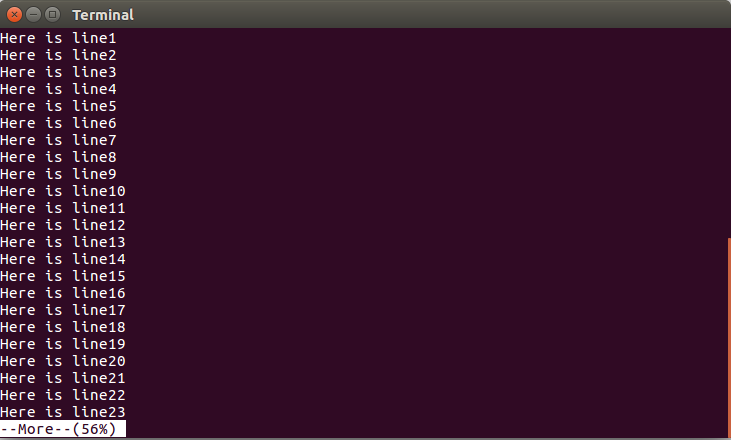 Besides the space bar, there are many keystrokes that let you do useful navigation of the file displayed by `more`. The ones I use the most often are `b` and the slash key `/`. If you think of the space bar as being like a "page down" key to look at the next screenful of content, then `b` ("back") is the "page up" key that lets you look at the screenful before the one that is currently displayed. The slash key (`/`) lets you search for a string of text within the file while `more` is displaying that file. If your search finds the text you were looking for, pressing the `n` key over and over will look for additional instances of that string. The only other `more` keystroke command to remember when `more` is showing you a file is the question mark (`?`), which tells you about all the others. If I had really typed `cat 40lines.txt` and then realized that I was not seeing the top of the file and that I should have used `more` instead of `cat` to look at `40lines.txt`, then instead of using the command shown above, I would actually press my cursor-up key to retrieve that `cat` command to my terminal window's prompt and then add a pipe symbol and "more" to the command, like this: cat 40lines.txt | more In other words, I would pipe the output of the `cat` command to `more` so that I could view its output a screenful at a time. Doing it by retrieving the previous command and adding the new part would save me the trouble of writing out the filename again. I often pipe output to `more` from other commands that display more content than I thought I'd see on the screen—for example, the `ls` command to list filenames and associated information. Like all the commands we've looked at, `more` has command line options that let you customize its behavior. (Remember, these are extra options to include at the terminal command line when you invoke the `more` command, not keystrokes that control what `more` does while you're using it, like the slash and question mark keystrokes described above.) For example, the `+` option tells `more` to start displaying at the first line that has a particular string. Here, we're telling it to start displaying at the first line that has the text "line30" in it: more +line30 40lines.txt As always, the `man` command will tell you more about this command: man more |
| json metadata | {"tags":["technology","unix"],"image":["https://steemitimages.com/DQmYL2JTS2FAy2BSTLGr5xVCwSxvX6RYFcJ3hYC4feawCAG/unix.jpg","https://steemitimages.com/DQmbWqSbAa4bzrFqoArymk77aHxmkUXVwEumdVwebBPCyfa/more1.png"],"links":["https://steemit.com/technology/@bobdc/unix-command-line-tricks-for-linux-mac-and-windows-table-of-contents","https://steemit.com/technology/@bobdc/unix-command-line-tricks-for-linux-mac-and-windows-cat"],"app":"steemit/0.1","format":"markdown"} |
| Transaction Info | Block #14114129/Trx 5cd234057c2cc7faabf3fd0c74789adf0d5281d6 |
View Raw JSON Data
{
"trx_id": "5cd234057c2cc7faabf3fd0c74789adf0d5281d6",
"block": 14114129,
"trx_in_block": 9,
"op_in_trx": 0,
"virtual_op": 0,
"timestamp": "2017-07-29T18:06:36",
"op": [
"comment",
{
"parent_author": "",
"parent_permlink": "technology",
"author": "bobdc",
"permlink": "unix-command-line-tricks-for-linux-mac-and-windows-displaying-larger-files-with-the-more-command",
"title": "Unix command line tricks for Linux, Mac, and Windows: displaying larger files with the more command",
"body": "<center><p><img src=\"https://steemitimages.com/DQmYL2JTS2FAy2BSTLGr5xVCwSxvX6RYFcJ3hYC4feawCAG/unix.jpg\"></p></center>\n\nSee [Unix command line tricks for Linux, Mac, and Windows: table of contents](https://steemit.com/technology/@bobdc/unix-command-line-tricks-for-linux-mac-and-windows-table-of-contents) for an introduction to this series and links to all the entries. \n\n[Last week](https://steemit.com/technology/@bobdc/unix-command-line-tricks-for-linux-mac-and-windows-cat) we looked at `cat`, a command that displays the contents of a file on your screen. I wrote \"I use `cat` every time I want to look at the contents of a file that is 25 lines or less, which means I use it dozens of times a day.\" If you use `cat` with a file longer than that, the top of the file will scroll out of the window and you only see the last 25 lines, so that's where the `more` command (which I also use dozens of times a day) comes in. To test it, I'll use the file `40lines.txt`, which starts like this\n\n Here is line1\n Here is line2\n Here is line3\n Here is line4\n Here is line5\n\nand then after 30 more lines ends like this: \n\n Here is line36\n Here is line37\n Here is line38\n Here is line39\n Here is line40\n\nAfter typing this command,\n\n more 40lines.txt\n\nthe `more` command shows me enough lines to fill up the screen, an indicator of how far it got into the file (in this case, 56% of the way in), and waits for me to press the space bar to display another screenful: \n\n\n\nBesides the space bar, there are many keystrokes that let you do useful navigation of the file displayed by `more`. The ones I use the most often are `b` and the slash key `/`. If you think of the space bar as being like a \"page down\" key to look at the next screenful of content, then `b` (\"back\") is the \"page up\" key that lets you look at the screenful before the one that is currently displayed. The slash key (`/`) lets you search for a string of text within the file while `more` is displaying that file. If your search finds the text you were looking for, pressing the `n` key over and over will look for additional instances of that string. \n\nThe only other `more` keystroke command to remember when `more` is showing you a file is the question mark (`?`), which tells you about all the others. \n\nIf I had really typed `cat 40lines.txt` and then realized that I was not seeing the top of the file and that I should have used `more` instead of `cat` to look at `40lines.txt`, then instead of using the command shown above, I would actually press my cursor-up key to retrieve that `cat` command to my terminal window's prompt and then add a pipe symbol and \"more\" to the command, like this: \n\n cat 40lines.txt | more\n\nIn other words, I would pipe the output of the `cat` command to `more` so that I could view its output a screenful at a time. Doing it by retrieving the previous command and adding the new part would save me the trouble of writing out the filename again. I often pipe output to `more` from other commands that display more content than I thought I'd see on the screen—for example, the `ls` command to list filenames and associated information. \n\nLike all the commands we've looked at, `more` has command line options that let you customize its behavior. (Remember, these are extra options to include at the terminal command line when you invoke the `more` command, not keystrokes that control what `more` does while you're using it, like the slash and question mark keystrokes described above.) For example, the `+` option tells `more` to start displaying at the first line that has a particular string. Here, we're telling it to start displaying at the first line that has the text \"line30\" in it: \n\n more +line30 40lines.txt\n\nAs always, the `man` command will tell you more about this command: \n\n man more",
"json_metadata": "{\"tags\":[\"technology\",\"unix\"],\"image\":[\"https://steemitimages.com/DQmYL2JTS2FAy2BSTLGr5xVCwSxvX6RYFcJ3hYC4feawCAG/unix.jpg\",\"https://steemitimages.com/DQmbWqSbAa4bzrFqoArymk77aHxmkUXVwEumdVwebBPCyfa/more1.png\"],\"links\":[\"https://steemit.com/technology/@bobdc/unix-command-line-tricks-for-linux-mac-and-windows-table-of-contents\",\"https://steemit.com/technology/@bobdc/unix-command-line-tricks-for-linux-mac-and-windows-cat\"],\"app\":\"steemit/0.1\",\"format\":\"markdown\"}"
}
]
}bobdcreceived 0.303 SBD, 0.308 SP author reward for @bobdc / re-bobdc-unix-command-line-tricks-for-linux-mac-and-windows-head-and-tail-20170722t160336442z2017/07/29 16:03:36
bobdcreceived 0.303 SBD, 0.308 SP author reward for @bobdc / re-bobdc-unix-command-line-tricks-for-linux-mac-and-windows-head-and-tail-20170722t160336442z
2017/07/29 16:03:36
| author | bobdc |
| permlink | re-bobdc-unix-command-line-tricks-for-linux-mac-and-windows-head-and-tail-20170722t160336442z |
| sbd payout | 0.303 SBD |
| steem payout | 0.000 STEEM |
| vesting payout | 501.961960 VESTS |
| Transaction Info | Block #14111668/Virtual Operation #9 |
View Raw JSON Data
{
  "trx_id": "0000000000000000000000000000000000000000",
  "block": 14111668,
  "trx_in_block": 4294967295,
  "op_in_trx": 0,
  "virtual_op": 9,
  "timestamp": "2017-07-29T16:03:36",
  "op": [
    "author_reward",
    {
      "author": "bobdc",
      "permlink": "re-bobdc-unix-command-line-tricks-for-linux-mac-and-windows-head-and-tail-20170722t160336442z",
      "sbd_payout": "0.303 SBD",
      "steem_payout": "0.000 STEEM",
      "vesting_payout": "501.961960 VESTS"
    }
  ]
}2017/07/22 17:52:18
2017/07/22 17:52:18
| voter | thing-2 |
| author | bobdc |
| permlink | re-bobdc-unix-command-line-tricks-for-linux-mac-and-windows-head-and-tail-20170722t160336442z |
| weight | 10000 (100.00%) |
| Transaction Info | Block #13912380/Trx c70a9ad6139578ed9cebede724a4fe7916881f02 |
View Raw JSON Data
{
  "trx_id": "c70a9ad6139578ed9cebede724a4fe7916881f02",
  "block": 13912380,
  "trx_in_block": 2,
  "op_in_trx": 0,
  "virtual_op": 0,
  "timestamp": "2017-07-22T17:52:18",
  "op": [
    "vote",
    {
      "voter": "thing-2",
      "author": "bobdc",
      "permlink": "re-bobdc-unix-command-line-tricks-for-linux-mac-and-windows-head-and-tail-20170722t160336442z",
      "weight": 10000
    }
  ]
}2017/07/22 17:02:09
2017/07/22 17:02:09
| voter | mahdiyari |
| author | bobdc |
| permlink | unix-command-line-tricks-for-linux-mac-and-windows-table-of-contents |
| weight | 400 (4.00%) |
| Transaction Info | Block #13911377/Trx d46f5fb030ba313cc227a7cc912238184e407df9 |
View Raw JSON Data
{
  "trx_id": "d46f5fb030ba313cc227a7cc912238184e407df9",
  "block": 13911377,
  "trx_in_block": 1,
  "op_in_trx": 0,
  "virtual_op": 0,
  "timestamp": "2017-07-22T17:02:09",
  "op": [
    "vote",
    {
      "voter": "mahdiyari",
      "author": "bobdc",
      "permlink": "unix-command-line-tricks-for-linux-mac-and-windows-table-of-contents",
      "weight": 400
    }
  ]
}bobdcpublished a new post: unix-command-line-tricks-for-linux-mac-and-windows-table-of-contents2017/07/22 17:02:00
bobdcpublished a new post: unix-command-line-tricks-for-linux-mac-and-windows-table-of-contents
2017/07/22 17:02:00
| parent author | |
| parent permlink | technology |
| author | bobdc |
| permlink | unix-command-line-tricks-for-linux-mac-and-windows-table-of-contents |
| title | Unix command line tricks for Linux, Mac, and Windows: table of contents |
| body | @@ -1894,8 +1894,162 @@ ows-cat) +%0A%0ABecause steemit won't let us edit posts that are more than a week old, I will be adding links to new entries in this series as comments to this posting. |
| json metadata | {"tags":["technology","unix"],"image":["https://steemitimages.com/DQmYL2JTS2FAy2BSTLGr5xVCwSxvX6RYFcJ3hYC4feawCAG/unix.jpg"],"links":["https://en.wikipedia.org/wiki/Unix","https://www.howtogeek.com/249966/how-to-install-and-use-the-linux-bash-shell-on-windows-10/","https://www.cygwin.com/","http://blog.teamtreehouse.com/introduction-to-the-mac-os-x-command-line","https://steemit.com/technology/@bobdc/unix-command-line-tricks-for-linux-mac-and-windows-grep","https://steemit.com/technology/@bobdc/unix-command-line-tricks-for-linux-mac-and-windows-head-and-tail","https://steemit.com/technology/@bobdc/unix-command-line-tricks-for-linux-mac-and-windows-cut","https://steemit.com/technology/@bobdc/unix-command-line-tricks-for-linux-mac-and-windows-diff","https://steemit.com/technology/@bobdc/unix-command-line-tricks-for-linux-mac-and-windows-cat"],"app":"steemit/0.1","format":"markdown"} |
| Transaction Info | Block #13911374/Trx b2afe32450175c029a7080a1661d7ecee9c81a38 |
View Raw JSON Data
{
  "trx_id": "b2afe32450175c029a7080a1661d7ecee9c81a38",
  "block": 13911374,
  "trx_in_block": 1,
  "op_in_trx": 0,
  "virtual_op": 0,
  "timestamp": "2017-07-22T17:02:00",
  "op": [
    "comment",
    {
      "parent_author": "",
      "parent_permlink": "technology",
      "author": "bobdc",
      "permlink": "unix-command-line-tricks-for-linux-mac-and-windows-table-of-contents",
      "title": "Unix command line tricks for Linux, Mac, and Windows: table of contents",
      "body": "@@ -1894,8 +1894,162 @@\n ows-cat)\n+%0A%0ABecause steemit won't let us edit posts that are more than a week old, I will be adding links to new entries in this series as comments to this posting.\n",
      "json_metadata": "{\"tags\":[\"technology\",\"unix\"],\"image\":[\"https://steemitimages.com/DQmYL2JTS2FAy2BSTLGr5xVCwSxvX6RYFcJ3hYC4feawCAG/unix.jpg\"],\"links\":[\"https://en.wikipedia.org/wiki/Unix\",\"https://www.howtogeek.com/249966/how-to-install-and-use-the-linux-bash-shell-on-windows-10/\",\"https://www.cygwin.com/\",\"http://blog.teamtreehouse.com/introduction-to-the-mac-os-x-command-line\",\"https://steemit.com/technology/@bobdc/unix-command-line-tricks-for-linux-mac-and-windows-grep\",\"https://steemit.com/technology/@bobdc/unix-command-line-tricks-for-linux-mac-and-windows-head-and-tail\",\"https://steemit.com/technology/@bobdc/unix-command-line-tricks-for-linux-mac-and-windows-cut\",\"https://steemit.com/technology/@bobdc/unix-command-line-tricks-for-linux-mac-and-windows-diff\",\"https://steemit.com/technology/@bobdc/unix-command-line-tricks-for-linux-mac-and-windows-cat\"],\"app\":\"steemit/0.1\",\"format\":\"markdown\"}"
    }
  ]
}2017/07/22 16:40:51
2017/07/22 16:40:51
| parent author | goldfishdotpoker |
| parent permlink | re-bobdc-unix-command-line-tricks-for-linux-mac-and-windows-table-of-contents-20170722t160534129z |
| author | bobdc |
| permlink | re-goldfishdotpoker-re-bobdc-unix-command-line-tricks-for-linux-mac-and-windows-table-of-contents-20170722t164051858z |
| title | |
| body | I just added `cat`! |
| json metadata | {"tags":["technology"],"app":"steemit/0.1"} |
| Transaction Info | Block #13910951/Trx c59f5c70448022eaf7d7ce3499d98b4f7b9fae60 |
View Raw JSON Data
{
  "trx_id": "c59f5c70448022eaf7d7ce3499d98b4f7b9fae60",
  "block": 13910951,
  "trx_in_block": 18,
  "op_in_trx": 0,
  "virtual_op": 0,
  "timestamp": "2017-07-22T16:40:51",
  "op": [
    "comment",
    {
      "parent_author": "goldfishdotpoker",
      "parent_permlink": "re-bobdc-unix-command-line-tricks-for-linux-mac-and-windows-table-of-contents-20170722t160534129z",
      "author": "bobdc",
      "permlink": "re-goldfishdotpoker-re-bobdc-unix-command-line-tricks-for-linux-mac-and-windows-table-of-contents-20170722t164051858z",
      "title": "",
      "body": "I just added `cat`!",
      "json_metadata": "{\"tags\":[\"technology\"],\"app\":\"steemit/0.1\"}"
    }
  ]
}2017/07/22 16:40:39
2017/07/22 16:40:39
| voter | bobdc |
| author | goldfishdotpoker |
| permlink | re-bobdc-unix-command-line-tricks-for-linux-mac-and-windows-table-of-contents-20170722t160534129z |
| weight | 10000 (100.00%) |
| Transaction Info | Block #13910947/Trx 60a67bf16fde01451fdb52b9168a6390ea3e3d1c |
View Raw JSON Data
{
  "trx_id": "60a67bf16fde01451fdb52b9168a6390ea3e3d1c",
  "block": 13910947,
  "trx_in_block": 12,
  "op_in_trx": 0,
  "virtual_op": 0,
  "timestamp": "2017-07-22T16:40:39",
  "op": [
    "vote",
    {
      "voter": "bobdc",
      "author": "goldfishdotpoker",
      "permlink": "re-bobdc-unix-command-line-tricks-for-linux-mac-and-windows-table-of-contents-20170722t160534129z",
      "weight": 10000
    }
  ]
}bobdcpublished a new post: unix-command-line-tricks-for-linux-mac-and-windows-table-of-contents2017/07/22 16:40:27
bobdcpublished a new post: unix-command-line-tricks-for-linux-mac-and-windows-table-of-contents
2017/07/22 16:40:27
| parent author | |
| parent permlink | technology |
| author | bobdc |
| permlink | unix-command-line-tricks-for-linux-mac-and-windows-table-of-contents |
| title | Unix command line tricks for Linux, Mac, and Windows: table of contents |
| body | @@ -1743,8 +1743,159 @@ ws-diff) +%0A* %5Bviewing (and doing other tricks with) files: **cat**%5D(https://steemit.com/technology/@bobdc/unix-command-line-tricks-for-linux-mac-and-windows-cat) |
| json metadata | {"tags":["technology","unix"],"image":["https://steemitimages.com/DQmYL2JTS2FAy2BSTLGr5xVCwSxvX6RYFcJ3hYC4feawCAG/unix.jpg"],"links":["https://en.wikipedia.org/wiki/Unix","https://www.howtogeek.com/249966/how-to-install-and-use-the-linux-bash-shell-on-windows-10/","https://www.cygwin.com/","http://blog.teamtreehouse.com/introduction-to-the-mac-os-x-command-line","https://steemit.com/technology/@bobdc/unix-command-line-tricks-for-linux-mac-and-windows-grep","https://steemit.com/technology/@bobdc/unix-command-line-tricks-for-linux-mac-and-windows-head-and-tail","https://steemit.com/technology/@bobdc/unix-command-line-tricks-for-linux-mac-and-windows-cut","https://steemit.com/technology/@bobdc/unix-command-line-tricks-for-linux-mac-and-windows-diff","https://steemit.com/technology/@bobdc/unix-command-line-tricks-for-linux-mac-and-windows-cat"],"app":"steemit/0.1","format":"markdown"} |
| Transaction Info | Block #13910943/Trx dacc1ac75e3c08be987bf2b72326fd864bb48ba0 |
View Raw JSON Data
{
  "trx_id": "dacc1ac75e3c08be987bf2b72326fd864bb48ba0",
  "block": 13910943,
  "trx_in_block": 14,
  "op_in_trx": 0,
  "virtual_op": 0,
  "timestamp": "2017-07-22T16:40:27",
  "op": [
    "comment",
    {
      "parent_author": "",
      "parent_permlink": "technology",
      "author": "bobdc",
      "permlink": "unix-command-line-tricks-for-linux-mac-and-windows-table-of-contents",
      "title": "Unix command line tricks for Linux, Mac, and Windows: table of contents",
      "body": "@@ -1743,8 +1743,159 @@\n ws-diff)\n+%0A* %5Bviewing (and doing other tricks with) files: **cat**%5D(https://steemit.com/technology/@bobdc/unix-command-line-tricks-for-linux-mac-and-windows-cat)\n",
      "json_metadata": "{\"tags\":[\"technology\",\"unix\"],\"image\":[\"https://steemitimages.com/DQmYL2JTS2FAy2BSTLGr5xVCwSxvX6RYFcJ3hYC4feawCAG/unix.jpg\"],\"links\":[\"https://en.wikipedia.org/wiki/Unix\",\"https://www.howtogeek.com/249966/how-to-install-and-use-the-linux-bash-shell-on-windows-10/\",\"https://www.cygwin.com/\",\"http://blog.teamtreehouse.com/introduction-to-the-mac-os-x-command-line\",\"https://steemit.com/technology/@bobdc/unix-command-line-tricks-for-linux-mac-and-windows-grep\",\"https://steemit.com/technology/@bobdc/unix-command-line-tricks-for-linux-mac-and-windows-head-and-tail\",\"https://steemit.com/technology/@bobdc/unix-command-line-tricks-for-linux-mac-and-windows-cut\",\"https://steemit.com/technology/@bobdc/unix-command-line-tricks-for-linux-mac-and-windows-diff\",\"https://steemit.com/technology/@bobdc/unix-command-line-tricks-for-linux-mac-and-windows-cat\"],\"app\":\"steemit/0.1\",\"format\":\"markdown\"}"
    }
  ]
}bobdcpublished a new post: unix-command-line-tricks-for-linux-mac-and-windows-cat2017/07/22 16:38:21
bobdcpublished a new post: unix-command-line-tricks-for-linux-mac-and-windows-cat
2017/07/22 16:38:21
| parent author | |
| parent permlink | technology |
| author | bobdc |
| permlink | unix-command-line-tricks-for-linux-mac-and-windows-cat |
| title | Unix command line tricks for Linux, Mac, and Windows: cat |
| body | <center><p><img src="https://steemitimages.com/DQmYL2JTS2FAy2BSTLGr5xVCwSxvX6RYFcJ3hYC4feawCAG/unix.jpg"></p></center> See [Unix command line tricks for Linux, Mac, and Windows: table of contents](https://steemit.com/technology/@bobdc/unix-command-line-tricks-for-linux-mac-and-windows-table-of-contents) for an introduction to this series and links to all the entries. Today we look at `cat`, a command for quickly looking at files. We'll start by trying it out with this file, which I've called `testfile1.txt`: Here is the first line of testfile1.txt. This is the second and final line of testfile1.txt. Entering the following at the command line will show you the contents of the file at the command line. I won't even show you the output, because it's identical to what you see above: cat testfile1.txt I use `cat` every time I want to look at the contents of a file that is 25 lines or less, which means I use it dozens of times a day. Like all the other commands in this series, using the `man` ("manual") command to learn more about `cat` by entering `man cat` told me about some great options for this command that definitely fell into the category of "where have you been all my life." For example, `-n` ("number") tells `cat` to number the lines in the output, so that entering this cat -n testfile1.txt gives us this: 1 Here is the first line of testfile1.txt. 2 This is the second and final line of testfile1.txt. If you want a copy of the file with the numbers, you can use the redirect symbol to tell `cat` to store its output in a file instead of outputting it to your terminal: cat -n testfile1.txt > testfile1a.txt For some more cool `cat` command line options, we'll use this sample file, which I called `testfile2.txt`: Here is the first line of testfile2.txt. Here is the second line. I'm leaving the third line blank: This is the fifth line. I'm leaving the sixth, seventh, and eighth lines blank: This is the ninth and final line of testfile2.txt. An `-n` switch would tell `cat` to add numbers to all 9 lines of `testfile2.txt`, but `-b` ("number-nonblank") tells it to number only the nonblank lines, so that this command cat -b testfile2.txt gives us this: 1 Here is the first line of testfile2.txt. 2 Here is the second line. I'm leaving the third line blank: 3 This is the fifth line. I'm leaving the sixth, seventh, and eighth lines blank: 4 This is the ninth and final line of testfile2.txt. The `-s` switch ("squeeze-blank") tells `cat` that when it finds multiple blank lines in a row, it should only output one, so that this command cat -s testfile2.txt gives us this output: Here is the first line of testfile2.txt. Here is the second line. I'm leaving the third line blank: This is the fifth line. I'm leaving the sixth, seventh, and eighth lines blank: This is the ninth and final line of testfile2.txt. I can think of a lot of data cleanup I've done where that would have been handy if I'd known about it. Why does `cat` have that name? Because it's short for "concatenate," which is something else it can do. If you list multiple files as arguments to the command, it will output all of their contents. If you redirect this output, it will combine the contents of the multiple files into the output file that it creates. For example, the following will create `testfile3.txt` as a copy of `testfile1.txt` followed by a copy of `testfile2.txt`: cat testfile1.txt testfile2.txt > testfile3.txt Try out `man cat` yourself to learn more about this very popular command. |
| json metadata | {"tags":["technology","unix"],"image":["https://steemitimages.com/DQmYL2JTS2FAy2BSTLGr5xVCwSxvX6RYFcJ3hYC4feawCAG/unix.jpg"],"links":["https://steemit.com/technology/@bobdc/unix-command-line-tricks-for-linux-mac-and-windows-table-of-contents"],"app":"steemit/0.1","format":"markdown"} |
| Transaction Info | Block #13910901/Trx 623faed0921ffed892bb9a0925c2b964801c9933 |
View Raw JSON Data
{
  "trx_id": "623faed0921ffed892bb9a0925c2b964801c9933",
  "block": 13910901,
  "trx_in_block": 24,
  "op_in_trx": 0,
  "virtual_op": 0,
  "timestamp": "2017-07-22T16:38:21",
  "op": [
    "comment",
    {
      "parent_author": "",
      "parent_permlink": "technology",
      "author": "bobdc",
      "permlink": "unix-command-line-tricks-for-linux-mac-and-windows-cat",
      "title": "Unix command line tricks for Linux, Mac, and Windows: cat",
      "body": "<center><p><img src=\"https://steemitimages.com/DQmYL2JTS2FAy2BSTLGr5xVCwSxvX6RYFcJ3hYC4feawCAG/unix.jpg\"></p></center>\n\nSee [Unix command line tricks for Linux, Mac, and Windows: table of contents](https://steemit.com/technology/@bobdc/unix-command-line-tricks-for-linux-mac-and-windows-table-of-contents) for an introduction to this series and links to all the entries. Today we look at `cat`, a command for quickly looking at files. We'll start by trying it  out with this file, which I've called `testfile1.txt`:\n\n    Here is the first line of testfile1.txt.\n    This is the second and final line of testfile1.txt. \n\nEntering the following at the command line will show you the contents of the file at the command line. I won't even show you the output, because it's identical to what you see above: \n\n    cat testfile1.txt\n\nI use `cat` every time I want to look at the contents of a file that is 25 lines or less, which means I use it dozens of times a day. \n\nLike all the other commands in this series, using the `man` (\"manual\") command to learn more about `cat` by entering `man cat` told me about some great options for this command that definitely fell into the category of \"where have you been all my life.\" For example, `-n` (\"number\") tells `cat` to number the lines in the output, so that entering this\n\n    cat -n testfile1.txt\n\ngives us this: \n\n     1\tHere is the first line of testfile1.txt.\n     2\tThis is the second and final line of testfile1.txt.\n\nIf you want a copy of the file with the numbers, you can use the redirect symbol to tell `cat` to store its output in a file instead of outputting it to your terminal: \n\n    cat -n testfile1.txt > testfile1a.txt\n\nFor some more cool `cat` command line options, we'll use this sample file, which I called `testfile2.txt`: \n\n    Here is the first line of testfile2.txt.\n    Here is the second line. I'm leaving the third line blank: \n\n    This is the fifth line. I'm leaving the sixth, seventh, and eighth lines blank: \n\n\n\n    This is the ninth and final line of testfile2.txt. \n\nAn `-n` switch would tell `cat` to add numbers to all 9 lines of `testfile2.txt`, but `-b` (\"number-nonblank\") tells it to number only the nonblank lines, so that this command\n\n    cat -b testfile2.txt\n\ngives us this: \n\n    1\tHere is the first line of testfile2.txt.\n    2\tHere is the second line. I'm leaving the third line blank: \n\n    3\tThis is the fifth line. I'm leaving the sixth, seventh, and eighth lines blank: \n\n\n\n    4\tThis is the ninth and final line of testfile2.txt. \n\nThe `-s` switch (\"squeeze-blank\") tells `cat` that when it finds multiple blank lines in a row, it should only output one, so that this command \n\n    cat -s testfile2.txt\n\ngives us this output: \n\n    Here is the first line of testfile2.txt.\n    Here is the second line. I'm leaving the third line blank: \n\n    This is the fifth line. I'm leaving the sixth, seventh, and eighth lines blank: \n\n    This is the ninth and final line of testfile2.txt. \n\nI can think of a lot of data cleanup I've done where that would have been handy if I'd known about it. \n\nWhy does `cat` have that name? Because it's short for \"concatenate,\" which is something else it can do. If you list multiple files as arguments to the command, it will output all of their contents. If you redirect this output, it will combine the contents of the multiple files into the output file that it creates. For example, the following will create `testfile3.txt` as a copy of `testfile1.txt` followed by a copy of `testfile2.txt`: \n\n    cat testfile1.txt testfile2.txt > testfile3.txt\n\nTry out `man cat` yourself to learn more about this very popular command.",
      "json_metadata": "{\"tags\":[\"technology\",\"unix\"],\"image\":[\"https://steemitimages.com/DQmYL2JTS2FAy2BSTLGr5xVCwSxvX6RYFcJ3hYC4feawCAG/unix.jpg\"],\"links\":[\"https://steemit.com/technology/@bobdc/unix-command-line-tricks-for-linux-mac-and-windows-table-of-contents\"],\"app\":\"steemit/0.1\",\"format\":\"markdown\"}"
    }
  ]
}bobdcpublished a new post: unix-command-line-tricks-for-linux-mac-and-windows-diff2017/07/22 16:32:33
bobdcpublished a new post: unix-command-line-tricks-for-linux-mac-and-windows-diff
2017/07/22 16:32:33
| parent author | |
| parent permlink | technology |
| author | bobdc |
| permlink | unix-command-line-tricks-for-linux-mac-and-windows-diff |
| title | Unix command line tricks for Linux, Mac, and Windows: diff |
| body | @@ -324,17 +324,18 @@ on to th -e +is series |
| json metadata | {"tags":["technology","unix"],"image":["https://steemitimages.com/DQmYL2JTS2FAy2BSTLGr5xVCwSxvX6RYFcJ3hYC4feawCAG/unix.jpg","https://steemitimages.com/DQmYeZZG5dijLpm5BDdRm4p3dt3GQtsH5ithVPBgJ1pHetj/diff1.png"],"links":["https://steemit.com/technology/@bobdc/unix-command-line-tricks-for-linux-mac-and-windows-table-of-contents"],"app":"steemit/0.1","format":"markdown"} |
| Transaction Info | Block #13910785/Trx 0f2ace207b85d749d58e2411824a99eb9ce688f7 |
View Raw JSON Data
{
  "trx_id": "0f2ace207b85d749d58e2411824a99eb9ce688f7",
  "block": 13910785,
  "trx_in_block": 14,
  "op_in_trx": 0,
  "virtual_op": 0,
  "timestamp": "2017-07-22T16:32:33",
  "op": [
    "comment",
    {
      "parent_author": "",
      "parent_permlink": "technology",
      "author": "bobdc",
      "permlink": "unix-command-line-tricks-for-linux-mac-and-windows-diff",
      "title": "Unix command line tricks for Linux, Mac, and Windows: diff",
      "body": "@@ -324,17 +324,18 @@\n on to th\n-e\n+is\n  series \n",
      "json_metadata": "{\"tags\":[\"technology\",\"unix\"],\"image\":[\"https://steemitimages.com/DQmYL2JTS2FAy2BSTLGr5xVCwSxvX6RYFcJ3hYC4feawCAG/unix.jpg\",\"https://steemitimages.com/DQmYeZZG5dijLpm5BDdRm4p3dt3GQtsH5ithVPBgJ1pHetj/diff1.png\"],\"links\":[\"https://steemit.com/technology/@bobdc/unix-command-line-tricks-for-linux-mac-and-windows-table-of-contents\"],\"app\":\"steemit/0.1\",\"format\":\"markdown\"}"
    }
  ]
}bobdcpublished a new post: unix-command-line-tricks-for-linux-mac-and-windows-table-of-contents2017/07/22 16:09:21
bobdcpublished a new post: unix-command-line-tricks-for-linux-mac-and-windows-table-of-contents
2017/07/22 16:09:21
| parent author | |
| parent permlink | technology |
| author | bobdc |
| permlink | unix-command-line-tricks-for-linux-mac-and-windows-table-of-contents |
| title | Unix command line tricks for Linux, Mac, and Windows: table of contents |
| body | @@ -119,25 +119,9 @@ %0A%0ATh -is is a series on +e %5BUn @@ -164,48 +164,46 @@ ix) -command line tools that are available on +operating system was the granddaddy of Lin @@ -227,21 +227,152 @@ dows - machines. It +, and most of its commands for exploring and pulling information out of text files are available on these modern operating systems. This series cov |
| json metadata | {"tags":["technology","unix"],"image":["https://steemitimages.com/DQmYL2JTS2FAy2BSTLGr5xVCwSxvX6RYFcJ3hYC4feawCAG/unix.jpg"],"links":["https://en.wikipedia.org/wiki/Unix","https://www.howtogeek.com/249966/how-to-install-and-use-the-linux-bash-shell-on-windows-10/","https://www.cygwin.com/","http://blog.teamtreehouse.com/introduction-to-the-mac-os-x-command-line","https://steemit.com/technology/@bobdc/unix-command-line-tricks-for-linux-mac-and-windows-grep","https://steemit.com/technology/@bobdc/unix-command-line-tricks-for-linux-mac-and-windows-head-and-tail","https://steemit.com/technology/@bobdc/unix-command-line-tricks-for-linux-mac-and-windows-cut","https://steemit.com/technology/@bobdc/unix-command-line-tricks-for-linux-mac-and-windows-diff"],"app":"steemit/0.1","format":"markdown"} |
| Transaction Info | Block #13910321/Trx bb7a8ffb474829f2e4880ff770a3c59ca6554dfb |
View Raw JSON Data
{
  "trx_id": "bb7a8ffb474829f2e4880ff770a3c59ca6554dfb",
  "block": 13910321,
  "trx_in_block": 16,
  "op_in_trx": 0,
  "virtual_op": 0,
  "timestamp": "2017-07-22T16:09:21",
  "op": [
    "comment",
    {
      "parent_author": "",
      "parent_permlink": "technology",
      "author": "bobdc",
      "permlink": "unix-command-line-tricks-for-linux-mac-and-windows-table-of-contents",
      "title": "Unix command line tricks for Linux, Mac, and Windows: table of contents",
      "body": "@@ -119,25 +119,9 @@\n %0A%0ATh\n-is is a series on\n+e\n  %5BUn\n@@ -164,48 +164,46 @@\n ix) \n-command line tools that are available on\n+operating system was the granddaddy of\n  Lin\n@@ -227,21 +227,152 @@\n dows\n- machines. It\n+, and most of its commands for exploring and pulling information out of  text files are available on these modern operating systems. This series\n  cov\n",
      "json_metadata": "{\"tags\":[\"technology\",\"unix\"],\"image\":[\"https://steemitimages.com/DQmYL2JTS2FAy2BSTLGr5xVCwSxvX6RYFcJ3hYC4feawCAG/unix.jpg\"],\"links\":[\"https://en.wikipedia.org/wiki/Unix\",\"https://www.howtogeek.com/249966/how-to-install-and-use-the-linux-bash-shell-on-windows-10/\",\"https://www.cygwin.com/\",\"http://blog.teamtreehouse.com/introduction-to-the-mac-os-x-command-line\",\"https://steemit.com/technology/@bobdc/unix-command-line-tricks-for-linux-mac-and-windows-grep\",\"https://steemit.com/technology/@bobdc/unix-command-line-tricks-for-linux-mac-and-windows-head-and-tail\",\"https://steemit.com/technology/@bobdc/unix-command-line-tricks-for-linux-mac-and-windows-cut\",\"https://steemit.com/technology/@bobdc/unix-command-line-tricks-for-linux-mac-and-windows-diff\"],\"app\":\"steemit/0.1\",\"format\":\"markdown\"}"
    }
  ]
}2017/07/22 16:08:06
2017/07/22 16:08:06
| parent author | bobdc |
| parent permlink | unix-command-line-tricks-for-linux-mac-and-windows-grep |
| author | bobdc |
| permlink | re-bobdc-unix-command-line-tricks-for-linux-mac-and-windows-grep-20170722t160805342z |
| title | |
| body | I can't find an edit button for my post, so I'm adding a link to the table of contents for the series here: [Unix command line tricks for Linux, Mac, and Windows: table of contents](https://steemit.com/technology/@bobdc/unix-command-line-tricks-for-linux-mac-and-windows-table-of-contents) |
| json metadata | {"tags":["technology"],"links":["https://steemit.com/technology/@bobdc/unix-command-line-tricks-for-linux-mac-and-windows-table-of-contents"],"app":"steemit/0.1"} |
| Transaction Info | Block #13910296/Trx 3cf273d62e5b6db09275207f07c533312dbf4d97 |
View Raw JSON Data
{
  "trx_id": "3cf273d62e5b6db09275207f07c533312dbf4d97",
  "block": 13910296,
  "trx_in_block": 7,
  "op_in_trx": 0,
  "virtual_op": 0,
  "timestamp": "2017-07-22T16:08:06",
  "op": [
    "comment",
    {
      "parent_author": "bobdc",
      "parent_permlink": "unix-command-line-tricks-for-linux-mac-and-windows-grep",
      "author": "bobdc",
      "permlink": "re-bobdc-unix-command-line-tricks-for-linux-mac-and-windows-grep-20170722t160805342z",
      "title": "",
      "body": "I can't find an edit button for my post, so I'm adding a link to the table of contents for the series here:  [Unix command line tricks for Linux, Mac, and Windows: table of contents](https://steemit.com/technology/@bobdc/unix-command-line-tricks-for-linux-mac-and-windows-table-of-contents)",
      "json_metadata": "{\"tags\":[\"technology\"],\"links\":[\"https://steemit.com/technology/@bobdc/unix-command-line-tricks-for-linux-mac-and-windows-table-of-contents\"],\"app\":\"steemit/0.1\"}"
    }
  ]
}bobdcdeleted a comment or post2017/07/22 16:07:18
bobdcdeleted a comment or post
2017/07/22 16:07:18
| author | bobdc |
| permlink | re-bobdc-unix-command-line-tricks-for-linux-mac-and-windows-head-and-tail-20170722t160645671z |
| Transaction Info | Block #13910280/Trx d0ef7903c1ddaa1db21dfdecdcdd1c3aeb3ee9b7 |
View Raw JSON Data
{
  "trx_id": "d0ef7903c1ddaa1db21dfdecdcdd1c3aeb3ee9b7",
  "block": 13910280,
  "trx_in_block": 21,
  "op_in_trx": 0,
  "virtual_op": 0,
  "timestamp": "2017-07-22T16:07:18",
  "op": [
    "delete_comment",
    {
      "author": "bobdc",
      "permlink": "re-bobdc-unix-command-line-tricks-for-linux-mac-and-windows-head-and-tail-20170722t160645671z"
    }
  ]
}2017/07/22 16:06:45
2017/07/22 16:06:45
| parent author | bobdc |
| parent permlink | unix-command-line-tricks-for-linux-mac-and-windows-head-and-tail |
| author | bobdc |
| permlink | re-bobdc-unix-command-line-tricks-for-linux-mac-and-windows-head-and-tail-20170722t160645671z |
| title | |
| body | I can't find an edit button for my post, so I'm adding a link to the table of contents for the series here: [Unix command line tricks for Linux, Mac, and Windows: table of contents](https://steemit.com/technology/@bobdc/unix-command-line-tricks-for-linux-mac-and-windows-table-of-contents) |
| json metadata | {"tags":["technology"],"links":["https://steemit.com/technology/@bobdc/unix-command-line-tricks-for-linux-mac-and-windows-table-of-contents"],"app":"steemit/0.1"} |
| Transaction Info | Block #13910269/Trx c9a419ee6cfb47cdcec6dae9baa8847cabde57a5 |
View Raw JSON Data
{
  "trx_id": "c9a419ee6cfb47cdcec6dae9baa8847cabde57a5",
  "block": 13910269,
  "trx_in_block": 13,
  "op_in_trx": 0,
  "virtual_op": 0,
  "timestamp": "2017-07-22T16:06:45",
  "op": [
    "comment",
    {
      "parent_author": "bobdc",
      "parent_permlink": "unix-command-line-tricks-for-linux-mac-and-windows-head-and-tail",
      "author": "bobdc",
      "permlink": "re-bobdc-unix-command-line-tricks-for-linux-mac-and-windows-head-and-tail-20170722t160645671z",
      "title": "",
      "body": "I can't find an edit button for my post, so I'm adding a link to the table of contents for the series here:  [Unix command line tricks for Linux, Mac, and Windows: table of contents](https://steemit.com/technology/@bobdc/unix-command-line-tricks-for-linux-mac-and-windows-table-of-contents)",
      "json_metadata": "{\"tags\":[\"technology\"],\"links\":[\"https://steemit.com/technology/@bobdc/unix-command-line-tricks-for-linux-mac-and-windows-table-of-contents\"],\"app\":\"steemit/0.1\"}"
    }
  ]
}2017/07/22 16:05:33
2017/07/22 16:05:33
| parent author | bobdc |
| parent permlink | unix-command-line-tricks-for-linux-mac-and-windows-table-of-contents |
| author | goldfishdotpoker |
| permlink | re-bobdc-unix-command-line-tricks-for-linux-mac-and-windows-table-of-contents-20170722t160534129z |
| title | |
| body | Each of them is so useful. grep has got to be my favorite among those. |
| json metadata | {"tags":["technology"],"app":"steemit/0.1"} |
| Transaction Info | Block #13910245/Trx 450df306901ec9b80c2fb591745f97fbb6791929 |
View Raw JSON Data
{
  "trx_id": "450df306901ec9b80c2fb591745f97fbb6791929",
  "block": 13910245,
  "trx_in_block": 27,
  "op_in_trx": 0,
  "virtual_op": 0,
  "timestamp": "2017-07-22T16:05:33",
  "op": [
    "comment",
    {
      "parent_author": "bobdc",
      "parent_permlink": "unix-command-line-tricks-for-linux-mac-and-windows-table-of-contents",
      "author": "goldfishdotpoker",
      "permlink": "re-bobdc-unix-command-line-tricks-for-linux-mac-and-windows-table-of-contents-20170722t160534129z",
      "title": "",
      "body": "Each of them is so useful. \n\ngrep has got to be my favorite among those.",
      "json_metadata": "{\"tags\":[\"technology\"],\"app\":\"steemit/0.1\"}"
    }
  ]
}2017/07/22 16:04:51
2017/07/22 16:04:51
| voter | goldfishdotpoker |
| author | bobdc |
| permlink | unix-command-line-tricks-for-linux-mac-and-windows-table-of-contents |
| weight | 10000 (100.00%) |
| Transaction Info | Block #13910231/Trx 268fc6211d5465d8372aebb09c2503bced475e60 |
View Raw JSON Data
{
  "trx_id": "268fc6211d5465d8372aebb09c2503bced475e60",
  "block": 13910231,
  "trx_in_block": 7,
  "op_in_trx": 0,
  "virtual_op": 0,
  "timestamp": "2017-07-22T16:04:51",
  "op": [
    "vote",
    {
      "voter": "goldfishdotpoker",
      "author": "bobdc",
      "permlink": "unix-command-line-tricks-for-linux-mac-and-windows-table-of-contents",
      "weight": 10000
    }
  ]
}2017/07/22 16:04:12
2017/07/22 16:04:12
| parent author | bobdc |
| parent permlink | unix-command-line-tricks-for-linux-mac-and-windows-cut |
| author | bobdc |
| permlink | re-bobdc-unix-command-line-tricks-for-linux-mac-and-windows-cut-20170722t160412621z |
| title | |
| body | I can't find an edit button for my post, so I'm adding a link to the table of contents for the series here: [Unix command line tricks for Linux, Mac, and Windows: table of contents](https://steemit.com/technology/@bobdc/unix-command-line-tricks-for-linux-mac-and-windows-table-of-contents) |
| json metadata | {"tags":["technology"],"links":["https://steemit.com/technology/@bobdc/unix-command-line-tricks-for-linux-mac-and-windows-table-of-contents"],"app":"steemit/0.1"} |
| Transaction Info | Block #13910218/Trx b150c474ad8ec219197e73f0cd341afa1a9402ac |
View Raw JSON Data
{
  "trx_id": "b150c474ad8ec219197e73f0cd341afa1a9402ac",
  "block": 13910218,
  "trx_in_block": 13,
  "op_in_trx": 0,
  "virtual_op": 0,
  "timestamp": "2017-07-22T16:04:12",
  "op": [
    "comment",
    {
      "parent_author": "bobdc",
      "parent_permlink": "unix-command-line-tricks-for-linux-mac-and-windows-cut",
      "author": "bobdc",
      "permlink": "re-bobdc-unix-command-line-tricks-for-linux-mac-and-windows-cut-20170722t160412621z",
      "title": "",
      "body": "I can't find an edit button for my post, so I'm adding a link to the table of contents for the series here:  [Unix command line tricks for Linux, Mac, and Windows: table of contents](https://steemit.com/technology/@bobdc/unix-command-line-tricks-for-linux-mac-and-windows-table-of-contents)",
      "json_metadata": "{\"tags\":[\"technology\"],\"links\":[\"https://steemit.com/technology/@bobdc/unix-command-line-tricks-for-linux-mac-and-windows-table-of-contents\"],\"app\":\"steemit/0.1\"}"
    }
  ]
}2017/07/22 16:03:36
2017/07/22 16:03:36
| parent author | bobdc |
| parent permlink | unix-command-line-tricks-for-linux-mac-and-windows-head-and-tail |
| author | bobdc |
| permlink | re-bobdc-unix-command-line-tricks-for-linux-mac-and-windows-head-and-tail-20170722t160336442z |
| title | |
| body | I can't find an edit button for my post, so I'm adding a link to the table of contents for the series here: [Unix command line tricks for Linux, Mac, and Windows: table of contents](https://steemit.com/technology/@bobdc/unix-command-line-tricks-for-linux-mac-and-windows-table-of-contents) |
| json metadata | {"tags":["technology"],"links":["https://steemit.com/technology/@bobdc/unix-command-line-tricks-for-linux-mac-and-windows-table-of-contents"],"app":"steemit/0.1"} |
| Transaction Info | Block #13910206/Trx f90b9557176cbdf58682546c0a6426a21ede57f7 |
View Raw JSON Data
{
  "trx_id": "f90b9557176cbdf58682546c0a6426a21ede57f7",
  "block": 13910206,
  "trx_in_block": 12,
  "op_in_trx": 0,
  "virtual_op": 0,
  "timestamp": "2017-07-22T16:03:36",
  "op": [
    "comment",
    {
      "parent_author": "bobdc",
      "parent_permlink": "unix-command-line-tricks-for-linux-mac-and-windows-head-and-tail",
      "author": "bobdc",
      "permlink": "re-bobdc-unix-command-line-tricks-for-linux-mac-and-windows-head-and-tail-20170722t160336442z",
      "title": "",
      "body": "I can't find an edit button for my post, so I'm adding a link to the table of contents for the series here:  [Unix command line tricks for Linux, Mac, and Windows: table of contents](https://steemit.com/technology/@bobdc/unix-command-line-tricks-for-linux-mac-and-windows-table-of-contents)",
      "json_metadata": "{\"tags\":[\"technology\"],\"links\":[\"https://steemit.com/technology/@bobdc/unix-command-line-tricks-for-linux-mac-and-windows-table-of-contents\"],\"app\":\"steemit/0.1\"}"
    }
  ]
}bobdcpublished a new post: unix-command-line-tricks-for-linux-mac-and-windows-diff2017/07/22 15:56:33
bobdcpublished a new post: unix-command-line-tricks-for-linux-mac-and-windows-diff
2017/07/22 15:56:33
| parent author | |
| parent permlink | technology |
| author | bobdc |
| permlink | unix-command-line-tricks-for-linux-mac-and-windows-diff |
| title | Unix command line tricks for Linux, Mac, and Windows: diff |
| body | @@ -117,134 +117,52 @@ r%3E%0A%0A -This is part of a series on %5BUnix%5D(https://en.wikipedia.org/wiki/Unix) command line tools that are available in on +See %5BUnix command line tricks for Linux, -OS X +Mac , an @@ -174,357 +174,27 @@ dows - machines. We'll be looking at some of the most useful Unix command line commands, because as the idea of Data Science gets bigger and bigger, it turns out that these old school Unix tools are more valuable than ever for dealing with the different kinds of data files that may show up. See %5BUnix command line tricks for Linux, Mac, and Windows: grep +: table of contents %5D(ht @@ -284,33 +284,85 @@ ows- -grep) for more on this se +table-of-contents) for an introduction to the series and links to all the ent ries |
| json metadata | {"tags":["technology","unix"],"image":["https://steemitimages.com/DQmYL2JTS2FAy2BSTLGr5xVCwSxvX6RYFcJ3hYC4feawCAG/unix.jpg","https://steemitimages.com/DQmYeZZG5dijLpm5BDdRm4p3dt3GQtsH5ithVPBgJ1pHetj/diff1.png"],"links":["https://steemit.com/technology/@bobdc/unix-command-line-tricks-for-linux-mac-and-windows-table-of-contents"],"app":"steemit/0.1","format":"markdown"} |
| Transaction Info | Block #13910065/Trx 196d334162cf8078daaad47e2124b694a9c10225 |
View Raw JSON Data
{
  "trx_id": "196d334162cf8078daaad47e2124b694a9c10225",
  "block": 13910065,
  "trx_in_block": 40,
  "op_in_trx": 0,
  "virtual_op": 0,
  "timestamp": "2017-07-22T15:56:33",
  "op": [
    "comment",
    {
      "parent_author": "",
      "parent_permlink": "technology",
      "author": "bobdc",
      "permlink": "unix-command-line-tricks-for-linux-mac-and-windows-diff",
      "title": "Unix command line tricks for Linux, Mac, and Windows: diff",
      "body": "@@ -117,134 +117,52 @@\n r%3E%0A%0A\n-This is part of a series on %5BUnix%5D(https://en.wikipedia.org/wiki/Unix) command line tools that are available in on\n+See %5BUnix command line tricks for\n  Linux, \n-OS X\n+Mac\n , an\n@@ -174,357 +174,27 @@\n dows\n- machines. We'll be looking at some of the most useful Unix command line commands, because as the idea of Data Science gets bigger and bigger, it turns out that these old school Unix tools are more valuable than ever for dealing with the different kinds of data files that may show up. See %5BUnix command line tricks for Linux, Mac, and Windows: grep\n+: table of contents\n %5D(ht\n@@ -284,33 +284,85 @@\n ows-\n-grep) for more on this se\n+table-of-contents) for an introduction to the series and links to all the ent\n ries\n",
      "json_metadata": "{\"tags\":[\"technology\",\"unix\"],\"image\":[\"https://steemitimages.com/DQmYL2JTS2FAy2BSTLGr5xVCwSxvX6RYFcJ3hYC4feawCAG/unix.jpg\",\"https://steemitimages.com/DQmYeZZG5dijLpm5BDdRm4p3dt3GQtsH5ithVPBgJ1pHetj/diff1.png\"],\"links\":[\"https://steemit.com/technology/@bobdc/unix-command-line-tricks-for-linux-mac-and-windows-table-of-contents\"],\"app\":\"steemit/0.1\",\"format\":\"markdown\"}"
    }
  ]
}2017/07/22 15:55:30
2017/07/22 15:55:30
| voter | bobdc |
| author | rhader |
| permlink | re-bobdc-unix-command-line-tricks-for-linux-mac-and-windows-cut-20170702t151607192z |
| weight | 10000 (100.00%) |
| Transaction Info | Block #13910044/Trx 9fe9b63ed1d2187be83e4084daffb1b84837b20c |
View Raw JSON Data
{
  "trx_id": "9fe9b63ed1d2187be83e4084daffb1b84837b20c",
  "block": 13910044,
  "trx_in_block": 26,
  "op_in_trx": 0,
  "virtual_op": 0,
  "timestamp": "2017-07-22T15:55:30",
  "op": [
    "vote",
    {
      "voter": "bobdc",
      "author": "rhader",
      "permlink": "re-bobdc-unix-command-line-tricks-for-linux-mac-and-windows-cut-20170702t151607192z",
      "weight": 10000
    }
  ]
}bobdcpublished a new post: unix-command-line-tricks-for-linux-mac-and-windows-table-of-contents2017/07/22 15:48:54
bobdcpublished a new post: unix-command-line-tricks-for-linux-mac-and-windows-table-of-contents
2017/07/22 15:48:54
| parent author | |
| parent permlink | technology |
| author | bobdc |
| permlink | unix-command-line-tricks-for-linux-mac-and-windows-table-of-contents |
| title | Unix command line tricks for Linux, Mac, and Windows: table of contents |
| body | <center><p><img src="https://steemitimages.com/DQmYL2JTS2FAy2BSTLGr5xVCwSxvX6RYFcJ3hYC4feawCAG/unix.jpg"></p></center> This is a series on [Unix](https://en.wikipedia.org/wiki/Unix) command line tools that are available on Linux, OS X, and Windows machines. It covers some of the most useful Unix commands for working with text files, because as the idea of Data Science gets bigger and bigger, it turns out that these old school Unix tools are more valuable than ever for dealing with the different kinds of data files that may show up. On Windows 10, you'll want to install the [bash command line](https://www.howtogeek.com/249966/how-to-install-and-use-the-linux-bash-shell-on-windows-10/), and for older versions of Windows, install [Cygwin](https://www.cygwin.com/); on [OS X](http://blog.teamtreehouse.com/introduction-to-the-mac-os-x-command-line) and Linux you'll want the Terminal app. (In the old days, before computer screens had windows, that terminal was the whole interface!) Entries in the series so far: * [searching through text files: **grep**](https://steemit.com/technology/@bobdc/unix-command-line-tricks-for-linux-mac-and-windows-grep) * [grabbing the top, bottom, or middle of a file: **head** and **tail**](https://steemit.com/technology/@bobdc/unix-command-line-tricks-for-linux-mac-and-windows-head-and-tail) * [pulling columns from a delimited file: **cut**](https://steemit.com/technology/@bobdc/unix-command-line-tricks-for-linux-mac-and-windows-cut) * [finding the differences between two files: **diff**](https://steemit.com/technology/@bobdc/unix-command-line-tricks-for-linux-mac-and-windows-diff) |
| json metadata | {"tags":["technology","unix"],"image":["https://steemitimages.com/DQmYL2JTS2FAy2BSTLGr5xVCwSxvX6RYFcJ3hYC4feawCAG/unix.jpg"],"links":["https://en.wikipedia.org/wiki/Unix","https://www.howtogeek.com/249966/how-to-install-and-use-the-linux-bash-shell-on-windows-10/","https://www.cygwin.com/","http://blog.teamtreehouse.com/introduction-to-the-mac-os-x-command-line","https://steemit.com/technology/@bobdc/unix-command-line-tricks-for-linux-mac-and-windows-grep","https://steemit.com/technology/@bobdc/unix-command-line-tricks-for-linux-mac-and-windows-head-and-tail","https://steemit.com/technology/@bobdc/unix-command-line-tricks-for-linux-mac-and-windows-cut","https://steemit.com/technology/@bobdc/unix-command-line-tricks-for-linux-mac-and-windows-diff"],"app":"steemit/0.1","format":"markdown"} |
| Transaction Info | Block #13909912/Trx bf89c765d765b1caf41fa3c999c92a387c2b43bc |
View Raw JSON Data
{
  "trx_id": "bf89c765d765b1caf41fa3c999c92a387c2b43bc",
  "block": 13909912,
  "trx_in_block": 10,
  "op_in_trx": 0,
  "virtual_op": 0,
  "timestamp": "2017-07-22T15:48:54",
  "op": [
    "comment",
    {
      "parent_author": "",
      "parent_permlink": "technology",
      "author": "bobdc",
      "permlink": "unix-command-line-tricks-for-linux-mac-and-windows-table-of-contents",
      "title": "Unix command line tricks for Linux, Mac, and Windows: table of contents",
      "body": "<center><p><img src=\"https://steemitimages.com/DQmYL2JTS2FAy2BSTLGr5xVCwSxvX6RYFcJ3hYC4feawCAG/unix.jpg\"></p></center>\n\nThis is a series on [Unix](https://en.wikipedia.org/wiki/Unix) command line tools that are available on Linux, OS X, and Windows machines. It covers some of the most useful Unix commands for working with text files, because as the idea of Data Science gets bigger and bigger, it turns out that these old school Unix tools are more valuable than ever for dealing with the different kinds of data files that may show up. \n\nOn Windows 10, you'll want to install the [bash command line](https://www.howtogeek.com/249966/how-to-install-and-use-the-linux-bash-shell-on-windows-10/), and for older versions of Windows, install [Cygwin](https://www.cygwin.com/); on [OS X](http://blog.teamtreehouse.com/introduction-to-the-mac-os-x-command-line) and Linux you'll want the Terminal app. (In the old days, before computer screens had windows, that terminal was the whole interface!)\n\nEntries in the series so far: \n\n*  [searching through text files: **grep**](https://steemit.com/technology/@bobdc/unix-command-line-tricks-for-linux-mac-and-windows-grep)\n* [grabbing the top, bottom, or middle of a file: **head** and **tail**](https://steemit.com/technology/@bobdc/unix-command-line-tricks-for-linux-mac-and-windows-head-and-tail)\n* [pulling columns from a delimited file: **cut**](https://steemit.com/technology/@bobdc/unix-command-line-tricks-for-linux-mac-and-windows-cut)\n* [finding the differences between two files: **diff**](https://steemit.com/technology/@bobdc/unix-command-line-tricks-for-linux-mac-and-windows-diff)",
      "json_metadata": "{\"tags\":[\"technology\",\"unix\"],\"image\":[\"https://steemitimages.com/DQmYL2JTS2FAy2BSTLGr5xVCwSxvX6RYFcJ3hYC4feawCAG/unix.jpg\"],\"links\":[\"https://en.wikipedia.org/wiki/Unix\",\"https://www.howtogeek.com/249966/how-to-install-and-use-the-linux-bash-shell-on-windows-10/\",\"https://www.cygwin.com/\",\"http://blog.teamtreehouse.com/introduction-to-the-mac-os-x-command-line\",\"https://steemit.com/technology/@bobdc/unix-command-line-tricks-for-linux-mac-and-windows-grep\",\"https://steemit.com/technology/@bobdc/unix-command-line-tricks-for-linux-mac-and-windows-head-and-tail\",\"https://steemit.com/technology/@bobdc/unix-command-line-tricks-for-linux-mac-and-windows-cut\",\"https://steemit.com/technology/@bobdc/unix-command-line-tricks-for-linux-mac-and-windows-diff\"],\"app\":\"steemit/0.1\",\"format\":\"markdown\"}"
    }
  ]
}bobdcpublished a new post: unix-command-line-tricks-for-linux-mac-and-windows-diff2017/07/15 19:39:03
bobdcpublished a new post: unix-command-line-tricks-for-linux-mac-and-windows-diff
2017/07/15 19:39:03
| parent author | |
| parent permlink | technology |
| author | bobdc |
| permlink | unix-command-line-tricks-for-linux-mac-and-windows-diff |
| title | Unix command line tricks for Linux, Mac, and Windows: diff |
| body | @@ -2757,17 +2757,16 @@ arked:%0A%0A -%0A !%5Bdiff1. @@ -2803,52 +2803,52 @@ /DQm -Q4NVMuvRafvQVcjs6djSDTxoafmoKkRW7mSmFSZiAVmQ +YeZZG5dijLpm5BDdRm4p3dt3GQtsH5ithVPBgJ1pHetj /dif |
| json metadata | {"tags":["technology","unix"],"image":["https://steemitimages.com/DQmYL2JTS2FAy2BSTLGr5xVCwSxvX6RYFcJ3hYC4feawCAG/unix.jpg","https://steemitimages.com/DQmYeZZG5dijLpm5BDdRm4p3dt3GQtsH5ithVPBgJ1pHetj/diff1.png"],"links":["https://en.wikipedia.org/wiki/Unix","https://steemit.com/technology/@bobdc/unix-command-line-tricks-for-linux-mac-and-windows-grep"],"app":"steemit/0.1","format":"markdown"} |
| Transaction Info | Block #13713036/Trx 63d64d3ce9635de765966b900984ba35f35de306 |
View Raw JSON Data
{
  "trx_id": "63d64d3ce9635de765966b900984ba35f35de306",
  "block": 13713036,
  "trx_in_block": 11,
  "op_in_trx": 0,
  "virtual_op": 0,
  "timestamp": "2017-07-15T19:39:03",
  "op": [
    "comment",
    {
      "parent_author": "",
      "parent_permlink": "technology",
      "author": "bobdc",
      "permlink": "unix-command-line-tricks-for-linux-mac-and-windows-diff",
      "title": "Unix command line tricks for Linux, Mac, and Windows: diff",
      "body": "@@ -2757,17 +2757,16 @@\n arked:%0A%0A\n-%0A\n !%5Bdiff1.\n@@ -2803,52 +2803,52 @@\n /DQm\n-Q4NVMuvRafvQVcjs6djSDTxoafmoKkRW7mSmFSZiAVmQ\n+YeZZG5dijLpm5BDdRm4p3dt3GQtsH5ithVPBgJ1pHetj\n /dif\n",
      "json_metadata": "{\"tags\":[\"technology\",\"unix\"],\"image\":[\"https://steemitimages.com/DQmYL2JTS2FAy2BSTLGr5xVCwSxvX6RYFcJ3hYC4feawCAG/unix.jpg\",\"https://steemitimages.com/DQmYeZZG5dijLpm5BDdRm4p3dt3GQtsH5ithVPBgJ1pHetj/diff1.png\"],\"links\":[\"https://en.wikipedia.org/wiki/Unix\",\"https://steemit.com/technology/@bobdc/unix-command-line-tricks-for-linux-mac-and-windows-grep\"],\"app\":\"steemit/0.1\",\"format\":\"markdown\"}"
    }
  ]
}steeminator3000upvoted (100.00%) @bobdc / unix-command-line-tricks-for-linux-mac-and-windows-diff2017/07/15 19:37:48
steeminator3000upvoted (100.00%) @bobdc / unix-command-line-tricks-for-linux-mac-and-windows-diff
2017/07/15 19:37:48
| voter | steeminator3000 |
| author | bobdc |
| permlink | unix-command-line-tricks-for-linux-mac-and-windows-diff |
| weight | 10000 (100.00%) |
| Transaction Info | Block #13713011/Trx bf15a23c23525209a0715065b664b6838e4c208d |
View Raw JSON Data
{
  "trx_id": "bf15a23c23525209a0715065b664b6838e4c208d",
  "block": 13713011,
  "trx_in_block": 16,
  "op_in_trx": 0,
  "virtual_op": 0,
  "timestamp": "2017-07-15T19:37:48",
  "op": [
    "vote",
    {
      "voter": "steeminator3000",
      "author": "bobdc",
      "permlink": "unix-command-line-tricks-for-linux-mac-and-windows-diff",
      "weight": 10000
    }
  ]
}bobdcpublished a new post: unix-command-line-tricks-for-linux-mac-and-windows-diff2017/07/15 19:37:33
bobdcpublished a new post: unix-command-line-tricks-for-linux-mac-and-windows-diff
2017/07/15 19:37:33
| parent author | |
| parent permlink | technology |
| author | bobdc |
| permlink | unix-command-line-tricks-for-linux-mac-and-windows-diff |
| title | Unix command line tricks for Linux, Mac, and Windows: diff |
| body | <center><p><img src="https://steemitimages.com/DQmYL2JTS2FAy2BSTLGr5xVCwSxvX6RYFcJ3hYC4feawCAG/unix.jpg"></p></center> This is part of a series on [Unix](https://en.wikipedia.org/wiki/Unix) command line tools that are available in on Linux, OS X, and Windows machines. We'll be looking at some of the most useful Unix command line commands, because as the idea of Data Science gets bigger and bigger, it turns out that these old school Unix tools are more valuable than ever for dealing with the different kinds of data files that may show up. See [Unix command line tricks for Linux, Mac, and Windows: grep](https://steemit.com/technology/@bobdc/unix-command-line-tricks-for-linux-mac-and-windows-grep) for more on this series. Today, we'll look at `diff`, which shows the difference between two files. It's pretty simple and very useful. For our example, we'll use two files: first, this `sampledata.csv` file exported as a CSV file from a spreadsheet program like Excel or LibreOffice Calc: Employee Number,Family Name,Given Name,Hire Date,Phone Extension 1001,Johnson,Emily,11/13/2016,x0023 1002,Smith,John,03/16/2017,x7225 1003,Baker,Debbie,03/23/2017,x8834 1004,Morales,Kermit,06/09/2017,x2643 We'll also use this `newsampledata.csv` file, which is similar to the file above: Employee Number,Family Name,Given Name,Hire Date,Phone Extension 1000,Alvarez,Catherine,10/12/2016,x0314 1001,Johnson,Emily,11/13/2016,x0023 1002,Smith,Jack,03/16/2017,x7225 1003,Baker,Debbie,03/23/2017,x8834 1004,Morales,Kermit,06/09/2017,x2643 How similar? We'll let `diff` tell us with this command: diff sampledata.csv newsampledata.csv It gives us this output: 1a2 > 1000,Alvarez,Catherine,10/12/2016,x0314 3c4 < 1002,Smith,John,03/16/2017,x7225 --- > 1002,Smith,Jack,03/16/2017,x7225 The greater-than sign (`>`) refers to lines in the first filename passed to `diff` and the less-than sign (`<`) refers to lines in the second file. The first difference that the output above describes is a line in the first file that's not in the second; a record about Catherine Alvarez. The second difference it found is a line that is in both files, but different, and the `---` is between the pair of lines: the line from the first file is about John Smith, and the line from the second is about Jack Smith. All the other data on those lines is the same. As with all Unix commands, you can learn more about `diff` with the manual (`man`) command: man diff I've been using `diff` for years and was very surprised just now to learn from the `man` command how many command line options `diff` has. For example, `-y` tells it to display the two files side-by-side with the differences marked:  Make sure to take a quick tour of what `man` has to say about the ways you can control `diff` output. |
| json metadata | {"tags":["technology","unix"],"image":["https://steemitimages.com/DQmYL2JTS2FAy2BSTLGr5xVCwSxvX6RYFcJ3hYC4feawCAG/unix.jpg","https://steemitimages.com/DQmQ4NVMuvRafvQVcjs6djSDTxoafmoKkRW7mSmFSZiAVmQ/diff1.png"],"links":["https://en.wikipedia.org/wiki/Unix","https://steemit.com/technology/@bobdc/unix-command-line-tricks-for-linux-mac-and-windows-grep"],"app":"steemit/0.1","format":"markdown"} |
| Transaction Info | Block #13713006/Trx d4fc89053a5c90494fe6faf488de16c4b5c65286 |
View Raw JSON Data
{
"trx_id": "d4fc89053a5c90494fe6faf488de16c4b5c65286",
"block": 13713006,
"trx_in_block": 4,
"op_in_trx": 0,
"virtual_op": 0,
"timestamp": "2017-07-15T19:37:33",
"op": [
"comment",
{
"parent_author": "",
"parent_permlink": "technology",
"author": "bobdc",
"permlink": "unix-command-line-tricks-for-linux-mac-and-windows-diff",
"title": "Unix command line tricks for Linux, Mac, and Windows: diff",
"body": "<center><p><img src=\"https://steemitimages.com/DQmYL2JTS2FAy2BSTLGr5xVCwSxvX6RYFcJ3hYC4feawCAG/unix.jpg\"></p></center>\n\nThis is part of a series on [Unix](https://en.wikipedia.org/wiki/Unix) command line tools that are available in on Linux, OS X, and Windows machines. We'll be looking at some of the most useful Unix command line commands, because as the idea of Data Science gets bigger and bigger, it turns out that these old school Unix tools are more valuable than ever for dealing with the different kinds of data files that may show up. See [Unix command line tricks for Linux, Mac, and Windows: grep](https://steemit.com/technology/@bobdc/unix-command-line-tricks-for-linux-mac-and-windows-grep) for more on this series. \n\nToday, we'll look at `diff`, which shows the difference between two files. It's pretty simple and very useful. \n\nFor our example, we'll use two files: first, this `sampledata.csv` file exported as a CSV file from a spreadsheet program like Excel or LibreOffice Calc:\n\n Employee Number,Family Name,Given Name,Hire Date,Phone Extension\n 1001,Johnson,Emily,11/13/2016,x0023\n 1002,Smith,John,03/16/2017,x7225\n 1003,Baker,Debbie,03/23/2017,x8834\n 1004,Morales,Kermit,06/09/2017,x2643\n\nWe'll also use this `newsampledata.csv` file, which is similar to the file above:\n\n Employee Number,Family Name,Given Name,Hire Date,Phone Extension\n 1000,Alvarez,Catherine,10/12/2016,x0314\n 1001,Johnson,Emily,11/13/2016,x0023\n 1002,Smith,Jack,03/16/2017,x7225\n 1003,Baker,Debbie,03/23/2017,x8834\n 1004,Morales,Kermit,06/09/2017,x2643\n\nHow similar? We'll let `diff` tell us with this command: \n\n diff sampledata.csv newsampledata.csv\n\nIt gives us this output: \n\n 1a2\n > 1000,Alvarez,Catherine,10/12/2016,x0314\n 3c4\n < 1002,Smith,John,03/16/2017,x7225\n ---\n > 1002,Smith,Jack,03/16/2017,x7225\n\nThe greater-than sign (`>`) refers to lines in the first filename passed to `diff` and the less-than sign (`<`) refers to lines in the second file. The first difference that the output above describes is a line in the first file that's not in the second; a record about Catherine Alvarez. \n\nThe second difference it found is a line that is in both files, but different, and the `---` is between the pair of lines: the line from the first file is about John Smith, and the line from the second is about Jack Smith. All the other data on those lines is the same.\n\nAs with all Unix commands, you can learn more about `diff` with the manual (`man`) command: \n\n man diff\n\nI've been using `diff` for years and was very surprised just now to learn from the `man` command how many command line options `diff` has. For example, `-y` tells it to display the two files side-by-side with the differences marked:\n\n\n\n\nMake sure to take a quick tour of what `man` has to say about the ways you can control `diff` output.",
"json_metadata": "{\"tags\":[\"technology\",\"unix\"],\"image\":[\"https://steemitimages.com/DQmYL2JTS2FAy2BSTLGr5xVCwSxvX6RYFcJ3hYC4feawCAG/unix.jpg\",\"https://steemitimages.com/DQmQ4NVMuvRafvQVcjs6djSDTxoafmoKkRW7mSmFSZiAVmQ/diff1.png\"],\"links\":[\"https://en.wikipedia.org/wiki/Unix\",\"https://steemit.com/technology/@bobdc/unix-command-line-tricks-for-linux-mac-and-windows-grep\"],\"app\":\"steemit/0.1\",\"format\":\"markdown\"}"
}
]
}bobdcreceived 0.066 SBD, 0.051 SP author reward for @bobdc / unix-command-line-tricks-for-linux-mac-and-windows-cut2017/07/09 13:59:06
bobdcreceived 0.066 SBD, 0.051 SP author reward for @bobdc / unix-command-line-tricks-for-linux-mac-and-windows-cut
2017/07/09 13:59:06
| author | bobdc |
| permlink | unix-command-line-tricks-for-linux-mac-and-windows-cut |
| sbd payout | 0.066 SBD |
| steem payout | 0.000 STEEM |
| vesting payout | 82.715854 VESTS |
| Transaction Info | Block #13533709/Virtual Operation #4 |
View Raw JSON Data
{
  "trx_id": "0000000000000000000000000000000000000000",
  "block": 13533709,
  "trx_in_block": 4294967295,
  "op_in_trx": 0,
  "virtual_op": 4,
  "timestamp": "2017-07-09T13:59:06",
  "op": [
    "author_reward",
    {
      "author": "bobdc",
      "permlink": "unix-command-line-tricks-for-linux-mac-and-windows-cut",
      "sbd_payout": "0.066 SBD",
      "steem_payout": "0.000 STEEM",
      "vesting_payout": "82.715854 VESTS"
    }
  ]
}2017/07/02 15:16:09
2017/07/02 15:16:09
| parent author | bobdc |
| parent permlink | unix-command-line-tricks-for-linux-mac-and-windows-cut |
| author | rhader |
| permlink | re-bobdc-unix-command-line-tricks-for-linux-mac-and-windows-cut-20170702t151607192z |
| title | |
| body | This is cool, keep up these videos. I use linux and windows. Needless to say, linux is MUCH better lol |
| json metadata | {"tags":["technology"],"app":"steemit/0.1"} |
| Transaction Info | Block #13334226/Trx 099bdacf91c4d7a7ef6a2805ca5ac3341c9fd415 |
View Raw JSON Data
{
  "trx_id": "099bdacf91c4d7a7ef6a2805ca5ac3341c9fd415",
  "block": 13334226,
  "trx_in_block": 14,
  "op_in_trx": 0,
  "virtual_op": 0,
  "timestamp": "2017-07-02T15:16:09",
  "op": [
    "comment",
    {
      "parent_author": "bobdc",
      "parent_permlink": "unix-command-line-tricks-for-linux-mac-and-windows-cut",
      "author": "rhader",
      "permlink": "re-bobdc-unix-command-line-tricks-for-linux-mac-and-windows-cut-20170702t151607192z",
      "title": "",
      "body": "This is cool, keep up these videos. I use linux and windows. Needless to say, linux is MUCH better lol",
      "json_metadata": "{\"tags\":[\"technology\"],\"app\":\"steemit/0.1\"}"
    }
  ]
}rhaderupvoted (100.00%) @bobdc / unix-command-line-tricks-for-linux-mac-and-windows-cut2017/07/02 15:15:39
rhaderupvoted (100.00%) @bobdc / unix-command-line-tricks-for-linux-mac-and-windows-cut
2017/07/02 15:15:39
| voter | rhader |
| author | bobdc |
| permlink | unix-command-line-tricks-for-linux-mac-and-windows-cut |
| weight | 10000 (100.00%) |
| Transaction Info | Block #13334216/Trx d2025c424cd76b38f40063e32e659b54db10dc0e |
View Raw JSON Data
{
  "trx_id": "d2025c424cd76b38f40063e32e659b54db10dc0e",
  "block": 13334216,
  "trx_in_block": 16,
  "op_in_trx": 0,
  "virtual_op": 0,
  "timestamp": "2017-07-02T15:15:39",
  "op": [
    "vote",
    {
      "voter": "rhader",
      "author": "bobdc",
      "permlink": "unix-command-line-tricks-for-linux-mac-and-windows-cut",
      "weight": 10000
    }
  ]
}em3diupvoted (100.00%) @bobdc / unix-command-line-tricks-for-linux-mac-and-windows-cut2017/07/02 14:00:33
em3diupvoted (100.00%) @bobdc / unix-command-line-tricks-for-linux-mac-and-windows-cut
2017/07/02 14:00:33
| voter | em3di |
| author | bobdc |
| permlink | unix-command-line-tricks-for-linux-mac-and-windows-cut |
| weight | 10000 (100.00%) |
| Transaction Info | Block #13332714/Trx 3a03572294fad441f321a401038411c361cf0181 |
View Raw JSON Data
{
  "trx_id": "3a03572294fad441f321a401038411c361cf0181",
  "block": 13332714,
  "trx_in_block": 8,
  "op_in_trx": 0,
  "virtual_op": 0,
  "timestamp": "2017-07-02T14:00:33",
  "op": [
    "vote",
    {
      "voter": "em3di",
      "author": "bobdc",
      "permlink": "unix-command-line-tricks-for-linux-mac-and-windows-cut",
      "weight": 10000
    }
  ]
}bobdcupvoted (100.00%) @bobdc / unix-command-line-tricks-for-linux-mac-and-windows-cut2017/07/02 13:59:06
bobdcupvoted (100.00%) @bobdc / unix-command-line-tricks-for-linux-mac-and-windows-cut
2017/07/02 13:59:06
| voter | bobdc |
| author | bobdc |
| permlink | unix-command-line-tricks-for-linux-mac-and-windows-cut |
| weight | 10000 (100.00%) |
| Transaction Info | Block #13332685/Trx c0f8e7eceb42bf5a0c0b7c9e72d37b4479774f6e |
View Raw JSON Data
{
  "trx_id": "c0f8e7eceb42bf5a0c0b7c9e72d37b4479774f6e",
  "block": 13332685,
  "trx_in_block": 2,
  "op_in_trx": 0,
  "virtual_op": 0,
  "timestamp": "2017-07-02T13:59:06",
  "op": [
    "vote",
    {
      "voter": "bobdc",
      "author": "bobdc",
      "permlink": "unix-command-line-tricks-for-linux-mac-and-windows-cut",
      "weight": 10000
    }
  ]
}bobdcpublished a new post: unix-command-line-tricks-for-linux-mac-and-windows-cut2017/07/02 13:59:06
bobdcpublished a new post: unix-command-line-tricks-for-linux-mac-and-windows-cut
2017/07/02 13:59:06
| parent author | |
| parent permlink | technology |
| author | bobdc |
| permlink | unix-command-line-tricks-for-linux-mac-and-windows-cut |
| title | Unix command line tricks for Linux, Mac, and Windows: cut |
| body | <center><p><img src="https://steemitimages.com/DQmYL2JTS2FAy2BSTLGr5xVCwSxvX6RYFcJ3hYC4feawCAG/unix.jpg"></p></center> This is part of a series on [Unix](https://en.wikipedia.org/wiki/Unix) command line tools that are available in on Linux, OS X, and Windows machines. We'll be looking at some of the most useful Unix command line commands, because as the idea of Data Science gets bigger and bigger, it turns out that these old school Unix tools are more valuable than ever for dealing with the different kinds of data files that may show up. See [Unix command line tricks for Linux, Mac, and Windows: grep](https://steemit.com/technology/@bobdc/unix-command-line-tricks-for-linux-mac-and-windows-grep) for more on this series. Today, we'll look at `cut`. Last week we looked at [`head` and `tail`](https://steemit.com/technology/@bobdc/unix-command-line-tricks-for-linux-mac-and-windows-head-and-tail), which you can combine to take horizontal slices of files—for example, to take lines 145,234 through 145,238 of a 300,000 line file. `cut` lets you take vertical slices of files, which is especially useful when working with spreadsheet data or data exported from relational tables. For our examples, we'll use this `sampledata.csv` file exported as a CSV file from a spreadsheet program like Excel or LibreOffice Calc: Employee Number,Family Name,Given Name,Hire Date,Phone Extension 1001,Johnson,Emily,11/13/2016,x0023 1002,Smith,John,03/16/2017,x7225 1003,Baker,Debbie,03/23/2017,x8834 1004,Morales,Kermit,06/09/2017,x2643 The following command tells `cut` that our input file is delimited with commas and that we only want the third field: cut -d ',' -f3 sampledata.csv The command returns that third field for all the rows: Given Name Emily John Debbie Kermit We can also ask for multiple fields with a list of field numbers separated by commas. The following asks for the third and fifth fields: cut -d ',' -f3,5 sampledata.csv And here they are: Given Name,Phone Extension Emily,x0023 John,x7225 Debbie,x8834 Kermit,x2643 Last week we also learned about combining commands into a pipeline where each command sends its output to be used as input by the next command. The following uses the `head` command to take the first four lines of the file named as input, then sends its output to the `tail` command, which will pass along the last three lines of its input to the `cut` command, which will output the first and fourth columns of its input: head -n 4 sampledata.csv | tail -n 3 | cut -d ',' -f1,4 Here is the result: 1001,11/13/2016 1002,03/16/2017 1003,03/23/2017 Again, this may not seem useful with an input file that is five lines long, but when you've exported a table from a massive database and have hundreds of thousands of lines that you can't just pull up in a text editor, you can combine these commands to perform a lot of very useful tasks. For example, you can pull a subset that has the parts that are most interesting to you and that will fit into a text editor or visualization tool. As with all Unix commands, you can learn more `cut` with the manual (`man`) command: man cut |
| json metadata | {"tags":["technology","unix"],"image":["https://steemitimages.com/DQmYL2JTS2FAy2BSTLGr5xVCwSxvX6RYFcJ3hYC4feawCAG/unix.jpg"],"links":["https://en.wikipedia.org/wiki/Unix","https://steemit.com/technology/@bobdc/unix-command-line-tricks-for-linux-mac-and-windows-grep","https://steemit.com/technology/@bobdc/unix-command-line-tricks-for-linux-mac-and-windows-head-and-tail"],"app":"steemit/0.1","format":"markdown"} |
| Transaction Info | Block #13332685/Trx c0f8e7eceb42bf5a0c0b7c9e72d37b4479774f6e |
View Raw JSON Data
{
  "trx_id": "c0f8e7eceb42bf5a0c0b7c9e72d37b4479774f6e",
  "block": 13332685,
  "trx_in_block": 2,
  "op_in_trx": 0,
  "virtual_op": 0,
  "timestamp": "2017-07-02T13:59:06",
  "op": [
    "comment",
    {
      "parent_author": "",
      "parent_permlink": "technology",
      "author": "bobdc",
      "permlink": "unix-command-line-tricks-for-linux-mac-and-windows-cut",
      "title": "Unix command line tricks for Linux, Mac, and Windows: cut",
      "body": "<center><p><img src=\"https://steemitimages.com/DQmYL2JTS2FAy2BSTLGr5xVCwSxvX6RYFcJ3hYC4feawCAG/unix.jpg\"></p></center>\n\nThis is part of a series on [Unix](https://en.wikipedia.org/wiki/Unix) command line tools that are available in on Linux, OS X, and Windows machines. We'll be looking at some of the most useful Unix command line commands, because as the idea of Data Science gets bigger and bigger, it turns out that these old school Unix tools are more valuable than ever for dealing with the different kinds of data files that may show up. See [Unix command line tricks for Linux, Mac, and Windows: grep](https://steemit.com/technology/@bobdc/unix-command-line-tricks-for-linux-mac-and-windows-grep) for more on this series. \n\nToday, we'll look at `cut`. Last week we looked at [`head` and `tail`](https://steemit.com/technology/@bobdc/unix-command-line-tricks-for-linux-mac-and-windows-head-and-tail), which you can combine to take horizontal slices of files—for example, to take lines 145,234 through 145,238 of a 300,000 line file. `cut` lets you take vertical slices of files, which is especially useful when working with spreadsheet data or data exported from relational tables. \n\nFor our examples, we'll use this `sampledata.csv` file exported as a CSV file from a spreadsheet program like Excel or LibreOffice Calc:\n\n    Employee Number,Family Name,Given Name,Hire Date,Phone Extension\n    1001,Johnson,Emily,11/13/2016,x0023\n    1002,Smith,John,03/16/2017,x7225\n    1003,Baker,Debbie,03/23/2017,x8834\n    1004,Morales,Kermit,06/09/2017,x2643\n\nThe following command tells `cut` that our input file is delimited with commas and that we only want the third field:\n\n    cut -d ',' -f3 sampledata.csv\n\nThe command returns that third field for all the rows: \n\n    Given Name\n    Emily\n    John\n    Debbie\n    Kermit\n\nWe can also ask for multiple fields with a list of field numbers separated by commas. The following asks for the third and fifth fields:\n\n    cut -d ',' -f3,5 sampledata.csv\n\nAnd here they are: \n\n    Given Name,Phone Extension\n    Emily,x0023\n    John,x7225\n    Debbie,x8834\n    Kermit,x2643\n\nLast week we also learned about combining commands into a pipeline where each command sends its output to be used as input by the next command. The following uses the `head` command to take the first four lines of the file named as input, then sends its output to the `tail` command, which will pass along the last three lines of its input to the `cut` command, which will output the first and fourth columns of its input: \n\n    head -n 4 sampledata.csv | tail -n 3 | cut -d ',' -f1,4\n\nHere is the result: \n\n    1001,11/13/2016\n    1002,03/16/2017\n    1003,03/23/2017\n    \n \nAgain, this may not seem useful with an input file that is five lines long, but when you've exported a table from a massive database and have hundreds of thousands of lines that you can't just pull up in a text editor, you can combine these commands to perform a lot of very useful tasks. For example, you can pull a subset that has the parts that are most interesting to you and that will fit into a text editor or visualization tool. \n\nAs with all Unix commands, you can learn more `cut` with the manual (`man`) command: \n\n    man cut",
      "json_metadata": "{\"tags\":[\"technology\",\"unix\"],\"image\":[\"https://steemitimages.com/DQmYL2JTS2FAy2BSTLGr5xVCwSxvX6RYFcJ3hYC4feawCAG/unix.jpg\"],\"links\":[\"https://en.wikipedia.org/wiki/Unix\",\"https://steemit.com/technology/@bobdc/unix-command-line-tricks-for-linux-mac-and-windows-grep\",\"https://steemit.com/technology/@bobdc/unix-command-line-tricks-for-linux-mac-and-windows-head-and-tail\"],\"app\":\"steemit/0.1\",\"format\":\"markdown\"}"
    }
  ]
}bobdcupvoted (100.00%) @steemitboard / steemitboard-notify-bobdc-20170625t155408000z2017/07/02 13:57:24
bobdcupvoted (100.00%) @steemitboard / steemitboard-notify-bobdc-20170625t155408000z
2017/07/02 13:57:24
| voter | bobdc |
| author | steemitboard |
| permlink | steemitboard-notify-bobdc-20170625t155408000z |
| weight | 10000 (100.00%) |
| Transaction Info | Block #13332651/Trx cebe2121856b1d2580816b3e907e2234b993be08 |
View Raw JSON Data
{
  "trx_id": "cebe2121856b1d2580816b3e907e2234b993be08",
  "block": 13332651,
  "trx_in_block": 6,
  "op_in_trx": 0,
  "virtual_op": 0,
  "timestamp": "2017-07-02T13:57:24",
  "op": [
    "vote",
    {
      "voter": "bobdc",
      "author": "steemitboard",
      "permlink": "steemitboard-notify-bobdc-20170625t155408000z",
      "weight": 10000
    }
  ]
}bobdcreceived 0.017 SBD, 0.013 SP author reward for @bobdc / unix-command-line-tricks-for-linux-mac-and-windows-head-and-tail2017/07/02 13:39:21
bobdcreceived 0.017 SBD, 0.013 SP author reward for @bobdc / unix-command-line-tricks-for-linux-mac-and-windows-head-and-tail
2017/07/02 13:39:21
| author | bobdc |
| permlink | unix-command-line-tricks-for-linux-mac-and-windows-head-and-tail |
| sbd payout | 0.017 SBD |
| steem payout | 0.000 STEEM |
| vesting payout | 20.686710 VESTS |
| Transaction Info | Block #13332289/Virtual Operation #6 |
View Raw JSON Data
{
  "trx_id": "0000000000000000000000000000000000000000",
  "block": 13332289,
  "trx_in_block": 4294967295,
  "op_in_trx": 0,
  "virtual_op": 6,
  "timestamp": "2017-07-02T13:39:21",
  "op": [
    "author_reward",
    {
      "author": "bobdc",
      "permlink": "unix-command-line-tricks-for-linux-mac-and-windows-head-and-tail",
      "sbd_payout": "0.017 SBD",
      "steem_payout": "0.000 STEEM",
      "vesting_payout": "20.686710 VESTS"
    }
  ]
}bobdcreceived 0.021 SBD, 0.014 SP author reward for @bobdc / unix-command-line-tricks-for-linux-mac-and-windows-grep2017/06/25 17:31:21
bobdcreceived 0.021 SBD, 0.014 SP author reward for @bobdc / unix-command-line-tricks-for-linux-mac-and-windows-grep
2017/06/25 17:31:21
| author | bobdc |
| permlink | unix-command-line-tricks-for-linux-mac-and-windows-grep |
| sbd payout | 0.021 SBD |
| steem payout | 0.000 STEEM |
| vesting payout | 22.763711 VESTS |
| Transaction Info | Block #13135715/Virtual Operation #3 |
View Raw JSON Data
{
  "trx_id": "0000000000000000000000000000000000000000",
  "block": 13135715,
  "trx_in_block": 4294967295,
  "op_in_trx": 0,
  "virtual_op": 3,
  "timestamp": "2017-06-25T17:31:21",
  "op": [
    "author_reward",
    {
      "author": "bobdc",
      "permlink": "unix-command-line-tricks-for-linux-mac-and-windows-grep",
      "sbd_payout": "0.021 SBD",
      "steem_payout": "0.000 STEEM",
      "vesting_payout": "22.763711 VESTS"
    }
  ]
}2017/06/25 13:54:24
2017/06/25 13:54:24
| parent author | bobdc |
| parent permlink | unix-command-line-tricks-for-linux-mac-and-windows-head-and-tail |
| author | steemitboard |
| permlink | steemitboard-notify-bobdc-20170625t155408000z |
| title | |
| body | Congratulations @bobdc! You have completed some achievement on Steemit and have been rewarded with new badge(s) : [](http://steemitboard.com/@bobdc) Award for the number of upvotes received Click on any badge to view your own Board of Honnor on SteemitBoard. For more information about SteemitBoard, click [here](https://steemit.com/@steemitboard) If you no longer want to receive notifications, reply to this comment with the word `STOP` By upvoting this notification, you can help all Steemit users. Learn how [here](https://steemit.com/steemitboard/@steemitboard/http-i-cubeupload-com-7ciqeo-png)! |
| json metadata | {"image":["https://steemitboard.com/img/notifications.png"]} |
| Transaction Info | Block #13131379/Trx cf8419fd5596cb3339d4e2e64557d94d20fcdbe1 |
View Raw JSON Data
{
"trx_id": "cf8419fd5596cb3339d4e2e64557d94d20fcdbe1",
"block": 13131379,
"trx_in_block": 23,
"op_in_trx": 0,
"virtual_op": 0,
"timestamp": "2017-06-25T13:54:24",
"op": [
"comment",
{
"parent_author": "bobdc",
"parent_permlink": "unix-command-line-tricks-for-linux-mac-and-windows-head-and-tail",
"author": "steemitboard",
"permlink": "steemitboard-notify-bobdc-20170625t155408000z",
"title": "",
"body": "Congratulations @bobdc! You have completed some achievement on Steemit and have been rewarded with new badge(s) :\n\n[](http://steemitboard.com/@bobdc) Award for the number of upvotes received\n\nClick on any badge to view your own Board of Honnor on SteemitBoard.\nFor more information about SteemitBoard, click [here](https://steemit.com/@steemitboard)\n\nIf you no longer want to receive notifications, reply to this comment with the word `STOP`\n\nBy upvoting this notification, you can help all Steemit users. Learn how [here](https://steemit.com/steemitboard/@steemitboard/http-i-cubeupload-com-7ciqeo-png)!",
"json_metadata": "{\"image\":[\"https://steemitboard.com/img/notifications.png\"]}"
}
]
}2017/06/25 13:50:27
2017/06/25 13:50:27
| parent author | bobdc |
| parent permlink | unix-command-line-tricks-for-linux-mac-and-windows-head-and-tail |
| author | libertyteeth |
| permlink | re-bobdc-unix-command-line-tricks-for-linux-mac-and-windows-head-and-tail-20170625t135026308z |
| title | |
| body | Upvote and followed, useful content, thanks! |
| json metadata | {"tags":["technology"],"app":"steemit/0.1"} |
| Transaction Info | Block #13131300/Trx 8a9e1de941e99e56939e556efb4162bde4e31f19 |
View Raw JSON Data
{
  "trx_id": "8a9e1de941e99e56939e556efb4162bde4e31f19",
  "block": 13131300,
  "trx_in_block": 15,
  "op_in_trx": 0,
  "virtual_op": 0,
  "timestamp": "2017-06-25T13:50:27",
  "op": [
    "comment",
    {
      "parent_author": "bobdc",
      "parent_permlink": "unix-command-line-tricks-for-linux-mac-and-windows-head-and-tail",
      "author": "libertyteeth",
      "permlink": "re-bobdc-unix-command-line-tricks-for-linux-mac-and-windows-head-and-tail-20170625t135026308z",
      "title": "",
      "body": "Upvote and followed, useful content, thanks!",
      "json_metadata": "{\"tags\":[\"technology\"],\"app\":\"steemit/0.1\"}"
    }
  ]
}libertyteethupvoted (100.00%) @bobdc / unix-command-line-tricks-for-linux-mac-and-windows-head-and-tail2017/06/25 13:50:06
libertyteethupvoted (100.00%) @bobdc / unix-command-line-tricks-for-linux-mac-and-windows-head-and-tail
2017/06/25 13:50:06
| voter | libertyteeth |
| author | bobdc |
| permlink | unix-command-line-tricks-for-linux-mac-and-windows-head-and-tail |
| weight | 10000 (100.00%) |
| Transaction Info | Block #13131293/Trx 5ab879a53077fb2659ef05b562975c869adef0c4 |
View Raw JSON Data
{
  "trx_id": "5ab879a53077fb2659ef05b562975c869adef0c4",
  "block": 13131293,
  "trx_in_block": 22,
  "op_in_trx": 0,
  "virtual_op": 0,
  "timestamp": "2017-06-25T13:50:06",
  "op": [
    "vote",
    {
      "voter": "libertyteeth",
      "author": "bobdc",
      "permlink": "unix-command-line-tricks-for-linux-mac-and-windows-head-and-tail",
      "weight": 10000
    }
  ]
}2017/06/25 13:39:57
2017/06/25 13:39:57
| voter | bobdc |
| author | rangertx |
| permlink | re-bobdc-making-your-own-peanut-butter-is-extremely-easy-2017616t21139387z |
| weight | 10000 (100.00%) |
| Transaction Info | Block #13131090/Trx c82380294c7a887fdf1c39de60f849d936638202 |
View Raw JSON Data
{
  "trx_id": "c82380294c7a887fdf1c39de60f849d936638202",
  "block": 13131090,
  "trx_in_block": 8,
  "op_in_trx": 0,
  "virtual_op": 0,
  "timestamp": "2017-06-25T13:39:57",
  "op": [
    "vote",
    {
      "voter": "bobdc",
      "author": "rangertx",
      "permlink": "re-bobdc-making-your-own-peanut-butter-is-extremely-easy-2017616t21139387z",
      "weight": 10000
    }
  ]
}bobdcupvoted (100.00%) @bobdc / unix-command-line-tricks-for-linux-mac-and-windows-head-and-tail2017/06/25 13:39:21
bobdcupvoted (100.00%) @bobdc / unix-command-line-tricks-for-linux-mac-and-windows-head-and-tail
2017/06/25 13:39:21
| voter | bobdc |
| author | bobdc |
| permlink | unix-command-line-tricks-for-linux-mac-and-windows-head-and-tail |
| weight | 10000 (100.00%) |
| Transaction Info | Block #13131078/Trx ee464b7516885e0a93e86b74d204ae84ab948f7c |
View Raw JSON Data
{
  "trx_id": "ee464b7516885e0a93e86b74d204ae84ab948f7c",
  "block": 13131078,
  "trx_in_block": 13,
  "op_in_trx": 0,
  "virtual_op": 0,
  "timestamp": "2017-06-25T13:39:21",
  "op": [
    "vote",
    {
      "voter": "bobdc",
      "author": "bobdc",
      "permlink": "unix-command-line-tricks-for-linux-mac-and-windows-head-and-tail",
      "weight": 10000
    }
  ]
}bobdcpublished a new post: unix-command-line-tricks-for-linux-mac-and-windows-head-and-tail2017/06/25 13:39:21
bobdcpublished a new post: unix-command-line-tricks-for-linux-mac-and-windows-head-and-tail
2017/06/25 13:39:21
| parent author | |
| parent permlink | technology |
| author | bobdc |
| permlink | unix-command-line-tricks-for-linux-mac-and-windows-head-and-tail |
| title | Unix command line tricks for Linux, Mac, and Windows: head and tail |
| body | <center><p><img src="https://steemitimages.com/DQmYL2JTS2FAy2BSTLGr5xVCwSxvX6RYFcJ3hYC4feawCAG/unix.jpg"></p></center> This is part of a series on [Unix](https://en.wikipedia.org/wiki/Unix) command line tools that are available in on Linux, OS X, and Windows machines. We'll be looking at some of the most useful Unix command line commands, because as the idea of Data Science gets bigger and bigger, it turns out that these old school Unix tools are more valuable than ever for dealing with the different kinds of data files that may show up. See [Unix command line tricks for Linux, Mac, and Windows: grep](https://steemit.com/technology/@bobdc/unix-command-line-tricks-for-linux-mac-and-windows-grep) for more on this series. Today, we'll look at `head` and `tail`, which show the beginning and end of files. They may not look like much when we see what they do with small files, but be patient—they can be very useful with the bigger and bigger files that people need to work with these days. We'll start with examples using this small `sampledata.csv` exported as a CSV file from a spreadsheet program like Excel or LibreOffice Calc: Employee Number,Family Name,Given Name,Hire Date,Phone Extension 1001,Johnson,Emily,11/13/2016,x0023 1002,Smith,John,03/16/2017,x7225 1003,Baker,Debbie,03/23/2017,x8834 1004,Morales,Kermit,06/09/2017,x2643 The `head` command shows you the first 10 lines of a file unless you specify another number with the `-n` option. Here, we ask for the first 3 lines of the file above: head -n 3 sampledata.csv Here is the result: Employee Number,Family Name,Given Name,Hire Date,Phone Extension 1001,Johnson,Emily,11/13/2016,x0023 1002,Smith,John,03/16/2017,x7225 The `tail` command shows the last 10 lines of a file unless you use `-n` to specify a different amount. This command asks for the last 3 lines of the file above: tail -n 3 sampledata.csv Here is the result: 1002,Smith,John,03/16/2017,x7225 1003,Baker,Debbie,03/23/2017,x8834 1004,Morales,Kermit,06/09/2017,x2643 Again, this may not seem like a big deal, but bear with me. One command line switch for the grep command that I didn't mention [when I wrote about grep](https://steemit.com/technology/@bobdc/unix-command-line-tricks-for-linux-mac-and-windows-grep) was `-n`, which shows the line number of each line where it found the target it was searching for. If I entered the following, grep -n 7225 sampledata.csv I will get a list of all the lines that have "7225" in them, with their line numbers. It's only one, at line 3: 3:1002,Smith,John,03/16/2017,x7225 All these commands send their output to appear on your screen, but you can create a Unix pipeline by sending output of one command to be used as the input of another with the pipe symbol, which is on the same key as your backslash: `|`. Let's say that after finding out that "7225" is on line 3, I want to see it with one line before it and one line after it. The following command sends the first 4 lines of the file to the `tail` command, which displays the last 3 of what it gets; the result will be lines 2 through 4 of the original `sampledata.csv` input: head -n 4 sampledata.csv | tail -n 3 Here is the result: 1001,Johnson,Emily,11/13/2016,x0023 1002,Smith,John,03/16/2017,x7225 1003,Baker,Debbie,03/23/2017,x8834 Now imagine that you have a file with 300,000 lines, and grep shows you that something you may be interested in is on line 145,234. You'll know more about whether it's interesting if you can see 4 lines before it and 4 lines after it, but this file is way too big to load into a text editor. So, you tell `head` to send the first 145,238 lines to the `tail` command, and you tell `tail` that you want the last 9 lines of its input: head -n 145238 my3kfile.txt | tail -n 9 This is a running theme in Unix: commands that seem so simple that they're not very useful can be customized with options such as `-n` and combined with the pipe symbol. And, as with all Unix commands, you can learn more about these with the manual (`man`) command: man head man tail |
| json metadata | {"tags":["technology","unix"],"image":["https://steemitimages.com/DQmYL2JTS2FAy2BSTLGr5xVCwSxvX6RYFcJ3hYC4feawCAG/unix.jpg"],"links":["https://en.wikipedia.org/wiki/Unix","https://steemit.com/technology/@bobdc/unix-command-line-tricks-for-linux-mac-and-windows-grep"],"app":"steemit/0.1","format":"markdown"} |
| Transaction Info | Block #13131078/Trx ee464b7516885e0a93e86b74d204ae84ab948f7c |
View Raw JSON Data
{
  "trx_id": "ee464b7516885e0a93e86b74d204ae84ab948f7c",
  "block": 13131078,
  "trx_in_block": 13,
  "op_in_trx": 0,
  "virtual_op": 0,
  "timestamp": "2017-06-25T13:39:21",
  "op": [
    "comment",
    {
      "parent_author": "",
      "parent_permlink": "technology",
      "author": "bobdc",
      "permlink": "unix-command-line-tricks-for-linux-mac-and-windows-head-and-tail",
      "title": "Unix command line tricks for Linux, Mac, and Windows: head and tail",
      "body": "<center><p><img src=\"https://steemitimages.com/DQmYL2JTS2FAy2BSTLGr5xVCwSxvX6RYFcJ3hYC4feawCAG/unix.jpg\"></p></center>\n\nThis is part of a series on [Unix](https://en.wikipedia.org/wiki/Unix) command line tools that are available in on Linux, OS X, and Windows machines. We'll be looking at some of the most useful Unix command line commands, because as the idea of Data Science gets bigger and bigger, it turns out that these old school Unix tools are more valuable than ever for dealing with the different kinds of data files that may show up. See [Unix command line tricks for Linux, Mac, and Windows: grep](https://steemit.com/technology/@bobdc/unix-command-line-tricks-for-linux-mac-and-windows-grep) for more on this series. \n\nToday, we'll look at `head` and `tail`, which show the beginning and end of files. They may not look like much when we see what they do with small files, but be patient—they can be very useful with the bigger and bigger files that people need to work with these days.  We'll start with examples using this small `sampledata.csv` exported as a CSV file from a spreadsheet program like Excel or LibreOffice Calc:\n\n    Employee Number,Family Name,Given Name,Hire Date,Phone Extension\n    1001,Johnson,Emily,11/13/2016,x0023\n    1002,Smith,John,03/16/2017,x7225\n    1003,Baker,Debbie,03/23/2017,x8834\n    1004,Morales,Kermit,06/09/2017,x2643\n\nThe `head` command shows you the first 10 lines of a file unless you specify another number with the `-n` option. Here, we ask for the first 3 lines of the file above: \n\n    head -n 3 sampledata.csv\n\nHere is the result:\n\n    Employee Number,Family Name,Given Name,Hire Date,Phone Extension\n    1001,Johnson,Emily,11/13/2016,x0023\n    1002,Smith,John,03/16/2017,x7225\n\nThe `tail` command shows the last 10 lines of a file unless you use `-n` to specify a different amount. This command asks for the last 3 lines of the file above: \n\n    tail -n 3 sampledata.csv\n\nHere is the result: \n\n    1002,Smith,John,03/16/2017,x7225\n    1003,Baker,Debbie,03/23/2017,x8834\n    1004,Morales,Kermit,06/09/2017,x2643\n\nAgain, this may not seem like a big deal, but bear with me. One command line switch for the grep command that I didn't mention [when I wrote about grep](https://steemit.com/technology/@bobdc/unix-command-line-tricks-for-linux-mac-and-windows-grep) was `-n`, which shows the line number of each line where it found the target it was searching for. If I entered the following,\n\n    grep -n 7225 sampledata.csv\n\nI will get a list of all the lines that have \"7225\" in them, with their line numbers. It's only one, at line 3: \n\n     3:1002,Smith,John,03/16/2017,x7225\n\nAll these commands send their output to appear on your screen, but you can create a Unix pipeline by sending output of one command to be used as the input of another with the pipe symbol, which is on the same key as your backslash: `|`. \n\nLet's say that after finding out that \"7225\" is on line 3, I want to see it with one line before it and one line after it. The following command sends the first 4 lines of the file to the `tail` command, which displays the last 3 of what it gets; the result will be lines 2 through 4 of the original `sampledata.csv` input: \n\n    head -n 4 sampledata.csv | tail -n 3\n\nHere is the result: \n\n    1001,Johnson,Emily,11/13/2016,x0023\n    1002,Smith,John,03/16/2017,x7225\n    1003,Baker,Debbie,03/23/2017,x8834\n\nNow imagine that you have a file with 300,000 lines, and grep shows you that something you may be interested in is on line 145,234. You'll know more about whether it's interesting if you can see 4 lines before it and 4 lines after it, but this file is way too big to load into a text editor. So, you tell `head` to send the first 145,238 lines to the `tail` command, and you tell `tail` that you want the last 9 lines of its input: \n\n    head -n 145238 my3kfile.txt | tail -n 9\n\nThis is a running theme in Unix: commands that seem so simple that they're not very useful can be customized with options such as `-n` and combined with the pipe symbol. \n\nAnd, as with all Unix commands, you can learn more about these with the manual (`man`) command: \n\n    man head\n    man tail",
      "json_metadata": "{\"tags\":[\"technology\",\"unix\"],\"image\":[\"https://steemitimages.com/DQmYL2JTS2FAy2BSTLGr5xVCwSxvX6RYFcJ3hYC4feawCAG/unix.jpg\"],\"links\":[\"https://en.wikipedia.org/wiki/Unix\",\"https://steemit.com/technology/@bobdc/unix-command-line-tricks-for-linux-mac-and-windows-grep\"],\"app\":\"steemit/0.1\",\"format\":\"markdown\"}"
    }
  ]
}bobdcpublished a new post: unix-command-line-tricks-for-linux-mac-and-windows-grep2017/06/25 13:36:57
bobdcpublished a new post: unix-command-line-tricks-for-linux-mac-and-windows-grep
2017/06/25 13:36:57
| parent author | |
| parent permlink | technology |
| author | bobdc |
| permlink | unix-command-line-tricks-for-linux-mac-and-windows-grep |
| title | Unix command line tricks for Linux, Mac, and Windows: grep |
| body | @@ -686,20 +686,22 @@ look at +%60 grep +%60 , which @@ -1583,20 +1583,22 @@ I tell +%60 grep +%60 to sear @@ -1760,20 +1760,22 @@ ,x8834%0A%0A +%60 grep +%60 has man @@ -2136,20 +2136,22 @@ h tells +%60 grep +%60 to coun @@ -2479,20 +2479,22 @@ ommand, +%60 grep +%60 is aski @@ -3578,20 +3578,22 @@ le that +%60 grep +%60 is sear @@ -3632,20 +3632,22 @@ on the +%60 grep +%60 command @@ -3906,20 +3906,34 @@ e about -grep +the %60grep%60 command 's many |
| json metadata | {"tags":["technology","unix"],"image":["https://steemitimages.com/DQmYL2JTS2FAy2BSTLGr5xVCwSxvX6RYFcJ3hYC4feawCAG/unix.jpg"],"links":["https://en.wikipedia.org/wiki/Unix","https://www.howtogeek.com/249966/how-to-install-and-use-the-linux-bash-shell-on-windows-10/","https://www.cygwin.com/","http://blog.teamtreehouse.com/introduction-to-the-mac-os-x-command-line","https://en.wikipedia.org/wiki/Regular_expression"],"app":"steemit/0.1","format":"markdown"} |
| Transaction Info | Block #13131030/Trx 56ee8a47dbcd94483bbb9e5707b11b0782246daa |
View Raw JSON Data
{
  "trx_id": "56ee8a47dbcd94483bbb9e5707b11b0782246daa",
  "block": 13131030,
  "trx_in_block": 35,
  "op_in_trx": 0,
  "virtual_op": 0,
  "timestamp": "2017-06-25T13:36:57",
  "op": [
    "comment",
    {
      "parent_author": "",
      "parent_permlink": "technology",
      "author": "bobdc",
      "permlink": "unix-command-line-tricks-for-linux-mac-and-windows-grep",
      "title": "Unix command line tricks for Linux, Mac, and Windows: grep",
      "body": "@@ -686,20 +686,22 @@\n look at \n+%60\n grep\n+%60\n , which \n@@ -1583,20 +1583,22 @@\n  I tell \n+%60\n grep\n+%60\n  to sear\n@@ -1760,20 +1760,22 @@\n ,x8834%0A%0A\n+%60\n grep\n+%60\n  has man\n@@ -2136,20 +2136,22 @@\n h tells \n+%60\n grep\n+%60\n  to coun\n@@ -2479,20 +2479,22 @@\n ommand, \n+%60\n grep\n+%60\n  is aski\n@@ -3578,20 +3578,22 @@\n le that \n+%60\n grep\n+%60\n  is sear\n@@ -3632,20 +3632,22 @@\n  on the \n+%60\n grep\n+%60\n  command\n@@ -3906,20 +3906,34 @@\n e about \n-grep\n+the %60grep%60 command\n 's many \n",
      "json_metadata": "{\"tags\":[\"technology\",\"unix\"],\"image\":[\"https://steemitimages.com/DQmYL2JTS2FAy2BSTLGr5xVCwSxvX6RYFcJ3hYC4feawCAG/unix.jpg\"],\"links\":[\"https://en.wikipedia.org/wiki/Unix\",\"https://www.howtogeek.com/249966/how-to-install-and-use-the-linux-bash-shell-on-windows-10/\",\"https://www.cygwin.com/\",\"http://blog.teamtreehouse.com/introduction-to-the-mac-os-x-command-line\",\"https://en.wikipedia.org/wiki/Regular_expression\"],\"app\":\"steemit/0.1\",\"format\":\"markdown\"}"
    }
  ]
}bobdcreceived 1.185 SBD, 0.694 SP author reward for @bobdc / making-your-own-peanut-butter-is-extremely-easy2017/06/20 23:00:09
bobdcreceived 1.185 SBD, 0.694 SP author reward for @bobdc / making-your-own-peanut-butter-is-extremely-easy
2017/06/20 23:00:09
| author | bobdc |
| permlink | making-your-own-peanut-butter-is-extremely-easy |
| sbd payout | 1.185 SBD |
| steem payout | 0.000 STEEM |
| vesting payout | 1130.196778 VESTS |
| Transaction Info | Block #12998419/Virtual Operation #16 |
View Raw JSON Data
{
  "trx_id": "0000000000000000000000000000000000000000",
  "block": 12998419,
  "trx_in_block": 4294967295,
  "op_in_trx": 0,
  "virtual_op": 16,
  "timestamp": "2017-06-20T23:00:09",
  "op": [
    "author_reward",
    {
      "author": "bobdc",
      "permlink": "making-your-own-peanut-butter-is-extremely-easy",
      "sbd_payout": "1.185 SBD",
      "steem_payout": "0.000 STEEM",
      "vesting_payout": "1130.196778 VESTS"
    }
  ]
}bobdcpublished a new post: unix-command-line-tricks-for-linux-mac-and-windows-grep2017/06/18 18:23:42
bobdcpublished a new post: unix-command-line-tricks-for-linux-mac-and-windows-grep
2017/06/18 18:23:42
| parent author | |
| parent permlink | technology |
| author | bobdc |
| permlink | unix-command-line-tricks-for-linux-mac-and-windows-grep |
| title | Unix command line tricks for Linux, Mac, and Windows: grep |
| body | <center><p><img src="https://steemitimages.com/DQmYL2JTS2FAy2BSTLGr5xVCwSxvX6RYFcJ3hYC4feawCAG/unix.jpg"></p></center> The [Unix](https://en.wikipedia.org/wiki/Unix) operating system was the granddaddy of Linux, OS X, and Windows, and most of its commands for exploring and pulling information out of text files are available on these modern operating systems. This is part of a series where we'll be looking at some of the most useful Unix command line commands, because as the idea of Data Science gets bigger and bigger, it turns out that these old school Unix tools are more valuable than ever for dealing with the different kinds of data files that may show up. Today, we'll look at grep, which searches through files. On Windows 10, you'll want to install the [bash command line](https://www.howtogeek.com/249966/how-to-install-and-use-the-linux-bash-shell-on-windows-10/), and for older versions of Windows, install [Cygwin](https://www.cygwin.com/); on [OS X](http://blog.teamtreehouse.com/introduction-to-the-mac-os-x-command-line) and Linux you'll want the Terminal app. (In the old days, before computer screens had windows, that terminal was the whole interface!) Imagine that we have a text file called `sampledata.csv` exported as a CSV file from a spreadsheet program like Excel or LibreOffice Calc, and it looks like this: Employee Number,Family Name,Given Name,Hire Date,Phone Extension 1001,Johnson,Emily,11/13/2016,x0023 1002,Smith,John,03/16/2017,x7225 1003,Baker,Debbie,03/23/2017,x8834 1004,Morales,Kermit,06/09/2017,x2643 When I tell grep to search that file for a certain string of characters, grep ker sampledata.csv it outputs all the lines with that string: 1003,Baker,Debbie,03/23/2017,x8834 grep has many, many command line options to customize its behavior. For example, adding `-i` tells it to ignore the difference between upper and lower case when searching: grep -i ker sampledata.csv This gives us the line with "ker" and also the one with "Ker": 1003,Baker,Debbie,03/23/2017,x8834 1004,Morales,Kermit,06/09/2017,x2643 The `-c` switch tells grep to count how many lines have the string: grep -c 2017 sampledata.csv Instead of ouputting any lines from the file it searched, this command shows us the number of times it found the line: 3 The `-v` switch tells it to "invert the search"—in other words, to show the lines that do *not* have that line. In the next command, grep is asking for all the lines that do not have 2017 in them, grep -v 2017 sampledata.csv and here is the result: Employee Number,Family Name,Given Name,Hire Date,Phone Extension 1001,Johnson,Emily,11/13/2016,x0023 The name "grep" means "globally search a regular expression and print." (In the earliest days of computers, a terminal was not a screen but a printer where all of your scrolled-up output got noisily printed. The word "print" is still used in most programming languages today to make something appear on the screen.) [Regular expressions](https://en.wikipedia.org/wiki/Regular_expression) use special syntax to indicate patterns to look for. In a regular expression, a period means "any character at all," so the following command searches for lines with a date that has 03 before the first slash, 2017 after the second one, and any two characters between the slashes: grep 03/../2017 sampledata.csv Here is the result: 1002,Smith,John,03/16/2017,x7225 1003,Baker,Debbie,03/23/2017,x8834 (If you really want to look for a period in the file that grep is searching, put a backslash before it on the grep command line to "escape" it.) Regular expressions can get much fancier than this, and entire books have been written about them. The Unix `man` command (short for "manual") shows documentation about Unix commands, so you can enter the following to learn more about grep's many other options: man grep |
| json metadata | {"tags":["technology","unix"],"image":["https://steemitimages.com/DQmYL2JTS2FAy2BSTLGr5xVCwSxvX6RYFcJ3hYC4feawCAG/unix.jpg"],"links":["https://en.wikipedia.org/wiki/Unix","https://www.howtogeek.com/249966/how-to-install-and-use-the-linux-bash-shell-on-windows-10/","https://www.cygwin.com/","http://blog.teamtreehouse.com/introduction-to-the-mac-os-x-command-line","https://en.wikipedia.org/wiki/Regular_expression"],"app":"steemit/0.1","format":"markdown"} |
| Transaction Info | Block #12935503/Trx d955bd57b5cbb4d6d5851c44c52806f7cac6ccb2 |
View Raw JSON Data
{
  "trx_id": "d955bd57b5cbb4d6d5851c44c52806f7cac6ccb2",
  "block": 12935503,
  "trx_in_block": 14,
  "op_in_trx": 0,
  "virtual_op": 0,
  "timestamp": "2017-06-18T18:23:42",
  "op": [
    "comment",
    {
      "parent_author": "",
      "parent_permlink": "technology",
      "author": "bobdc",
      "permlink": "unix-command-line-tricks-for-linux-mac-and-windows-grep",
      "title": "Unix command line tricks for Linux, Mac, and Windows: grep",
      "body": "<center><p><img src=\"https://steemitimages.com/DQmYL2JTS2FAy2BSTLGr5xVCwSxvX6RYFcJ3hYC4feawCAG/unix.jpg\"></p></center>\n\n\nThe [Unix](https://en.wikipedia.org/wiki/Unix) operating system was the granddaddy of Linux, OS X, and Windows, and most of its commands for exploring and pulling information out of  text files are available on these modern operating systems. This is part of a series where we'll be looking at some of the most useful Unix command line commands, because as the idea of Data Science gets bigger and bigger, it turns out that these old school Unix tools are more valuable than ever for dealing with the different kinds of data files that may show up. \n\nToday, we'll look at grep, which searches through files. \n\nOn Windows 10, you'll want to install the [bash command line](https://www.howtogeek.com/249966/how-to-install-and-use-the-linux-bash-shell-on-windows-10/), and for older versions of Windows, install [Cygwin](https://www.cygwin.com/); on [OS X](http://blog.teamtreehouse.com/introduction-to-the-mac-os-x-command-line) and Linux you'll want the Terminal app. (In the old days, before computer screens had windows, that terminal was the whole interface!)\n\nImagine that we have a text file called `sampledata.csv` exported as a CSV file from a spreadsheet program like Excel or LibreOffice Calc, and it looks like this:\n\n    Employee Number,Family Name,Given Name,Hire Date,Phone Extension\n    1001,Johnson,Emily,11/13/2016,x0023\n    1002,Smith,John,03/16/2017,x7225\n    1003,Baker,Debbie,03/23/2017,x8834\n    1004,Morales,Kermit,06/09/2017,x2643\n\n\nWhen I tell grep to search that file for a certain string of characters,\n\n    grep ker sampledata.csv\n\nit outputs all the lines with that string:\n\n    1003,Baker,Debbie,03/23/2017,x8834\n\ngrep has many, many command  line options to customize its behavior. For example, adding `-i` tells it to ignore the difference between upper and lower case when searching: \n\n    grep -i ker sampledata.csv\n\nThis gives us the line with \"ker\" and also the one with \"Ker\":\n\n    1003,Baker,Debbie,03/23/2017,x8834\n    1004,Morales,Kermit,06/09/2017,x2643\n\nThe `-c` switch tells grep to count how many lines have the string:\n\n    grep -c 2017 sampledata.csv\n\nInstead of ouputting any lines from the file it searched, this command shows us the number of times it found the line:\n\n    3\n\nThe `-v` switch tells it to \"invert the search\"—in other words, to show the lines that do *not* have that line.  In the next command, grep is asking for all the lines that do not have 2017 in them,\n\n    grep -v 2017 sampledata.csv\n\nand here is the result: \n\n    Employee Number,Family Name,Given Name,Hire Date,Phone Extension\n    1001,Johnson,Emily,11/13/2016,x0023\n\nThe name \"grep\" means \"globally search a regular expression and print.\" (In the earliest days of computers, a terminal was not a screen but a printer where all of your scrolled-up output got noisily printed. The word \"print\" is still used in most programming languages today to make something appear on the screen.) [Regular expressions](https://en.wikipedia.org/wiki/Regular_expression) use special syntax to indicate patterns to look for. In a regular expression, a period means \"any character at all,\" so the following command searches for lines with a date that has 03 before the first slash, 2017 after the second one, and any two characters between the slashes: \n\n    grep 03/../2017 sampledata.csv\n\nHere is the result: \n\n    1002,Smith,John,03/16/2017,x7225\n    1003,Baker,Debbie,03/23/2017,x8834\n\n(If you really want to look for a period in the file that grep is searching, put a backslash before it on the grep command line to \"escape\" it.) Regular expressions can get much fancier than this, and entire books have been written about them. \n\nThe Unix `man` command (short for \"manual\") shows documentation about Unix commands, so you can enter the following to learn more about grep's many other options: \n\n    man grep",
      "json_metadata": "{\"tags\":[\"technology\",\"unix\"],\"image\":[\"https://steemitimages.com/DQmYL2JTS2FAy2BSTLGr5xVCwSxvX6RYFcJ3hYC4feawCAG/unix.jpg\"],\"links\":[\"https://en.wikipedia.org/wiki/Unix\",\"https://www.howtogeek.com/249966/how-to-install-and-use-the-linux-bash-shell-on-windows-10/\",\"https://www.cygwin.com/\",\"http://blog.teamtreehouse.com/introduction-to-the-mac-os-x-command-line\",\"https://en.wikipedia.org/wiki/Regular_expression\"],\"app\":\"steemit/0.1\",\"format\":\"markdown\"}"
    }
  ]
}frankieteeupvoted (100.00%) @bobdc / unix-command-line-tricks-for-linux-mac-and-windows-grep2017/06/18 17:35:54
frankieteeupvoted (100.00%) @bobdc / unix-command-line-tricks-for-linux-mac-and-windows-grep
2017/06/18 17:35:54
| voter | frankietee |
| author | bobdc |
| permlink | unix-command-line-tricks-for-linux-mac-and-windows-grep |
| weight | 10000 (100.00%) |
| Transaction Info | Block #12934547/Trx d30e415bfa9bb787dbabb79c7c44bd66c8a603b5 |
View Raw JSON Data
{
  "trx_id": "d30e415bfa9bb787dbabb79c7c44bd66c8a603b5",
  "block": 12934547,
  "trx_in_block": 3,
  "op_in_trx": 0,
  "virtual_op": 0,
  "timestamp": "2017-06-18T17:35:54",
  "op": [
    "vote",
    {
      "voter": "frankietee",
      "author": "bobdc",
      "permlink": "unix-command-line-tricks-for-linux-mac-and-windows-grep",
      "weight": 10000
    }
  ]
}bobdcpublished a new post: unix-command-line-tricks-for-linux-mac-and-windows-grep2017/06/18 17:33:15
bobdcpublished a new post: unix-command-line-tricks-for-linux-mac-and-windows-grep
2017/06/18 17:33:15
| parent author | |
| parent permlink | technology |
| author | bobdc |
| permlink | unix-command-line-tricks-for-linux-mac-and-windows-grep |
| title | Unix command line tricks for Linux, Mac, and Windows: grep |
| body | @@ -47,52 +47,52 @@ /DQm -dNx14WKapQ7QNoyNRXjYhMgj2WHXk2MTNkZKuEx56aaF +YL2JTS2FAy2BSTLGr5xVCwSxvX6RYFcJ3hYC4feawCAG /uni @@ -113,16 +113,17 @@ enter%3E%0A%0A +%0A The %5BUni |
| json metadata | {"tags":["technology"],"image":["https://steemitimages.com/DQmYL2JTS2FAy2BSTLGr5xVCwSxvX6RYFcJ3hYC4feawCAG/unix.jpg"],"links":["https://en.wikipedia.org/wiki/Unix","https://www.howtogeek.com/249966/how-to-install-and-use-the-linux-bash-shell-on-windows-10/","https://www.cygwin.com/","http://blog.teamtreehouse.com/introduction-to-the-mac-os-x-command-line","https://en.wikipedia.org/wiki/Regular_expression"],"app":"steemit/0.1","format":"markdown"} |
| Transaction Info | Block #12934494/Trx d6b21a83ee00c94bcf886270c810daf01d76fe37 |
View Raw JSON Data
{
  "trx_id": "d6b21a83ee00c94bcf886270c810daf01d76fe37",
  "block": 12934494,
  "trx_in_block": 30,
  "op_in_trx": 0,
  "virtual_op": 0,
  "timestamp": "2017-06-18T17:33:15",
  "op": [
    "comment",
    {
      "parent_author": "",
      "parent_permlink": "technology",
      "author": "bobdc",
      "permlink": "unix-command-line-tricks-for-linux-mac-and-windows-grep",
      "title": "Unix command line tricks for Linux, Mac, and Windows: grep",
      "body": "@@ -47,52 +47,52 @@\n /DQm\n-dNx14WKapQ7QNoyNRXjYhMgj2WHXk2MTNkZKuEx56aaF\n+YL2JTS2FAy2BSTLGr5xVCwSxvX6RYFcJ3hYC4feawCAG\n /uni\n@@ -113,16 +113,17 @@\n enter%3E%0A%0A\n+%0A\n The %5BUni\n",
      "json_metadata": "{\"tags\":[\"technology\"],\"image\":[\"https://steemitimages.com/DQmYL2JTS2FAy2BSTLGr5xVCwSxvX6RYFcJ3hYC4feawCAG/unix.jpg\"],\"links\":[\"https://en.wikipedia.org/wiki/Unix\",\"https://www.howtogeek.com/249966/how-to-install-and-use-the-linux-bash-shell-on-windows-10/\",\"https://www.cygwin.com/\",\"http://blog.teamtreehouse.com/introduction-to-the-mac-os-x-command-line\",\"https://en.wikipedia.org/wiki/Regular_expression\"],\"app\":\"steemit/0.1\",\"format\":\"markdown\"}"
    }
  ]
}bobdcupvoted (100.00%) @bobdc / unix-command-line-tricks-for-linux-mac-and-windows-grep2017/06/18 17:31:21
bobdcupvoted (100.00%) @bobdc / unix-command-line-tricks-for-linux-mac-and-windows-grep
2017/06/18 17:31:21
| voter | bobdc |
| author | bobdc |
| permlink | unix-command-line-tricks-for-linux-mac-and-windows-grep |
| weight | 10000 (100.00%) |
| Transaction Info | Block #12934456/Trx a5970004036c122d799f4708f5f6cb763c516499 |
View Raw JSON Data
{
  "trx_id": "a5970004036c122d799f4708f5f6cb763c516499",
  "block": 12934456,
  "trx_in_block": 4,
  "op_in_trx": 0,
  "virtual_op": 0,
  "timestamp": "2017-06-18T17:31:21",
  "op": [
    "vote",
    {
      "voter": "bobdc",
      "author": "bobdc",
      "permlink": "unix-command-line-tricks-for-linux-mac-and-windows-grep",
      "weight": 10000
    }
  ]
}bobdcpublished a new post: unix-command-line-tricks-for-linux-mac-and-windows-grep2017/06/18 17:31:21
bobdcpublished a new post: unix-command-line-tricks-for-linux-mac-and-windows-grep
2017/06/18 17:31:21
| parent author | |
| parent permlink | technology |
| author | bobdc |
| permlink | unix-command-line-tricks-for-linux-mac-and-windows-grep |
| title | Unix command line tricks for Linux, Mac, and Windows: grep |
| body | <center><p><img src="https://steemitimages.com/DQmdNx14WKapQ7QNoyNRXjYhMgj2WHXk2MTNkZKuEx56aaF/unix.jpg"></p></center> The [Unix](https://en.wikipedia.org/wiki/Unix) operating system was the granddaddy of Linux, OS X, and Windows, and most of its commands for exploring and pulling information out of text files are available on these modern operating systems. This is part of a series where we'll be looking at some of the most useful Unix command line commands, because as the idea of Data Science gets bigger and bigger, it turns out that these old school Unix tools are more valuable than ever for dealing with the different kinds of data files that may show up. Today, we'll look at grep, which searches through files. On Windows 10, you'll want to install the [bash command line](https://www.howtogeek.com/249966/how-to-install-and-use-the-linux-bash-shell-on-windows-10/), and for older versions of Windows, install [Cygwin](https://www.cygwin.com/); on [OS X](http://blog.teamtreehouse.com/introduction-to-the-mac-os-x-command-line) and Linux you'll want the Terminal app. (In the old days, before computer screens had windows, that terminal was the whole interface!) Imagine that we have a text file called `sampledata.csv` exported as a CSV file from a spreadsheet program like Excel or LibreOffice Calc, and it looks like this: Employee Number,Family Name,Given Name,Hire Date,Phone Extension 1001,Johnson,Emily,11/13/2016,x0023 1002,Smith,John,03/16/2017,x7225 1003,Baker,Debbie,03/23/2017,x8834 1004,Morales,Kermit,06/09/2017,x2643 When I tell grep to search that file for a certain string of characters, grep ker sampledata.csv it outputs all the lines with that string: 1003,Baker,Debbie,03/23/2017,x8834 grep has many, many command line options to customize its behavior. For example, adding `-i` tells it to ignore the difference between upper and lower case when searching: grep -i ker sampledata.csv This gives us the line with "ker" and also the one with "Ker": 1003,Baker,Debbie,03/23/2017,x8834 1004,Morales,Kermit,06/09/2017,x2643 The `-c` switch tells grep to count how many lines have the string: grep -c 2017 sampledata.csv Instead of ouputting any lines from the file it searched, this command shows us the number of times it found the line: 3 The `-v` switch tells it to "invert the search"—in other words, to show the lines that do *not* have that line. In the next command, grep is asking for all the lines that do not have 2017 in them, grep -v 2017 sampledata.csv and here is the result: Employee Number,Family Name,Given Name,Hire Date,Phone Extension 1001,Johnson,Emily,11/13/2016,x0023 The name "grep" means "globally search a regular expression and print." (In the earliest days of computers, a terminal was not a screen but a printer where all of your scrolled-up output got noisily printed. The word "print" is still used in most programming languages today to make something appear on the screen.) [Regular expressions](https://en.wikipedia.org/wiki/Regular_expression) use special syntax to indicate patterns to look for. In a regular expression, a period means "any character at all," so the following command searches for lines with a date that has 03 before the first slash, 2017 after the second one, and any two characters between the slashes: grep 03/../2017 sampledata.csv Here is the result: 1002,Smith,John,03/16/2017,x7225 1003,Baker,Debbie,03/23/2017,x8834 (If you really want to look for a period in the file that grep is searching, put a backslash before it on the grep command line to "escape" it.) Regular expressions can get much fancier than this, and entire books have been written about them. The Unix `man` command (short for "manual") shows documentation about Unix commands, so you can enter the following to learn more about grep's many other options: man grep |
| json metadata | {"tags":["technology"],"image":["https://steemitimages.com/DQmdNx14WKapQ7QNoyNRXjYhMgj2WHXk2MTNkZKuEx56aaF/unix.jpg"],"links":["https://en.wikipedia.org/wiki/Unix","https://www.howtogeek.com/249966/how-to-install-and-use-the-linux-bash-shell-on-windows-10/","https://www.cygwin.com/","http://blog.teamtreehouse.com/introduction-to-the-mac-os-x-command-line","https://en.wikipedia.org/wiki/Regular_expression"],"app":"steemit/0.1","format":"markdown"} |
| Transaction Info | Block #12934456/Trx a5970004036c122d799f4708f5f6cb763c516499 |
View Raw JSON Data
{
  "trx_id": "a5970004036c122d799f4708f5f6cb763c516499",
  "block": 12934456,
  "trx_in_block": 4,
  "op_in_trx": 0,
  "virtual_op": 0,
  "timestamp": "2017-06-18T17:31:21",
  "op": [
    "comment",
    {
      "parent_author": "",
      "parent_permlink": "technology",
      "author": "bobdc",
      "permlink": "unix-command-line-tricks-for-linux-mac-and-windows-grep",
      "title": "Unix command line tricks for Linux, Mac, and Windows: grep",
      "body": "<center><p><img src=\"https://steemitimages.com/DQmdNx14WKapQ7QNoyNRXjYhMgj2WHXk2MTNkZKuEx56aaF/unix.jpg\"></p></center>\n\nThe [Unix](https://en.wikipedia.org/wiki/Unix) operating system was the granddaddy of Linux, OS X, and Windows, and most of its commands for exploring and pulling information out of  text files are available on these modern operating systems. This is part of a series where we'll be looking at some of the most useful Unix command line commands, because as the idea of Data Science gets bigger and bigger, it turns out that these old school Unix tools are more valuable than ever for dealing with the different kinds of data files that may show up. \n\nToday, we'll look at grep, which searches through files. \n\nOn Windows 10, you'll want to install the [bash command line](https://www.howtogeek.com/249966/how-to-install-and-use-the-linux-bash-shell-on-windows-10/), and for older versions of Windows, install [Cygwin](https://www.cygwin.com/); on [OS X](http://blog.teamtreehouse.com/introduction-to-the-mac-os-x-command-line) and Linux you'll want the Terminal app. (In the old days, before computer screens had windows, that terminal was the whole interface!)\n\nImagine that we have a text file called `sampledata.csv` exported as a CSV file from a spreadsheet program like Excel or LibreOffice Calc, and it looks like this:\n\n    Employee Number,Family Name,Given Name,Hire Date,Phone Extension\n    1001,Johnson,Emily,11/13/2016,x0023\n    1002,Smith,John,03/16/2017,x7225\n    1003,Baker,Debbie,03/23/2017,x8834\n    1004,Morales,Kermit,06/09/2017,x2643\n\n\nWhen I tell grep to search that file for a certain string of characters,\n\n    grep ker sampledata.csv\n\nit outputs all the lines with that string:\n\n    1003,Baker,Debbie,03/23/2017,x8834\n\ngrep has many, many command  line options to customize its behavior. For example, adding `-i` tells it to ignore the difference between upper and lower case when searching: \n\n    grep -i ker sampledata.csv\n\nThis gives us the line with \"ker\" and also the one with \"Ker\":\n\n    1003,Baker,Debbie,03/23/2017,x8834\n    1004,Morales,Kermit,06/09/2017,x2643\n\nThe `-c` switch tells grep to count how many lines have the string:\n\n    grep -c 2017 sampledata.csv\n\nInstead of ouputting any lines from the file it searched, this command shows us the number of times it found the line:\n\n    3\n\nThe `-v` switch tells it to \"invert the search\"—in other words, to show the lines that do *not* have that line.  In the next command, grep is asking for all the lines that do not have 2017 in them,\n\n    grep -v 2017 sampledata.csv\n\nand here is the result: \n\n    Employee Number,Family Name,Given Name,Hire Date,Phone Extension\n    1001,Johnson,Emily,11/13/2016,x0023\n\nThe name \"grep\" means \"globally search a regular expression and print.\" (In the earliest days of computers, a terminal was not a screen but a printer where all of your scrolled-up output got noisily printed. The word \"print\" is still used in most programming languages today to make something appear on the screen.) [Regular expressions](https://en.wikipedia.org/wiki/Regular_expression) use special syntax to indicate patterns to look for. In a regular expression, a period means \"any character at all,\" so the following command searches for lines with a date that has 03 before the first slash, 2017 after the second one, and any two characters between the slashes: \n\n    grep 03/../2017 sampledata.csv\n\nHere is the result: \n\n    1002,Smith,John,03/16/2017,x7225\n    1003,Baker,Debbie,03/23/2017,x8834\n\n(If you really want to look for a period in the file that grep is searching, put a backslash before it on the grep command line to \"escape\" it.) Regular expressions can get much fancier than this, and entire books have been written about them. \n\nThe Unix `man` command (short for \"manual\") shows documentation about Unix commands, so you can enter the following to learn more about grep's many other options: \n\n    man grep",
      "json_metadata": "{\"tags\":[\"technology\"],\"image\":[\"https://steemitimages.com/DQmdNx14WKapQ7QNoyNRXjYhMgj2WHXk2MTNkZKuEx56aaF/unix.jpg\"],\"links\":[\"https://en.wikipedia.org/wiki/Unix\",\"https://www.howtogeek.com/249966/how-to-install-and-use-the-linux-bash-shell-on-windows-10/\",\"https://www.cygwin.com/\",\"http://blog.teamtreehouse.com/introduction-to-the-mac-os-x-command-line\",\"https://en.wikipedia.org/wiki/Regular_expression\"],\"app\":\"steemit/0.1\",\"format\":\"markdown\"}"
    }
  ]
}bobdcreceived 0.645 SBD, 0.398 SP author reward for @bobdc / introducing-bobdc2017/06/18 13:33:12
bobdcreceived 0.645 SBD, 0.398 SP author reward for @bobdc / introducing-bobdc
2017/06/18 13:33:12
| author | bobdc |
| permlink | introducing-bobdc |
| sbd payout | 0.645 SBD |
| steem payout | 0.000 STEEM |
| vesting payout | 647.979848 VESTS |
| Transaction Info | Block #12929696/Virtual Operation #18 |
View Raw JSON Data
{
  "trx_id": "0000000000000000000000000000000000000000",
  "block": 12929696,
  "trx_in_block": 4294967295,
  "op_in_trx": 0,
  "virtual_op": 18,
  "timestamp": "2017-06-18T13:33:12",
  "op": [
    "author_reward",
    {
      "author": "bobdc",
      "permlink": "introducing-bobdc",
      "sbd_payout": "0.645 SBD",
      "steem_payout": "0.000 STEEM",
      "vesting_payout": "647.979848 VESTS"
    }
  ]
}Manabar
Voting Power100.00%
Downvote Power100.00%
Resource Credits100.00%
Reputation Progress93.05%
{
  "voting_manabar": {
    "current_mana": "8143659806",
    "last_update_time": 1779055989
  },
  "downvote_manabar": {
    "current_mana": 2035914951,
    "last_update_time": 1779055989
  },
  "rc_account": {
    "account": "bobdc",
    "rc_manabar": {
      "current_mana": "10164408779",
      "last_update_time": 1779055989
    },
    "max_rc_creation_adjustment": {
      "amount": "2020748973",
      "precision": 6,
      "nai": "@@000000037"
    },
    "max_rc": "10164408779"
  }
}
Account Metadata
| POSTING JSON METADATA | |
| profile | {"profile_image":"http://snee.com/bobdc.blog/img/blivet150x150.png","name":"bobdc","website":"http://www.snee.com/bob"} |
| JSON METADATA | |
| profile | {"profile_image":"http://snee.com/bobdc.blog/img/blivet150x150.png","name":"bobdc","website":"http://www.snee.com/bob"} |
{
  "posting_json_metadata": {
    "profile": {
      "profile_image": "http://snee.com/bobdc.blog/img/blivet150x150.png",
      "name": "bobdc",
      "website": "http://www.snee.com/bob"
    }
  },
  "json_metadata": {
    "profile": {
      "profile_image": "http://snee.com/bobdc.blog/img/blivet150x150.png",
      "name": "bobdc",
      "website": "http://www.snee.com/bob"
    }
  }
}
Auth Keys
Owner
Single Signature
Public Keys
STM7uqMqv5p5UFkaPY7uQoLxobhFeWv765mrubAVVAS4c2EZgANh41/1
Active
Single Signature
Public Keys
STM72sF7CHsAh9rQCReFZmJNz8XSEJA6Q8iJEPu4NGWrma5dYukUp1/1
Posting
Single Signature
Public Keys
STM8XuPhdiLB6feeKD9L6SZFZtUjGmHg9qXb942ZpRAL5VGkx9tbz1/1
Memo
STM7tkZnLhtAEotk5t3d1SUuw7vZWG64JU53dGnVcPaSeNibBQomf
{
  "owner": {
    "weight_threshold": 1,
    "account_auths": [],
    "key_auths": [
      [
        "STM7uqMqv5p5UFkaPY7uQoLxobhFeWv765mrubAVVAS4c2EZgANh4",
        1
      ]
    ]
  },
  "active": {
    "weight_threshold": 1,
    "account_auths": [],
    "key_auths": [
      [
        "STM72sF7CHsAh9rQCReFZmJNz8XSEJA6Q8iJEPu4NGWrma5dYukUp",
        1
      ]
    ]
  },
  "posting": {
    "weight_threshold": 1,
    "account_auths": [],
    "key_auths": [
      [
        "STM8XuPhdiLB6feeKD9L6SZFZtUjGmHg9qXb942ZpRAL5VGkx9tbz",
        1
      ]
    ]
  },
  "memo": "STM7tkZnLhtAEotk5t3d1SUuw7vZWG64JU53dGnVcPaSeNibBQomf"
}
Witness Votes
0 / 30
No active witness votes.
[]