

@amjedali
26An embedded system developer with a little bit web development background
steemit.com/@amjedaliVOTING POWER100.00%
DOWNVOTE POWER100.00%
RESOURCE CREDITS100.00%
REPUTATION PROGRESS86.30%
Net Worth
0.005USD
STEEM
0.001STEEM
SBD
0.007SBD
Effective Power
3.361SP
├── Own SP
0.022SP
└── Incoming DelegationsDeleg
+3.339SP
Detailed Balance
| STEEM | ||
| balance | 0.001STEEM | STEEM |
| market_balance | 0.000STEEM | STEEM |
| savings_balance | 0.000STEEM | STEEM |
| reward_steem_balance | 0.000STEEM | STEEM |
| STEEM POWER | ||
| Own SP | 0.022SP | SP |
| Delegated Out | 0.000SP | SP |
| Delegation In | 3.339SP | SP |
| Effective Power | 3.361SP | SP |
| Reward SP (pending) | 0.000SP | SP |
| SBD | ||
| sbd_balance | 0.007SBD | SBD |
| sbd_conversions | 0.000SBD | SBD |
| sbd_market_balance | 0.000SBD | SBD |
| savings_sbd_balance | 0.000SBD | SBD |
| reward_sbd_balance | 0.000SBD | SBD |
{
  "balance": "0.001 STEEM",
  "savings_balance": "0.000 STEEM",
  "reward_steem_balance": "0.000 STEEM",
  "vesting_shares": "35.511049 VESTS",
  "delegated_vesting_shares": "0.000000 VESTS",
  "received_vesting_shares": "5437.485171 VESTS",
  "sbd_balance": "0.007 SBD",
  "savings_sbd_balance": "0.000 SBD",
  "reward_sbd_balance": "0.000 SBD",
  "conversions": []
}
Account Info
| name | amjedali |
| id | 1558374 |
| rank | 1,249,376 |
| reputation | 1247066716 |
| created | 2021-07-04T08:26:54 |
| recovery_account | steem |
| proxy | None |
| post_count | 1 |
| comment_count | 0 |
| lifetime_vote_count | 0 |
| witnesses_voted_for | 0 |
| last_post | 2021-07-04T09:40:24 |
| last_root_post | 2021-07-04T09:40:24 |
| last_vote_time | 1970-01-01T00:00:00 |
| proxied_vsf_votes | 0, 0, 0, 0 |
| can_vote | 1 |
| voting_power | 0 |
| delayed_votes | 0 |
| balance | 0.001 STEEM |
| savings_balance | 0.000 STEEM |
| sbd_balance | 0.007 SBD |
| savings_sbd_balance | 0.000 SBD |
| vesting_shares | 35.511049 VESTS |
| delegated_vesting_shares | 0.000000 VESTS |
| received_vesting_shares | 5437.485171 VESTS |
| reward_vesting_balance | 0.000000 VESTS |
| vesting_balance | 0.000 STEEM |
| vesting_withdraw_rate | 0.000000 VESTS |
| next_vesting_withdrawal | 1969-12-31T23:59:59 |
| withdrawn | 0 |
| to_withdraw | 0 |
| withdraw_routes | 0 |
| savings_withdraw_requests | 0 |
| last_account_recovery | 1970-01-01T00:00:00 |
| reset_account | null |
| last_owner_update | 1970-01-01T00:00:00 |
| last_account_update | 2023-11-04T15:49:39 |
| mined | No |
| sbd_seconds | 0 |
| sbd_last_interest_payment | 1970-01-01T00:00:00 |
| savings_sbd_last_interest_payment | 1970-01-01T00:00:00 |
{
  "id": 1558374,
  "name": "amjedali",
  "owner": {
    "weight_threshold": 1,
    "account_auths": [],
    "key_auths": [
      [
        "STM6vsaKQTmjrjKufSdvgFngjrrGJxDVVjbcptG2PgAwFCqysxLkx",
        1
      ]
    ]
  },
  "active": {
    "weight_threshold": 1,
    "account_auths": [],
    "key_auths": [
      [
        "STM8h7m7Je1LTMn39vsrpemXfBiv4aVsDvW9PLshpku55FB7wR3FN",
        1
      ]
    ]
  },
  "posting": {
    "weight_threshold": 1,
    "account_auths": [],
    "key_auths": [
      [
        "STM64hZsonbvCrAZeMXddR8V3XMUgE54ecRXvsRQm6zF13fMkwxVs",
        1
      ]
    ]
  },
  "memo_key": "STM7a2VcChtn6GWorSMboskvVFAXFjb9jYv75VPN1hGj3wuY8Mjmc",
  "json_metadata": "{}",
  "posting_json_metadata": "{\"profile\":{\"profile_image\":\"https://cdn.steemitimages.com/DQmR6Tq8g3hTUg1ufS1Qei6nqzKcwE1phks5euKEs55Hcza/avatar.png\",\"name\":\"Amjed Ali\",\"about\":\"An embedded system developer with a little bit web development background\",\"location\":\"Kerala, IN\",\"version\":2,\"cover_image\":\"https://cdn.steemitimages.com/DQmTtnU3jd89VtcPVJFHi6AGa9W7N4tE1DXUQzt53bE2nee/MPrNDRs.jpg\",\"website\":\"https://github.com/amjed-ali-k\"}}",
  "proxy": "",
  "last_owner_update": "1970-01-01T00:00:00",
  "last_account_update": "2023-11-04T15:49:39",
  "created": "2021-07-04T08:26:54",
  "mined": false,
  "recovery_account": "steem",
  "last_account_recovery": "1970-01-01T00:00:00",
  "reset_account": "null",
  "comment_count": 0,
  "lifetime_vote_count": 0,
  "post_count": 1,
  "can_vote": true,
  "voting_manabar": {
    "current_mana": "5472996220",
    "last_update_time": 1769126286
  },
  "downvote_manabar": {
    "current_mana": 1368249055,
    "last_update_time": 1769126286
  },
  "voting_power": 0,
  "balance": "0.001 STEEM",
  "savings_balance": "0.000 STEEM",
  "sbd_balance": "0.007 SBD",
  "sbd_seconds": "0",
  "sbd_seconds_last_update": "2021-07-11T14:19:54",
  "sbd_last_interest_payment": "1970-01-01T00:00:00",
  "savings_sbd_balance": "0.000 SBD",
  "savings_sbd_seconds": "0",
  "savings_sbd_seconds_last_update": "1970-01-01T00:00:00",
  "savings_sbd_last_interest_payment": "1970-01-01T00:00:00",
  "savings_withdraw_requests": 0,
  "reward_sbd_balance": "0.000 SBD",
  "reward_steem_balance": "0.000 STEEM",
  "reward_vesting_balance": "0.000000 VESTS",
  "reward_vesting_steem": "0.000 STEEM",
  "vesting_shares": "35.511049 VESTS",
  "delegated_vesting_shares": "0.000000 VESTS",
  "received_vesting_shares": "5437.485171 VESTS",
  "vesting_withdraw_rate": "0.000000 VESTS",
  "next_vesting_withdrawal": "1969-12-31T23:59:59",
  "withdrawn": 0,
  "to_withdraw": 0,
  "withdraw_routes": 0,
  "curation_rewards": 0,
  "posting_rewards": 38,
  "proxied_vsf_votes": [
    0,
    0,
    0,
    0
  ],
  "witnesses_voted_for": 0,
  "last_post": "2021-07-04T09:40:24",
  "last_root_post": "2021-07-04T09:40:24",
  "last_vote_time": "1970-01-01T00:00:00",
  "post_bandwidth": 0,
  "pending_claimed_accounts": 0,
  "vesting_balance": "0.000 STEEM",
  "reputation": 1247066716,
  "transfer_history": [],
  "market_history": [],
  "post_history": [],
  "vote_history": [],
  "other_history": [],
  "witness_votes": [],
  "tags_usage": [],
  "guest_bloggers": [],
  "rank": 1249376
}
Withdraw Routes
| Incoming | Outgoing |
|---|---|
Empty | Empty |
{
  "incoming": [],
  "outgoing": []
}From Date
To Date
2026/01/22 23:58:06
2026/01/22 23:58:06
| delegator | steem |
| delegatee | amjedali |
| vesting shares | 5437.485171 VESTS |
| Transaction Info | Block #102842432/Trx 0be529dd9c02047a5a844c65858121d56bf4ab46 |
View Raw JSON Data
{
  "trx_id": "0be529dd9c02047a5a844c65858121d56bf4ab46",
  "block": 102842432,
  "trx_in_block": 0,
  "op_in_trx": 0,
  "virtual_op": 0,
  "timestamp": "2026-01-22T23:58:06",
  "op": [
    "delegate_vesting_shares",
    {
      "delegator": "steem",
      "delegatee": "amjedali",
      "vesting_shares": "5437.485171 VESTS"
    }
  ]
}2024/12/16 19:18:51
2024/12/16 19:18:51
| delegator | steem |
| delegatee | amjedali |
| vesting shares | 5601.704368 VESTS |
| Transaction Info | Block #91288872/Trx 154b4256b97a8cf29672353ed43f47053bde913f |
View Raw JSON Data
{
  "trx_id": "154b4256b97a8cf29672353ed43f47053bde913f",
  "block": 91288872,
  "trx_in_block": 0,
  "op_in_trx": 0,
  "virtual_op": 0,
  "timestamp": "2024-12-16T19:18:51",
  "op": [
    "delegate_vesting_shares",
    {
      "delegator": "steem",
      "delegatee": "amjedali",
      "vesting_shares": "5601.704368 VESTS"
    }
  ]
}2023/11/13 11:04:54
2023/11/13 11:04:54
| delegator | steem |
| delegatee | amjedali |
| vesting shares | 5770.837900 VESTS |
| Transaction Info | Block #79843151/Trx 99ab8795f40e0db384bf16816ac228446690000c |
View Raw JSON Data
{
  "trx_id": "99ab8795f40e0db384bf16816ac228446690000c",
  "block": 79843151,
  "trx_in_block": 10,
  "op_in_trx": 0,
  "virtual_op": 0,
  "timestamp": "2023-11-13T11:04:54",
  "op": [
    "delegate_vesting_shares",
    {
      "delegator": "steem",
      "delegatee": "amjedali",
      "vesting_shares": "5770.837900 VESTS"
    }
  ]
}amjedaliupdated their account properties2023/11/04 15:49:39
amjedaliupdated their account properties
2023/11/04 15:49:39
| account | amjedali |
| json metadata | |
| posting json metadata | {"profile":{"profile_image":"https://cdn.steemitimages.com/DQmR6Tq8g3hTUg1ufS1Qei6nqzKcwE1phks5euKEs55Hcza/avatar.png","name":"Amjed Ali","about":"An embedded system developer with a little bit web development background","location":"Kerala, IN","version":2,"cover_image":"https://cdn.steemitimages.com/DQmTtnU3jd89VtcPVJFHi6AGa9W7N4tE1DXUQzt53bE2nee/MPrNDRs.jpg","website":"https://github.com/amjed-ali-k"}} |
| extensions | [] |
| Transaction Info | Block #79591904/Trx fcd4d4df1478de555e7ca9ac1c50914485360aa5 |
View Raw JSON Data
{
  "trx_id": "fcd4d4df1478de555e7ca9ac1c50914485360aa5",
  "block": 79591904,
  "trx_in_block": 5,
  "op_in_trx": 0,
  "virtual_op": 0,
  "timestamp": "2023-11-04T15:49:39",
  "op": [
    "account_update2",
    {
      "account": "amjedali",
      "json_metadata": "",
      "posting_json_metadata": "{\"profile\":{\"profile_image\":\"https://cdn.steemitimages.com/DQmR6Tq8g3hTUg1ufS1Qei6nqzKcwE1phks5euKEs55Hcza/avatar.png\",\"name\":\"Amjed Ali\",\"about\":\"An embedded system developer with a little bit web development background\",\"location\":\"Kerala, IN\",\"version\":2,\"cover_image\":\"https://cdn.steemitimages.com/DQmTtnU3jd89VtcPVJFHi6AGa9W7N4tE1DXUQzt53bE2nee/MPrNDRs.jpg\",\"website\":\"https://github.com/amjed-ali-k\"}}",
      "extensions": []
    }
  ]
}amjedaliupdated their account properties2023/11/04 15:49:30
amjedaliupdated their account properties
2023/11/04 15:49:30
| account | amjedali |
| json metadata | |
| posting json metadata | {"profile":{"profile_image":"https://cdn.steemitimages.com/DQmR6Tq8g3hTUg1ufS1Qei6nqzKcwE1phks5euKEs55Hcza/avatar.png","name":"Amjed Ali","about":"An embedded system developer with a little bit web development background","location":"Kerala, IN","version":2,"cover_image":"https://cdn.steemitimages.com/DQmTtnU3jd89VtcPVJFHi6AGa9W7N4tE1DXUQzt53bE2nee/MPrNDRs.jpg"}} |
| extensions | [] |
| Transaction Info | Block #79591901/Trx ba89b509d74f54230339c7e2185c8ae98f52aed9 |
View Raw JSON Data
{
  "trx_id": "ba89b509d74f54230339c7e2185c8ae98f52aed9",
  "block": 79591901,
  "trx_in_block": 1,
  "op_in_trx": 0,
  "virtual_op": 0,
  "timestamp": "2023-11-04T15:49:30",
  "op": [
    "account_update2",
    {
      "account": "amjedali",
      "json_metadata": "",
      "posting_json_metadata": "{\"profile\":{\"profile_image\":\"https://cdn.steemitimages.com/DQmR6Tq8g3hTUg1ufS1Qei6nqzKcwE1phks5euKEs55Hcza/avatar.png\",\"name\":\"Amjed Ali\",\"about\":\"An embedded system developer with a little bit web development background\",\"location\":\"Kerala, IN\",\"version\":2,\"cover_image\":\"https://cdn.steemitimages.com/DQmTtnU3jd89VtcPVJFHi6AGa9W7N4tE1DXUQzt53bE2nee/MPrNDRs.jpg\"}}",
      "extensions": []
    }
  ]
}2023/09/21 18:22:51
2023/09/21 18:22:51
| delegator | steem |
| delegatee | amjedali |
| vesting shares | 8708.116686 VESTS |
| Transaction Info | Block #78343709/Trx c40b1a64a8dbb42ca8544e8272d69d11fbb6ed50 |
View Raw JSON Data
{
  "trx_id": "c40b1a64a8dbb42ca8544e8272d69d11fbb6ed50",
  "block": 78343709,
  "trx_in_block": 0,
  "op_in_trx": 0,
  "virtual_op": 0,
  "timestamp": "2023-09-21T18:22:51",
  "op": [
    "delegate_vesting_shares",
    {
      "delegator": "steem",
      "delegatee": "amjedali",
      "vesting_shares": "8708.116686 VESTS"
    }
  ]
}2022/06/06 03:04:48
2022/06/06 03:04:48
| delegator | steem |
| delegatee | amjedali |
| vesting shares | 9042.415044 VESTS |
| Transaction Info | Block #64809940/Trx 8789897830a8fc1ccba986ddc75bba8f66dae7dc |
View Raw JSON Data
{
  "trx_id": "8789897830a8fc1ccba986ddc75bba8f66dae7dc",
  "block": 64809940,
  "trx_in_block": 8,
  "op_in_trx": 0,
  "virtual_op": 0,
  "timestamp": "2022-06-06T03:04:48",
  "op": [
    "delegate_vesting_shares",
    {
      "delegator": "steem",
      "delegatee": "amjedali",
      "vesting_shares": "9042.415044 VESTS"
    }
  ]
}2021/10/03 10:28:00
2021/10/03 10:28:00
| delegator | steem |
| delegatee | amjedali |
| vesting shares | 9235.534838 VESTS |
| Transaction Info | Block #57785222/Trx a704804b662a9e65bec06a06df14359fa905f783 |
View Raw JSON Data
{
  "trx_id": "a704804b662a9e65bec06a06df14359fa905f783",
  "block": 57785222,
  "trx_in_block": 8,
  "op_in_trx": 0,
  "virtual_op": 0,
  "timestamp": "2021-10-03T10:28:00",
  "op": [
    "delegate_vesting_shares",
    {
      "delegator": "steem",
      "delegatee": "amjedali",
      "vesting_shares": "9235.534838 VESTS"
    }
  ]
}2021/09/05 15:39:27
2021/09/05 15:39:27
| delegator | steem |
| delegatee | amjedali |
| vesting shares | 27864.676916 VESTS |
| Transaction Info | Block #56991323/Trx 8d80b80b6aabb6b193ab363d22e2598f5f7ab3e9 |
View Raw JSON Data
{
  "trx_id": "8d80b80b6aabb6b193ab363d22e2598f5f7ab3e9",
  "block": 56991323,
  "trx_in_block": 10,
  "op_in_trx": 0,
  "virtual_op": 0,
  "timestamp": "2021-09-05T15:39:27",
  "op": [
    "delegate_vesting_shares",
    {
      "delegator": "steem",
      "delegatee": "amjedali",
      "vesting_shares": "27864.676916 VESTS"
    }
  ]
}2021/07/13 17:08:00
2021/07/13 17:08:00
| voter | amjedali |
| author | amjedali |
| permlink | how-to-install-moodle-lms-on-ubuntu-20-04-18-04-with-nginx-letsencrypt-mariadb |
| weight | 10000 (100.00%) |
| Transaction Info | Block #55450811/Trx 27a2b249a5e4cc12e1f3bf134c8484e473dca9f8 |
View Raw JSON Data
{
  "trx_id": "27a2b249a5e4cc12e1f3bf134c8484e473dca9f8",
  "block": 55450811,
  "trx_in_block": 21,
  "op_in_trx": 0,
  "virtual_op": 0,
  "timestamp": "2021-07-13T17:08:00",
  "op": [
    "vote",
    {
      "voter": "amjedali",
      "author": "amjedali",
      "permlink": "how-to-install-moodle-lms-on-ubuntu-20-04-18-04-with-nginx-letsencrypt-mariadb",
      "weight": 10000
    }
  ]
}amjedaliclaimed reward balance: 0.007 SBD, 0.022 SP2021/07/11 14:19:54
amjedaliclaimed reward balance: 0.007 SBD, 0.022 SP
2021/07/11 14:19:54
| account | amjedali |
| reward steem | 0.000 STEEM |
| reward sbd | 0.007 SBD |
| reward vests | 35.511049 VESTS |
| Transaction Info | Block #55390264/Trx 4373a249bc9e4d179a8b6112a3d4e1ce6f51dcfd |
View Raw JSON Data
{
  "trx_id": "4373a249bc9e4d179a8b6112a3d4e1ce6f51dcfd",
  "block": 55390264,
  "trx_in_block": 12,
  "op_in_trx": 0,
  "virtual_op": 0,
  "timestamp": "2021-07-11T14:19:54",
  "op": [
    "claim_reward_balance",
    {
      "account": "amjedali",
      "reward_steem": "0.000 STEEM",
      "reward_sbd": "0.007 SBD",
      "reward_vests": "35.511049 VESTS"
    }
  ]
}amjedalireceived 0.007 SBD, 0.022 SP author reward for @amjedali / how-to-install-moodle-lms-on-ubuntu-20-04-18-04-with-nginx-letsencrypt-mariadb2021/07/11 09:40:24
amjedalireceived 0.007 SBD, 0.022 SP author reward for @amjedali / how-to-install-moodle-lms-on-ubuntu-20-04-18-04-with-nginx-letsencrypt-mariadb
2021/07/11 09:40:24
| author | amjedali |
| permlink | how-to-install-moodle-lms-on-ubuntu-20-04-18-04-with-nginx-letsencrypt-mariadb |
| sbd payout | 0.007 SBD |
| steem payout | 0.000 STEEM |
| vesting payout | 35.511049 VESTS |
| Transaction Info | Block #55384712/Virtual Operation #4 |
View Raw JSON Data
{
  "trx_id": "0000000000000000000000000000000000000000",
  "block": 55384712,
  "trx_in_block": 4294967295,
  "op_in_trx": 0,
  "virtual_op": 4,
  "timestamp": "2021-07-11T09:40:24",
  "op": [
    "author_reward",
    {
      "author": "amjedali",
      "permlink": "how-to-install-moodle-lms-on-ubuntu-20-04-18-04-with-nginx-letsencrypt-mariadb",
      "sbd_payout": "0.007 SBD",
      "steem_payout": "0.000 STEEM",
      "vesting_payout": "35.511049 VESTS"
    }
  ]
}2021/07/05 15:03:06
2021/07/05 15:03:06
| voter | bisrard |
| author | amjedali |
| permlink | how-to-install-moodle-lms-on-ubuntu-20-04-18-04-with-nginx-letsencrypt-mariadb |
| weight | -10000 (-100.00%) |
| Transaction Info | Block #55219509/Trx 6a7a0ae0a14eb31687075f574a3a0ec079c32cc5 |
View Raw JSON Data
{
  "trx_id": "6a7a0ae0a14eb31687075f574a3a0ec079c32cc5",
  "block": 55219509,
  "trx_in_block": 9,
  "op_in_trx": 0,
  "virtual_op": 0,
  "timestamp": "2021-07-05T15:03:06",
  "op": [
    "vote",
    {
      "voter": "bisrard",
      "author": "amjedali",
      "permlink": "how-to-install-moodle-lms-on-ubuntu-20-04-18-04-with-nginx-letsencrypt-mariadb",
      "weight": -10000
    }
  ]
}2021/07/05 03:28:06
2021/07/05 03:28:06
| voter | hulertsa |
| author | amjedali |
| permlink | how-to-install-moodle-lms-on-ubuntu-20-04-18-04-with-nginx-letsencrypt-mariadb |
| weight | -10000 (-100.00%) |
| Transaction Info | Block #55205713/Trx e56c2cb499729da117217ce7a9ded0e975880836 |
View Raw JSON Data
{
  "trx_id": "e56c2cb499729da117217ce7a9ded0e975880836",
  "block": 55205713,
  "trx_in_block": 8,
  "op_in_trx": 0,
  "virtual_op": 0,
  "timestamp": "2021-07-05T03:28:06",
  "op": [
    "vote",
    {
      "voter": "hulertsa",
      "author": "amjedali",
      "permlink": "how-to-install-moodle-lms-on-ubuntu-20-04-18-04-with-nginx-letsencrypt-mariadb",
      "weight": -10000
    }
  ]
}2021/07/05 02:17:42
2021/07/05 02:17:42
| voter | draesvum |
| author | amjedali |
| permlink | how-to-install-moodle-lms-on-ubuntu-20-04-18-04-with-nginx-letsencrypt-mariadb |
| weight | -10000 (-100.00%) |
| Transaction Info | Block #55204312/Trx 6db32f7823e4105021786205d88fd6ad8f00c7ee |
View Raw JSON Data
{
  "trx_id": "6db32f7823e4105021786205d88fd6ad8f00c7ee",
  "block": 55204312,
  "trx_in_block": 1,
  "op_in_trx": 0,
  "virtual_op": 0,
  "timestamp": "2021-07-05T02:17:42",
  "op": [
    "vote",
    {
      "voter": "draesvum",
      "author": "amjedali",
      "permlink": "how-to-install-moodle-lms-on-ubuntu-20-04-18-04-with-nginx-letsencrypt-mariadb",
      "weight": -10000
    }
  ]
}amjedalipublished a new post: how-to-install-moodle-lms-on-ubuntu-20-04-18-04-with-nginx-letsencrypt-mariadb2021/07/04 17:47:24
amjedalipublished a new post: how-to-install-moodle-lms-on-ubuntu-20-04-18-04-with-nginx-letsencrypt-mariadb
2021/07/04 17:47:24
| parent author | |
| parent permlink | moodle |
| author | amjedali |
| permlink | how-to-install-moodle-lms-on-ubuntu-20-04-18-04-with-nginx-letsencrypt-mariadb |
| title | How to install Moodle LMS on Ubuntu 20.04, 18.04 with Nginx, LetsEncrypt, MariaDB |
| body | @@ -1466,24 +1466,25 @@ l nginx%0A%60%60%60%0A +%0A After instal @@ -2561,24 +2561,25 @@ -client%0A%60%60%60%0A +%0A After instal @@ -2830,24 +2830,25 @@ service%0A%60%60%60%0A +%0A Next, run th @@ -3013,16 +3013,17 @@ ion%0A%60%60%60%0A +%0A When pro @@ -3469,16 +3469,17 @@ : Y%0A%60%60%60%0A +%0A To verif @@ -3622,16 +3622,17 @@ -p%0A%60%60%60%0A +%0A type the @@ -3875,24 +3875,25 @@ ver.cnf%0A%60%60%60%0A +%0A Then add the @@ -4199,16 +4199,17 @@ ON%0A%60%60%60%0A +%0A Now rest @@ -4689,24 +4689,25 @@ update%0A%60%60%60%0A +%0A Next, run th @@ -4948,24 +4948,25 @@ 7.4-zip%0A%60%60%60%0A +%0A After instal @@ -5155,16 +5155,17 @@ ini%0A%60%60%60%0A +%0A Below ar @@ -5492,16 +5492,17 @@ ata%0A%60%60%60%0A +%0A That sho @@ -5962,16 +5962,17 @@ **;%0A%60%60%60%0A +%0A Next, cr @@ -6114,24 +6114,25 @@ _here';%0A%60%60%60%0A +%0A Then grant t @@ -6256,16 +6256,17 @@ ON;%0A%60%60%60%0A +%0A Finally, @@ -6331,24 +6331,25 @@ EXIT;%0A%60%60%60%0A +%0A # Step 5: Do @@ -6667,16 +6667,17 @@ url%0A%60%60%60%0A +%0A After in @@ -6945,16 +6945,17 @@ dle%0A%60%60%60%0A +%0A Then run @@ -7200,16 +7200,17 @@ ata%0A%60%60%60%0A +%0A # Step 6 @@ -7253,24 +7253,28 @@ u configure +the Nginx Virtua @@ -8087,18 +8087,16 @@ r_name -** example. @@ -8102,13 +8102,9 @@ .com -** ** + www. @@ -8114,18 +8114,16 @@ mple.com -** ; %0A %0A @@ -8845,16 +8845,17 @@ ice%0A%60%60%60%0A +%0A At this @@ -9583,16 +9583,17 @@ inx%0A%60%60%60%0A +%0A We will @@ -9762,24 +9762,25 @@ --nginx%0A%60%60%60%0A +%0A You will get @@ -10312,24 +10312,25 @@ )ancel:%0A%60%60%60%0A +%0A Press %60a%60 an @@ -10788,24 +10788,25 @@ s/(N)o:%0A%60%60%60%0A +%0A Press %60n%60 an @@ -11232,16 +11232,17 @@ l):%0A%60%60%60%0A +%0A If you h @@ -12620,16 +12620,17 @@ l):%0A%60%60%60%0A +%0A Press %602 @@ -13131,20 +13131,21 @@ - - - %0A - %60%60%60%0A +%0A You inst |
| json metadata | {"tags":["nginx","ssl","lms","moodlelms","ubuntu","howto","skip-external-locking"],"image":["https://cdn.steemitimages.com/DQmeZkHqbT4jWUafLEMcVkRWXmuxg3JaDmVk3AWJNqxbFGx/image.png","https://cdn.steemitimages.com/DQmUvXiFSi3Tk9es6YeokFq7cs9d8koSa71iRQx6YP1xeGt/image.png","https://cdn.steemitimages.com/DQmcT1Zpf9Z5YrA3bqA498wyRJu64UGRGeLoA6XVNkZmcm7/image.png","https://cdn.steemitimages.com/DQmRd8e4GhtfBZzK3RZMLMQTnzBGbnusZt7a1GgPJnB24S7/image.png","https://cdn.steemitimages.com/DQmYp4u5M17bMZhAzYztZUDQXa7X3bCbUe8PrKS2qX7gWiz/image.png","https://cdn.steemitimages.com/DQmZB9KXP1t79aYvWHe1vdAND9wGYGKd3NHtD2EvxuqMzF9/image.png"],"links":["https://en.wikipedia.org/wiki/Blended_learning","https://en.wikipedia.org/wiki/Distance_education","https://en.wikipedia.org/wiki/Flipped_classroom","https://en.wikipedia.org/wiki/E-learning","https://moodle.com","https://www.howtogeek.com/311287/how-to-connect-to-an-ssh-server-from-windows-macos-or-linux/","https://github.com/moodle/moodle","https://example.com/"],"app":"steemit/0.2","format":"markdown"} |
| Transaction Info | Block #55194173/Trx f060b58c2a54bdd98e4c1416c44f6fbdc23916b1 |
View Raw JSON Data
{
  "trx_id": "f060b58c2a54bdd98e4c1416c44f6fbdc23916b1",
  "block": 55194173,
  "trx_in_block": 5,
  "op_in_trx": 0,
  "virtual_op": 0,
  "timestamp": "2021-07-04T17:47:24",
  "op": [
    "comment",
    {
      "parent_author": "",
      "parent_permlink": "moodle",
      "author": "amjedali",
      "permlink": "how-to-install-moodle-lms-on-ubuntu-20-04-18-04-with-nginx-letsencrypt-mariadb",
      "title": "How to install Moodle LMS on Ubuntu 20.04, 18.04 with Nginx, LetsEncrypt, MariaDB",
      "body": "@@ -1466,24 +1466,25 @@\n l nginx%0A%60%60%60%0A\n+%0A\n After instal\n@@ -2561,24 +2561,25 @@\n -client%0A%60%60%60%0A\n+%0A\n After instal\n@@ -2830,24 +2830,25 @@\n service%0A%60%60%60%0A\n+%0A\n Next, run th\n@@ -3013,16 +3013,17 @@\n ion%0A%60%60%60%0A\n+%0A\n When pro\n@@ -3469,16 +3469,17 @@\n : Y%0A%60%60%60%0A\n+%0A\n To verif\n@@ -3622,16 +3622,17 @@\n  -p%0A%60%60%60%0A\n+%0A\n type the\n@@ -3875,24 +3875,25 @@\n ver.cnf%0A%60%60%60%0A\n+%0A\n Then add the\n@@ -4199,16 +4199,17 @@\n  ON%0A%60%60%60%0A\n+%0A\n Now rest\n@@ -4689,24 +4689,25 @@\n  update%0A%60%60%60%0A\n+%0A\n Next, run th\n@@ -4948,24 +4948,25 @@\n 7.4-zip%0A%60%60%60%0A\n+%0A\n After instal\n@@ -5155,16 +5155,17 @@\n ini%0A%60%60%60%0A\n+%0A\n Below ar\n@@ -5492,16 +5492,17 @@\n ata%0A%60%60%60%0A\n+%0A\n That sho\n@@ -5962,16 +5962,17 @@\n **;%0A%60%60%60%0A\n+%0A\n Next, cr\n@@ -6114,24 +6114,25 @@\n _here';%0A%60%60%60%0A\n+%0A\n Then grant t\n@@ -6256,16 +6256,17 @@\n ON;%0A%60%60%60%0A\n+%0A\n Finally,\n@@ -6331,24 +6331,25 @@\n   EXIT;%0A%60%60%60%0A\n+%0A\n # Step 5: Do\n@@ -6667,16 +6667,17 @@\n url%0A%60%60%60%0A\n+%0A\n After in\n@@ -6945,16 +6945,17 @@\n dle%0A%60%60%60%0A\n+%0A\n Then run\n@@ -7200,16 +7200,17 @@\n ata%0A%60%60%60%0A\n+%0A\n # Step 6\n@@ -7253,24 +7253,28 @@\n u configure \n+the \n Nginx Virtua\n@@ -8087,18 +8087,16 @@\n r_name  \n-**\n example.\n@@ -8102,13 +8102,9 @@\n .com\n-** **\n+ \n www.\n@@ -8114,18 +8114,16 @@\n mple.com\n-**\n ;  %0A  %0A \n@@ -8845,16 +8845,17 @@\n ice%0A%60%60%60%0A\n+%0A\n At this \n@@ -9583,16 +9583,17 @@\n inx%0A%60%60%60%0A\n+%0A\n We will \n@@ -9762,24 +9762,25 @@\n --nginx%0A%60%60%60%0A\n+%0A\n You will get\n@@ -10312,24 +10312,25 @@\n )ancel:%0A%60%60%60%0A\n+%0A\n Press %60a%60 an\n@@ -10788,24 +10788,25 @@\n s/(N)o:%0A%60%60%60%0A\n+%0A\n Press %60n%60 an\n@@ -11232,16 +11232,17 @@\n l):%0A%60%60%60%0A\n+%0A\n If you h\n@@ -12620,16 +12620,17 @@\n l):%0A%60%60%60%0A\n+%0A\n Press %602\n@@ -13131,20 +13131,21 @@\n  - - - %0A\n-\n %60%60%60%0A\n+%0A\n You inst\n",
      "json_metadata": "{\"tags\":[\"nginx\",\"ssl\",\"lms\",\"moodlelms\",\"ubuntu\",\"howto\",\"skip-external-locking\"],\"image\":[\"https://cdn.steemitimages.com/DQmeZkHqbT4jWUafLEMcVkRWXmuxg3JaDmVk3AWJNqxbFGx/image.png\",\"https://cdn.steemitimages.com/DQmUvXiFSi3Tk9es6YeokFq7cs9d8koSa71iRQx6YP1xeGt/image.png\",\"https://cdn.steemitimages.com/DQmcT1Zpf9Z5YrA3bqA498wyRJu64UGRGeLoA6XVNkZmcm7/image.png\",\"https://cdn.steemitimages.com/DQmRd8e4GhtfBZzK3RZMLMQTnzBGbnusZt7a1GgPJnB24S7/image.png\",\"https://cdn.steemitimages.com/DQmYp4u5M17bMZhAzYztZUDQXa7X3bCbUe8PrKS2qX7gWiz/image.png\",\"https://cdn.steemitimages.com/DQmZB9KXP1t79aYvWHe1vdAND9wGYGKd3NHtD2EvxuqMzF9/image.png\"],\"links\":[\"https://en.wikipedia.org/wiki/Blended_learning\",\"https://en.wikipedia.org/wiki/Distance_education\",\"https://en.wikipedia.org/wiki/Flipped_classroom\",\"https://en.wikipedia.org/wiki/E-learning\",\"https://moodle.com\",\"https://www.howtogeek.com/311287/how-to-connect-to-an-ssh-server-from-windows-macos-or-linux/\",\"https://github.com/moodle/moodle\",\"https://example.com/\"],\"app\":\"steemit/0.2\",\"format\":\"markdown\"}"
    }
  ]
}amjedalipublished a new post: how-to-install-moodle-lms-on-ubuntu-20-04-18-04-with-nginx-letsencrypt-mariadb2021/07/04 11:27:12
amjedalipublished a new post: how-to-install-moodle-lms-on-ubuntu-20-04-18-04-with-nginx-letsencrypt-mariadb
2021/07/04 11:27:12
| parent author | |
| parent permlink | moodle |
| author | amjedali |
| permlink | how-to-install-moodle-lms-on-ubuntu-20-04-18-04-with-nginx-letsencrypt-mariadb |
| title | How to install Moodle LMS on Ubuntu 20.04, 18.04 with Nginx, LetsEncrypt, MariaDB |
| body | @@ -198,17 +198,16 @@ nx light - weight w @@ -600,16 +600,20 @@ andemic, + the popular @@ -949,16 +949,17 @@ e%0A%0AFirst +, you hav @@ -962,24 +962,25 @@ have to log + in to your s @@ -1004,16 +1004,19 @@ n refer +to this %5Bar @@ -1202,25 +1202,24 @@ ll Nginx web - server%0A%0AAs a @@ -1551,16 +1551,20 @@ enable - +the Nginx se @@ -4315,17 +4315,17 @@ is a PHP - +- based ap @@ -7573,17 +7573,16 @@ setting -s for mos @@ -7594,20 +7594,25 @@ dle site +s on +the Nginx se @@ -7615,16 +7615,17 @@ x server +s is belo @@ -7698,16 +7698,19 @@ nd save +it into the @@ -7865,16 +7865,17 @@ to add a +n A recor @@ -7911,18 +7911,18 @@ server -ip +IP )%0A%60%60%60Ngi @@ -8686,24 +8686,28 @@ hen restart - +the Nginx server @@ -8956,11 +8956,11 @@ our -dns +DNS , th @@ -13914,16 +13914,17 @@ username - +, and pas @@ -14127,16 +14127,17 @@ password - +, and oth |
| json metadata | {"tags":["nginx","ssl","lms","moodlelms","ubuntu","howto","howtos","skip-external-locking"],"image":["https://cdn.steemitimages.com/DQmeZkHqbT4jWUafLEMcVkRWXmuxg3JaDmVk3AWJNqxbFGx/image.png","https://cdn.steemitimages.com/DQmUvXiFSi3Tk9es6YeokFq7cs9d8koSa71iRQx6YP1xeGt/image.png","https://cdn.steemitimages.com/DQmcT1Zpf9Z5YrA3bqA498wyRJu64UGRGeLoA6XVNkZmcm7/image.png","https://cdn.steemitimages.com/DQmRd8e4GhtfBZzK3RZMLMQTnzBGbnusZt7a1GgPJnB24S7/image.png","https://cdn.steemitimages.com/DQmYp4u5M17bMZhAzYztZUDQXa7X3bCbUe8PrKS2qX7gWiz/image.png","https://cdn.steemitimages.com/DQmZB9KXP1t79aYvWHe1vdAND9wGYGKd3NHtD2EvxuqMzF9/image.png"],"links":["https://en.wikipedia.org/wiki/Blended_learning","https://en.wikipedia.org/wiki/Distance_education","https://en.wikipedia.org/wiki/Flipped_classroom","https://en.wikipedia.org/wiki/E-learning","https://moodle.com","https://www.howtogeek.com/311287/how-to-connect-to-an-ssh-server-from-windows-macos-or-linux/","https://github.com/moodle/moodle","https://example.com/"],"app":"steemit/0.2","format":"markdown"} |
| Transaction Info | Block #55186625/Trx c90aa263dd4b3ee93c5fe6125f7329553fb311c7 |
View Raw JSON Data
{
  "trx_id": "c90aa263dd4b3ee93c5fe6125f7329553fb311c7",
  "block": 55186625,
  "trx_in_block": 1,
  "op_in_trx": 0,
  "virtual_op": 0,
  "timestamp": "2021-07-04T11:27:12",
  "op": [
    "comment",
    {
      "parent_author": "",
      "parent_permlink": "moodle",
      "author": "amjedali",
      "permlink": "how-to-install-moodle-lms-on-ubuntu-20-04-18-04-with-nginx-letsencrypt-mariadb",
      "title": "How to install Moodle LMS on Ubuntu 20.04, 18.04 with Nginx, LetsEncrypt, MariaDB",
      "body": "@@ -198,17 +198,16 @@\n nx light\n- \n weight w\n@@ -600,16 +600,20 @@\n andemic,\n+ the\n  popular\n@@ -949,16 +949,17 @@\n e%0A%0AFirst\n+,\n  you hav\n@@ -962,24 +962,25 @@\n  have to log\n+ \n in to your s\n@@ -1004,16 +1004,19 @@\n n refer \n+to \n this %5Bar\n@@ -1202,25 +1202,24 @@\n ll Nginx web\n- \n server%0A%0AAs a\n@@ -1551,16 +1551,20 @@\n  enable \n-\n \n+the \n Nginx se\n@@ -4315,17 +4315,17 @@\n is a PHP\n- \n+-\n based ap\n@@ -7573,17 +7573,16 @@\n  setting\n-s\n  for mos\n@@ -7594,20 +7594,25 @@\n dle site\n+s\n  on \n+the \n Nginx se\n@@ -7615,16 +7615,17 @@\n x server\n+s\n  is belo\n@@ -7698,16 +7698,19 @@\n nd save \n+it \n into the\n@@ -7865,16 +7865,17 @@\n to add a\n+n\n  A recor\n@@ -7911,18 +7911,18 @@\n  server \n-ip\n+IP\n )%0A%60%60%60Ngi\n@@ -8686,24 +8686,28 @@\n hen restart \n-\n \n+the \n Nginx server\n@@ -8956,11 +8956,11 @@\n our \n-dns\n+DNS\n , th\n@@ -13914,16 +13914,17 @@\n username\n-\n \n+,\n  and pas\n@@ -14127,16 +14127,17 @@\n password\n-\n \n+,\n  and oth\n",
      "json_metadata": "{\"tags\":[\"nginx\",\"ssl\",\"lms\",\"moodlelms\",\"ubuntu\",\"howto\",\"howtos\",\"skip-external-locking\"],\"image\":[\"https://cdn.steemitimages.com/DQmeZkHqbT4jWUafLEMcVkRWXmuxg3JaDmVk3AWJNqxbFGx/image.png\",\"https://cdn.steemitimages.com/DQmUvXiFSi3Tk9es6YeokFq7cs9d8koSa71iRQx6YP1xeGt/image.png\",\"https://cdn.steemitimages.com/DQmcT1Zpf9Z5YrA3bqA498wyRJu64UGRGeLoA6XVNkZmcm7/image.png\",\"https://cdn.steemitimages.com/DQmRd8e4GhtfBZzK3RZMLMQTnzBGbnusZt7a1GgPJnB24S7/image.png\",\"https://cdn.steemitimages.com/DQmYp4u5M17bMZhAzYztZUDQXa7X3bCbUe8PrKS2qX7gWiz/image.png\",\"https://cdn.steemitimages.com/DQmZB9KXP1t79aYvWHe1vdAND9wGYGKd3NHtD2EvxuqMzF9/image.png\"],\"links\":[\"https://en.wikipedia.org/wiki/Blended_learning\",\"https://en.wikipedia.org/wiki/Distance_education\",\"https://en.wikipedia.org/wiki/Flipped_classroom\",\"https://en.wikipedia.org/wiki/E-learning\",\"https://moodle.com\",\"https://www.howtogeek.com/311287/how-to-connect-to-an-ssh-server-from-windows-macos-or-linux/\",\"https://github.com/moodle/moodle\",\"https://example.com/\"],\"app\":\"steemit/0.2\",\"format\":\"markdown\"}"
    }
  ]
}amjedalicustom json: notify2021/07/04 10:02:57
amjedalicustom json: notify
2021/07/04 10:02:57
| required auths | [] |
| required posting auths | ["amjedali"] |
| id | notify |
| json | ["setLastRead",{"date":"2021-07-04T10:02:56"}] |
| Transaction Info | Block #55184951/Trx f8f89d4d1011134774e5f95100dcee5a4c1e1e14 |
View Raw JSON Data
{
  "trx_id": "f8f89d4d1011134774e5f95100dcee5a4c1e1e14",
  "block": 55184951,
  "trx_in_block": 5,
  "op_in_trx": 0,
  "virtual_op": 0,
  "timestamp": "2021-07-04T10:02:57",
  "op": [
    "custom_json",
    {
      "required_auths": [],
      "required_posting_auths": [
        "amjedali"
      ],
      "id": "notify",
      "json": "[\"setLastRead\",{\"date\":\"2021-07-04T10:02:56\"}]"
    }
  ]
}2021/07/04 09:55:24
2021/07/04 09:55:24
| voter | inertia |
| author | amjedali |
| permlink | how-to-install-moodle-lms-on-ubuntu-20-04-18-04-with-nginx-letsencrypt-mariadb |
| weight | 10000 (100.00%) |
| Transaction Info | Block #55184800/Trx 175fe5eea08e97c7769d94cba81e214ba8c1fe0b |
View Raw JSON Data
{
  "trx_id": "175fe5eea08e97c7769d94cba81e214ba8c1fe0b",
  "block": 55184800,
  "trx_in_block": 1,
  "op_in_trx": 0,
  "virtual_op": 0,
  "timestamp": "2021-07-04T09:55:24",
  "op": [
    "vote",
    {
      "voter": "inertia",
      "author": "amjedali",
      "permlink": "how-to-install-moodle-lms-on-ubuntu-20-04-18-04-with-nginx-letsencrypt-mariadb",
      "weight": 10000
    }
  ]
}2021/07/04 09:46:36
2021/07/04 09:46:36
| voter | theinsideout |
| author | amjedali |
| permlink | how-to-install-moodle-lms-on-ubuntu-20-04-18-04-with-nginx-letsencrypt-mariadb |
| weight | 10000 (100.00%) |
| Transaction Info | Block #55184625/Trx 90531ac76e33302ae0339c9d8c01c0b1a21a1cd4 |
View Raw JSON Data
{
  "trx_id": "90531ac76e33302ae0339c9d8c01c0b1a21a1cd4",
  "block": 55184625,
  "trx_in_block": 1,
  "op_in_trx": 0,
  "virtual_op": 0,
  "timestamp": "2021-07-04T09:46:36",
  "op": [
    "vote",
    {
      "voter": "theinsideout",
      "author": "amjedali",
      "permlink": "how-to-install-moodle-lms-on-ubuntu-20-04-18-04-with-nginx-letsencrypt-mariadb",
      "weight": 10000
    }
  ]
}amjedalipublished a new post: how-to-install-moodle-lms-on-ubuntu-20-04-18-04-with-nginx-letsencrypt-mariadb2021/07/04 09:42:12
amjedalipublished a new post: how-to-install-moodle-lms-on-ubuntu-20-04-18-04-with-nginx-letsencrypt-mariadb
2021/07/04 09:42:12
| parent author | |
| parent permlink | moodle |
| author | amjedali |
| permlink | how-to-install-moodle-lms-on-ubuntu-20-04-18-04-with-nginx-letsencrypt-mariadb |
| title | How to install Moodle LMS on Ubuntu 20.04, 18.04 with Nginx, LetsEncrypt, MariaDB |
| body | @@ -1,12 +1,115 @@ +!%5Bimage.png%5D(https://cdn.steemitimages.com/DQmeZkHqbT4jWUafLEMcVkRWXmuxg3JaDmVk3AWJNqxbFGx/image.png)%0A%0A This tutoria |
| json metadata | {"tags":["nginx","ssl","lms","moodlelms","howto","skip-external-locking"],"image":["https://cdn.steemitimages.com/DQmeZkHqbT4jWUafLEMcVkRWXmuxg3JaDmVk3AWJNqxbFGx/image.png","https://cdn.steemitimages.com/DQmUvXiFSi3Tk9es6YeokFq7cs9d8koSa71iRQx6YP1xeGt/image.png","https://cdn.steemitimages.com/DQmcT1Zpf9Z5YrA3bqA498wyRJu64UGRGeLoA6XVNkZmcm7/image.png","https://cdn.steemitimages.com/DQmRd8e4GhtfBZzK3RZMLMQTnzBGbnusZt7a1GgPJnB24S7/image.png","https://cdn.steemitimages.com/DQmYp4u5M17bMZhAzYztZUDQXa7X3bCbUe8PrKS2qX7gWiz/image.png","https://cdn.steemitimages.com/DQmZB9KXP1t79aYvWHe1vdAND9wGYGKd3NHtD2EvxuqMzF9/image.png"],"links":["https://en.wikipedia.org/wiki/Blended_learning","https://en.wikipedia.org/wiki/Distance_education","https://en.wikipedia.org/wiki/Flipped_classroom","https://en.wikipedia.org/wiki/E-learning","https://moodle.com","https://www.howtogeek.com/311287/how-to-connect-to-an-ssh-server-from-windows-macos-or-linux/","https://github.com/moodle/moodle","https://example.com/"],"app":"steemit/0.2","format":"markdown"} |
| Transaction Info | Block #55184537/Trx a9087042487861e9c327de70ed8621400e8da270 |
View Raw JSON Data
{
  "trx_id": "a9087042487861e9c327de70ed8621400e8da270",
  "block": 55184537,
  "trx_in_block": 0,
  "op_in_trx": 0,
  "virtual_op": 0,
  "timestamp": "2021-07-04T09:42:12",
  "op": [
    "comment",
    {
      "parent_author": "",
      "parent_permlink": "moodle",
      "author": "amjedali",
      "permlink": "how-to-install-moodle-lms-on-ubuntu-20-04-18-04-with-nginx-letsencrypt-mariadb",
      "title": "How to install Moodle LMS on Ubuntu 20.04, 18.04 with Nginx, LetsEncrypt, MariaDB",
      "body": "@@ -1,12 +1,115 @@\n+!%5Bimage.png%5D(https://cdn.steemitimages.com/DQmeZkHqbT4jWUafLEMcVkRWXmuxg3JaDmVk3AWJNqxbFGx/image.png)%0A%0A\n This tutoria\n",
      "json_metadata": "{\"tags\":[\"nginx\",\"ssl\",\"lms\",\"moodlelms\",\"howto\",\"skip-external-locking\"],\"image\":[\"https://cdn.steemitimages.com/DQmeZkHqbT4jWUafLEMcVkRWXmuxg3JaDmVk3AWJNqxbFGx/image.png\",\"https://cdn.steemitimages.com/DQmUvXiFSi3Tk9es6YeokFq7cs9d8koSa71iRQx6YP1xeGt/image.png\",\"https://cdn.steemitimages.com/DQmcT1Zpf9Z5YrA3bqA498wyRJu64UGRGeLoA6XVNkZmcm7/image.png\",\"https://cdn.steemitimages.com/DQmRd8e4GhtfBZzK3RZMLMQTnzBGbnusZt7a1GgPJnB24S7/image.png\",\"https://cdn.steemitimages.com/DQmYp4u5M17bMZhAzYztZUDQXa7X3bCbUe8PrKS2qX7gWiz/image.png\",\"https://cdn.steemitimages.com/DQmZB9KXP1t79aYvWHe1vdAND9wGYGKd3NHtD2EvxuqMzF9/image.png\"],\"links\":[\"https://en.wikipedia.org/wiki/Blended_learning\",\"https://en.wikipedia.org/wiki/Distance_education\",\"https://en.wikipedia.org/wiki/Flipped_classroom\",\"https://en.wikipedia.org/wiki/E-learning\",\"https://moodle.com\",\"https://www.howtogeek.com/311287/how-to-connect-to-an-ssh-server-from-windows-macos-or-linux/\",\"https://github.com/moodle/moodle\",\"https://example.com/\"],\"app\":\"steemit/0.2\",\"format\":\"markdown\"}"
    }
  ]
}2021/07/04 09:40:33
2021/07/04 09:40:33
| voter | steem.history |
| author | amjedali |
| permlink | how-to-install-moodle-lms-on-ubuntu-20-04-18-04-with-nginx-letsencrypt-mariadb |
| weight | 1000 (10.00%) |
| Transaction Info | Block #55184504/Trx 3e5e269814f0ebe2cc707acfdbdeba411290686d |
View Raw JSON Data
{
  "trx_id": "3e5e269814f0ebe2cc707acfdbdeba411290686d",
  "block": 55184504,
  "trx_in_block": 1,
  "op_in_trx": 0,
  "virtual_op": 0,
  "timestamp": "2021-07-04T09:40:33",
  "op": [
    "vote",
    {
      "voter": "steem.history",
      "author": "amjedali",
      "permlink": "how-to-install-moodle-lms-on-ubuntu-20-04-18-04-with-nginx-letsencrypt-mariadb",
      "weight": 1000
    }
  ]
}2021/07/04 09:40:30
2021/07/04 09:40:30
| parent author | amjedali |
| parent permlink | how-to-install-moodle-lms-on-ubuntu-20-04-18-04-with-nginx-letsencrypt-mariadb |
| author | steem.history |
| permlink | re-amjedali-how-to-install-moodle-lms-on-ubuntu-20-04-18-04-with-nginx-letsencrypt-mariadb-20210704t094030132z |
| title | |
| body | Hello welcome to Steemit world! I'm @steem.history, who is steem witness. This is a recommended post for you.[Newcomers Guide](https://steemitdev.com/guide/@steemitblog/steemit-a-guide-for-newcomers) and [The Complete Steemit Etiquette Guide (Revision 2.0)](https://steemit.com/steem/@steem.history/the-complete-steemit-etiquette-guide-revision-20-homage-1598425779) and, recommended community [Newcomers Community](https://steemit.com/trending/hive-172186) I wish you luck to your steemit activities.<center> https://cdn.steemitimages.com/DQmXHwdcNs5VPcBft1iSosPdHLpBNBfjuG84g3ffWhMw5JQ/image.png <sub>(The bots avatar has been created using https://robohash.org/)</sub> @steem.history ### My witness activity - [My aspiration for STEEM witness](https://steemit.com/hive-185836/@steem.history/my-aspiration-for-steem-witness-1601280729) - Provides information on Steem. [Reference](https://steemit.com/trending/hive-130095) - Supporting the Steem project. [SPUD4STEEM project](https://steemit.com/trending/spud4steem) - Supporting the community. [Newcomers Community](https://steemit.com/trending/hive-172186),[Steem Sri Lanka](https://steemit.com/trending/hive-133716) ,[WORLD OF XPILAR](https://steemit.com/trending/hive-185836), [GLOBAL STEEM](https://steemit.com/trending/hive-145160), [Scouts](https://steemit.com/trending/hive-181136) ### My featured posts - [The Complete Steemit Etiquette Guide (Revision 2.0) -Homage](https://steemit.com/steem/@steem.history/the-complete-steemit-etiquette-guide-revision-20-homage-1598425779) [](https://steemlogin.com/sign/account-witness-vote?witness=steem.history&approve=1) <sub>please click it!</sub>  <sub>(Go to https://steemit.com/~witnesses and type fbslo at the bottom of the page)</sub> </center> |
| json metadata | {"tsgs":["hello"]} |
| Transaction Info | Block #55184503/Trx 2c8219b29985a436bdc1ab48f57a543c1a26b8fe |
View Raw JSON Data
{
"trx_id": "2c8219b29985a436bdc1ab48f57a543c1a26b8fe",
"block": 55184503,
"trx_in_block": 1,
"op_in_trx": 0,
"virtual_op": 0,
"timestamp": "2021-07-04T09:40:30",
"op": [
"comment",
{
"parent_author": "amjedali",
"parent_permlink": "how-to-install-moodle-lms-on-ubuntu-20-04-18-04-with-nginx-letsencrypt-mariadb",
"author": "steem.history",
"permlink": "re-amjedali-how-to-install-moodle-lms-on-ubuntu-20-04-18-04-with-nginx-letsencrypt-mariadb-20210704t094030132z",
"title": "",
"body": "Hello welcome to Steemit world! \n I'm @steem.history, who is steem witness. \n This is a recommended post for you.[Newcomers Guide](https://steemitdev.com/guide/@steemitblog/steemit-a-guide-for-newcomers) and [The Complete Steemit Etiquette Guide (Revision 2.0)](https://steemit.com/steem/@steem.history/the-complete-steemit-etiquette-guide-revision-20-homage-1598425779) and, recommended community [Newcomers Community](https://steemit.com/trending/hive-172186) \n I wish you luck to your steemit activities.<center> \n \n \n https://cdn.steemitimages.com/DQmXHwdcNs5VPcBft1iSosPdHLpBNBfjuG84g3ffWhMw5JQ/image.png \n <sub>(The bots avatar has been created using https://robohash.org/)</sub> \n @steem.history \n \n ### My witness activity \n - [My aspiration for STEEM witness](https://steemit.com/hive-185836/@steem.history/my-aspiration-for-steem-witness-1601280729) \n - Provides information on Steem. \n [Reference](https://steemit.com/trending/hive-130095) \n - Supporting the Steem project. \n [SPUD4STEEM project](https://steemit.com/trending/spud4steem) \n - Supporting the community. \n [Newcomers Community](https://steemit.com/trending/hive-172186),[Steem Sri Lanka](https://steemit.com/trending/hive-133716) ,[WORLD OF XPILAR](https://steemit.com/trending/hive-185836), [GLOBAL STEEM](https://steemit.com/trending/hive-145160), [Scouts](https://steemit.com/trending/hive-181136) \n \n ### My featured posts \n - [The Complete Steemit Etiquette Guide (Revision 2.0) -Homage](https://steemit.com/steem/@steem.history/the-complete-steemit-etiquette-guide-revision-20-homage-1598425779) \n \n [](https://steemlogin.com/sign/account-witness-vote?witness=steem.history&approve=1) \n <sub>please click it!</sub> \n \n  \n <sub>(Go to https://steemit.com/~witnesses and type fbslo at the bottom of the page)</sub> \n \n </center>",
"json_metadata": "{\"tsgs\":[\"hello\"]}"
}
]
}amjedalipublished a new post: how-to-install-moodle-lms-on-ubuntu-20-04-18-04-with-nginx-letsencrypt-mariadb2021/07/04 09:40:24
amjedalipublished a new post: how-to-install-moodle-lms-on-ubuntu-20-04-18-04-with-nginx-letsencrypt-mariadb
2021/07/04 09:40:24
| parent author | |
| parent permlink | moodle |
| author | amjedali |
| permlink | how-to-install-moodle-lms-on-ubuntu-20-04-18-04-with-nginx-letsencrypt-mariadb |
| title | How to install Moodle LMS on Ubuntu 20.04, 18.04 with Nginx, LetsEncrypt, MariaDB |
| body | This tutorial shows how to install Moodle Learning management system on Ubuntu 20.04 using Nginx light weight web server. Moodle is used for [blended learning](https://en.wikipedia.org/wiki/Blended_learning), [distance education](https://en.wikipedia.org/wiki/Distance_education), [flipped classroom](https://en.wikipedia.org/wiki/Flipped_classroom) and other [e-learning](https://en.wikipedia.org/wiki/E-learning) projects in schools, universities, workplaces and other sectors. On this Covid pandemic, popularity of Moodle LMS is increased much. So let’s see how we can install moodle in our own ubuntu server using Nginx. For more about Moodle, please check their [Homepage](https://moodle.com) here. # **Prerequisites** 1. A ssh access to your web server. 2. Ubuntu server preinstalled 3. A domain/subdomain for your Moodle website First you have to login to your ssh server. You can refer this [article](https://www.howtogeek.com/311287/how-to-connect-to-an-ssh-server-from-windows-macos-or-linux/) to do it. After you get the access, follow the steps below. # Step 1 : Install Nginx web server As any web app, moodle also requires a web server to function. So we will install **Nginx**, the most popular lightweight web server available today. To install Nginx on Ubuntu, run the commands below: ```bash sudo apt update sudo apt install nginx ``` After installing Nginx, the commands below can be used to stop, start and enable Nginx service to always start up with the server boots. ```bash sudo systemctl stop nginx.service sudo systemctl start nginx.service sudo systemctl enable nginx.service ``` To test whether Nginx is installed and functioning, open your web browser and browse to the server’s IP address or hostname. http://`ip-address` If you get a webpage like this, then Nginx successfully installed. 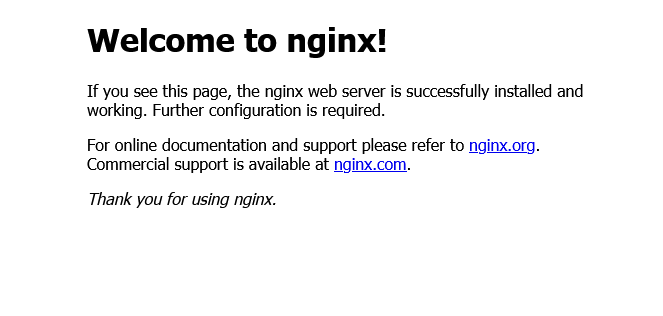 Nginx web server default webpage # Step 2 : Install MariaDB Server You’ll also need a database server to run Moodle. A database server to store Moodle content. You can use any of MySQL, MariaDB, Postgres Databases for Moodle installation. Here we install MariaDB, A true open source database server that you can use with Moodle. It is fast, secure and the default server for almost all Linux servers. To install MariaDB, run the commands below: ```bash sudo apt-get install mariadb-server mariadb-client ``` After installing MariaDB, the commands below can be used to stop, start and enable MariaDB service to always start up when the server boots. ```bash sudo systemctl stop mariadb.service sudo systemctl start mariadb.service sudo systemctl enable mariadb.service ``` Next, run the commands below to secure the database server with a root password if you were not prompted to do so during the installation. ``` sudo mysql_secure_installation ``` When prompted, answer the questions below by following the guide. Enter current password for root (enter for none): Just press the **Enter ``` Set root password? [Y/n]: Y New password: Enter password for Database root Re-enter new password: Repeat password Remove anonymous users? [Y/n]: Y Disallow root login remotely? [Y/n]: Y Remove test database and access to it? [Y/n]: Y Reload privilege tables now? [Y/n]: Y ``` To verify and validate that MariaDB is installed and working, login to the database console using the commands below: ```bash sudo mysql -u root -p ``` type the root password when prompted. If you see a similar screen as shown above, then the server was successfully installed. Next, run the commands below to open MariaDB default config file… ```bash sudo nano /etc/mysql/mariadb.conf.d/50-server.cnf ``` Then add the following lines below #skip-external-locking line and save. > Tip:- To save on nano editor **Ctrl + O** and press **Enter**, to close **Ctrl + X** and press **Enter** ```ini #skip-external-locking innodb_file_format = Barracuda innodb_file_per_table = 1 innodb_large_prefix = ON ``` Now restart MariaDB. sudo systemctl restart mariadb.service # Step 3 : Install PHP 7.4 and other Modules Moodle is a PHP based application, and PHP is required to run it. Since some versions of Ubuntu don’t have the latest versions of PHP, you can add a third-party PPA repository to install PHP from there. The command below will add a third-party PPA to Ubuntu. ```bash sudo apt-get install software-properties-common sudo add-apt-repository ppa:ondrej/php sudo apt update ``` Next, run the commands below to install PHP 7.4 and related modules. ```bash sudo apt install php7.4-fpm php7.4-common php7.4-mysql php7.4-gmp php7.4-curl php7.4-intl php7.4-mbstring php7.4-soap php7.4-xmlrpc php7.4-gd php7.4-xml php7.4-cli php7.4-zip ``` After installing PHP 7.4, go and configure some basic settings that may be required for Moodle to function properly. Run the commands below to open PHP ```bash sudo nano /etc/php/7.4/fpm/php.ini ``` Below are good settings to configure for most Moodle websites. ```ini file_uploads = On allow_url_fopen = On short_open_tag = On memory_limit = 256M cgi.fix_pathinfo = 0 upload_max_filesize = 100M max_input_vars = 5000 max_execution_time = 360 post_max_size = 100M date.timezone = Asia/Kolkata ``` That should get PHP 7.4 installed with some basic settings to allow Moodle to function. # Step 4: Create Moodle Database When all the servers are installed above, it’s now time to begin setting up Moodle environment. First, run the steps below to create a blank database for Moodle to use. Logon to MariaDB database console using the commands below: ```bash sudo mysql -u root -p ``` Then create a database called **moodle** ```sql CREATE DATABASE **moodle**; ``` Next, create a database user called **moodleuser** and set password ```sql CREATE USER '**moodleuser**'@'localhost' IDENTIFIED BY 'new_password_here'; ``` Then grant the user full access to the database. ```sql GRANT ALL ON **moodle**.* TO '**moodleuser**'@'localhost' WITH GRANT OPTION; ``` Finally, save your changes and exit. ```sql FLUSH PRIVILEGES; EXIT; ``` # Step 5: Download Moodle At this point, Moodle is ready to be downloaded and installed. Use the commands below to download the latest version of Moodle. At the time of this writing, the latest version is **3.11**. To view Moodle releases, see this [page](https://github.com/moodle/moodle). ```bash sudo apt install git curl ``` After installing git and curl above, change into the Nginx root directory and download Moodle packages from Github. Always replace the branch number with the latest branch. ```bash cd /var/www/ sudo git clone -b MOODLE_311_STABLE git://git.moodle.org/moodle.git moodle ``` Then run the commands below to set the correct permissions for Moodle to function. ```bash sudo mkdir -p /var/www/moodledata sudo chown -R www-data:www-data /var/www/ sudo chmod -R 755 /var/www/ sudo chown www-data:www-data /var/www/moodledata ``` # Step 6: Configure Nginx Below is where you configure Nginx VirtualHost file for the Moodle site you’re creating. This file defines how client requests are handled and processed. Run the commands below to create a new VirtualHost file called moodle in the **/etc/nginx/sites-available/** directory. ```bash sudo nano /etc/nginx/sites-available/moodle ``` A very good configuration settings for most Moodle site on Nginx server is below. This configuration should work great. Copy the content below and save into the file created above. ( Replace **example.com** with your moodle domain. If you have multiple domains, then put it there with a space. You also need to add a A record on your DNS pointing to the server ip) ```Nginx server { listen 80; listen [::]:80; root /var/www/moodle; index index.php index.html index.htm; server_name **example.com** **www.example.com**; client_max_body_size 100M; autoindex off; location / { try_files $uri $uri/ =404; } location /dataroot/ { internal; alias /var/www/moodledata/; } location ~ [^/].php(/|$) { include snippets/fastcgi-php.conf; fastcgi_pass unix:/run/php/php7.4-fpm.sock; fastcgi_param SCRIPT_FILENAME $document_root$fastcgi_script_name; include fastcgi_params; } } ``` Save the file and exit. After saving the file above, run the commands below to enable the new site, then restart Nginx server. ```bash sudo ln -s /etc/nginx/sites-available/moodle /etc/nginx/sites-enabled/ sudo systemctl restart nginx.service ``` At this stage, Moodle is ready and can be launched by going to the server’s IP or hostname. If you added A record on your dns, then you can access it with your domain/subdomain. `http://<yourdomain.com>` However, if you want to enable SSL or accept web traffic over HTTPS, then you can continue below to install and configure Let’s Encrypt free SSL certificates. # Step 7: Install Let’s Encrypt Wildcard Certificates The first step to using Let’s Encrypt to obtain an SSL certificate is to install the Certbot software on your server. Let’s begin by updating the package lists installing Certbot for Nginx on Ubuntu. Type **y** and **enter** if prompted ```bash sudo apt update && sudo apt install certbot python3-certbot-nginx ``` We will now obtain a cert for our test domain **example.com**. Certbot has an Nginx plugin for Ubuntu, which automates the certificate installation. ```bash sudo certbot --nginx ``` You will get this response ```bash Enter email address (used for urgent renewal and security notices) (Enter 'c' to cancel): Enter an email address where you can be contacted in case of urgent renewal and security notices. Please read the Terms of Service at https://letsencrypt.org/documents/LE-SA-v1.2-November-15-2017.pdf. You must agree in order to register with the ACME server at https://acme-v02.api.letsencrypt.org/directory ------------------------------------------------------------------------------- (A)gree/(C)ancel: ``` Press `a` and `ENTER` to agree to the Terms of Service. ``` Would you be willing to share your email address with the Electronic Frontier Foundation, a founding partner of the Let's Encrypt project and the non-profit organization that develops Certbot? We'd like to send you email about EFF and our work to encrypt the web, protect its users and defend digital rights. ------------------------------------------------------------------------------- (Y)es/(N)o: ``` Press `n` and `ENTER` to not share your email address with EFF. ``` Which names would you like to activate HTTPS for? - - - - - - - - - - - - - - - - - - - - - - - - - - - - - - - - - 1: example.com 2: www.example.com - - - - - - - - - - - - - - - - - - - - - - - - - - - - - - - - - Select the appropriate numbers separated by commas and/or spaces, or leave input blank to select all options shown (Enter 'c' to cancel): ``` If you have multiple domains already configured on your server, you will see a list of them here. In this example, we only have one domain `example.com` and its `www.` prefix. Select option `1` if you don’t want to use the `www.` prefix in your website address, otherwise select option `2`. ``` Obtaining a new certificate Performing the following challenges: http-01 challenge for example.com Waiting for verification... Cleaning up challenges Created an SSL vhost at /etc/nginx/sites-available/example.com-le-ssl.conf Enabled Nginx socache_shmcb module Enabled Nginx ssl module Deploying Certificate to VirtualHost /etc/nginx/sites-available/example.com-le-ssl.conf Enabling available site: /etc/nginx/sites-available/example.com-le-ssl.conf Please choose whether or not to redirect HTTP traffic to HTTPS, removing HTTP access. - - - - - - - - - - - - - - - - - - - - - - - - - - - - - - - - - - - - - - - - 1: No redirect - Make no further changes to the webserver configuration. 2: Redirect - Make all requests redirect to secure HTTPS access. Choose this for new sites, or if you're confident your site works on HTTPS. You can undo this change by editing your web server's configuration. - - - - - - - - - - - - - - - - - - - - - - - - - - - - - - - - - - - - - - - - Select the appropriate number [1-2] then [enter] (press 'c' to cancel): ``` Press `2` and `ENTER` to redirect all traffic to HTTPS. ``` Redirecting vhost in /etc/nginx/sites-enabled/example.com.conf to ssl vhost in /etc/apache2/sites-available/example.com-le-ssl.conf - - - - - - - - - - - - - - - - - - - - - - - - - - - - - - - - - - Congratulations! You have successfully enabled https://example.com You should test your configuration at: https://www.ssllabs.com/ssltest/analyze.html?d=example.com - - - - - - - - - - - - - - - - - - - - - - - - - - - - - - - - - - ``` You installed SSL Certificate for your domain now. Now let’s restart Nginx and PHP 7.4-FPM Next, open your browser and browse to the server domain name. You should see Moodle setup wizard to complete. Please follow the wizard carefully. Go to : [https://<your-moodle-domain.com>/](https://example.com/) Then follow the on-screen instructions. Select the installation language, then click Next to continue. 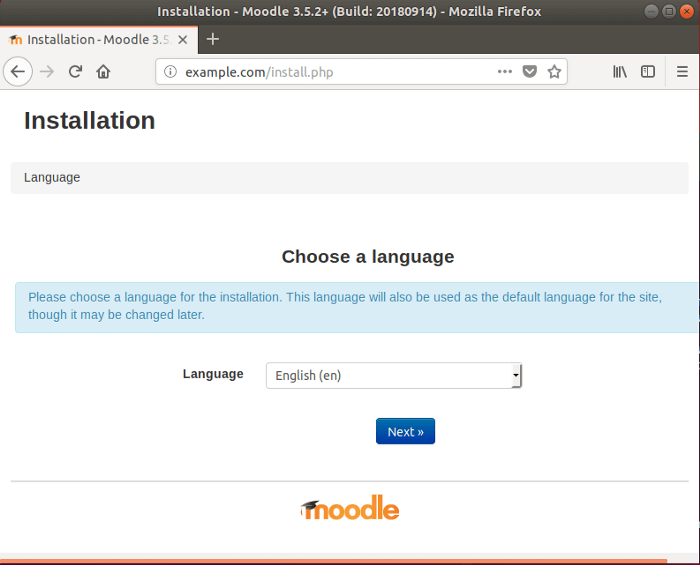 On the next screen, choose a database drive [MariaDB] and click Next to continue. 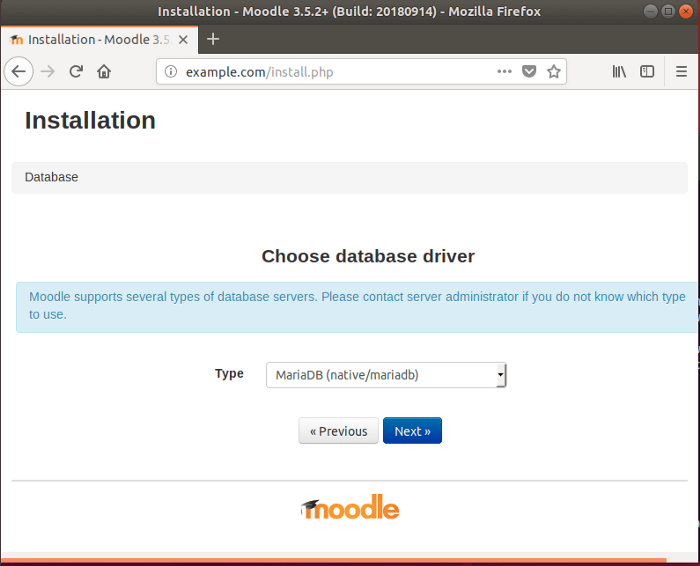 On this screen, type in the database info you created above, including the database name, username and password. Then click Next to continue. 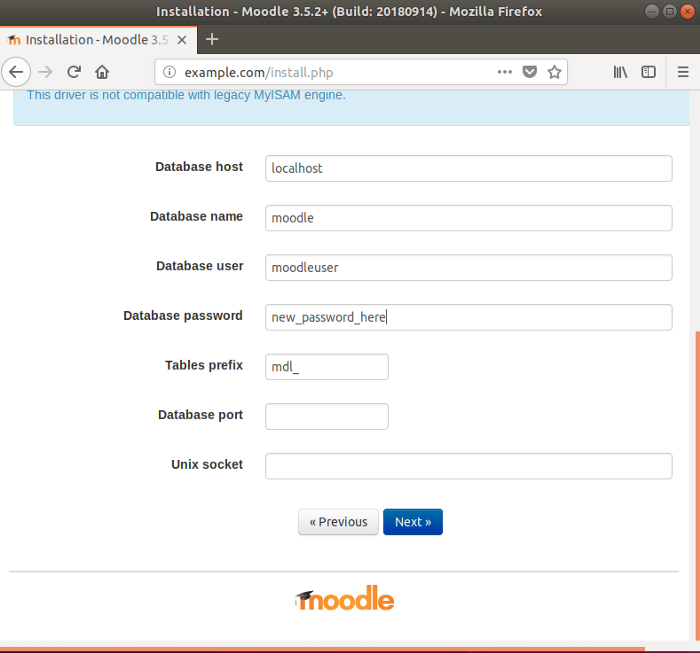 Here is where you type in the admin username, create a password and other details. 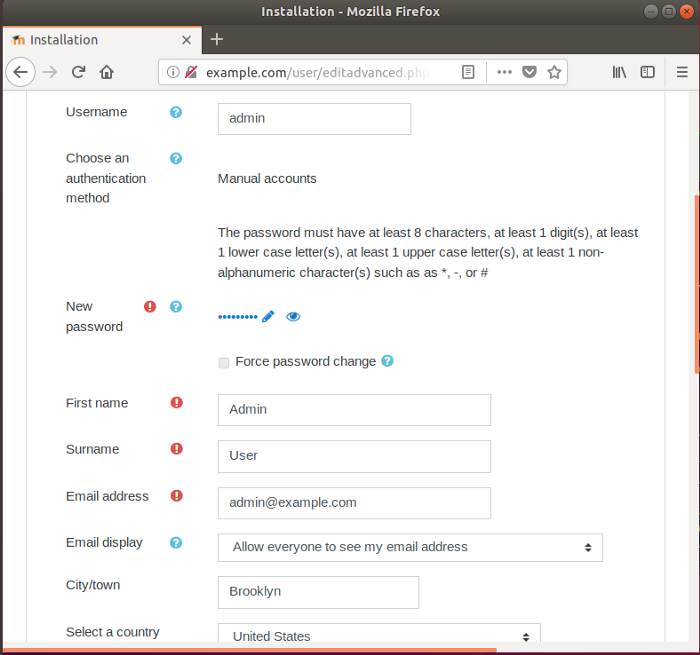 When you’re done, Moodle should be installed and ready to use. Login as admin and begin configuring your site. That’s it! Congratulation! You have successfully installed Moodle CMS on Ubuntu 18.04 | 20.04. |
| json metadata | {"tags":["moodle","nginx","ssl","lms","moodlelms","howto","skip-external-locking"],"image":["https://cdn.steemitimages.com/DQmUvXiFSi3Tk9es6YeokFq7cs9d8koSa71iRQx6YP1xeGt/image.png","https://cdn.steemitimages.com/DQmcT1Zpf9Z5YrA3bqA498wyRJu64UGRGeLoA6XVNkZmcm7/image.png","https://cdn.steemitimages.com/DQmRd8e4GhtfBZzK3RZMLMQTnzBGbnusZt7a1GgPJnB24S7/image.png","https://cdn.steemitimages.com/DQmYp4u5M17bMZhAzYztZUDQXa7X3bCbUe8PrKS2qX7gWiz/image.png","https://cdn.steemitimages.com/DQmZB9KXP1t79aYvWHe1vdAND9wGYGKd3NHtD2EvxuqMzF9/image.png"],"links":["https://en.wikipedia.org/wiki/Blended_learning","https://en.wikipedia.org/wiki/Distance_education","https://en.wikipedia.org/wiki/Flipped_classroom","https://en.wikipedia.org/wiki/E-learning","https://moodle.com","https://www.howtogeek.com/311287/how-to-connect-to-an-ssh-server-from-windows-macos-or-linux/","https://github.com/moodle/moodle","https://example.com/"],"app":"steemit/0.2","format":"markdown"} |
| Transaction Info | Block #55184501/Trx 5b22709e031b0e82101fca02fb5d8411b7aca442 |
View Raw JSON Data
{
"trx_id": "5b22709e031b0e82101fca02fb5d8411b7aca442",
"block": 55184501,
"trx_in_block": 0,
"op_in_trx": 0,
"virtual_op": 0,
"timestamp": "2021-07-04T09:40:24",
"op": [
"comment",
{
"parent_author": "",
"parent_permlink": "moodle",
"author": "amjedali",
"permlink": "how-to-install-moodle-lms-on-ubuntu-20-04-18-04-with-nginx-letsencrypt-mariadb",
"title": "How to install Moodle LMS on Ubuntu 20.04, 18.04 with Nginx, LetsEncrypt, MariaDB",
"body": "This tutorial shows how to install Moodle Learning management system on Ubuntu 20.04 using Nginx light weight web server. \nMoodle is used for [blended learning](https://en.wikipedia.org/wiki/Blended_learning), [distance education](https://en.wikipedia.org/wiki/Distance_education), [flipped classroom](https://en.wikipedia.org/wiki/Flipped_classroom) and other [e-learning](https://en.wikipedia.org/wiki/E-learning) projects in schools, universities, workplaces and other sectors. On this Covid pandemic, popularity of Moodle LMS is increased much. So let’s see how we can install moodle in our own ubuntu server using Nginx.\n\nFor more about Moodle, please check their [Homepage](https://moodle.com) here.\n\n# **Prerequisites**\n\n1. A ssh access to your web server.\n2. Ubuntu server preinstalled\n3. A domain/subdomain for your Moodle website\n\nFirst you have to login to your ssh server. You can refer this [article](https://www.howtogeek.com/311287/how-to-connect-to-an-ssh-server-from-windows-macos-or-linux/) to do it. After you get the access, follow the steps below.\n\n# Step 1 : Install Nginx web server\n\nAs any web app, moodle also requires a web server to function. So we will install **Nginx**, the most popular lightweight web server available today.\n\nTo install Nginx on Ubuntu, run the commands below:\n```bash\nsudo apt update \nsudo apt install nginx\n```\nAfter installing Nginx, the commands below can be used to stop, start and enable Nginx service to always start up with the server boots.\n```bash\nsudo systemctl stop nginx.service \nsudo systemctl start nginx.service \nsudo systemctl enable nginx.service\n```\n\nTo test whether Nginx is installed and functioning, open your web browser and browse to the server’s IP address or hostname.\n\nhttp://`ip-address`\n\nIf you get a webpage like this, then Nginx successfully installed.\n\n\n\n\nNginx web server default webpage\n\n# Step 2 : Install MariaDB Server\n\nYou’ll also need a database server to run Moodle. A database server to store Moodle content.\n\nYou can use any of MySQL, MariaDB, Postgres Databases for Moodle installation. Here we install MariaDB, A true open source database server that you can use with Moodle. It is fast, secure and the default server for almost all Linux servers.\n\nTo install MariaDB, run the commands below:\n```bash\nsudo apt-get install mariadb-server mariadb-client\n```\nAfter installing MariaDB, the commands below can be used to stop, start and enable MariaDB service to always start up when the server boots.\n```bash\nsudo systemctl stop mariadb.service \nsudo systemctl start mariadb.service \nsudo systemctl enable mariadb.service\n```\nNext, run the commands below to secure the database server with a root password if you were not prompted to do so during the installation.\n```\nsudo mysql_secure_installation\n```\nWhen prompted, answer the questions below by following the guide.\n\nEnter current password for root (enter for none): Just press the **Enter \n```\n Set root password? [Y/n]: Y \n New password: Enter password for Database root \n Re-enter new password: Repeat password \n Remove anonymous users? [Y/n]: Y \n Disallow root login remotely? [Y/n]: Y \n Remove test database and access to it? [Y/n]: Y \n Reload privilege tables now? [Y/n]: Y\n```\nTo verify and validate that MariaDB is installed and working, login to the database console using the commands below:\n```bash\nsudo mysql -u root -p\n```\ntype the root password when prompted.\n\nIf you see a similar screen as shown above, then the server was successfully installed.\n\nNext, run the commands below to open MariaDB default config file…\n```bash\nsudo nano /etc/mysql/mariadb.conf.d/50-server.cnf\n```\nThen add the following lines below #skip-external-locking line and save.\n\n> Tip:- To save on nano editor **Ctrl + O** and press **Enter**, to close **Ctrl + X** and press **Enter**\n```ini\n #skip-external-locking \n innodb_file_format = Barracuda \n innodb_file_per_table = 1 \n innodb_large_prefix = ON\n```\nNow restart MariaDB.\n\nsudo systemctl restart mariadb.service\n\n# Step 3 : Install PHP 7.4 and other Modules\n\nMoodle is a PHP based application, and PHP is required to run it. Since some versions of Ubuntu don’t have the latest versions of PHP, you can add a third-party PPA repository to install PHP from there.\n\nThe command below will add a third-party PPA to Ubuntu.\n```bash\n sudo apt-get install software-properties-common \n sudo add-apt-repository ppa:ondrej/php \n sudo apt update\n```\nNext, run the commands below to install PHP 7.4 and related modules.\n```bash\nsudo apt install php7.4-fpm php7.4-common php7.4-mysql php7.4-gmp php7.4-curl php7.4-intl php7.4-mbstring php7.4-soap php7.4-xmlrpc php7.4-gd php7.4-xml php7.4-cli php7.4-zip\n```\nAfter installing PHP 7.4, go and configure some basic settings that may be required for Moodle to function properly.\n\nRun the commands below to open PHP\n```bash\n sudo nano /etc/php/7.4/fpm/php.ini\n```\nBelow are good settings to configure for most Moodle websites.\n```ini\n file_uploads = On \n allow_url_fopen = On \n short_open_tag = On \n memory_limit = 256M \n cgi.fix_pathinfo = 0 \n upload_max_filesize = 100M \n max_input_vars = 5000 \n max_execution_time = 360 \n post_max_size = 100M \n date.timezone = Asia/Kolkata\n```\nThat should get PHP 7.4 installed with some basic settings to allow Moodle to function.\n\n# Step 4: Create Moodle Database\n\nWhen all the servers are installed above, it’s now time to begin setting up Moodle environment. First, run the steps below to create a blank database for Moodle to use.\n\nLogon to MariaDB database console using the commands below:\n\n```bash\nsudo mysql -u root -p\n```\n\nThen create a database called **moodle**\n```sql\nCREATE DATABASE **moodle**;\n```\nNext, create a database user called **moodleuser** and set password\n```sql\nCREATE USER '**moodleuser**'@'localhost' IDENTIFIED BY 'new_password_here';\n```\nThen grant the user full access to the database.\n```sql\nGRANT ALL ON **moodle**.* TO '**moodleuser**'@'localhost' WITH GRANT OPTION;\n```\nFinally, save your changes and exit.\n```sql\n FLUSH PRIVILEGES; \n EXIT;\n```\n# Step 5: Download Moodle\n\nAt this point, Moodle is ready to be downloaded and installed. Use the commands below to download the latest version of Moodle. At the time of this writing, the latest version is **3.11**.\n\nTo view Moodle releases, see this [page](https://github.com/moodle/moodle).\n```bash\nsudo apt install git curl\n```\nAfter installing git and curl above, change into the Nginx root directory and download Moodle packages from Github. Always replace the branch number with the latest branch.\n```bash\n cd /var/www/ \n sudo git clone -b MOODLE_311_STABLE git://git.moodle.org/moodle.git moodle\n```\nThen run the commands below to set the correct permissions for Moodle to function.\n```bash\nsudo mkdir -p /var/www/moodledata \nsudo chown -R www-data:www-data /var/www/ \nsudo chmod -R 755 /var/www/ \nsudo chown www-data:www-data /var/www/moodledata\n```\n# Step 6: Configure Nginx\n\nBelow is where you configure Nginx VirtualHost file for the Moodle site you’re creating. This file defines how client requests are handled and processed.\n\nRun the commands below to create a new VirtualHost file called moodle in the **/etc/nginx/sites-available/** directory.\n```bash\nsudo nano /etc/nginx/sites-available/moodle\n```\nA very good configuration settings for most Moodle site on Nginx server is below. This configuration should work great.\n\nCopy the content below and save into the file created above. ( Replace **example.com** with your moodle domain. If you have multiple domains, then put it there with a space. You also need to add a A record on your DNS pointing to the server ip)\n```Nginx\nserver { \n listen 80; \n listen [::]:80; \n root /var/www/moodle; \n index index.php index.html index.htm; \n server_name **example.com** **www.example.com**; \n \n client_max_body_size 100M; \n autoindex off; \n location / { \n try_files $uri $uri/ =404; \n } \n \n location /dataroot/ { \n internal; \n alias /var/www/moodledata/; \n } \n \n location ~ [^/].php(/|$) { \n include snippets/fastcgi-php.conf; \n fastcgi_pass unix:/run/php/php7.4-fpm.sock; \n fastcgi_param SCRIPT_FILENAME $document_root$fastcgi_script_name; \n include fastcgi_params; \n } \n}\n```\nSave the file and exit.\n\nAfter saving the file above, run the commands below to enable the new site, then restart Nginx server.\n```bash\nsudo ln -s /etc/nginx/sites-available/moodle /etc/nginx/sites-enabled/ \nsudo systemctl restart nginx.service\n```\nAt this stage, Moodle is ready and can be launched by going to the server’s IP or hostname. If you added A record on your dns, then you can access it with your domain/subdomain.\n\n`http://<yourdomain.com>`\n\nHowever, if you want to enable SSL or accept web traffic over HTTPS, then you can continue below to install and configure Let’s Encrypt free SSL certificates.\n\n# Step 7: Install Let’s Encrypt Wildcard Certificates\n\nThe first step to using Let’s Encrypt to obtain an SSL certificate is to install the Certbot software on your server.\n\nLet’s begin by updating the package lists installing Certbot for Nginx on Ubuntu. Type **y** and **enter** if prompted\n```bash\nsudo apt update && sudo apt install certbot python3-certbot-nginx\n```\nWe will now obtain a cert for our test domain **example.com**. Certbot has an Nginx plugin for Ubuntu, which automates the certificate installation.\n```bash\nsudo certbot --nginx\n```\nYou will get this response\n```bash\nEnter email address (used for urgent renewal and security notices) (Enter 'c' to \ncancel):\n\nEnter an email address where you can be contacted in case of urgent renewal and security notices.\n\nPlease read the Terms of Service at \nhttps://letsencrypt.org/documents/LE-SA-v1.2-November-15-2017.pdf. You must \nagree in order to register with the ACME server at \nhttps://acme-v02.api.letsencrypt.org/directory \n------------------------------------------------------------------------------- \n(A)gree/(C)ancel:\n```\nPress `a` and `ENTER` to agree to the Terms of Service.\n```\nWould you be willing to share your email address with the Electronic Frontier \nFoundation, a founding partner of the Let's Encrypt project and the non-profit \norganization that develops Certbot? We'd like to send you email about EFF and \nour work to encrypt the web, protect its users and defend digital rights. \n------------------------------------------------------------------------------- \n(Y)es/(N)o:\n```\nPress `n` and `ENTER` to not share your email address with EFF.\n```\nWhich names would you like to activate HTTPS for? \n- - - - - - - - - - - - - - - - - - - - - - - - - - - - - - - - - \n1: example.com \n2: www.example.com \n- - - - - - - - - - - - - - - - - - - - - - - - - - - - - - - - - \nSelect the appropriate numbers separated by commas and/or spaces, or leave input \nblank to select all options shown (Enter 'c' to cancel):\n```\nIf you have multiple domains already configured on your server, you will see a list of them here. In this example, we only have one domain `example.com` and its `www.` prefix.\n\nSelect option `1` if you don’t want to use the `www.` prefix in your website address, otherwise select option `2`.\n```\nObtaining a new certificate \nPerforming the following challenges: \nhttp-01 challenge for example.com \nWaiting for verification... \nCleaning up challenges \nCreated an SSL vhost at /etc/nginx/sites-available/example.com-le-ssl.conf \nEnabled Nginx socache_shmcb module \nEnabled Nginx ssl module \nDeploying Certificate to VirtualHost /etc/nginx/sites-available/example.com-le-ssl.conf \nEnabling available site: /etc/nginx/sites-available/example.com-le-ssl.conf \n \nPlease choose whether or not to redirect HTTP traffic to HTTPS, removing HTTP access. \n- - - - - - - - - - - - - - - - - - - - - - - - - - - - - - - - - - - - - - - - \n1: No redirect - Make no further changes to the webserver configuration. \n2: Redirect - Make all requests redirect to secure HTTPS access. Choose this for \nnew sites, or if you're confident your site works on HTTPS. You can undo this \nchange by editing your web server's configuration. \n- - - - - - - - - - - - - - - - - - - - - - - - - - - - - - - - - - - - - - - - \nSelect the appropriate number [1-2] then [enter] (press 'c' to cancel):\n```\nPress `2` and `ENTER` to redirect all traffic to HTTPS.\n```\nRedirecting vhost in /etc/nginx/sites-enabled/example.com.conf to ssl vhost in /etc/apache2/sites-available/example.com-le-ssl.conf \n \n- - - - - - - - - - - - - - - - - - - - - - - - - - - - - - - - - - \nCongratulations! You have successfully enabled https://example.com \n \nYou should test your configuration at: \nhttps://www.ssllabs.com/ssltest/analyze.html?d=example.com \n- - - - - - - - - - - - - - - - - - - - - - - - - - - - - - - - - - \n```\nYou installed SSL Certificate for your domain now.\n\nNow let’s restart Nginx and PHP 7.4-FPM\n\nNext, open your browser and browse to the server domain name. You should see Moodle setup wizard to complete. Please follow the wizard carefully.\n\nGo to : [https://<your-moodle-domain.com>/](https://example.com/)\n\nThen follow the on-screen instructions.\n\nSelect the installation language, then click Next to continue.\n\n\n\n\n\nOn the next screen, choose a database drive [MariaDB] and click Next to continue.\n\n\n\nOn this screen, type in the database info you created above, including the database name, username and password.\n\nThen click Next to continue.\n\n\n\nHere is where you type in the admin username, create a password and other details.\n\n\n\n\nWhen you’re done, Moodle should be installed and ready to use. Login as admin and begin configuring your site.\n\nThat’s it! \n\nCongratulation! You have successfully installed Moodle CMS on Ubuntu 18.04 | 20.04.",
"json_metadata": "{\"tags\":[\"moodle\",\"nginx\",\"ssl\",\"lms\",\"moodlelms\",\"howto\",\"skip-external-locking\"],\"image\":[\"https://cdn.steemitimages.com/DQmUvXiFSi3Tk9es6YeokFq7cs9d8koSa71iRQx6YP1xeGt/image.png\",\"https://cdn.steemitimages.com/DQmcT1Zpf9Z5YrA3bqA498wyRJu64UGRGeLoA6XVNkZmcm7/image.png\",\"https://cdn.steemitimages.com/DQmRd8e4GhtfBZzK3RZMLMQTnzBGbnusZt7a1GgPJnB24S7/image.png\",\"https://cdn.steemitimages.com/DQmYp4u5M17bMZhAzYztZUDQXa7X3bCbUe8PrKS2qX7gWiz/image.png\",\"https://cdn.steemitimages.com/DQmZB9KXP1t79aYvWHe1vdAND9wGYGKd3NHtD2EvxuqMzF9/image.png\"],\"links\":[\"https://en.wikipedia.org/wiki/Blended_learning\",\"https://en.wikipedia.org/wiki/Distance_education\",\"https://en.wikipedia.org/wiki/Flipped_classroom\",\"https://en.wikipedia.org/wiki/E-learning\",\"https://moodle.com\",\"https://www.howtogeek.com/311287/how-to-connect-to-an-ssh-server-from-windows-macos-or-linux/\",\"https://github.com/moodle/moodle\",\"https://example.com/\"],\"app\":\"steemit/0.2\",\"format\":\"markdown\"}"
}
]
}amjedaliupdated their account properties2021/07/04 09:07:36
amjedaliupdated their account properties
2021/07/04 09:07:36
| account | amjedali |
| json metadata | |
| posting json metadata | {"profile":{"profile_image":"https://cdn.steemitimages.com/DQmen7ZNAKBDYqsmFxY5L3AxRtp3S6sdCHewF4AorFNha2Z/boy-george-mark-ashkenazi.jpg","name":"Amjed Ali","about":"An embedded system developer with a little bit web development background","location":"Kerala, IN","version":2,"cover_image":"https://cdn.steemitimages.com/DQmTtnU3jd89VtcPVJFHi6AGa9W7N4tE1DXUQzt53bE2nee/MPrNDRs.jpg"}} |
| extensions | [] |
| Transaction Info | Block #55183850/Trx 39a40387e1dc81a2b7c3dd9909dcf4f742ecf546 |
View Raw JSON Data
{
  "trx_id": "39a40387e1dc81a2b7c3dd9909dcf4f742ecf546",
  "block": 55183850,
  "trx_in_block": 9,
  "op_in_trx": 0,
  "virtual_op": 0,
  "timestamp": "2021-07-04T09:07:36",
  "op": [
    "account_update2",
    {
      "account": "amjedali",
      "json_metadata": "",
      "posting_json_metadata": "{\"profile\":{\"profile_image\":\"https://cdn.steemitimages.com/DQmen7ZNAKBDYqsmFxY5L3AxRtp3S6sdCHewF4AorFNha2Z/boy-george-mark-ashkenazi.jpg\",\"name\":\"Amjed Ali\",\"about\":\"An embedded system developer with a little bit web development background\",\"location\":\"Kerala, IN\",\"version\":2,\"cover_image\":\"https://cdn.steemitimages.com/DQmTtnU3jd89VtcPVJFHi6AGa9W7N4tE1DXUQzt53bE2nee/MPrNDRs.jpg\"}}",
      "extensions": []
    }
  ]
}amjedaliupvoted (100.00%) @sumit10698 / qdgwpz2021/07/04 09:02:24
amjedaliupvoted (100.00%) @sumit10698 / qdgwpz
2021/07/04 09:02:24
| voter | amjedali |
| author | sumit10698 |
| permlink | qdgwpz |
| weight | 10000 (100.00%) |
| Transaction Info | Block #55183747/Trx d22a7b68ab298dda9eaeb6456f1e39ef0d01a3aa |
View Raw JSON Data
{
  "trx_id": "d22a7b68ab298dda9eaeb6456f1e39ef0d01a3aa",
  "block": 55183747,
  "trx_in_block": 8,
  "op_in_trx": 0,
  "virtual_op": 0,
  "timestamp": "2021-07-04T09:02:24",
  "op": [
    "vote",
    {
      "voter": "amjedali",
      "author": "sumit10698",
      "permlink": "qdgwpz",
      "weight": 10000
    }
  ]
}amjedaliupdated their account properties2021/07/04 09:01:12
amjedaliupdated their account properties
2021/07/04 09:01:12
| account | amjedali |
| json metadata | |
| posting json metadata | {"profile":{"profile_image":"https://cdn.steemitimages.com/DQmen7ZNAKBDYqsmFxY5L3AxRtp3S6sdCHewF4AorFNha2Z/boy-george-mark-ashkenazi.jpg","name":"Amjed Ali","about":"An embedded system developer with a little bit web development background","location":"Kerala, IN","version":2}} |
| extensions | [] |
| Transaction Info | Block #55183723/Trx 607e8c1b2f254a0e67f3d27e027c8515c5048c5e |
View Raw JSON Data
{
  "trx_id": "607e8c1b2f254a0e67f3d27e027c8515c5048c5e",
  "block": 55183723,
  "trx_in_block": 1,
  "op_in_trx": 0,
  "virtual_op": 0,
  "timestamp": "2021-07-04T09:01:12",
  "op": [
    "account_update2",
    {
      "account": "amjedali",
      "json_metadata": "",
      "posting_json_metadata": "{\"profile\":{\"profile_image\":\"https://cdn.steemitimages.com/DQmen7ZNAKBDYqsmFxY5L3AxRtp3S6sdCHewF4AorFNha2Z/boy-george-mark-ashkenazi.jpg\",\"name\":\"Amjed Ali\",\"about\":\"An embedded system developer with a little bit web development background\",\"location\":\"Kerala, IN\",\"version\":2}}",
      "extensions": []
    }
  ]
}2021/07/04 08:46:42
2021/07/04 08:46:42
| delegator | steem |
| delegatee | amjedali |
| vesting shares | 28050.640613 VESTS |
| Transaction Info | Block #55183434/Trx 59a787ff66cd06c2dcf2ea2ffdae41a7ccaffd93 |
View Raw JSON Data
{
  "trx_id": "59a787ff66cd06c2dcf2ea2ffdae41a7ccaffd93",
  "block": 55183434,
  "trx_in_block": 9,
  "op_in_trx": 0,
  "virtual_op": 0,
  "timestamp": "2021-07-04T08:46:42",
  "op": [
    "delegate_vesting_shares",
    {
      "delegator": "steem",
      "delegatee": "amjedali",
      "vesting_shares": "28050.640613 VESTS"
    }
  ]
}amjedalicustom json: community2021/07/04 08:40:12
amjedalicustom json: community
2021/07/04 08:40:12
| required auths | [] |
| required posting auths | ["amjedali"] |
| id | community |
| json | ["subscribe",{"community":"hive-172186"}] |
| Transaction Info | Block #55183306/Trx f7ce19ff90a391dceff4485ef8764dec0d4f6188 |
View Raw JSON Data
{
  "trx_id": "f7ce19ff90a391dceff4485ef8764dec0d4f6188",
  "block": 55183306,
  "trx_in_block": 3,
  "op_in_trx": 0,
  "virtual_op": 0,
  "timestamp": "2021-07-04T08:40:12",
  "op": [
    "custom_json",
    {
      "required_auths": [],
      "required_posting_auths": [
        "amjedali"
      ],
      "id": "community",
      "json": "[\"subscribe\",{\"community\":\"hive-172186\"}]"
    }
  ]
}executive-boardsent 0.001 STEEM to @amjedali- "❗ Hello amjedali, welcome to the STEEM ecosystem. The Executive Board is publishing insider infos at https://discord.gg/KyBbmhh on how you will be earning the most coins. It's easy, just follow the in..."2021/07/04 08:28:15
executive-boardsent 0.001 STEEM to @amjedali- "❗ Hello amjedali, welcome to the STEEM ecosystem. The Executive Board is publishing insider infos at https://discord.gg/KyBbmhh on how you will be earning the most coins. It's easy, just follow the in..."
2021/07/04 08:28:15
| from | executive-board |
| to | amjedali |
| amount | 0.001 STEEM |
| memo | ❗ Hello amjedali, welcome to the STEEM ecosystem. The Executive Board is publishing insider infos at https://discord.gg/KyBbmhh on how you will be earning the most coins. It's easy, just follow the instructions. THE 1000X BOOSTER KEY is already waiting for you over there too. 😉 Warm regards, The Executive Board. |
| Transaction Info | Block #55183067/Trx 00b64d78ce3ecc19113490e508151957fd80481f |
View Raw JSON Data
{
  "trx_id": "00b64d78ce3ecc19113490e508151957fd80481f",
  "block": 55183067,
  "trx_in_block": 3,
  "op_in_trx": 0,
  "virtual_op": 0,
  "timestamp": "2021-07-04T08:28:15",
  "op": [
    "transfer",
    {
      "from": "executive-board",
      "to": "amjedali",
      "amount": "0.001 STEEM",
      "memo": "❗ Hello amjedali, welcome to the STEEM ecosystem. The Executive Board is publishing insider infos at https://discord.gg/KyBbmhh on how you will be earning the most coins. It's easy, just follow the instructions. THE 1000X BOOSTER KEY is already waiting for you over there too. 😉 Warm regards, The Executive Board."
    }
  ]
}2021/07/04 08:26:54
2021/07/04 08:26:54
| delegator | steem |
| delegatee | amjedali |
| vesting shares | 30300.000000 VESTS |
| Transaction Info | Block #55183040/Trx be4c8778dff9b7e7c8fef58b76dacf05bd53eab0 |
View Raw JSON Data
{
  "trx_id": "be4c8778dff9b7e7c8fef58b76dacf05bd53eab0",
  "block": 55183040,
  "trx_in_block": 2,
  "op_in_trx": 0,
  "virtual_op": 0,
  "timestamp": "2021-07-04T08:26:54",
  "op": [
    "delegate_vesting_shares",
    {
      "delegator": "steem",
      "delegatee": "amjedali",
      "vesting_shares": "30300.000000 VESTS"
    }
  ]
}2021/07/04 08:26:54
2021/07/04 08:26:54
| creator | steem |
| new account name | amjedali |
| owner | {"weight_threshold":1,"account_auths":[],"key_auths":[["STM6vsaKQTmjrjKufSdvgFngjrrGJxDVVjbcptG2PgAwFCqysxLkx",1]]} |
| active | {"weight_threshold":1,"account_auths":[],"key_auths":[["STM8h7m7Je1LTMn39vsrpemXfBiv4aVsDvW9PLshpku55FB7wR3FN",1]]} |
| posting | {"weight_threshold":1,"account_auths":[],"key_auths":[["STM64hZsonbvCrAZeMXddR8V3XMUgE54ecRXvsRQm6zF13fMkwxVs",1]]} |
| memo key | STM7a2VcChtn6GWorSMboskvVFAXFjb9jYv75VPN1hGj3wuY8Mjmc |
| json metadata | {} |
| extensions | [] |
| Transaction Info | Block #55183040/Trx be4c8778dff9b7e7c8fef58b76dacf05bd53eab0 |
View Raw JSON Data
{
  "trx_id": "be4c8778dff9b7e7c8fef58b76dacf05bd53eab0",
  "block": 55183040,
  "trx_in_block": 2,
  "op_in_trx": 0,
  "virtual_op": 0,
  "timestamp": "2021-07-04T08:26:54",
  "op": [
    "create_claimed_account",
    {
      "creator": "steem",
      "new_account_name": "amjedali",
      "owner": {
        "weight_threshold": 1,
        "account_auths": [],
        "key_auths": [
          [
            "STM6vsaKQTmjrjKufSdvgFngjrrGJxDVVjbcptG2PgAwFCqysxLkx",
            1
          ]
        ]
      },
      "active": {
        "weight_threshold": 1,
        "account_auths": [],
        "key_auths": [
          [
            "STM8h7m7Je1LTMn39vsrpemXfBiv4aVsDvW9PLshpku55FB7wR3FN",
            1
          ]
        ]
      },
      "posting": {
        "weight_threshold": 1,
        "account_auths": [],
        "key_auths": [
          [
            "STM64hZsonbvCrAZeMXddR8V3XMUgE54ecRXvsRQm6zF13fMkwxVs",
            1
          ]
        ]
      },
      "memo_key": "STM7a2VcChtn6GWorSMboskvVFAXFjb9jYv75VPN1hGj3wuY8Mjmc",
      "json_metadata": "{}",
      "extensions": []
    }
  ]
}Manabar
Voting Power100.00%
Downvote Power100.00%
Resource Credits100.00%
Reputation Progress86.30%
{
  "voting_manabar": {
    "current_mana": "5472996220",
    "last_update_time": 1769126286
  },
  "downvote_manabar": {
    "current_mana": 1368249055,
    "last_update_time": 1769126286
  },
  "rc_account": {
    "account": "amjedali",
    "rc_manabar": {
      "current_mana": "11247350896",
      "last_update_time": 1769126286
    },
    "max_rc_creation_adjustment": {
      "amount": "5610135479",
      "precision": 6,
      "nai": "@@000000037"
    },
    "max_rc": "11083131699"
  }
}
Account Metadata
| POSTING JSON METADATA | |
| profile | {"profile_image":"https://cdn.steemitimages.com/DQmR6Tq8g3hTUg1ufS1Qei6nqzKcwE1phks5euKEs55Hcza/avatar.png","name":"Amjed Ali","about":"An embedded system developer with a little bit web development background","location":"Kerala, IN","version":2,"cover_image":"https://cdn.steemitimages.com/DQmTtnU3jd89VtcPVJFHi6AGa9W7N4tE1DXUQzt53bE2nee/MPrNDRs.jpg","website":"https://github.com/amjed-ali-k"} |
| JSON METADATA | |
| None | |
{
  "posting_json_metadata": {
    "profile": {
      "profile_image": "https://cdn.steemitimages.com/DQmR6Tq8g3hTUg1ufS1Qei6nqzKcwE1phks5euKEs55Hcza/avatar.png",
      "name": "Amjed Ali",
      "about": "An embedded system developer with a little bit web development background",
      "location": "Kerala, IN",
      "version": 2,
      "cover_image": "https://cdn.steemitimages.com/DQmTtnU3jd89VtcPVJFHi6AGa9W7N4tE1DXUQzt53bE2nee/MPrNDRs.jpg",
      "website": "https://github.com/amjed-ali-k"
    }
  },
  "json_metadata": {}
}
Auth Keys
Owner
Single Signature
Public Keys
STM6vsaKQTmjrjKufSdvgFngjrrGJxDVVjbcptG2PgAwFCqysxLkx1/1
Active
Single Signature
Public Keys
STM8h7m7Je1LTMn39vsrpemXfBiv4aVsDvW9PLshpku55FB7wR3FN1/1
Posting
Single Signature
Public Keys
STM64hZsonbvCrAZeMXddR8V3XMUgE54ecRXvsRQm6zF13fMkwxVs1/1
Memo
STM7a2VcChtn6GWorSMboskvVFAXFjb9jYv75VPN1hGj3wuY8Mjmc
{
  "owner": {
    "weight_threshold": 1,
    "account_auths": [],
    "key_auths": [
      [
        "STM6vsaKQTmjrjKufSdvgFngjrrGJxDVVjbcptG2PgAwFCqysxLkx",
        1
      ]
    ]
  },
  "active": {
    "weight_threshold": 1,
    "account_auths": [],
    "key_auths": [
      [
        "STM8h7m7Je1LTMn39vsrpemXfBiv4aVsDvW9PLshpku55FB7wR3FN",
        1
      ]
    ]
  },
  "posting": {
    "weight_threshold": 1,
    "account_auths": [],
    "key_auths": [
      [
        "STM64hZsonbvCrAZeMXddR8V3XMUgE54ecRXvsRQm6zF13fMkwxVs",
        1
      ]
    ]
  },
  "memo": "STM7a2VcChtn6GWorSMboskvVFAXFjb9jYv75VPN1hGj3wuY8Mjmc"
}
Witness Votes
0 / 30
No active witness votes.
[]